

-
Written By Evren Cole
-
Updated on September 25th, 2026
OST File Too Large in Outlook? Fix the Error Safely
Summary: The “OST file too large” error shows up once your Outlook data file crosses the 50 GB limit, or a smaller limit set by your IT team. Archiving and compacting can buy you some time, but the file will fill up again. The real fix is converting OST to PST. Microsoft OST to PST Converter splits large files, removes duplicate emails, and keeps folders and metadata intact.
Why does Outlook say the OST file Full?
Outlook 2016, 2019, 2021, and Microsoft 365 cap the OST file at 50 GB by default. Older versions cap it at 20 GB. Once your offline cache gets close to that limit, you’ll start seeing signs of trouble:
- “The Outlook data file has reached the maximum size”
- “OST file is too large, cannot send or receive”
- Outlook freezing during sync
- Search stops working properly
- Error code 0x8004060C shows up
Common causes:
- Years of cached mail piling up when Cached Exchange Mode is set to “All”
- Large attachments adding weight fast
- Shared mailboxes cached locally
- Thousands of duplicate items created by repeated sync conflicts
Issues Caused in Outlook Due to OST File Too Large Error
Once the OST file becomes too large, error kicks in, Outlook stops behaving normally. Here’s what users typically run into:
- New emails stop syncing with the Exchange Server. You just can’t add data anymore.
- Outlook starts lagging. Small glitches turn into full pauses.
- The OST file becomes unreadable, and sometimes the OST file cannot be opened at all.
- Synchronization throws errors mid-process.
- Outlook and Exchange Server fall out of sync, and nothing you do fixes it on your own.
Manual Ways to Fix the Outlook OST File Size
Before using a professional solution, you can resolve internal error code 0000000e troubleshot OST and try Outlook’s built-in methods to reduce the size of an oversized OST file. These approaches are free to use and may temporarily improve Outlook’s performance if the mailbox has recently grown in size.
- Reduce the Cached Exchange Mode sync slider (File > Account Settings > Change) from “All” to 12 or 6 months.
- Empty Deleted Items and Junk, then compact the file (Data File Properties > Advanced > Compact Now).
- Use Mailbox Cleanup to find items over 5 MB and archive them.
- Raise the size limit via the MaxLargeFileSize registry value — risky, because oversized OST files corrupt more easily and slow Outlook down.
The problem: none of these actually gets your data out of the OST. The moment the profile breaks, the mailbox is deleted from the server, or the OST gets orphaned, that file becomes unreadable by Outlook — and the data inside it is stuck.
Why is Converting OST to PST the Permanent Fix?
A PST file is portable and importable into any Outlook profile. Converting your oversized OST to PST lets you:
- Fix issues like errors have been detected in Outlook.ost
- Free the OST to rebuild it fresh and small
- Keep a complete, importable archive of every email, contact, calendar, and task
- Split the output into multiple small PSTs so you never hit the size wall again
Outlook has no built-in “export OST to PST” option for orphaned or inaccessible OST files, and Microsoft’s own utilities don’t cover this scenario. That’s where a dedicated converter earns its price.
Fix OST File Too Large Error with OST to PST Converter
Manual tricks only buy you time. The real fix is getting your data out of the OST entirely, and that’s where a dedicated tool helps. The Microsoft OST to PST Converter handles this without size limitations, so you can convert even a heavily oversized OST file without running into the same wall again.
- Converts OST files to PST format in bulk, along with emails, contacts, calendars, tasks, and notes
- Splits the resultant PST file so you’re not stuck with one giant file again
- Removes duplicate emails during conversion to keep your mailbox clean
- Works without needing Outlook installed or connected to Exchange Server
- Lets you preview mailbox items before conversion, so nothing gets missed
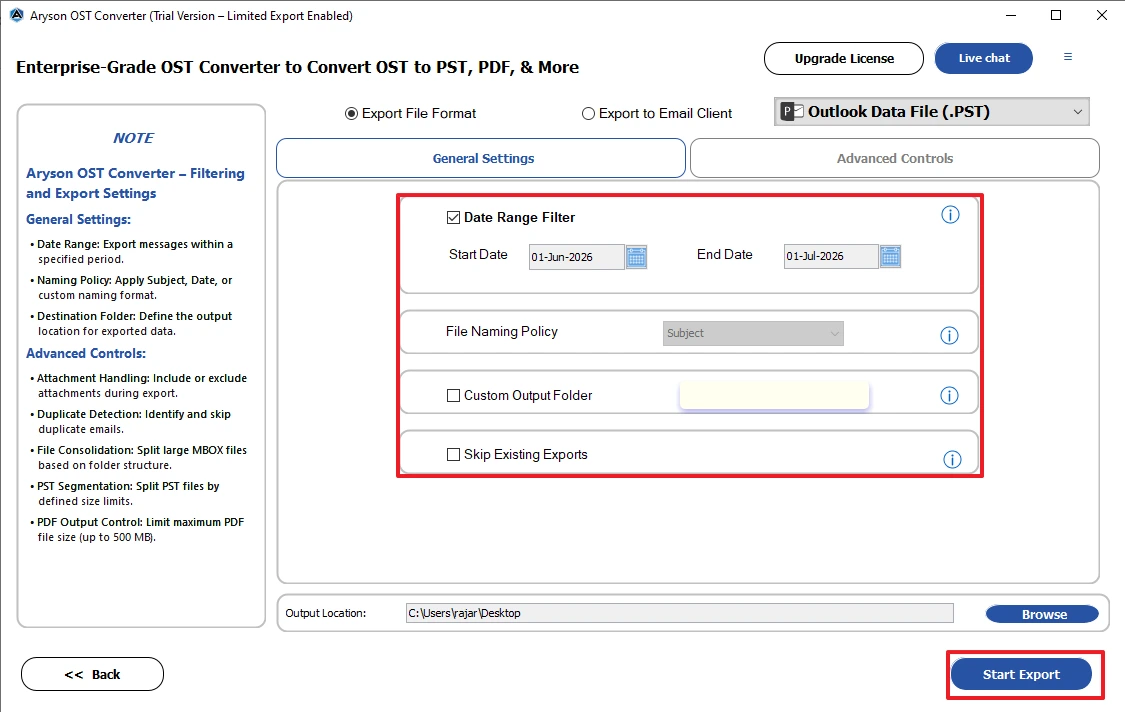
- Supports date filtering, in case you only want to convert a specific range
- Works with orphaned OST files too, useful if the Exchange profile is already broken
Working Guide to Resolve Outlook OST Too Large Error:
- Download the Microsoft OST to PST Converter Tool on your PC.
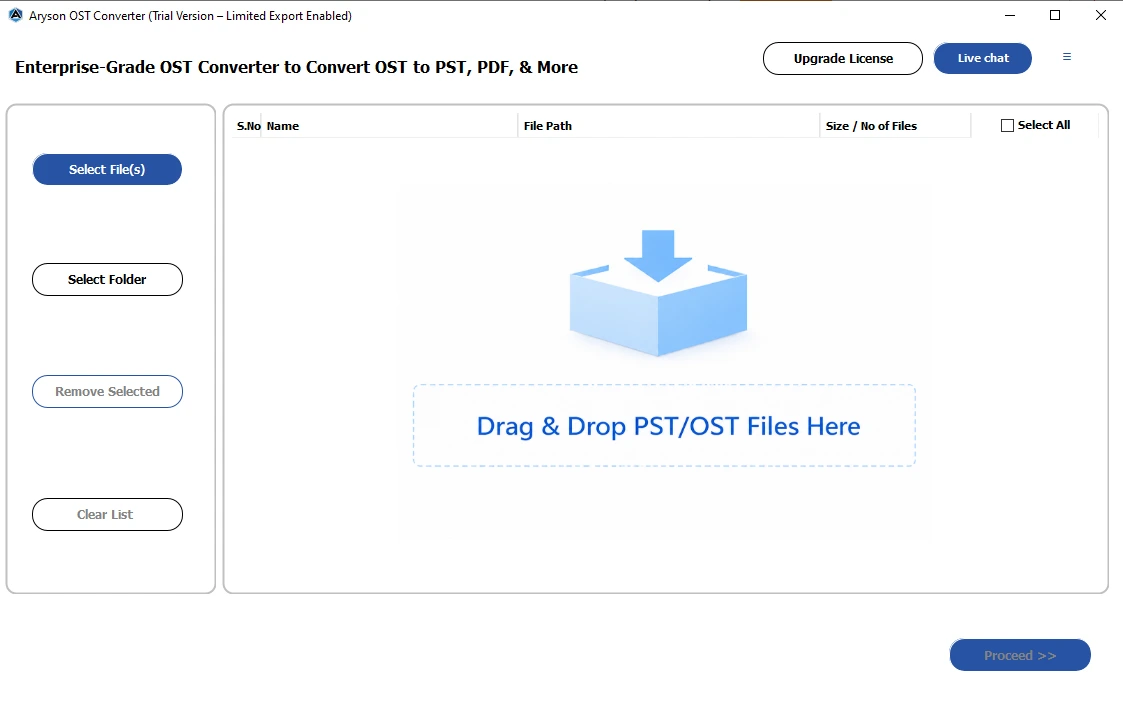
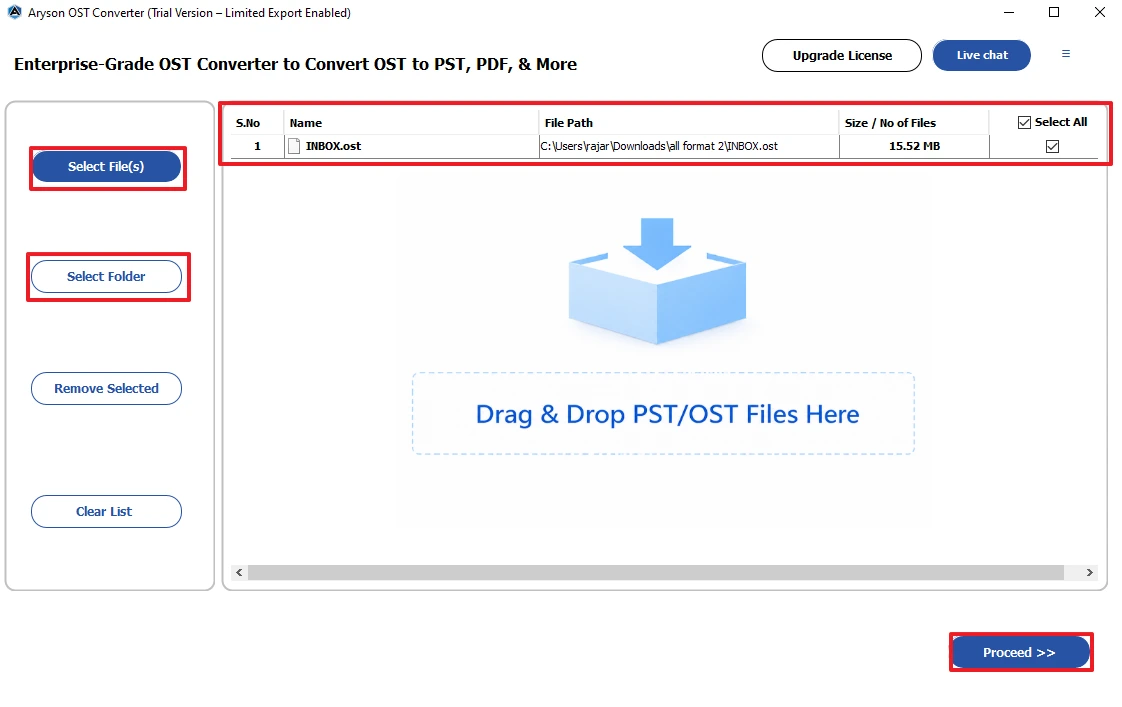
- Then, browse & select File(s) or Folder to add the Ost files >> click Proceed.
- Now, review & select the OST files and press Proceed.
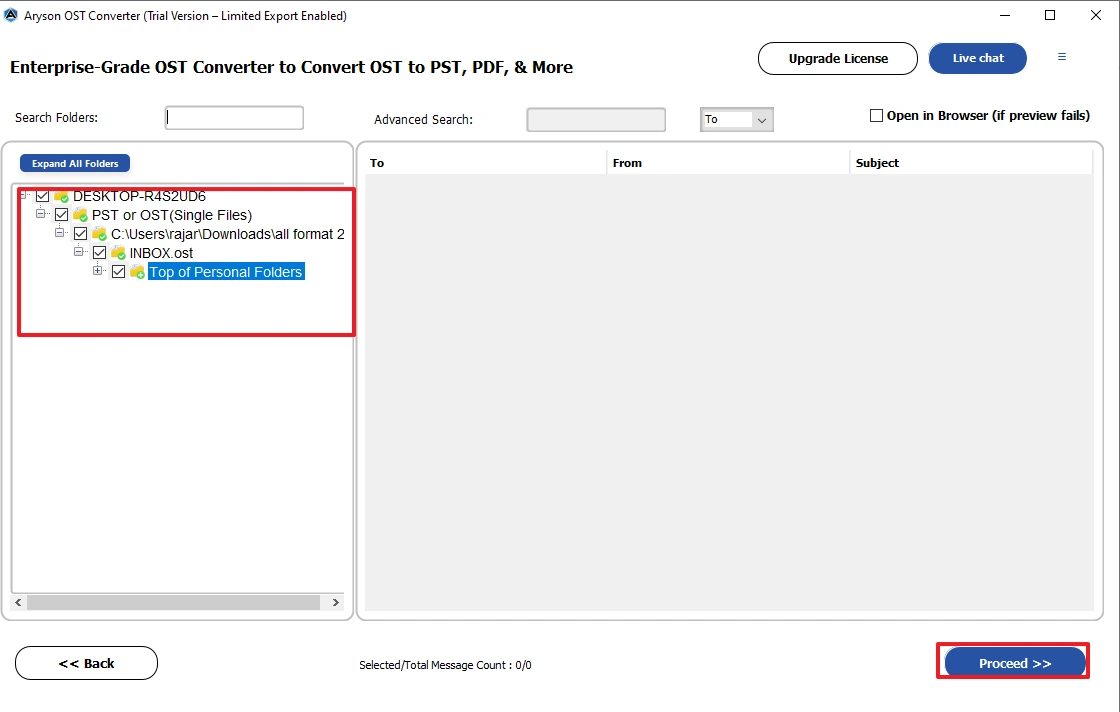
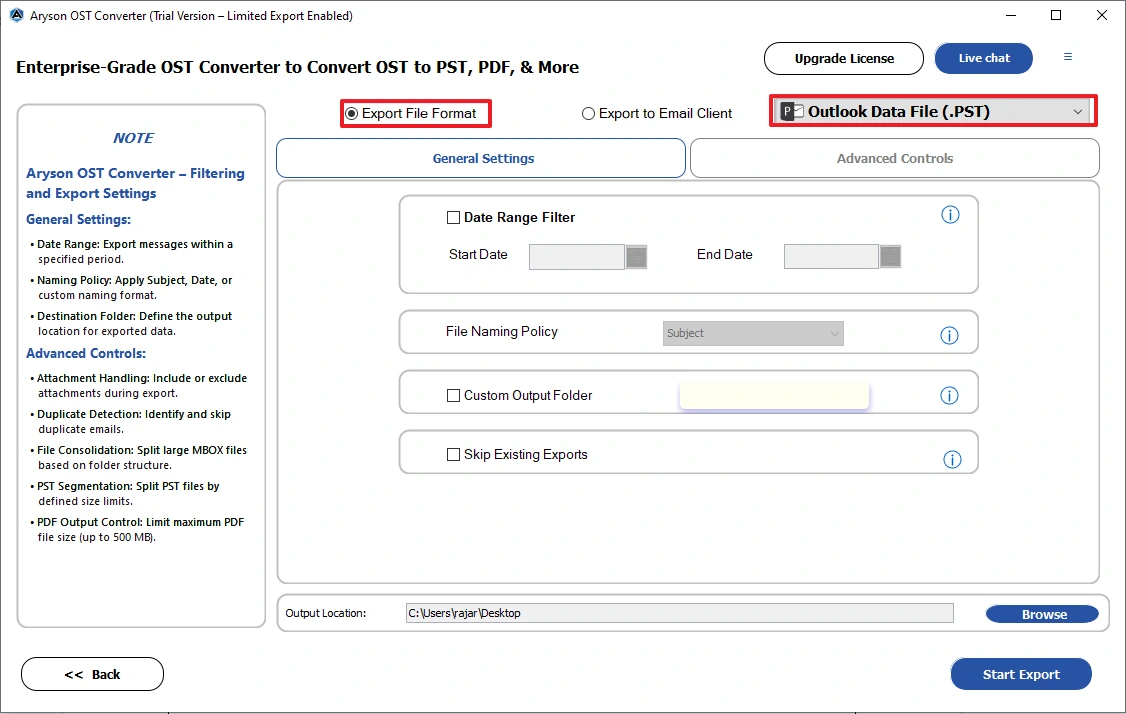
- After that, go to Export File Format & select Outlook Data File(.pst).
- Lastly, apply required filters & click Start Export.
Real Scenarios Users Run Into
“I deleted thousands of emails but my OST is still huge.” Deleting mail doesn’t shrink an OST file. Outlook holds onto the allocated space until you compact it, and compaction on a file over 30 GB often stalls or barely makes a dent. Converting to PST with duplicate removal actually shrinks the file. Once that’s done, delete the old OST and let Outlook rebuild a fresh, lean cache.
“Outlook takes forever to open and search doesn’t work.” Oversized OST files slow down indexing and startup time badly. Search stops returning results, and Outlook takes ages to load. Converting the file, splitting it into smaller PSTs, and rebuilding the OST with a shorter sync window, say 6 to 12 months, usually fixes both startup lag and search in one go.
Aryson vs OSTScan.exe and other third-party tools
People searching “ostscan.exe” are usually looking for an OST equivalent of ScanPST.exe. Two things to know: Microsoft’s Inbox Repair Tool (ScanPST.exe) is for PST files, and unofficial “OSTScan” downloads floating around are unverified executables — running a random .exe against your only copy of a 50 GB mailbox is a gamble. Repair tools also don’t fix the Outlook OST file size problem; even a repaired OST is still an oversized OST.
|
Capability |
Aryson OST to PST Converter |
OSTScan.exe / repair utilities |
Typical free converters |
|
Opens orphaned/inaccessible OST |
Yes |
Partial, unreliable |
Rarely |
|
Duplicate removal during conversion |
Yes |
No |
No |
|
Metadata & folder structure preserved |
Yes |
Frequently lossy |
|
|
Export to Office 365 / Live Exchange |
Yes |
No |
No |
|
Free preview before purchase |
Yes (50 items/folder demo) |
No |
Varies |
|
Handles 50 GB+ files |
Yes |
Crashes common |
Size-capped |
Why users trust Aryson
Aryson Technologies has been building Outlook and email recovery tools since 2014, with a product line covering the full data-recovery stack — OST recovery, PST split/merge, and cloud backup. Support runs 24×7 via live chat, so a stuck conversion at 2 a.m. before a Monday deadline isn’t a dead end.
For enterprise Outlook environments
If Outlook is your organization’s primary client, the “OST too large” error is never a one-machine event — it’s a fleet problem that hits your heaviest users first (executives, legal, support desks with shared mailboxes). What that changes:
- Standardize the fix, don’t improvise per ticket: Set a conversion SOP: preview the OST, dedupe, split at 10 GB, archive PSTs to your file server or export straight into the user’s Office 365 mailbox. Helpdesk closes these tickets in one pass instead of registry-hacking each machine.
- Offboarding and legal hold: Departed-employee OSTs are recurring liabilities. A converter that opens orphaned files with metadata intact turns each one into a defensible, importable archive — timestamps and recipient fields preserved for eDiscovery.
- Prevention policy: Pair the fix with a Cached Exchange Mode GPO (3–12 month sync window) so rebuilt OSTs don’t become oversized again. The conversion handles the backlog; the policy stops the regrowth.
- Licensing: Per-machine licenses are one-time with free updates to verify the current licensing model and whether a corporate/technician license tier exists — if yes, name it here; enterprise buyers look for it , so scoping cost against ticket volume is straightforward.
Moving Mailboxes Between Microsoft 365 Organizations?
If your oversized OST file is the result of a Microsoft 365 tenant migration, company merger, business acquisition, or domain change, exporting individual OST files to PST may not be the most efficient approach.
In such scenarios, Aryson Tenant to Tenant Migration offers a direct way to migrate Microsoft 365 mailboxes between tenants without relying on manual exports. It transfers emails, contacts, calendars, and other mailbox data while preserving the mailbox structure and permissions. The software also supports concurrent mailbox migration and delta synchronization, allowing users to continue working while the latest mailbox changes are synchronized before the final cutover.
For IT administrators handling organization-wide Microsoft 365 migrations, using a dedicated tenant migration solution is more efficient than exporting and importing multiple PST files individually.
Conclusion
The OST file too large error can significantly affect Outlook’s performance, synchronization, and access to mailbox data. Although manual methods such as reducing the Cached Exchange Mode sync range, compacting the OST file, and archiving older emails can temporarily reduce the file size, they do not permanently resolve the issue. Converting the OST file to PST is a more reliable long-term solution, as it preserves mailbox data, maintains folder hierarchy, and makes the mailbox easier to access and manage in the future.
Frequently Asked Questions:
Q1. What causes the “OST file too large” error in Outlook?
Ans. The “OST file too large” error occurs when the Outlook Offline Storage Table (OST) file reaches its maximum size limit. This usually happens because of years of cached emails, large attachments, shared mailboxes, or duplicate mailbox items.
Q2. What is the maximum OST file size in Outlook?
Ans. In Outlook 2016, 2019, 2021, and Microsoft 365, the default maximum OST file size is 50 GB. Older Outlook versions, such as Outlook 2007 and 2010, have a default limit of 20 GB. Although administrators can increase this limit through the Windows Registry, it is generally not recommended.
Q3. Can I reduce the size of an Outlook OST file manually?
Ans. Yes. You can reduce the OST file size by lowering the Cached Exchange Mode sync range, deleting unnecessary emails, emptying the Deleted Items and Junk folders, compacting the Outlook data file, and archiving older mailbox items. However, these methods only provide temporary relief.
Q4. Why is my OST file still large after deleting emails?
Ans. Deleting emails does not immediately reduce the size of the OST file because Outlook retains the allocated storage space. Compacting the OST file helps reclaim unused space, but it may not significantly reduce the size of very large OST files.
Q5. Can I delete the OST file to fix the error?
Ans. Yes, but only if all your mailbox data is safely stored on the Exchange Server or Microsoft 365 account. Outlook recreates the OST file when you restart the application. If the OST contains unsynchronized or local-only data, deleting it may result in permanent data loss.
Q6. Why is converting an OST file to PST considered a permanent solution?
Ans. Converting an OST file to PST creates a portable copy of your mailbox that can be imported into any Outlook profile. It also allows Outlook to rebuild a fresh OST file while preserving emails, contacts, calendars, tasks, attachments, and the original folder hierarchy.
Q7. Can I convert an orphaned or inaccessible OST file to PST?
Ans. Yes. Professional OST to PST converter tools can convert orphaned, inaccessible, or oversized OST files to PST without requiring the original Outlook profile or Exchange Server connection.
Q8. Can I prevent the “OST file too large” error from happening again?
Ans. Yes. You can reduce the chances of encountering this error by limiting the Cached Exchange Mode sync range, regularly archiving older emails, removing unnecessary mailbox items, and preventing excessive growth of the OST file.
About The Author:

Evren Cole is an expert in Email and Data Management. She has a strong passion for technology and entrepreneurship. In her free time, she enjoys football, music, and reading books.

