

-
Written By Evren Cole
-
Updated on July 27th, 2026
How to Import PST File to Exchange Server? Quick Methods
User’s Query: Importing .pst into Exchange Online
So I have been looking to get my emails over from Google, but I have not been successful with the Migration tool so far. And I haven’t found a simple way to import a PST. Any suggestions?
Overview: When users migrate from Google Workspace or other email platforms to Microsoft Exchange Online often face challenges when they transfer their existing mailbox data. The most common concern is how to import PST file to Exchange server when the built-in tool fails to work. If you are also in the same situation and need to move your emails and other data from PST to Exchange Server, there are various methods available. In this guide, we will explore the quick and effective manual method and the professional MSOutlookHelp Outlook Converter to prevent data loss.
Things to Prepare Before You Begin
Before you begin, it is important to complete a few prerequisites to make sure a smooth migration process.
- You need to make sure that you have admin access to the Exchange server environment.
- Another important step is to simply confirm that your PST file is free from corruption.
- Moreover, you need to check that the destination mailboxes already exist on the Exchange server.
- At last, you have to verify that enough storage space is available on the Exchange Server.
- Create a backup of the destination mailbox to avoid accidental data loss.
Important Steps Before You Import PST File to Exchange Server
Complete these steps that help you with a smooth migration process.
Assign the Mailbox Import Export Role: By default, it does not have permission to import PST files into the mailbox. You must assign the Mailbox Import Export role to the administrator account that will perform the import operation.
Open the Exchange Management Shell and run the following command:
|
New-ManagementRoleAssignment -Role “Mailbox Import Export” – User Administrator |
After assigning the role, log out and log back in for the changes to take effect.
Possibility 01: PST Files need to be created
In such cases, the user’s mailbox data is stored in Microsoft Outlook and has not been exported to a PST file. First, you have to export the Outlook mailbox to a PST file. Then, the PST file is created; you can import it into the desired Exchange mailbox with the help of PowerShell commands or the Exchange Admin Center (EAC).
Possibility 02: PST File is Already Available
If the user already has a PST file stored on their local system or an external storage device, then you can proceed directly with the import process. Thereafter, you need to simply place the PST file in a shared network location accessible by Exchange Server. Then import it into the target Exchange mailbox with the help of PowerShell or the Exchange Admin Center.
Manual Methods to Migrate Outlook to Exchange Server
Follow the given method to accomplish the importation process.
01: Import PST File to Exchange Server Via PowerShell
If you have multiple mailboxes to import, then use this method.
- To initiate, store the PST file in a shared network folder and then grant the Exchange Trusted Sussystem group Read/Write permissions.
- Open Exchange Management Shell and run the command:
- Check the import status – Get-MailboxImportRequest
- You can view the detailed progress – Get-MailboxImportRequestStatistics -Identity “JohnSmith\MailboxImport”
- Thereafter, remove the completed import requests – Get-MailboxImportRequest -Status Completed | Remove-MailboxImportRequest
|
New-MailboxImportRequest -Mailbox “JohnSmith” -FilePath “\\Server\PSTShare\JohnSmith.pst” |
Replace – JohnSmith with the target mailbox name.
\Server\PST Share\JohnSmith.pst with the PST file path.
Limitations
- To perform the import with this method, the user must have technical knowledge.
- It does not have a graphical user interface, which makes the process difficult.
- Not suitable for users who need a quick migration process.
- It does not automatically repair the corrupted or damaged PST files.
02: Convert PST to Exchange Server: Exchange Admin Center
- Start with, open the Exchange Admin Center (EAC) >> log in with the admin credentials.
- Go to Recipients >> Mailboxes and then click the More Options (…) icon.
- Select Import PST, then specify the shared network location that contains the PST file.
- Choose the target Exchange mailbox where you want to import the PST data.
- Review the import settings >> click Finish to create the mailbox import request.
- Monitor the import status in EAC and verify that all mailbox items have been successfully imported after completion.
Limitation
- It is less suitable for the bulk import of PST files.
- Required PST files to be stored on a network shared by Exchange Server.
- Users need a technical knowledge to perform the migration.
Professional Method to Import PST File to Exchange Server
For a quick solution, you can use the PST Converter Tool. It is suitable for bulk conversion while maintaining the folder structure. With its advanced features, you can migrate specific data. Also, it provides various file formats and email clients to export PST files. This same software helps you to import PST to Google Workspace, Gmail, and others.
Working Steps to Import Local Outlook PST Files into Exchange Server
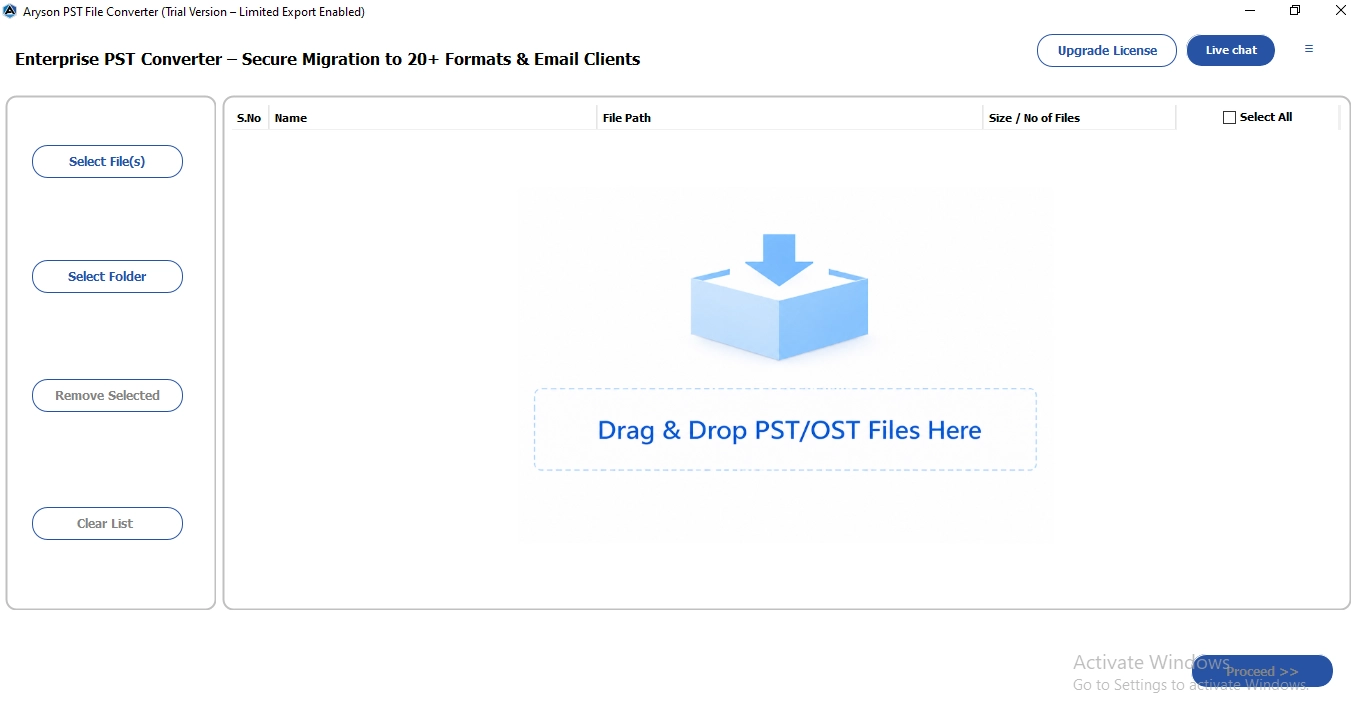
- Download and run the PST Converter Tool on your system.
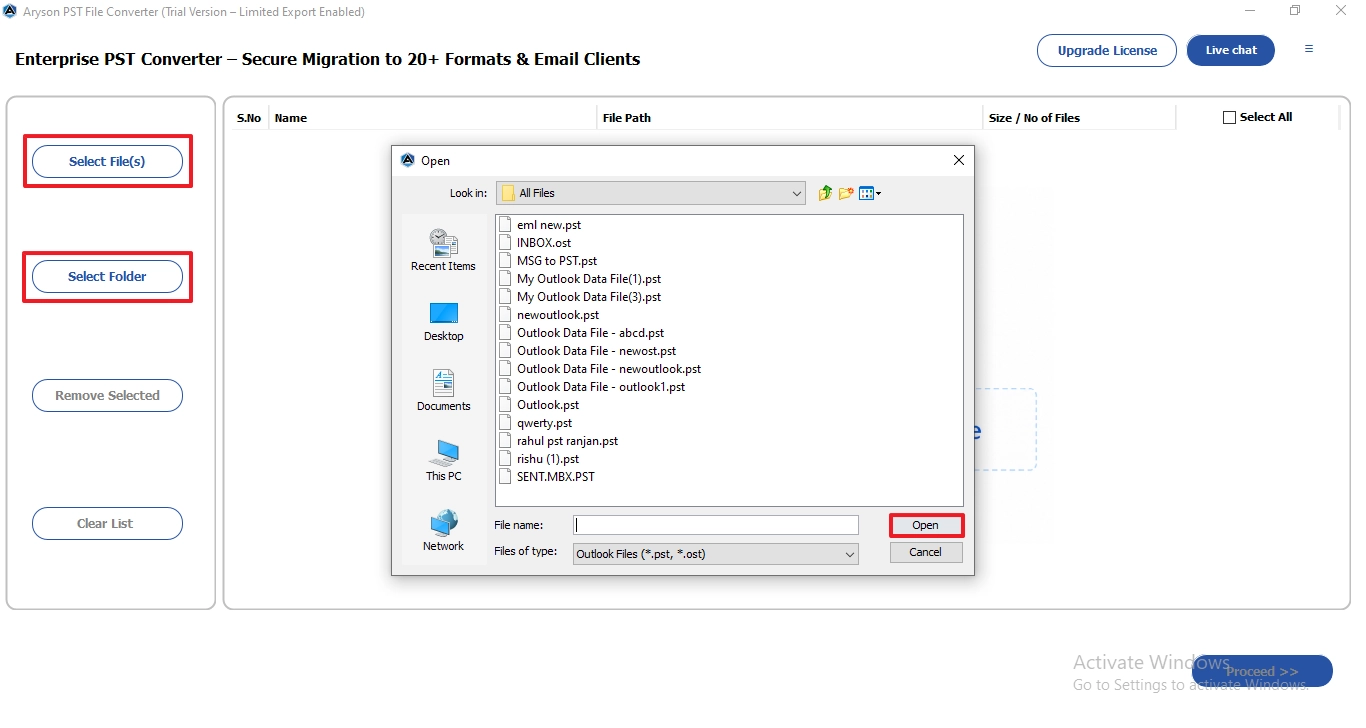
- Tap on the select file/folder and choose the .pst file from your device >> Open.
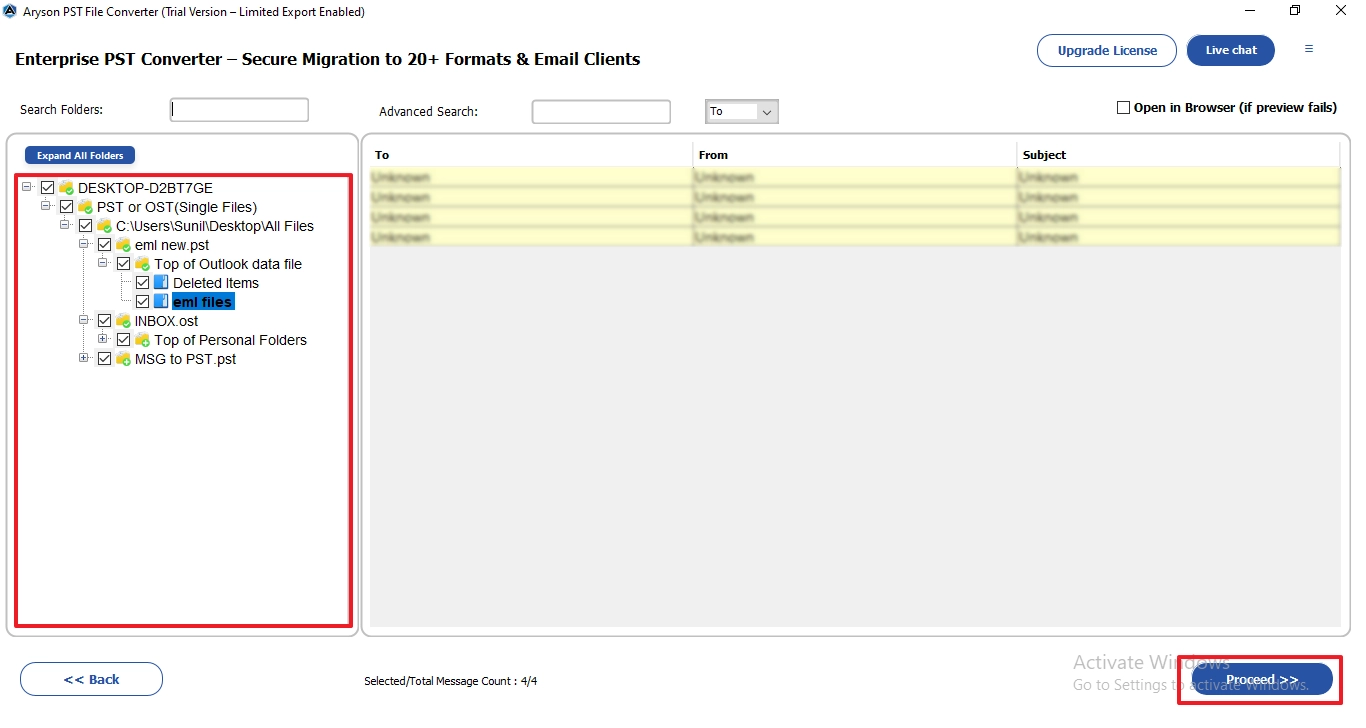
- Afterward, you can view the files and folders and select that you want to import >> Proceed.
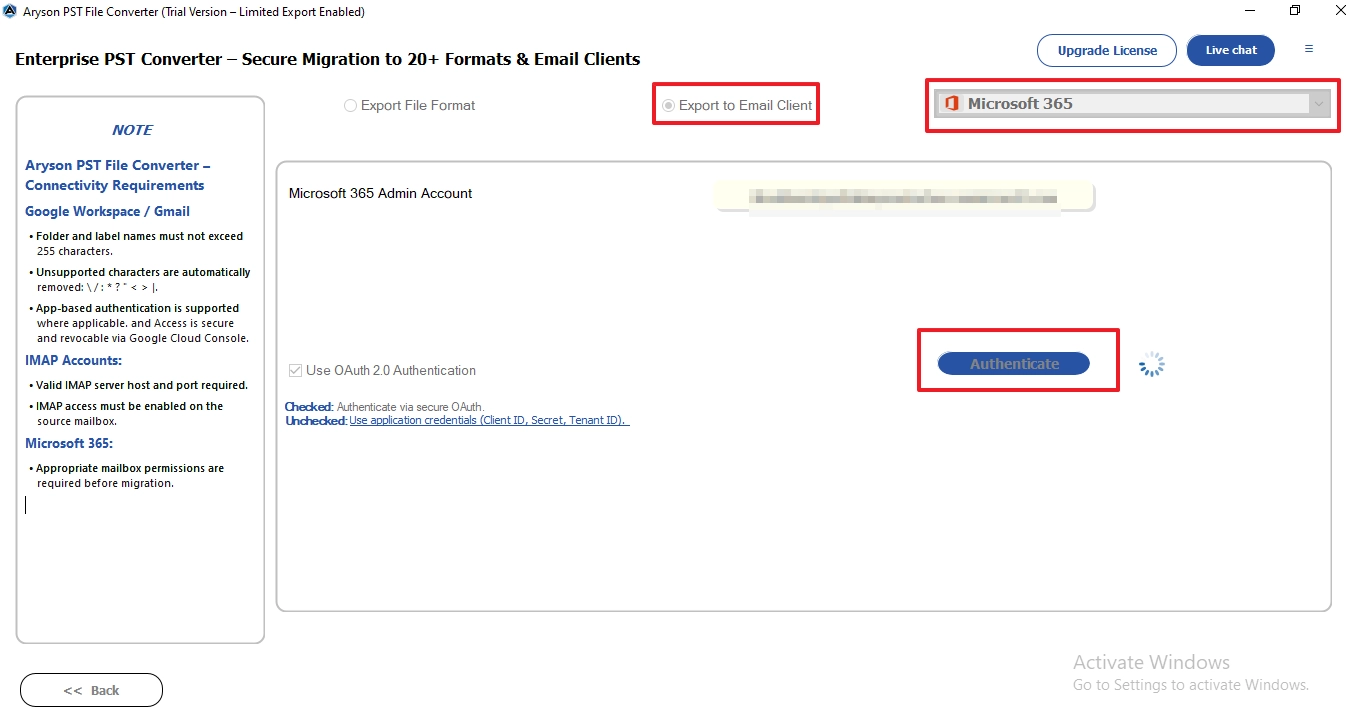
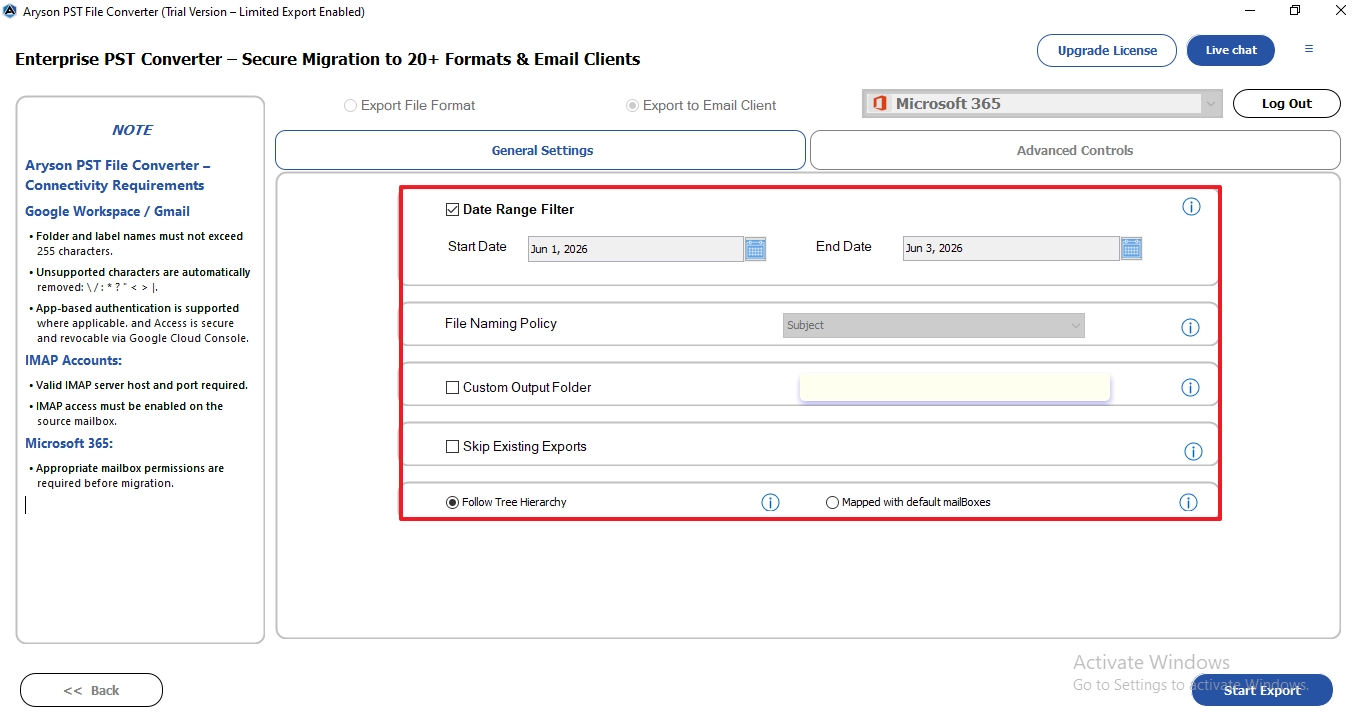
- Click on Export to Email Client and choose Microsoft 365 and enter credentials.
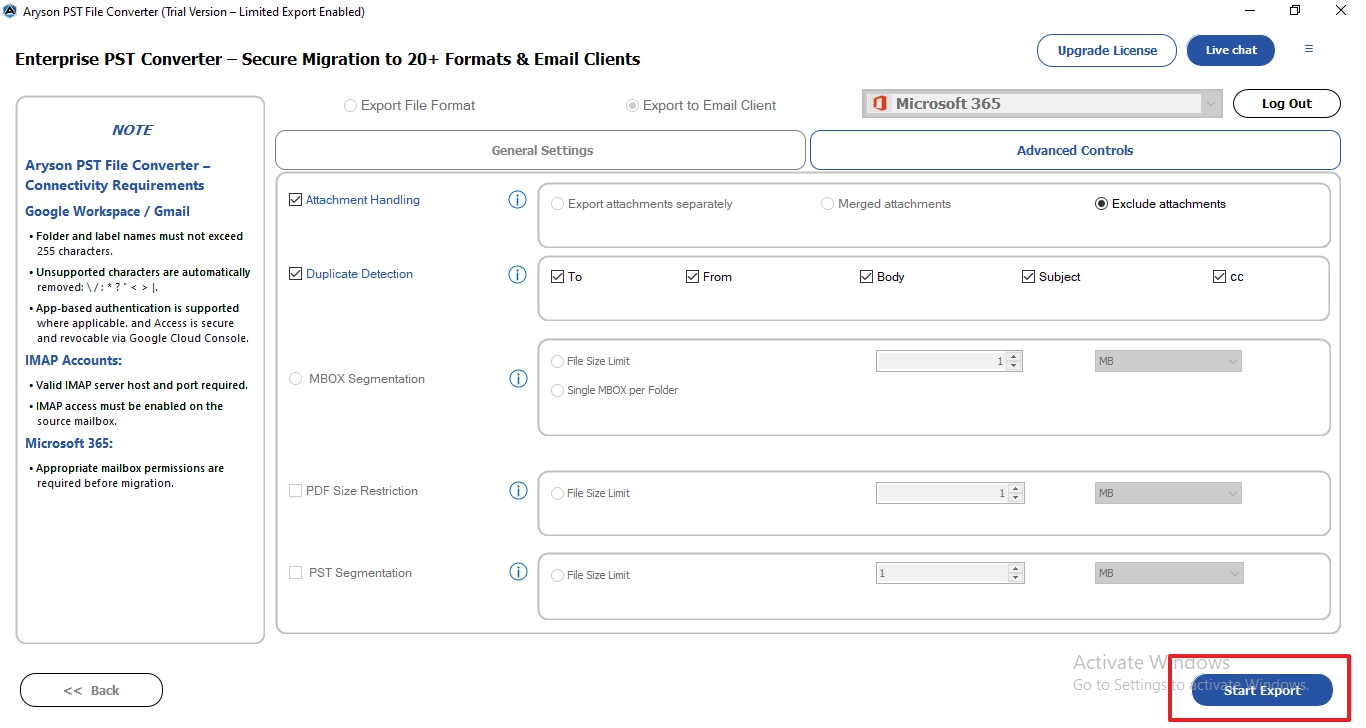
- You can use the additional filters for specific data migration.
- In the end, click on Start Export to import from PST file to Exchange Server.
Manual Method VS Professional Method Difference
|
Manual Method |
Professional Software |
|
No built-in duplicate prevention |
Offer advanced migration options and filters |
|
Cannot repair a corrupt or damaged PST file |
Repair corrupt files |
|
Only import into Exchange mailboxes |
Supports multiple file formats and email clients |
|
Required technical knowledge |
User-friendly interface |
Also Read: Export Outlook Emails to CSV
Conclusion
In this guide, we discussed all the aspects of why users import PST file to Exchange Server. Along with that, we discussed the manual and professional method which help users to migrate their data. While the manual method required technical knowledge to complete the process. The professional software is made to accomplish the process in simple steps.
Frequently Asked Questions
Q1. Why is there a need to convert PST to Exchange Server?
Ans. Importing PST files into Exchange Server centralizes mailbox data and improves accessibility across the organization. It also enhances collaboration, security, and mailbox management compared to storing data in local PST files.
Q2. Will emails, contacts, and calendar data be fully preserved during a PST import into Exchange Server?
Ans. Yes, Exchange Server generally preserves emails, contacts, calendars, attachments, and folder hierarchy during import.
To ensure data integrity, verify that the PST file is not corrupted before starting the process.
Q3. What happens if I import the same PST file twice? Will it create duplicates?
Ans. Yes, importing the same PST file multiple times can create duplicate emails, contacts, and calendar entries. Exchange Server does not automatically remove duplicates during the import process.
Q4. Is Microsoft Outlook required in order to import PST files into an Exchange Server?
Ans. No, Outlook is not required when importing PST files using Exchange Admin Center or PowerShell. However, Outlook may be needed if you first need to export mailbox data to a PST file.
Q5. What is the best method to import PST file to Exchange Server?
Ans. PowerShell is considered the best manual method because it supports bulk imports and advanced management options. For a simpler and more user-friendly experience, a professional MSOutlookHelp PST Converter Tool is often the preferred choice.
About The Author:

Evren Cole is an expert in Email and Data Management. She has a strong passion for technology and entrepreneurship. In her free time, she enjoys football, music, and reading books.

