

-
Written By Evren Cole
-
Updated on May 22nd, 2026
How to Merge Multiple PST files Outlook in Single PST file Easily
Paddy’s Query: How can I identify which Outlook 2019 PST file belongs to each of my three email accounts after ending up with five different PST files during a computer transfer, and is it possible to merge all the PST files into a single one without losing data?
Summary: Managing multiple Outlook PST files becomes important once you transfer data between different computer systems. Most users create an extra PST file when configuring multiple email accounts. Identifying the correct PST file for each email account helpsf organize mailbox data properly. Combining all Outlook PST files into one file also improves mailbox management data properly. In this article, we will explain the simple methods to merge multiple PST files Outlook, which include the PST Merger Tool for hassle-free merging. Download Now Purchase Now
|
Ques. How to merge PST files in Outlook? Ans. To merge multiple PST files into a single file, you can either use the built-in Import/Export Wizard or use professional software. |
Common Situations that create multiple PST Files
There are various situations due to which multiple files are created in Outlook.
- When users transfer their Outlook data and settings from one computer to another without any loss.
- Allows users to add and manage multiple email accounts within a single Outlook profile.
- It happens when users create a secure backup of Outlook mailbox data to prevent accidental data loss.
- Enable users to export Outlook data to PST files and import them when added.
- Outlook generates archive PST files to store old or inactive Outlook emails and reduce mailbox data.
Manual Method to Merge Multiple PST files Outlook
This manual approach requires no external software. It involves creating a new, blank master PST file and then importing your existing files into it one by one. Combine Outlook PST files into one with the given steps.
Step 01: Create a New PST File in Outlook
- You need to launch Microsoft Outlook on your system.
- Go to the Home tab from the top menu bar.
- Click New Items >> More Items >> Outlook Data File.
- Enter a suitable name for the new PST file, such as Merged_Archive.pst.
- Click OK to create the file. The newly created PST file will appear in the Outlook folder section.
Step 02: Import Existing PST Files into the New PST File
Follow these steps separately for every PST file you want to combine:
- Open the File tab in Outlook.
- Select Open & Export and then click Import/Export.
- In the Import and Export Wizard, choose Import from another program or file and click Next.
- Select Outlook Data File (.pst) and continue by clicking Next.
- Click Browse and choose the PST file you want to add.
- Select the Do not import duplicates option to avoid repeated mailbox items.
- Click Next and enable the Include subfolders checkbox.
- Choose Import items into the same folder in and select the newly created PST file.
- Click Finish to begin the import process.
Repeat the same process for all remaining PST files until all mailbox data is merged into one Outlook PST file successfully.
Drawbacks of the Manual Method
- The process becomes time-consuming when handling multiple large PST files.
- Users need to import each PST file separately into the destination PST file.
- Manual steps increase the chances of selecting incorrect folders or files.
- Outlook may slow down during large PST import operations.
- There is no automatic filtering option for selective mailbox data merging.
- Large PST files can sometimes affect Outlook performance during merging.
- The process requires Outlook installation and proper profile configuration.
Professional Software to Merge Multiple PST files Outlook
A dependable PST Merger tool is designed to handle high-volume mail consolidation tasks with ease. It comes equipped with powerful capabilities, including selective data combination, automatic duplicate detection and removal, and efficient processing of oversized PST files. The tool ensures precise output while streamlining the entire workflow from start to finish. You can also merge Microsoft Outlook calendars with this same software. Users can also smoothly consolidate multiple Outlook PST files through the same platform.
Steps to Merge PST files without duplicates
- Download and open the PST Merger Tool on your computer.
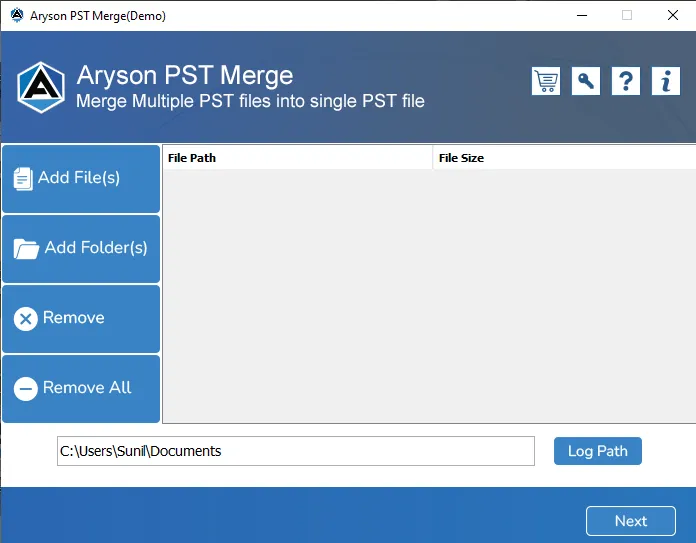
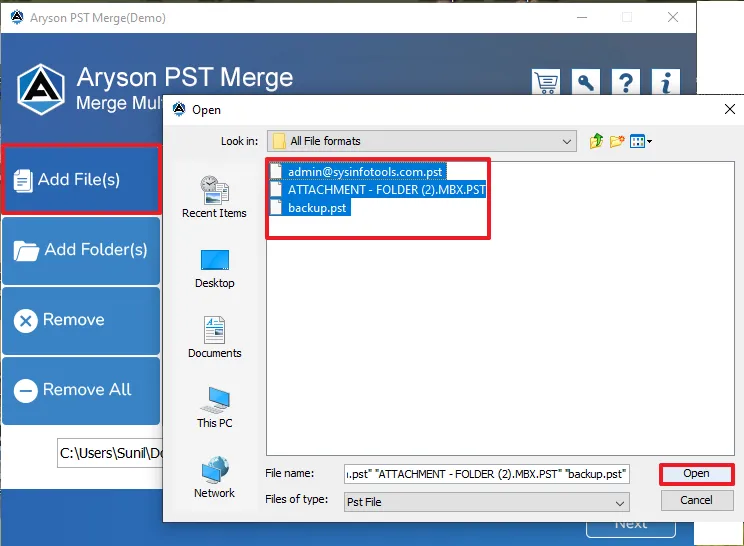
- Add a single or multiple PST files into the software interface.
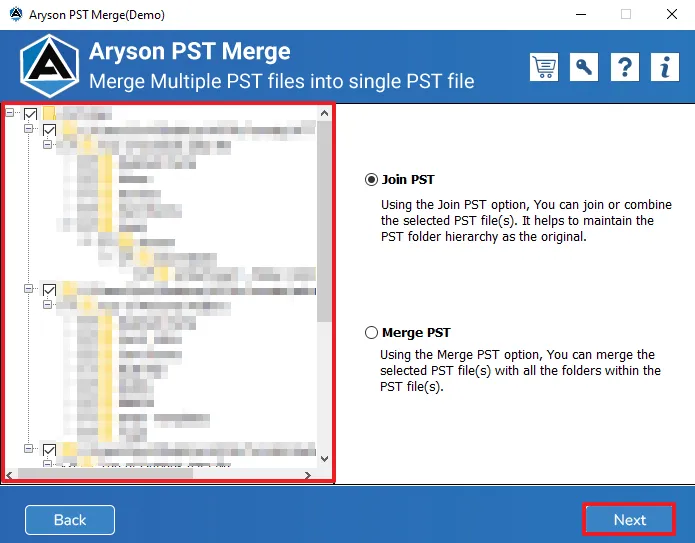
- Choose the appropriate PST merge option according to your mailbox requirements.
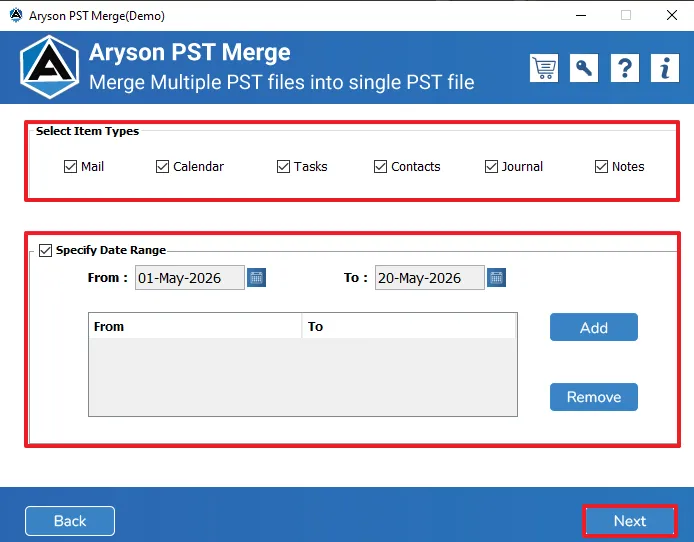
- You can also apply filters for specific data merging.
- Select the preferred destination path to save the merged PST file.
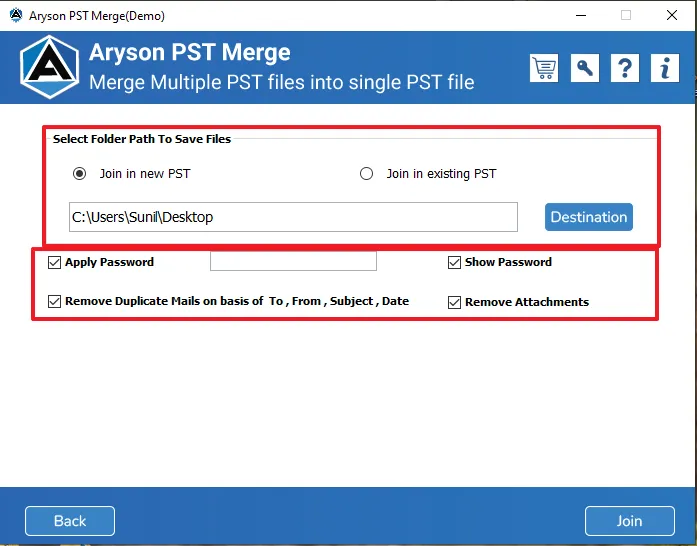
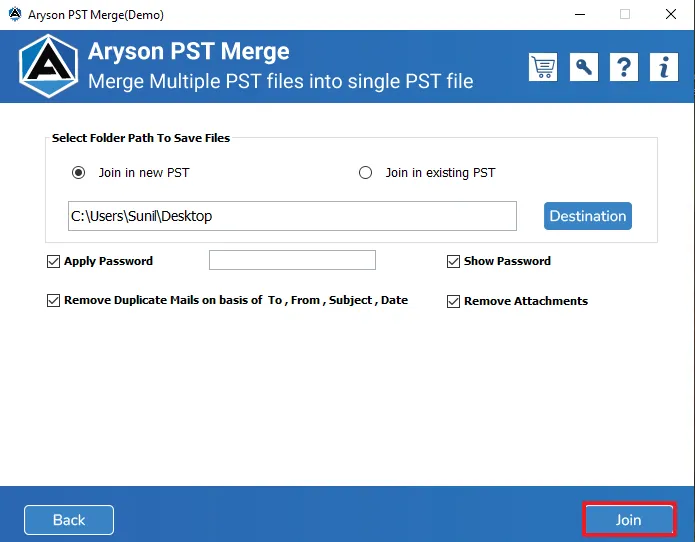
- Start the process to complete the Outlook PST file merging operation successfully.
Essential Tips Before You Start the Process
Before you join multiple PST files into single PST, make sure to follow these tips for future use:
- Always create a copy of your original PST files and save them in a secure folder.
- You need to verify that all your PST files are healthy and accessible in Microsoft Outlook.
- Make sure you have sufficient storage space available for the merged PST file.
- Older Outlook has a 20 GB capacity, while the newer allows 50 GB.
- Use a proper file name to identify each PST file easily through the merge process.
Conclusion
To summarize, selecting the right Outlook mail merge method depends on your mailbox size and operational requirements. Manual techniques are suitable for smaller tasks and basic email management activities. However, professional solutions offer better accuracy and improved control over mailbox data. In addition, this software offers a free demo version to merge multiple PST files Outlook that allows users to process up to 25 items in each folder.
Frequently Asked Questions:
Q.1. What is the easiest way to merge PST files?
Ans. The easiest method is using the Outlook Import/Export Wizard or a professional PST Merge Tool. These methods help combine multiple PST files into a single PST file efficiently.
Q.2. Can I merge PST files from different Outlook versions?
Ans. Yes, Outlook supports merging PST files created in different Outlook versions successfully.
Q.3. Is there a file size limit for PST merging?
Ans. ANSI PST files support up to 2 GB, while Unicode PST files support larger sizes.
Large PST files should be managed carefully for better Outlook performance and accessibility.
Q.4. Do I need technical skills to merge PST files?
Ans. Basic Outlook knowledge is enough for performing manual PST file merging methods.
Professional PST merge tools simplify the process with user-friendly options and guided steps.
About The Author:

Evren Cole is an expert in Email and Data Management. She has a strong passion for technology and entrepreneurship. In her free time, she enjoys football, music, and reading books.

