

-
Written By Evren Cole
-
Updated on June 24th, 2026
How to Migrate IMAP to Yahoo Mail – Follow Our Solutions
Summary: For various years, email communication has remained the backbone for professional and individual users. Meanwhile, Yahoo Mail offers a robust storage capacity and powerful features for individuals and businesses to save their email. IMAP enables users to access their messages directly on a mail server. Moreover, it serves for various email accounts across different platforms. When users migrate IMAP to Yahoo Mail, it offers various features and a more digital workflow. This article presents a clear and reliable solution to complete the migration process. Each method outlined here is used for a smooth migration, which includes the IMAP Backup Tool for a simplified process.
Benefits: Why Do Users Export IMAP mail to Yahoo Mail
- It offers a clean and intuitive interface that simplifies email management.
- Yahoo Mail includes an advanced security features to protect important email.
- Moreover, features like folder, filters, and search options help users to organize mailbox data.
- Mostly users prefer Yahoo Mail because it offers storage space for emails and attachments.
- Furthermore, Yahoo Mail provides an access to emails on desktop and smartphones.
Things to Prepare Before You Migrate IMAP to Yahoo Mail
- You need to make sure that you have a stable intere connection.
- Make sure to use the correct IMAP account credentials.
- You must have your Yahoo Mail login details.
- Before you start the process, make sure to enable the IMAP settings.
- Take a backup of your important emails for future use.
System Requirements
- Make sure you use a supported Windows system.
- Also, you must have the required RAM and storage.
Solution 01: Manual Method to Transfer IMAP to Yahoo Mail
Follow these steps to manually migrate your IMAP emails to your Yahoo Mail account through Outlook or Thunderbird.
Step 01: Configure the IMAP Account
- Open the email client and then click the Add Account button.
- Enter your IMAP email address >> select IMAP.
- Provide the incoming and outgoing server details along with the password.
- Thereafter, complete the setup and allow the mailbox to sync.
Step 02: Add Yahoo Mail Account
- Again, click on the Add Account option in the email client.
- Now, enter your Yahoo Mail address >> configure it through IMAP settings.
- Incoming Server: imap.mail.yahoo.com
- Port: 993
- Security: SSL/TLS
- Outgoing Server: smtp.mail.yahoo.com
- Port: 465 or 587
- Security: SSL/TLS
- Enter your Yahoo password and finish the setup.
|
Yahoo Mail IMAP Settings |
SMTP Settings |
Step 03: Create Destination Folders
- You need to right-click the Yahoo Mail account.
- After that, you have to select the New Folder.
- Then, create a folder to organize your migrated emails properly.
Step 04: Drag and Drop Emails
- For this, just open the source IMAP mailbox folder >> select the emails to move.
- Afterward, drag and drop them into the Yahoo Mail folders.
- Lastly, wait for the synchronization process to complete.
Disadvantages of the Manual Method
- There might be a risk of duplicate emails when you move IMAP to Yahoo.
- It takes a lot of time to finish the process for a large mailbox.
- Moreover, users must have technical knowledge to understand the configuration.
- There are chances of synchronization errors at the time of migration.
Solution 02: Reliable Utility to Migrate IMAP to Yahoo Mail
To transfer your emails in bulk and eliminate duplicate emails in your mailbox, you can use an IMAP Backup Tool. An ultimate solution that provides a smooth migration of IMAP emails into different email clients, like you can migrate IMAP to Office 365. This software has a simple interface, which makes it easy for users to run it. Moreover, from various email clients provided in this same software, you can migrate IMAP to Gmail.
Simplified Process to Import IMAP to Yahoo
- To begin, just download the IMAP Backup Tool on your device.
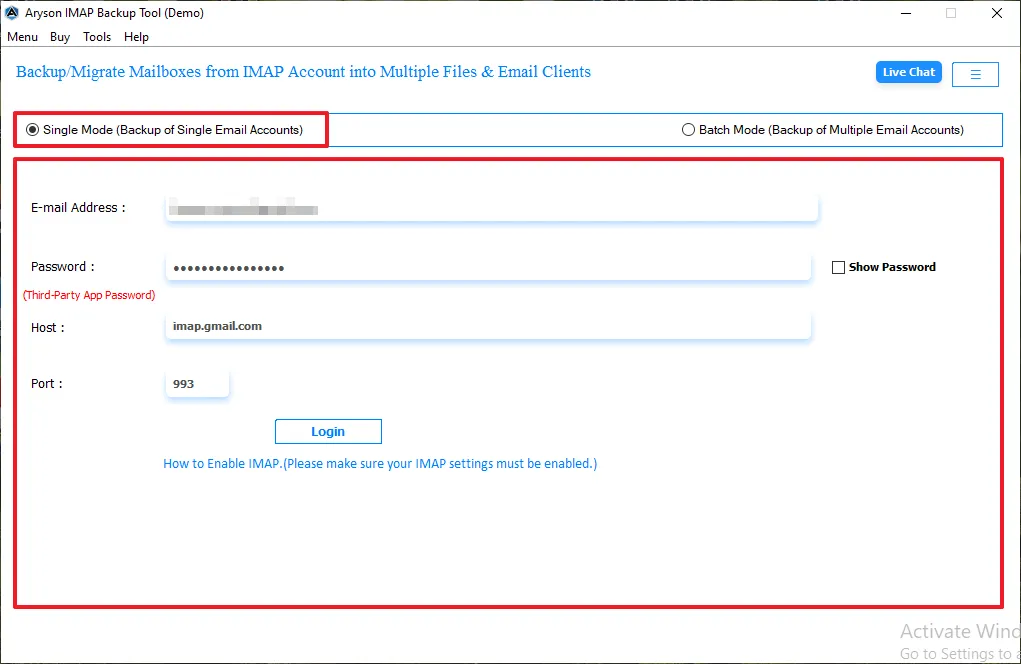
- Enter the credentials to log in, such as Email, Password, Host, and Port no.
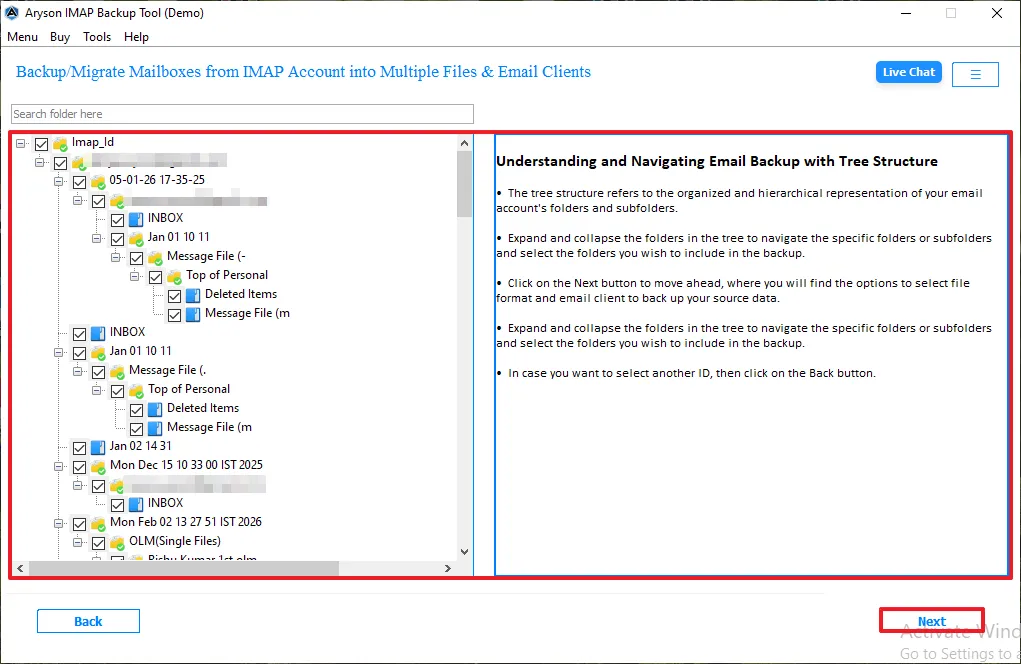
- You can view a mailbox’s files/folders in a tree structure and click Next to proceed.
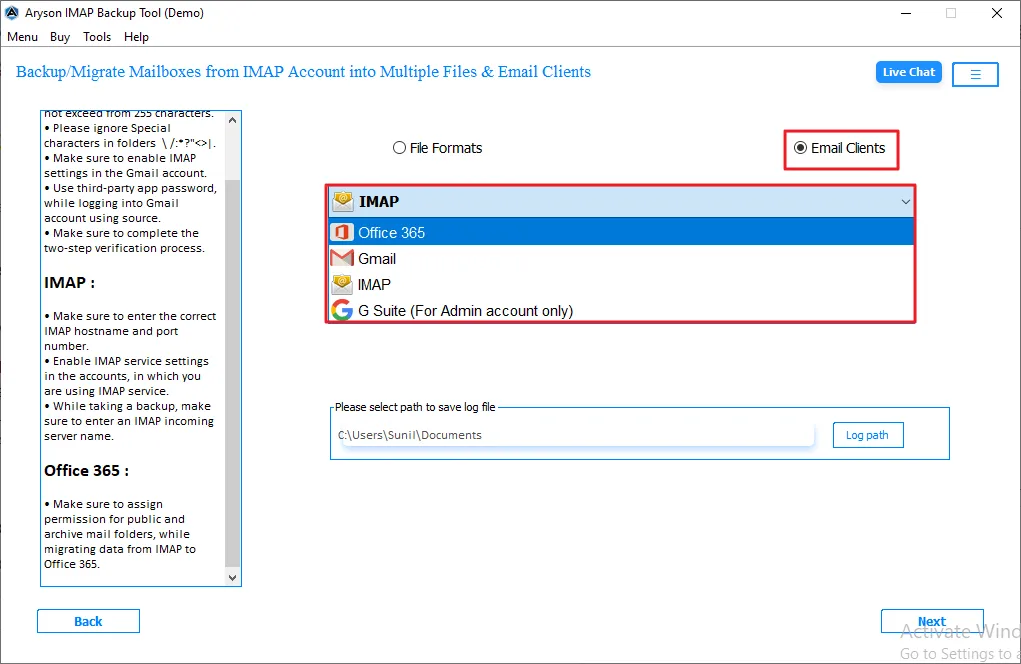
- From the email client, you select IMAP and enter the Yahoo Mail credentials.
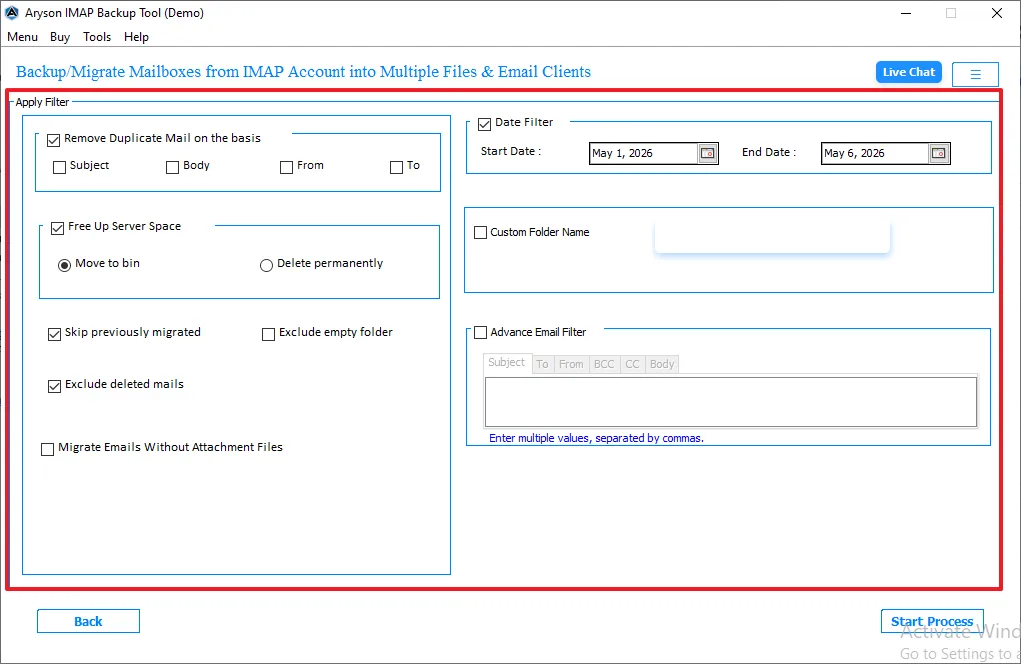
- Meanwhile, apply the filter options for selective data migration.
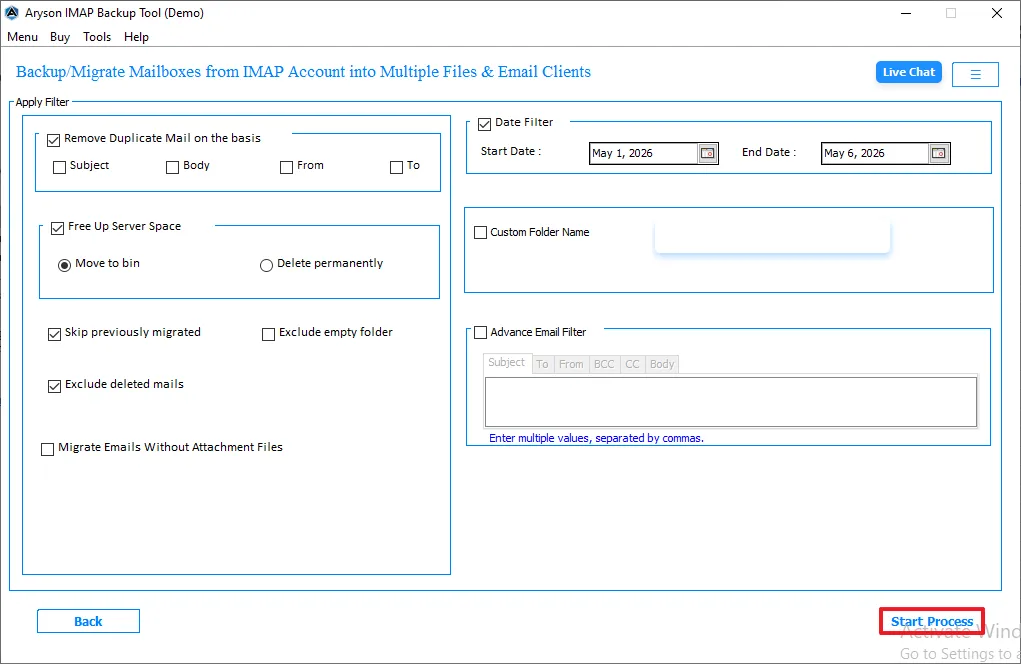
- To start the migration process, click on Start Process.
Common Errors & Their Solution for IMAP to Yahoo Migration
|
Error Type |
Possible Cause |
Solution |
|
Duplicate Emails |
Repeat sync attempts |
Use the duplicate removal option |
|
Slow Migration Speed |
Poor internet connection |
Use a stable internet |
|
IMAP Connection Error |
IMAP disabled |
Enable IMAP settings |
|
Authentication Failure |
Incorrect credentials |
Re-enter account details |
Conclusion
To finish it up, you can follow any method as discussed above in the blog. The manual method is reliable for small conversion and it requires a technical knowledge. Therefore, it is recommended to use a professional software which migrate IMAP to Yahoo Mail in a smooth and hassle-free way. With the right-approach, the process of migration become simple and effortless.
Frequently Asked Questions:
Q.1. Is it possible to move IMAP emails to Yahoo without data loss?
Ans. Yes, using a reliable IMAP to Yahoo migration tool helps preserve email formatting, metadata, folder hierarchy, and attachments without data loss.
Q.2. What errors occur during IMAP to Yahoo Mail migration?
Ans. Common errors include authentication failures, IMAP connectivity issues, duplicate emails, and slow synchronization problems.
Q.3. Can I transfer IMAP mailbox to Yahoo Mail without duplicates?
Ans. Yes, professional migration tools provide duplicate email removal features to ensure clean mailbox transfer.
Q.4. Can I move IMAP emails and attachments to Yahoo Mail?
Ans. Yes, both emails and their attachments can be migrated securely while maintaining the original folder structure.
About The Author:

Evren Cole is an expert in Email and Data Management. She has a strong passion for technology and entrepreneurship. In her free time, she enjoys football, music, and reading books.

