

-
Written By Evren Cole
-
Updated on July 12th, 2025
How to Save Multiple Outlook Emails as MSG? Simple Method
Users prefer to save Outlook emails as MSG format because
each MSG file contains a single email message. This makes it easy to share or transfer specific emails without
exposing other messages. Also, MSG files are usually small, so you can carry many of them without any hassle. If
you want a reliable way to save multiple Outlook emails as MSG. You can use the manual method for a few emails
or try a professional Outlook Converter Tool for a fast and bulk migration.
Why Save Emails from Outlook to MSG?
MSG is the native email format for Microsoft Outlook. Here’s why saving emails as MSG is helpful:
| Features | Benefits |
| Easy to share | As you know, MSG files can be sent individually or in bulk. |
| Stores attachments | With MSG files, Attachments remain intact with the email. |
| Email formatting | Emails open exactly as they are stored in Outlook. |
| Compatible with Outlook | Also, it can be reopened anytime in Outlook or supported apps. |
Free Way to Save Multiple Outlook Emails as MSG
If you only have a few emails, you can use this method:
- Firstly, open Microsoft Outlook on your PC.
- Then, go to the folder where your emails are stored (e.g., Inbox).
- Hold down the Ctrl key and select multiple emails you want to save.
- After that, right-click on the selected emails and choose Save As.
- In the dialog box, choose the destination folder.
- Now, select MSG format from the “Save as type” dropdown.
- Lastly, click Save to save Outlook Emails as MSG Files.
This saves all selected emails as separate MSG files in the chosen folder.
Scenario
Suppose you are working on a project, and you want to save all client communication emails for future reference. You select the entire project folder one by one in Outlook and use the manual method. This way, you can quickly access or share specific emails with Outlook.
Limitations of the Manual Method
The manual method is free to use, but it has several limitations, such as:
- Firstly, if you have a large number of emails to convert, it might be time-consuming.
- Secondly, it can be hectic to perform each step again for multiple emails.
- Moreover, maybe decrease data confidentiality, integrity, and accessibility.
- Finally, increases the chance of losing your important emails and contacts.
Hassle-Free Way to Save Multiple Outlook Emails as MSG
For bulk conversion, you can directly use the Outlook PST Converter Tool. This tool is specially designed with smart and advanced technology to convert multiple emails into MSG. You can save all your Outlook emails, contacts, calendars, and other data without any hassle or minimal disruption. Also, many IT experts and Outlook professionals have tested and reviewed this tool. It’s often recommended as one of the most reliable solutions by Aryson.
Why Aryson PST Converter Tool?
This tool offers several advanced features, such as:
- Support bulk conversion of PSTs with no data loss.
- Ability to preview the added emails before saving them.
- Date Filter feature for selective email migration.
- Options to migrate emails with or without attachments.
- Also, offer a Remove Duplicate feature to delete duplicates.
- Moreover, you can save emails from Outlook to Hard Drive.
- It has a simple interface, both tech and non-tech users can run it.
Demo Version of the Software: The Free software is accessible on the official website. You can use it to explore its features and analyze how to use it. Moreover, the only difference between the full and demo versions is that the free tool saves 50 emails per folder. In addition, in case you face any issues with this software, our technical support is available to resolve your queries instantly.
How to Export Emails from Outlook to MSG File With a Tool?
- Primarily, launch the Outlook PST Converter Tool as an admin.
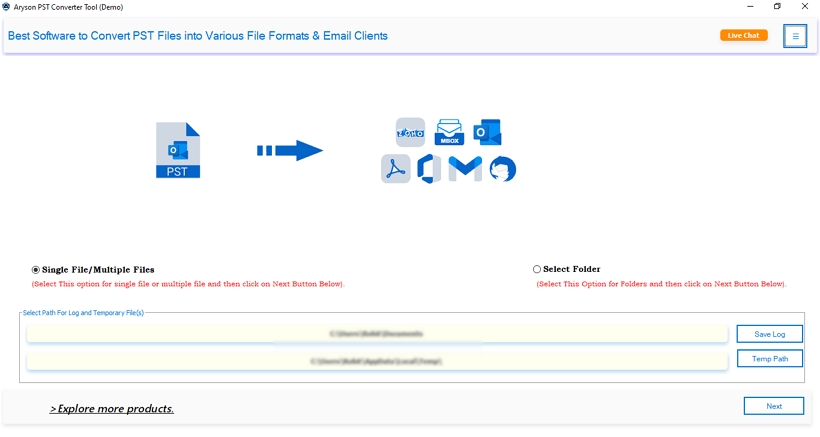
- Next, click: Select Files or Select Folders and add the PST file.
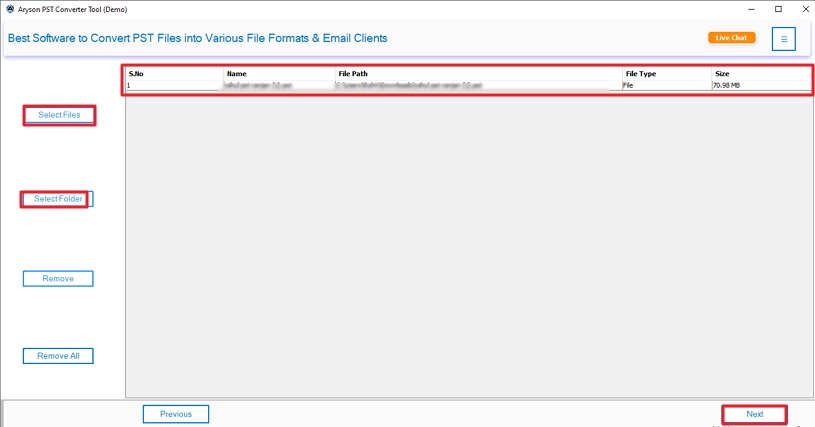
- Then, you can cross-verify the added PST file before saving it.
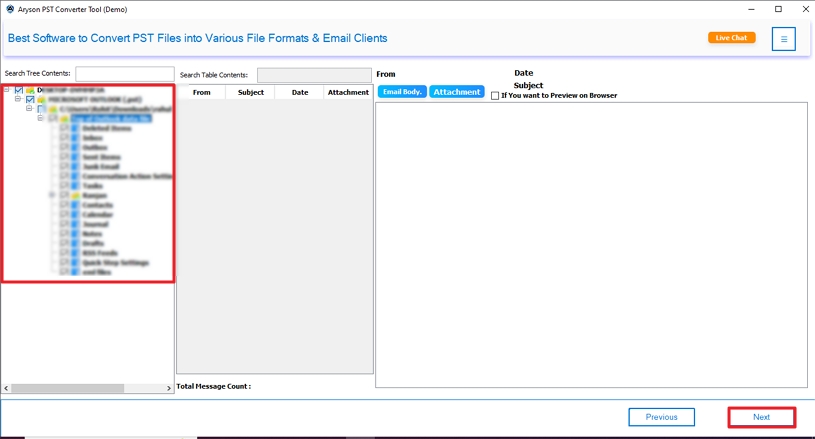
- After that, choose Save in File Format and pick MSG from the list.

- Further, apply advanced features and filters as per your needs.

- To finish, browse the location to store your files and click on Convert.

Conclusion
To sum up, the process to save multiple Outlook emails as MSG is beneficial for several purposes. This includes easy backup, shareable, and archived emails. Above, we discussed the top 2 methods to perform this conversion. If you have a few Outlook emails to save, you can use the manual technique. However, they contain several limitations that make this process difficult to perform. So, we highly recommend using the professional software for bulk conversion.
Frequently Asked Questions
Q1. How do I download all emails from Outlook?
Ans: Follow these steps to download Outlook emails:
1. Download Aryson Outlook PST Converter Tool.
2. Add PST files to convert. Click Next.
3. Preview & select the files/folders. Hit Next.
4. Choose MSG as the Saving option.
5. Apply advanced filters and click Convert.
Q2. How to bulk save emails from Outlook?
Ans: With the Best Outlook PST Converter Tool, you can save multiple Outlook emails simultaneously. Unlike the manual procedure, it can handle unlimited emails at a time. Moreover, there is no risk of data loss.
About The Author:

Evren Cole is an expert in Email and Data Management. She has a strong passion for technology and entrepreneurship. In her free time, she enjoys football, music, and reading books.

