

-
Written By Evren Cole
-
Updated on June 19th, 2026
How Organizations Can Convert OLM to PST for MS Outlook?
User Query: I’ve been using a Mac for the past two years, and now I’m planning to switch to Windows. For that, I need to move my Mac email data, which is in OLM format, into PST format. Can someone suggest a reliable way to convert OLM files to PST in bulk?
Summary: So you’re switching from Outlook on your Mac to a Windows PC? The file format thing is different for both operating systems. Mac Outlook saves everything in OLM files, but Windows Outlook only works with PST. So you can’t just move your files directly from Mac to Windows.
There are a couple of ways to convert OLM to PST. You can go the manual route or use MSOutlookhelp OLM Converter to get it done faster without losing your data. We’ll walk through both options so you can pick what works best for you.
There are a couple of ways to convert OLM to PST. You can go the manual route or use MSOutlookhelp OLM Converter to get it done faster without losing your data. We’ll walk through both options so you can pick what works best for you.
A Quick Look at OLM and PST Files
- OLM files are basically what Mac Outlook uses to save all your stuff, such as emails, contacts, calendars, tasks, you name it. It’s a Mac-only format. Windows Outlook has no idea what to do with it.
- PST files are the Windows version of the same thing. Same kind of data, just packaged differently, and they don’t work on Mac either.
Need to Convert OLM to PST
The conversion of OLM to PST is necessary for several reasons. Here, we will make you introduce some of the main reasons to perform this conversion process:
- You’re switching from a Mac to a Windows PC and need your old emails to work in Outlook.
- Windows Outlook doesn’t open OLM files, which is plain and simple.
- All your emails, contacts, and calendar stuff stay in one place after converting.
- You don’t want to start fresh and lose years of important emails.
- PST files are easier to back up and move around on Windows.
- It’s easier to search old emails in Outlook once everything is in PST.
- Some companies require PST format for email archiving and compliance.
|
Quick Steps for the Manual Method Mac Outlook >> Gmail >> Windows Outlook >> Export PST |
Method 01: Convert OLM File to PST Manually
There are several stages to performing the manual method to change the OLM file to PST.
Here’s how you can manually convert OLM (Outlook for Mac) files to PST (Outlook for Windows). This process is free but quite complex for non-technical users.
Stage 01: Set Up Your Gmail Account in MS Outlook
- First of all, launch and open Mac Outlook on your system.
- After that, go to Tools in the menu bar and select Accounts >> Emails.
- In the Accounts window, click on the + sign at the bottom left >> choose New Account.
- Next, enter your Gmail address and password and click Continue.
Stage 02: Transfer Mac Outlook Emails to Gmail
Once your Gmail account is set up, you can drag and drop emails or folders from your MAC Outlook inbox to your Gmail inbox. Select the emails you want to move, drag them, and drop them into the Gmail folder in the Outlook sidebar.
Stage 03: Configure Gmail Account in Windows Outlook
- Open Outlook on your Windows computer, go to File >> Add Account.
- In the Add Account setup window, enter your Gmail address >> click Connect.
- Choose IMAP as the account type. This will sync your Gmail emails directly in Outlook.
- If prompted, enter your Gmail password >> click Connect.
- Once the setup is complete, click Done.
After adding a Gmail account, you can drag and drop emails from your Gmail inbox to your Outlook folders.
Stage 04: Convert Outlook OLM to PST
- You need to launch Microsoft Outlook on your computer.
- Click on the File tab >> Open & Export >> Import/Export in Outlook.
- Choose Export to a file >> Outlook Data File (.pst) and save the PST File.
Drawbacks of the Manual Method
- The process takes a long time to complete the export.
- It requires both Mac and Windows operating systems.
- Emails and folder hierarchy may get missed with this method.
- It does not support large mailboxes when change OLM to PST.
Method 02: Reliable Solution to Convert OLM to PST Directly
The OLM Converter is one of the best software programs to transfer OLM to PST in just a few steps. This tool is useful for users who want to migrate their emails, contacts, calendars, and other mailbox items from macOS to Windows platforms. You can convert multiple OLM files to PST format at once. Also, it allows users to preview the OLM file contents before conversion. It will keep your OLM data in the original formatting and structure of emails. In addition to PST, you can convert OLM files to EML, MSG, MBOX, etc. Moreover, it import OLM to Thunderbird, Office 365, Gmail, and other email platforms. This software is compatible with Windows 11 and previous versions. Just follow the given steps to export OLM to PST:
Simple Steps to Export OLM Mailbox to PST
- First of all, launch and run the OLM Converter on your screen.
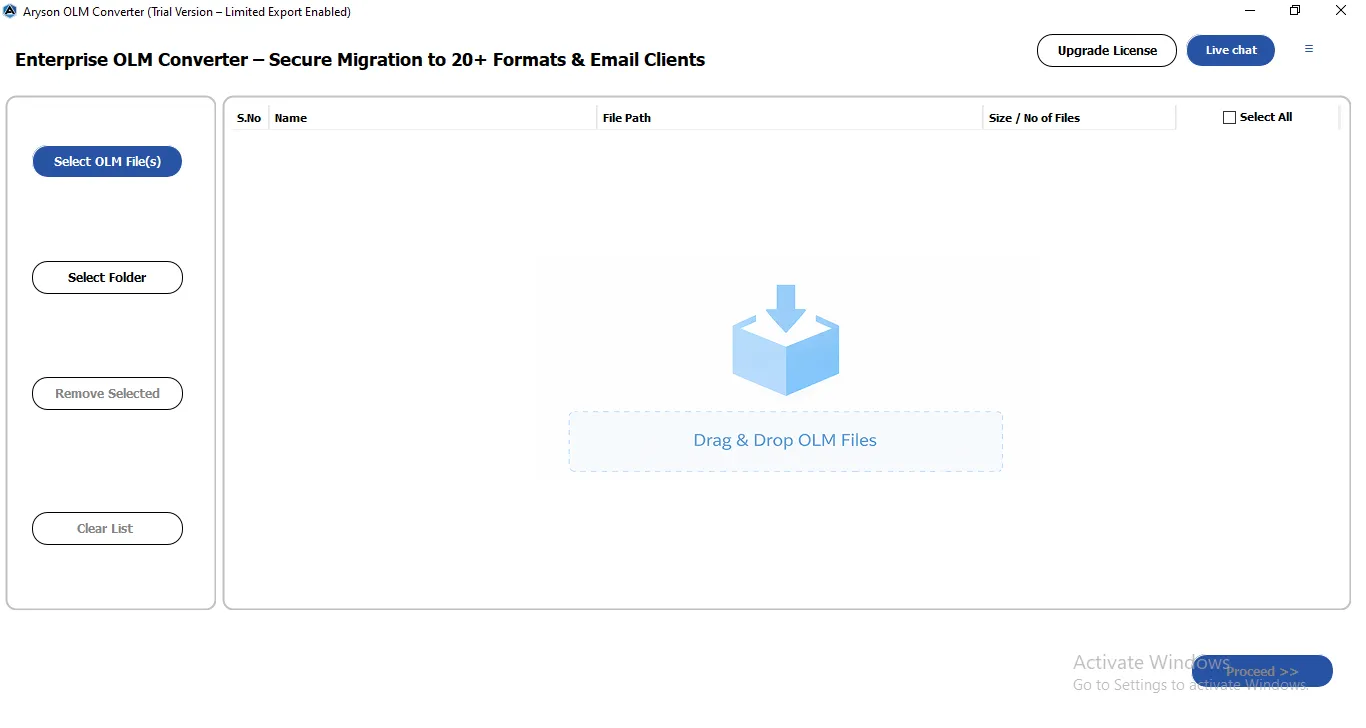
- After that, tap on Select File/ Select Folder to add the OLM files.
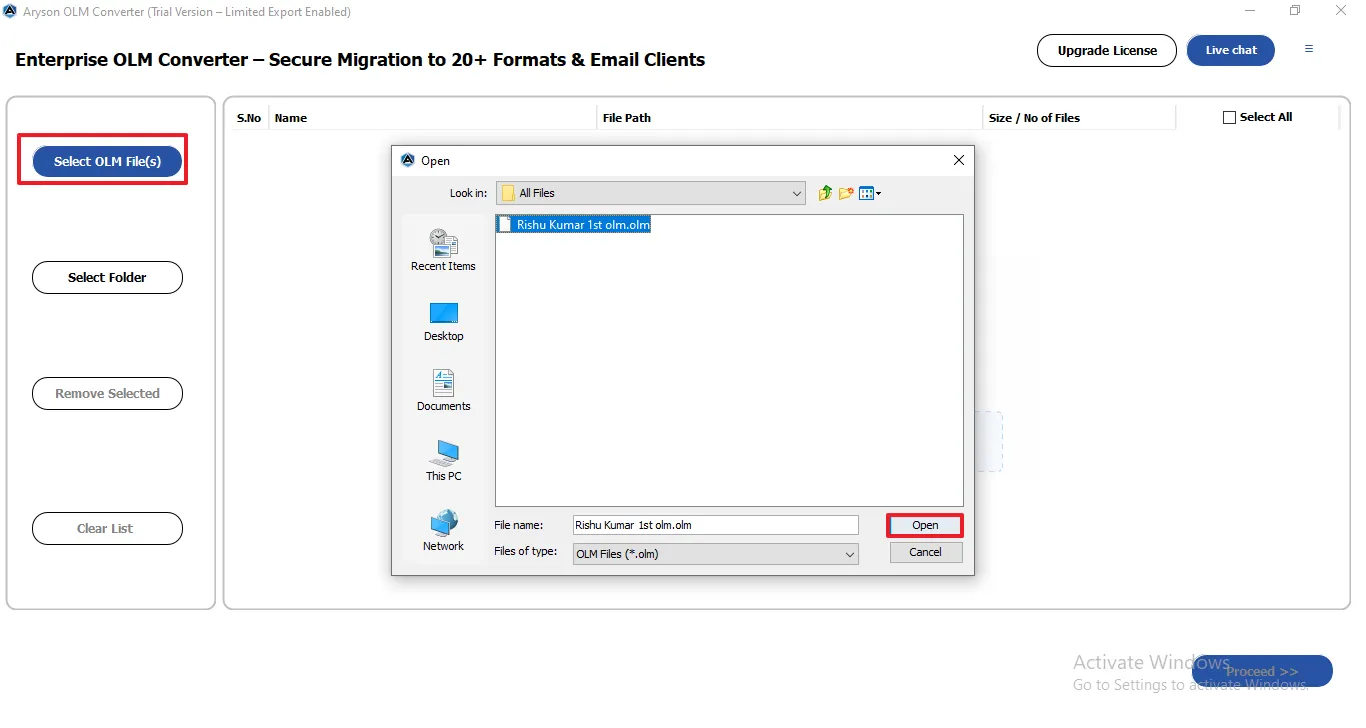
- It shows the details of the selected OLM file, and click on Next.
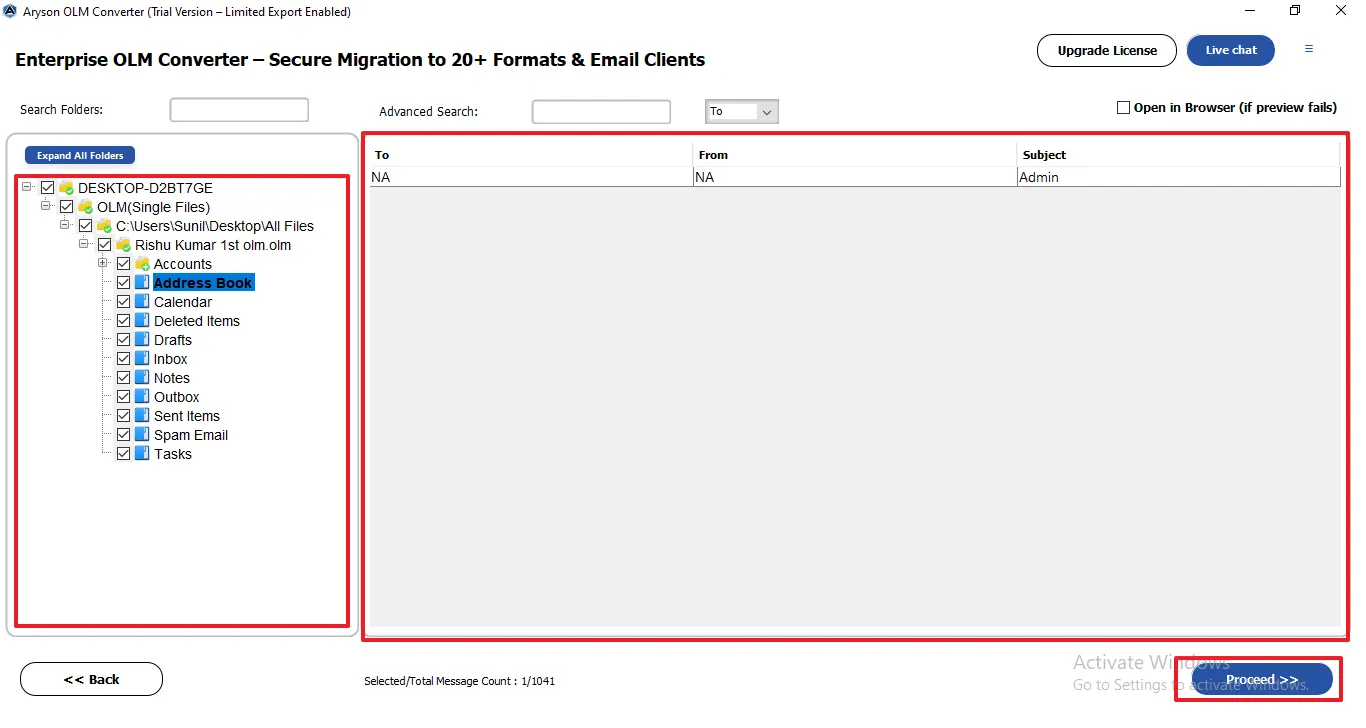
- Now, select the PST as the saving format of the selected OLM data.
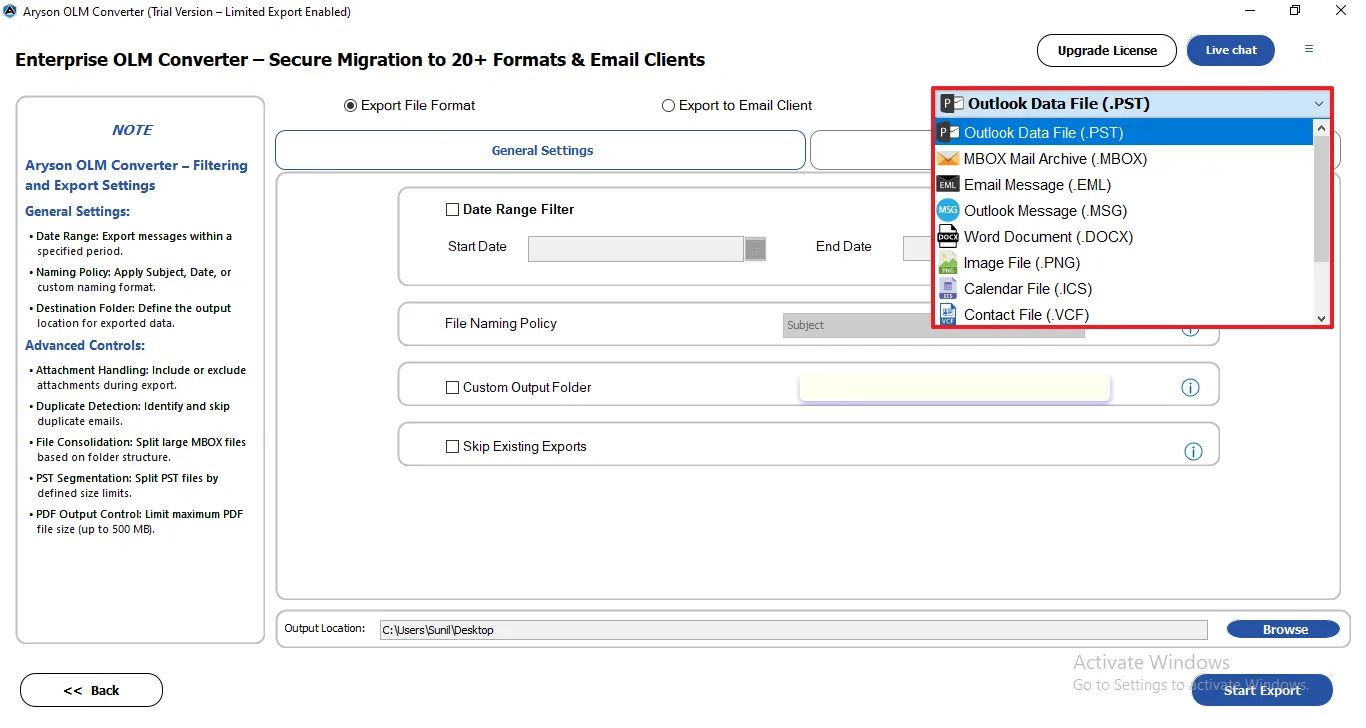
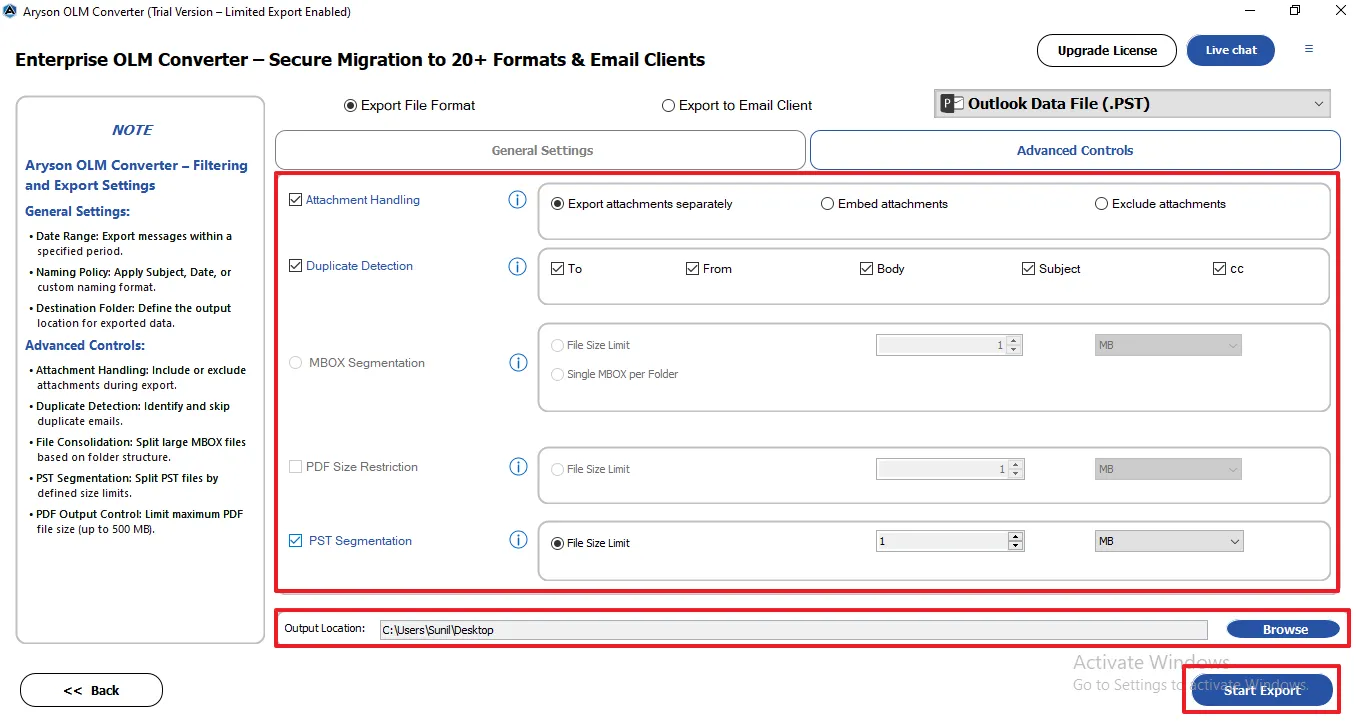
- Enable the features that are required for specific data conversion.
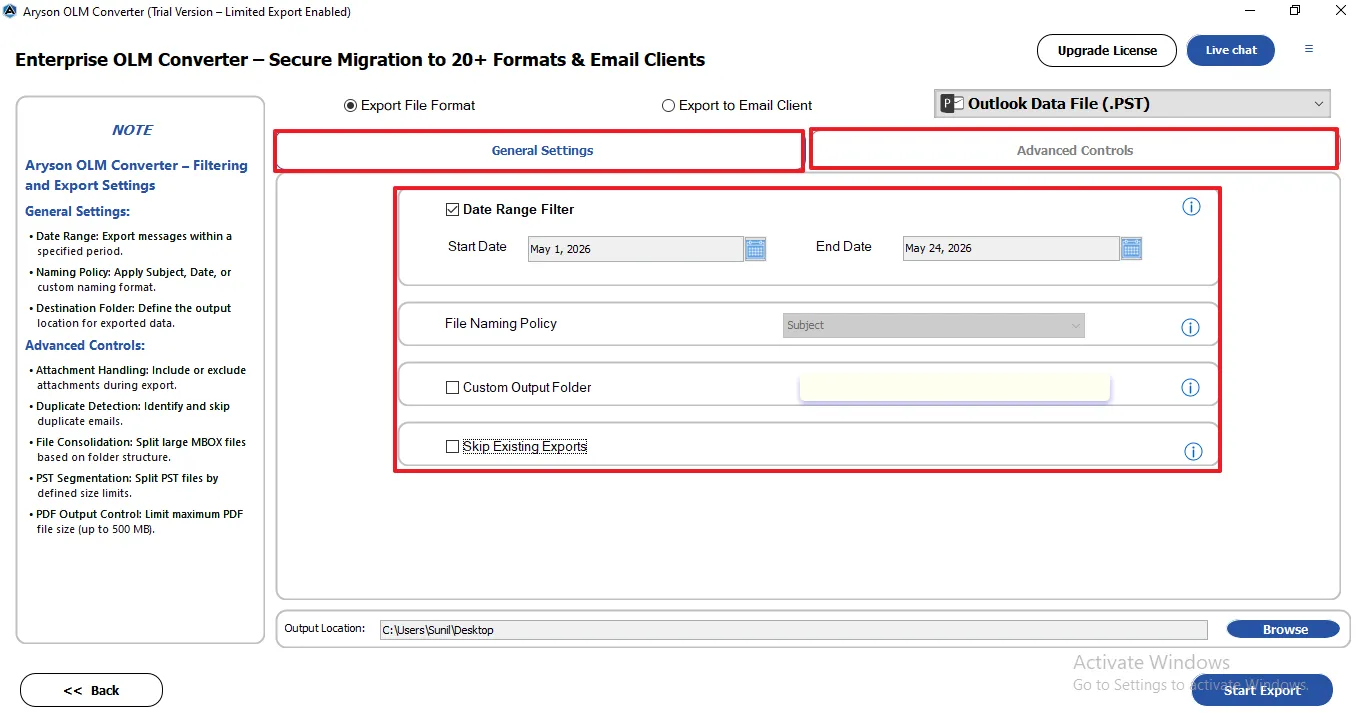
- Lastly, clicking Browse to save files >> Start Process to migrate Outlook Mac data to PST.
Comparison Between Manual and Professional Methods
|
Features |
Manual Method |
Professional Software |
|
Free |
Yes |
Trail Available |
|
Bulk Conversion |
No |
Yes |
|
Maintains Folder Structure |
Limited |
Yes |
|
Conversion Speed |
Slow |
Fast |
|
Risk of Data Loss |
Possible |
Minimal |
Conclusion
In conclusion, users can convert OLM to PST using manual and automated techniques. The manual method involves several stages to sync emails between Mac and Windows Outlook. However, the manual methods require more effort and time compared to using dedicated software. The user must opt for the given software to convert Mac OLM to Windows PST and accomplish the task in just a few clicks. Along with that, the integrity of your data is maintained throughout the conversion. Thus, users can successfully transition their emails, contacts, and calendar data to PST accurately.
Frequently Asked Questions:
Q.1. How can I convert OLM to PST without losing email data?
Ans. You can use an OLM Converter tool to safely transfer OLM emails to Outlook PST format while preserving emails, attachments, metadata, and original folder hierarchy without any data loss.
Q.2. How long does it take to convert a large OLM file to PST?
Ans. The conversion time depends on the size of the OLM file and system performance. Large OLM files may take several minutes or longer to complete the conversion.
Q.3. Can I migrate Mac Outlook emails to Windows Outlook using PST format?
Ans. Yes, users can migrate Mac Outlook emails to Windows Outlook by converting OLM files into PST format, which is fully supported by Microsoft Outlook for Windows.
Q.4. Is it possible to convert multiple OLM files to PST at once?
Ans. Yes, the OLM Converter tool allows users to batch convert multiple OLM files into PST format in a single process, saving both time and effort.
About The Author:

Evren Cole is an expert in Email and Data Management. She has a strong passion for technology and entrepreneurship. In her free time, she enjoys football, music, and reading books.

