

-
Written By Evren Cole
-
Updated on January 12th, 2026
Migrate Microsoft 365 Emails to Outlook.com in Simple Steps
Introduction: Several organizations & enterprises migrate Microsoft 365 emails to Outlook.com to consolidate their business data into a single inbox. After the migration, users can effortlessly access their emails across devices while maintaining data integrity. As Outlook.com supports robust synchronization and security features, the migration is ideal for users migrating organizational accounts. This blog explains how to use the MSOutlookHelp Office 365 Backup Tool to perform migration without installing Outlook. Continue reading to get more insights.
Why Do We Need to Migrate Office 365 Mailbox to Outlook.com?
Given below are the factors due to which users prefer to migrate their Microsoft 365 emails to Outlook.com.
- Users can access their emails via a simple, web-based Outlook.com interface.
- You don’t need to depend on the paid Microsoft 365 subscriptions.
- Moreover, users can centralize their business emails into a personal Outlook.com account.
- In addition, you can easily access your data across devices without admin restrictions.
- Also, it becomes simple to manage emails for individual users or freelancers.
Best Solution to Migrate Microsoft 365 Emails to Outlook.com
MSOutlookHelp Office 365 Backup Tool is the quickest solution to export Office 365 emails to Outlook.com. This software can perform the entire conversion within a small interval of time, that too without compromising on data integrity. Moreover, you can cross-verify your data before migrating it. In addition, the software provides various features like a Date range filter and skip previous mails to avoid duplication. Also, users can migrate Office 365 to Yandex Mail, IMAP, Yahoo Mail, etc, email clients. Now, follow the steps below carefully to perform the entire migration.
Simplified Tutorial to Migrate Office 365 Emails to Outlook.com
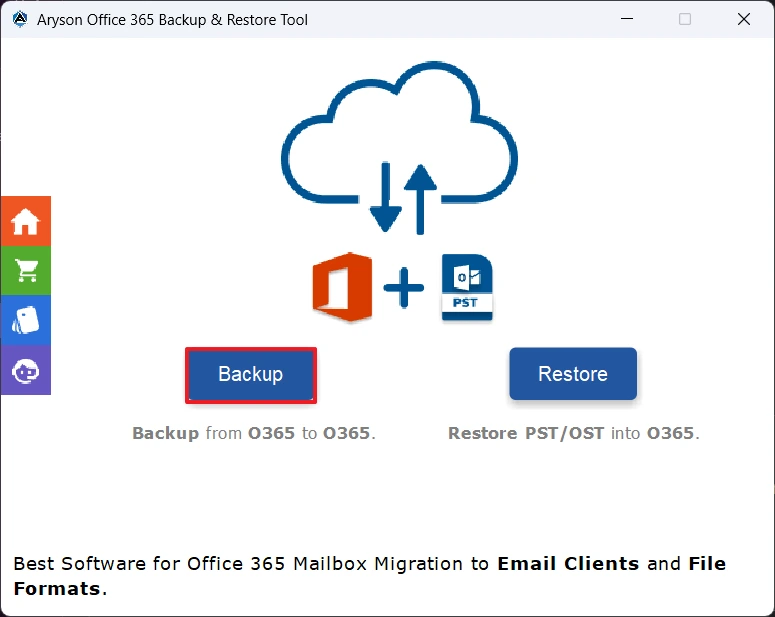
- First, install & run the MSOutlookHelp Office 365 Backup Tool >> Backup.
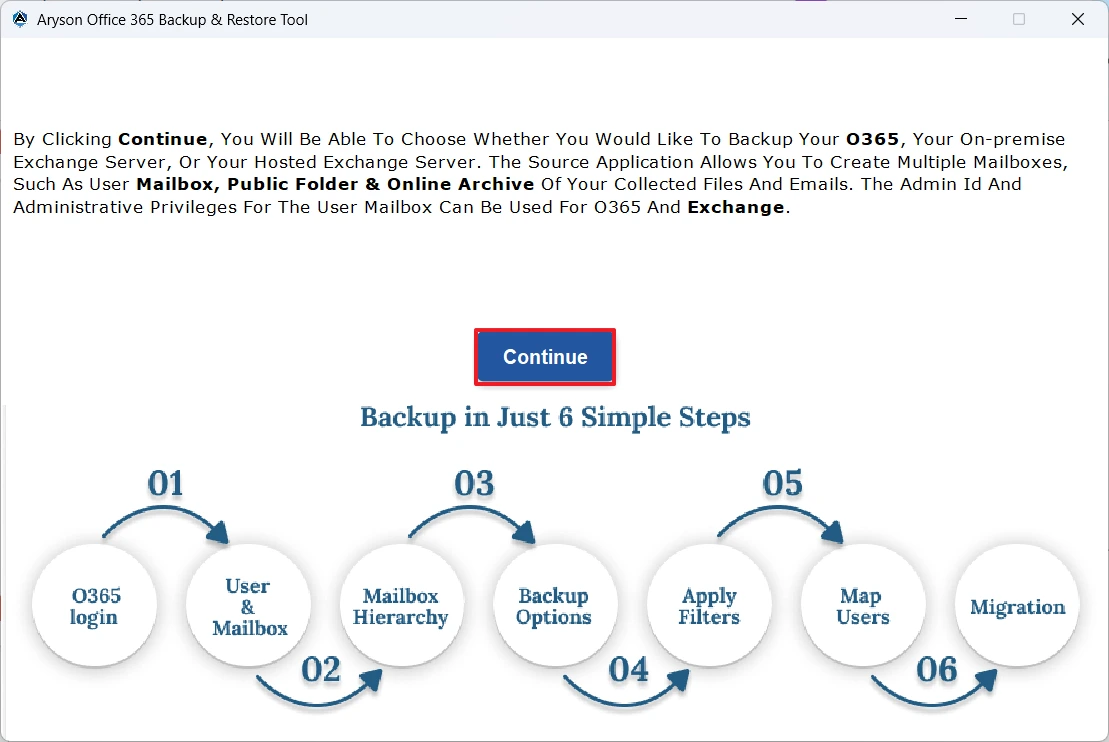
- Then, select the Continue button to move forward.
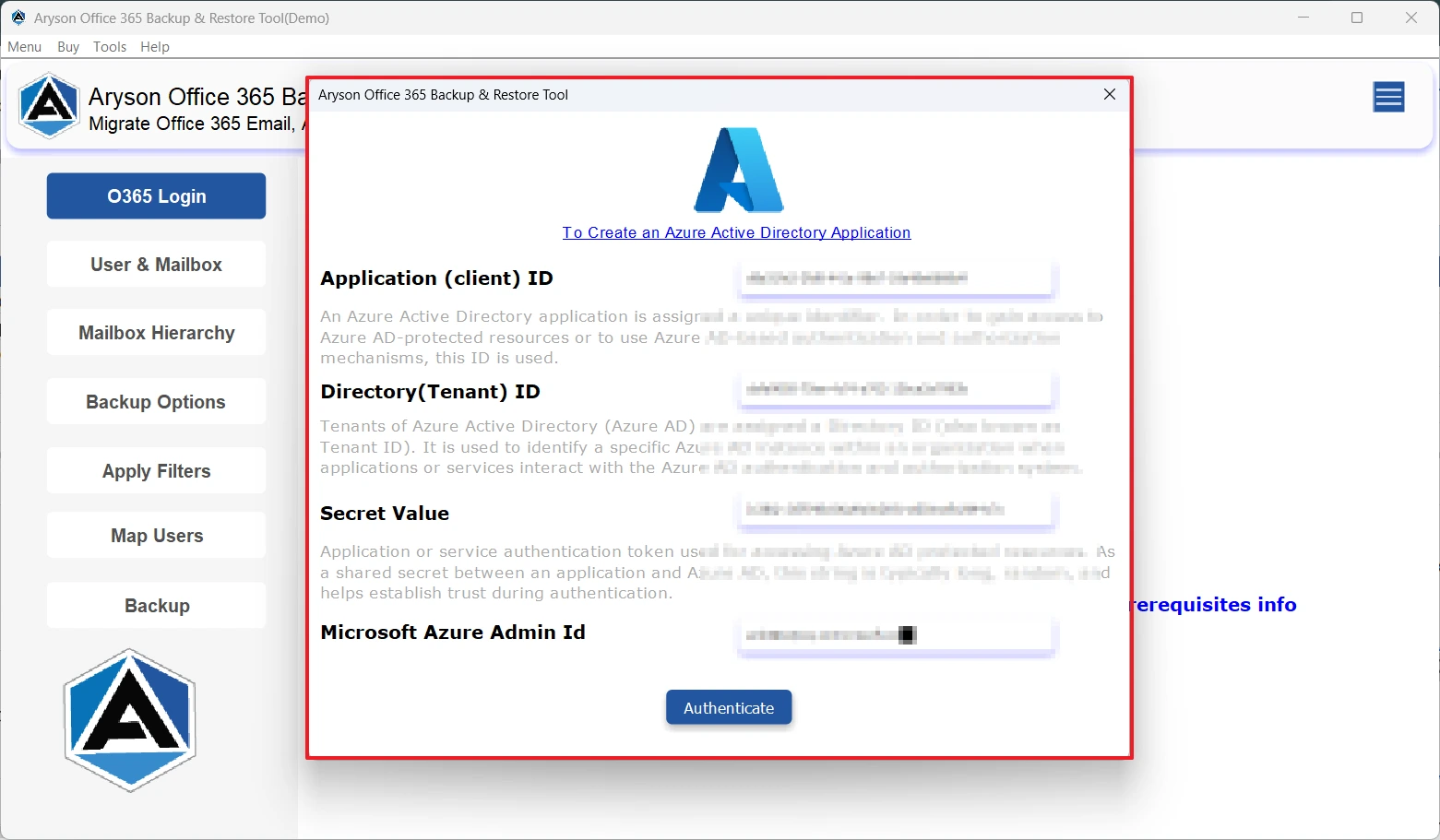
- After that, sign in to your Office 365 account using its credentials.
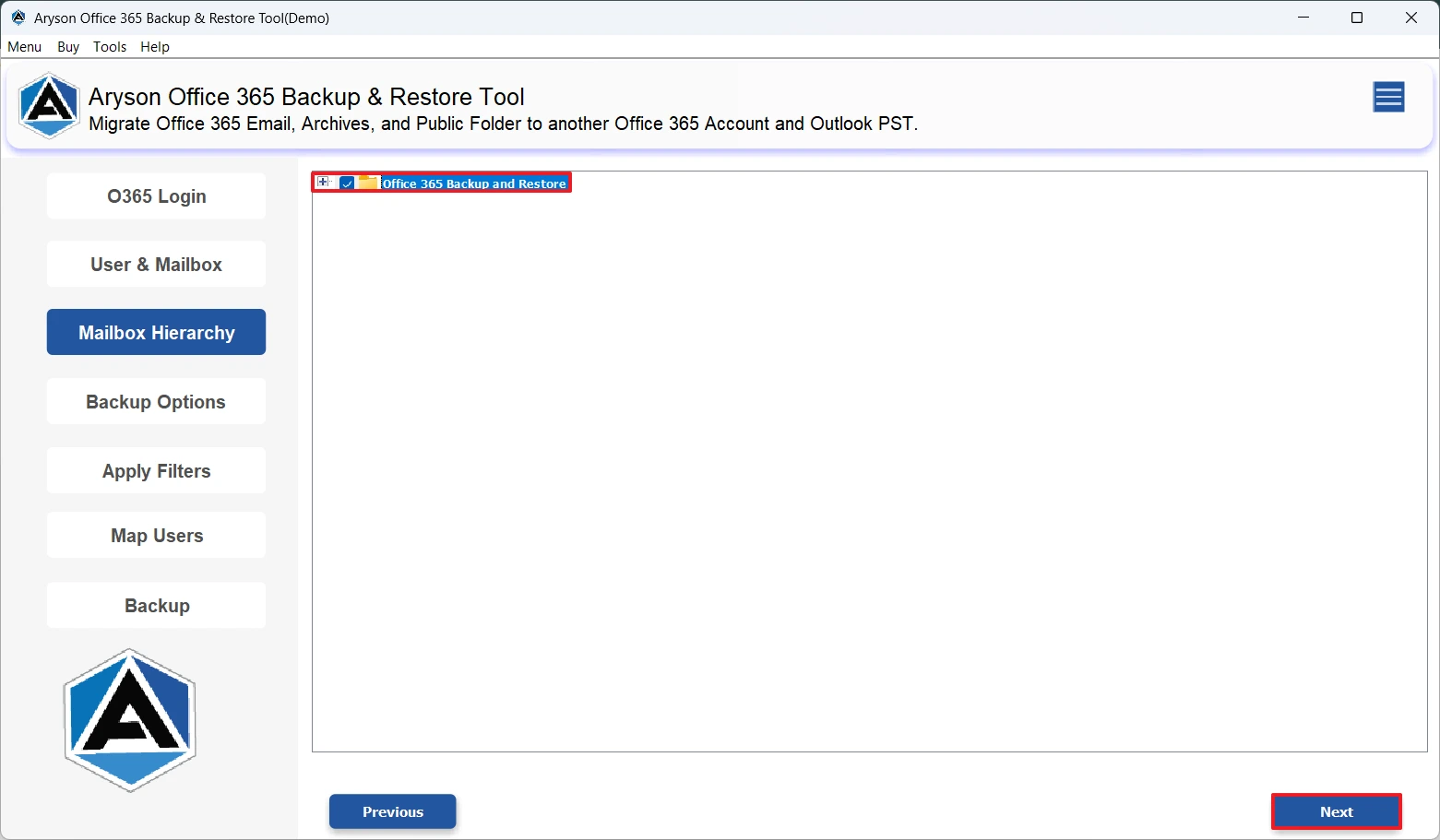
- Next, from the folder hierarchy, select the files/folders you want to migrate.
- Now, select the Hotmail option among the listed email clients.
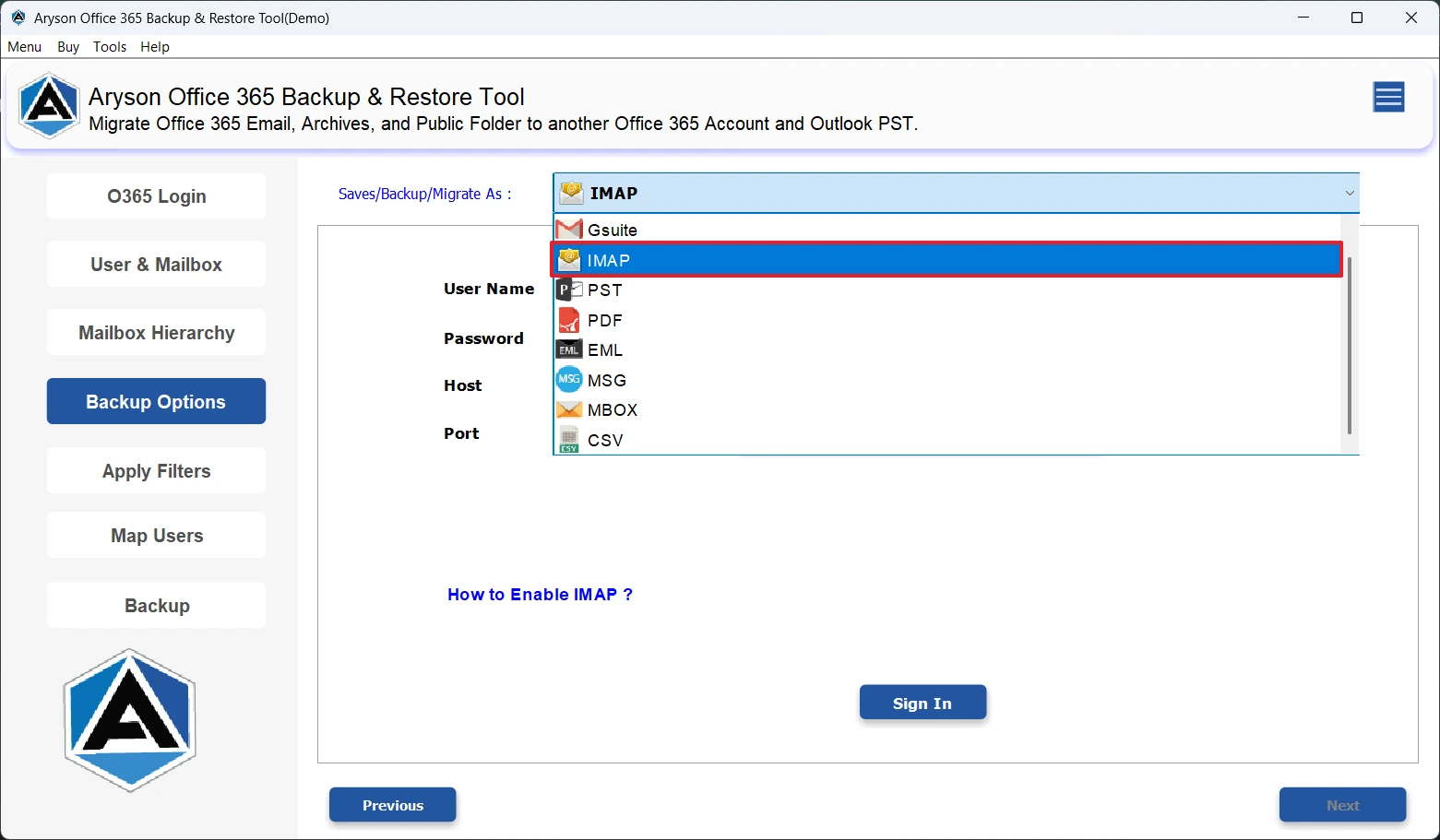
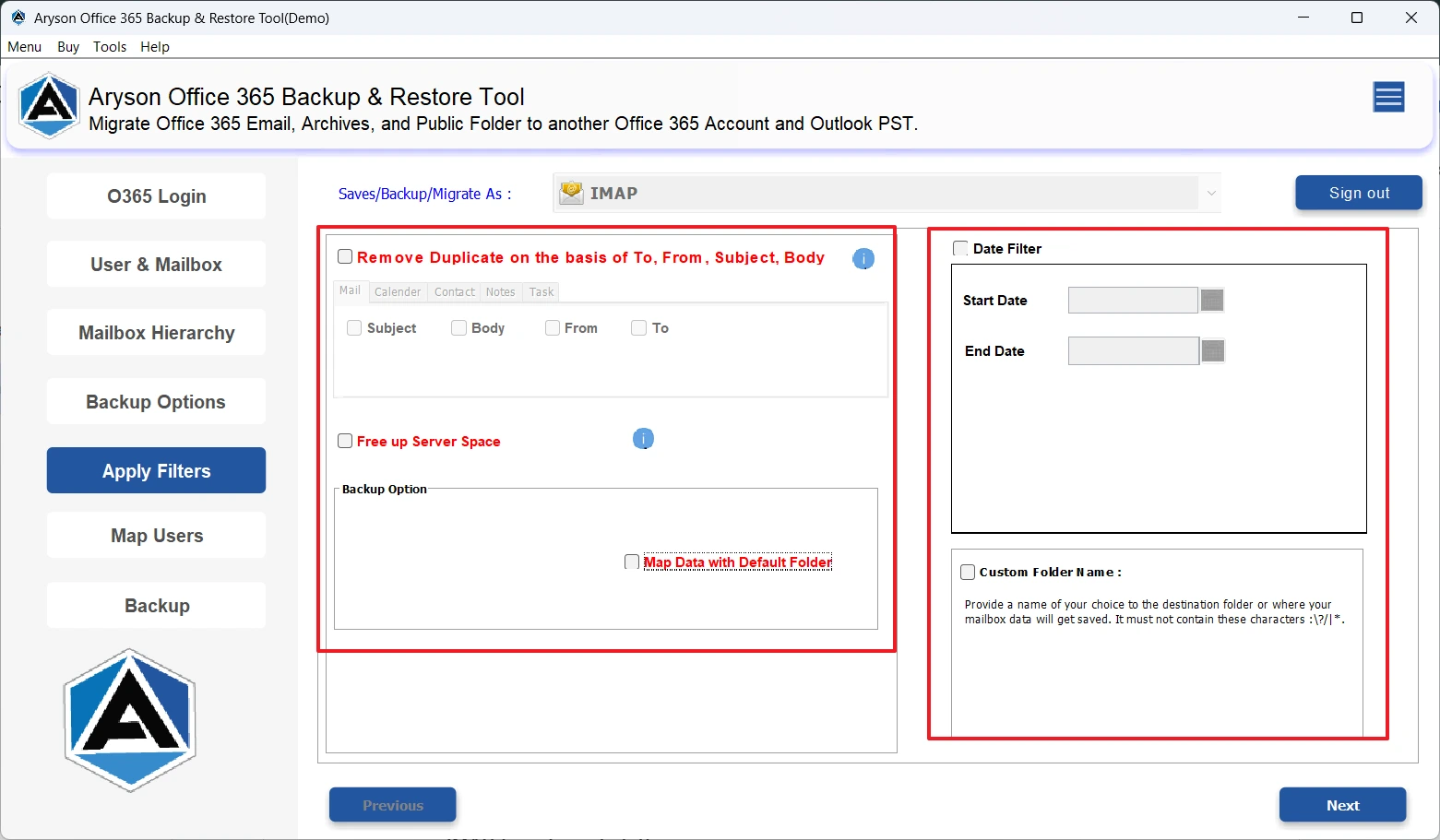
- Then, use the advanced features of the software as per your requirements.
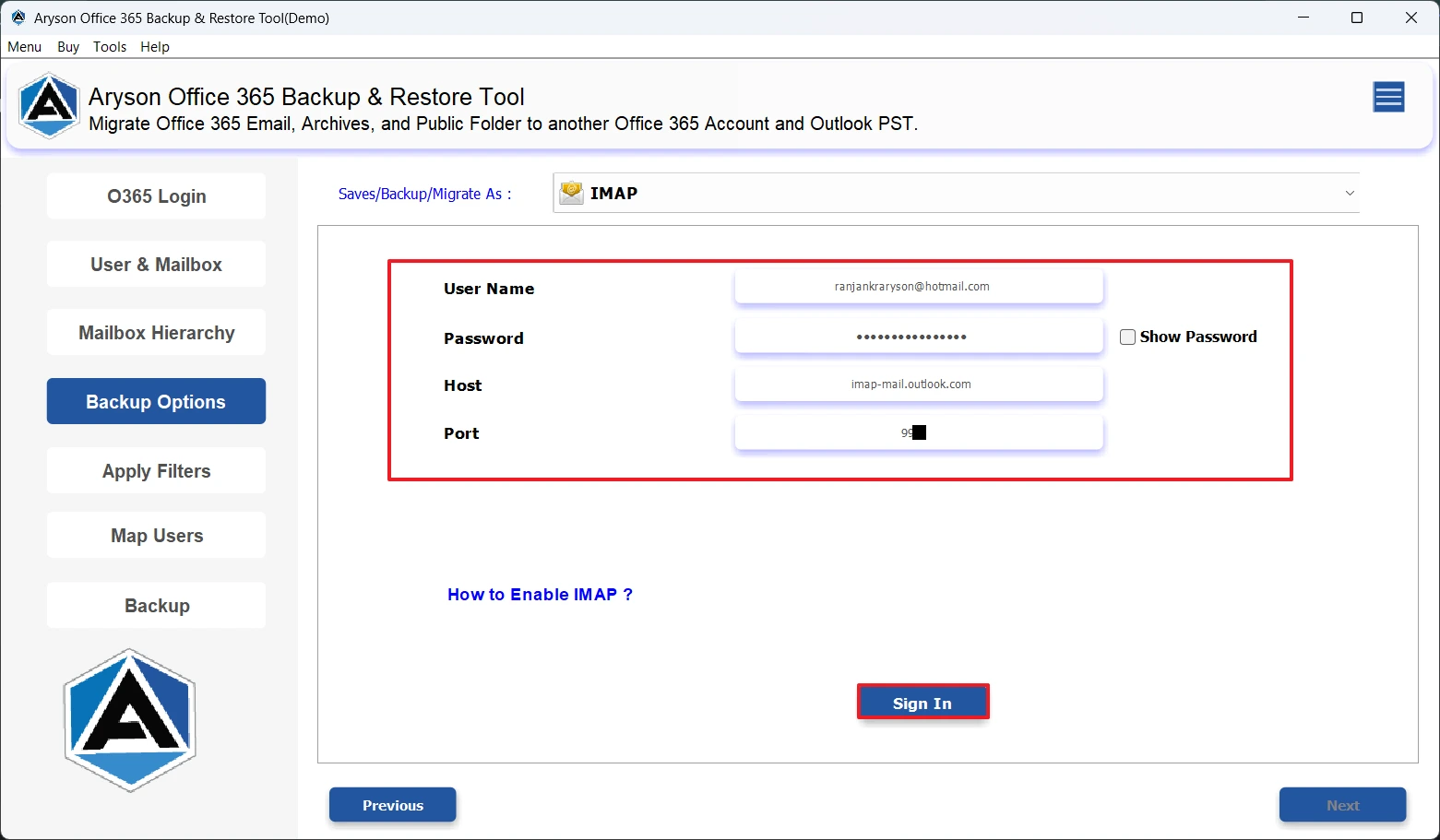
- At last, click on the Next button to migrate Microsoft 365 Emails to Outlook.com.
Why Choose MSOutlookHelp Office 365 Backup Tool?
- This software can export Office 365 mailboxes to PST, MBOX, EML, MSG, etc.
- It can migrate Office 365 data directly to other tenants, Google Workspace, and IMAP servers.
- Moreover, it can securely authenticate via the Modern OAuth 2.0 with Client ID & Secret.
- In addition, users can easily back up primary, archive, & public folders with ease.
- Also, users can preview mailbox data in a tree structure before migration.
- It can also migrate multiple files from multiple user mailboxes at the same time.
- On top of that, the advanced filters make the entire migration way more simpler.
A Real World Success Story
A mid-sized organization needed to move Office 365 Contacts to Outlook.com, but it was concerned about the risk of data loss. Then, they decided to use the MSOutlookHelp Office 365 Backup Tool, and they completed the migration effortlessly, keeping the folder hierarchy and email integrity intact. The advanced features of the software delivered accurate results. As a result, the team achieved a fast and error-free migration with complete user satisfaction.
Conclusion
From the above, you would have understood the importance of Office 365 to Outlook.com migration. Along with that, we also discussed how the automated software simplifies the entire process via its advanced features. Moreover, the user-friendly interface allows beginners as well as technical experts to migrate Microsoft 365 emails to Outlook.com & accomplish their tasks. In case of queries, reach out to our team at MSOutlookHelp.
Frequently Asked Questions:
Q.1 How do I link my Office 365 account to Outlook.com?
Ans. You can simply connect your Office 365 account to Outlook.com, if you are using the MSOutlookHelp Office 365 Backup Tool for the migration.
Q.2 Will my Outlook.com account sync automatically after migration?
Ans. Yes, if you are using the above automated software, your Outlook.com account will automatically sync after migration.
Q.3 What is the easiest way to migrate Microsoft 365 emails to Outlook.com?
Ans. MSOutlookHelp Office 365 Backup Tool is the easiest way to transfer Office 365 Calendar to Outlook.com.
About The Author:

Evren Cole is an expert in Email and Data Management. She has a strong passion for technology and entrepreneurship. In her free time, she enjoys football, music, and reading books.

