

-
Written By Evren Cole
-
Updated on October 8th, 2025
How to Import MSG to Thunderbird Easily
User Query: “I have recently switched email clients from Outlook to the Mozilla Thunderbird email client. Since Thunderbird does not support.MSG files directly, I would like to discover how I can easily and safely Access MSG Files in Mozilla Thunderbird with attachments in Thunderbird. What is the best possible solution?”
Summary: When a user navigates from Outlook to Thunderbird, they often have trouble with MSG files and can’t open them in Thunderbird since it doesn’t support that file type. After users shift from Outlook to Thunderbird, they often run into issues opening MSG files since Thunderbird doesn’t open them directly. MSG files are single Outlook emails, along with all attachments and the formatting. In order to open them, the user needs to import MSG to Thunderbird. A suitable tool is the MSOutlookHelp MSG Converter Tool, which ensures quick, safe, and bulk migration while keeping your data and attachments intact, without
Simplified Reasons to Import MSG to Thunderbird
There are a couple of common reasons users like to import MSG into Thunderbird.
- Costs: Outlook has a paid licensing fee; Thunderbird is free and open source.
- Cross-platform use: Thunderbird works on Windows, macOS, and Linux, offering cross-platform flexibility.
- Email management: Thunderbird can manage multiple accounts, add-ons and has a more customizable interface.
- Accessibility: After the email is imported from the MSG file, the email is accessible at any time without installing Outlook.
- Archiving needs: Converting MSG into Thunderbird preserves the email in a structured file format like EML or MBOX, and Email file formats like EML or MBOX are a bit more ‘future proof.’
Generally, people want these types of benefits. Hence, they search for a safe and effective way to access MSG files, which allows the user to open the file with Thunderbird..
Is it Possible for Thunderbird to Open MSG Files?
In short, no. Mozilla Thunderbird is limited in that it is unable to work with the MSG file format, as it primarily uses MBOX and EML files. This prevents it from being able to import or open the MSG file format directly.
Two Effective Methods to Import MSG to Thunderbird
Since Thunderbird does not natively support MSG files, you need to rely on alternative approaches. There are mainly two effective ways to import MSG into Thunderbird: one is a manual process that uses Outlook, and the other is a professional tool designed to make the migration quick and error-free. Let’s go through each of the methods for the conversion in detail.
Method 1: Import MSG Files into Thunderbird Using Outlook
If you still have access to Outlook, you can determine the EML format, which can also be used in Thunderbird.
- To start, just open Outlook and find the MSG file you want to import.
- Double-click on the MSG file that opened in Outlook.
- Go to File > Save As, and there you will see EML as an option.
- Save it to your hard drive or some portable media.
- Once you’ve finished, just open Thunderbird and drop your saved EML file in any folder.
Limitations of the Manual Method:
- The challenges with the Manual Method include:
- Requires an installed version of Outlook on every machine.
- Inefficient, since you must save each MSG individually.
- Not suitable for migrating a lot of MSG’s.
- Attachments or formatting sometimes
Method 2: Import MSG to Thunderbird With No Limitations
The MSOutlookHelp MSG Converter Tool offers an efficient process to transfer MSG files to Thunderbird. Users can quickly migrate MSG files into Thunderbird without losing formatting or folder structure. The convenience of bulk conversion of MSG files to Thunderbird is also available when attempting to migrate a large number of MSG emails. When the conversion process is complete, you can easily view all converted MSG emails in Thunderbird. Along with Thunderbird, you can also import MSG to Gmail with other email clients.
Simple Steps to Open MSG File in Thunderbird
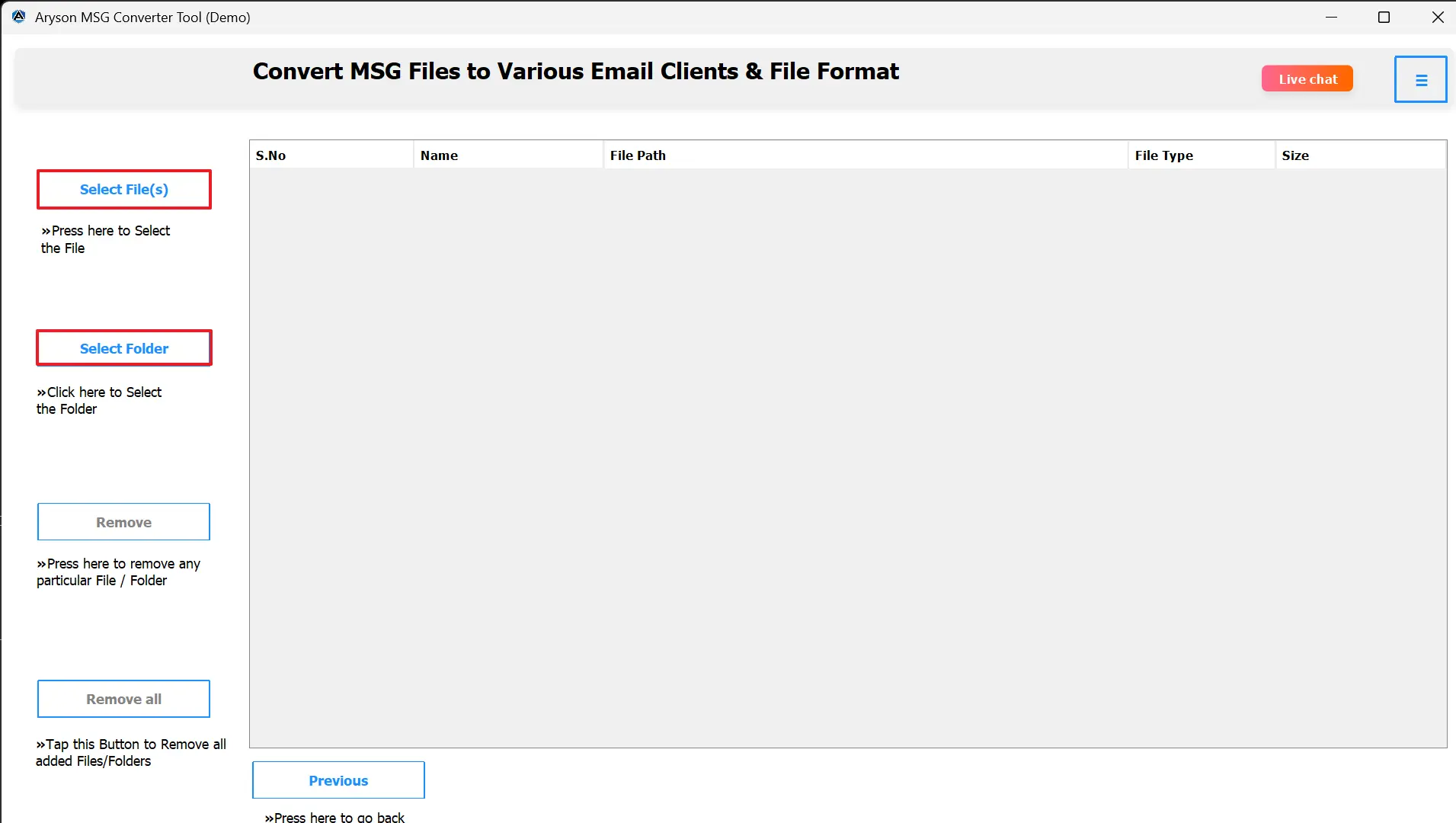
- Install and launch the MSOutlookHelp MSG Converter Tool.

- Click on Select File/Select Folder to load MSG files.
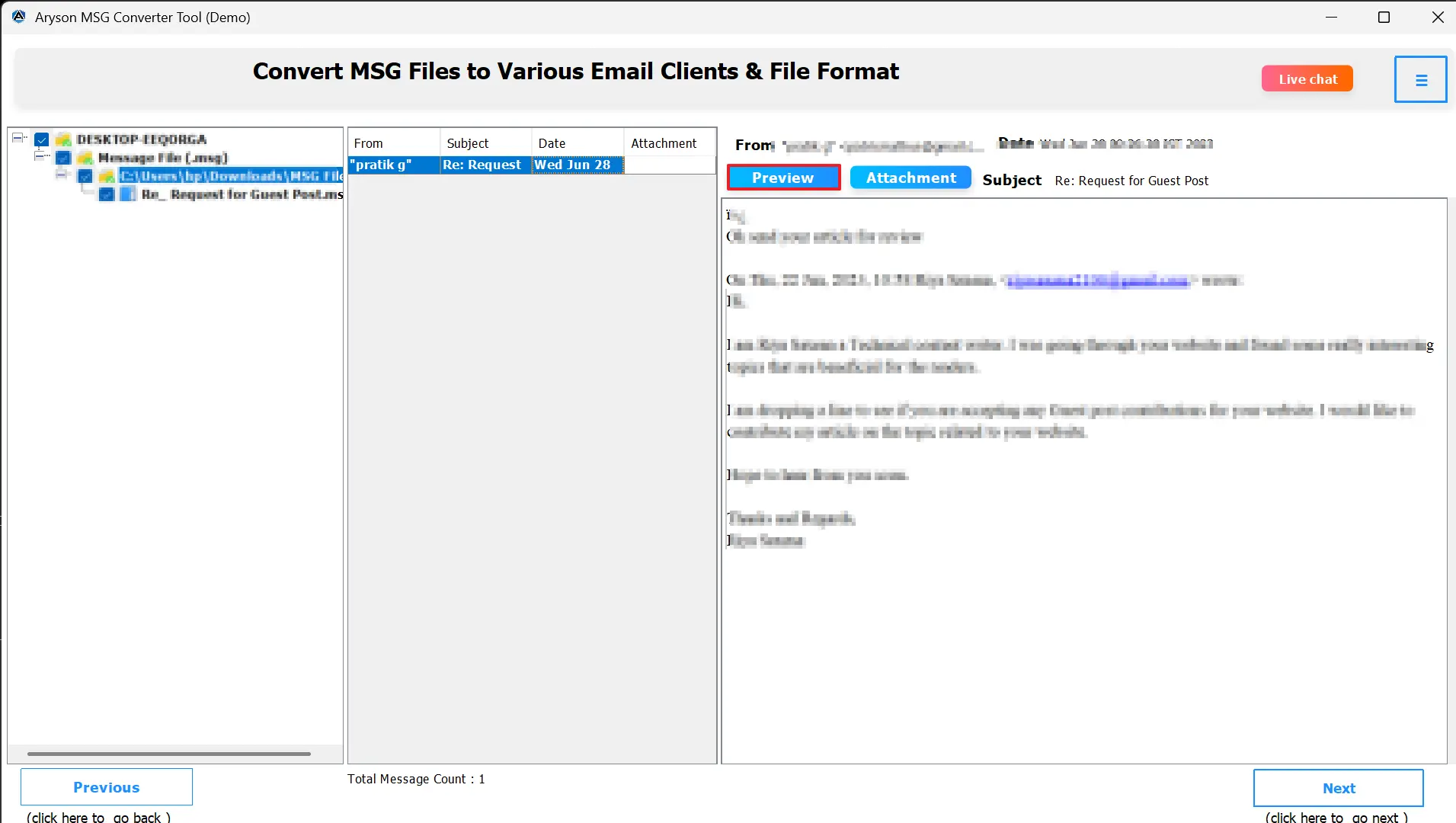
- Preview the emails and attachments within the tool.
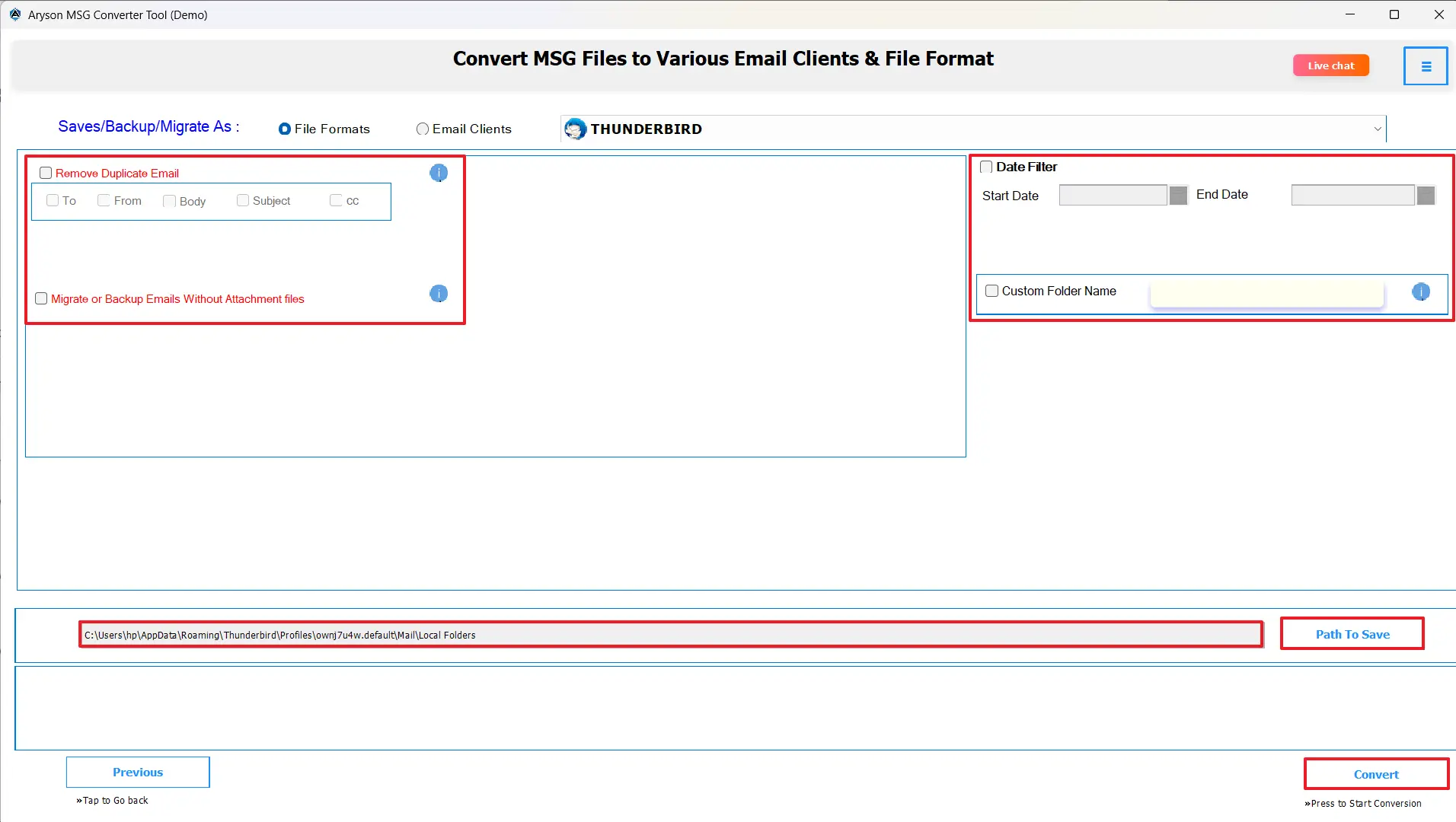
- Simply choose Thunderbird as the output format.

- Apply filters and click on the convert button to Open MSG Files in Thunderbird.
Conclusion
This technical article describes the procedure to import MSG to Thunderbird successfully. The manual process is based on Outlook and will work for a very limited number of emails, but it is tedious and requires quite a few technical steps. Recommended systematic approaches allow you to migrate multiple emails at once. Also, it provides a folder hierarchy and manages a quick and smooth transfer of all MSG files.
Frequently Asked Questions:
Q.1 Can I access MSG files in Mozilla Thunderbird without conversion?
Ans. Yes, using the MSOutlook MSG Converter, you can access MSG files in Mozilla Thunderbird before the conversion.
Q.2 What is the best method to import MSG to Thunderbird?
Ans. The best way is to use the MSOutlook MSG Converter tool. You can simply import MSG to Thunderbird within a few clicks.
Q.3 Do I need Microsoft Outlook to open or convert MSG files for Thunderbird?
Ans. No, the MSOutlook MSG Converter doesn’t require Outlook installation. It independently converts MSG files to Thunderbird-compatible formats.
Q.4 Is it possible to delete duplicate MSG files while importing them into Thunderbird?
Ans. Yes, the MSOutlook MSG Converter includes an advanced duplicate removal feature. It scans and removes identical MSG emails before conversion.
About The Author:

Evren Cole is an expert in Email and Data Management. She has a strong passion for technology and entrepreneurship. In her free time, she enjoys football, music, and reading books.

