

-
Written By Evren Cole
-
Updated on October 3rd, 2025
How to Import MSG to Gmail: A Simple Step-by-Step Guide
User Query: “I’ve saved hundreds of MSG files from Outlook, and now I’m transitioning to Gmail. I’d like a safe and easy way to open MSG Files in Gmail, with their attachments included in Gmail. I’m a bit technically challenged, so I’d like to know the easiest way to import MSG Files into Gmail. Please let me know the easiest approach to take for my data’s safety.”
Summary: Many users are looking for a safe way to import MSG to Gmail for easier access, backup, and collaboration. To help, this guide explains tested methods that allow you to open MSG files in your Gmail account without data loss. You can use the manual method and a professional MSOutlookHelp MSG File Converter. Continue reading this complete blog to get an effective and 100% accurate result.
Why Do Users Import Outlook MSG Files into Gmail?
MSG files are how Outlook formats an individual email with details that include sender, recipient, subject line, attachments, and any formatting applied to the message. However, MSG files only work in Outlook and cannot be accessed directly in Gmail.
- There are many instances when users opt to transfer msg files to their Gmail account.
- Gmail can be accessed on any device, such as a smartphone, tablet, or web browser. After importing, they can access MSG emails anytime, anywhere, as Gmail stores MSG files in the cloud.
- Users who transfer MSG Files to Gmail automatically create a backup in the cloud.
- Gmail integrates with Google Workspace, so sharing, searching, and collaborating with MSG files is hassle-free.
- Individuals who are moving from Outlook to Gmail for their personal or business email would want access to the MSG files from their old Outlook application.
- With its organized interface and enhanced search features, Gmail makes it much easier to access and manage imported MSG emails.
Because of these reasons, people often look for trusted ways to import Outlook MSG files into Gmail efficiently.
Two Effective Methods to Import MSG to Gmail
Gmail doesn’t offer a straightforward feature for opening MSG files. There are, however, two fairly dependable methods of accessing your files. You can do so by either manually accessing via Outlook or, as a more efficient option for when you have a large number of files, using a professionally designed tool that enables fast bulk transfer. Each option is described below, enabling you to select the best experience while also ensuring that your attachments and emails are still protected.
Method 1: Open the MSG Files in Gmail Manually
If you want your MSG files in Gmail, this simple manual method is for you. Just note that you will need Outlook on your computer for this to work.
Steps to Follow:
- To get started, connect your Gmail account to Outlook using IMAP. (If you’re unsure of the process, check out our detailed blog showcasing how to set this up.)
- Once you have set up your Gmail account in Outlook, you will need to find the folder containing your MSG files.
- Choose the MSG files you would like to open in your Gmail account.
- Next, drag the selected MSG files into your Gmail folder appearing with Outlook.
- At that point, Outlook will sync those emails to Gmail automatically.
- Once that has happened, you will be able to access the emails within your Gmail account.
Disadvantages of the Manual Approach
Although this is a simple process, you should be aware of the following conditions:
- Outlook Dependency: You must also have Microsoft Outlook. Without having Microsoft Outlook, this is not a feasible method.
- Setup Risk: The setup of your Gmail account in Outlook must be configured properly. A misconfiguration can cause a loss or disappearance of emails.
- Time Requirement: Using Outlook to open large numbers of MSG files may take a lot of time to put together.
- Basic Technical Expertise: This process can be quite challenging if you do not use an email application.
Method 2: Professional Tool – Import MSG to Gmail in a Few Clicks
For users who want a faster, error-free, and non-technical solution, the best choice is a professional tool. The professional MSOutlookHelpMSG Converter Tool directly transfers MSG files into Gmail, keeping attachments, formatting, and email properties intact.
Features of the MSG Converter Tool:
- Convert MSG to MBOX directly without utilizing Outlook.
- Retains the folder structure, inline images, and attachments.
- Allows the bulk migration of MSG files to Gmail.
- Offers advanced filters (date, subject, sender) to selectively import messages.
- Simple and straightforward, requiring no technical expertise.
- Manages large MSG sets in accordance with Gmail specifications with minimal downtime.
Steps to Use the Tool:
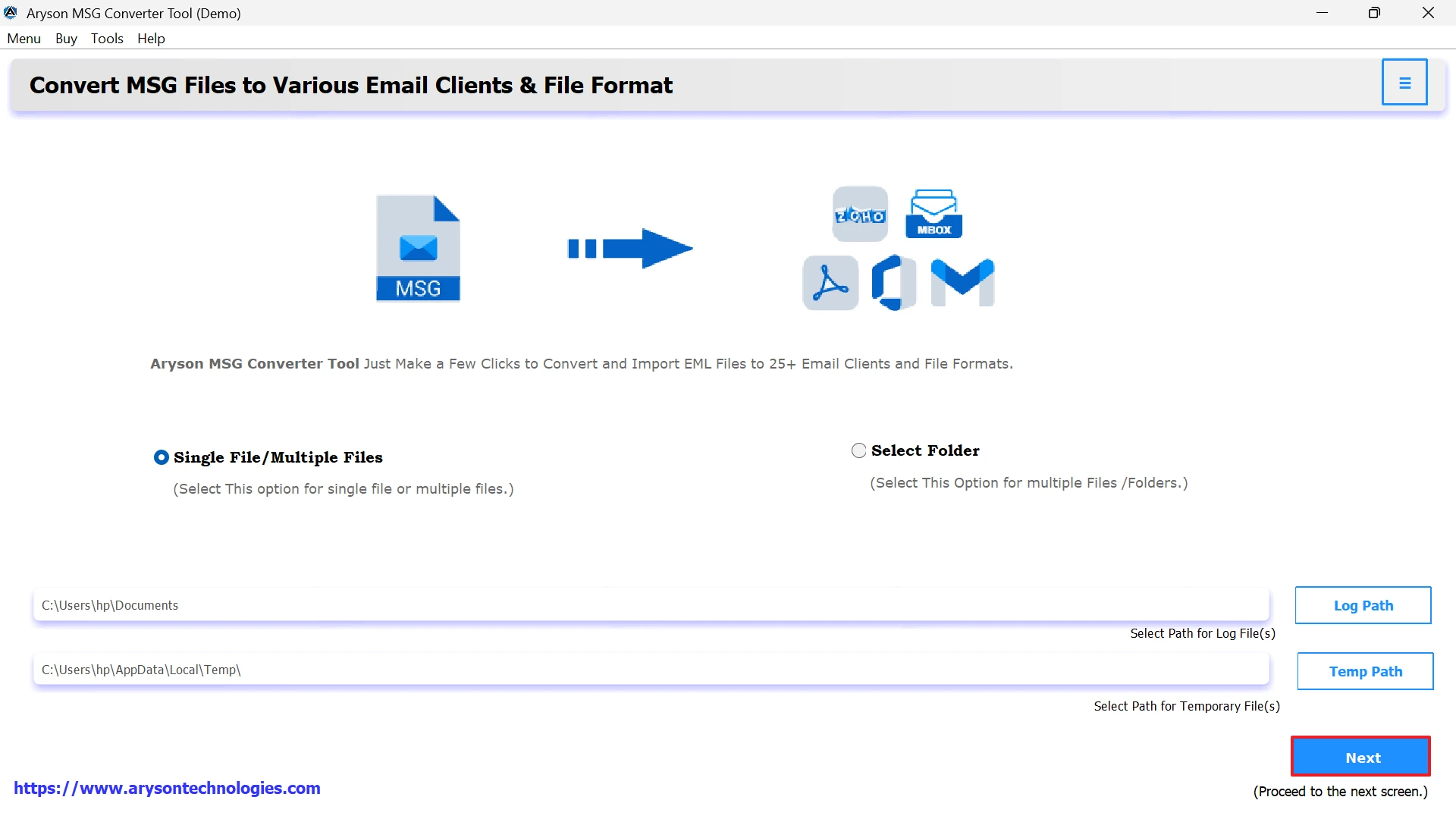
- First, download and launch the MSG Converter Tool.
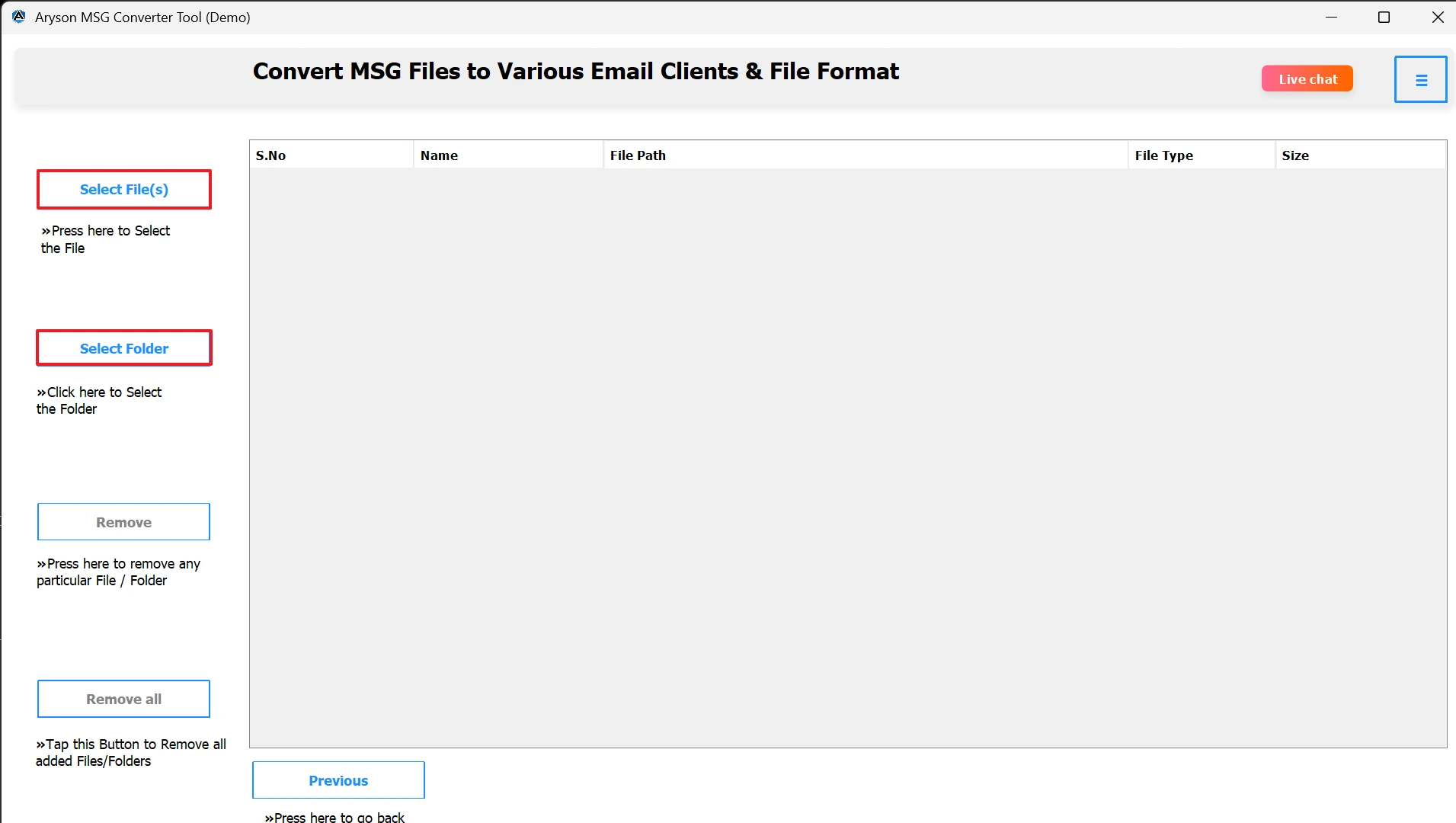
- Click on Select File/Select Folder to add MSG files.
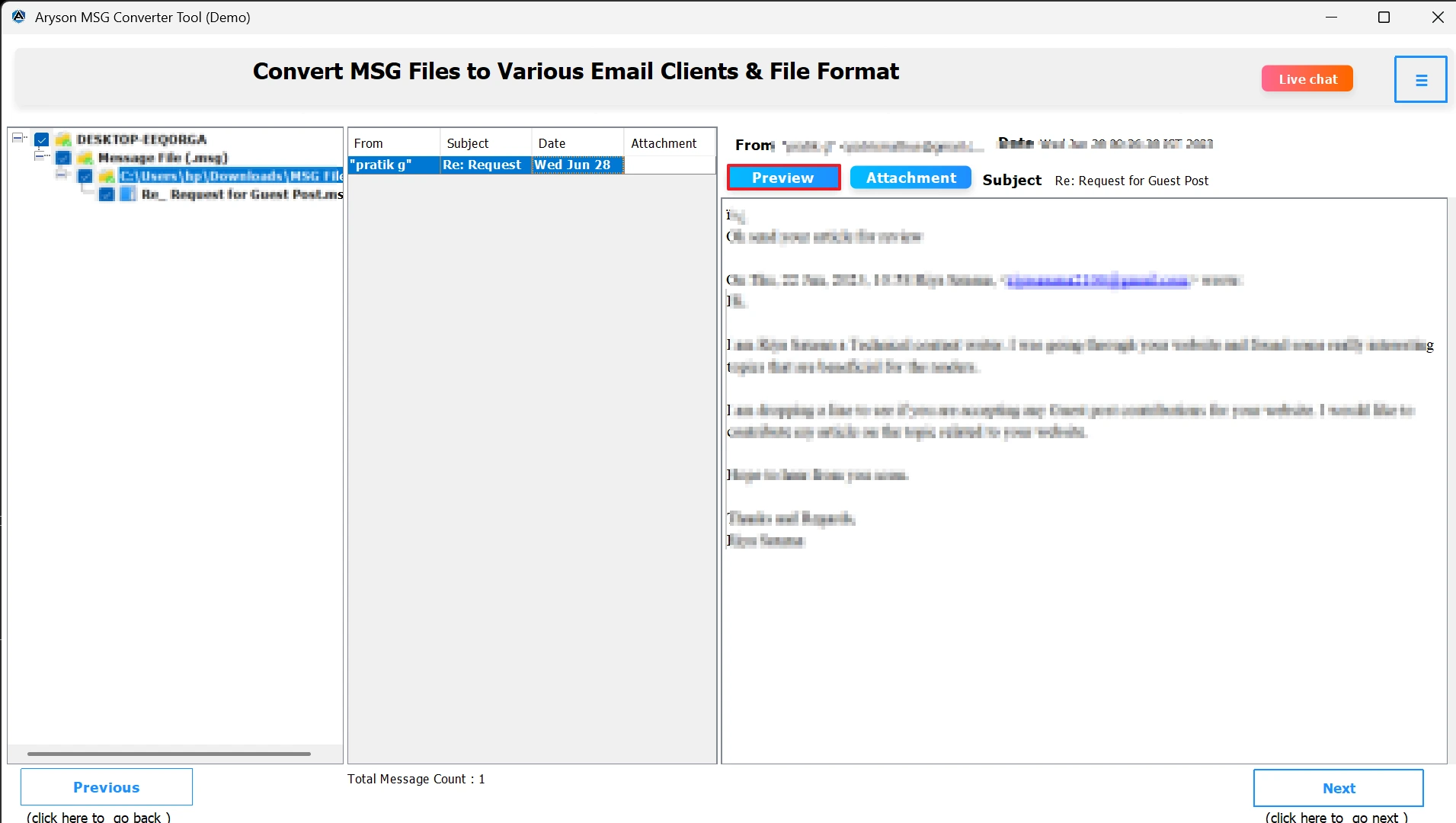
- Preview the content inside the MSG files in the tree-structure view.
- After that, from the output options, choose Gmail.
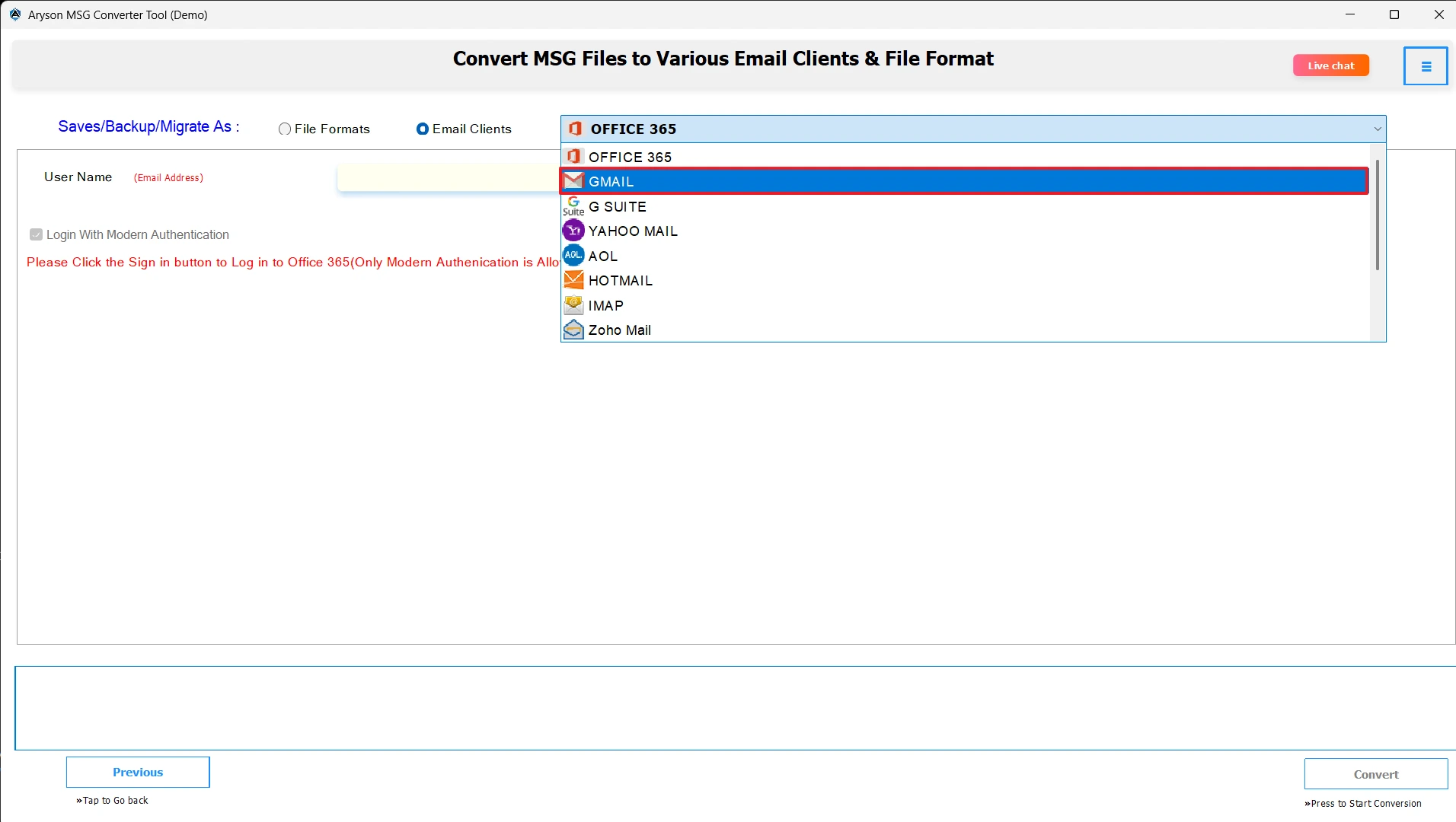
- Enter your Gmail login credentials to establish a secure connection.
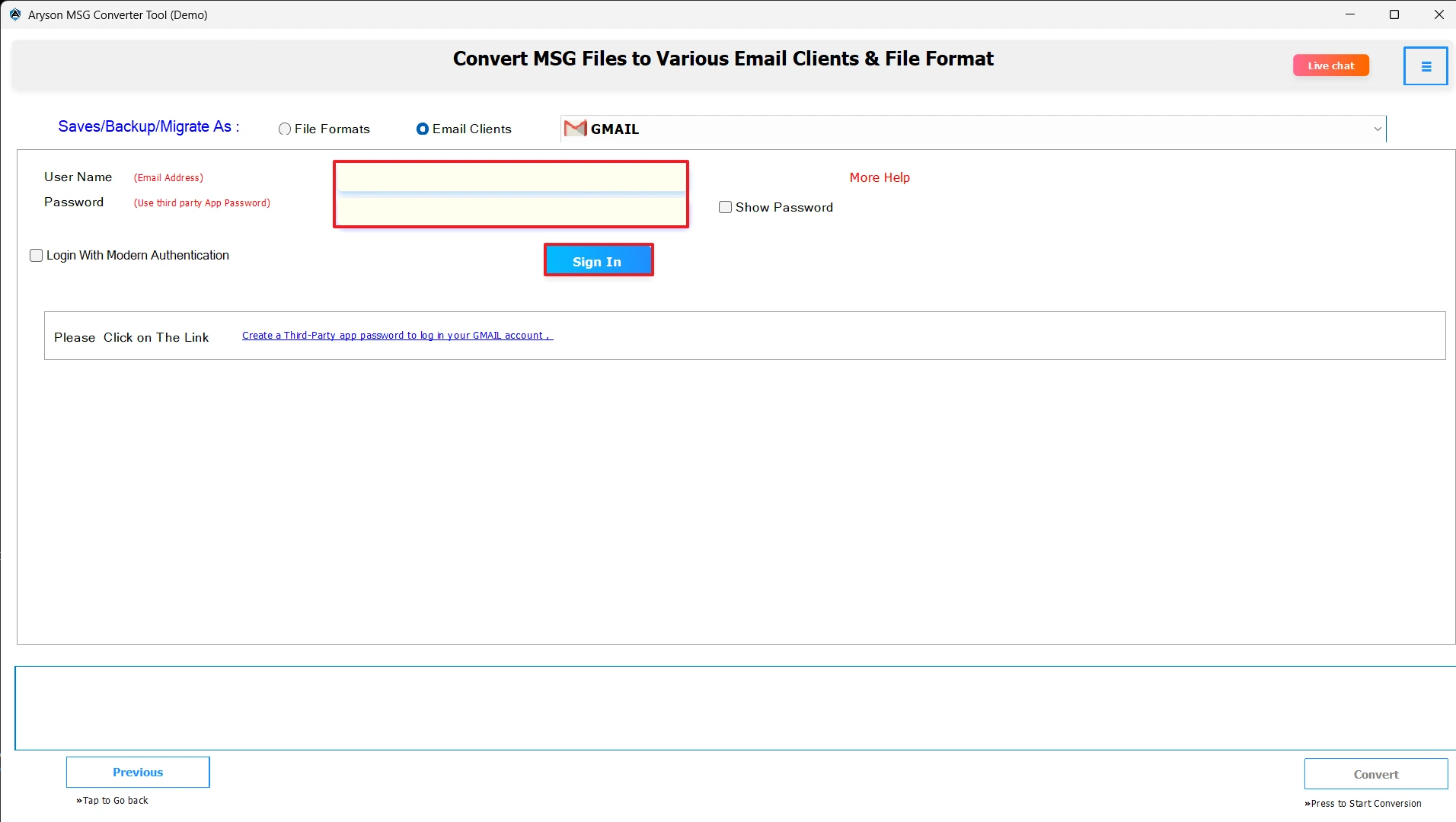
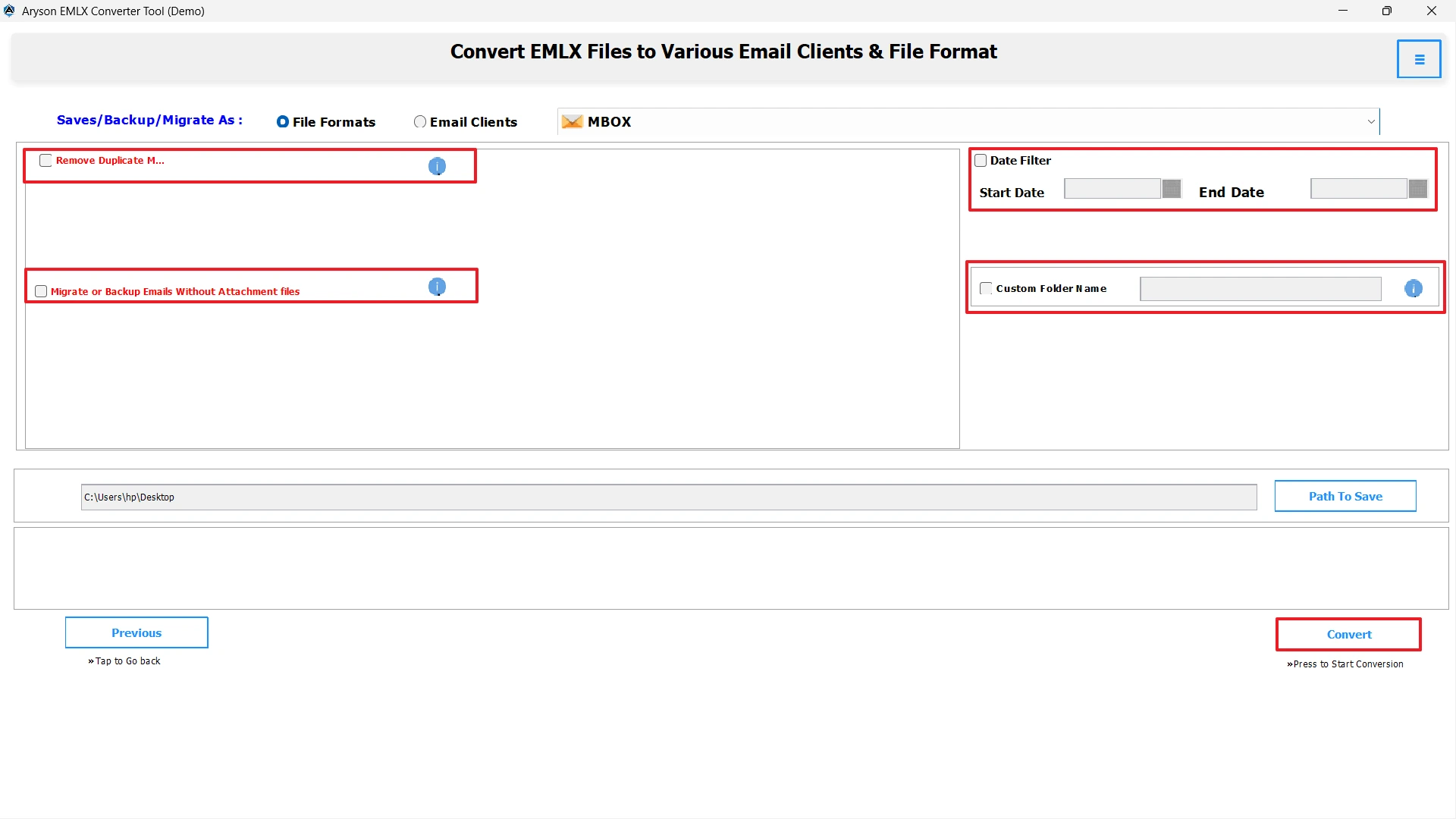
- Finally, apply filters if you want, and click convert to start the process.
Final Thought
We discussed a total of 2 ways to import MSG to Gmail – the manual method and a professional software method. The manual method is reliable, however, it is very time-consuming. It also could be a little technical and risky, particularly if you are transferring a large number of files. The software option MSOutlookHelp MSG Converter Tool is an easy solution for bulk email transfers that is also fast. You don’t have to worry about attachments or formatting if you use a reliable tool to import MSG files.
Frequently Asked Questions:
Q.1 What is the best way to transfer MSG files to Gmail?
Ans. The professional MSOutlookHelp MSG Converter Tool is the best solution. It offers direct import, ensures no data loss, and works for both small and large MSG datasets.
Q.2 Can I open MSG files directly in Gmail?
Ans. No, Gmail does not support MSG files directly. You need to either convert them into a Gmail-friendly format like MBOX/EML or use a professional MSG conversion tool.
Q.3 Will importing MSG files to Gmail keep my email attachments?
Ans. Yes, with the MSOutlookHelp MSG Converter Tool, retain attachments. It helps users to easily convert MSG files into Gmail with zero data loss.
Q.4 Can I import MSG files to Gmail using the Gmail mobile app?
Ans. No, the Gmail mobile app does not support importing MSG files. The process must be completed on a computer. Once imported, you can access the emails in the Gmail app.
About The Author:

Evren Cole is an expert in Email and Data Management. She has a strong passion for technology and entrepreneurship. In her free time, she enjoys football, music, and reading books.

