

-
Written By Evren Cole
-
Updated on October 25th, 2025
Import MSG to Google Workspace – Full Guide
Summary: Email is a critical aspect of professional communication daily. Some users use Outlook for launching and storing email, and when transitioning to cloud applications such as Google Workspace, many people struggle to access their Outlook MSG files. This article will explain how to import MSG to Google Workspace email. We will also provide an example of how to migrate MSG files while maintaining your data safety with the MSOutlookHelp MSG Converter Tool.
A Brief about MSG and Google Workspace
- Message Files (MSG) files are Outlook email message files that contain the sender, recipient, subject, the original message, and attachments to the email. Each Message File (MSG) contains a single email.
- Google Workspace (G Suite): Google Workspace is a cloud-based platform incorporating Gmail, Drive, and other tools. Google Workspace provides secure access to emails, files, and collaboration features anytime, anywhere.
As Google Workspace does not open MSG files, migration will need to be done either manually or through a tool designed to assist with migration.
Why User Transfers MSG files to Google Workspace
Here’s why professionals and businesses need to move MSG files into Google Workspace:
Accessible Anywhere: Email is available anywhere and on any device.
- Safe Storage: Cloud storage is always safer than local drives.
- Business Continuity: Keeping all communication history when switching to another platform.
- Centralized Inbox: Every note can be in your inbox area.
- Data Backup: Past conversations are preserved.
Importing MSG files will allow you to continue your workflow in Google Workspace.
Manual Method to Import MSG Files to G Suite
Although Google Workspace does not support MSG files directly, you can migrate using Microsoft Outlook.
- To begin, open the Microsoft Outlook application on your computer.
- Then, select the Info tab, and then Add Account.
- Afterward, add it to your Google Workspace account, and then connect.
- Once you have finished that, allow Outlook to sync everything with your Google Workspace account.
- Then, you will want to locate the MSG files on your storage device.
- Next, simply double-click on the MSG file to enter Outlook.
- After that, you can drag and drop the emails you want into the G Suite folder.
- Outlook will automatically sync everything with Google Workspace.
- Finally, check that everything is good and properly transferred.
This manual method should only be used when migrating with just a minimal number of MSG files. Otherwise, bulk migration can be tricky and easily subject to errors.
Automated Solution to Import MSG to Google Workspace
The MSOutlookHelp MSG Converter Tool is a professional method for the transition of the MSG files to Google Workspace easily and directly. It is safe to migrate MSG files rapidly, and it can maintain folder hierarchy, email attachments, and metadata.
- Mass Migration: Transfer unlimited MSG files quickly.
- Maintain Metadata: Preserves attachments and email formatting.
- High-Level Filters: Email import by dates, sender, or subject can be filtered.
- Safe Log In: Authenticates your account with the secure Google OAuth log-in.
- Multi-Platform: Import MSG to Zoho Mail, Office 365, Yahoo Mail, or any IMAP account.
Simple Steps to Migrate Outlook MSG to G Suite
- First, download the MSG Converter and install it on your device.
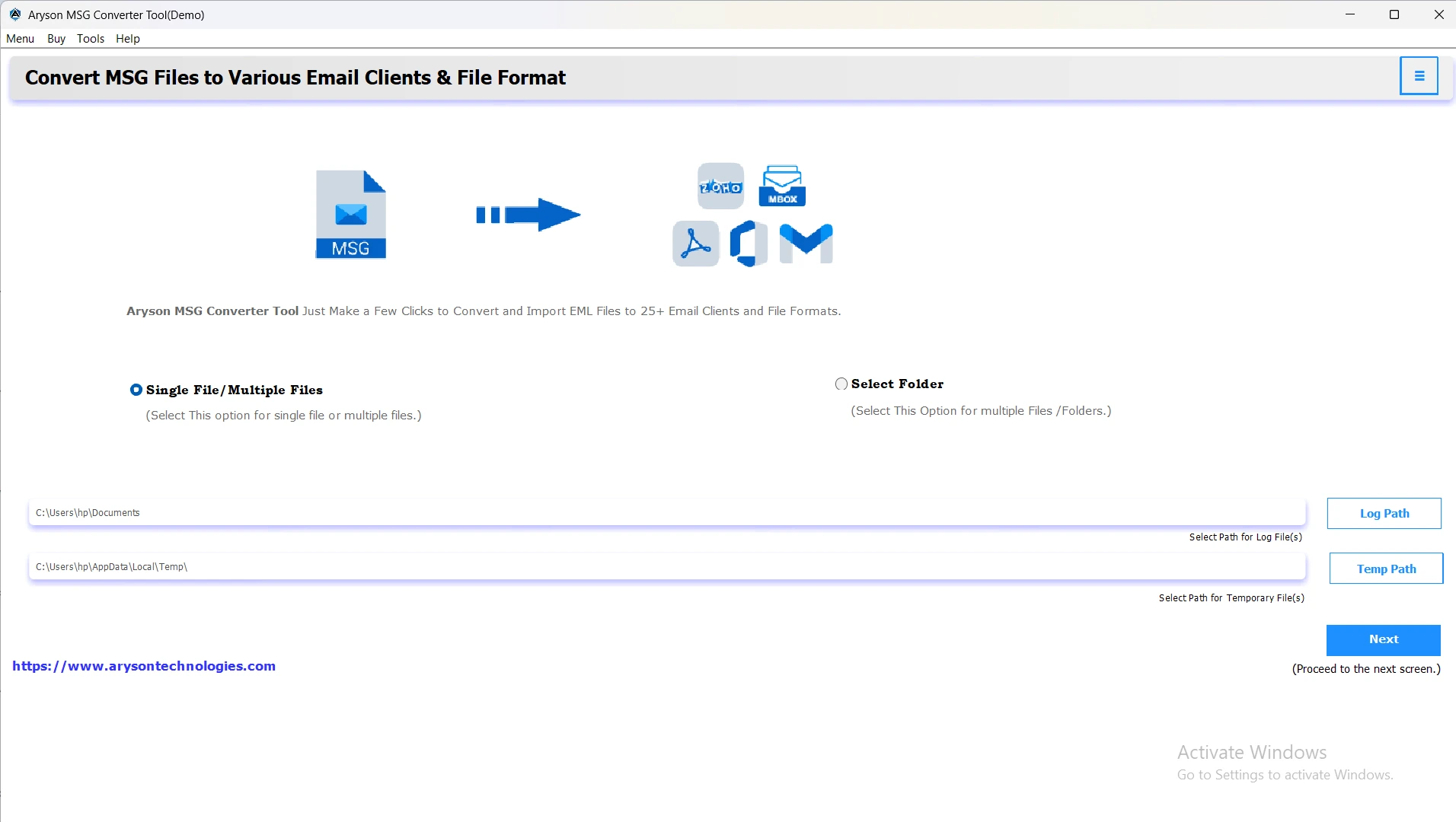
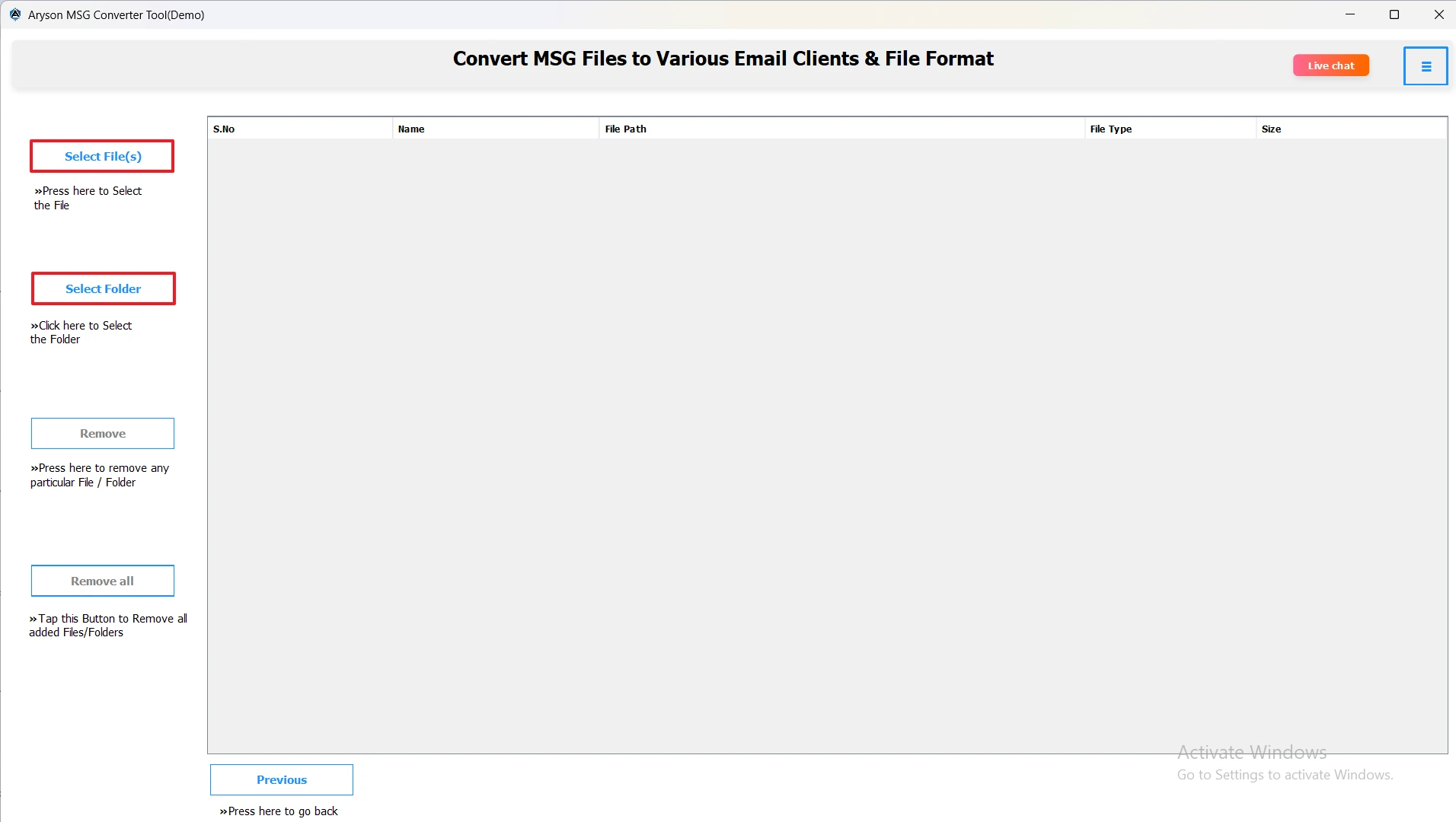
- Next, by clicking on Select File or Select Folder, you can choose individual MSG files or entire folders at once.
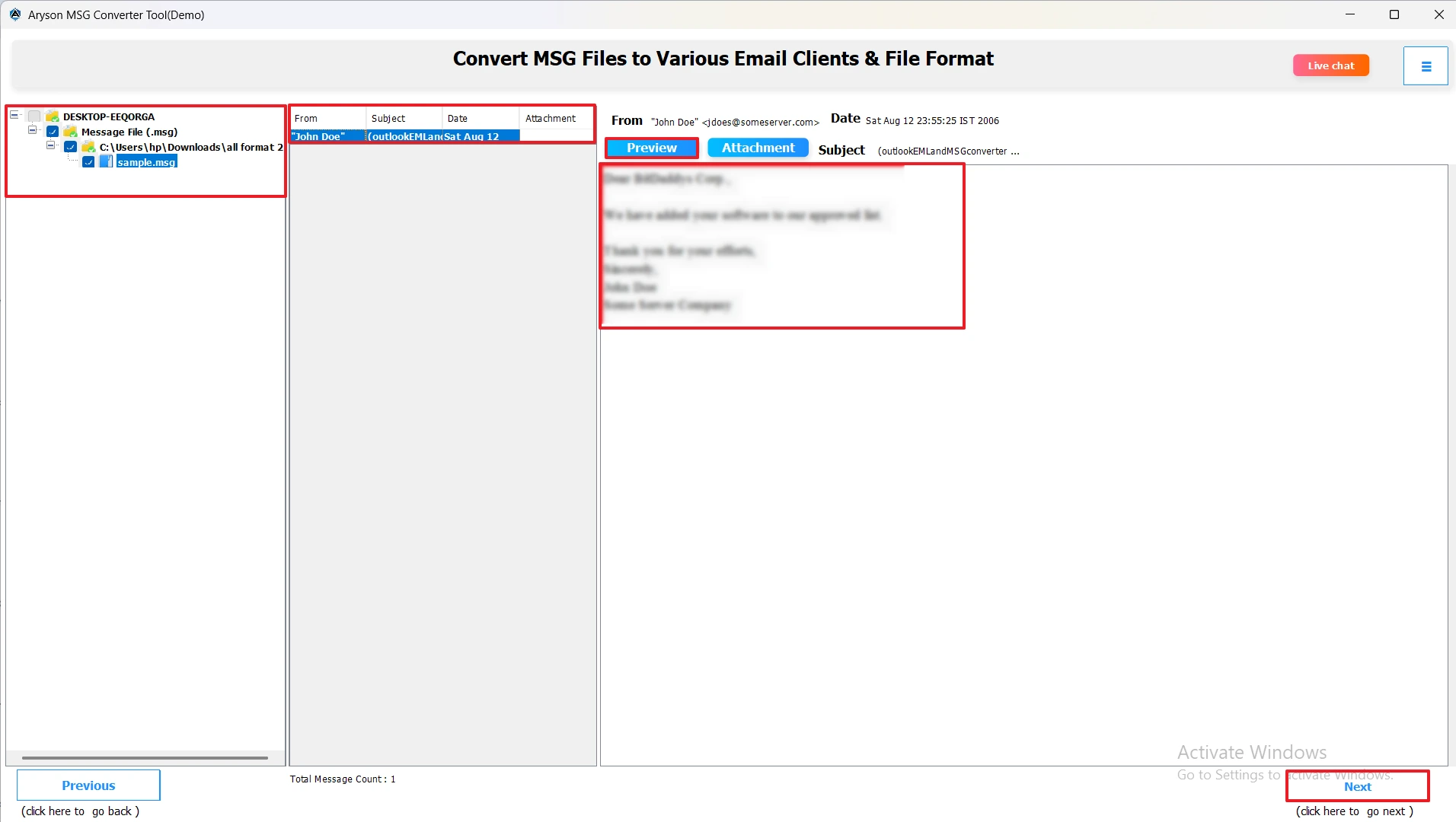
- Afterward, if needed, preview the emails, attachments, and other metadata within the software.
- Then, select Google Workspace as the destination for your migration.
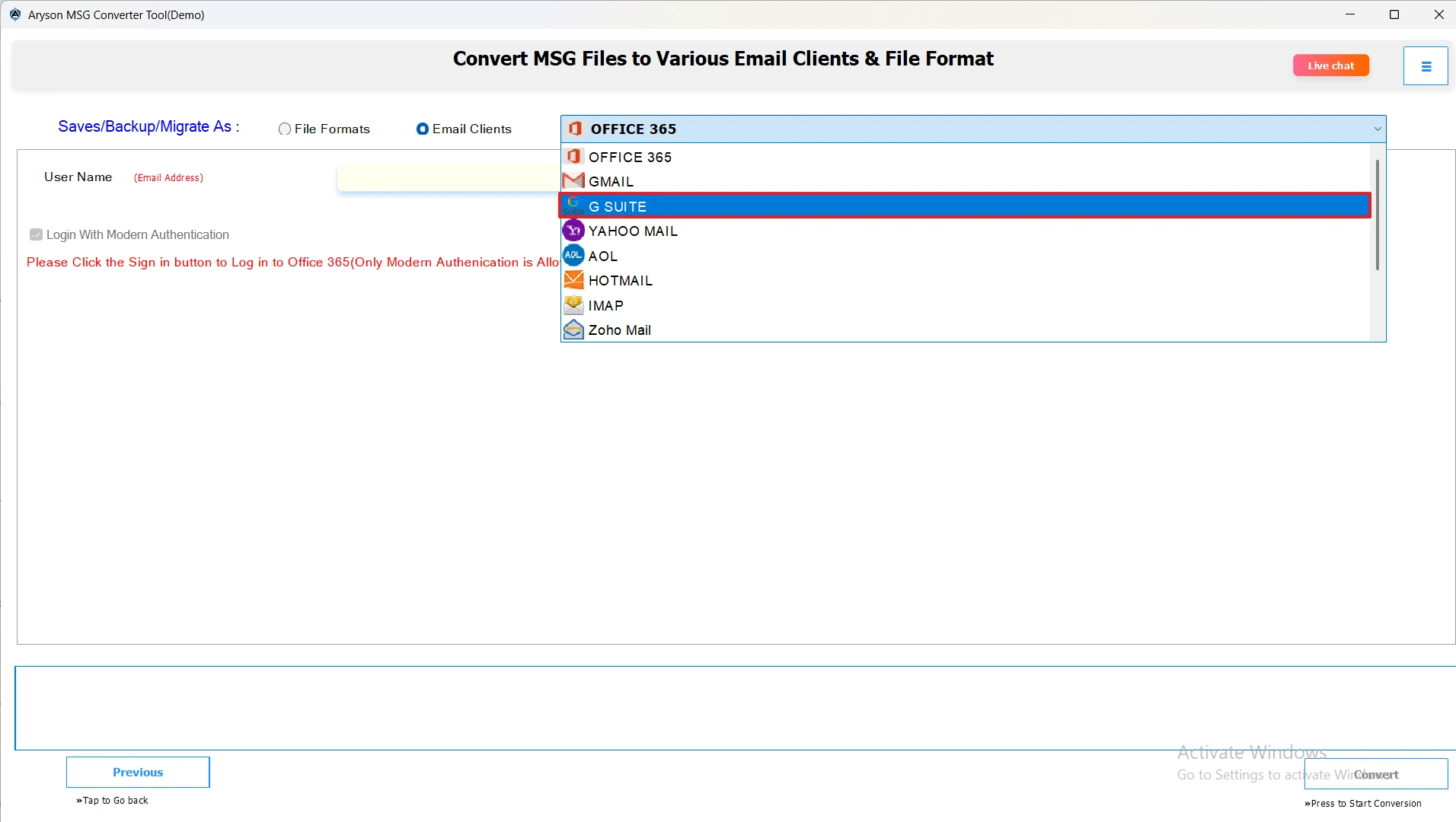
- Enter your Google Workspace credentials securely into the tool.
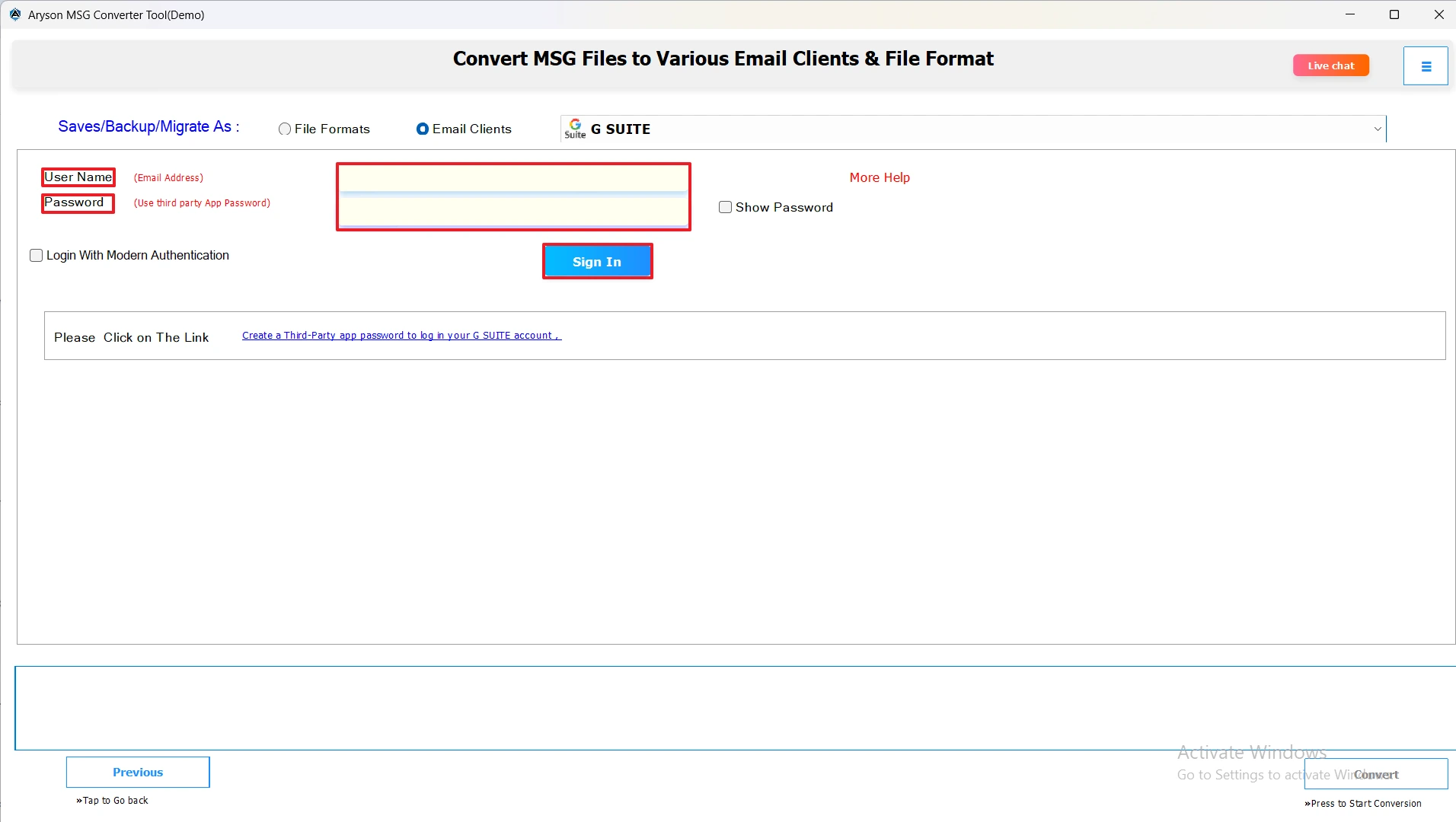
- If required, you can apply filters to migrate only the emails you want.
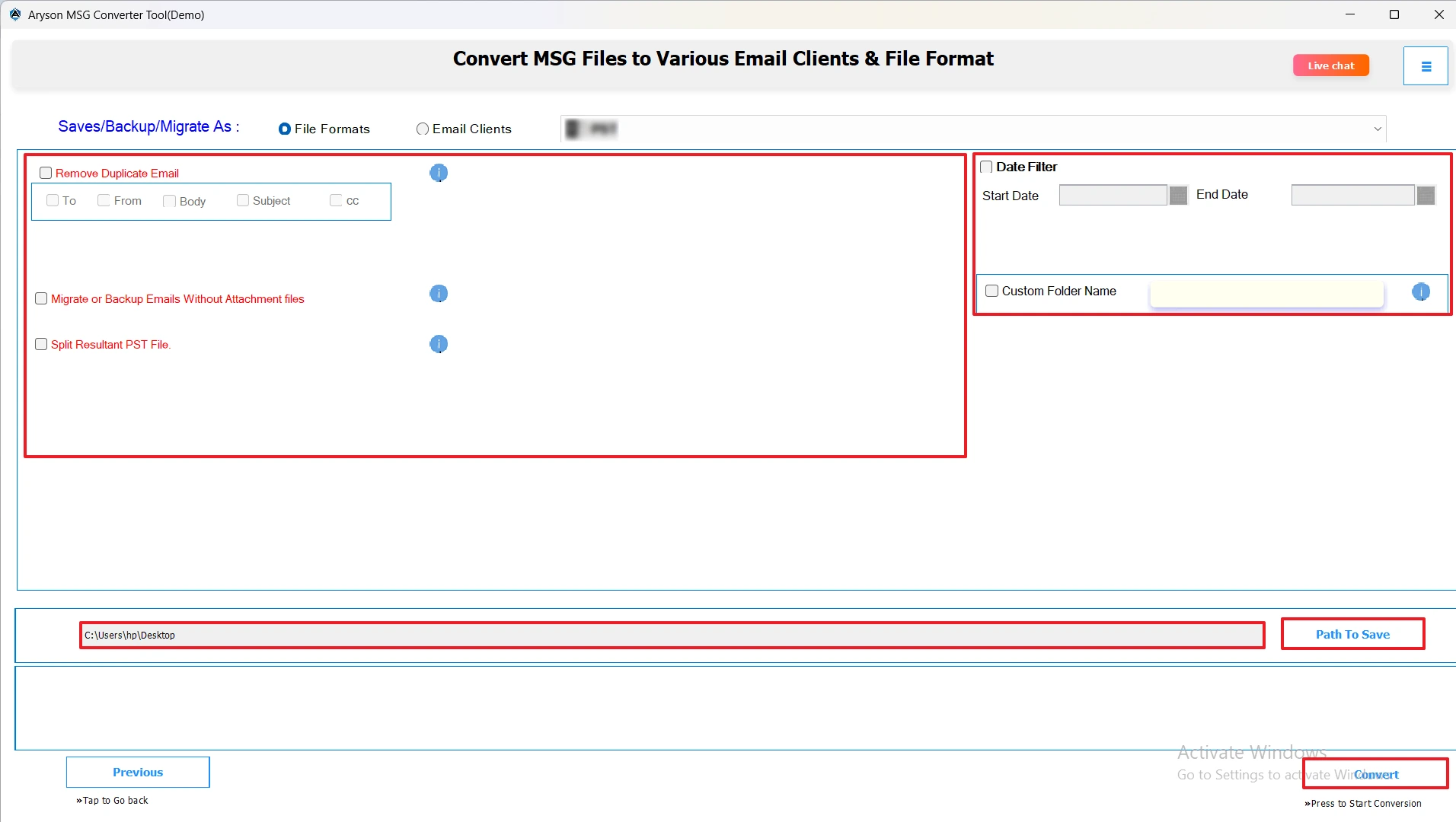
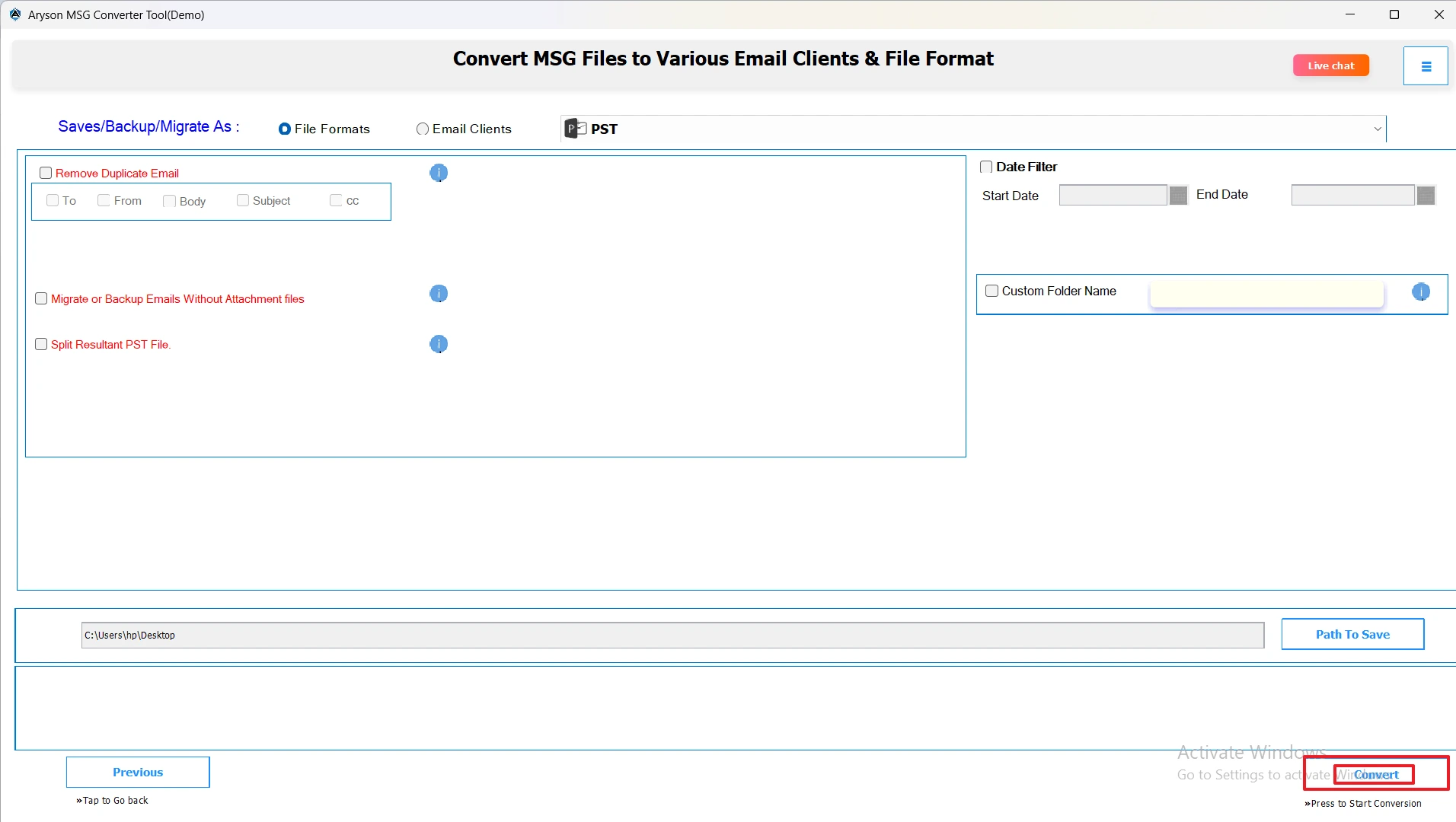
- Finally, click the Convert button to move MSG files into Google Workspace.
Conclusion
When you import MSG to Google Workspace, you’ll have enhanced security and collaborative access. By switching email to the cloud, you can access all messages from any device, maintaining an organized communication history. Overall, this blog will cover the same concept to use for a simple transition for an individual or business, which will reduce risk and increase email management in Google Workspace.
Frequently Asked Questions:
Q.1 Can I transfer multiple MSG files to Google Workspace at once?
Ans. Yes, the MSOutlookHelp MSG Converter Tool supports bulk migration of multiple MSG files.
1. First, download the MSG Converter and install it on your device.
2. Next, click Select File or Select Folder to add MSG files or entire folders at once.
3. Now, preview the emails, attachments, and other metadata within the software.
4. Then, select Google Workspace as the destination for your migration.
5. Now, input your Google Workspace credentials securely and click Sign In.
6. According to the requirement, you can apply advanced filters of the software.
7. Finally, click the Convert button to move MSG files into Google Workspace.
Q.2 What is the best tool for importing MSG files to Google Workspace?
Ans. The MSOutlookHelp MSG Converter Tool is the most reliable choice for secure, fast, and accurate migration.
Q.3 How long does it take to migrate MSG files to Google Workspace?
Ans. The duration depends on the number and size of MSG files, but the tool ensures a quick process
Q.4 Are there any limitations when importing MSG files into Google Workspace?
Ans. No major limitations exist with the MSOutlookHelp MSG Converter Tool. It preserves all emails, attachments, and folder structures.
About The Author:

Evren Cole is an expert in Email and Data Management. She has a strong passion for technology and entrepreneurship. In her free time, she enjoys football, music, and reading books.

