

-
Written By Evren Cole
-
Updated on November 24th, 2025
How to Import EML to iCloud Easily (Complete Guide)
Overview: Do you have large EML files stored in Thunderbird and find it difficult to manage them? Then, import EML to iCloud to consolidate all your EML files in one place. This is because iCloud is Apple’s cloud-based email platform that allows users to efficiently access, manage, and organise their emails across all Apple devices. To help you with the import process, this write-up includes various methods of importing EML files, along with a quick tutorial of MSOutlookHelp EML Converter for beginners. To get all your queries answered, continue reading.
Why Import EML files to iCloud?
There are several benefits of using iCloud that encourage users to import EML to Apple Mail. Some of them are as follows:
- iCloud can sync your emails across various Apple devices.
- As well as it also keeps an automatic backup of your emails to prevent data loss.
- Users can easily access their EML files from any device or iCloud.com.
- Moreover, it allows real-time collaboration on shared files and folders.
- Also, iCloud offers encryption and 2FA for better security & privacy.
Proven Solutions to Import EML to Mac Mail
There are several solutions that you can use to import your EML files to iCloud. But here we will discuss the two most impactful ones.
- Use of an Automated Software
- The Manual Approach
Solution 1: Using a Reliable Software to Import EML to iCloud
It is difficult to manage emails across different platforms, especially when you want to move EML files to iCloud. But, using MSOutlookHelp EML Converter, you can easily import multiple EML files at the same time, without affecting the data integrity. This software consists of an advanced preview panel with a J-Table and an enhanced search feature. Moreover, it keeps all your emails, attachments, and formatting as it was before importing. Additionally, it allows beginners to easily import EML to Yahoo Mail, IMAP, Thunderbird, Hotmail, and many other email platforms. Also, users can refine their file selection using the Advanced features of the software, like Remove Duplicate Mails, Skip Previous Migration, Custom Folder Name, etc. To get a better clarity of the import process, you can try the demo version of the software.
Step-by-Step Guide to Import EML to iCloud
- To begin, install and open the MSOutlookHelp EML Converter on your existing system.
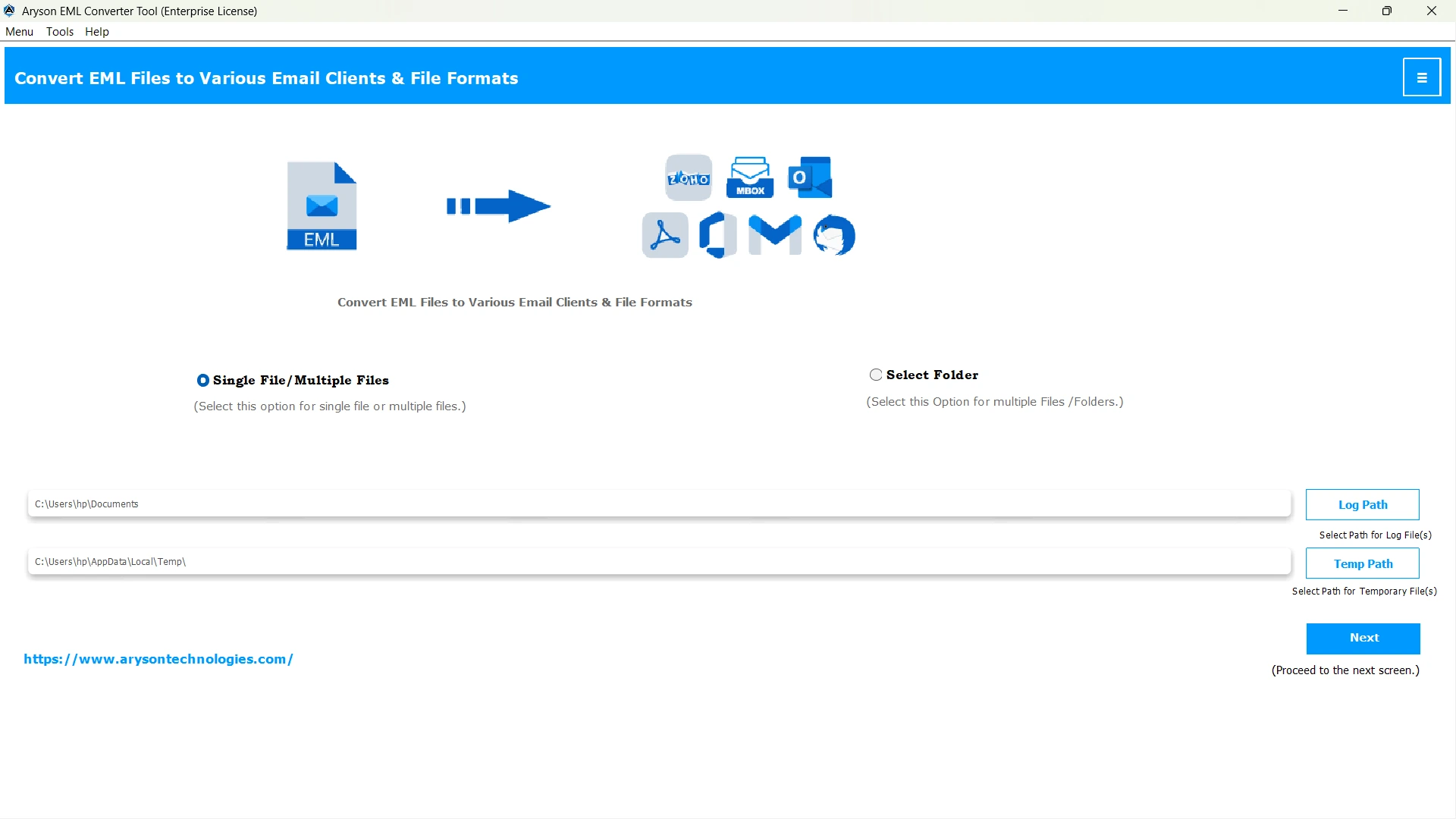
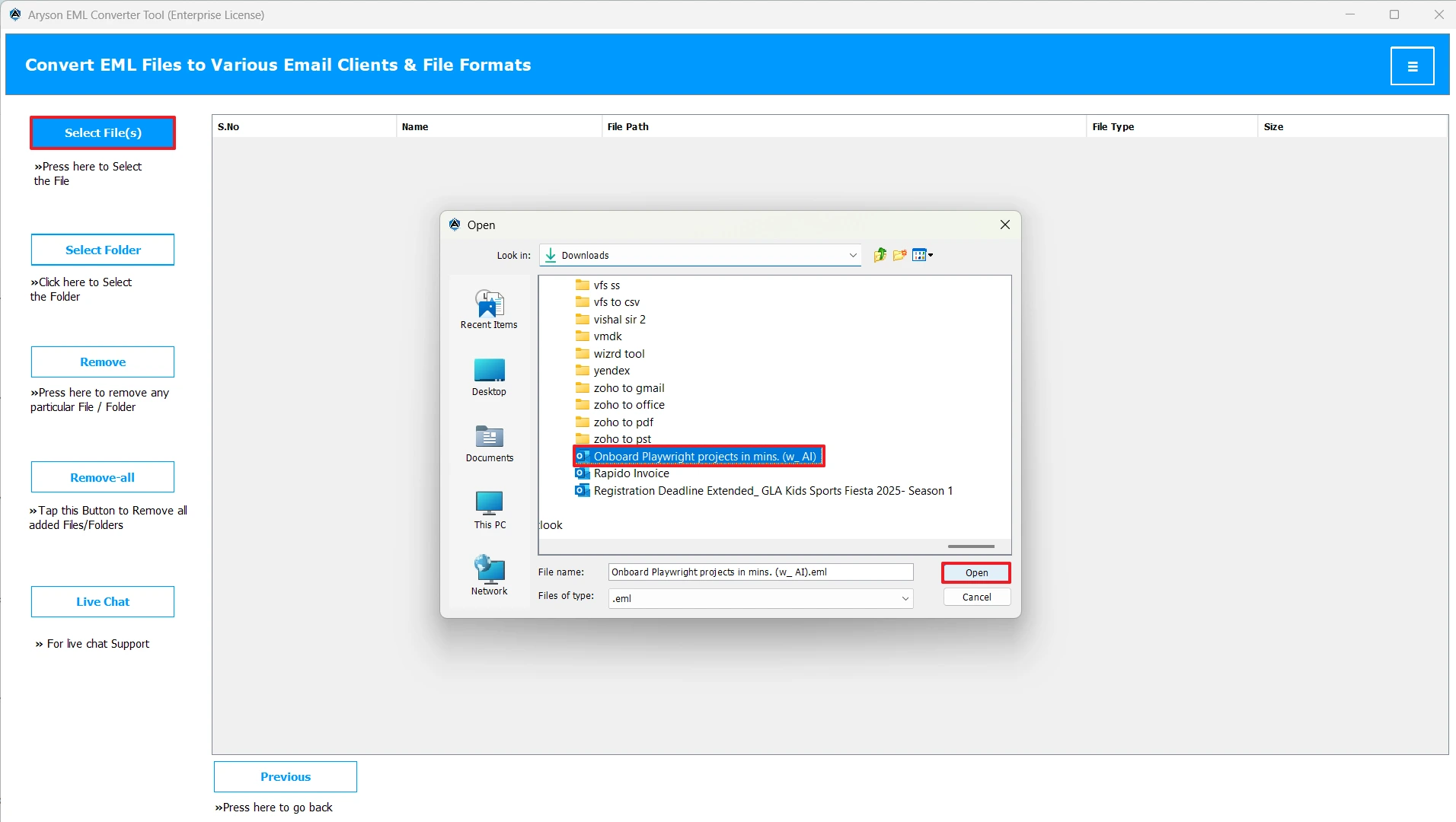
- Then, click on the Select Files/Folders button to add your desired EML files >> Next.
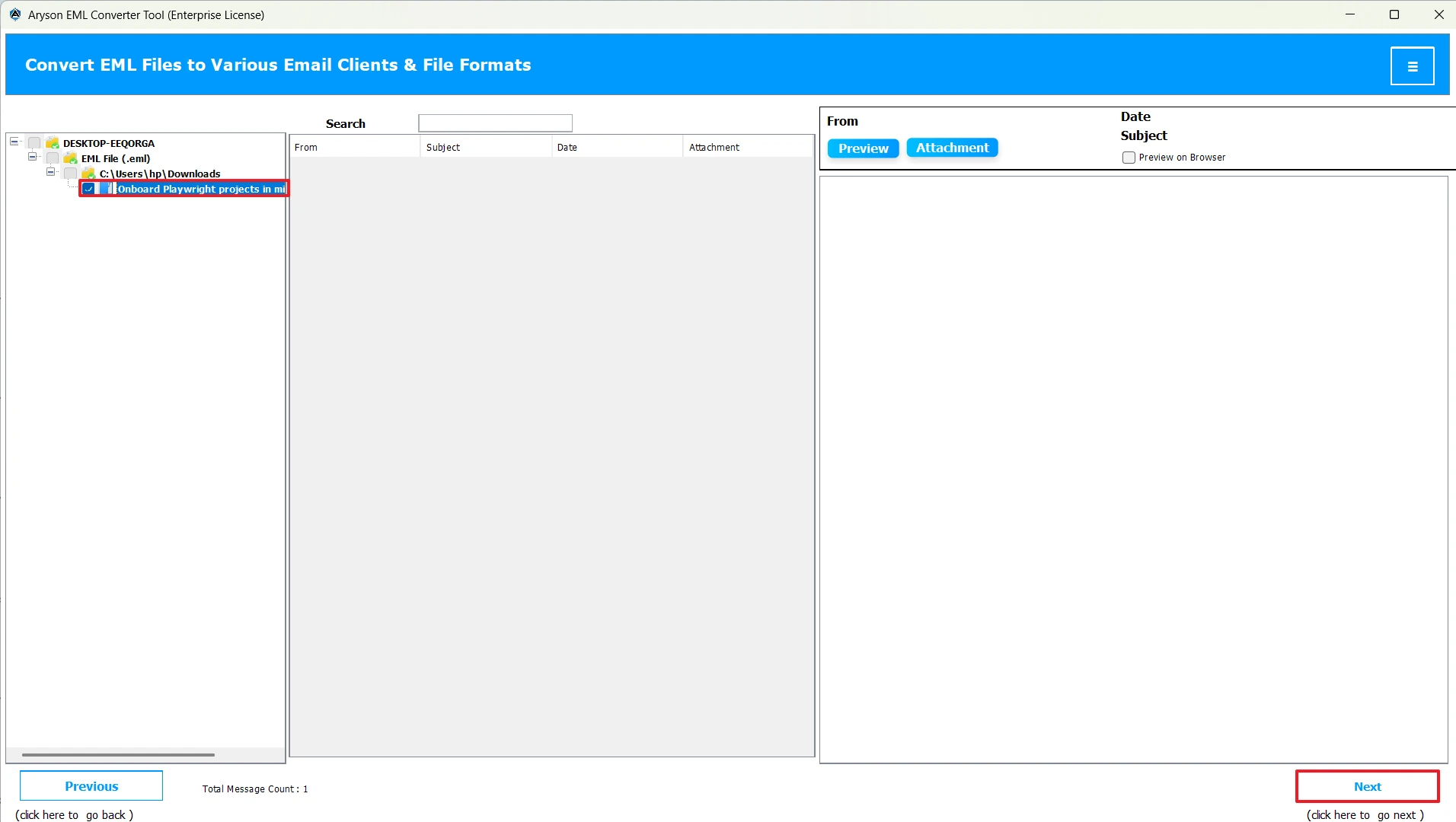
- After that, select files/folders from the tree hierarchy >> preview them >>Next.
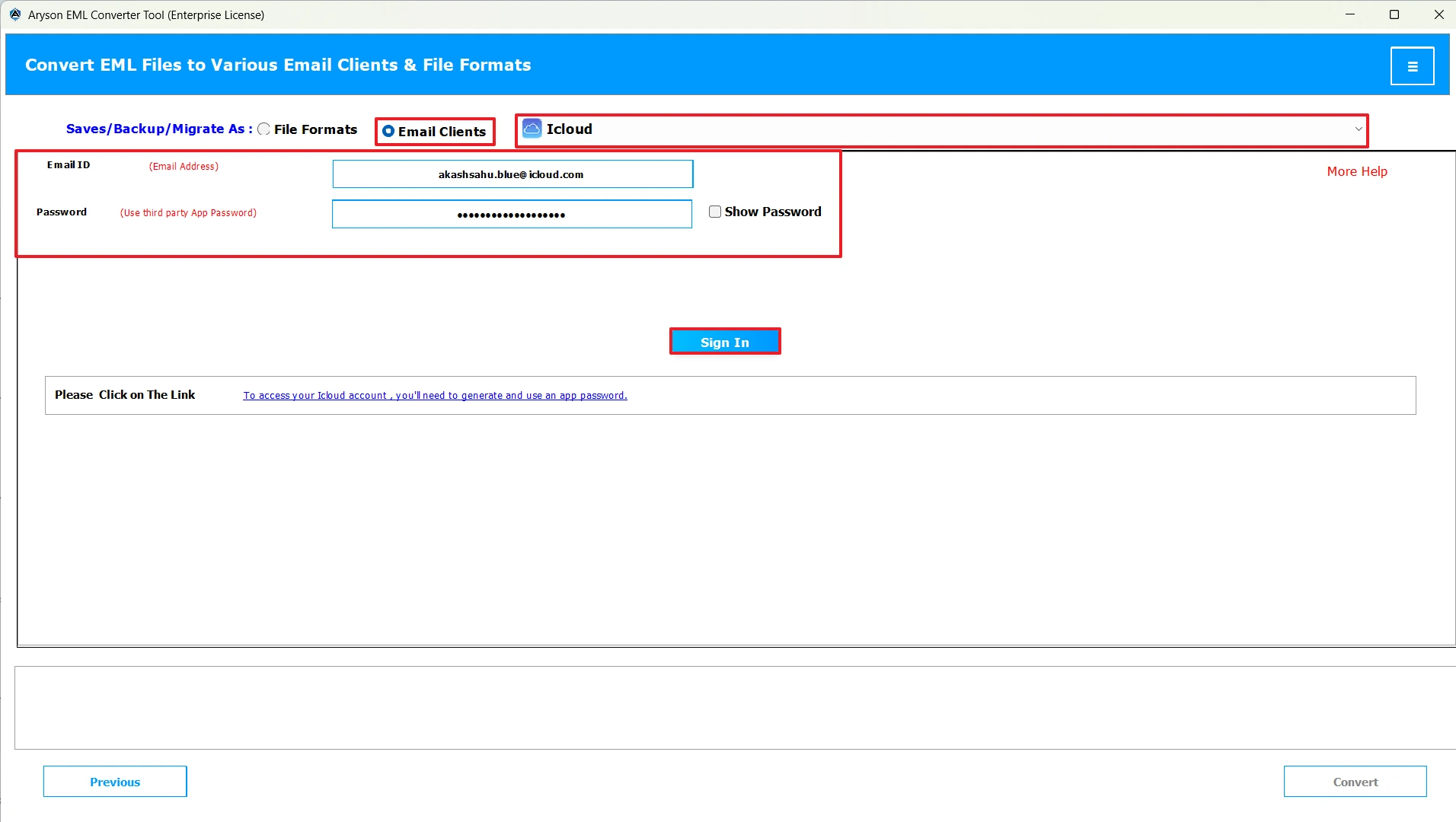
- Now, select iCloud from the listed email clients >> input credentials >> and log in.
- Next, use the advanced filters if you require & hit the Convert button.
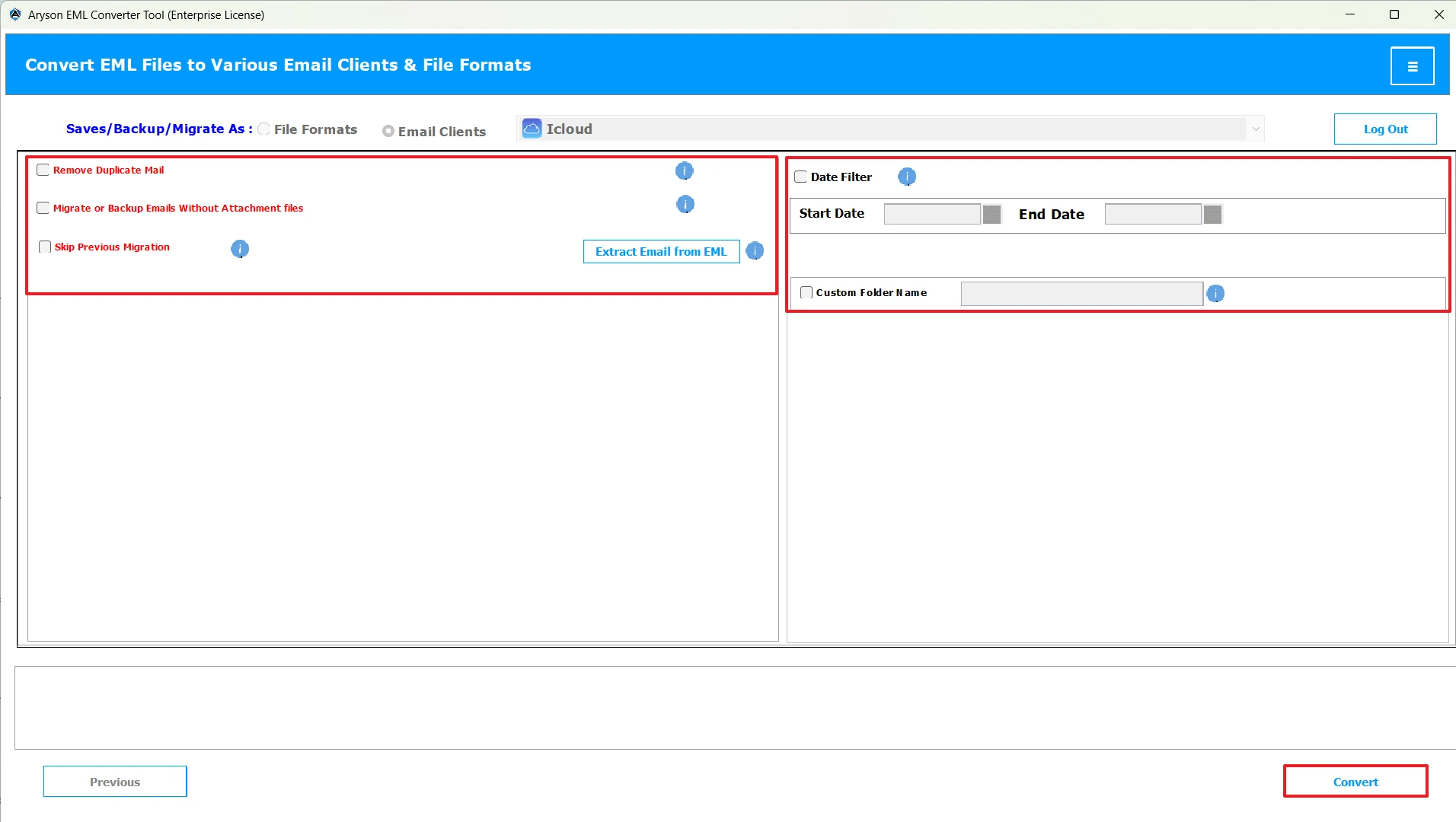
Additional Note: This method is highly efficient and user-friendly. But, in case you have a few emails to convert and possess a basic understanding of Apple Mail, you can proceed with the manual solution below.
Solution 2: Native Way to Import EML to iCloud
iCloud Mail doesn’t allow users to upload their EML files via browser. But still, you can use this alternative method to import your EML files into your iCloud account. In this method, you have to install Apple Mail on your macOS, and therefore, it is mandatory for the user to have some familiarity with Apple Mail. Follow the steps below to import .eml Files to iCloud without any errors.
- Firstly, Open the System Settings or System Preferences.
- Then, select your required Apple ID and sign in if you are not logged in.
- After that, select the iCloud option from the sidebar.
- Now, toggle ON the “Mail” option under the iCloud settings list.
- Once enabled, you will see your iCloud Mail as an account in the Apple Mail app.
- Then, start the Apple Mail application >> create a new mailbox to import emails.
- Next, search for and find the EML file(s) on your computer.
- Simply, drag and drop the EML file(s) into the newly created folder.
- iCloud may take some time to sync, making sure to maintain data integrity.
- At last, check and confirm that all your emails have been successfully imported.
Conclusion
In short, it becomes easier to manage, organise, and access a large number of EML files when you import EML to iCloud. However, the method you choose for importing completely depends on your import needs. Some individuals and small-scale startups choose a manual approach for converting their few EML files. Whereas the large-scale organisations and industry professionals choose reliable software to enhance their work efficiency. Even the advanced filters of the software help them to refine their file selection, which eventually increases their productivity.
Frequently Asked Questions:
Q.1 What is the best way to import EML to iCloud?
Ans. The best way to import EML to iCloud is using the MSOutlookHelp EML Converter.
Q.2 What should I do if iCloud Mail doesn’t import my EML files?
Ans. If iCloud Mail doesn’t import your EML files, restart Mail, check iCloud syncing and storage, and try importing a single file. In case the issue still persists, use the automated solution above.
Q.3 How do I transfer EML email to Apple Mail?
Ans. With the help of MSOutlookHelp EML Converter, you can transfer EML emails to Apple Mail with zero data loss.
Steps to import are as follows:
1. Open the MSOutlookHelp EML Converter.
2. Select desired EML files to import.
3. Choose iCloud as the destination email client and login.
4. Use the additional features >> hit Convert.
Q.4 Do I need a Mac to import EML files to iCloud?
Ans. No, you don’t need Mac to import EML files to iCloud. You can simply use the above software for importing your EML files.
About The Author:

Evren Cole is an expert in Email and Data Management. She has a strong passion for technology and entrepreneurship. In her free time, she enjoys football, music, and reading books.

