

-
Written By Evren Cole
-
Updated on July 22nd, 2026
Export Google Workspace to PST: A Complete 2026 Guide
Summary: It’s 2026, and Google Workspace emails have become essential for daily business communication. Sometimes, it becomes a complicated task to access these emails or move them to Outlook. Nowadays, numerous users prefer to export Google Workspace to PST so that they can open emails in Outlook or create backups. While the process may seem technical at first, the right method makes it quick and secure. In this guide, we’ll walk you through simple steps to export Google Workspace emails to PST, including the Google Workspace Backup Tool for an easy and safe transfer.
Why Do We Need to Export Google Workspace Email to PST?
Before moving on to the actual export process, it is important to know the potential reasons behind the Google Workspace to PST import.
- Users can open & manage their emails easily in Microsoft Outlook.
- You can create a secure offline backup of your mailbox data.
- Moreover, users can migrate their emails from one Outlook account to another.
- Furthermore, they can save their cloud storage space in Google Workspace.
- Also, after import, you can keep emails for legal and long-term archiving needs.
From the above considerations, the need to import Google Workspace data to PST is evident. To perform the conversion, read through the upcoming sections of the blog carefully.
Top Two Methods to Export Google Workspace to PST
In this section, we will discuss the two most effective methods to export Google Workspace data to PST format.
- The Manual Method
- Automated Software
Method 1: Manual Method to Export G Suite Email to PST
In this method, first, you have to connect your active Google Workspace account to Microsoft Outlook using IMAP. After that, just export the G Suite mailbox to a PST file.
Important Note: Before initiating, make sure:
- You have enabled IMAP in your Google Workspace/Gmail settings.
- Use an App Password instead of your regular password for secure login.
Step 1: Add an Active Google Workspace Account to Outlook
- To initiate, run Microsoft Outlook on your system.
- After that, click on the File tab >> select the Add Account option.
- Then, provide your valid Google Workspace email address & click Connect.
- Select IMAP and enter the App Password when asked.
- Complete the setup and click Finish to sync your mailbox with Outlook.
Step 2: Export Your Google Workspace Mailbox to PST
- Next, Open MS Outlook after the synchronization process.
- After that, click on File >> Open & Export >> select Import/Export option.
- Then, select the Export to a file option and click Next.
- Select the Outlook Data File (.pst) option & select the Next option.
- Choose the G Suite mailbox or specific folders you want to export.
- After that, click on the Browse option to choose a saving location.
- At last, press the Finish button to export your required G Suite data.
Limitations of the Manual Outlook Method
- You must install Outlook and perform the manual configurations.
- This method is complicated for non-technical users.
- Moreover, it can take long hours to export large mailboxes.
- Furthermore, there is a significant risk of data loss or incomplete export.
- Also, this approach is not suitable for bulk or enterprise migration.
Method 2: Automated Software to Export Google Workspace to PST
Google Workspace Backup Tool is the most reliable solution to export Google Workspace data directly to PST format without any data loss. This software securely backs up Gmail emails, attachments, contacts, and calendars without affecting the folder structure and formatting. Moreover, you can export both small and large mailboxes to PST in bulk using this utility. Additionally, the same software can be used to migrate G Suite to Office 365, Thunderbird, Zoho Mail, Yahoo Mail, and many more email clients. Also, the advanced filter. Preview panel and intuitive interface make the entire process simple for the beginner.
Simple Steps to Export G Suite Mailbox to PST
- Download the Google Workspace Backup Tool & run it.
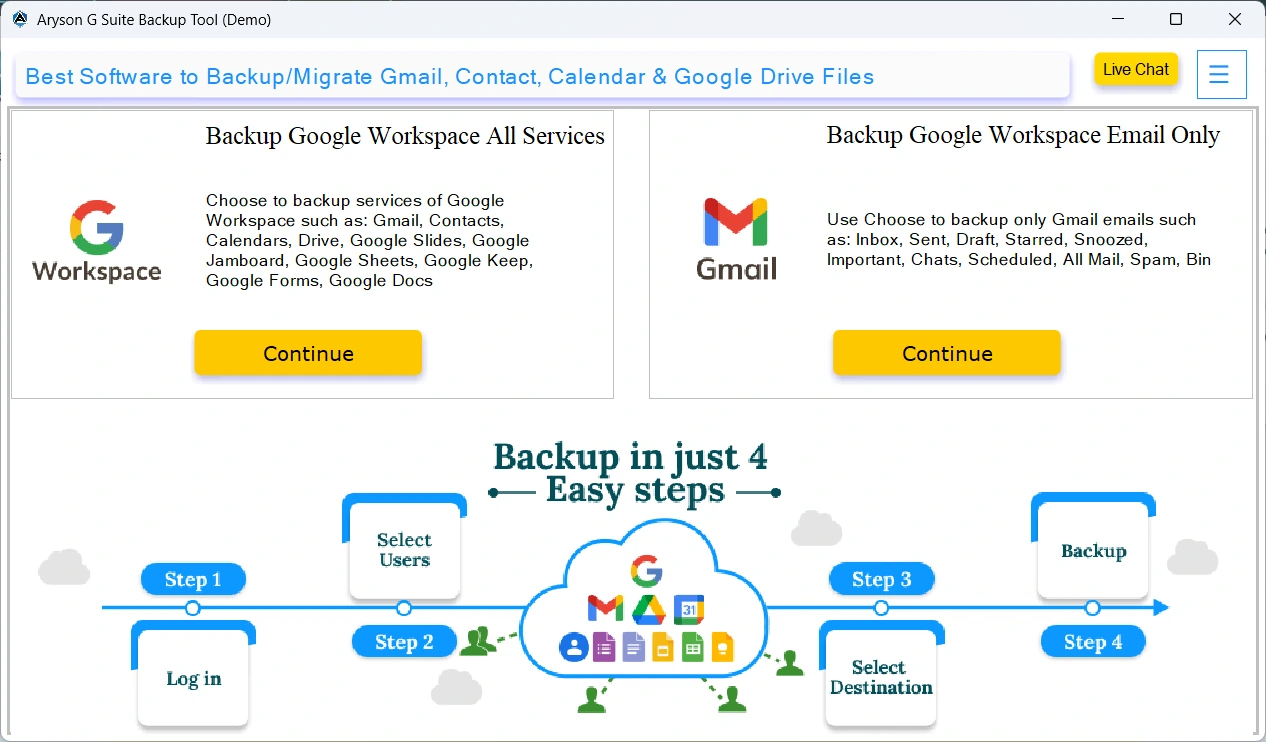
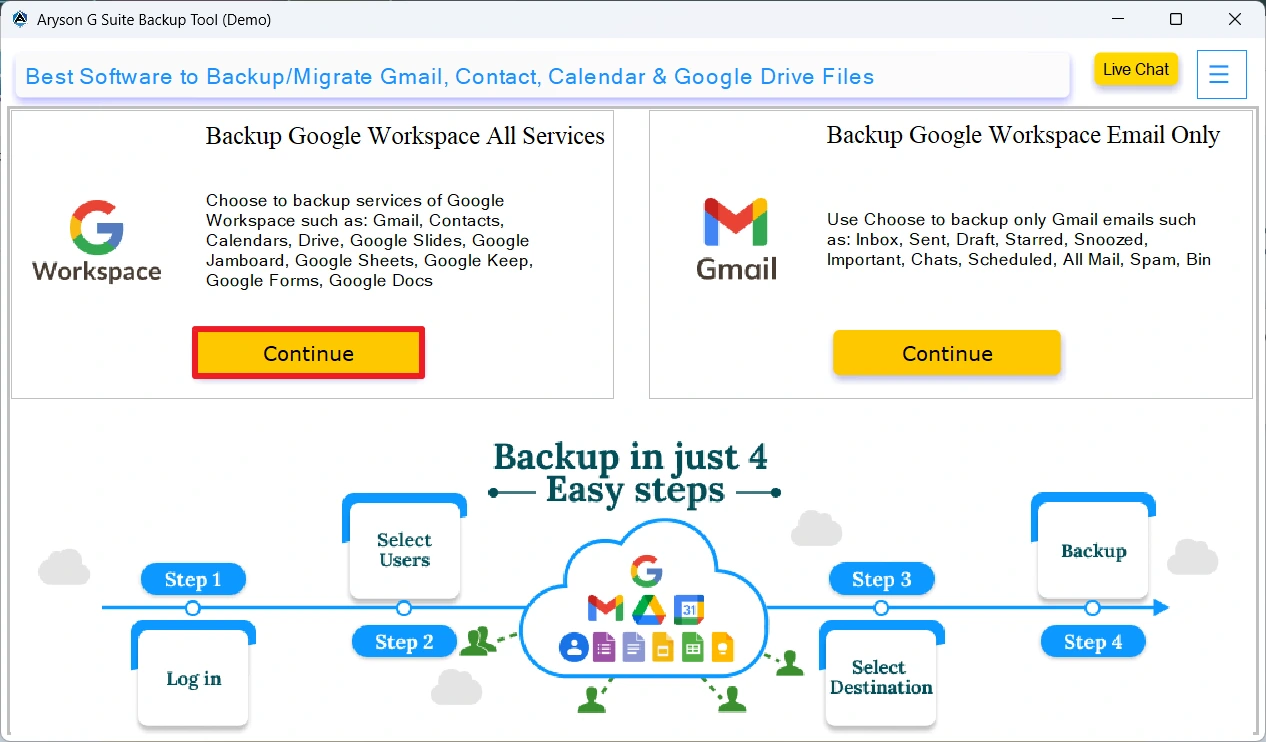
- Choose Backup Google Workspace All Services or Email Only >> Continue.
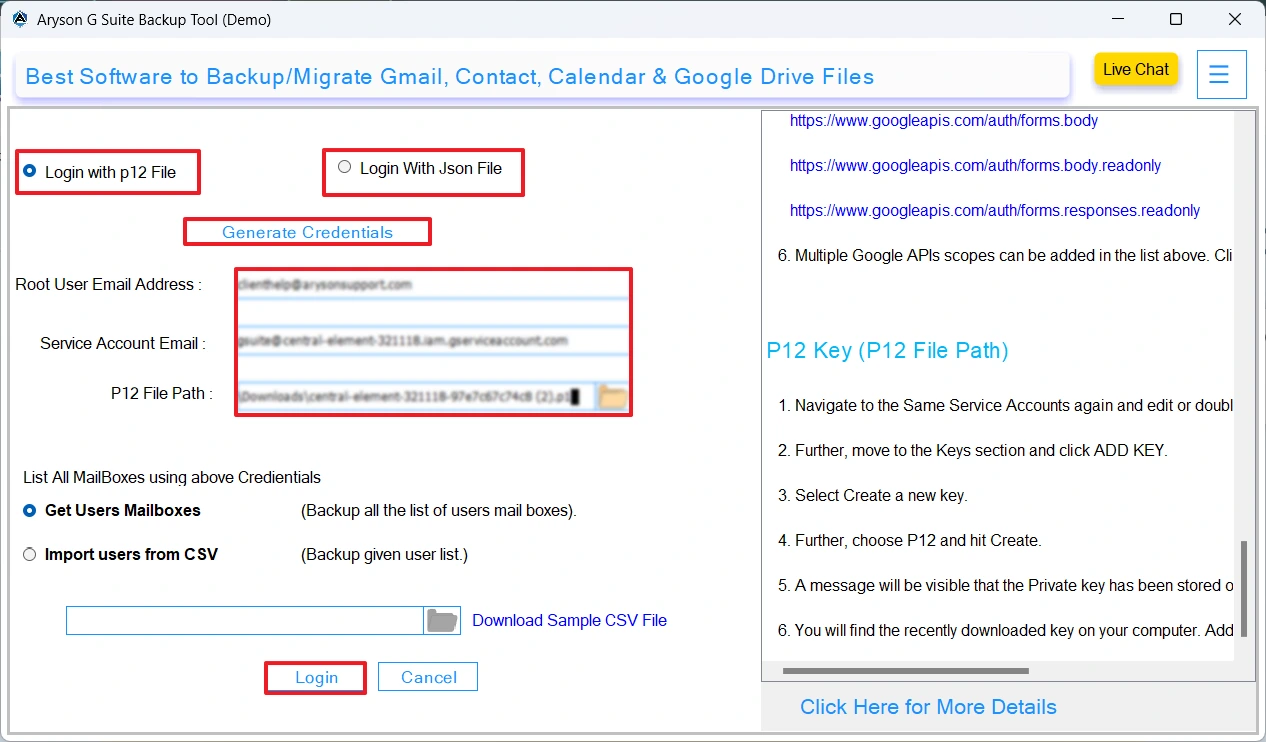
- After that, enter your required Google Workspace account credentials to log in.
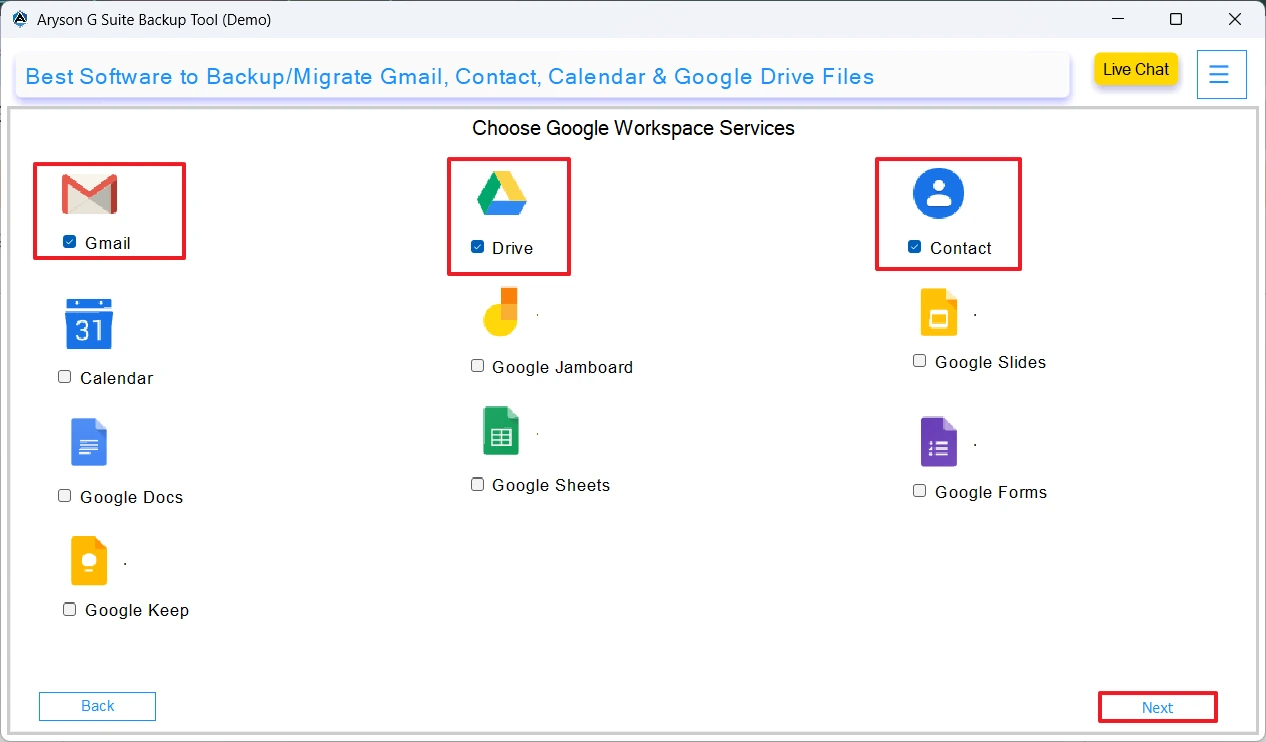
- Select Gmail and any additional services like Contacts or Calendar if required.
- Now, select PST as the output format under the list format.
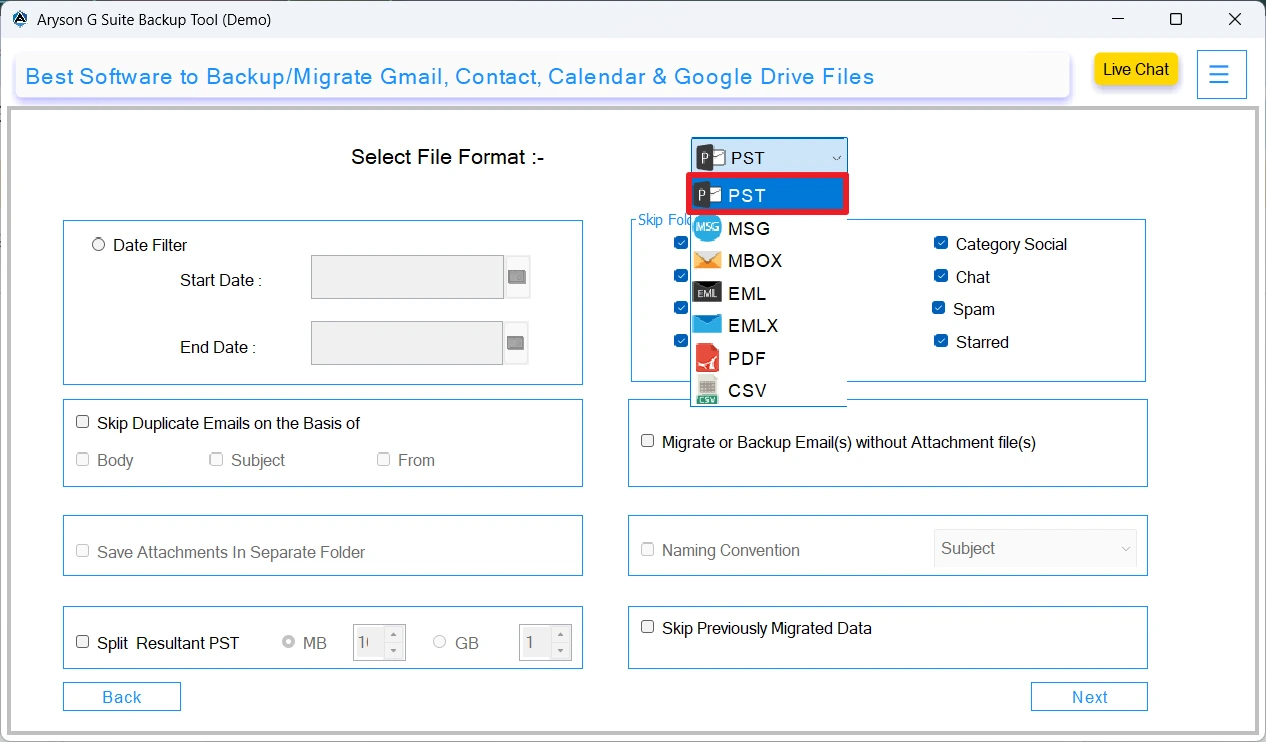
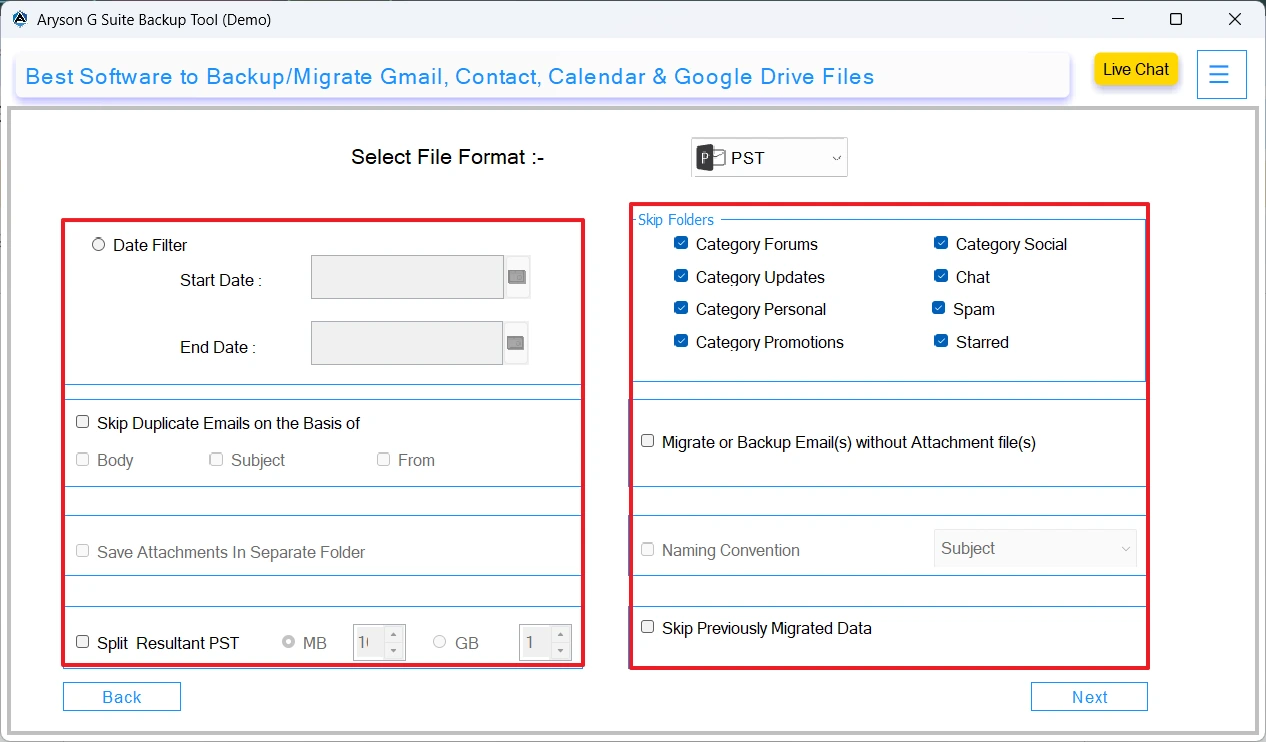
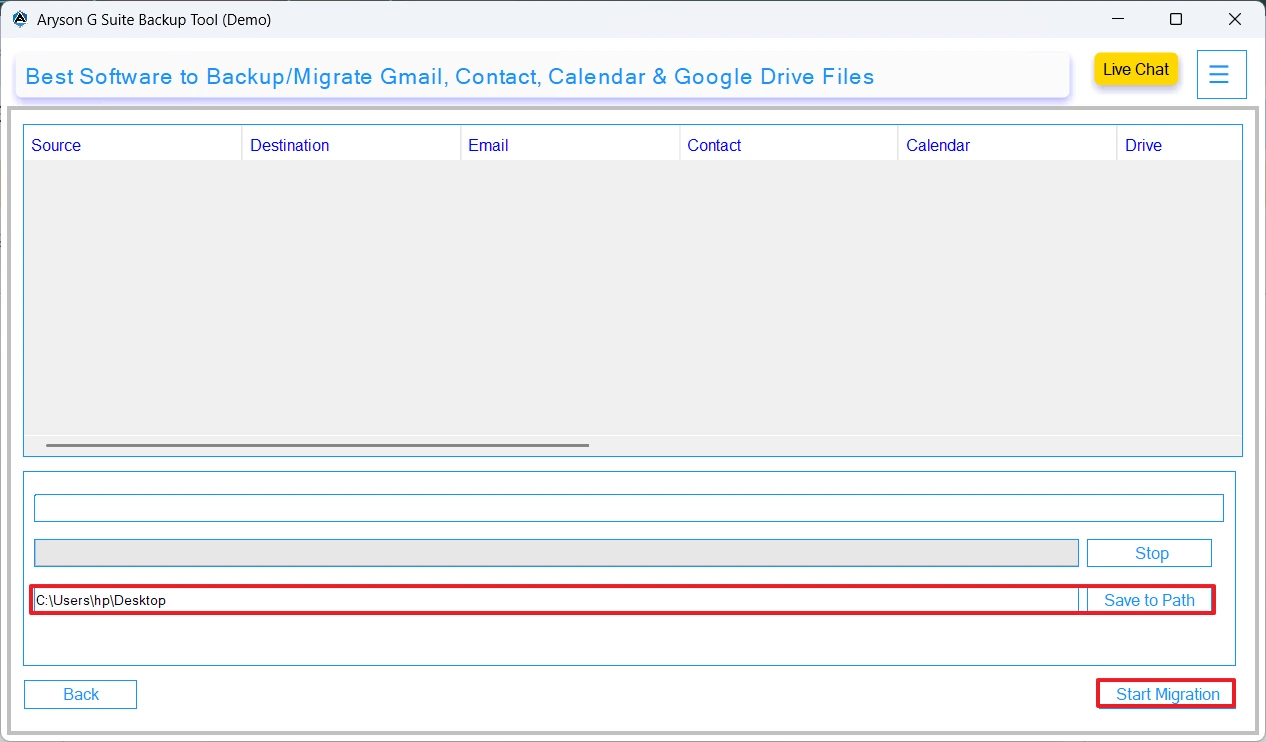
- Apply the required filters and provide the Path to save the resultant file.
- At last, click on the Start Migration button to begin the export.
Conclusion
In the above blog, we came across various potential reasons behind the G Suite to PST export. Along with that, we explored various methods to export Google Workspace to PST format. The manual method works well for a small number of files. Whereas, to export large mailboxes, it is advised to use the automated software discussed above. Still, in case you have any doubts, contact our tech support team for any further assistance.
Frequently Asked Questions:
Q.1 Can I export large Google Workspace mailboxes over 50 GB to PST?
Ans. Yes, using the above software, you can effortlessly export large Google Workspace mailboxes over 50 GB to PST.
Q.2 Which professional tool is best for exporting Google Workspace to PST?
Ans. Google Workspace Backup Tool is the best to save G Suite Mailbox as PST.
Q.3 Are drafts, sent, and trash folders included in PST export?
Ans. Yes, drafts, sent, and trash folders are included in PST export while using the above automated software.
Q.4 How do I export a G Suite mailbox to PST step by step?
Ans. With the help of the Google Workspace Backup Tool, you can export G Suite mailbox to PST. Step by step process is as follows.
1. Download and install the Google Workspace Backup Tool.
2. Log in with your Google Workspace account credentials.
3. Select Gmail (or other services like Contacts/Calendar).
4. Choose PST as the output format.
5. Apply filters and select the save location.
6. Click Start Migration to begin the export.
About The Author:

Evren Cole is an expert in Email and Data Management. She has a strong passion for technology and entrepreneurship. In her free time, she enjoys football, music, and reading books.

