

-
Written By Evren Cole
-
Updated on February 19th, 2026
How to Export Google Workspace to MBOX Format Quickly
Summary: Google Workspace is used to manage emails and business communication online. On the other hand, MBOX is a popular file format that is supported by many email clients to store emails locally. However, Google Workspace does not provide a direct option to export emails into MBOX format. This makes the process confusing for most of the users. Therefore, a reliable Google Workspace Backup Tool helps to make the process secure and smooth. In this blog, we will cover the complete process to export Google Workspace to MBOX in a simple way.
Why Do We Need to Export G Suite to MBOX?
Before proceeding to the process of export, it is very important for users to understand the reasons to convert their G Suite emails to MBOX format.
- Users can access their emails in MBOX-supported clients like Thunderbird.
- Subsequently, you can create a secure offline backup of mailbox data.
- You can easily move your emails between compatible applications.
- Moreover, MBOX helps to reduce cloud storage usage in G Suite.
- Also, users can keep their emails for long-term or legal records.
From the above reasons, you must have understood why the process of export is important. Now, we will move ahead and understand the complete process in detail.
Two Reliable Ways to Export Google Workspace to MBOX
In this section, we will walk through the two commonly used methods to convert the GSuite emails into MBOX.
- Manual Approach (Google Takeout Method)
- Professional Automated Tool
Manual Solution to Save Google Workspace Emails as MBOX (Using Google Takeout)
In this method, we will take help from Google Takeout to download G Suite emails in MBOX format. This is a free option that is provided by Google, but it is helpful for limited data from a single account.
Steps to Backup Google Workspace Mailbox to MBOX
- Firstly, log in to your G Suite (Google Workspace) account.
- After that, go to Google Takeout from your account dashboard.
- Then, you have to press Deselect All to remove all preselected services.
- Next, you need to scroll down and tick the checkbox for Mail.
- Now, click on All Mail Data Included to choose a specific folder, then confirm.
- After that, you have to move down the page >> Next Step.
- Next, pick your preferred file type, delivery option & export frequency.
- Then, you have to press Create Export to start the process of export.
- Finally, once the export is ready, download the MBOX file to your system.
Limitations of Google Takeout for G Suite to MBOX Export
- You must have the necessary account permissions to export your data.
- Moreover, the download process can be time-consuming.
- It is not practical for very large mailboxes (over 50 GB).
- Users get no advanced filtering options for selective export.
- It works only at the individual user level, not for bulk account migration.
Professional Solution to Export Google Workspace to MBOX
Google Workspace Backup Tool is a reliable solution to convert your Google Workspace emails into MBOX format safely and accurately. It helps users to back up their Gmail data, which includes attachments, without changing the original folder structure. It can handle both single and multiple mailboxes, which is helpful for individual users as well as organizations. With its built-in filter options and a user-friendly interface, the process of export becomes efficient. Also, users can export Google Workspace to PST by using the same utility.
Guide to Export G Suite Emails to MBOX:
- First, launch the Google Workspace Backup Tool on your computer.
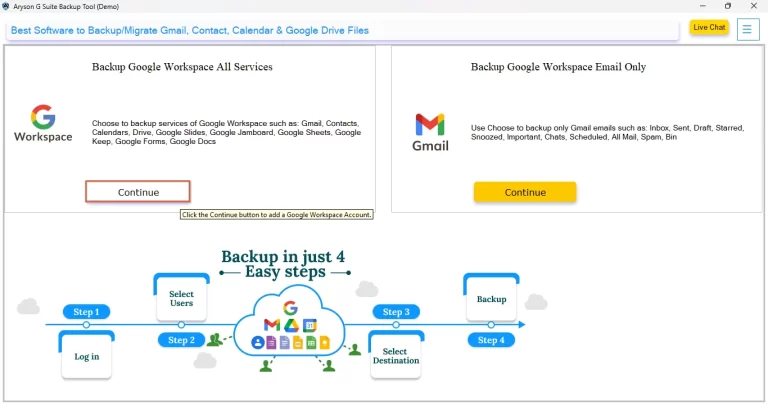
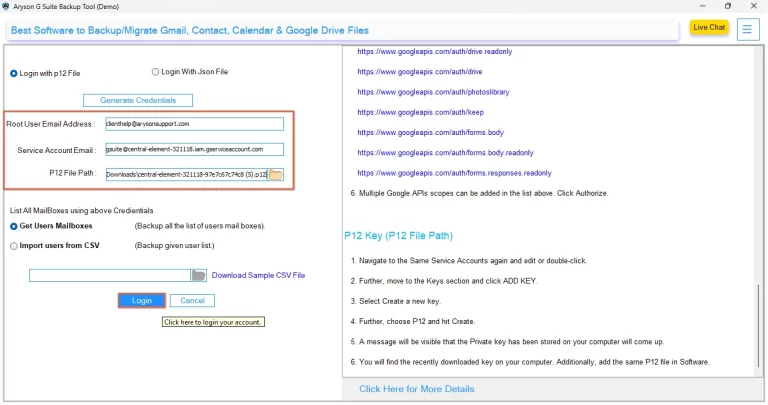
- After that, log in with your Google Workspace credentials >> Next.
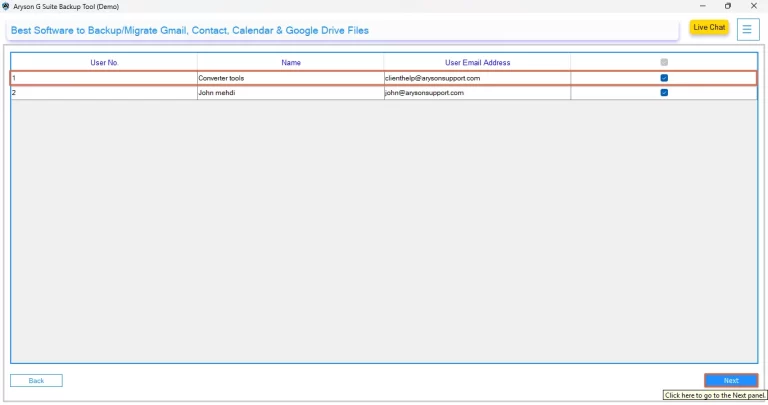
- Then, select the mailbox data you want to export >> preview the data.
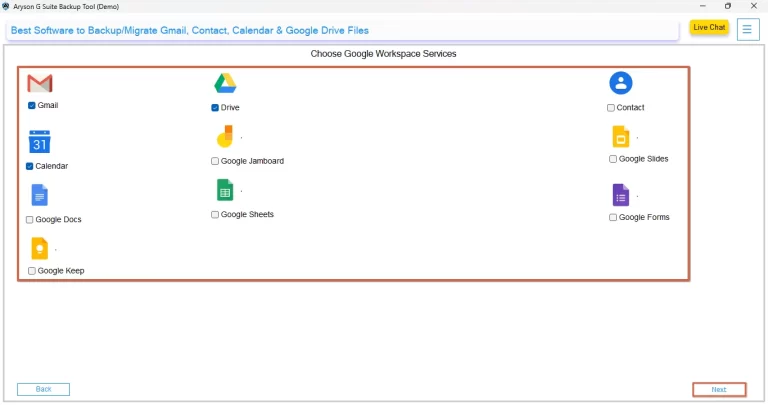
- Next, pick the required Google Workspace service (e.g., Gmail) for export.
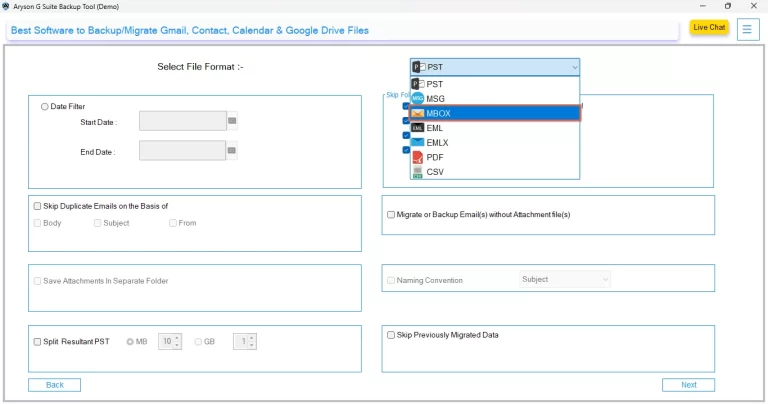
- After that, select MBOX as the output file format >> apply filters if needed.
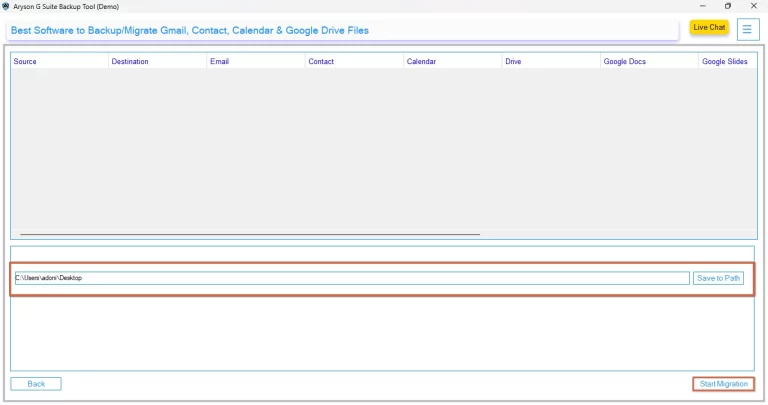
- At the end, click the Start Migration button to begin the export process.
Conclusion
In this blog, we covered why users need to export Google Workspace to MBOX and both the manual and automated solutions to perform. The manual approach helps the users with small & basic exports of your data. However, for large mailboxes or multiple accounts, users can opt for a professional solution, which provides a more efficient option. If you need any further help, you can contact the technical support team for quick assistance.
Frequently Asked Questions:
Q.1 How do I export all my Google Workspace emails to MBOX?
Ans. You can use Google Takeout to manually download emails in MBOX format.
For a quicker and more advanced option, use a Google Workspace Backup Tool to export emails directly to MBOX.
Q.2 Can individual users save Google Workspace emails as MBOX?
Ans. Yes, with the help of an automated tool, individual users can log in with their own credentials in the tool. And can export their mailbox data to MBOX without needing admin access (depending on permissions).
Q.3 What is the best way to backup Google Workspace mailbox to MBOX?
Ans. The best way is to use an MSOutlookHelp Google Workspace Backup Tool. It offers secure export, maintains folder structure, and allows you to apply filters for selective backup.
Q.4 Can admins export multiple Google Workspace mailboxes to MBOX?
Ans. Yes, the Google Workspace Backup Tool supports admin login, which allows exporting multiple user mailboxes in bulk to MBOX format in a single process.
Q.5 Can shared mailboxes be exported from Google Workspace to MBOX?
Ans. If the admin account has the required permissions, shared or delegated mailboxes can also be selected and exported to MBOX using the tool.
Q.6 Are deleted emails included when exporting Google Workspace to MBOX?
Ans. Yes, if deleted emails are still available in the mailbox (such as in the Trash folder), they can be included in the export with the help of the discussed tool. You can also choose specific folders during the backup process.
About The Author:

Evren Cole is an expert in Email and Data Management. She has a strong passion for technology and entrepreneurship. In her free time, she enjoys football, music, and reading books.

