

-
Written By Evren Cole
-
Updated on November 25th, 2025
How to Import EML to Hotmail: Best Methods
Ashley’s Query: Today, I received a number of emails in EML format. Since I use Hotmail, I need to import EML to Hotmail. Can anyone suggest a secure and quick solution to upload EML files directly to Hotmail?
Overview: Just like Ashley, many individuals, as well as organizations, prefer to upload EML to Hotmail to achieve efficient email organization, management, and accessibility. Thus, this article will explain two different workflows, align with a guide to use the MSOutlookHelp EML Converter to quickly import your EML files. But before performing the actual import, let’s understand the importance of importing EML files to Hotmail.
Understanding the Need to Import EML to Hotmail
There are a number of benefits offered by Hotmail that encourage users to import EML files to Hotmail. Some of the most common and relevant reasons are as follows:
- Hotmail is a secure email service that offers strong spam and phishing protection.
- It also helps users to effortlessly integrate with Microsoft apps like OneDrive.
- Moreover, you can manage your emails better using its cloud storage.
- Additionally, users can access their emails from anywhere, on any device they want.
- Also, it offers a clean and user-friendly interface to the user.
How to Import EML File to Hotmail?
As we discussed in the above section, Hotmail offers various benefits of importing EML to Hotmail. Listed below are the methods we will discuss in detail to accomplish the task of importing.
- Use of Microsoft Outlook
- Using an Advanced Software
Method 1: Use Microsoft Outlook to Import EML to Hotmail
You can use Microsoft Outlook to import EML files by simply adding your Hotmail account to Outlook and using the drag-and-drop method to add files in Hotmail. This method might seem straightforward, but it can’t perform the bulk import.
- Firstly, open the MS Outlook application & go to File >> Add Account.
- Then, enter your valid credentials >> configure your Hotmail account.
- After that, create a new folder inside MS Outlook >> select desired EML files to add.
- Drag and drop those EML files into the Outlook folder you just created.
- Now, it may take some time for Outlook to sync with Hotmail account.
- Once synchronization completes, all your selected EML files will appear in Hotmail.
Shortcomings of Using the Manual Approach
- The manual method completely relies on the installation of MS Outlook.
- As well as, It also doesn’t support the bulk import of EML files.
- In case the user imports a file more than once, it will result in duplication.
- Moreover, the user needs to be familiar with the interface of MS Outlook.
- Also, there is no guarantee of 100% data accuracy.
Method 2: Advanced Solution to Import EML to Hotmail
Use the MSOutlookHelp EML Converter to import multiple EML files to Hotmail in one go. This software makes sure to maintain 100% data accuracy and integrity. Moreover, it keeps the emails, attachments, and original formatting preserved during the import process. As well as it allows users to cross-verify their selected files/folders before importing them. Even if a beginner wants to import their EML files, the user-friendly and intuitive interface will help them import EML to iCloud, Hotmail, Thunderbird, IMAP, etc., email clients. In addition to it, this software comes with various built-in filters and features to optimize your file selection. Make sure to follow the step-by-step guide for importing to avoid any kind of human errors.
Step-By-Step Guide to Import EML to Hotmail
- To begin, download and install the MSOutlookHelp EML Converter on your system.
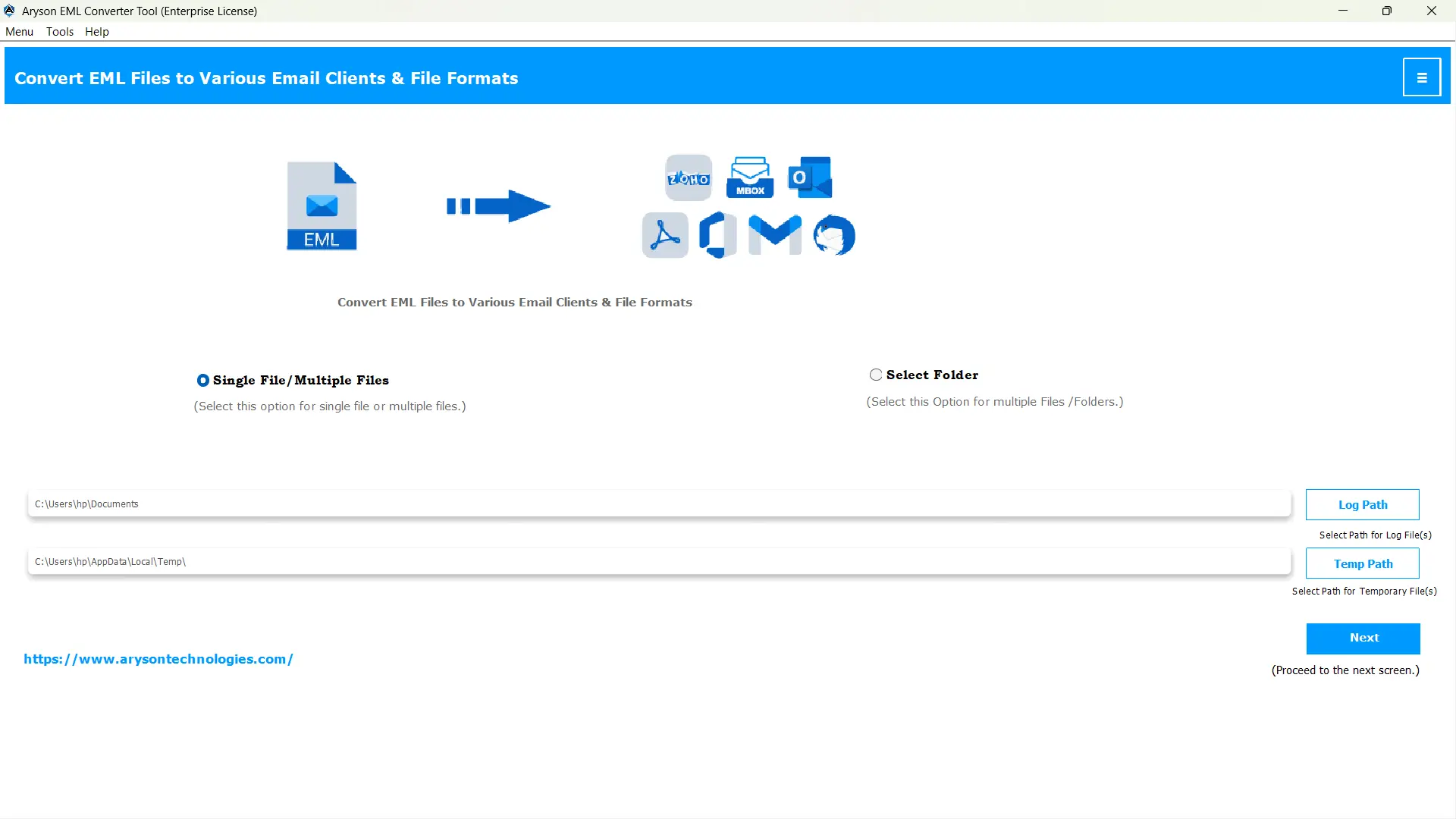
- Then, open the EML Converter >> click Select Files/Folders to load EML files >>Next.
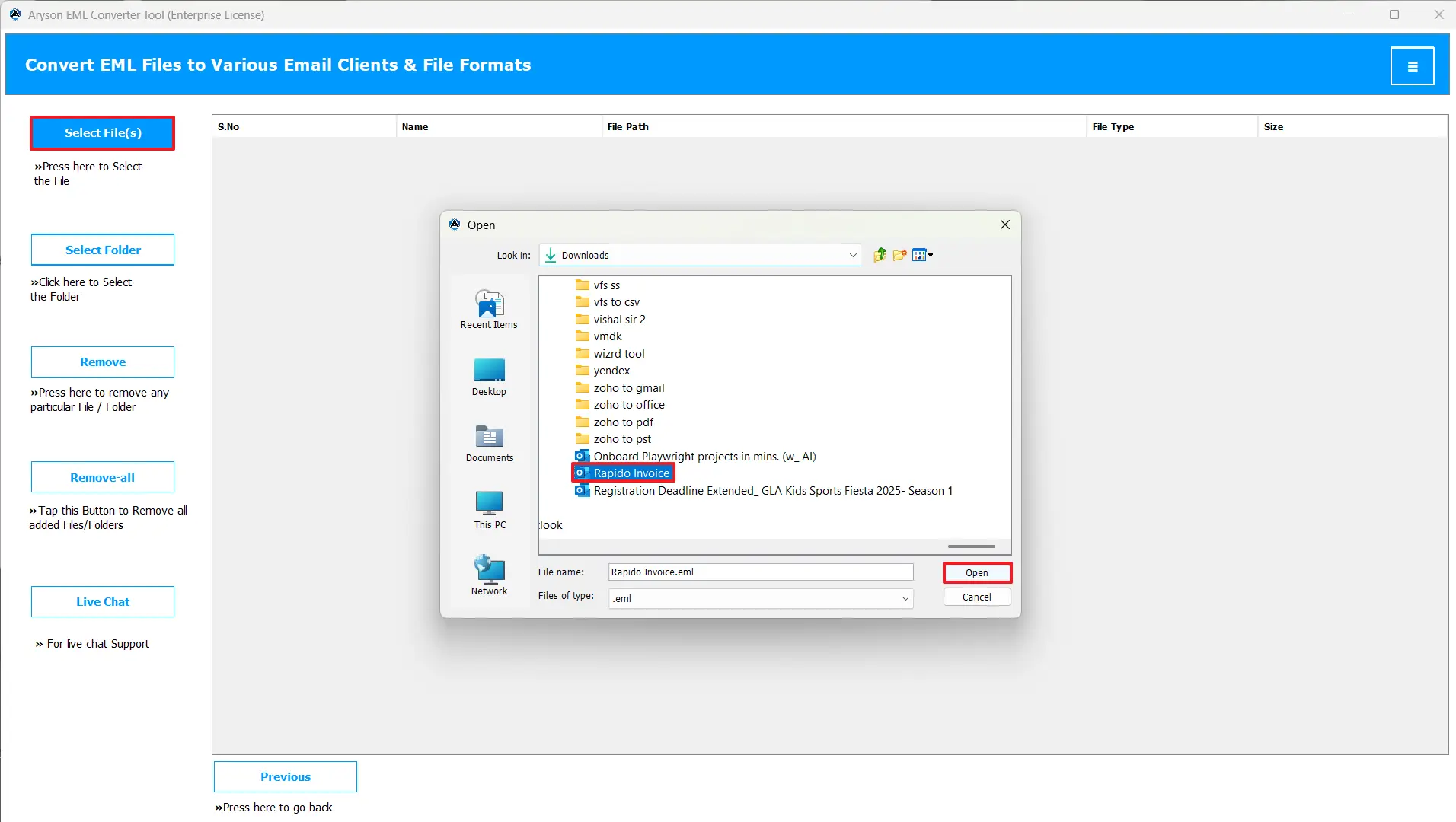
- After that, choose your required files/folders from the hierarchy>>preview them>>Next.
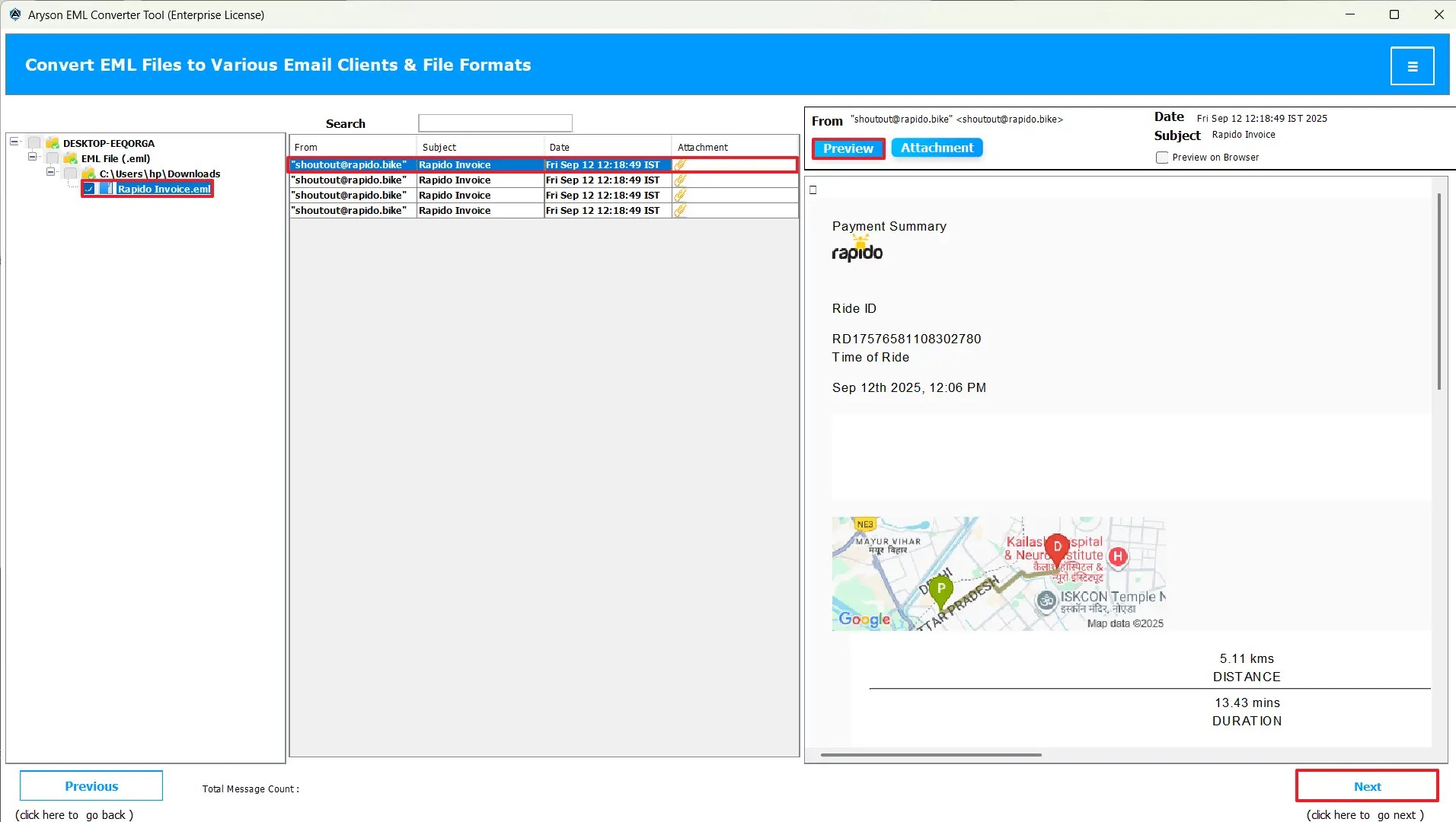
- Now, choose Hotmail from the listed email clients >> enter your credentials >> and log in.
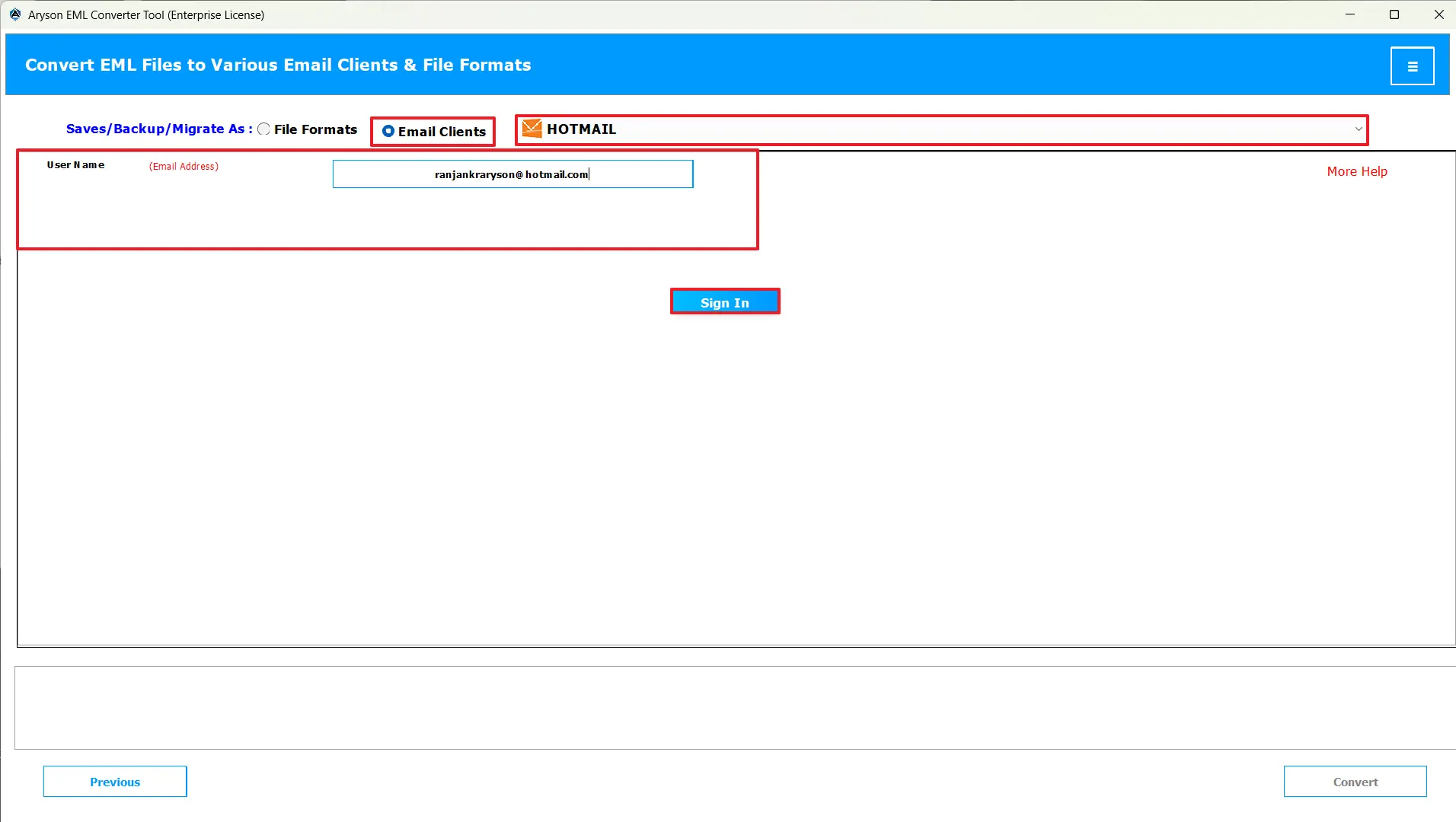
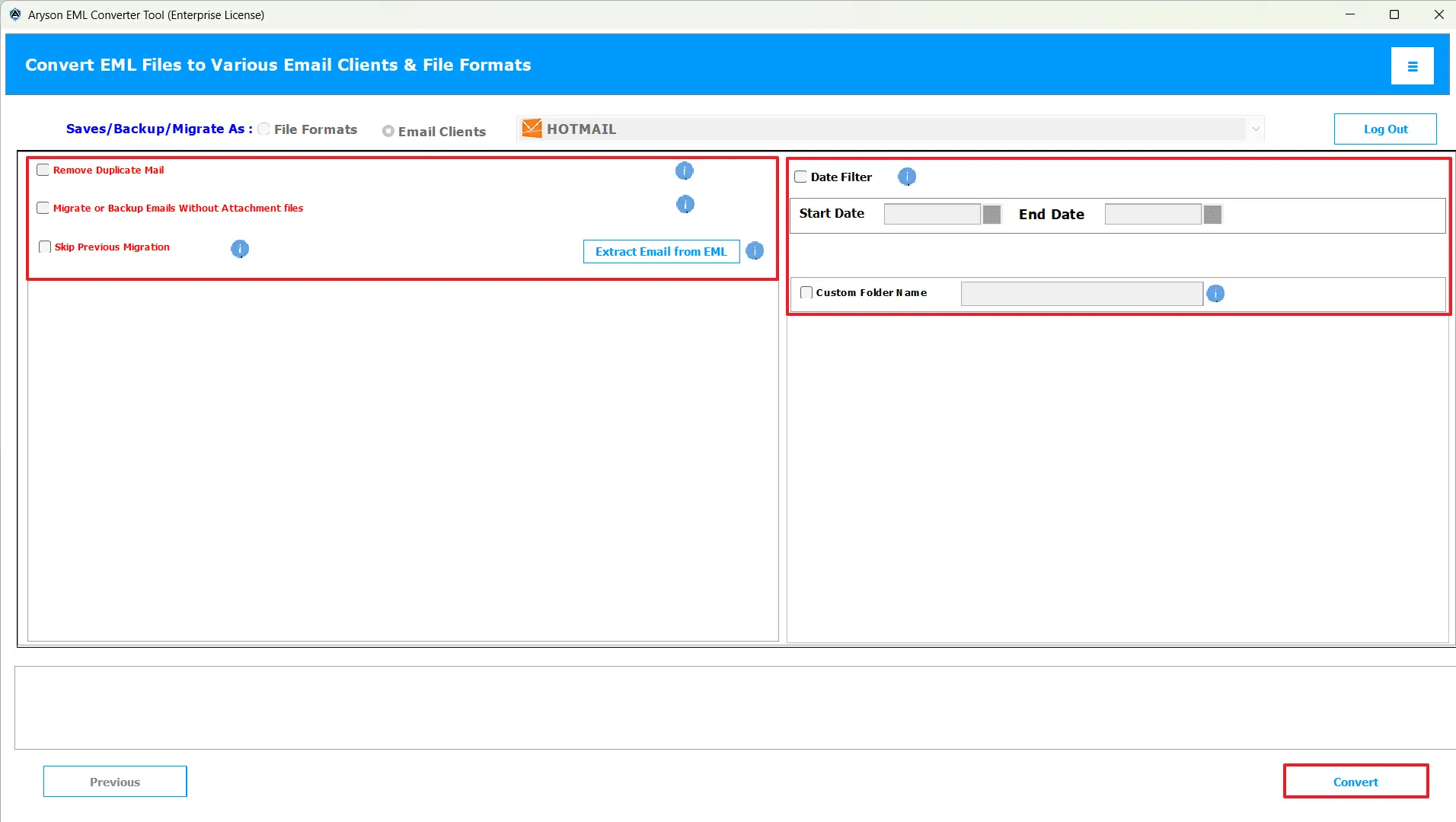
- At last, optimize your file selection using the various features available >> hit Convert.
Conclusion
In the above article, we discussed two different workflows to import EML to Hotmail. Both methods are 100% workable, but in case you find the manual method, bit tedious, you can use the above automated solution. This will save both your time and effort, as well as provide you with accurate results. You can even use the trial version of the software to get better clarity of the entire process. Hope you found this write-up helpful.
Frequently Asked Questions:
Q.1 Can I import EML emails to Hotmail directly?
Ans. Yes, you can use the MSOutlookHelp EML Converter to import EML emails to Hotmail directly.
Q.2 Can I import multiple EML files into Hotmail at once?
Ans. Yes, with the help of the advanced software above, you can import multiple EML files into Hotmail at once.
Q.3 How do I upload EML to Hotmail using Outlook?
Ans. You can add your Hotmail account to Outlook and then use the drag-and-drop method to import EML Emails to Hotmail using Outlook. But in case you want to import multiple files, opt for the MSOutlookHelp EML Converter.
Q.4 What is the easiest way to import an EML file to Hotmail?
Ans. MSOutlookHelp EML Converter is the easiest way to import an EML file to Hotmail.
About The Author:

Evren Cole is an expert in Email and Data Management. She has a strong passion for technology and entrepreneurship. In her free time, she enjoys football, music, and reading books.

