

-
Written By Evren Cole
-
Updated on May 29th, 2026
How to Convert EML to MSG Files with Attachments
Summary: Due to several reasons, many users are seeking a quick solution to convert EML to MSG with attachments. If you are one who also wants to change EML files to MSG with attachments, read this entire blog to find the most reliable and best technique to transfer EML to MSG format in bulk. This blog will explain two effortless methods to transfer EML to MSG format, a manual and a professional EML Converter. Moreover, we discuss the difference between the EML and MSG formats. Now, let’s get started without delay.
Comparison Between EML & MSG
|
Characteristic |
EML |
MSG |
|
File format |
Open standard email file format |
Proprietary Microsoft email file format |
|
Supported by |
Thunderbird, Apple Mail, and other email clients |
Mainly supported by Microsoft Outlook |
|
File size |
Smaller in size |
Generally large due to additional Outlook properties |
|
Portability |
Easy to share and open with other email users |
Easy to share and open with other Outlook users |
|
Compatibility |
Compatible with most email clients |
Compatible with all versions of Microsoft Outlook |
|
Advanced features |
It has limited options |
It supports features such as custom fields, voting buttons, follow-up flags, etc. |
I hope you understand the difference between EML and MSG file formats. Now, let’s explore the reasons to convert EML to MSG format.
Before you start the conversion, make sure your EMl files are accessible in your email application. Mac users first check how to open EML File on Mac OS.
Reasons to Convert EML Files to MSG
- MSG files preserve additional Outlook-specific properties such as follow-up flags and voting buttons.
- It supports several features that are not available in EML files, such as custom fields and follow-up flags.
- MSG files preserve Outlook-specific email properties and metadata more effectively than EML files.
- This can be easily shared and opened with other Outlook users.
After reading the above reasons, let’s learn the step-by-step process to export EML Files to MSG with attachments.
Method 01: Free Manual Method to Convert EML to MSG
This technique is a manual solution to transferring your EML to MSG format. It is an indirect but effective solution to convert EML to MSG. Moreover, it’s a bit technical, making it difficult for beginners. However, it will create a new MSG file in the specified location. The MSG file will contain the same information as the original EML file, which includes the email body and recipient information, and date. Let’s go through the steps.
- First, open Microsoft Outlook.
- Drag the EML file from your computer to the Outlook draft folder.
- Right-click the EML file in the draft folder.
- Afterward, go to the File tab >> click on the Save As option.
- Then, navigate to where you want to save the converted MSG file.
- Now, select the Outlook Message Format (*.msg) option.
- At last, click the Save button.
Downside of the Manual Method
- Microsoft Outlook installation is required.
- With this method, you cannot convert multiple EML files at once.
- This method is a time-consuming process for large email collections.
- It has a risk of missing attachments or formatting issues.
- This process is not suitable for non-technical users.
Method 02: Professional Software to Convert EML to MSG with all Attachments
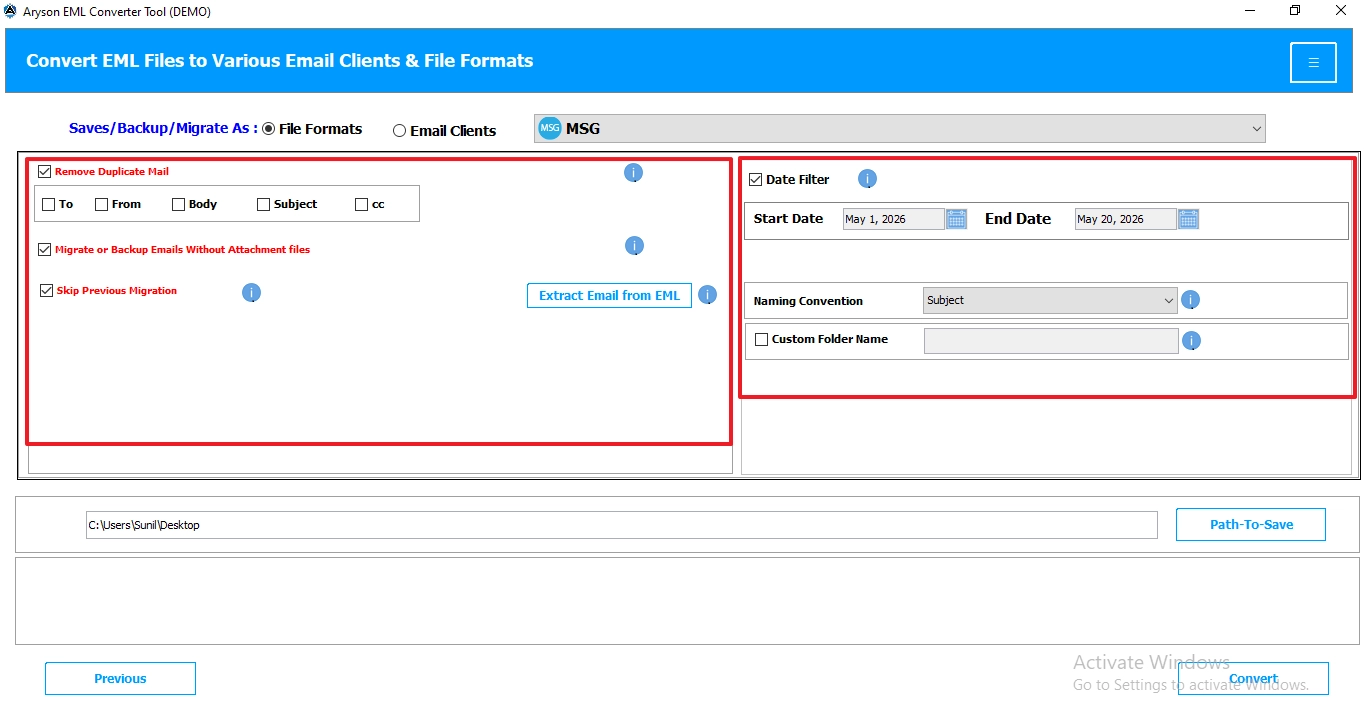
The EML Converter is a simple solution that can convert EML files to MSG with attachments. You can convert EML to MBOX when you want to migrate to a Thunderbird-compatible format. It has various features, such as removing duplicates, date filters, custom folder names, etc., so you can transfer your EML data according to your needs. Moreover, this software has a simple and easy user interface; therefore, every user can use this application without difficulty.
Working Process to Save EML Files as MSG
- Download and run the tool on your device.
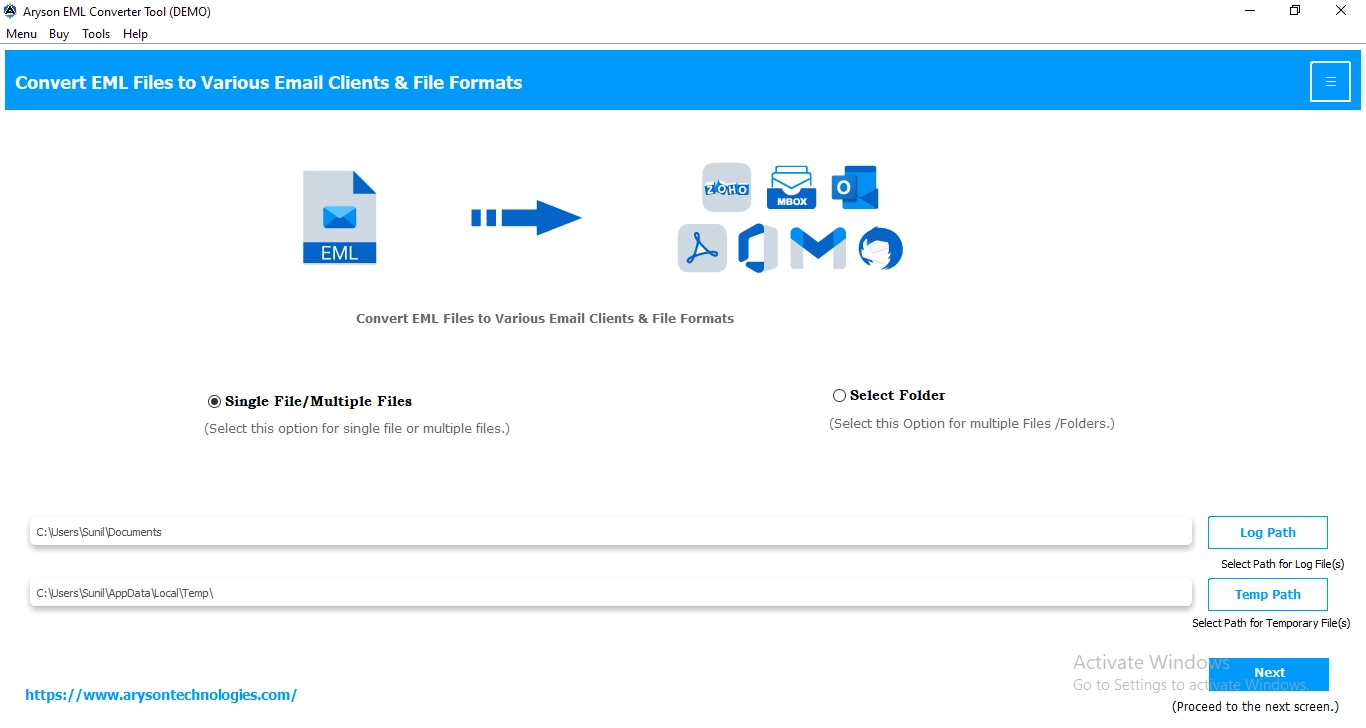
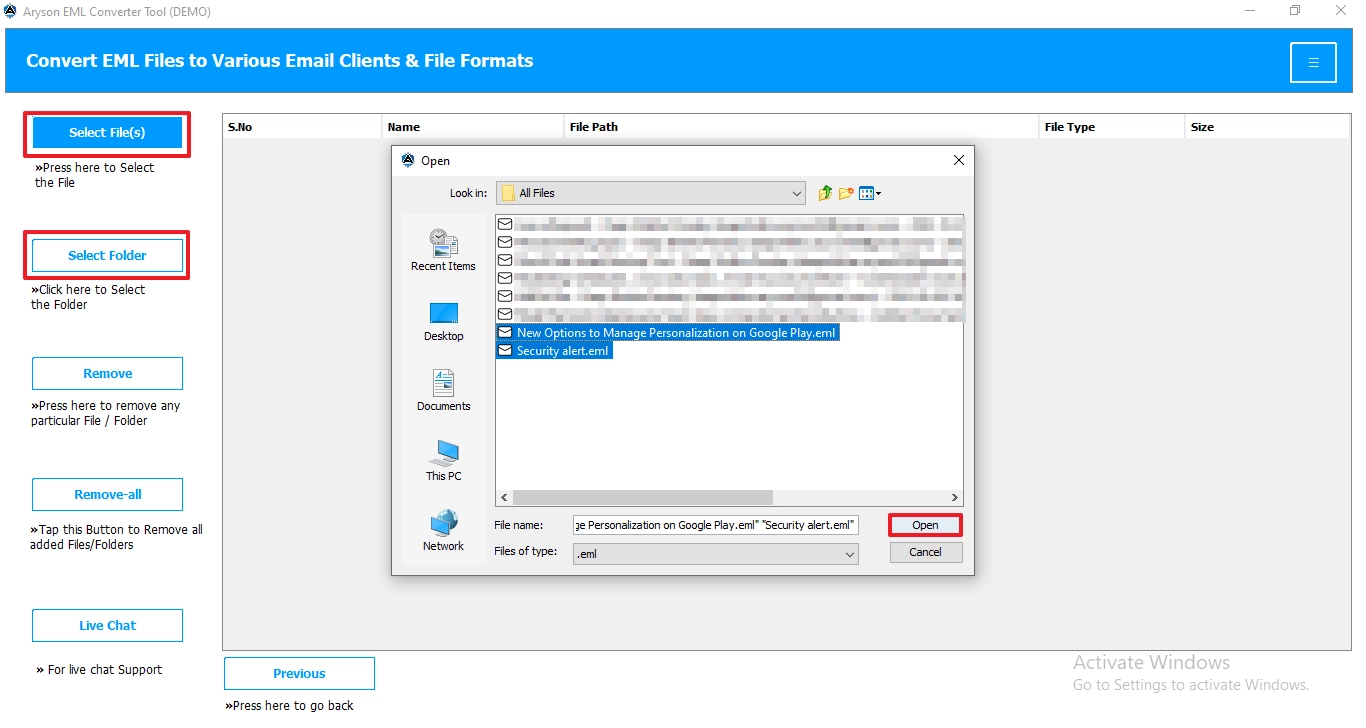
- Choose the EML files and folders from the Select File or Select Folder button, then click Next.
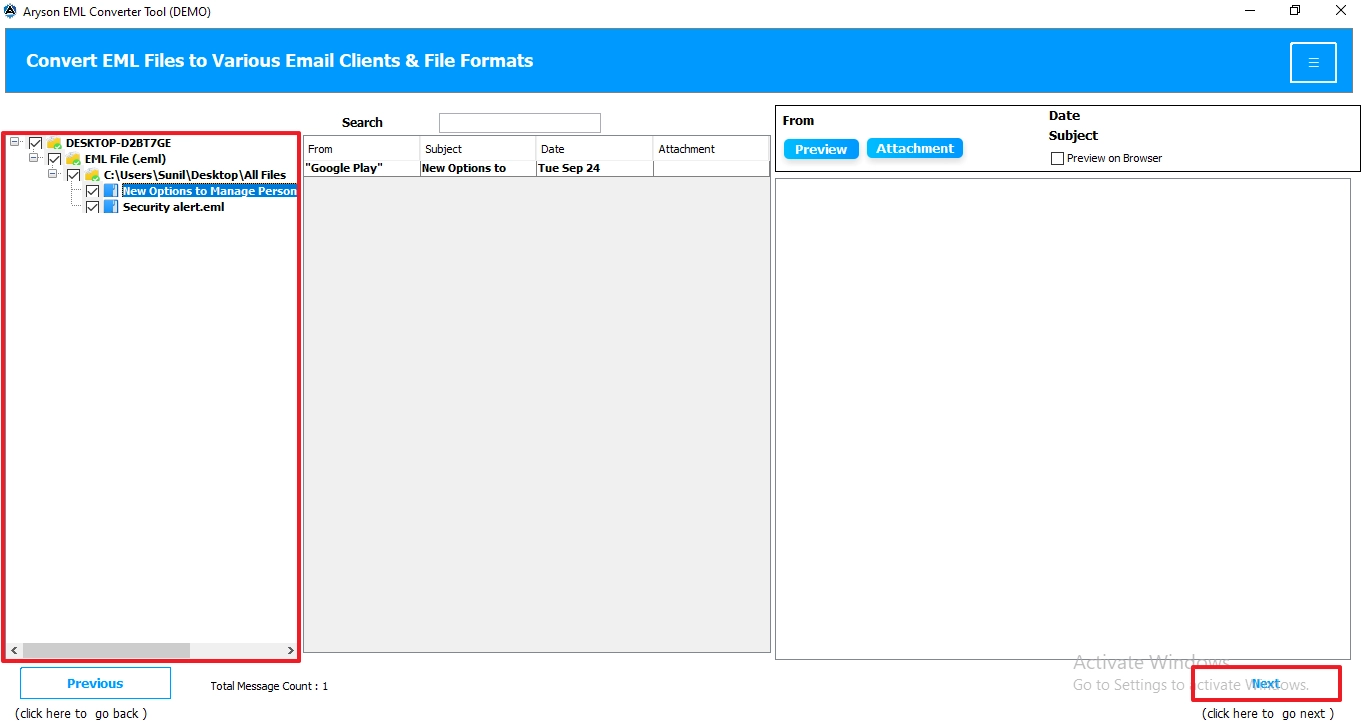
- Preview and select the folders that you want to convert to MSG format, and then click Next.
- Now, choose the MSG format from the drop-down menu.
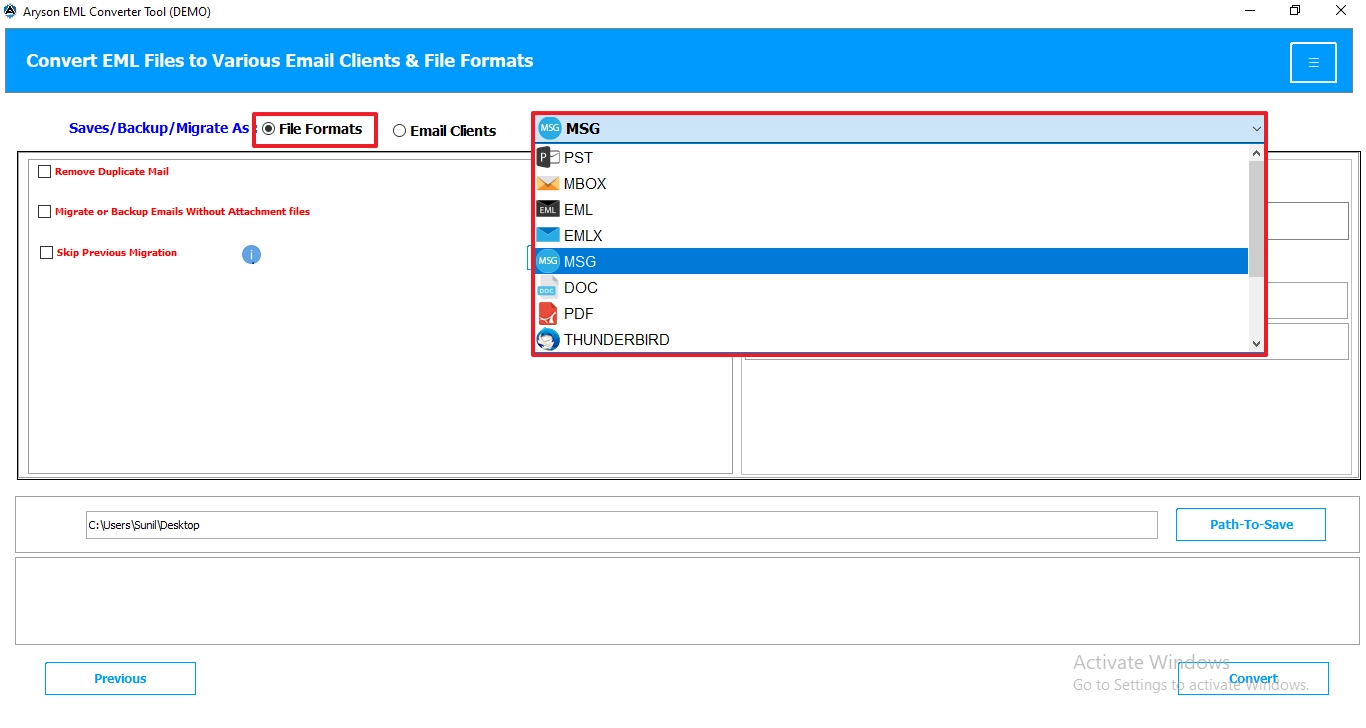
- After all, select the features that help you to convert specific data.
- Finally, set the destination path, then click the Convert button.
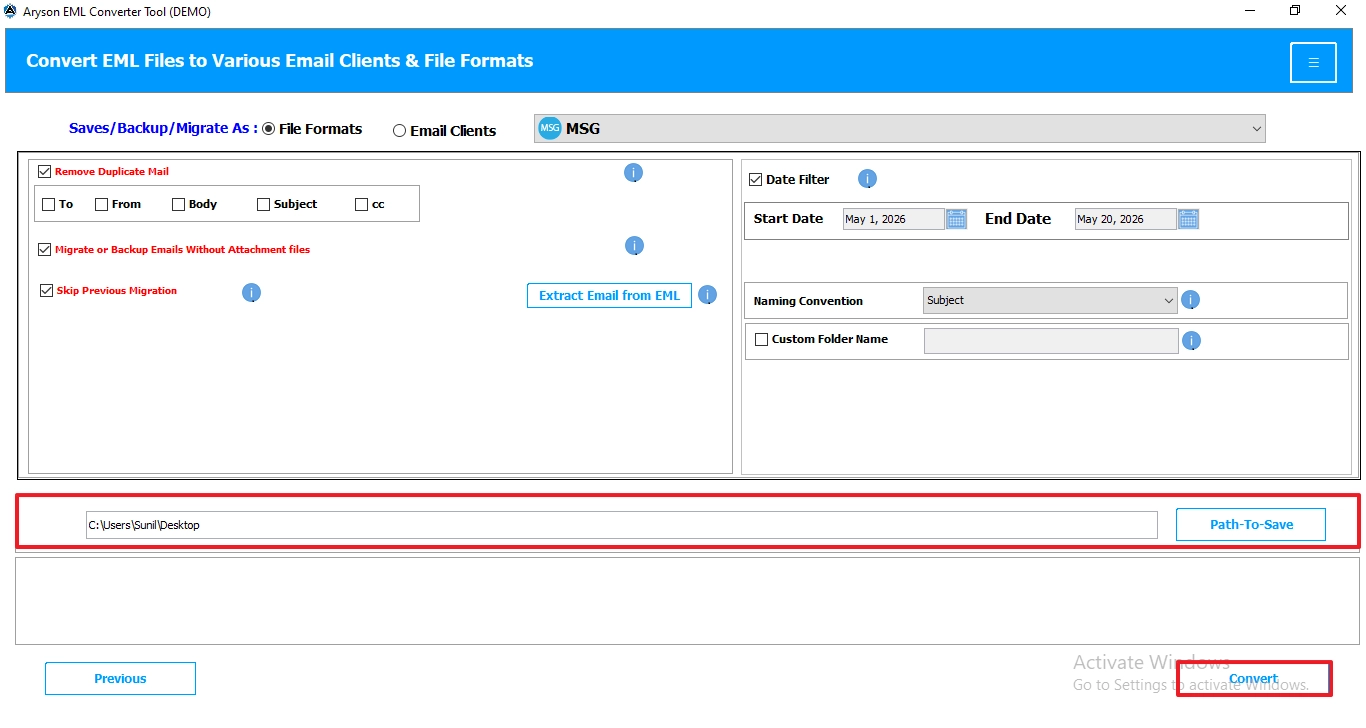
Note: You can download a free demo of this software to convert 50 items per folder.
Sreeja’s Experience
I had tested multiple methods to convert EML files into MSG format along with attachments.
However, the manual methods worked for limited files, but sometimes the email format changed. This EML Converter successfully preserved attachments and email structure in between and after the EML to MSG Conversion.
Conclusion
To wrap it up, we have discussed all the important key aspects of why users convert EML to MSG. You can use any method that is best suited to you for the conversion. However, the manual method is reliable for fewer files; it has various limitations, such as being time-consuming and a lengthy process. Therefore, if you want to convert bulk files, then use professional software for a hassle-free conversion. It makes sure that your folder structure remains the same after the conversion.
Frequently Asked Questions:
Q. How do I convert EML files to MSG format?
Ans. You can convert EML files to MSG format manually using Microsoft Outlook or by using a professional EML Converter tool. The automated method is faster and supports bulk conversion with attachments.
Q. Can I convert multiple EML files to MSG at once?
Ans. Yes, professional EML Converter software allows you to batch convert multiple EML files to MSG format simultaneously without losing email formatting or attachments.
Q. Does MSG format support attachments?
Ans. Yes, MSG files fully support email attachments, metadata, sender details, subject lines, and Outlook-specific properties such as follow-up flags and categories.
Q. Is there a free method to convert EML to MSG?
Ans. Yes, you can manually convert EML files to MSG using Microsoft Outlook’s “Save As” feature. However, the manual method is time-consuming for bulk conversions.
Q. Will the attachments remain intact after EML to MSG conversion?
Ans. Yes, both manual and professional methods preserve email attachments during the EML to MSG conversion process when performed correctly.
Q. Can I convert EML to MSG without Outlook installation?
Ans. Yes, professional EML converter software converts EML files to MSG format without requiring Microsoft Outlook installation on your system.
Q. Is bulk EML to MSG conversion safe?
Ans. Yes, EML Converter software safely converts bulk EML files to MSG format while maintaining email content, formatting, metadata, and attachments.
About The Author:

Evren Cole is an expert in Email and Data Management. She has a strong passion for technology and entrepreneurship. In her free time, she enjoys football, music, and reading books.

