

-
Written By Evren Cole
-
Updated on September 12th, 2026
Convert PST File to MBOX in Bulk? A Quick 2026 Guide
User’s Query:
I have multiple PST files from Microsoft Outlook that I need to import into Thunderbird. How can I convert PST files to MBOX in bulk while preserving the original folder structure, emails, attachments, and other mailbox data without processing each file individually?
Daniel Holland
IT Manager
Summary:- Converting multiple Outlook PST files to MBOX can simplify moving email data to Thunderbird. Instead of processing each PST separately, users can convert files in bulk while retaining folder hierarchy, emails, attachments, and mailbox information. In this blog, we will explain the reasons for migration, manual methods to perform the migration, and its limitations. A professional migration tool like MSOutlookHelp Outlook Converter provides a professional way to convert multiple PST files to MBOX in one process.
Why Need to Convert PST to MBOX?
- MBOX works with many email apps, not just Outlook.
- It makes moving emails to Thunderbird much easier.
- Some people switch from Outlook and need a compatible format.
- MBOX files are easier to access in different email clients.
- When you convert to MBOX, it reduces the dependency on Outlook.
Can I Convert PST to MBOX for Free?Yes, you can convert PST files into MBOX with the help of manual methods, such as IMAP synchronization or export emails as EML files and import them into Thunderbird. However, these methods require Outlook and can be time-consuming. A free trial version of Outlook Converter is also available, but they often limit the number of emails that you can convert. |
Manual Ways to Convert PST File to MBOX
You can move your PST files into MBOX with the help of an IMAP account or with the help of an EML export.
01: Export PST to MBOX Via IMAP
This method requires an active IMAP email account with sufficient mail. Then, you just need to import PST file to Mozilla Thunderbird account.
- Open Microsoft Outlook >> add your IMAP email account.
- Then, import or open the PST file in Outlook.
- Copy the required PST folders and emails to the IMAP mailbox folders.
- Wait for Outlook to sync all the emails with the mail server.
- After that, configure the same IMAP account in Thunderbird.
- You need to allow Thunderbird to sync the mailbox data and access the emails.
02: Save PST to MBOX via EML Files
This method involves exporting Outlook emails as EML files and then importing them into Thunderbird, allowing you to access PST mailbox data in an MBOX-supported email client.
- You have to open the PST file in Microsoft Outlook.
- Select the emails that you want to convert.
- Drag and drop the selected emails into a local folder to save them as EML files.
- Install Thunderbird >> ImportExportTools NG add-on.
- Then, you need to create a new folder in Thunderbird >> import the EML files.
- Verify that the emails have been imported successfully >> organized in Thunderbird.
Drawbacks of the Manual Method
- The manual Migration process is quite lengthy, and it is time-taking overall.
- The manual method may not preserve the mailbox’s structure.
- There is a high chance of getting inappropriate results.
- It is recommended that users have some basic technical knowledge.
There can be many other limitations to using the manual method to convert Outlook PST files to MBOX format. Therefore, most users prefer a better method to transfer PST files to MBOX using professional software. Let’s proceed with the second method to convert Outlook PST to Thunderbird.
Advanced Solution to Convert PST File to MBOX
Use this Outlook Converter to export Outlook PST files to MBOX and several other formats while preserving the mailbox data. This single utility helps to maintain the email structure and formatting. It consists of several file formats to convert PST to PDF, MSG, CSV, etc. It frees up the storage space of the mailbox by detecting duplicate files.
Process to Convert Outlook PST File to MBOX
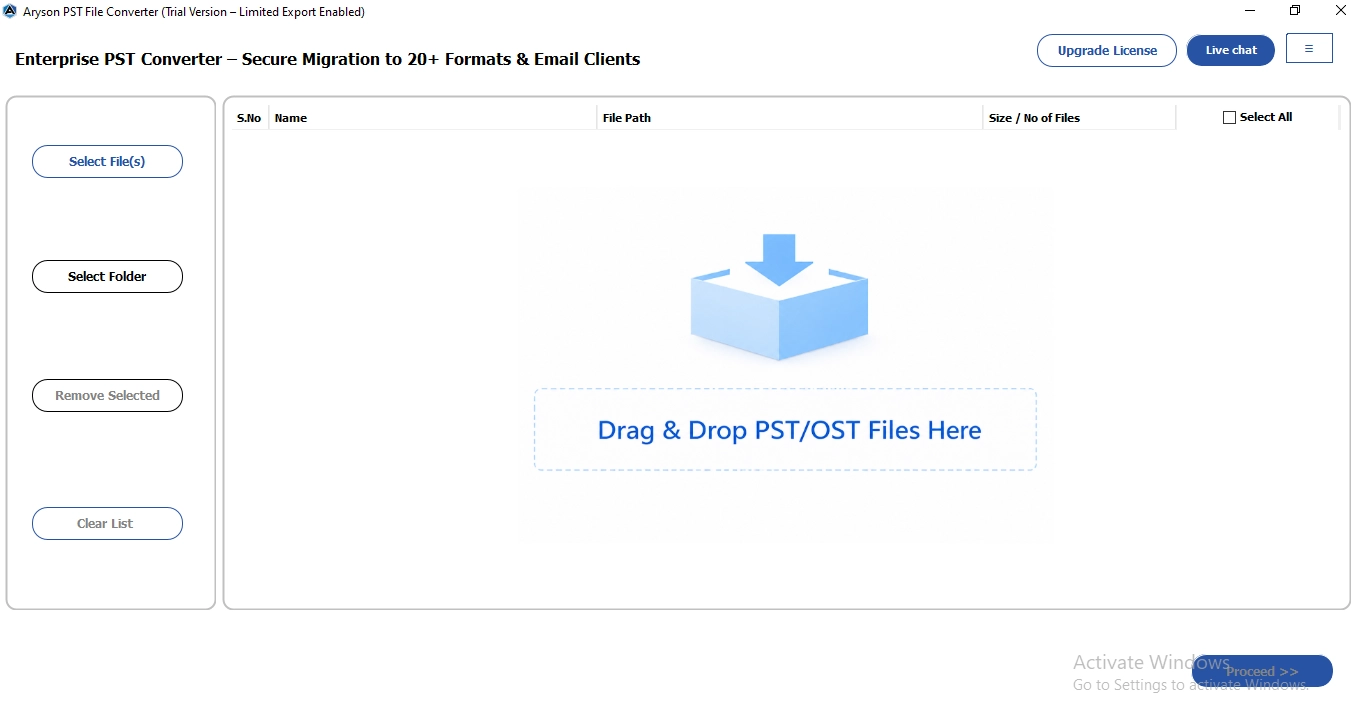
- Download and install the Outlook Converter Tool on your system.
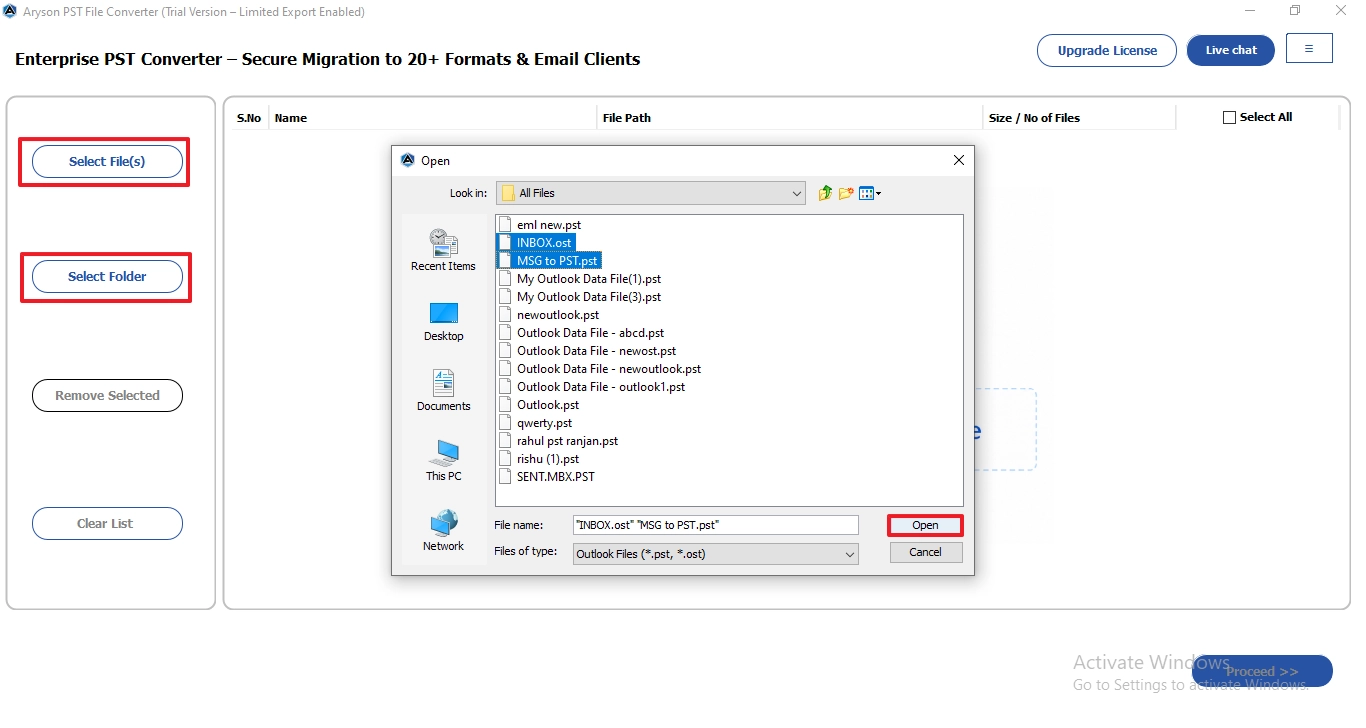
- Select the File/ Folder and navigate to the .pst file on your device >> open.
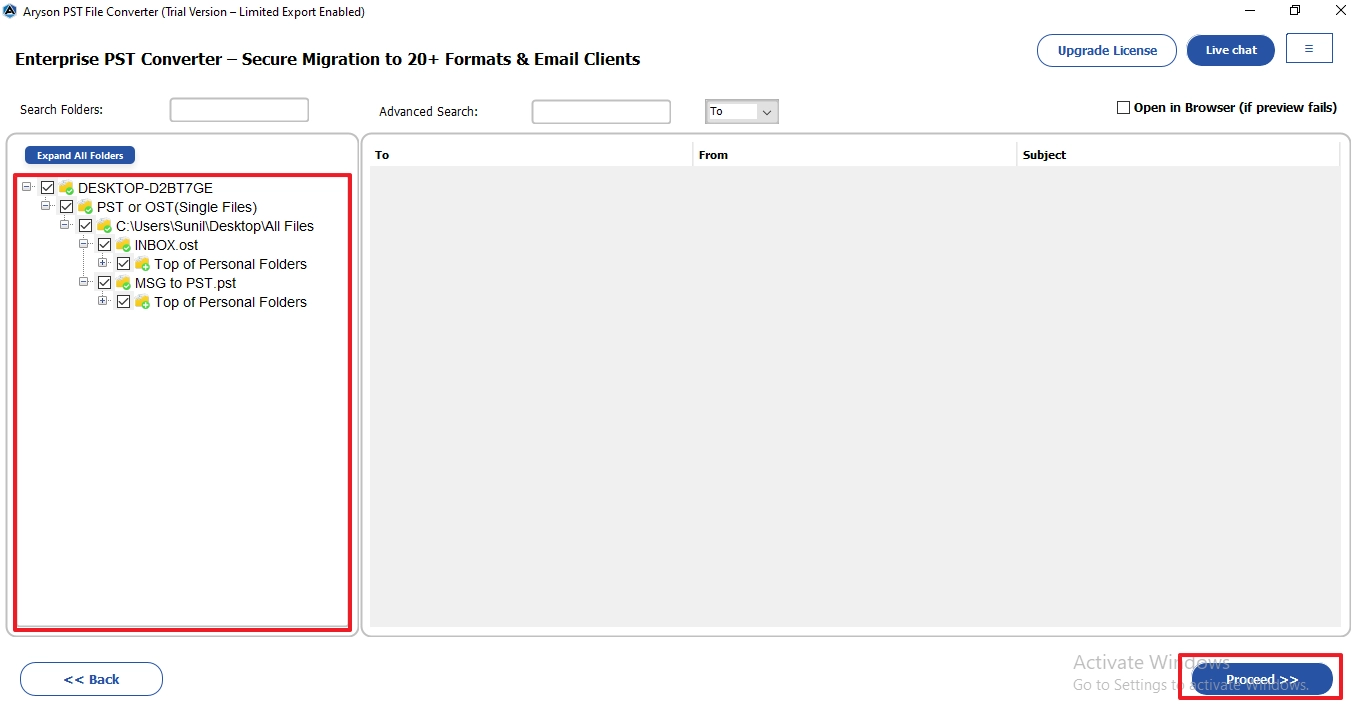
- You can preview the folders and files, and click Proceed to move further.
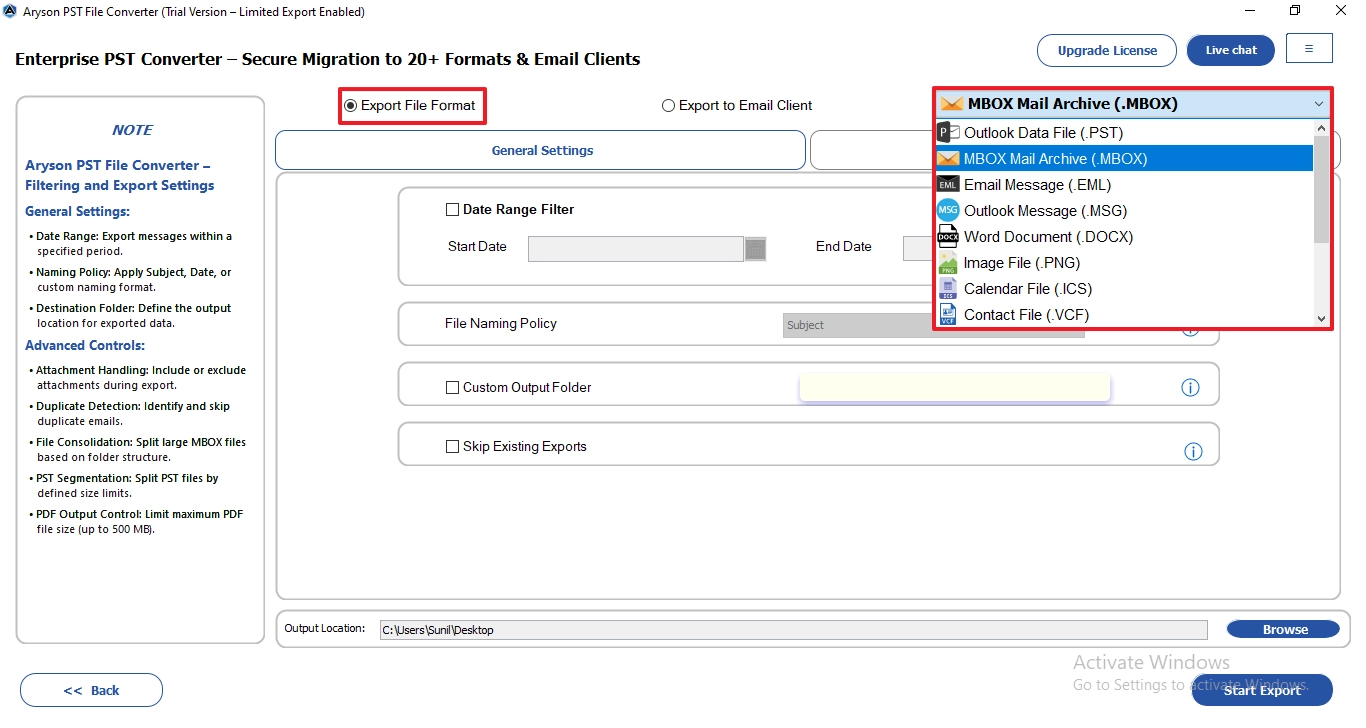
- Select MBOX Mail Archive (.MBOX) from the export file format.
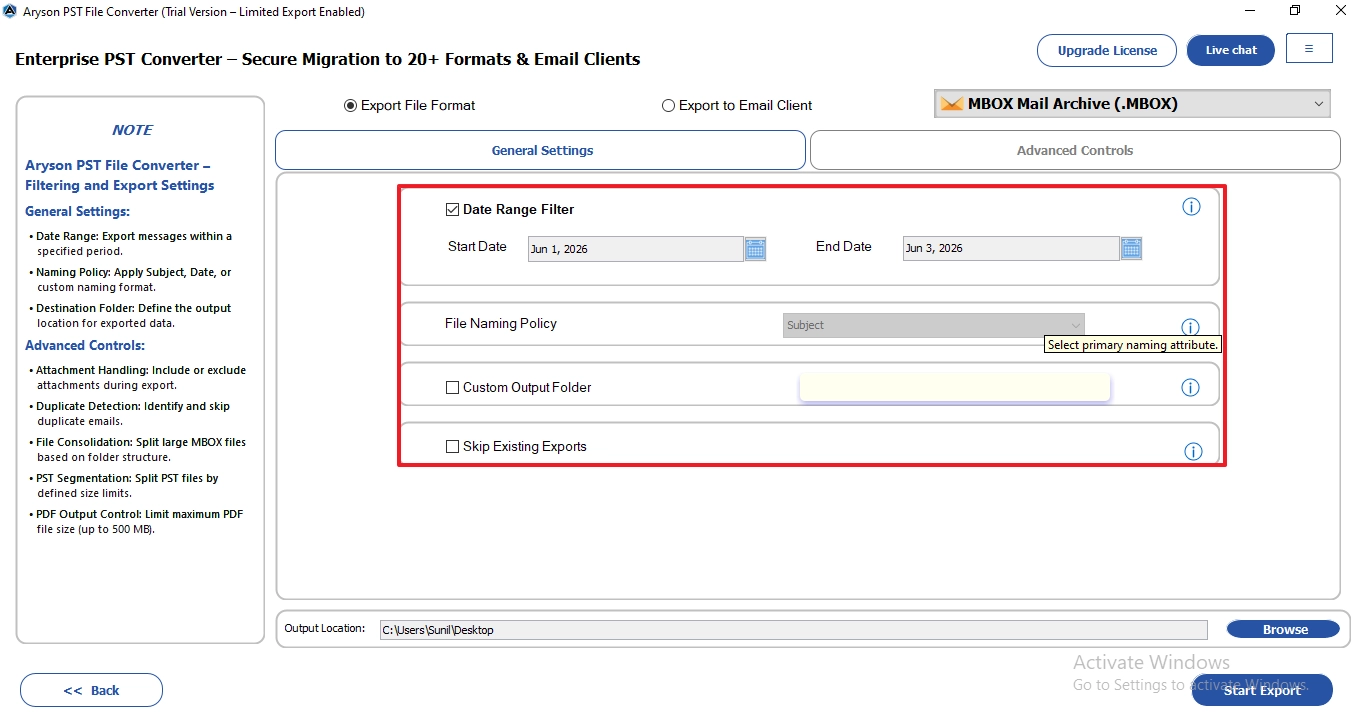
- Apply the additional filters to convert specific data.
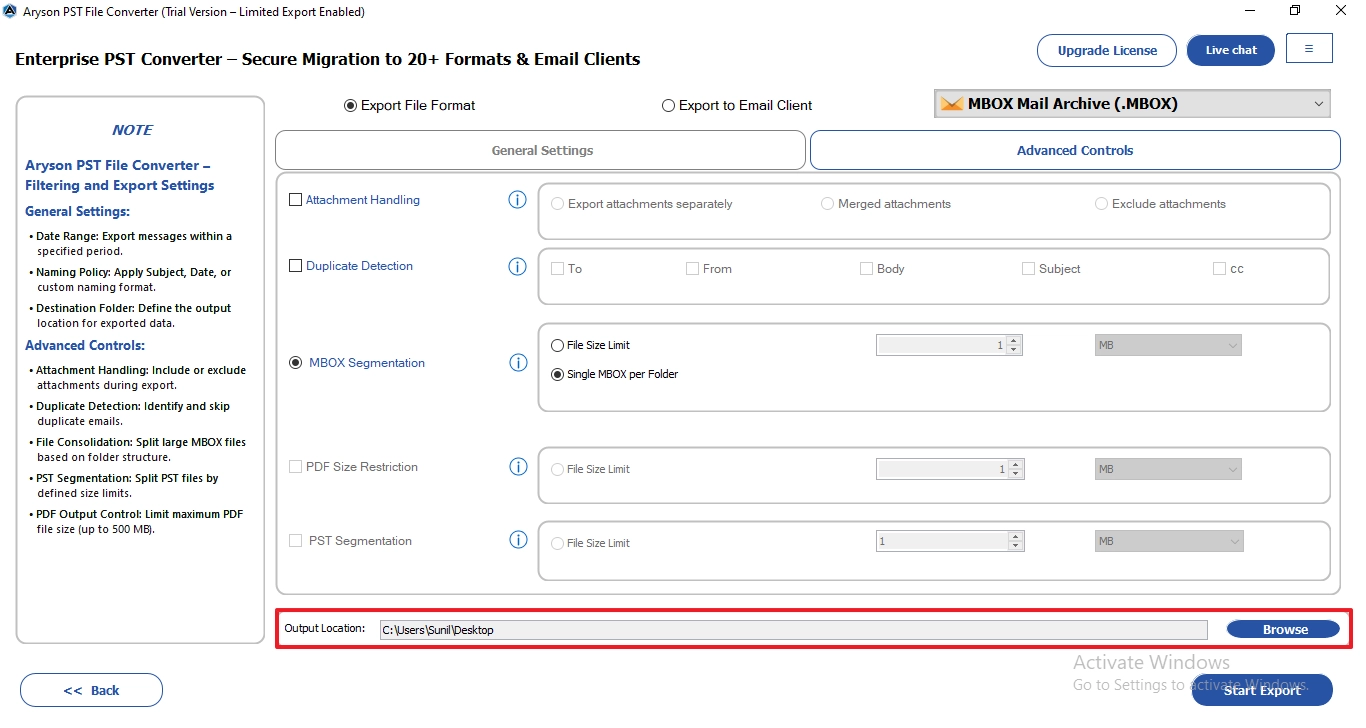
- Click on Browse to select the destination path where to save the resultant file.
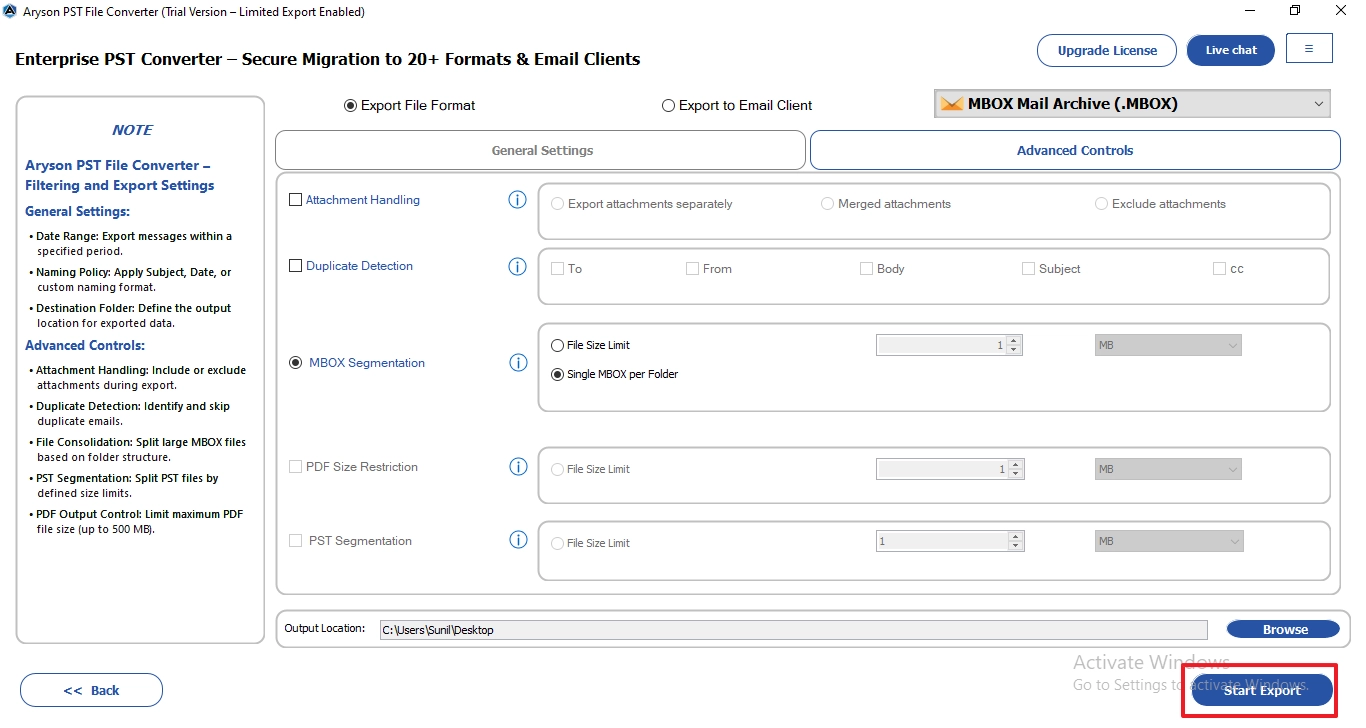
- In the end, click on Start Export to begin the conversion of PST to MBOX
Comparison Table: Manual vs Professional Method
|
Feature |
IMAP Method |
EML Method |
Outlook Converter |
|
Outlook Required |
Yes |
Yes |
No |
|
Batch Conversion |
No |
Limited |
Yes |
|
Folder Conversion |
Partial |
Manual |
Yes |
|
Attachments |
Yes |
Yes |
Yes |
|
Time Required |
High |
High |
Low |
Conclusion
In this guide, we explored the different ways to convert a PST file to MBOX format. While the manual methods works but it has several limitations. Also, it requires technical effort to accomplish the conversion process. A professional method makes the whole process simple and secure. You can download the free trial version to test the software.
Frequently Asked Questions
Q1. Do I need Microsoft Outlook installed to convert PST files to MBOX?
Ans. Not always. The Outlook Converter Tool can convert PST files directly without requiring Microsoft Outlook installation.
Q2. Will attachments, folder structure, and metadata be preserved while converting PST to MBOX?
Ans. Yes, a professional tool preserves email attachments, folder hierarchy, and metadata during the conversion process. This ensures the migrated mailbox remains organized and intact.
Q3. Is it possible to convert PST to MBOX according to a specific date range?
Ans. Yes, the PST to MBOX tool offers date-based filters to convert emails from a selected time period. This helps migrate only the required data and reduces conversion time.
Q4. Is there a way to convert multiple PST files into separate MBOX files?
Ans. Yes, the advanced Outlook Converter supports batch conversion of multiple PST files at once. Each PST file can be exported as a separate MBOX file while maintaining its original structure.
Q5. Which PST to MBOX tool is trusted by IT administrators?
Ans. IT administrators typically choose tools that provide secure, accurate, and large-scale conversions. MSOutlookHelp PST to MBOX Converter is a popular choice due to its reliability and advanced migration features.
About The Author:

Evren Cole is an expert in Email and Data Management. She has a strong passion for technology and entrepreneurship. In her free time, she enjoys football, music, and reading books.

