

-
Written By Evren Cole
-
Updated on June 24th, 2026
How to Migrate IMAP to Gmail – Simple & Easy Solution
Summary: Handling multiple emails across different IMAP accounts can become difficult. Because of this, most of the users now prefer moving their emails to Gmail for better accessibility and improved security with Google Workspace services. However, migrating IMAP emails to Gmail is not always a simple process. Sometimes, users often worry about losing important emails, folder hierarchy, or metadata at the time of the migration process. In this blog, we will walk through the manual method and the professional IMAP Backup Tool to migrate IMAP to Gmail account safely.
TL;DR: Users move to Gmail for better storage and easier email management. To do so, you can do it manually via Gmail or use a software-based approach for hassle-free migration.
Common Reasons to Import IMAP email to Gmail
There are some reasons why users plan to move their IMAP emails to Gmail:
- Gmail provides an advanced email search feature that helps users find emails quickly.
- It offers large storage space for emails and attachments.
- Moreover, Gmail works well with Google services like Drive, Docs, and Calendar.
- Another thing is that its simple interface makes email management easier.
- Users can access their emails securely from anywhere through a single Gmail account.
Manual Method to Migrate IMAP to Gmail
If you have only a small number of emails to migrate to your Gmail account, this free method is suitable for you.
Steps to Import IMAP mail to Gmail:
- Firstly, open your Gmail account and enter your credentials to Sign In.
- Now, click on Settings >> choose the See All Settings option.
- After that, select the Account and Import option.
- Then, choose the Add a Mail Account option.
- Next, enter the email address from which you want to import the data.
- Choose the required import option and click Next.
- Further, you need to enter the credentials to Sign In.
- Enable all the necessary permissions and click on Save.
- Lastly, click on the Close button to complete the process.
Drawbacks of Using the Manual Method
- It does not have a feature to transfer emails from IMAP to Gmail in bulk.
- There is a chance of losing your valuable data during the migration.
- The user must have the technical knowledge to perform manual steps.
- It consumes more time and does not provide accurate results.
Software-Based Approach to Migrate IMAP to Gmail
If you want to migrate large mailboxes, you can use the IMAP Backup Tool. It allows you to migrate multiple IMAP emails into Gmail simultaneously. Also, you can export IMAP Emails to MBOX File with this same software.
- You can preview the emails to check all the details before migration.
- Option to remove duplicate emails based on To, From, Subject, & Body.
- Apply a Date Filter for selective email migration within the data range.
- Ability to export emails from IMAP to MBOX and other file formats.
- It supports all the versions of Windows OS, including Win 11, 10, 9, etc.
Simple Steps for IMAP to Gmail Migration:
- Download & install the IMAP Backup Tool on your system.
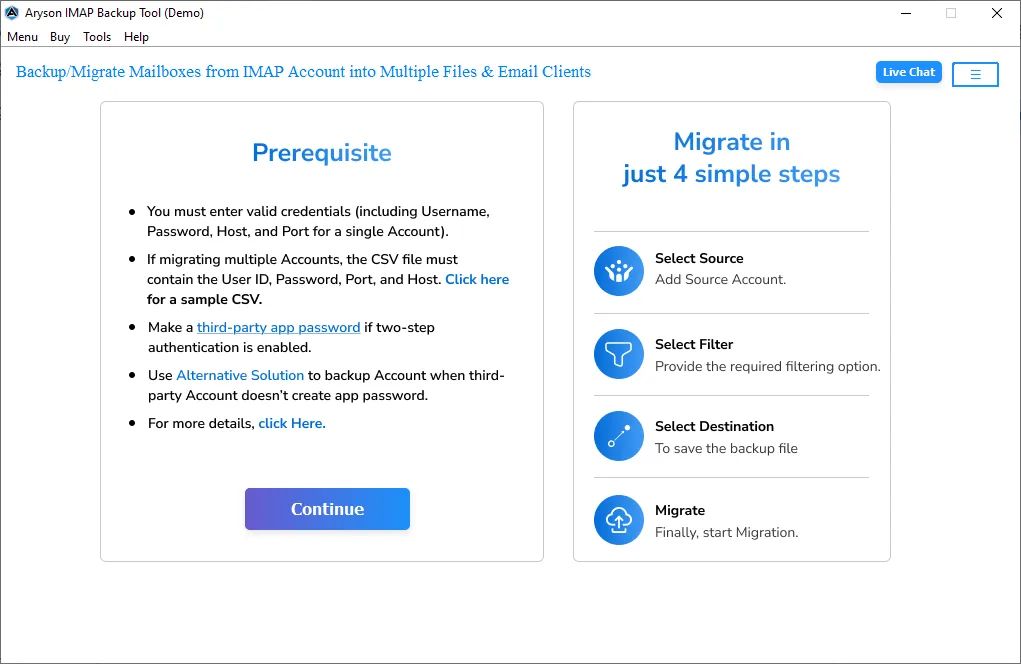
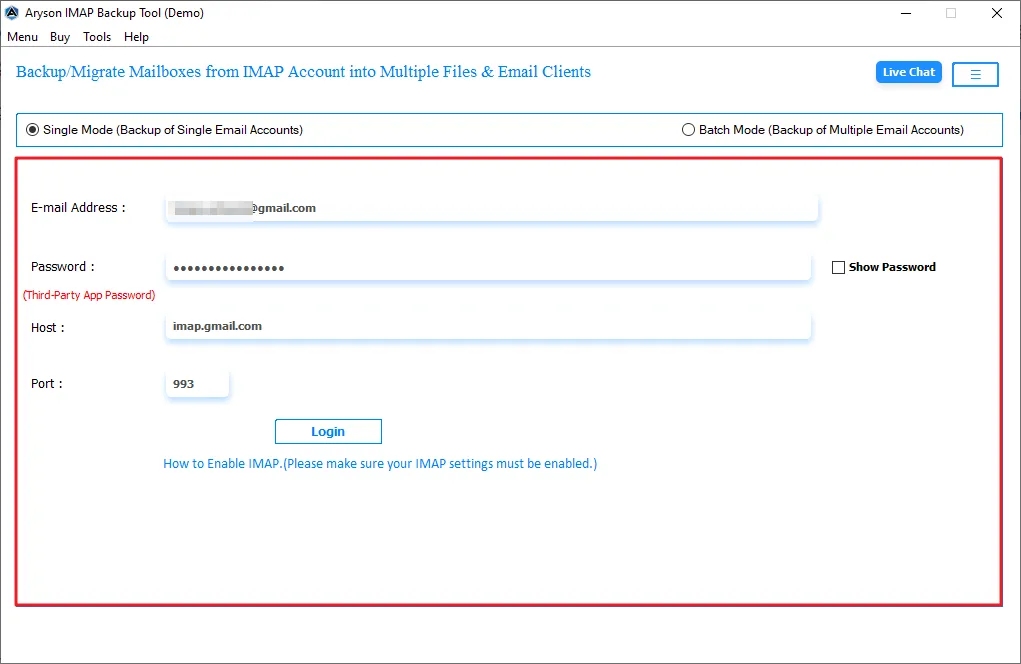
- Enter your credentials (Email Address, Password, Host & Port no) to log in.
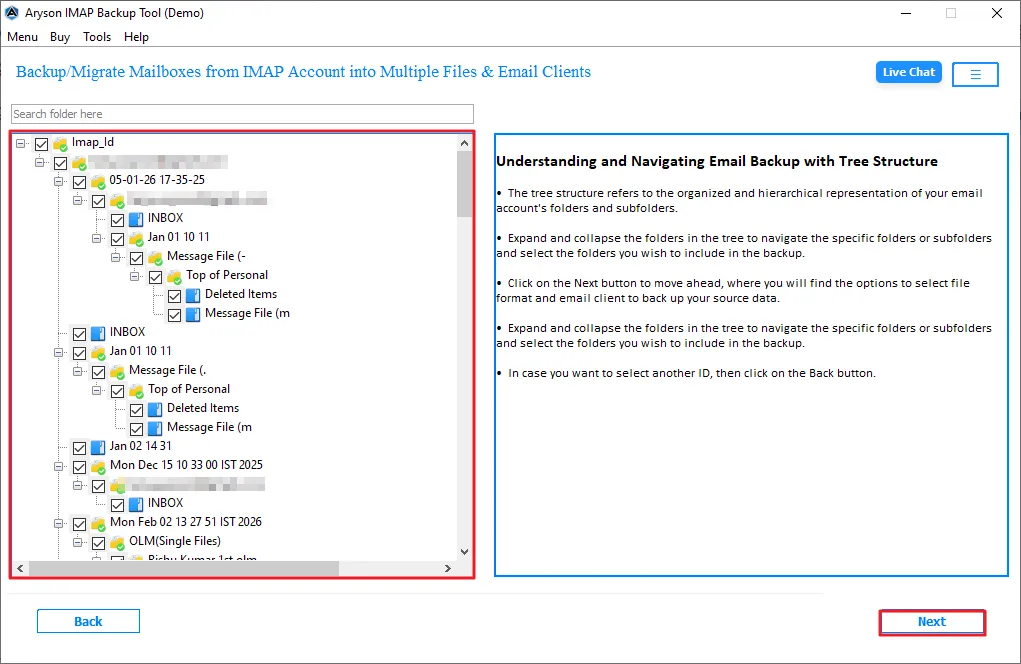
- Now, select & verify the details before saving them into a resultant format.
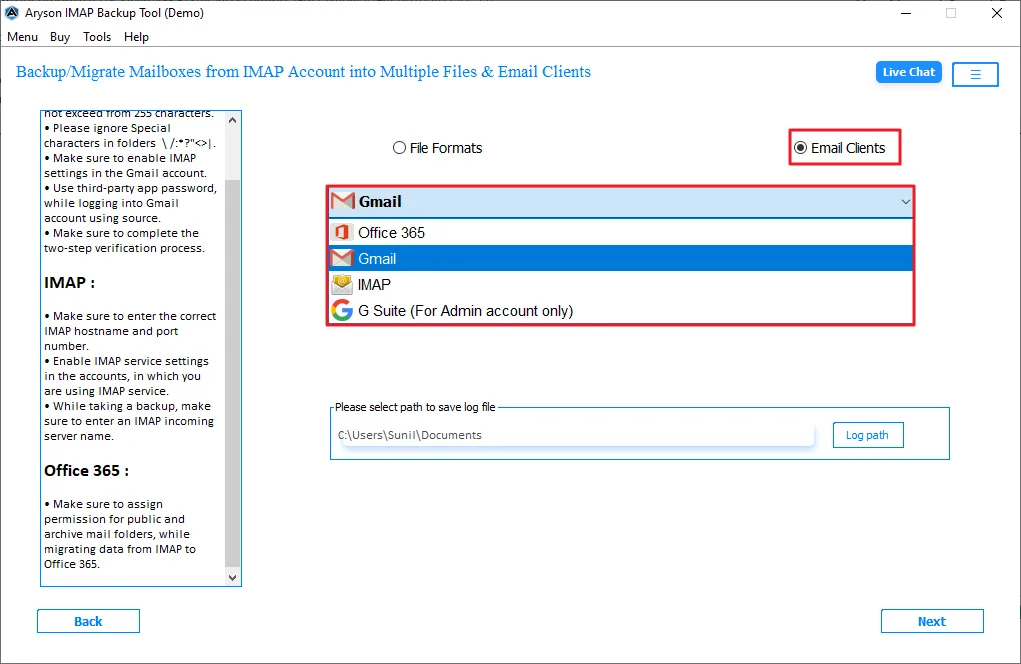
- Then, choose Save in Email Client and select Gmail from the given list.
- After that, enter your Gmail credentials to Sign In and use advanced filters.
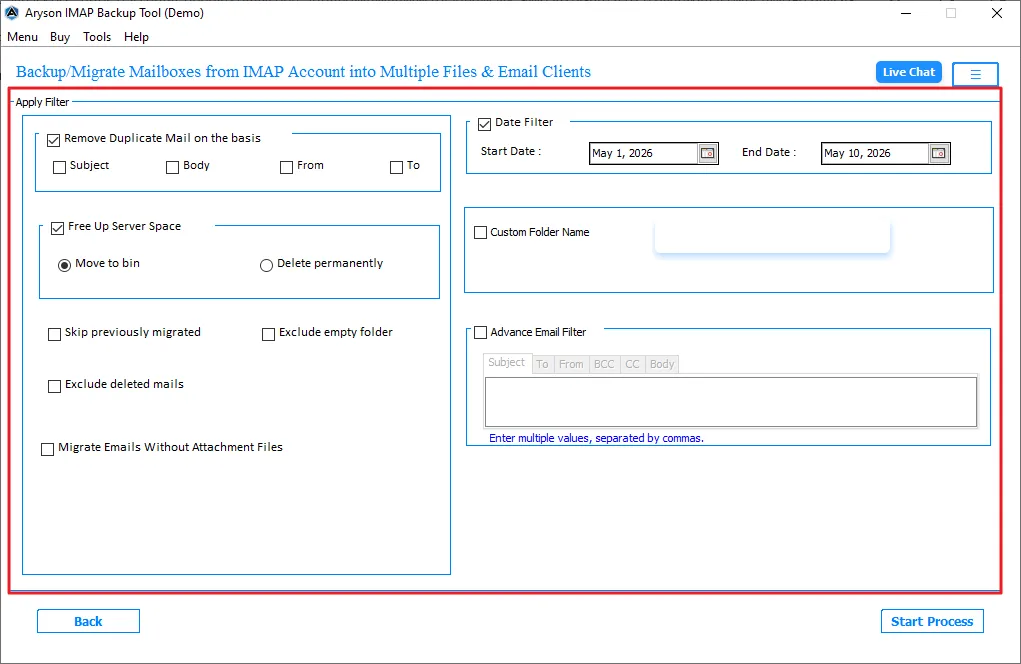
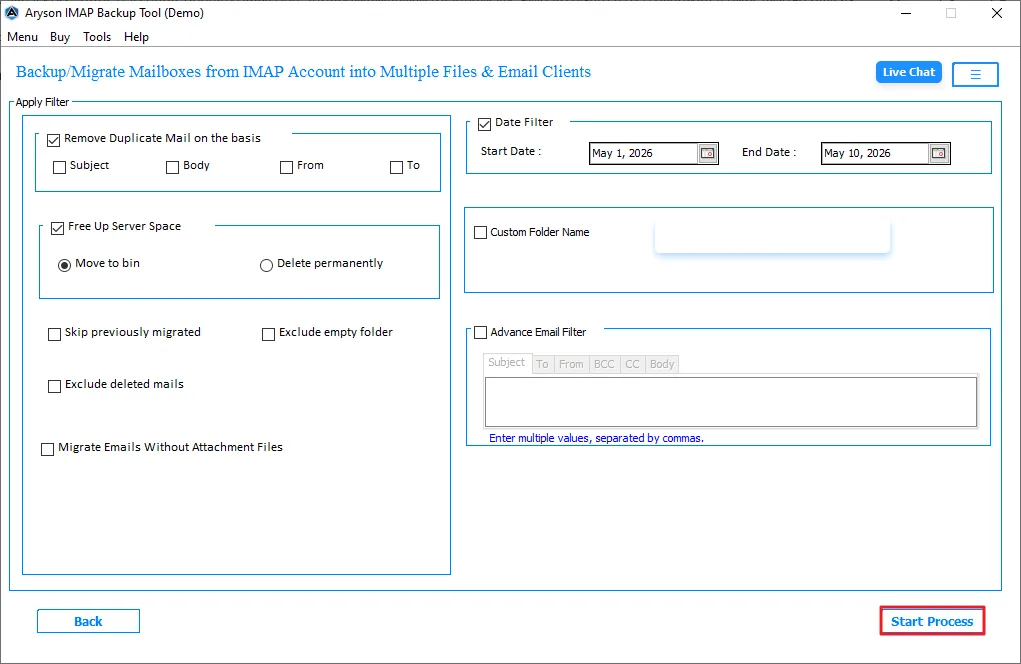
- In the end, click on Next to initiate the migration process.
Comparison Table: Manual Method Vs Software-based Approach
|
Feature |
Manual Method |
Software-based Approach |
|
Duplicate Email Removal |
Not Available |
Available |
|
Selective Migration |
Limited |
Supports date filter options |
|
Preview Before Migration |
Not Available |
Available |
|
Supports Multiple File Formats |
No |
Yes |
|
Suitable for |
Small migrations |
Large and professional migrations |
Best Practices After IMAP to Gmail Migration
- After the completion of the migration process, you need to verify the migrated emails.
- You have to check the spam/promotions folder.
- Moreover, you have to make sure to enable 2 factor authentication.
- It is important to remove duplicate emails from the mailbox.
Common IMAP Servers Used for Migrations
|
Email Services |
IMAP Server |
|
Gmail |
imap.gmail.com |
|
Yahoo |
imap.mail.yahoo.com |
|
Outlook |
outlook.office365.com |
|
AOL |
imap.aol.com |
Final Thoughts
In this guide, we explained both manual and automated ways to migrate IMAP to Gmail. While the manual method works well for small migrations but may take more time for large mailboxes. Moreover, if you want to transfer multiple emails quickly and without missing data, you can use a professional tool that can make the process easier. Therefore, it is suggested to choose the method that best fits your migration needs.
Frequently Asked Questions:
Q.1. How can I import IMAP email to Gmail without losing data?
Ans. You can use the IMAP migration tool to transfer emails safely while keeping the original data intact.
Q.2. Which tool is best for IMAP to Gmail migration?
Ans. The IMAP Backup Tool is a commonly used solution for migrating IMAP emails to Gmail.
Q.3. How long does it take to migrate IMAP to Gmail?
Ans. The migration time depends on the size of your mailbox and your internet speed.
Q.4. How can I migrate IMAP emails to Gmail without duplicates?
Ans. Use a migration tool with a duplicate removal feature to avoid importing repeated emails.
About The Author:

Evren Cole is an expert in Email and Data Management. She has a strong passion for technology and entrepreneurship. In her free time, she enjoys football, music, and reading books.

