

-
Written By Evren Cole
-
Updated on January 6th, 2026
Complete Guide to Export Office 365 to CSV
Overview: In today’s digital world, each organization consists of a huge number of employees. Corresponding to them, there exist numerous accounts. Thus, organizations use Office 365 for better organization and collaboration across the team. But apart from collaboration, there exist various other tasks. Data analysis and management is one of them. This calls for a need for a reliable and secure way to export Office 365 to CSV format. Read this write-up to know how to use the MSOutlookHelp Office 365 Backup Tool for a secure export.
Key Reasons to Export Office 365 Contacts to CSV
Listed below are the most common reasons why users prefer to export their O365 files to CSV.
- Users can analyze their mailbox data easily using Excel or spreadsheet software.
- You can generate reports for auditing and record-keeping purposes.
- Moreover, you can migrate Office 365 data to databases or other platforms.
- In addition, it becomes easier to filter, sort & organize emails efficiently.
- Also, users can efficiently share their email data in a universally supported file format.
Best Solutions to Export Office 365 to CSV
Here, in this blog, we will explore the two most effective methods to export O365 to CSV.
- The Manual Method
- Automated Software
Solution 1: Export Office 365 Mailbox to CSV Using Outlook
Using MS Outlook, you can convert your Office 365 data into CSV format and use it for auditing or data analysis purposes. This approach is suitable for users who acquire some technical expertise and can carefully configure their accounts. It will take you two stages to complete the entire process.
Step 1: Set Up Your Office 365 Account to Outlook
- To begin, run the Microsoft Outlook application on your existing device.
- Then, go to the File tab >> select the Add Account option.
- Now, input your Office 365 email address >> click Connect & provide password if asked.
- After that, simply follow the on-screen instructions to complete the process.
- After completing the setup, you will see a confirmation message on your screen.
Step 2: Export Office 365 Data to a CSV File
- Next, run Microsoft Outlook >> move to the File menu >> click Open & Export.
- Then, select the Import/Export option to open the wizard.
- After that, choose the Export to a file option & click on the next button.
- Under the dropdown of various file formats, choose Comma Separated Values (CSV).
- Then, choose the desired folder you want to export >> click Next.
- Click Browse to specify the destination location and name for the CSV file.
- At last, cross-verify your selected data & click Finish to start the export process.
Drawbacks of the Manual Approach
- This method requires you to be a technical expert.
- Moreover, it completely relies on the installation of MS Outlook.
- Additionally, there might occur a number of human errors might occur during the export.
- This approach is not suitable for large datasets.
Solution 2: Optimized Solution to Export Office 365 to CSV
To avoid all the above drawbacks, most users prefer to go for the MSOutlookHelp Office 365 Backup Tool to achieve data security. This software keeps the folder structure intact throughout the export and maintains the data integrity as well. Moreover, it provides the user with a preview panel to cross-verify the files/folders before exporting them. Additionally, users can use the same software to export Office 365 to MSG, EMLX, PDF, PST, and other file formats. Also, it consists of some advanced features like Date Range filter, Custom Folder Name, Skip Previous Migration, etc. Make sure to follow the steps below to avoid any kind of errors.
Quick Tutorial for Office 365 to CSV Conversion
- Firstly, run the MSOutlookHelp Office 365 Backup Tool >> click Backup.
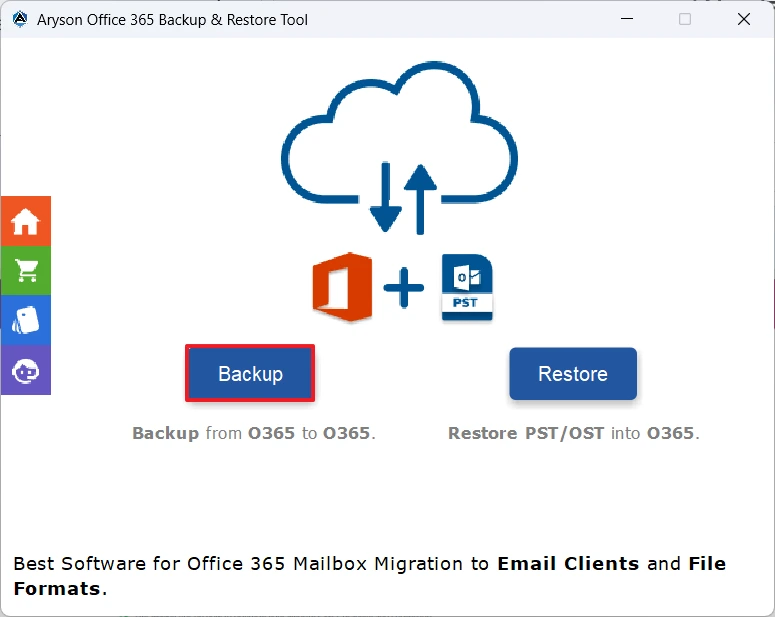
- Next, hit the Continue button to proceed further.
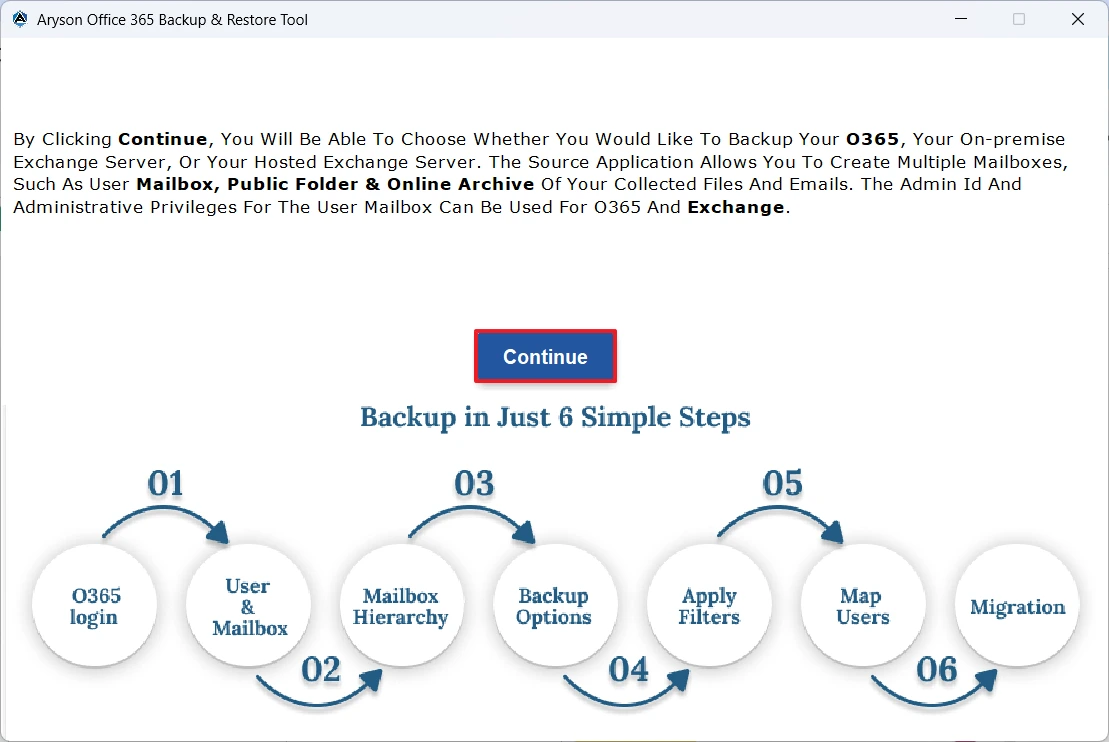
- After that, enter your Office 365 credentials to log in.
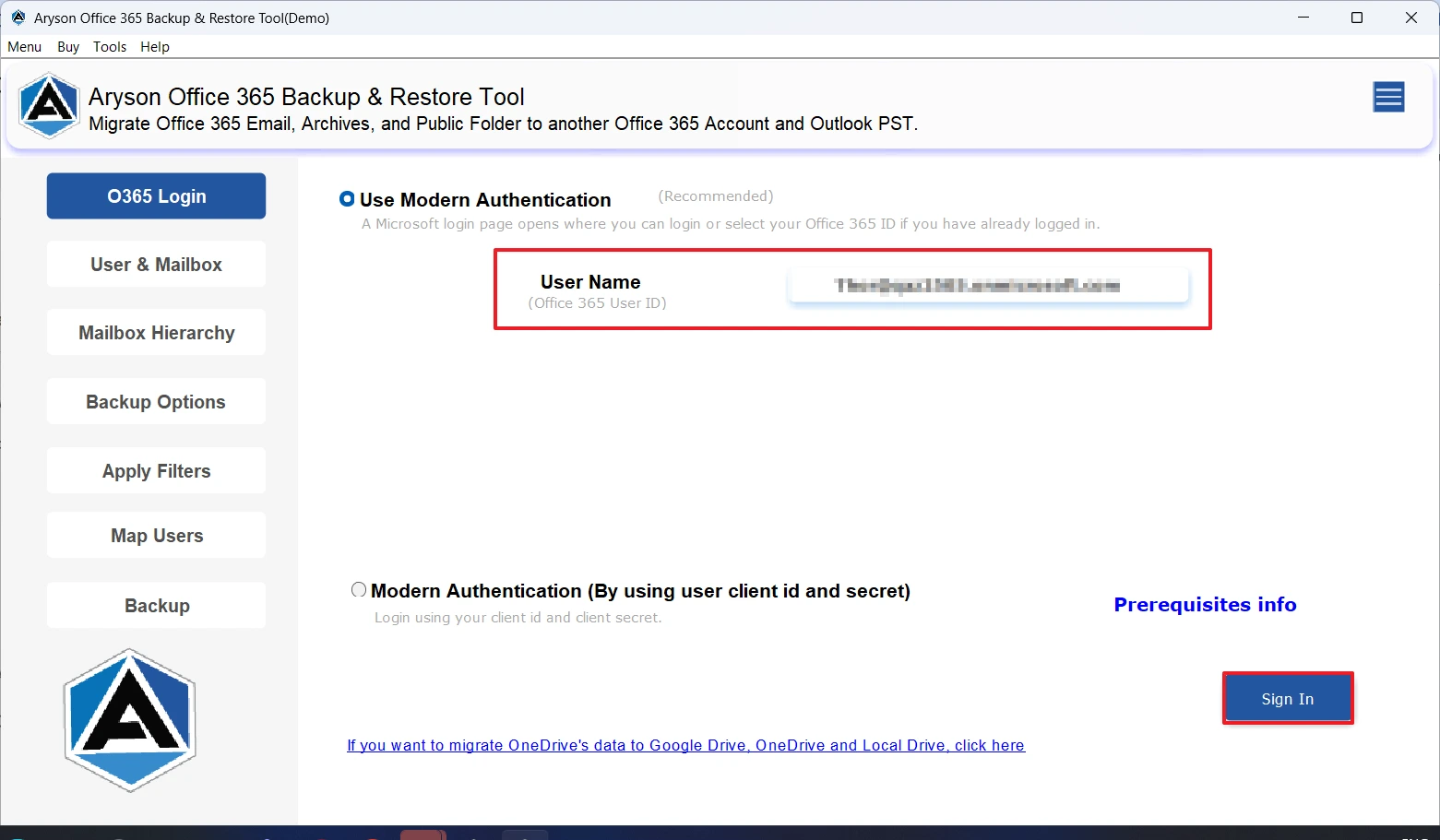
- Post that, select & preview your required files to export >> click Next.
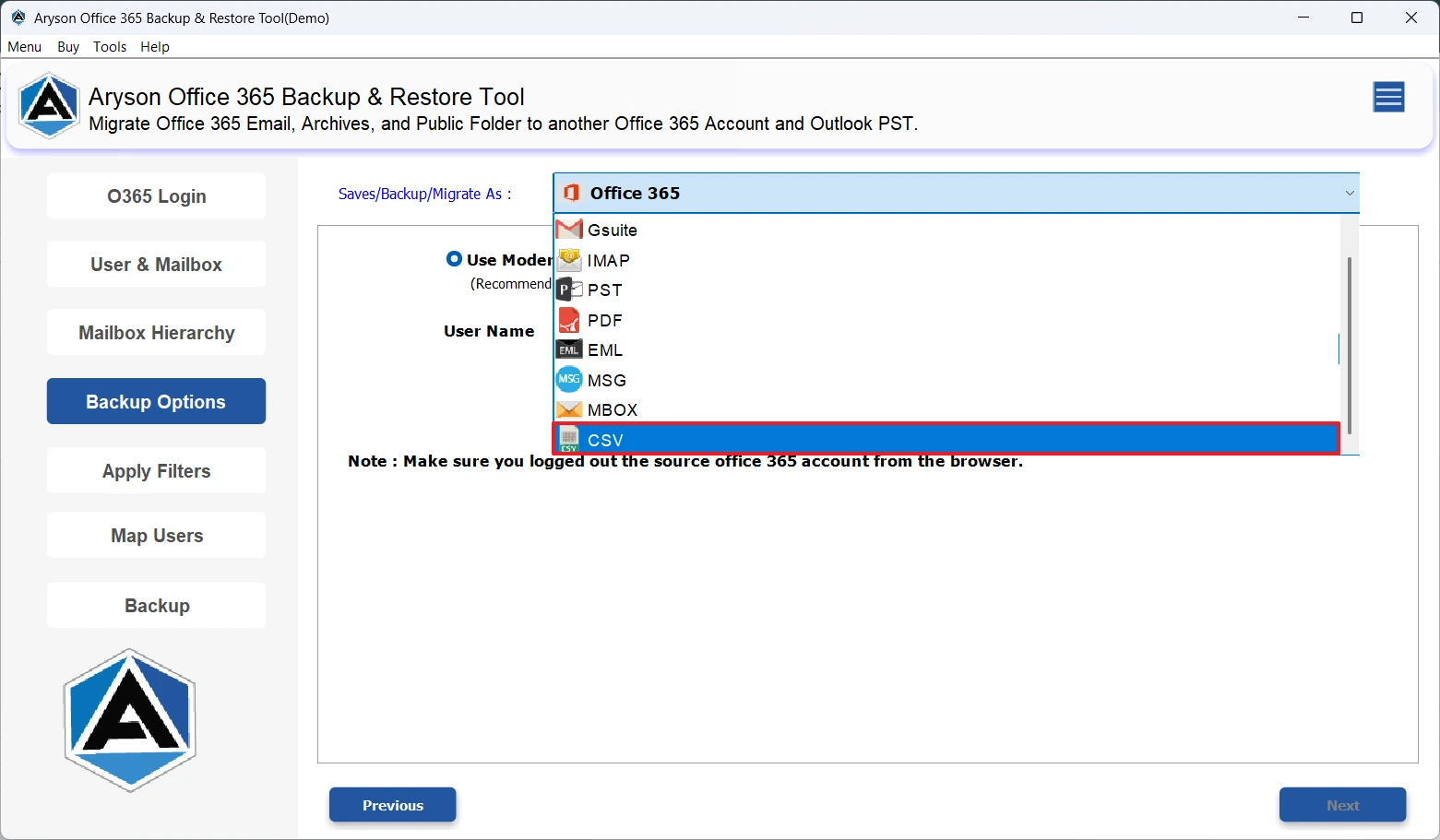
- Then, select CSV under the listed file formats.
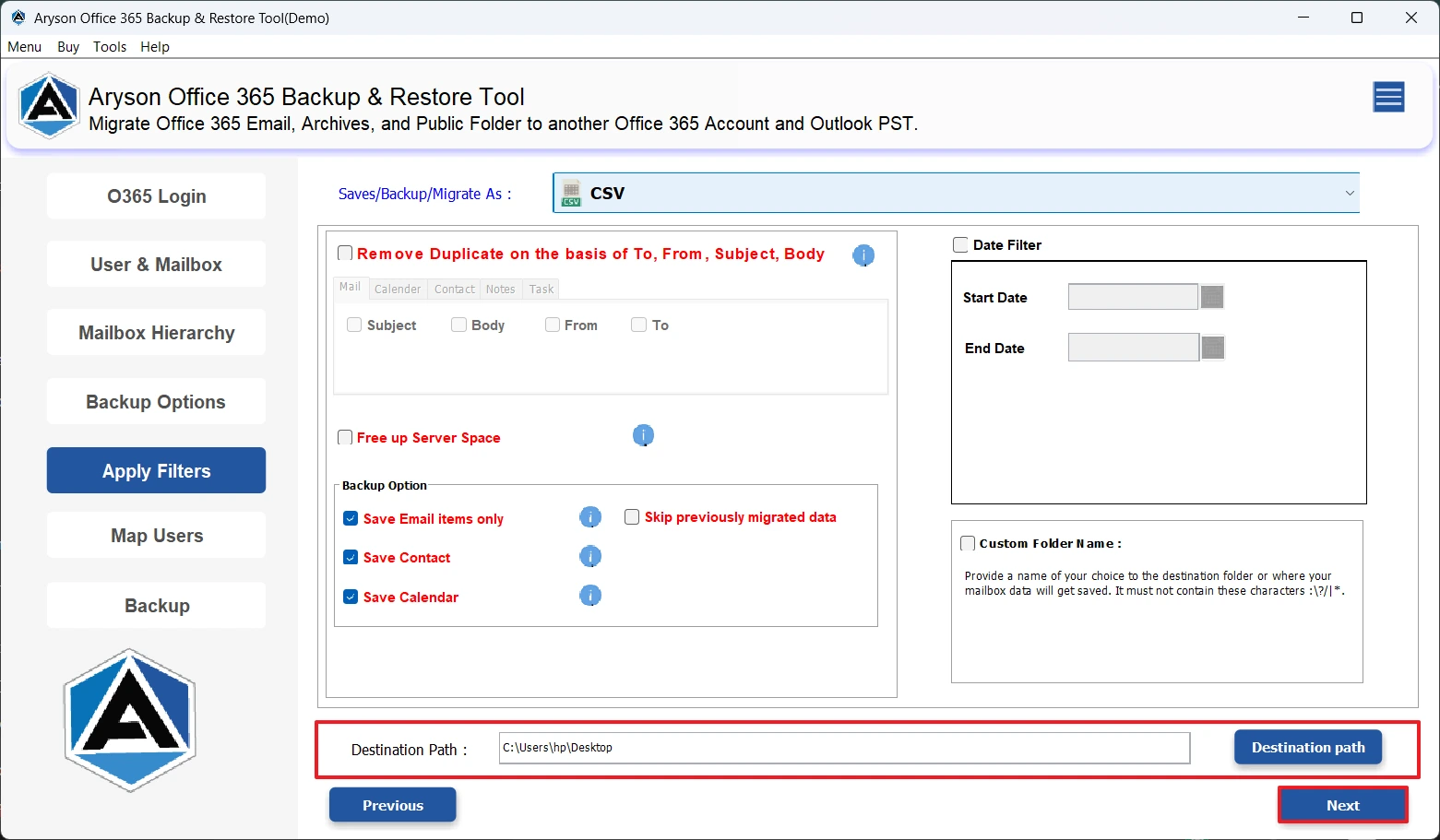
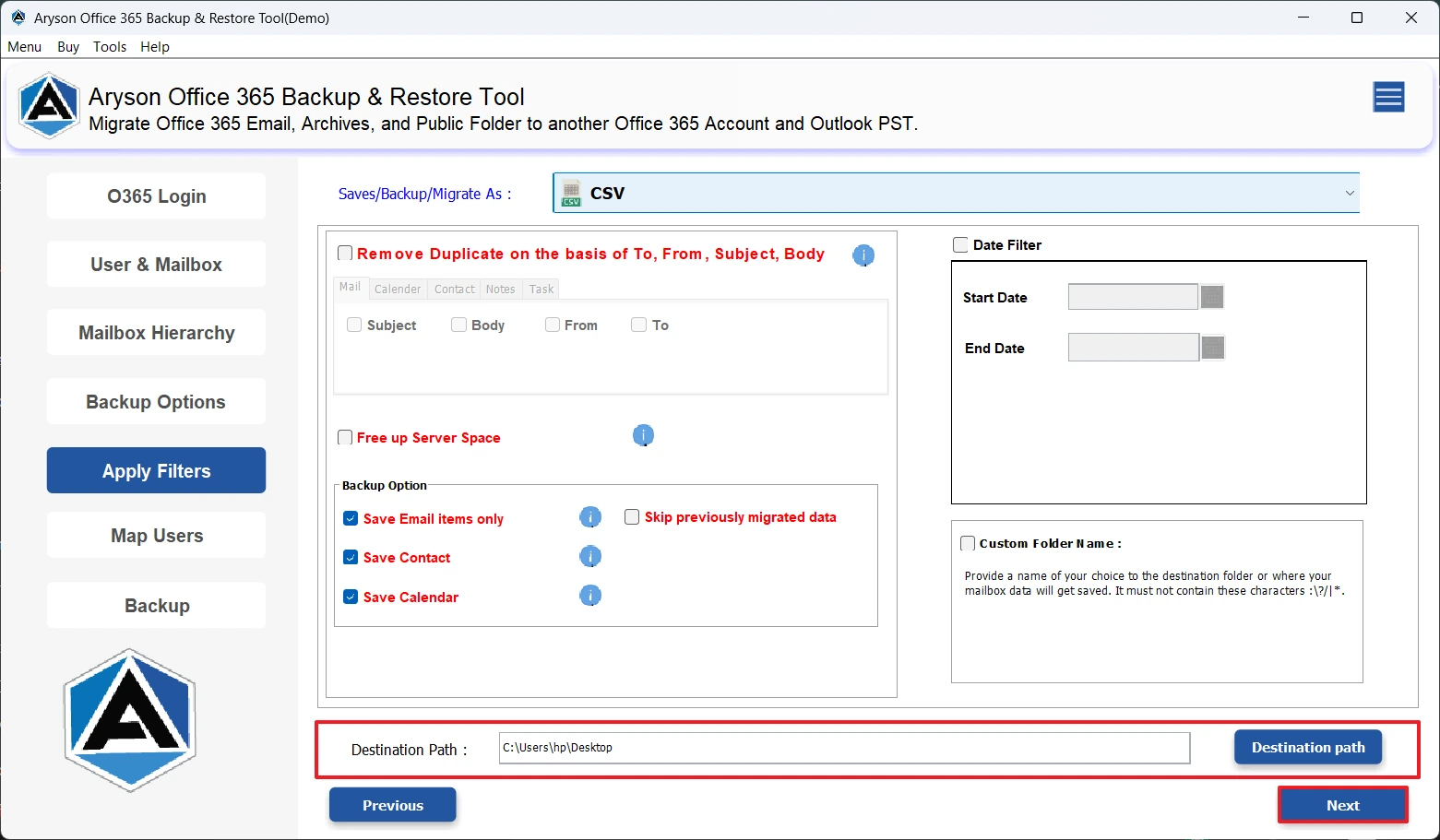
- Finally, use the required built-in features and click the Next button.
Conclusion
In this blog, we discussed two different methods to export Office 365 to CSV. The manual one required configuration of the Office 365 account and installation of MS Outlook. On the other hand, the automated solution offered two different login methods and a live chat support for 24*7 hours of assistance. You can opt for the demo version of the automated solution for a better hands-on experience.
Frequently Asked Questions:
Q.1 Is Office 365 to CSV conversion secure?
Ans. Yes, if you are using the MSOutlookHelp Office 365 Backup Tool, Office 365 to CSV conversion is secure.
Q.2 Is Office 365 to CSV conversion suitable for long-term storage?
Ans. Yes, Office 365 to CSV conversion is suitable for long-term storage.
Q.3 Which is the best tool to export Office 365 to CSV?
Ans. MSOutlookHelp Office 365 Backup Tool is the best software to save Office 365 emails in CSV.
About The Author:

Evren Cole is an expert in Email and Data Management. She has a strong passion for technology and entrepreneurship. In her free time, she enjoys football, music, and reading books.

