

-
Written By Evren Cole
-
Updated on January 21st, 2026
Export Gmail to EML: Save & Backup Gmail Emails
Summary: With over 1.8 billion active users, Gmail is the most widely used email platform across the world. As time passes, inboxes grow, and users look for a reliable method to back up and manage all of their emails outside the cloud. This is the time when users need to export Gmail to EML for better data control and flexibility. If you are looking for a clear and simple solution, then this blog will walk through the process of exporting using the MSOutlookHelp Gmail Backup Tool.
Reasons to Export Gmail to EML Files
Here are some practical reasons why users decide to export Gmail emails into EML files:
- Users can store their individual emails safely on a local system.
- This also helps to open EML files in multiple email clients easily.
- Moreover, users can share specific emails without giving mailbox access.
- Additionally, you can reduce mailbox size by archiving old emails.
These reasons explain why EML is a preferred option for backup and sharing.
How to Save Gmail as EML Manually?
Now we will discuss the best three effective manual methods that help the user to export their Gmail emails to EML format. The methods given below are simple to follow and generally useful when you need to save a limited number of emails.
Method 01: Export Gmail to EML via the Download Message Option
- Firstly, open your Gmail account in a web browser.
- Then, you have to navigate to the email that you want to export.
- After that, click on the three-dot menu at the top of the email.
- In this step, choose the Download message option.
- Finally, the email will be saved to your computer as an EML file.
Method 02: Save Gmail Emails via the “Show Original” Feature
- To begin, sign in to your Gmail account.
- Then, you have to open the email you wish to export.
- After that, press the three-dot menu and select Show original.
- Now, you have to click Download Original.
- At this step, the email will be downloaded as an EML file.
Method 03: Export Gmail Messages to EML Using Copy and Paste
- Initially, open the email that you want to save in Gmail.
- After that, highlight the entire email content.
- Then, copy the content and paste it into a text editor like Notepad.
- Now, you have to go to File >> Save As.
- At the end, save the document with a .eml extension to create an EML file.
Cons of Using a Manual Approach:
- This approach takes a lot of time, especially for large mailboxes.
- It is only suitable for a small number of emails.
- The original folder structure may not be preserved.
- Moreover, there are high chances of missing or duplicate emails.
- Additionally, it does help in the batch export of multiple emails.
- You will not get any filter option while exporting.
Automated Solution to Export Gmail to EML
Those who want to get rid of the drawbacks of the manual approach can use the MSOutlookHelp Backup Tool. This software maintains the original email content and folder structure. It provides extra features such as the Data Range Filter and many more to make the process fast and more convenient. Additionally, you can export Gmail to MSG and file formats such as MBOX, PDF, and much more, and email clients like Outlook, Thunderbird, etc. Now, we will discuss how this software works in easy steps:
Quick Guide to Backup Gmail Emails as EML Using this tool:
- Firstly, download and open the MSOutlookHelp Gmail Backup Tool.
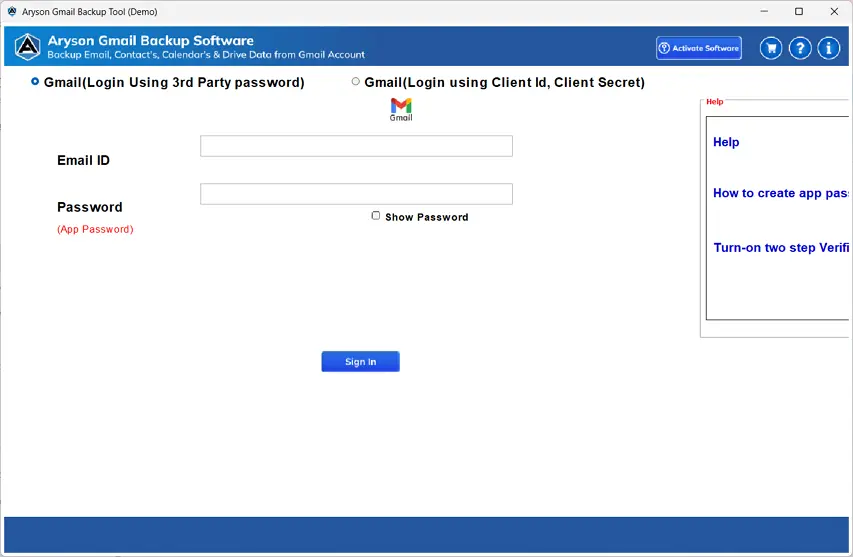
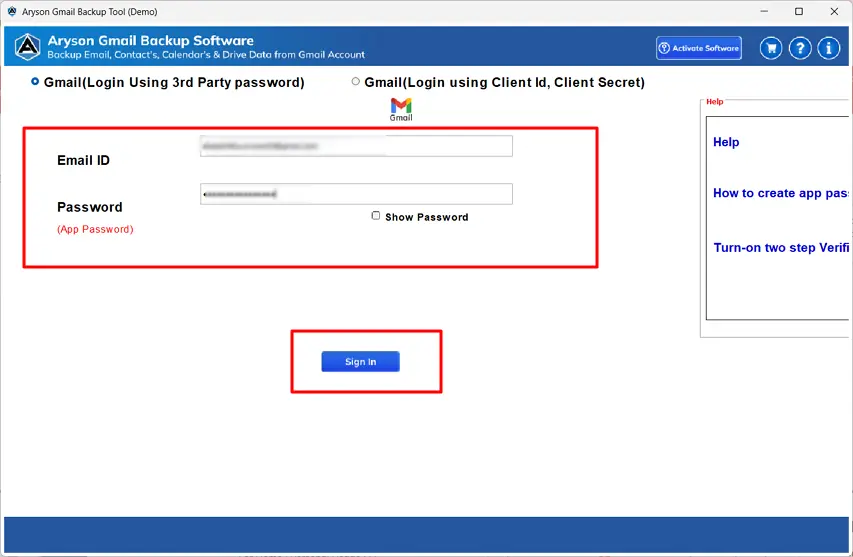
- After that, enter the required Gmail account credentials >> Sign in.
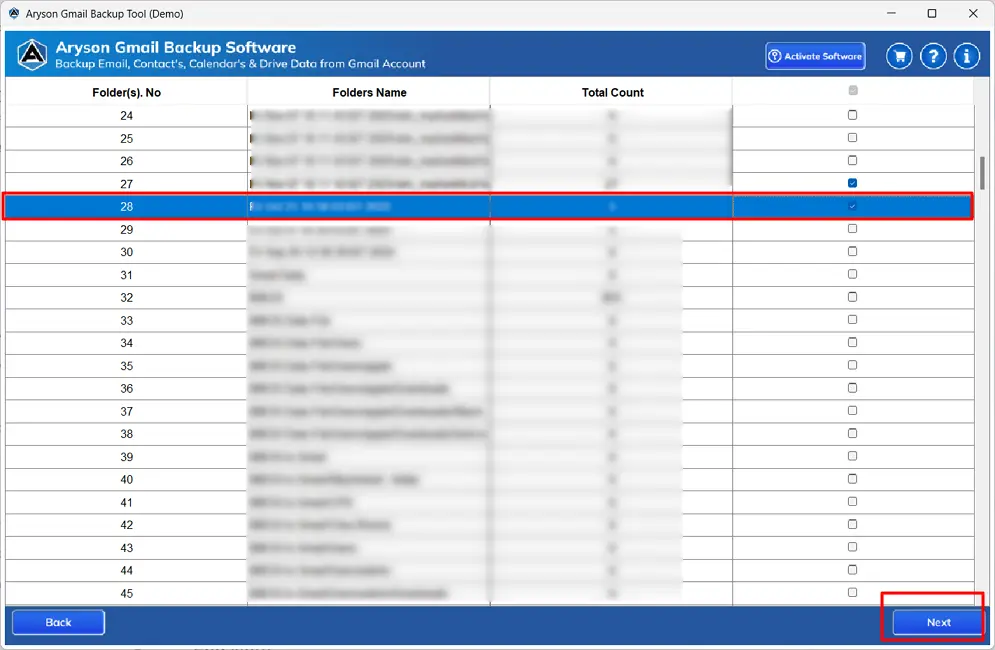
- Now, choose the specific files or folder to export >> Next.
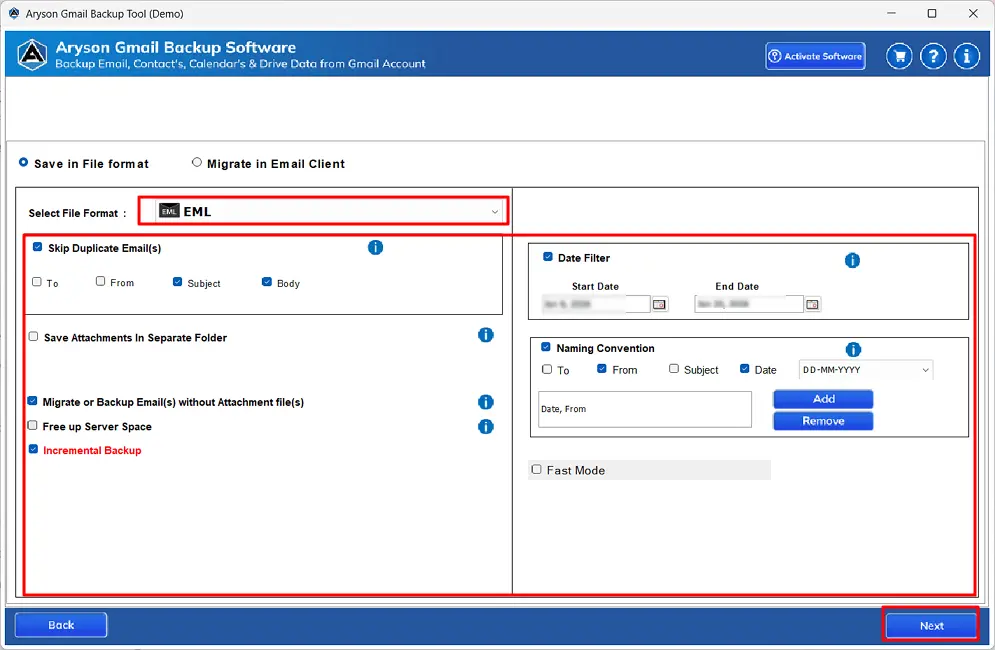
- Then, choose EML as the output destination >> apply filters >> Next.
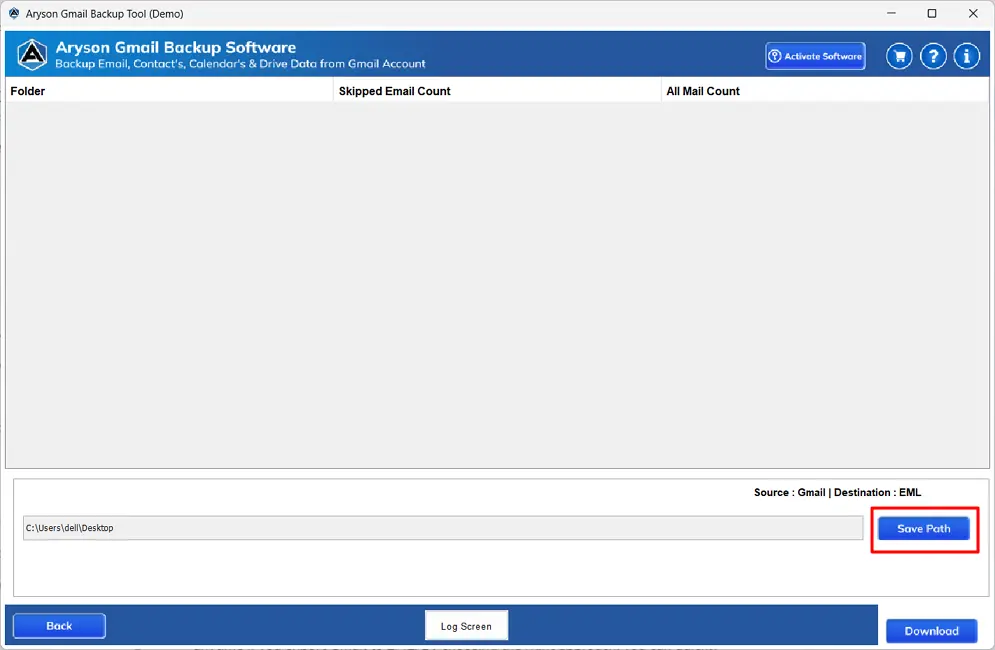
- In this, press Path to Save to locate your output file.
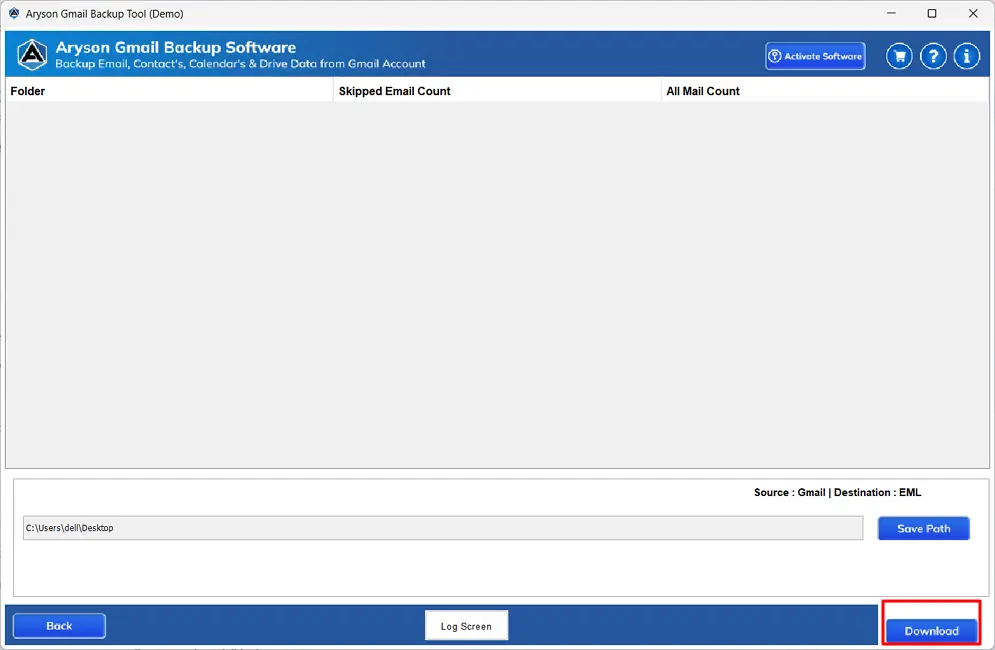
- Finally, click on the Download to import EML files into Gmail.
End Note
In this blog, we have discussed that you can organize and access your Gmail emails anytime if you export Gmail to EML. By choosing the right approach, you can quickly and securely complete the process without any difficulties. Your choice of method can differ, and it totally depends on the technical knowledge and size of your Gmail inbox. If you have a few emails, then a manual approach can work well, but for large mailboxes or important data, pursuing a professional approach is the smartest choice. You can also try the demo version of the discussed automated software to see how simple the process of migration is.
Frequently Asked Questions:
Q.1 Does Google Takeout export Gmail to EML files?
Ans. No, Google Takeout allows you to download Gmail data in MBOX format only. To get emails in EML format, you need to use the MSOutlookHelp Gmail Backup Tool.
Q.2 Is there a free way to save Gmail to EML?
Ans. For a few emails, you can manually save them as EML using Gmail’s Download Message or Show Original options. However, for a fast and secure approach, you can also use a trial version of the discussed professional software.
Q.3 Does Gmail natively support exporting emails as EML?
Ans. Gmail does not directly offer an EML export option for multiple emails. You can save individual emails manually as EML, but exporting large volumes requires an automated tool.
Q.4 Can I export Gmail to EML on Windows and Mac?
Ans. Yes, using the MSOutlookHelp Gmail Backup Tool, you can export Gmail emails to EML on both Windows and Mac without any compatibility issues.
Q.5 Is exporting Gmail to EML safe and secure?
Ans. Yes, professional tools provide complete data safety. They maintain email content, attachments, and folder structure while exporting, so no data is lost or modified.
Q.6 How can I import EML files into Gmail?
Ans. You can import EML files using the MSOutlookHelp Gmail Backup Tool. Follow the given steps:
1. Download and open the MSOutlookHelp Gmail Backup Tool.
2. Enter your Gmail credentials and sign in.
3. Select the emails or folders to export and click Next.
4. Choose EML as the output format.
5. Additionally, apply filters if needed, and select the save location.
6. Click Download to export the emails as EML files.
About The Author:

Evren Cole is an expert in Email and Data Management. She has a strong passion for technology and entrepreneurship. In her free time, she enjoys football, music, and reading books.

