

-
Written By Evren Cole
-
Updated on June 25th, 2026
Cross Tenant Mailbox Migration with Aryson Microsoft 365 Migration Tool
User Query: We are splitting our company into two organizations and need to migrate around 30 user mailboxes to a new Microsoft 365 tenant. We want to move emails, contacts, calendars, and other mailbox data without affecting users. What is the easiest way to perform a cross-tenant mailbox migration while keeping all data intact?
Summary: Mostly, users move from one Microsoft 365 tenant to another is a common task. It usually comes up when a company splits, merges with another business, or changes its setup. The biggest challenge is to make sure emails, contacts, & folders move safely. Nobody wants to lose important data during the process. Cross tenant mailbox migration helps handle this move. In this guide, we’ll go through how the Aryson Microsoft 365 Migration Tool can help transfer mailboxes from one tenant to another in a simple way.
What Data does Aryson Software Migrate?
The Aryson Microsoft 365 Migration Tool moves data from one Microsoft 365 tenant to another. In cross tenant migration, you can transfer:
- Emails and mailbox folders
- Contacts and address book entries
- Calendars and meeting schedules
- Tasks and notes
- Shared mailboxes
- Archive mailboxes
- Public folders
- Microsoft Teams data
- OneDrive files and folders
- SharePoint documents and libraries
This software is designed to keep the original folder structure & mailbox hierarchy during migration. This helps users access their data in the new tenant without major changes after the move.
Things to Prepare: Before You Begin
- Active Microsoft 365 accounts in both the source & target tenants.
- User mailboxes are created in the destination tenant.
- Administrator credentials for both tenants.
- Match the user correctly, mapping between the source and target accounts.
- Stable internet connection throughout the migration.
- Make sure you have the required Microsoft 365 permissions.
- Sufficient storage space in the target tenant.
- Multi-factor authentication details, if enabled.
- A valid license for the Aryson Microsoft 365 Migration Tool.
- It is recommended to back up important mailbox data.
Important Licensing Requirement for Microsoft Cross Tenant Migration
Before starting a cross-tenant mailbox migration, make sure the required Microsoft license is assigned. Microsoft requires a Cross-Tenant User Data Migration license for every user whose mailbox data will be migrated.
Can the CrossTenant User Data Migration license be assigned to either the source or target user?
Yes. Administrators can assign the Cross Tenant User Data Migration license to either the source user or the target user. Each migrated user needs only one license, and organizations must assign it before the migration starts. Microsoft requires this one-time license for cross-tenant mailbox migrations in Microsoft 365.
Method for Cross Tenant Mailbox Migration
The Aryson Microsoft 365 Migration Tool simplified the migration process. It helps organizations to transfer their mailbox data from one tenant to another & keeps emails & folders organized. This is useful for businesses that need to migrate Microsoft 365 data with less manual work.
Key Features Provided by this Software
- Transfer single or multiple Microsoft 365 mailboxes in one process.
- It helps users to migrate contacts, calendars, & other mailbox items.
- Match source and destination user accounts before starting the migration.
- Keeps the original mailbox hierarchy and folder arrangement unchanged.
- Apply filters to migrate only the required users or mailbox data.
Steps to Cross-tenant Microsoft 365 migration
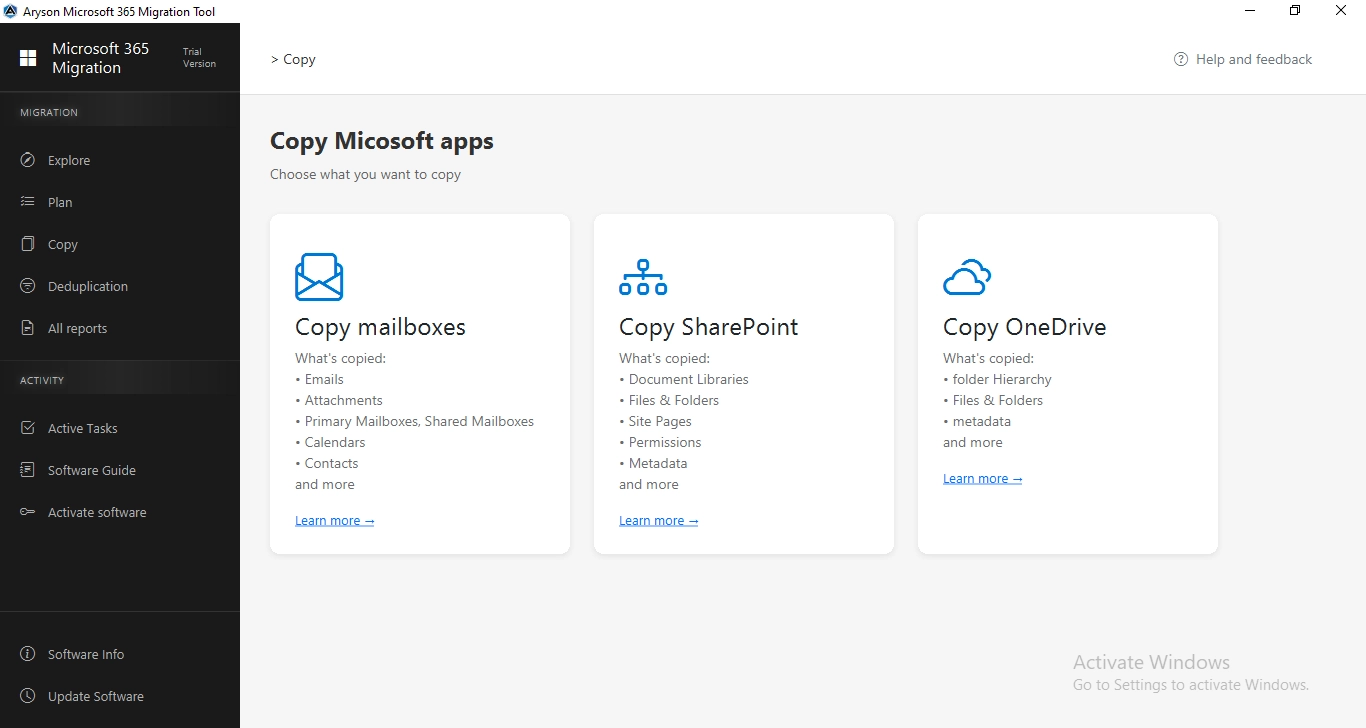
- Install & launch the Aryson Microsoft 365 Migration Tool & run it.
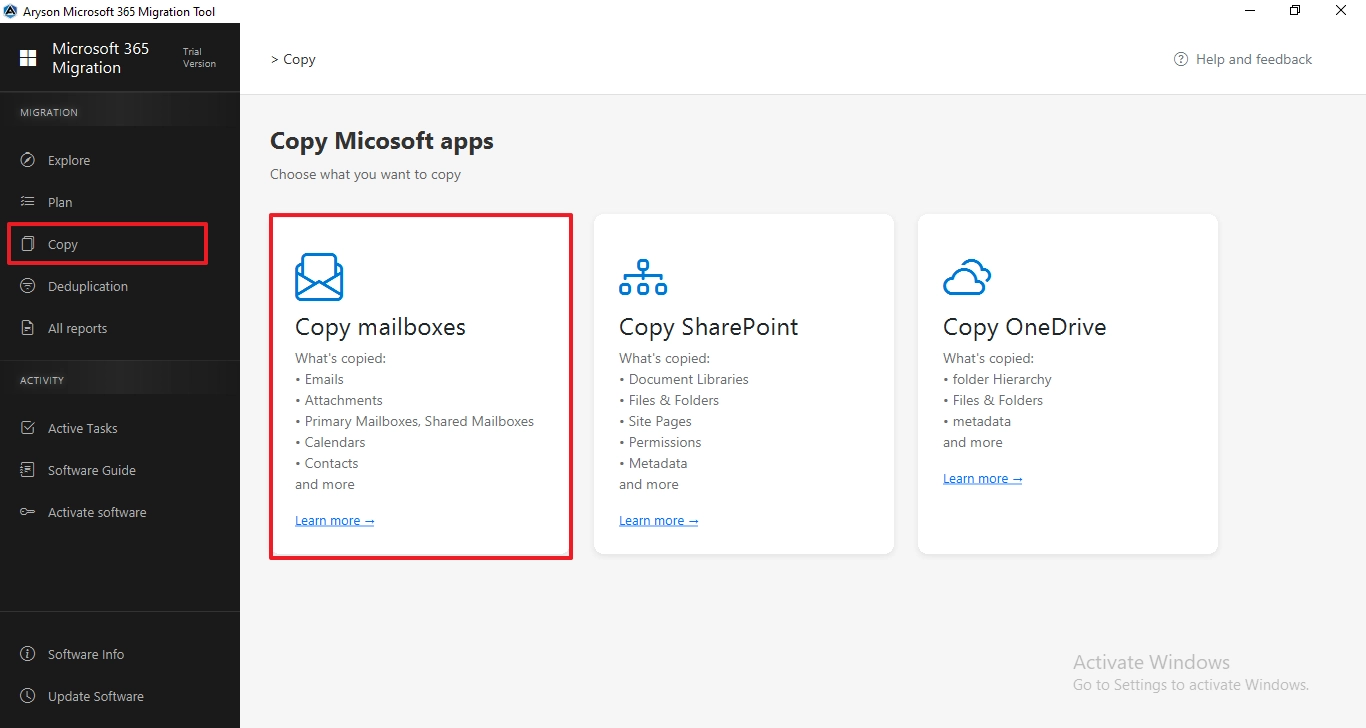
- Click on Copy from the left panel and select Copy Mailbox.
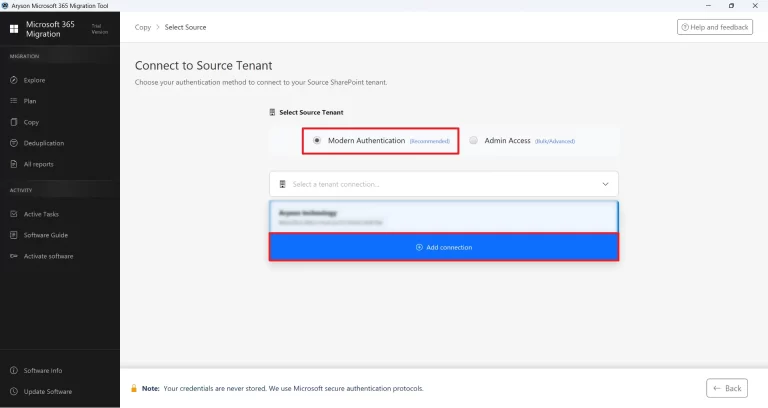
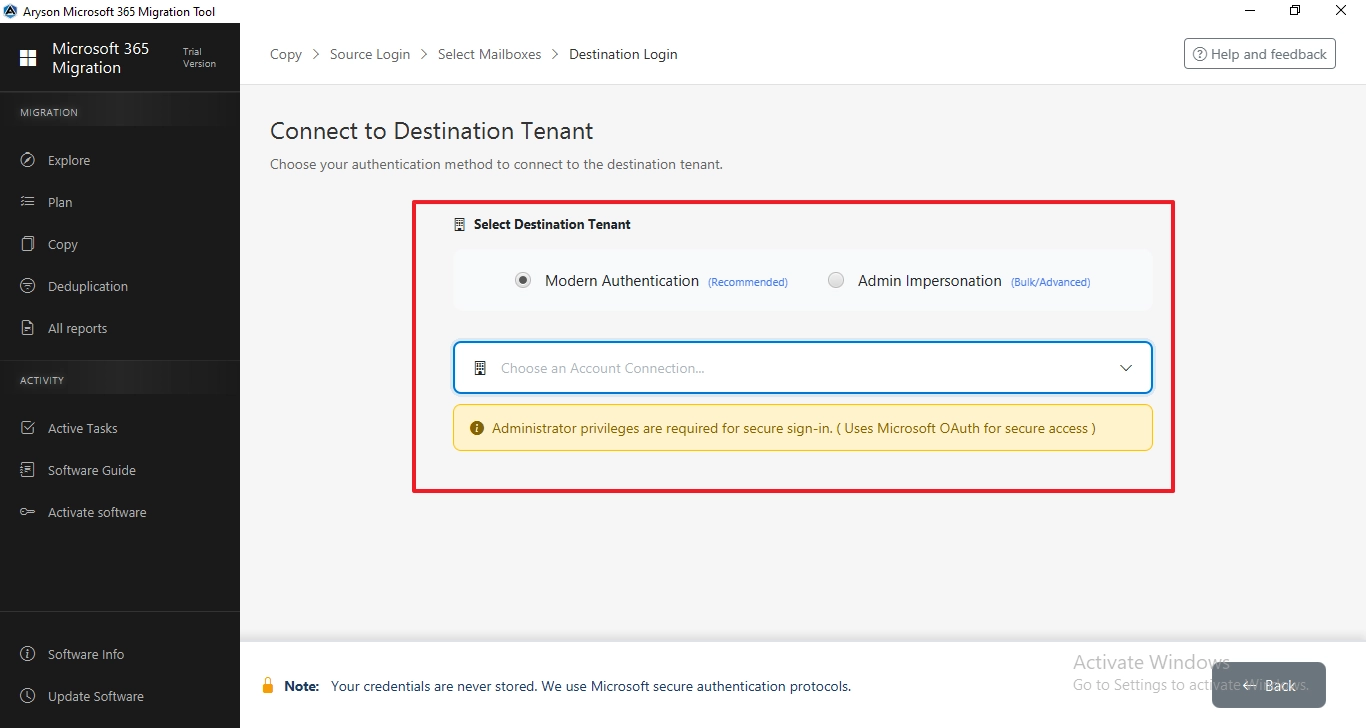
- Select the Modern Auth or Admin Access and enter the credentials.
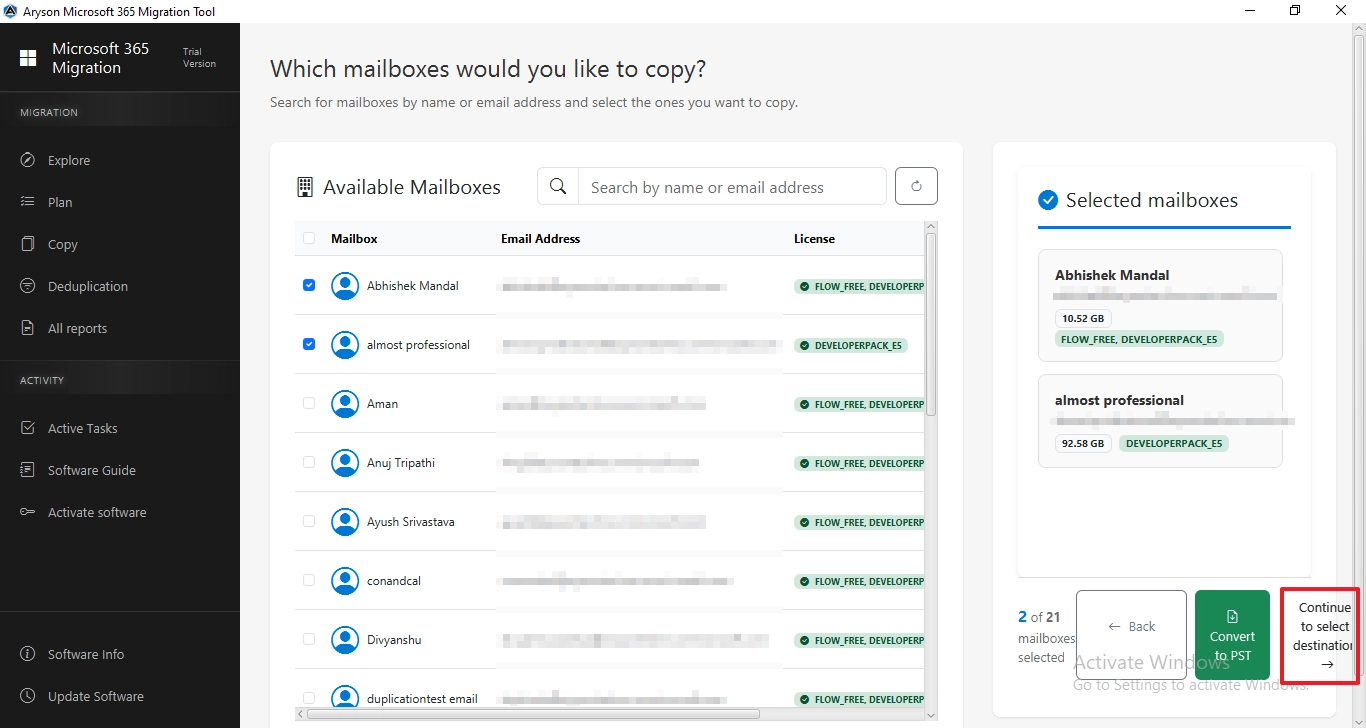
- Then, select the users from the list >> Continue to destination.
- After that, connect to the destination where you want to migrate.
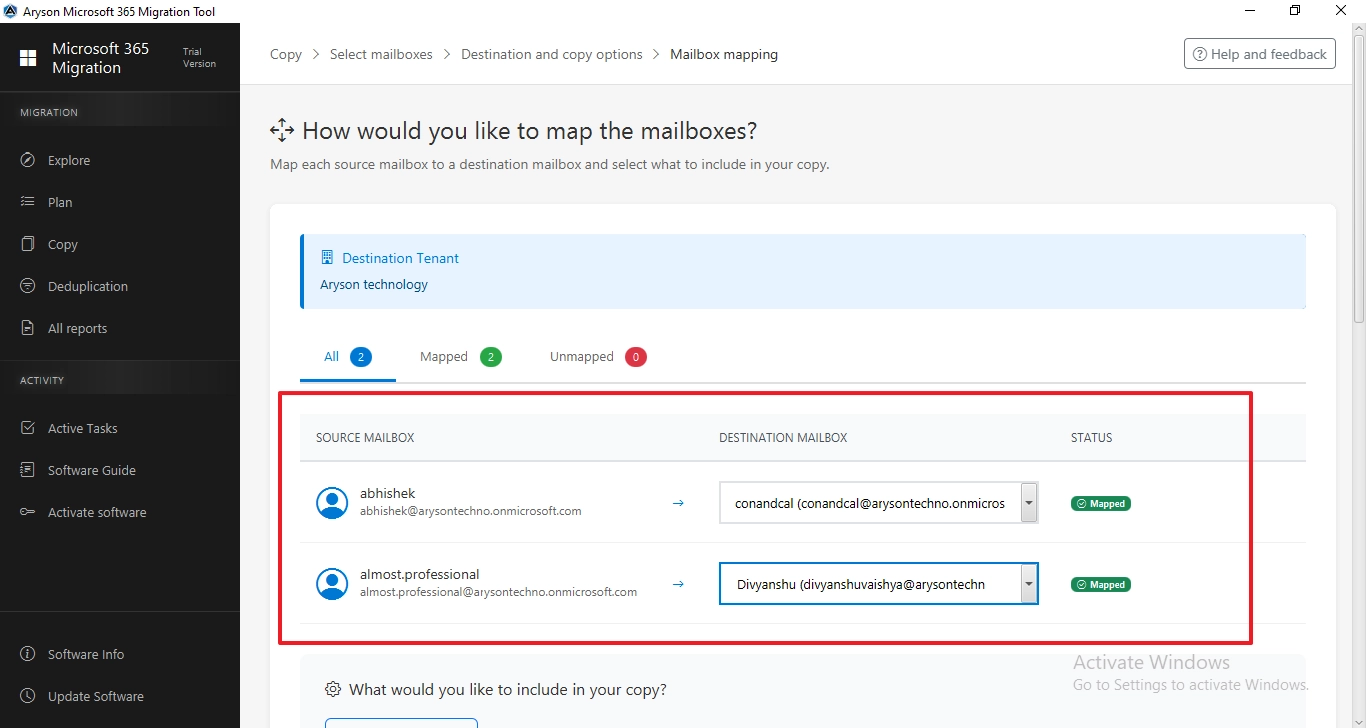
- You have to map the source to the destination to maintain data integrity.
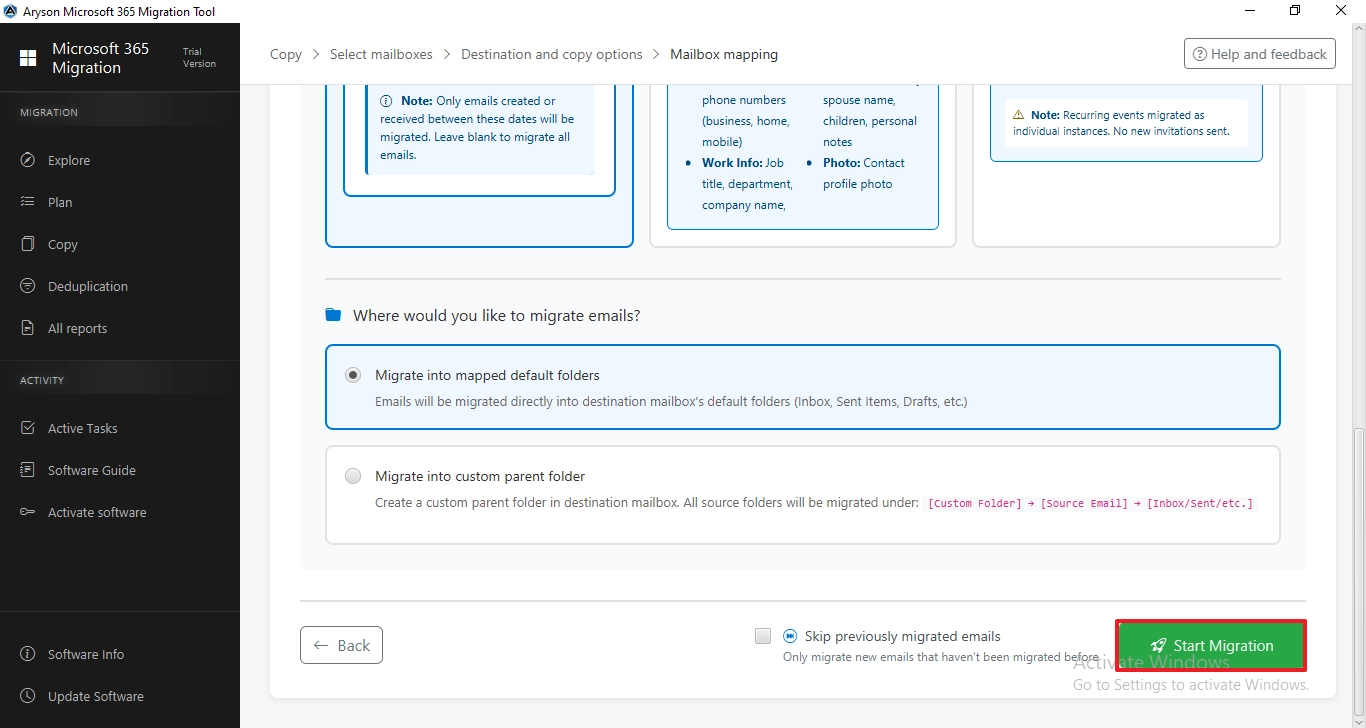
- Afterward, enable the filters for selective data migration.
- To begin the migration, click on the Start Migration button.
Note: If you want to migrate Microsoft 365 to an IMAP Server, then read the detailed guide on Migrate Microsoft 365 to IMAP Server.
Conclusion
Organizations often face challenges during cross-tenant mailbox migration when they need to move multiple users without affecting daily work. The Aryson Microsoft 365 Migration Tool helps simplify the process by allowing you to transfer data between tenants while preserving the original structure. With the right steps and preparation in advance, organizations can complete cross tenant mailbox migration with less effort & minimal disruption.
Frequently Asked Questions:
Q1. How can I migrate users from one Microsoft 365 tenant to another?
Ans. You can use the Microsoft 365 Migration Tool to migrate users from one tenant to another. Simply connect the source and destination Microsoft 365 accounts, map the users, select the mailboxes, and start the migration. The tool transfers mailbox data, including emails, contacts, calendars, tasks, and other items, while maintaining the original structure.
Q2. How can large organizations perform cross-tenant mailbox migration with minimal downtime?
Ans. Large organizations can migrate users in batches using the Microsoft 365 Migration Tool. This approach allows administrators to move groups of mailboxes gradually instead of migrating everyone at once. Proper user mapping and pre-migration validation help reduce downtime and minimize disruption to daily operations.
Q3. Is it possible to migrate more than 5,000 Microsoft 365 mailboxes between tenants without data loss?
Ans. Yes, it is possible to migrate more than 5,000 Microsoft 365 mailboxes between tenants. However, it is recommended to perform the migration in batches rather than moving all mailboxes in one go. This helps maintain email metadata, folder hierarchy, contacts, calendars, and other mailbox properties while reducing the risk of data loss.
Q4. Do I need a special licence to do cross-tenant mailbox migration?
Ans. Yes. Microsoft requires a Cross-Tenant User Data Migration license for each user whose mailbox is being migrated. This license is separate from the Aryson Microsoft 365 Migration Tool license. Before starting the migration, make sure all required Microsoft licensing and permissions are in place.
Q5. What common mistakes should organizations avoid during a Microsoft 365 cross-tenant migration?
Ans. Organizations should avoid incorrect user mapping, missing permissions, and migrating without proper planning. It is also important to verify source and destination accounts before starting the migration. Using the Aryson Microsoft 365 Migration Tool helps reduce these issues by providing user mapping options, mailbox selection features, and migration tracking reports.
Q6. What is the best method to migrate mailboxes between tenants?
Ans. For organizations handling multiple mailboxes, using the Aryson Microsoft 365 Migration Tool is often one of the simplest approaches. The tool automates the migration process, supports bulk mailbox transfers, and helps preserve mailbox data throughout the move. This reduces the manual effort required compared to traditional migration methods.
About The Author:

Evren Cole is an expert in Email and Data Management. She has a strong passion for technology and entrepreneurship. In her free time, she enjoys football, music, and reading books.

