

-
Written By Evren Cole
-
Updated on January 20th, 2026
Export Gmail to MSG: Backup and Migration Guide
Overview: It’s 2026, and there are over 1.8 billion Gmail users. Whereas, about 60%+ enterprises still rely on Outlook. As a result, the need to export Gmail to MSG is gradually increasing with each passing year. After converting Gmail emails to MSG, users make sure to maintain the Outlook compatibility, compliance readiness, and efficient email management across businesses. If you are also looking for a secure and reliable method to perform the export process, read this blog to know the use of MSOutlookHelp Gmail Backup Tool, along with another effective method provided.
Why Do We Need to Export Gmail Emails to MSG?
Listed below are the various reasons why a user prefers to export Gmail data to MSG.
- Users can open their Gmail emails directly in Microsoft Outlook with full formatting.
- You can preserve the email metadata like sender, receiver, date, & attachments.
- Moreover, users can store emails in a legally accepted Outlook-supported format.
- Additionally, users can share individual emails easily with Outlook users.
- Also, after the export, you can maintain the email structure & layout exactly as the original.
Considering the above reasons for the export, it is important to actually export Gmail emails to MSG.
Best Methods to Export Gmail to MSG
In this section of the article, we will discuss two different methods to export Gmail mails to MSG.
- The Manual Method
- Automated Software
Go through both the methods discussed below, consider the pros and cons of both, and pick one of them as per your technical expertise, time investment, and export needs.
Method 1: Manual Method to Export Emails from Gmail to MSG
Gmail doesn’t offer any direct option to export emails in MSG format. Therefore, in this method, we will use Microsoft Outlook as an intermediary email client to complete this conversion. However, you must install Outlook on your system & properly configure it on your system.
Step-by-Step Tutorial to Export Gmail to MSG
- Firstly, install Microsoft Outlook on your computer & run it.
- After that, click on the File tab in the top-left corner.
- Next, select the Open & Export option >> click on the Import/Export option.
- Choose the Add Account option >> enter your Gmail credentials.
- Now, follow the on-screen instructions and set up your Gmail account.
- After the configuration, Outlook will sync your Gmail emails & display them.
- Just open the emails/folders you want to convert.
- Next, drag and drop your selected emails to your desktop or any local folder.
- Now, your emails will be saved automatically in MSG file format.
Constraints of Using Outlook for Gmail to MSG Export
- It may take you long hours to configure your Gmail account in Outlook.
- Users have to save the emails one by one via this method.
- Moreover, this approach doesn’t support bulk migration of the entire Gmail mailbox.
- Also, you would require a licensed version of Microsoft Outlook.
Method 2: Automated Software to Export Gmail to MSG
You can avoid all the above limitations of using Outlook by using the MSOutlookHelp Gmail Backup tool. This software can export your Gmail data to MSG format within a few clicks without any data loss. Moreover, it keeps the original formatting, folder structure & attachments intact at the end of conversion. Additionally, users can export Contacts from Gmail to Outlook, Thunderbird, Yahoo Mail, IMAP, etc., email clients using the same utility. Also, the advanced features of the software, such as Remove Duplicate Mails, Skip previous migration, and the Date range filter, provides enhances user efficiency and productivity at work.
Simplified Guide to Convert Gmail to MSG
- To begin, install the MSOutlookHelp Gmail Backup Tool >> run it as administrator.
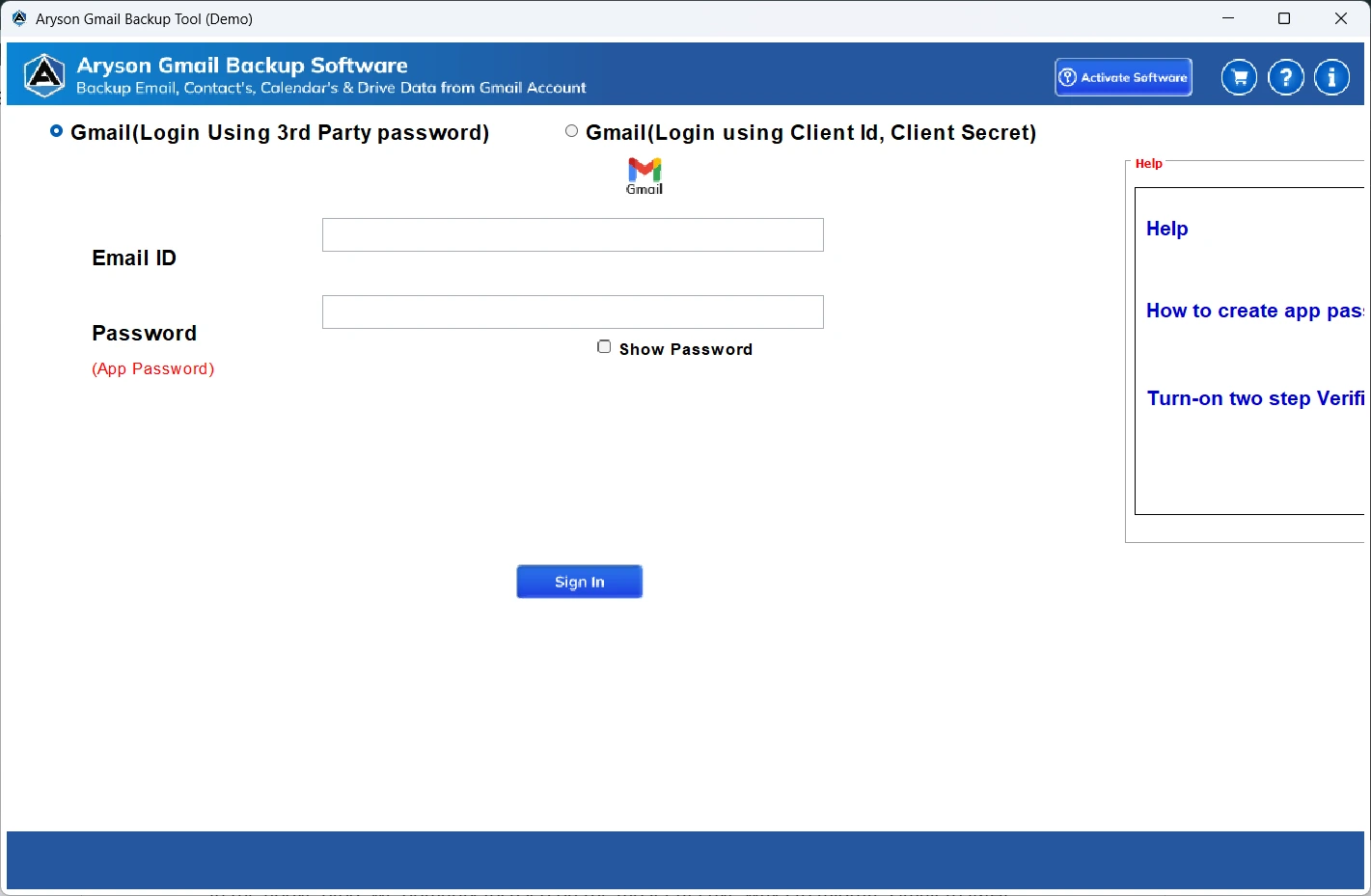
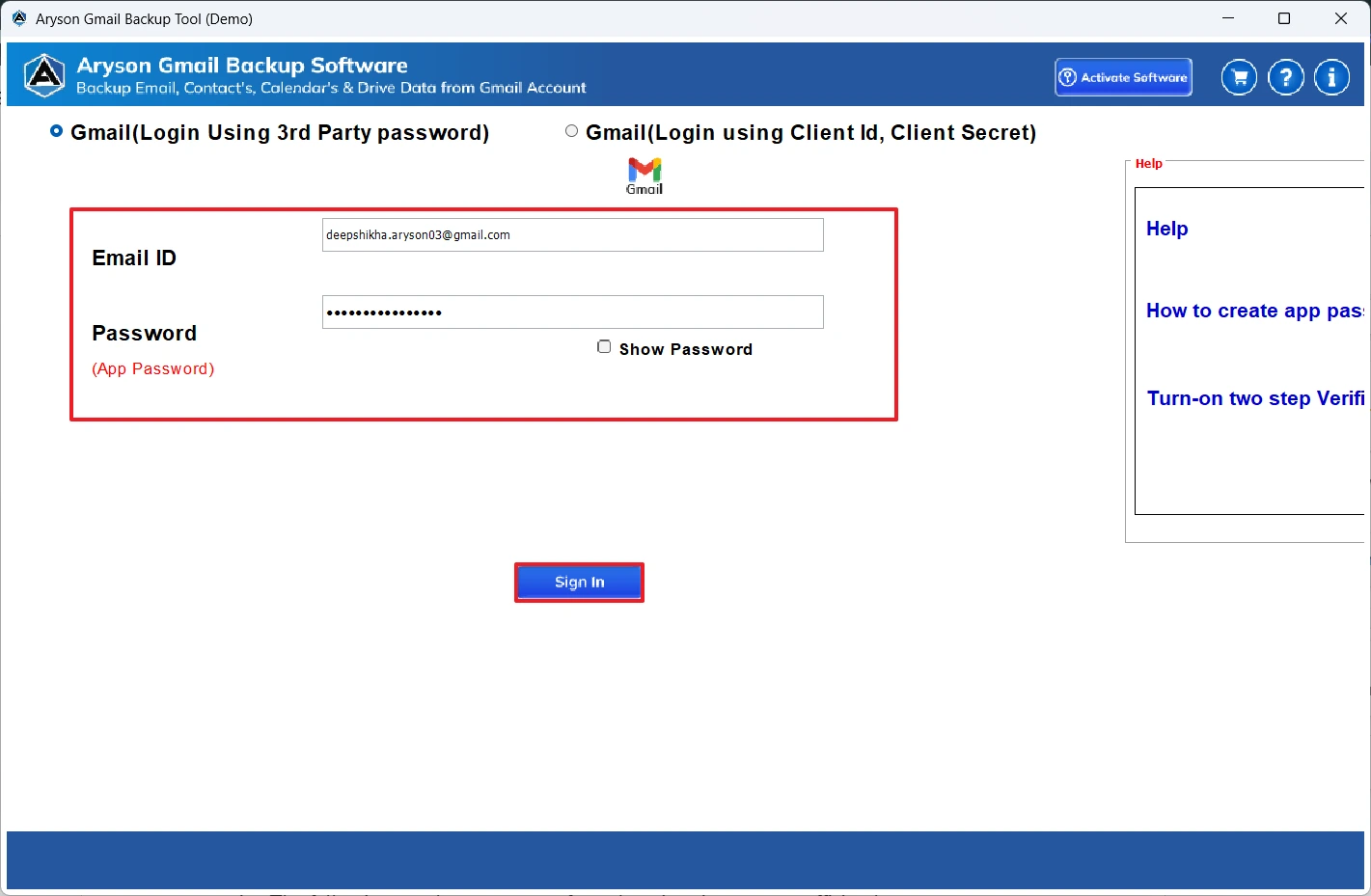
- Next, sign in to your active Gmail account using the valid credentials.
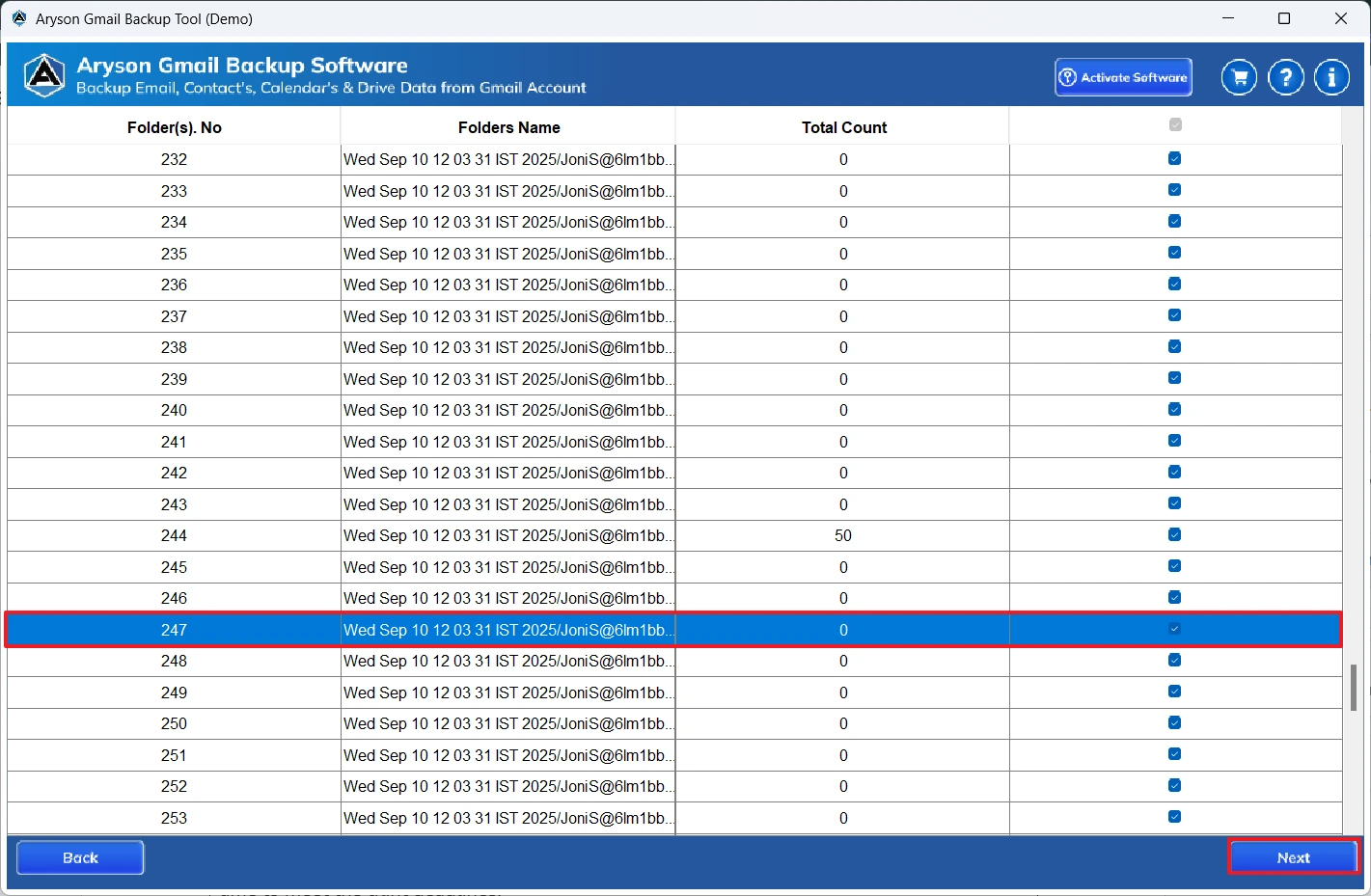
- After that, select the desired Gmail files/folders >> preview them >> Next.
- Then, select MSG under the listed file formats.
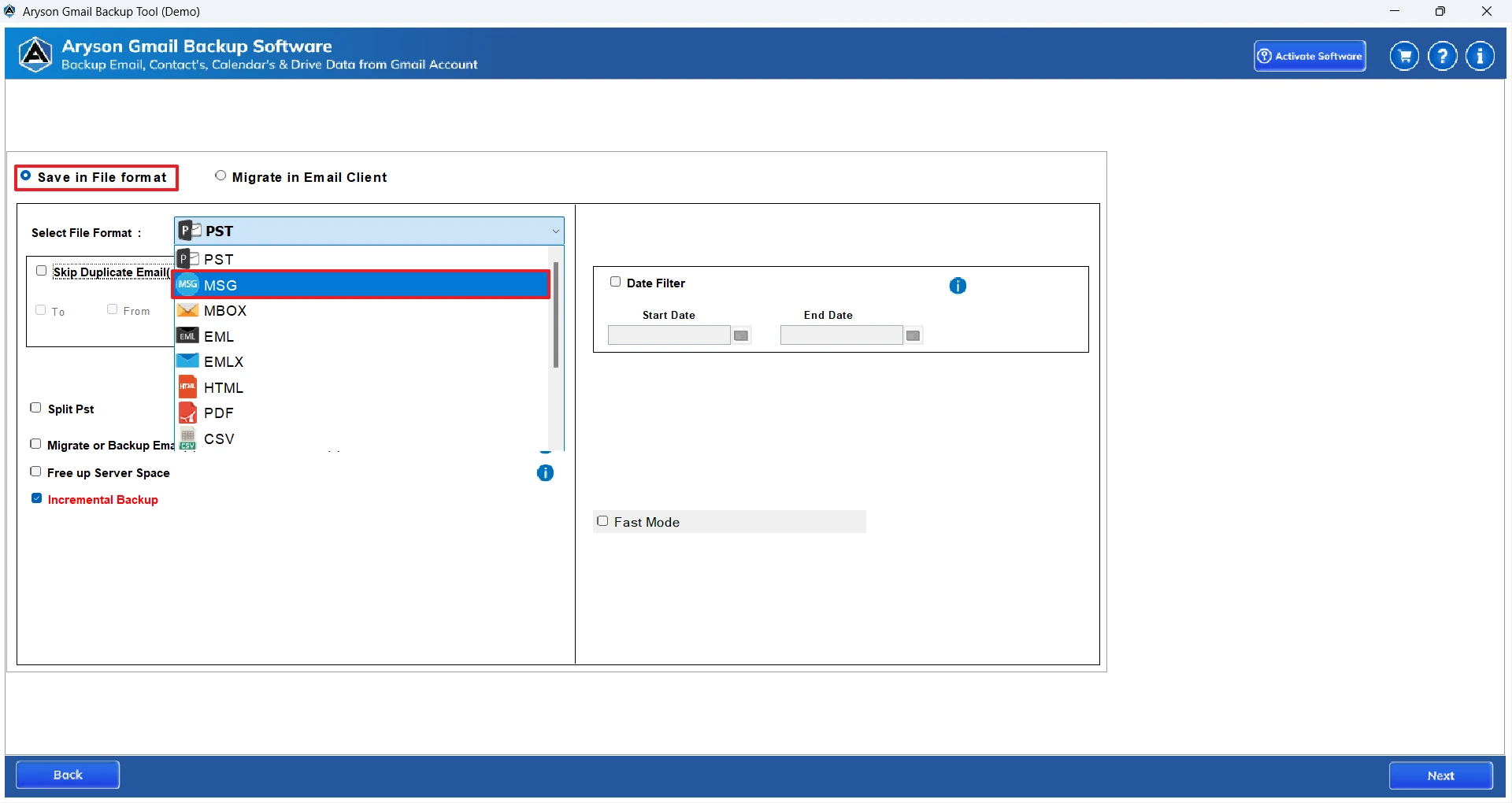
- Now, use the additional features of the software if you require >> Next.
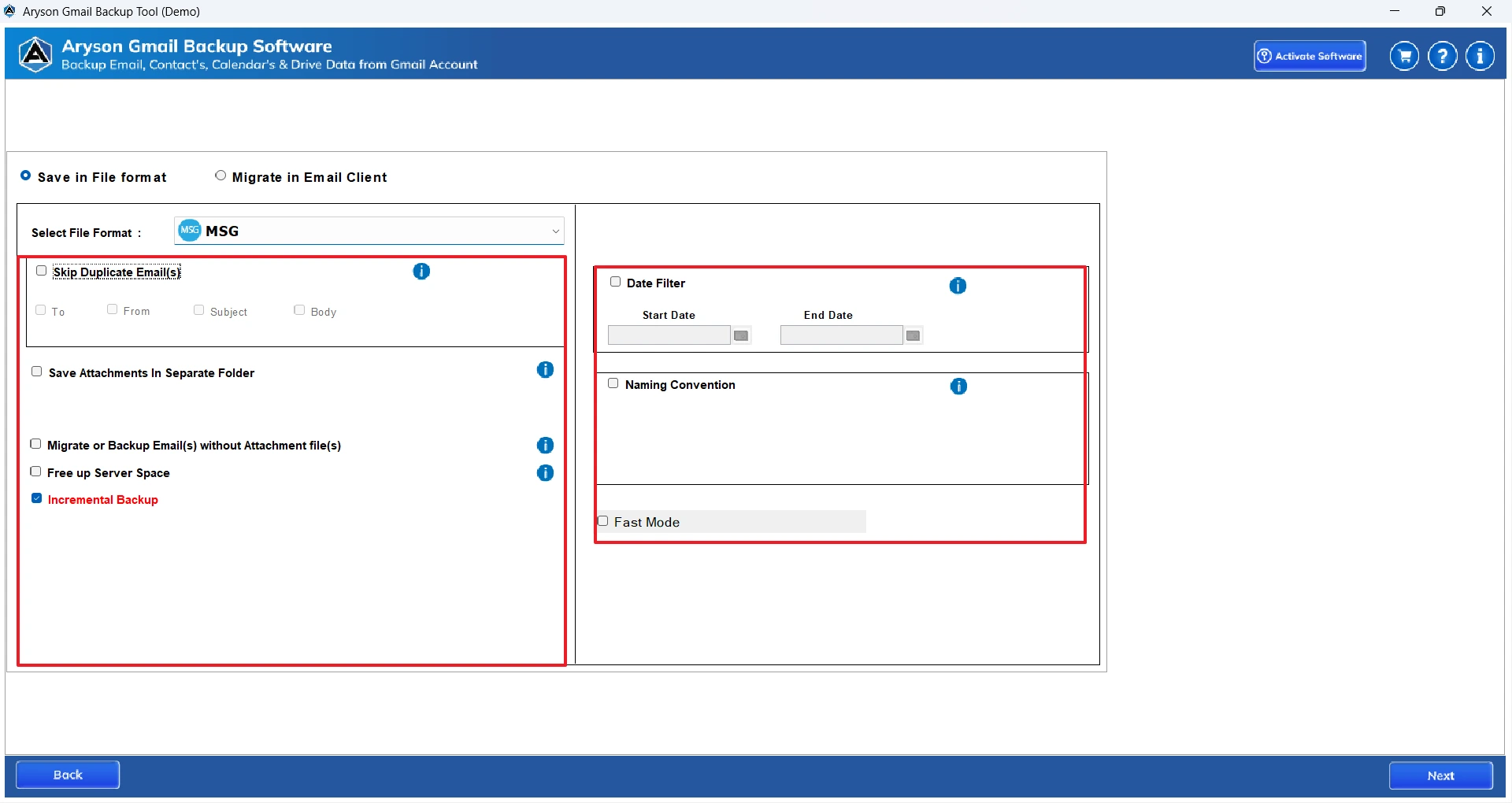
- Next, provide the path to save the resultant file at the desired location.
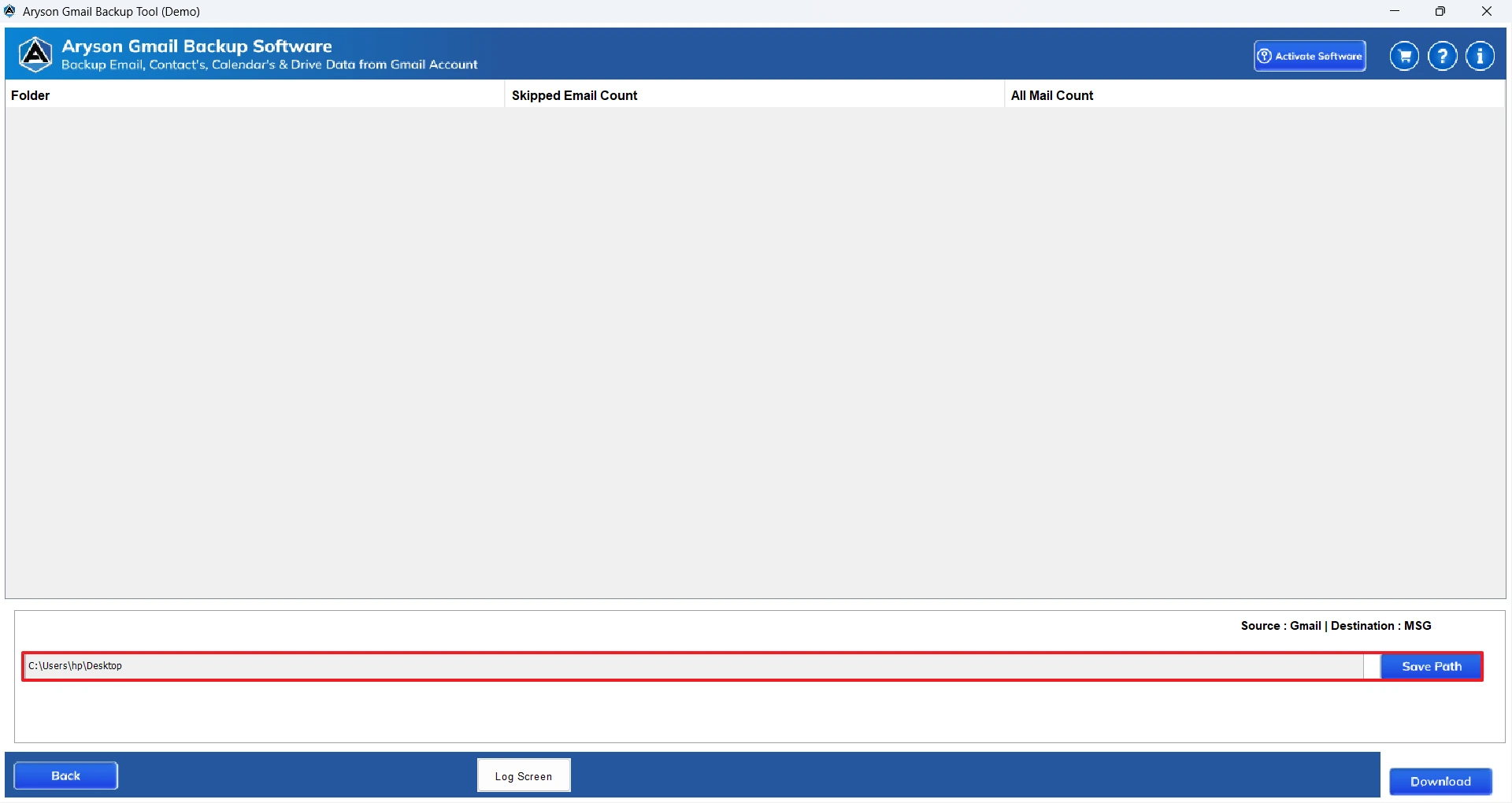
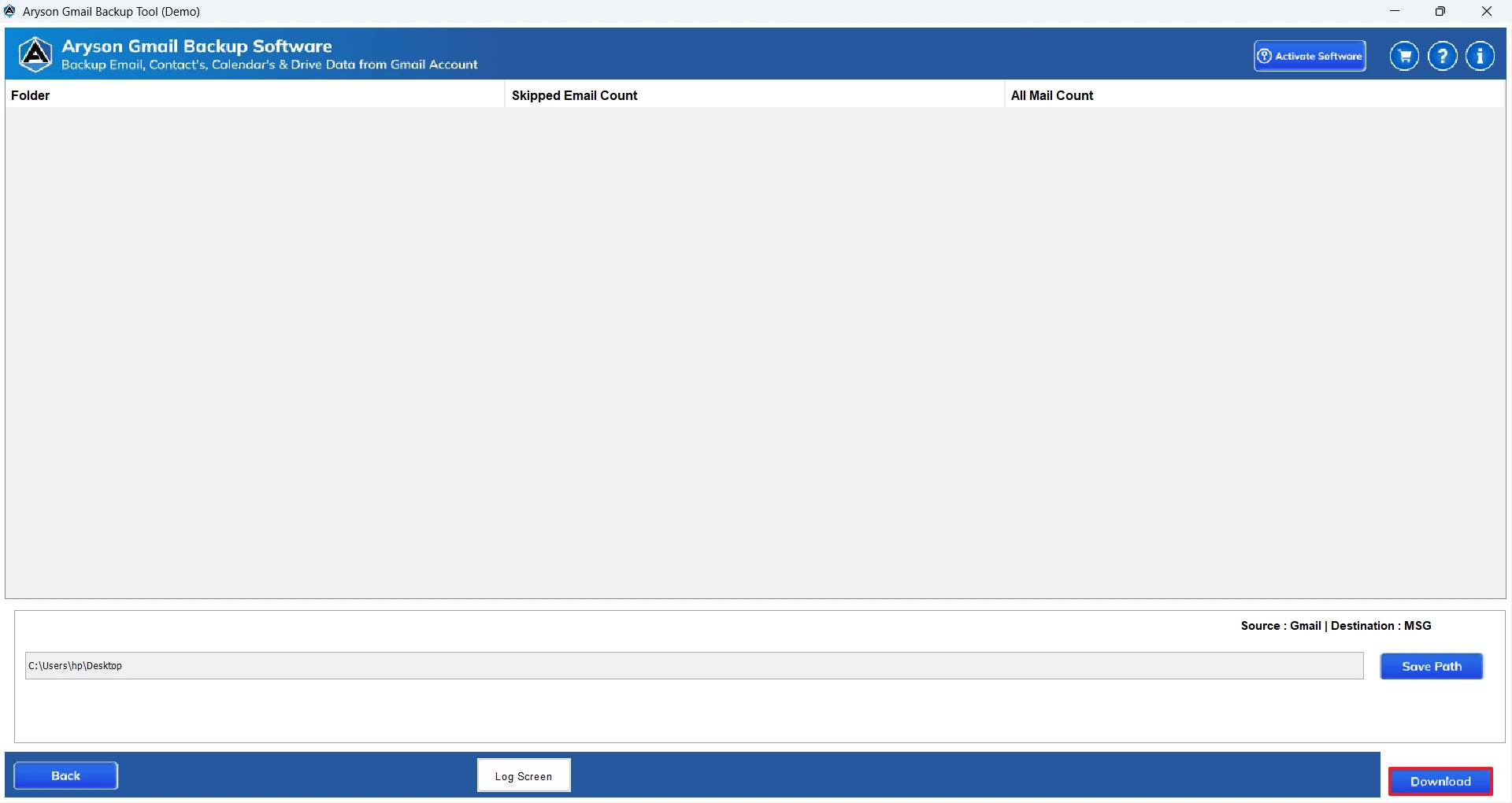
- At last, click on the Download button to begin the Gmail to MSG export.
Conclusion
When users export Gmail to MSG, they get better email accessibility, secure backup, and Outlook compatibility at the same time. If you have a clear understanding of the process and choose the right method, you can effortlessly perform the entire conversion. Now, the choice of method may vary from user to user as per their technical knowledge and the amount of Gmail data. For small mailboxes, the manual method works absolutely well. Whereas, the automated software is advised to be used for large mailboxes and crucial data. For better clarity, you can even try the demo version of the software.
Frequently Asked Questions:
Q.1 Can I export Gmail emails to MSG for Outlook?
Ans. Yes, you can save Gmail Emails as MSG for Outlook using the MSOutlookHelp Gmail Backup Tool. Steps to export are:
1. Install and run the MSOutlookHelp Gmail Backup Tool as an administrator.
2. Sign in to your Gmail account with valid credentials.
3. Select and preview the required Gmail emails or folders.
4. Choose MSG as the export file format.
5. Apply filters if needed, select a save location, and start the export.
Q.2 Can I export selected Gmail emails to MSG?
Ans. Yes, you can export the selected Gmail emails to MSG, using the above automated software.
Q.3 Can MSG files be opened without Outlook after export?
Ans. Yes, with the help of the above automated software, MSG files can be opened without Outlook after export.
Q.4 Are attachments stored separately when exporting Gmail to MSG?
Ans. Yes, while exporting Gmail to MSG, attachments are stored in a PDF at the location provided by the user. You can open these PDFs using Adobe Reader and access these attachments.
About The Author:

Evren Cole is an expert in Email and Data Management. She has a strong passion for technology and entrepreneurship. In her free time, she enjoys football, music, and reading books.

