

-
Written By Evren Cole
-
Updated on July 6th, 2026
Migrate Suddenlink Email to Gmail: 2026 Proven Methods
User Query: Users are looking to understand how to migrate their Suddenlink email account to Gmail before the account gets deactivated after service cancellation. They want to know whether emails, folders, and attachments can be transferred completely or if Gmail has limitations during import. They are also searching for the best possible method to safely move all mailbox data without losing important information.
Overview: If someone is using a Suddenlink email and their internet service is getting shut down or switched off, they usually worry about their old emails. A lot of important stuff stays inside that inbox, like work messages, login details, and personal records.
Now the main problem is simple. They want to move everything to Gmail before the account stops working. But they are not sure if it will actually move data properly, like folders, attachments, or older emails. In this article, we will explain how users can migrate Suddenlink email to Gmail through manual and a professional MSOutlookHelp IMAP Backup Wizard safely.
What users are worried about Transfer Suddenlink.net Emails to Gmail?
Most users are not just trying to move emails. They worry about losing important data when the Suddenlink account stops working. Some common concerns include:
- Will all emails move to Gmail safely?
- What happens to folders and labels?
- Can attachments also be transferred?
- Is there any risk of data loss?
Best Ways to Migrate Suddenlink Email to Gmail
There are a few simple methods users can try to transfer their emails from Suddenlink to Gmail. Some of the common options include through Email Forwarding or exporting data via an IMAP backup method.
Manual Method to Migrate Suddenlink to Gmail
Email forwarding is one of the easiest ways to move Suddenlink emails to Gmail. It helps you automatically send emails from your old account to your new Gmail account with simple setup.
Steps to Export Folders from Suddenlink Emails to Gmail
- Log in to your Suddenlink (Optimum) email account through your credentials.
- Go to Settings or Mail Settings from the menu.
- Then, find the option called Forwarding or Email Forwarding.
- Provide your Gmail email address where you want to receive emails.
- Select the option to forward all incoming emails automatically.
- Next, save the settings & confirm the changes if prompted.
- Send a test email to check if forwarding is working properly.
Limitations of Email Forwarding Method
- It only forwards new incoming emails, not old stored emails.
- You must keep the Suddenlink account active for forwarding to work.
- This method does not transfer contacts, calendars, or attachments separately.
- Moreover, if forwarding is turned off or the account is closed, emails will stop coming.
- It offers no backup option, so original mailbox data is not fully saved.
Professional method to Migrate Suddenlink Email to Gmail
The IMAP Backup Tool is used to move and save emails from any IMAP account. It helps users transfer mailboxes like emails, folders, and attachments without much effort. People use it when they want to switch accounts or keep a backup of important emails. Along with that, users can also migrate IMAP emails to Google Workspace, Office 365, and IMAP. It keeps the email structure safe and makes the whole process simple.
Additional Features of This Software
- Transfers emails, contacts, calendars, tasks, and attachments without any loss in structure.
- Allows migration via date range, subject, sender, recipient, and content-based filters.
- User can remove or manage duplicate emails based on subject, from, to, CC, and body.
- It backup IMAP emails to PST, PDF, MBOX, EML, MSG, CSV, DOC, and JSON.
- Supports single user migration & bulk migration via CSV for multiple accounts.
Steps to Transfer Suddenlink Emails to Gmail
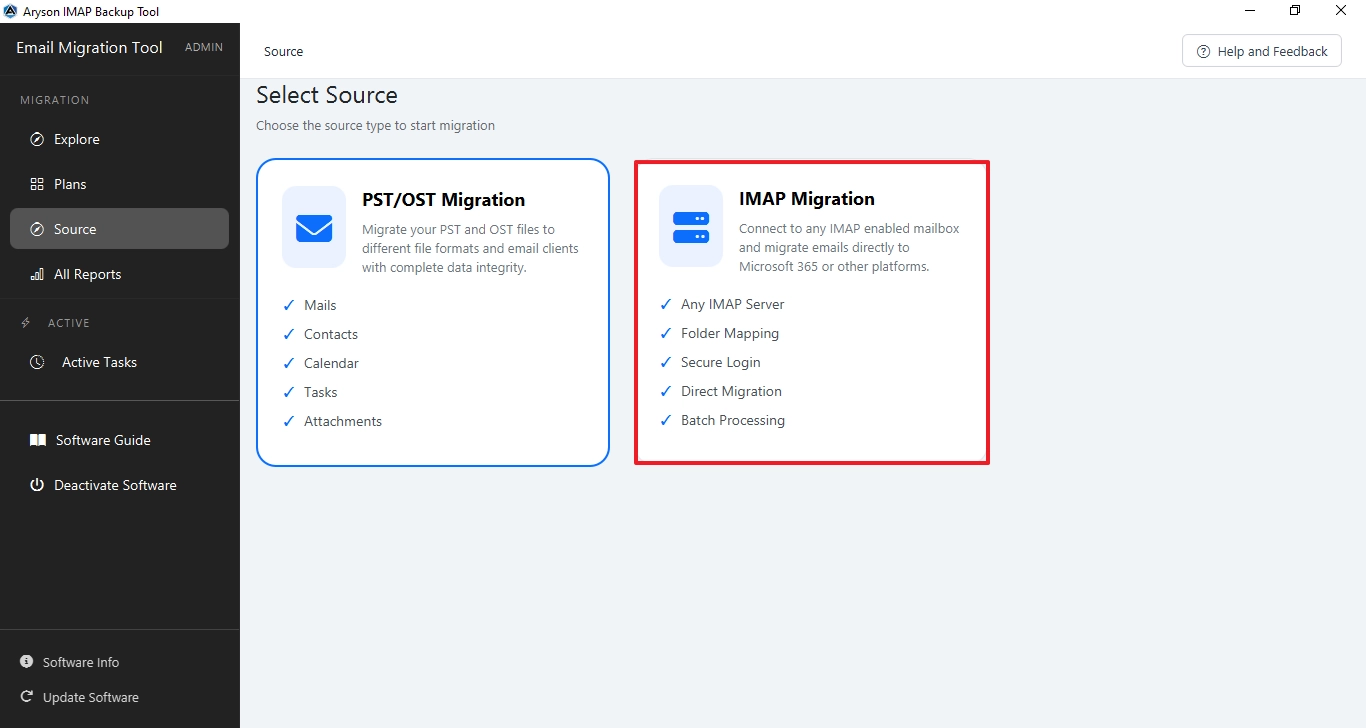
- Download the Aryson IMAP Backup Tool & choose IMAP Migration as the source.
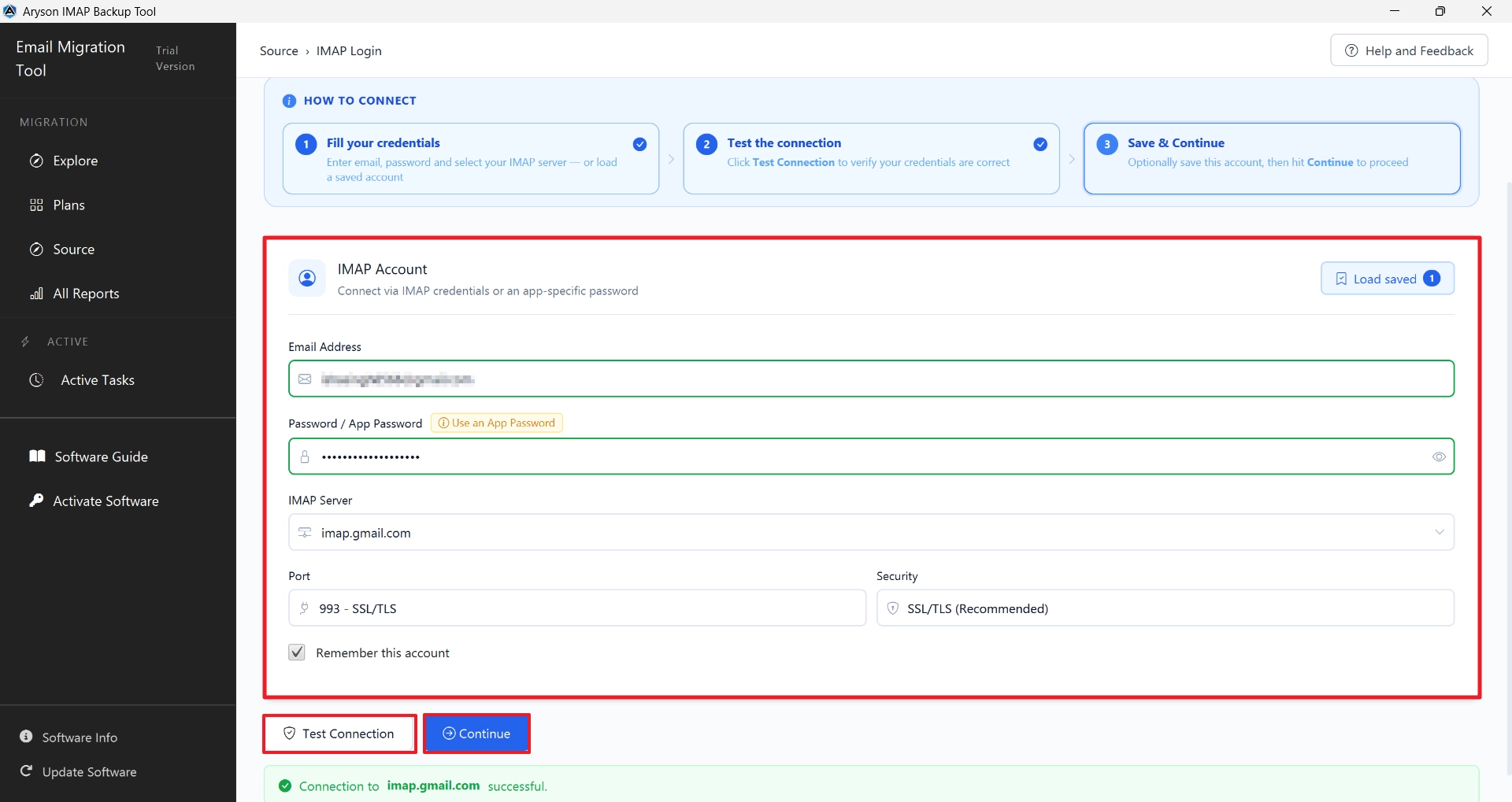
- Enter IMAP server credentials, test the connection & click Continue.
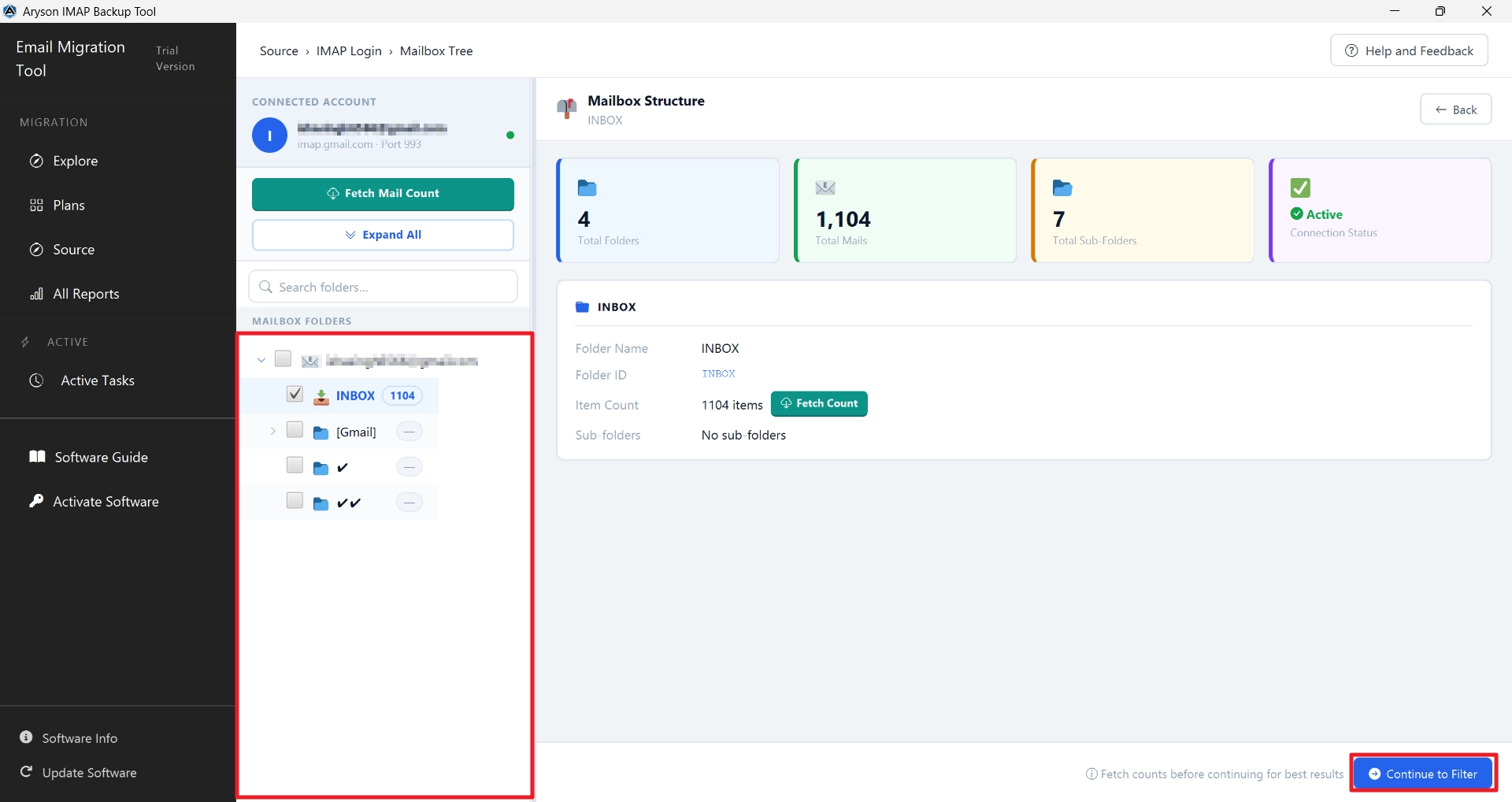
- Then, preview and select the mailbox folders you want to migrate>> click Continue to Filter.
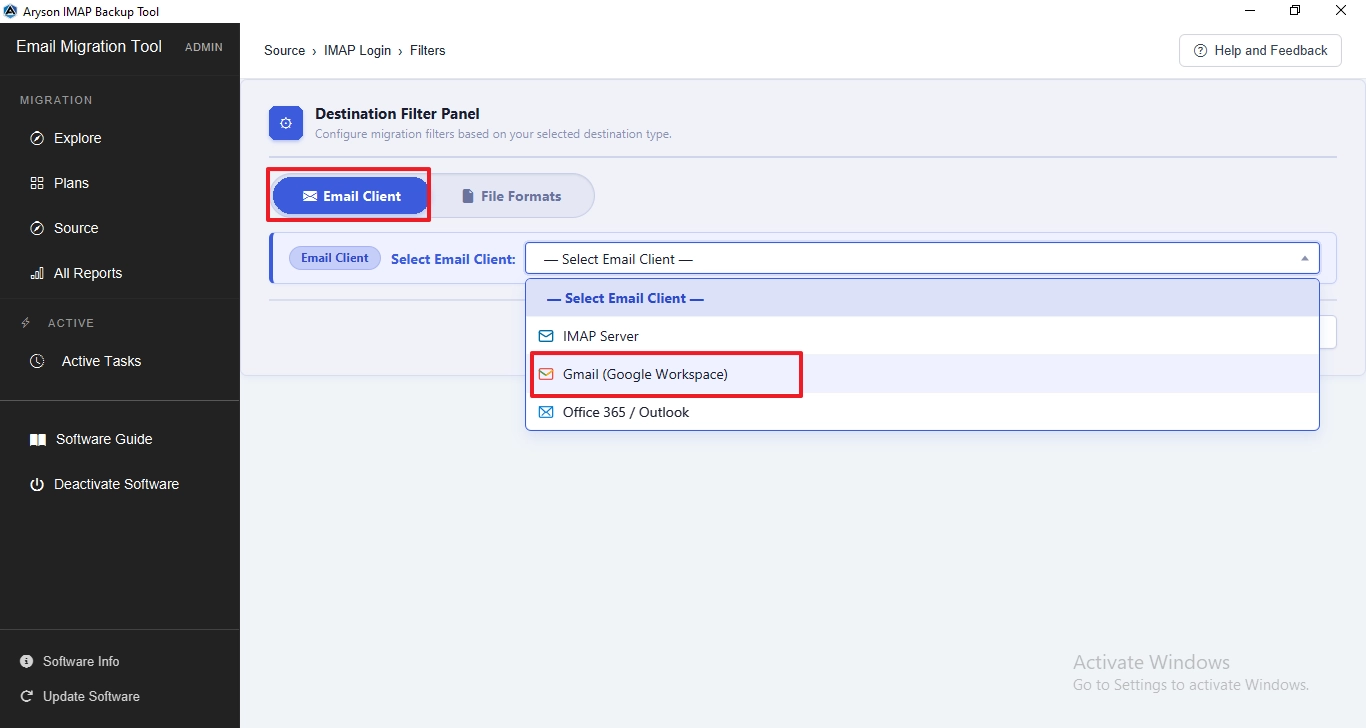
- Afterward, you have to choose the destination email client as Gmail.
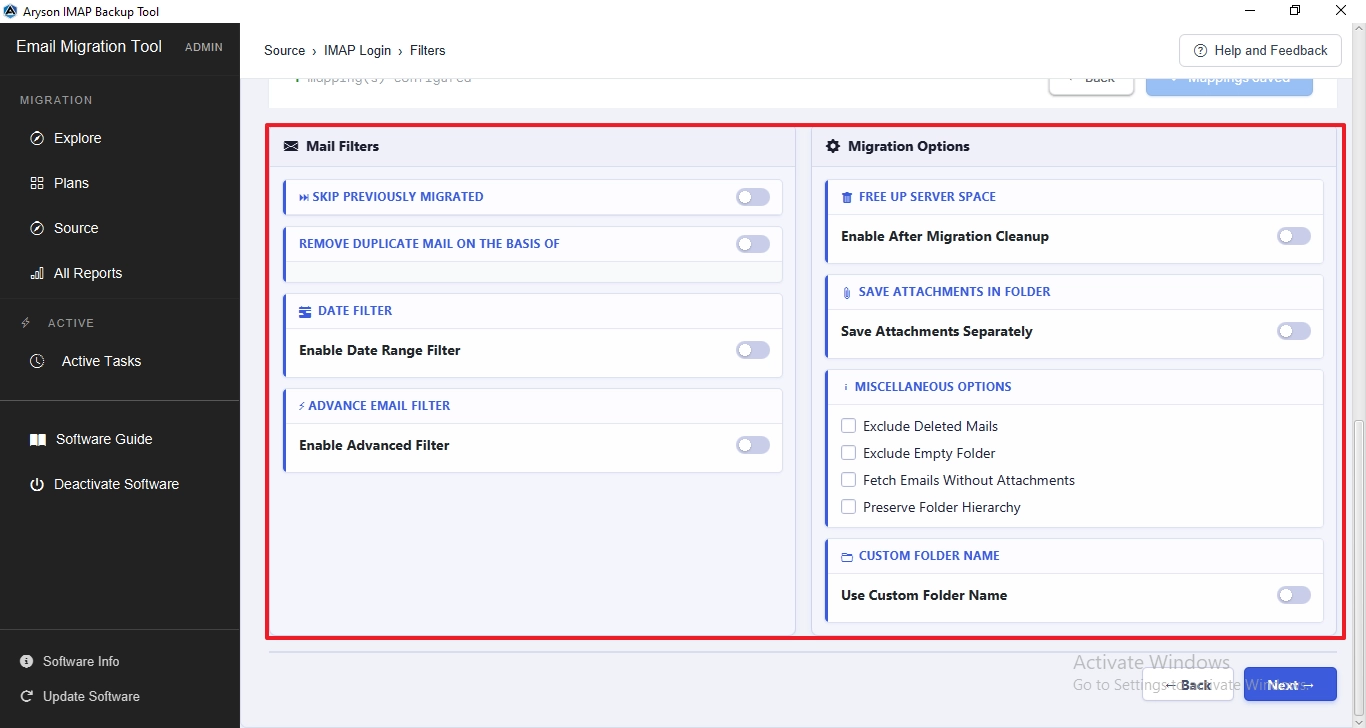
- Next, configure migration settings for selective data migration.
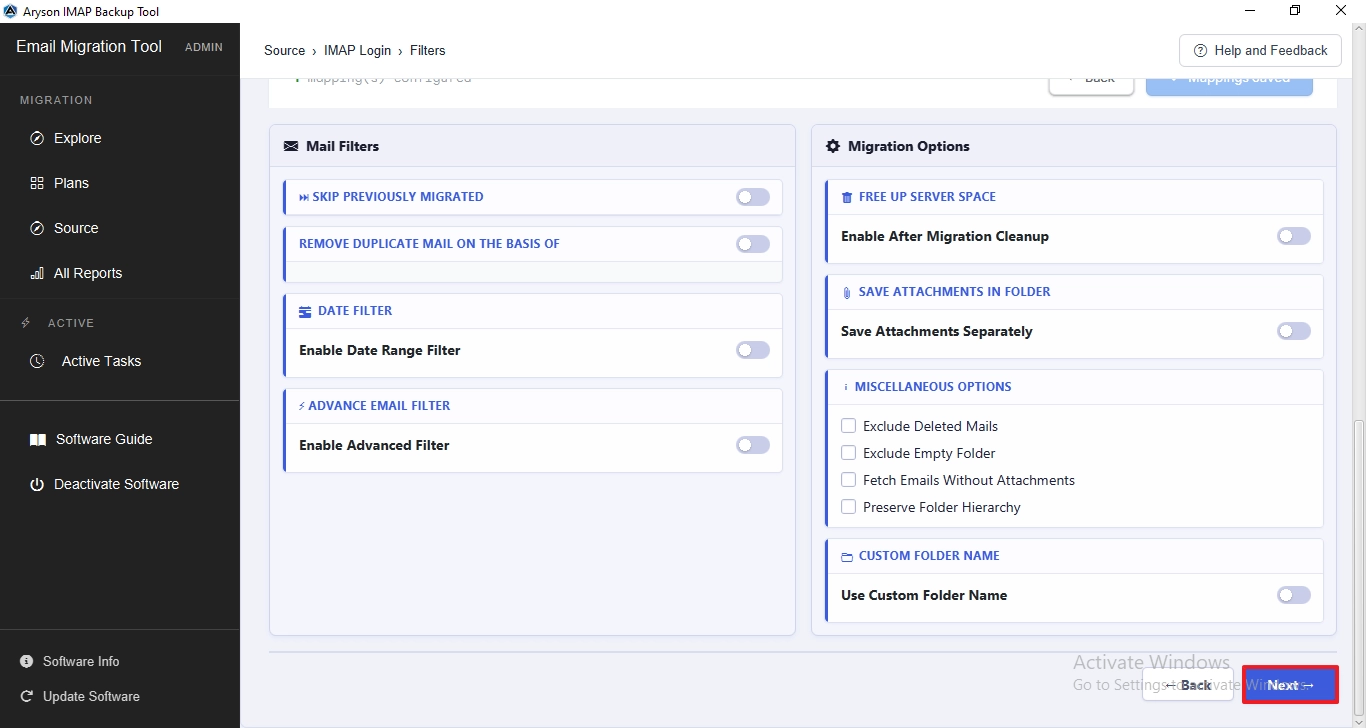
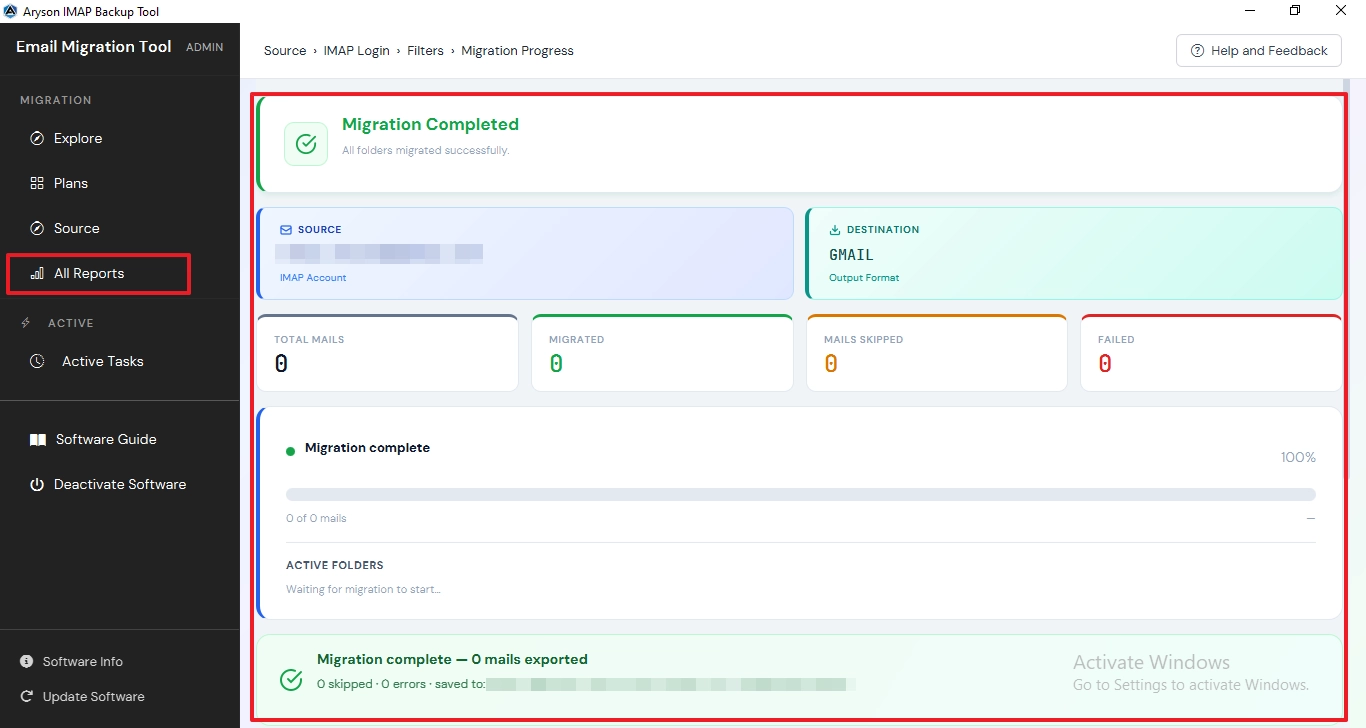
- Tap Next to begin the backup or migration process & monitor its progress.
- View the Migration Report from the All Reports section to verify the migration status and details.
Conclusion
Moving Suddenlink emails to Gmail is not always easy, especially when the account is about to shut down. Some simple methods like forwarding or POP can help, but they don’t bring everything over. If you want a full transfer, things get a bit easier with a proper tool like the IMAP Backup Tool. It moves emails along with folders and other mailbox data in one go, without much manual work. In the end, it really depends on what you need. Small mailbox or just new emails, manual methods may work. But for everything, a complete migration approach makes more sense.
Frequently Asked Questions:
Q1. Can I transfer all my old Suddenlink emails to Gmail without losing data?
Ans. Yes, but it depends on the method you use. Manual options like forwarding may miss old emails. A full IMAP migration is better for keeping everything, like emails, attachments, and folders.
Q2. Will my email folders and subfolders be preserved during the Suddenlink Email to Gmail migration?
Ans. Not always with manual methods. Folder structure can break during forwarding or POP. IMAP-based migration tools are better for keeping folders and subfolders intact.
Q3. Is Suddenlink email still active after the Optimum transition?
Ans. In many cases, Suddenlink email still works for existing users, but it may depend on account status and ISP policy. Some accounts may stop working after service changes or cancellation.
Q4. Can I move thousands of Suddenlink emails to Gmail at once?
Ans. Yes. Manual methods are slow and limited. For large mailboxes, users usually use an IMAP backup tool to transfer thousands of emails in bulk.
Q5. How do I let all my contacts know I’m switching from Suddenlink to Gmail?
Ans. You can send a simple email to your contacts with your new Gmail address. Also, set up email forwarding for a short time so people don’t miss your messages during the switch.
About The Author:

Evren Cole is an expert in Email and Data Management. She has a strong passion for technology and entrepreneurship. In her free time, she enjoys football, music, and reading books.

