

-
Written By Evren Cole
-
Updated on May 5th, 2026
How to Easily Convert OST File to PST Without Outlook
Summary: Most people don’t realize that their OST file becomes completely useless once the Exchange account is gone. OST files hold all your offline Outlook data, but accessing them later is difficult. PST files are great because you can open them in Outlook anytime. A lot of people do this conversion just to keep a proper backup before switching to a new profile. With the help of this guide, you can convert OST file to PST via manual method or using the professional OST to PST Converter Tool in a simple or faster way.
TL;DR: Organizations move their data to PST because it is portable and easy to open anytime. To do so, you can either use Import/Export or AutoArchive requires Microsoft Outlook or professional software.
What is an OST File?
An OST file is created by Outlook to store a copy of your mailbox data on the local system. Moreover, OST files allow users to access their emails, calendars, and contacts without an internet connection. However, OST files are linked to a specific Outlook profile and cannot be opened directly on another system.
Common Reasons to Export OST File to PST
Here are some important reasons you must know due to which many users export their OST files to PST.
- When the Exchange Server crashes or becomes unavailable, you can still access all your emails safely without losing anything.
- For backup and archiving purposes, PST files are easy to store and open whenever you actually need them.
- When the Outlook profile is deleted or corrupted, converting saves your data before everything becomes completely unrecoverable and gone.
- To recover data from inaccessible or orphaned OST files – This is honestly the easiest way to get your stuck data back.
- When switching to a new system or Outlook account, it makes moving your old emails to the new setup surprisingly simple.
Best Reliable Solutions to Convert OST File to PST
With the help of the right method, the user can convert or export their OST files data to PST in a hassle-free way. In this guide, we cover the best solutions that will convert your data with or without Outlook.
- Manual Method
- Professional Method
Method 01: Manual Method for OST to PST Conversion
Technically, there are only two methods that can convert OST file data to PST, but it requires Microsoft Outlook.
01: Perform Export via Import/Export Wizard
This is the common method that helps you export the OST file to PST. It works when the OST files are connected, and the Outlook profile is active. Now, follow the given steps to convert OST File to PST.
Step 01: Configure Microsoft Outlook
- In your system, open Microsoft Outlook to start the process.
- Afterward, you need to click on the File tab in the top-left corner.
- Then, select Open & Export from the menu >> click on Import/Export.
- After that, you must choose Export to a file and then click on the Next button.
- Next, select Outlook Data File (.pst) and click Next.
Step 02: Set Location to Save Files
- After that, you need to choose the mailbox or folder you want to export.
- Now, enable include subfolders if needed >> click Next to continue.
- Click Browse and choose the destination location, and enter a name for the PST file.
- At the end, click Finish to start the export process.
02: Use the Autoarchive option in Outlook
This method is useful when you want to move old emails into a PST file.
Step 01: Select AutoArchive
- Initially, open Microsoft Outlook on your system.
- Click on the File tab.
- Select Options from the left panel and click on Advanced.
- Under the AutoArchive section, click AutoArchive Settings.
- Enable Run AutoArchive every X days.
Step 02: Choose Folder to Archive
- Now, you have to choose Archive this folder and all subfolders.
- Thereafter, select the folder you want to archive.
- Set a date under Archive items older than.
- Click Browse to select the location for the PST file.
- Provide a name for the PST file and click OK to save settings.
- In the end, click on Apply and then OK to start archiving.
Limitations of the Import/Export and AutoArchive Methods
- Both methods depend on Outlook and need an active account; otherwise, Outlook .ost cannot be opened.
- Neither of the two supports corrupted or orphaned OST file conversion.
- There is no direct way to convert OST to PST without Outlook, with manual approaches.
- It offers limited flexibility and reliability when converting the files.
- Increase mailbox size in Outlook does not convert the OST files into PST.
Method 02: Professional Software to Convert Orphaned OST to PST
The OST to PST Converter Tool is the best solution that converts files without the need for Outlook. Unlike the manual method, this software supports corrupted or orphaned OST files and converts them directly to PST. Moreover, it offers various file formats to convert OST Files to PDF, MBOX, MSG, EML, EMLX, and other formats. Users can export their files in bulk, and before beginning the conversion process, it provides a preview of their mailbox data.
Simple 6 Steps to Convert OST File to PST
- To start the process, download and install the OST to PST Converter Tool.
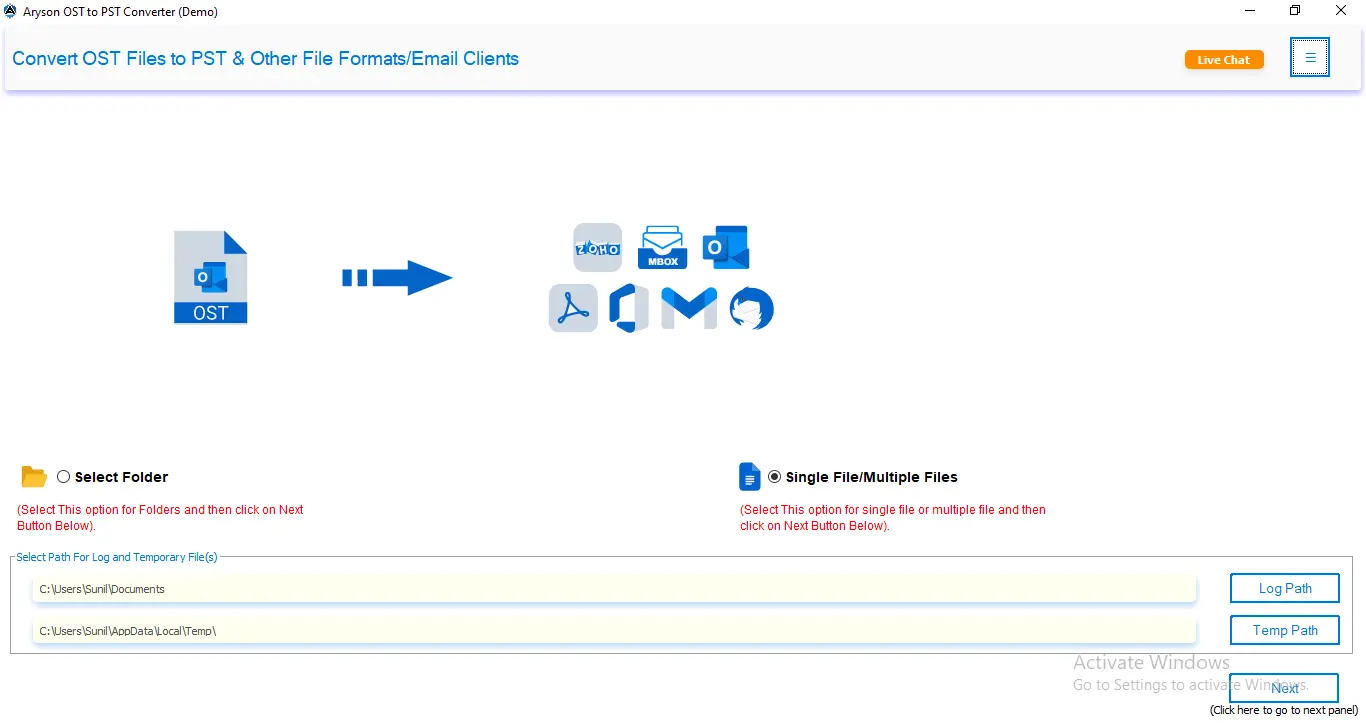
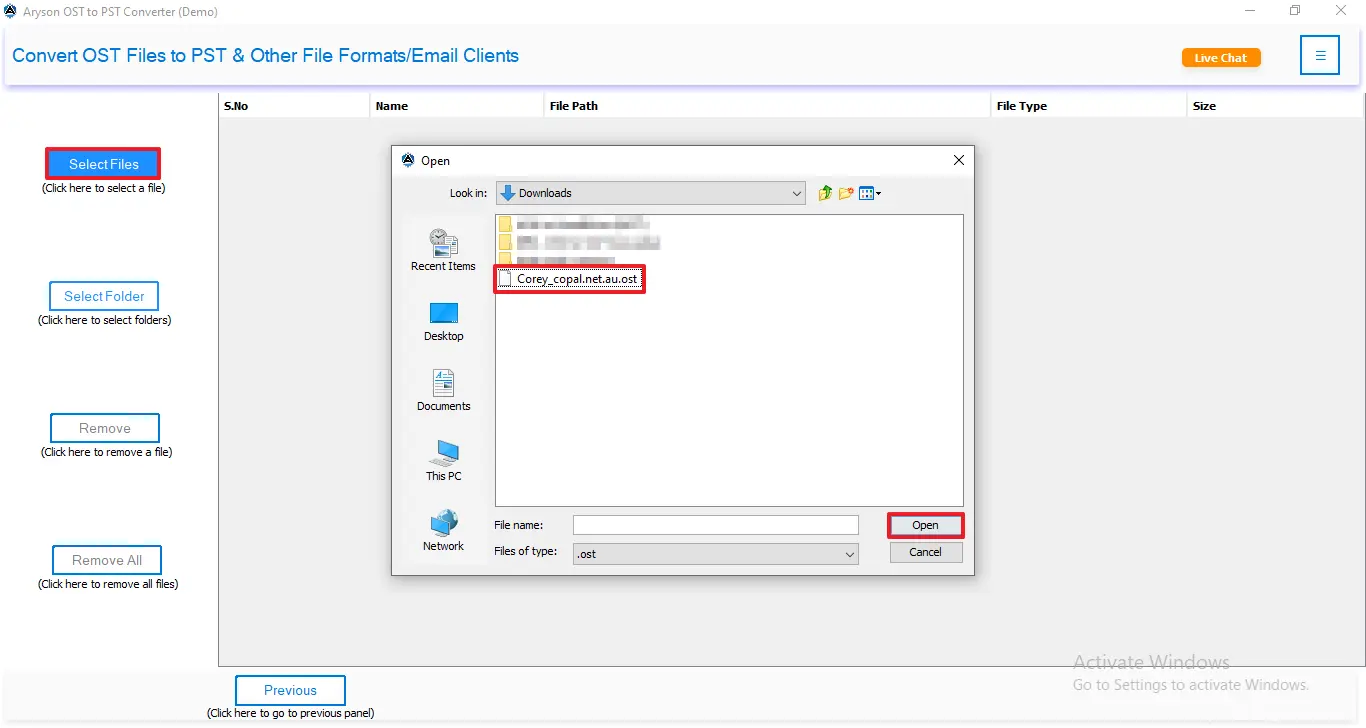
- Afterward, click on select file/folder and browse the .ost file on your system >> open.
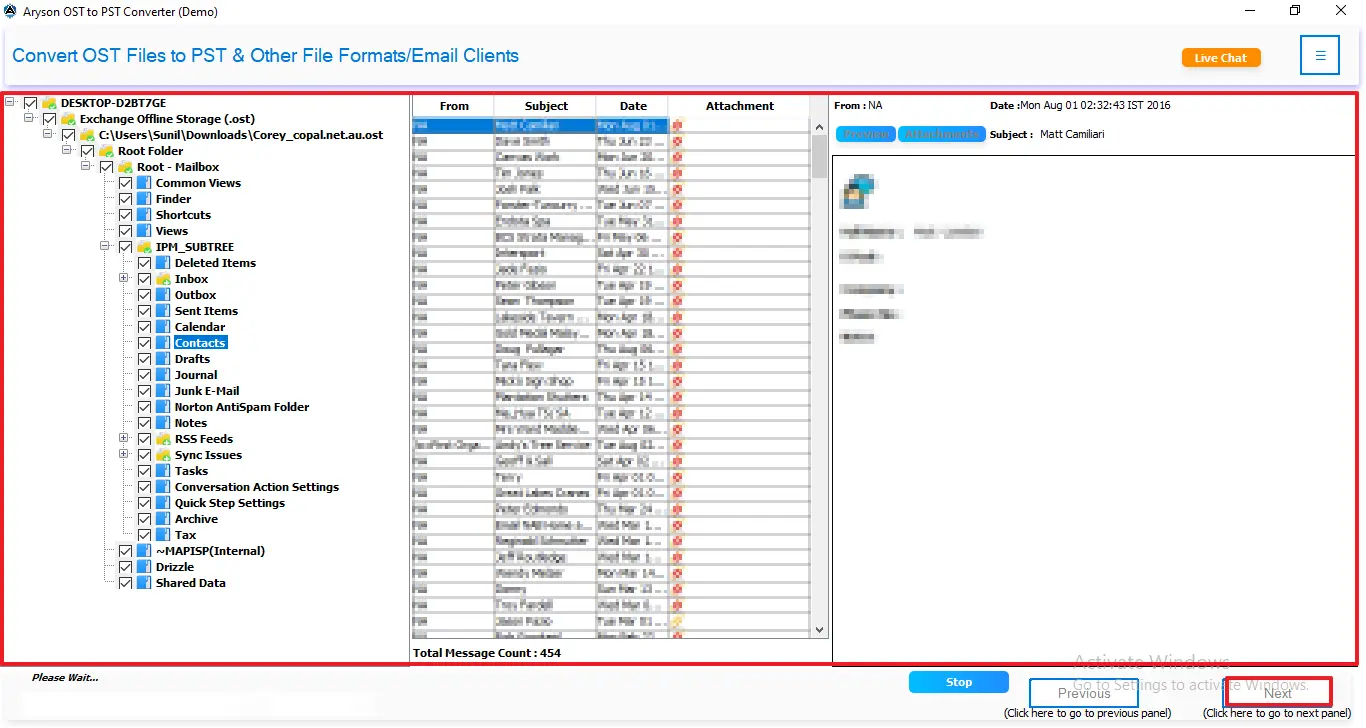
- Thereafter, preview the mailbox data and then click on the Next button to proceed.
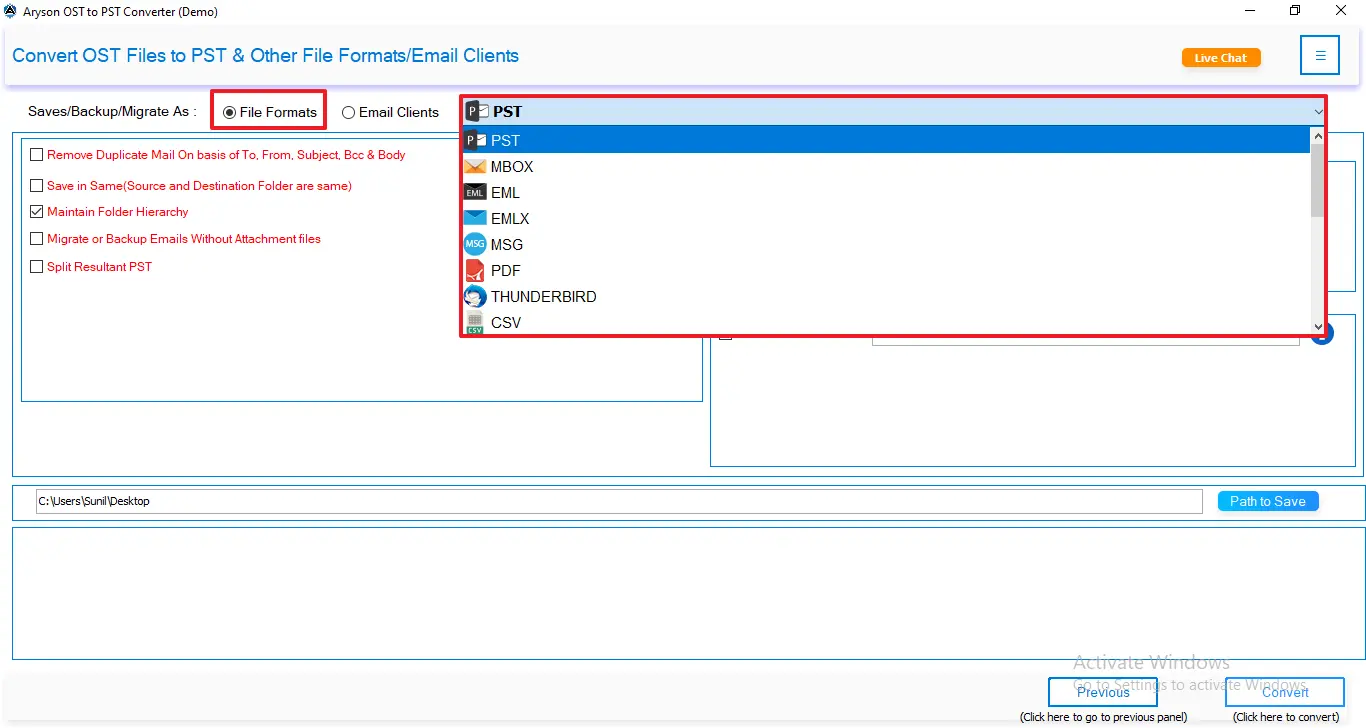
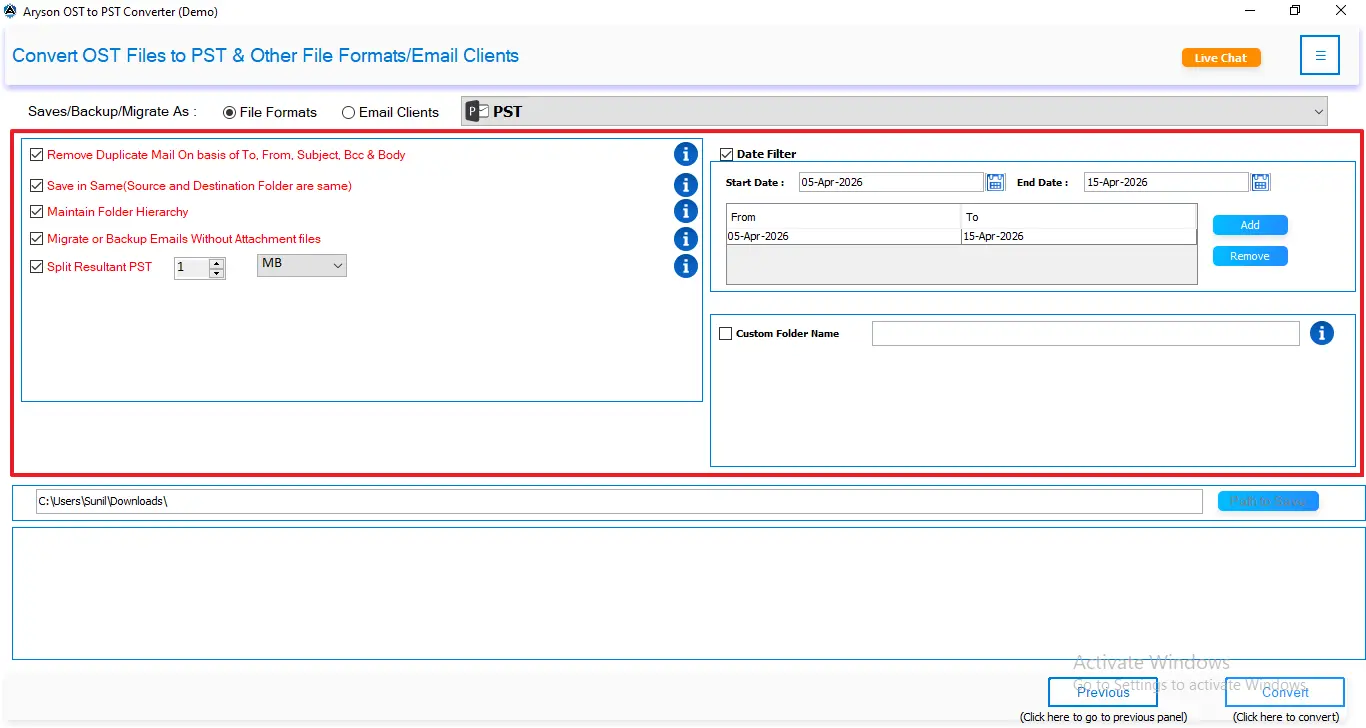
- Now, select the file format as PST from the given drop-down list.
- Next, apply the filters based on your requirements for selective data conversion.
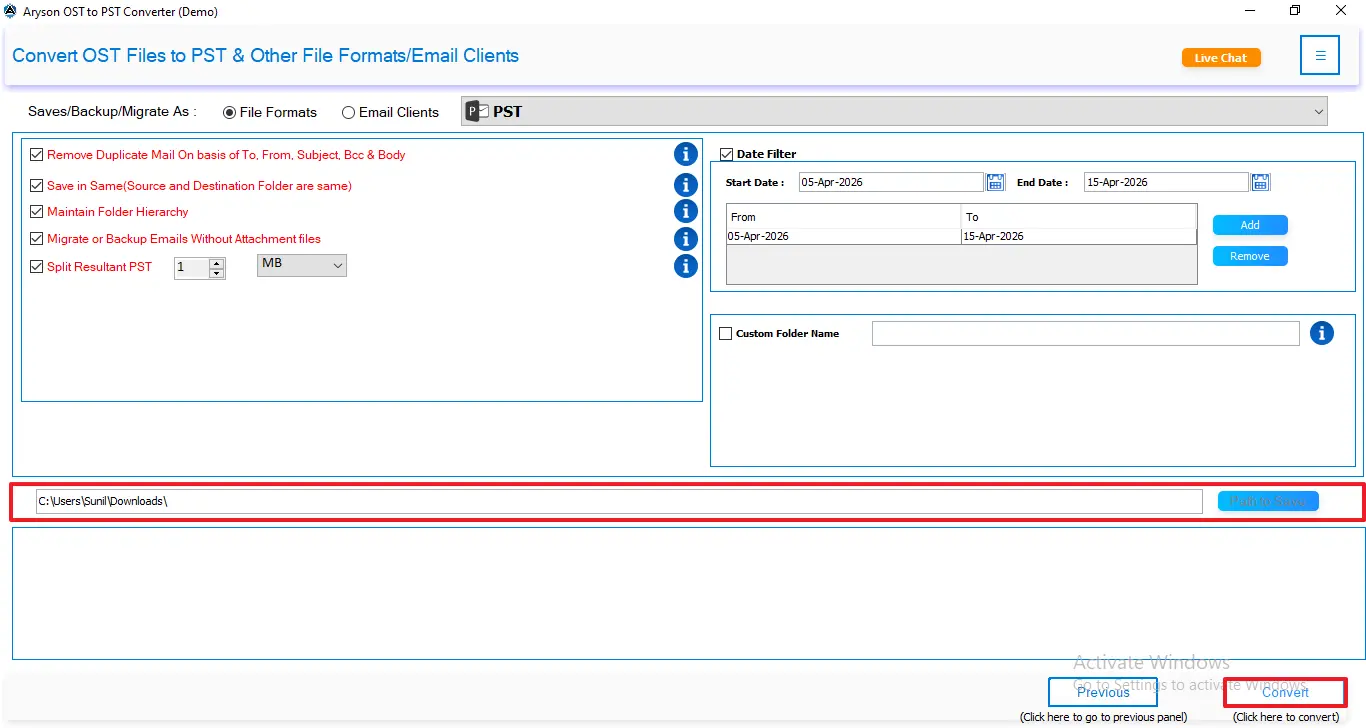
- At last, select the path to save and click Convert to start the conversion process.
Key Features of this Software
- It supports corrupted or orphaned OST files.
- Before you begin the conversion process, it allows a preview of the mailbox items.
- This software maintains the folder structure and hierarchy.
- There are no file size limitations to convert the mailbox data.
Manual vs Professional – Comparison Table
|
Features |
Manual (Import/Export & AutoArchive) |
Professional Software |
|
Outlook Dependency |
Requires Microsoft Outlook installation |
Works without Outlook |
|
Orphaned OST Support |
Not supported |
Fully supported |
|
Corrupted File Handling |
Cannot handle corrupted OST files |
Easily converts damaged files |
|
File Size Limitation |
May struggle with large OST files |
No file size restrictions |
|
Preview Option |
Not available |
Provide a mailbox preview before conversion |
|
Output Format |
Only PST |
Offer multiple file formats (PST, PDF, MBOX, etc.) |
|
Speed |
Slow for large data |
Fast and efficient processing |
Conclusion
To finish it up, it is important to convert OST file to PST without Outlook when you deal with orphaned or corrupted files. With the right approach, you can make sure of complete data integrity and smooth migration of users’ Outlook mailbox data. While the manual method offers limited file conversion, it is suitable for less number of files. It is recommended to offer a secure and efficient way.
Frequently Asked Questions:
Q.1 Can I convert a corrupted OST file to PST?
Ans. Yes, you can convert a corrupted OST file to PST using a professional converter tool that supports damaged files.
Q.2 What is an orphaned OST file?
Ans. An orphaned OST file is disconnected from its original Outlook profile or Exchange server and becomes inaccessible.
Q.3 What is the best method to convert OST to PST without Outlook?
Ans. Using the MSOutlookHelp OST to PST Converter Tool is the safest and most effective method without Outlook.
Q.4 Is there any free way to convert OST to PST?
Ans. Free methods exist but are limited and usually require Outlook; they are not reliable for complete conversion.
Q.5 How to convert OST file to PST step by step?
Ans. Install a converter tool, load the OST file, preview data, select PST format, and start the conversion process.
About The Author:

Evren Cole is an expert in Email and Data Management. She has a strong passion for technology and entrepreneurship. In her free time, she enjoys football, music, and reading books.

