

-
Written By Evren Cole
-
Updated on September 1st, 2025
Convert OFT Emails to CSV File – Easy Methods
User Query: “First, I have saved a lot of Outlook OFT files as templates, but now I want to extract the addresses and subjects into a CSV file. Manually copying each and every file into Excel is taking too long. Is there an easy method or tool that can convert OFT to CSV without losing any details?”
Summary:Outlook Template files (.OFT) serve as reusable email drafts. They are useful for business communication, but they do not help when the need is to extract details. Details can be contacts, addresses, or message content in a structured layout. In such cases, the user needs to convert OFT to CSV format, which proves more effective because it opens directly in Excel or Google Sheets and allows smooth data handling. In this technical blog, we will explain how the OFT File Converter offers a reliable way for conversion with accuracy and ease.
Reasons to Convert Outlook OFT Files to CSV
- You can have the email addresses or other details and place them in a clear format.
- CSV files can be opened in Excel, Google Sheets, and many other tools without issue.
- Along with that, large contact lists become easier to sort and update.
- Data can be shared across platforms without depending on Outlook.
- Apart from that, CSV is light in size and easy to store for future use.
Best Solution to Convert OFT to CSV
Before moving ahead with the steps, it is worth noting that the choice of method depends on your requirements. If you only have a few OFT files, the manual method may be sufficient. Nevertheless, for converting large datasets, this method proves to be the best option.
Solution 1: Convert OFT File to CSV Manually Using MS Outlook
This method uses the Outlook application for OFT to CSV file conversion. However, this method is only ideal for converting a limited number of OFT files.
The following are the steps for the conversion:
- First, start MS Outlook on your computer.
- Now, open the OFT file by double-clicking on it. It will open a new email message.
- Afterward, save this as an MSG file type.
- Next, import this saved MSG file back into MS Outlook.
- When it is done, move or copy the required email data into a separate folder.
- Now, navigate to File > Open & Export > Import/Export from the Outlook menu.
- From the menu list, select Export to a File and choose CSV.
- Afterward, select the folder that holds your emails and click Next.
- Finally, open the exported CSV file in Excel, where you can easily view, edit, or manage your data.
Additional Note: This method can take a considerable amount of time and does not always keep the formatting preserved. Moreover, attachments and large amounts of data can be complex to transfer.
Solution 2: Easy and Fast Method By OFT to CSV Converter
MS Outlook Help OFT Converter is a utility that allows users to convert OFT files into multiple formats, including PDF, PST, etc. With the option to convert OFT to MSG Files, it can make sure complete data accuracy with batch processing. It works with all Outlook versions, making email management faster and more efficient.
Follow the given steps to Convert OFT to CSV:
- Firstly, download and install the OFT Converter on your computer.
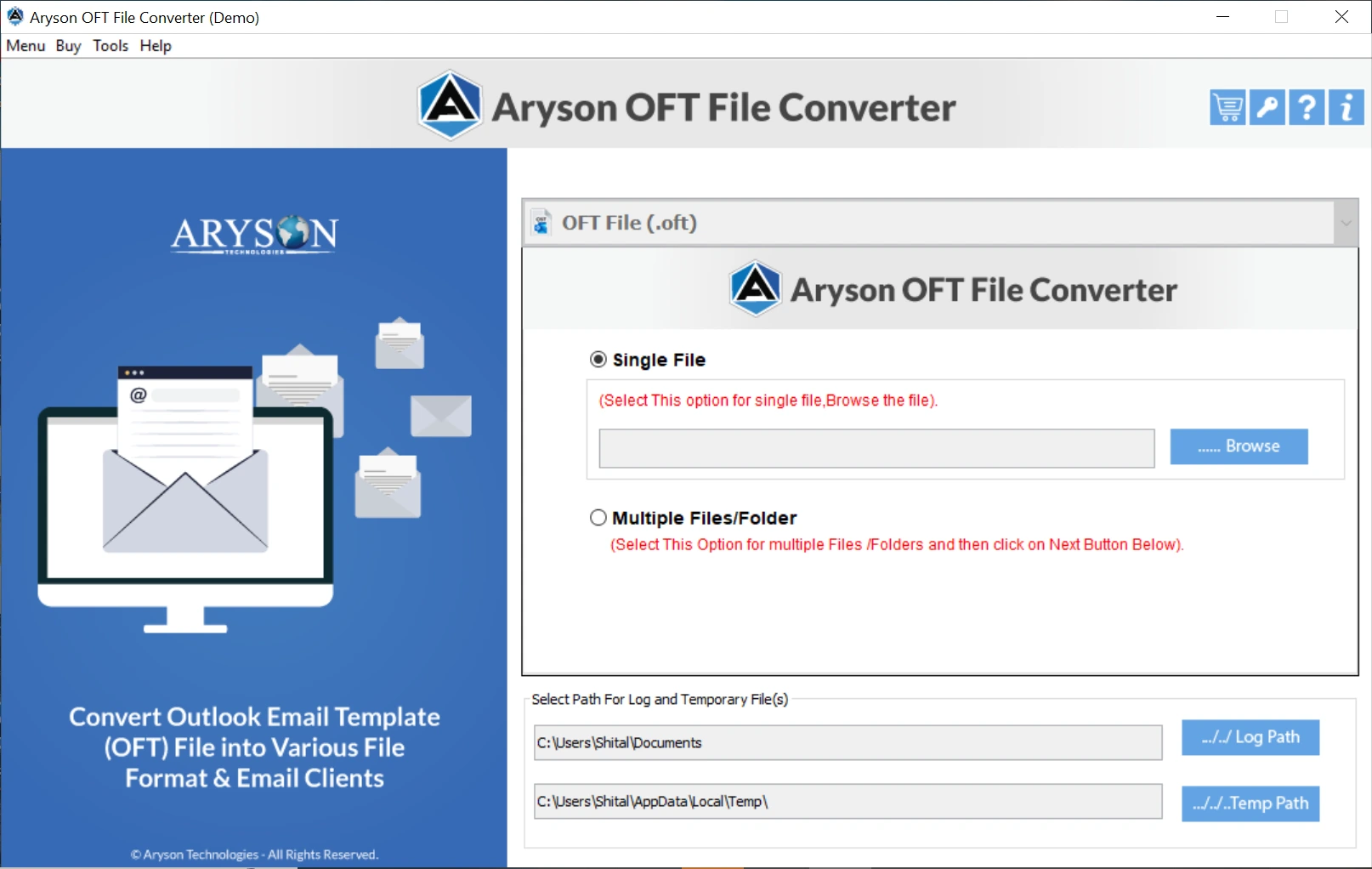
- Then, add your OFT files by using the add file or add folder option.

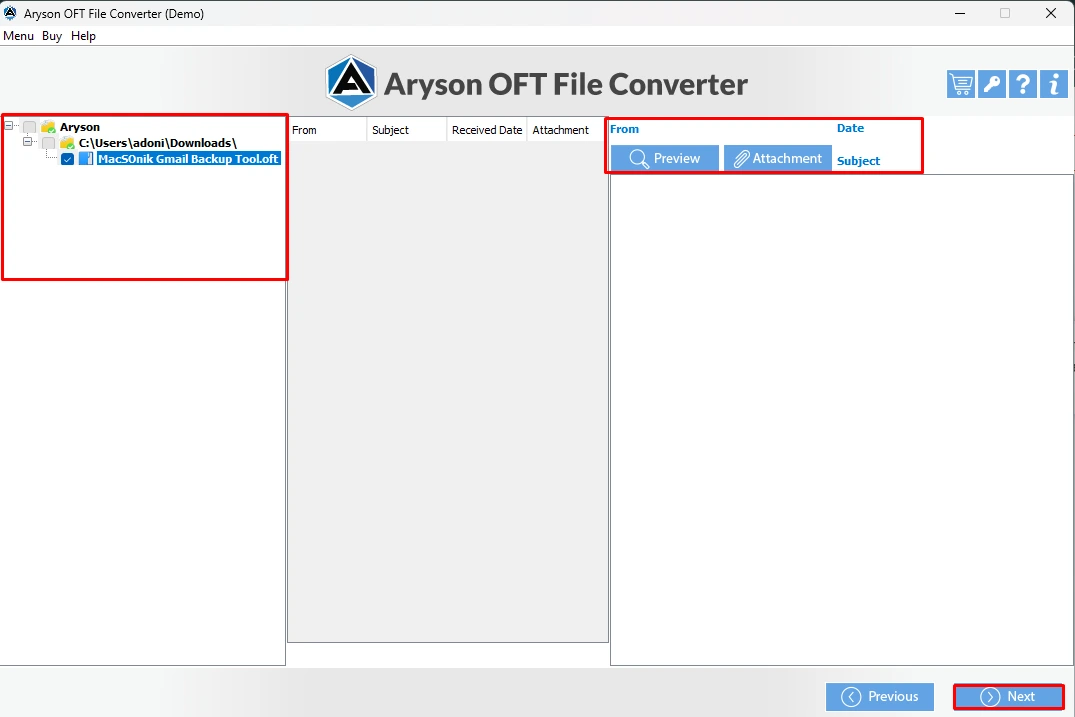
- After that, preview the chosen data before the conversion.
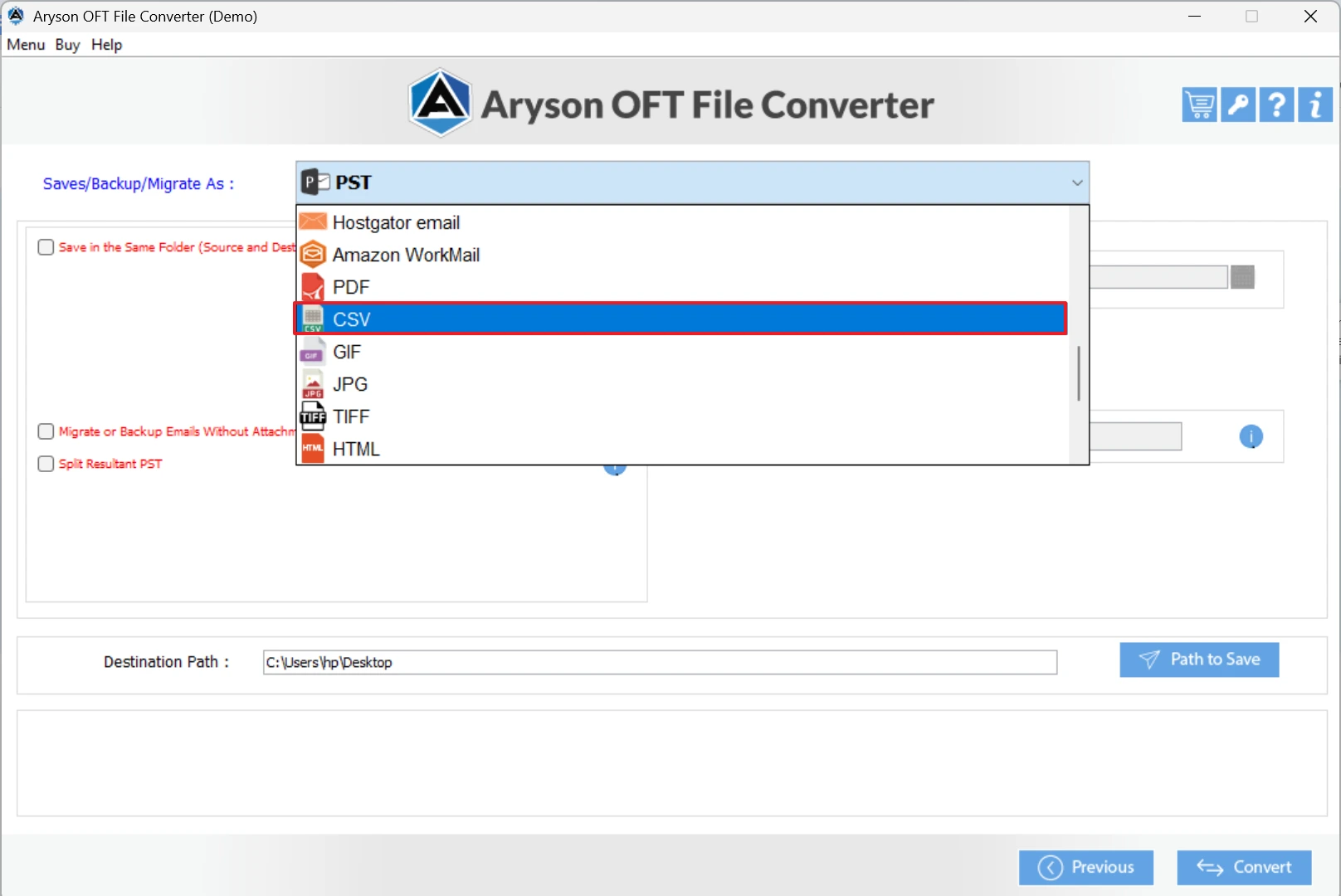
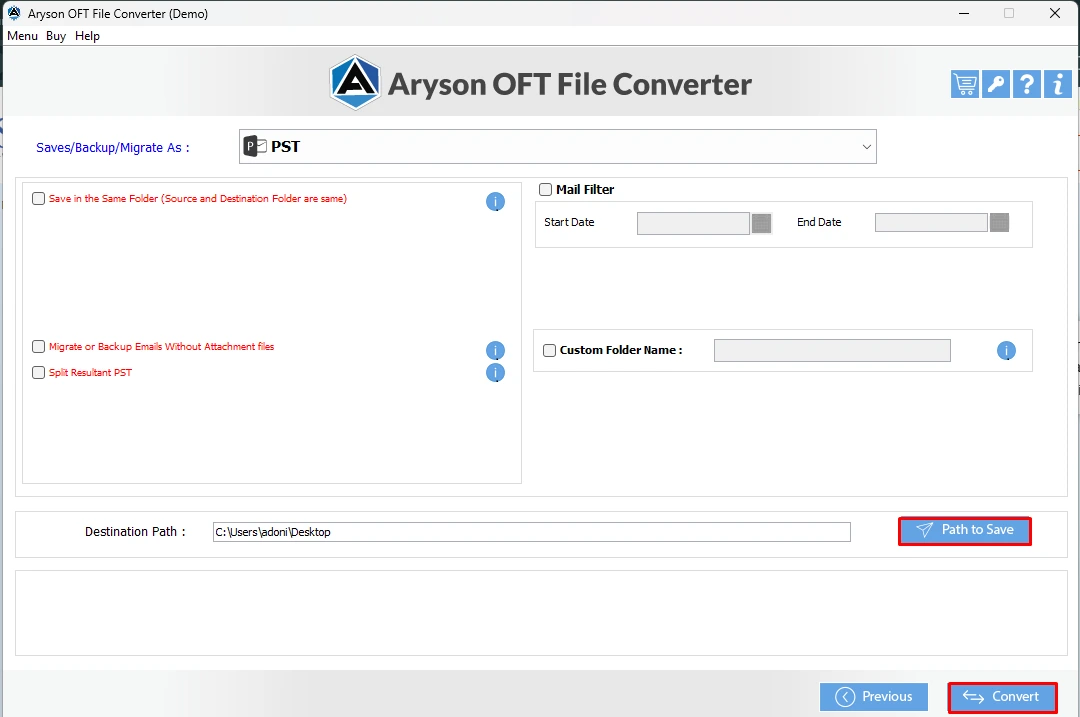
- Now, select CSV as the file format from the available dropdown menu.
- Apply the advanced filters as per your fulfillment.
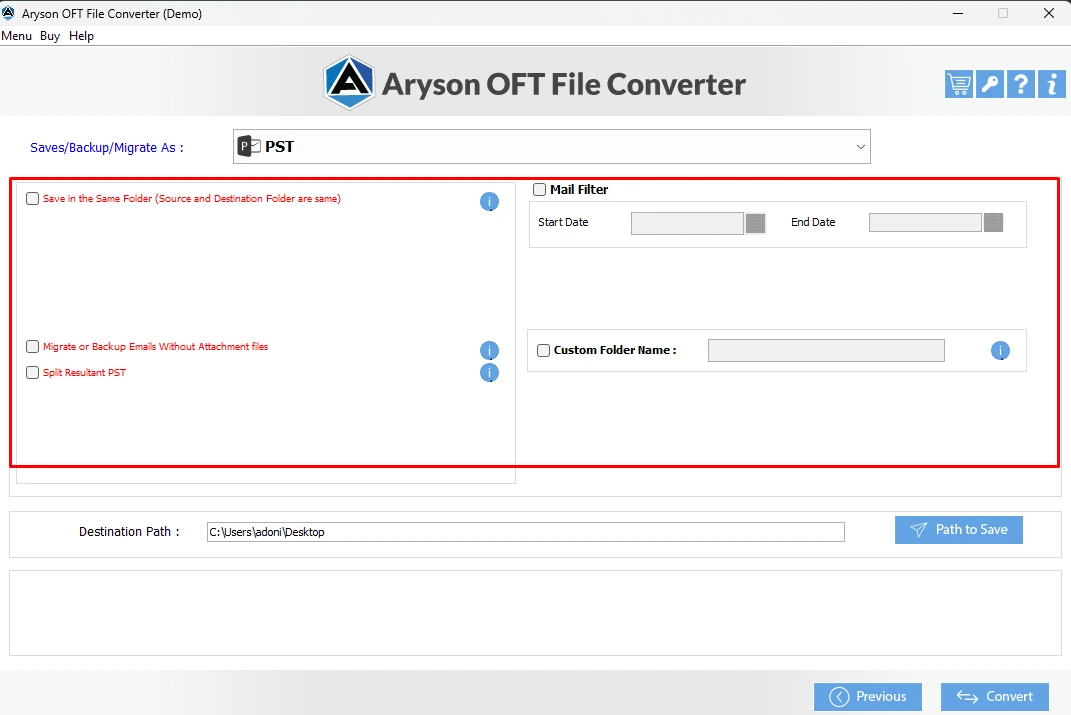
- Finally, click on the convert button to securely export your OFT files into CSV format.
Conclusion
When you have only a few files, the manual method can still work, but it becomes slow and frustrating with a larger number. In these scenarios, one of the best solutions is to use the OFT converter to convert OFT to CSV. It can be very time-effective for the user when dealing with large data files. Once in CSV format, the data is simple to edit and works well with Excel or other applications.
Frequently Asked Questions:
Can I extract email addresses from an OFT file into CSV?
Ans: Yes. With the right tool, you can directly export email addresses from OFT into a CSV file for easy use in Excel.
Q.2 What data can be extracted from OFT into CSV?
Ans: Details like sender, recipient, subject, date, and message content can be extracted. Some tools also export attachment information.
Q.3 Can I use Excel to open or convert an OFT file to CSV?
Ans: Not directly. You’ll first need to save the OFT as another format (like MSG or TXT) using Outlook, then import that into Excel and save it as CSV.
About The Author:

Evren Cole is an expert in Email and Data Management. She has a strong passion for technology and entrepreneurship. In her free time, she enjoys football, music, and reading books.

