

-
Written By Evren Cole
-
Updated on November 20th, 2025
Convert EML to CSV – Complete Guide for Easy Conversion
Overview: It becomes much easier to manage large volumes of email data when information is stored in a structured, spreadsheet-friendly format. That is why nowadays many users look for different ways to convert EML to CSV. Whether the user needs it for data analysis, reporting, archiving, or migrating email content, the CSV format will increase their work efficiency. This blog covers different methods of converting the EML to CSV. Along with that, we will introduce you to MSOutlookHelp EML Converter, which simplifies the entire process of conversion with zero data loss.
Why Do We Need to Convert EML File to CSV?
There are several advantages offered by the CSV Format that motivate users to convert EML files to CSV:
- The CSV format allows users to sort and filter their email data quickly.
- As well as it also makes it easier to manage the bulk of emails in tabular form.
- CSV files are easier to audit, analyse, and report.
- Conversion of CSV format leads to faster loading and better storage.
- Also, this file format is compatible with spreadsheets, databases & other data tools.
Proven Techniques to Convert EML to CSV
There are two most effective techniques to convert EML files to CSV format. Either you manually save your EML file to CSV format, or you use automated software to convert multiple files in one go. The choice is all yours, and you can adapt either of the two methods as per your convenience.
Technique 1: Automated Software to Export EML to CSV
In case you have numerous emails and find it difficult to organize, manage, and perform analysis on them, you should opt for the MSOutlookHelp EML Converter. This software can convert your EML files to CSV format without affecting the data integrity, emails, attachments, and directory structure. Moreover, it allows them to preview their selected EML files before performing the actual conversion. Additionally, it offers various built-in filters like the Date Range Filter, Skip previous Migration, Remove Duplicate Mails, etc. Also, even if you are a beginner, you can easily import EML to Office 365, Thunderbird, IMAP, and many other email platforms. In order to perform a secure migration, it is important to follow the import steps carefully.
Step-By-Step Tutorial to Convert EML to CSV
- Firstly, download and run the EML Converter tool on your system.
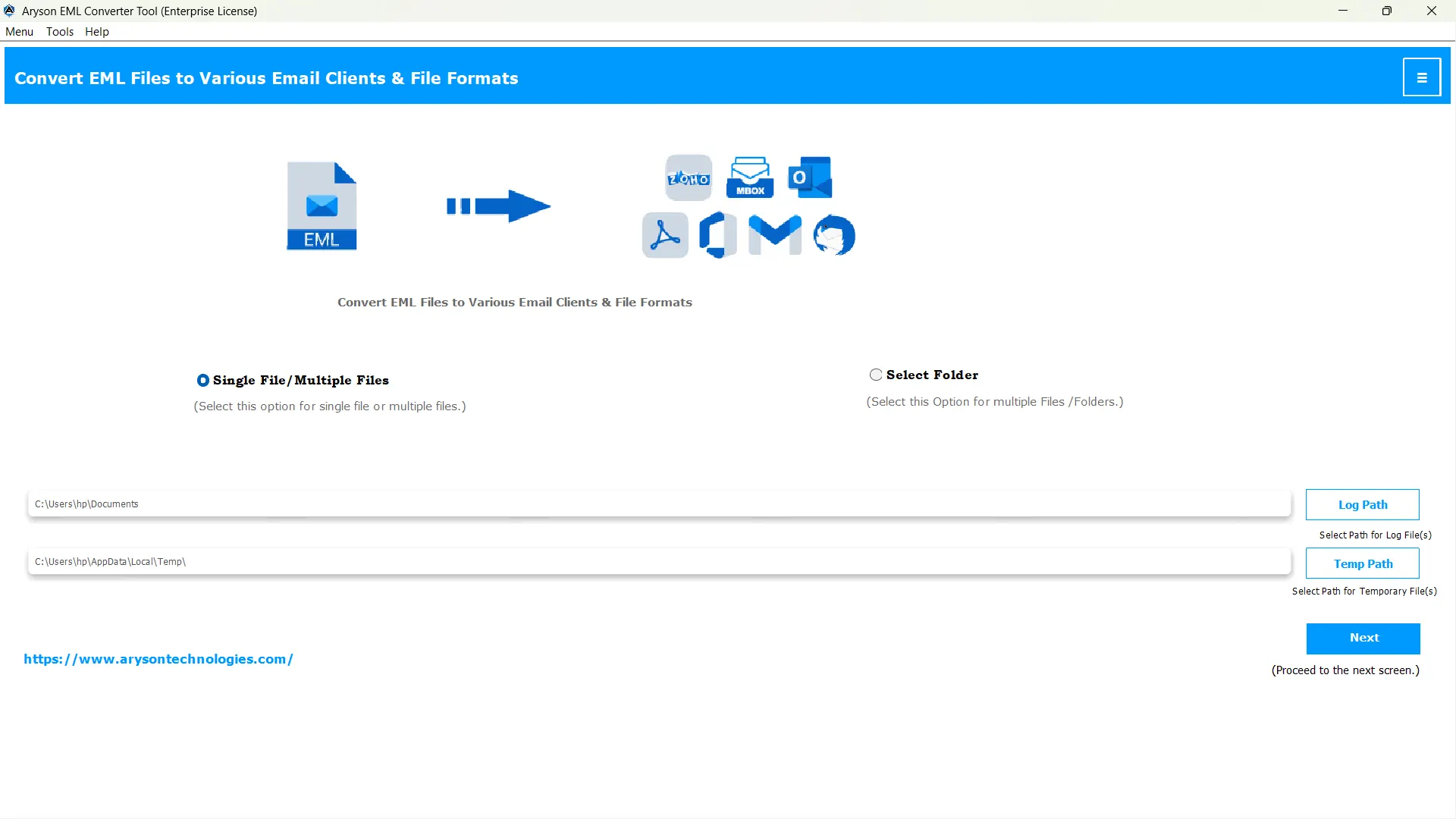
- Then, use the Select Files/Folders option to add your EML file to the software.
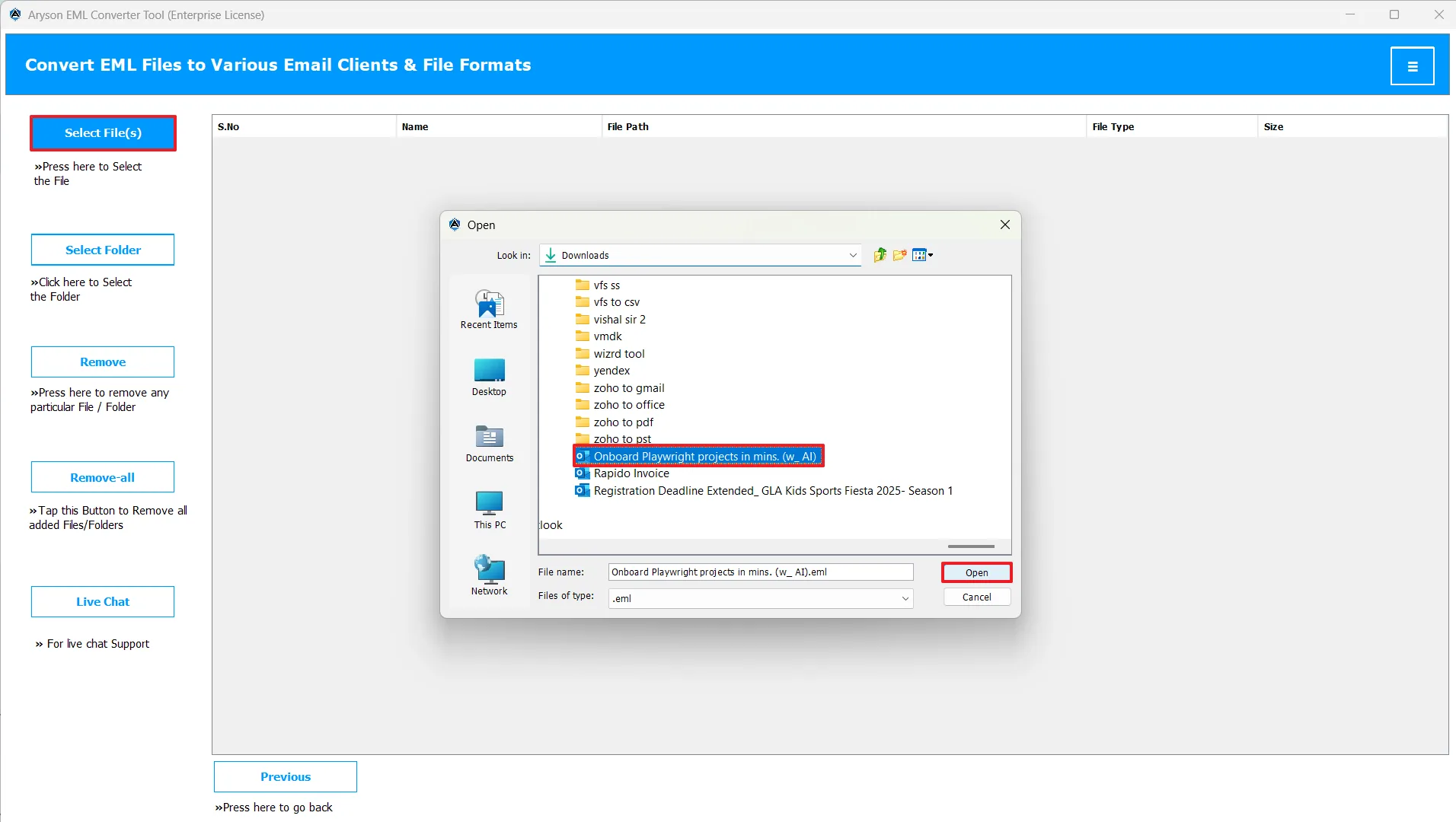
- After that, choose the required EML files >> preview in the right panel>> click Next.
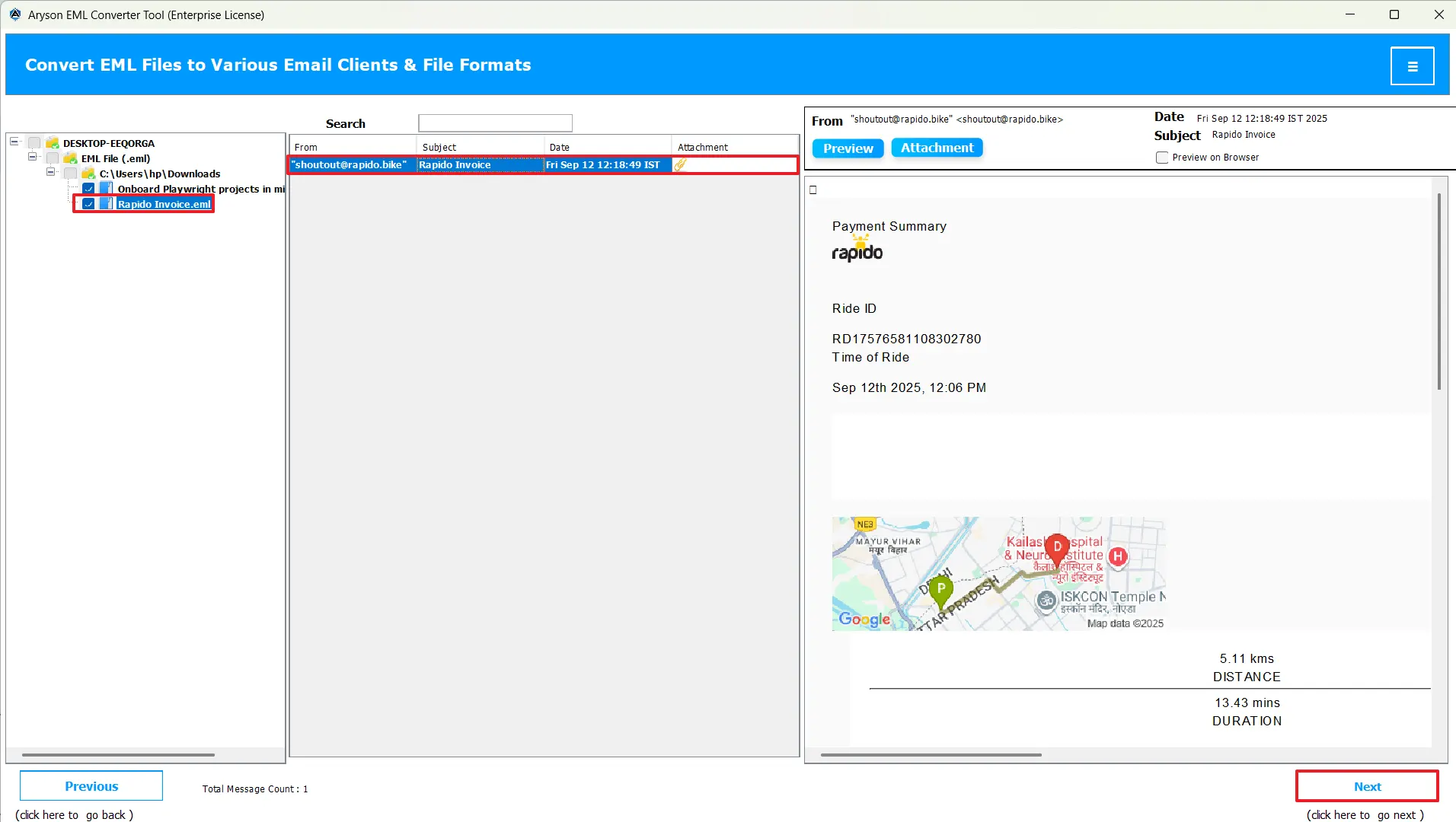
- Next, choose CSV as the resultant file type.

- Apply the built-in filters as per your requirements.
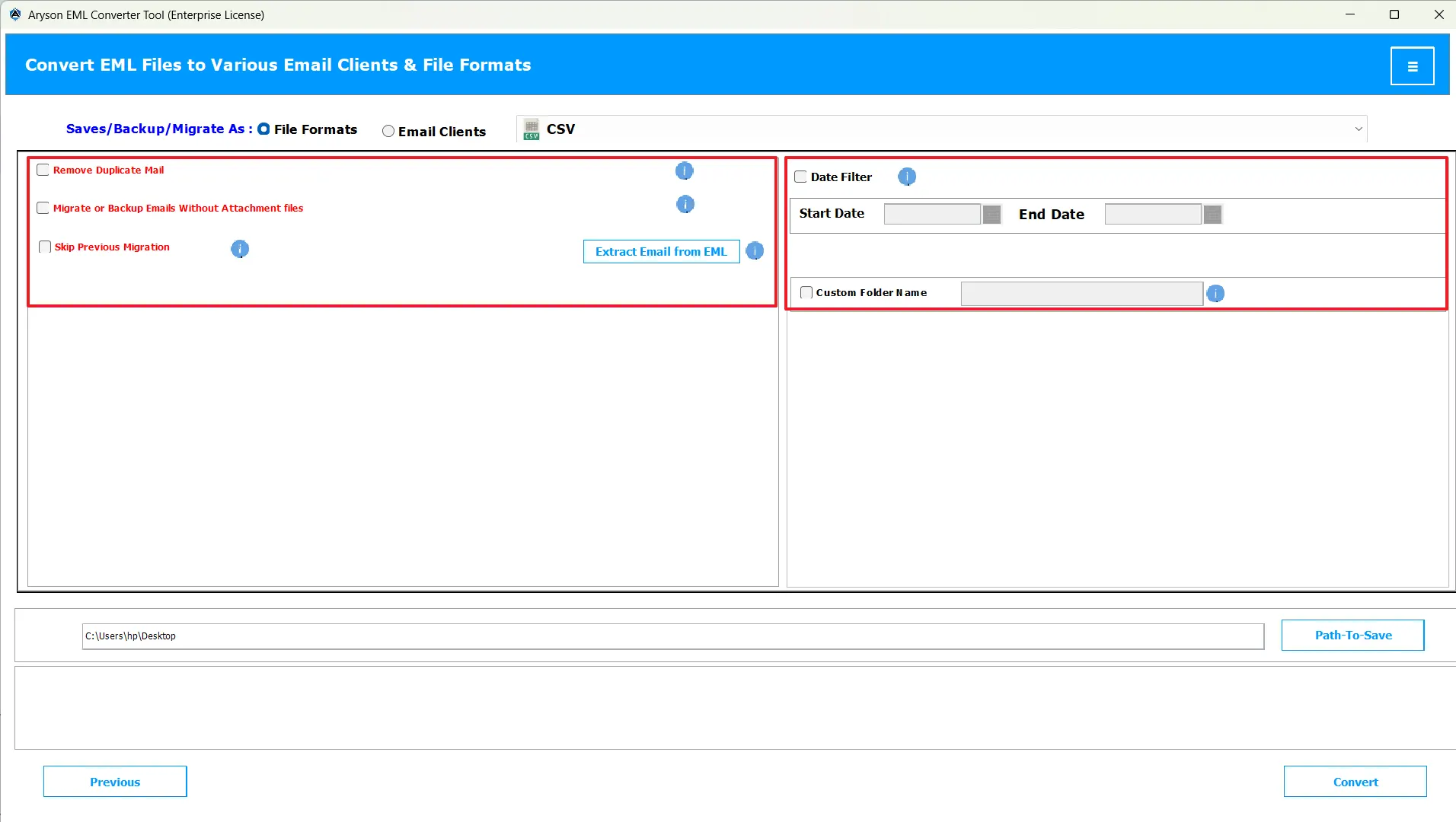
- Finally, hit provide the destination path for your resultant files & hit Convert.
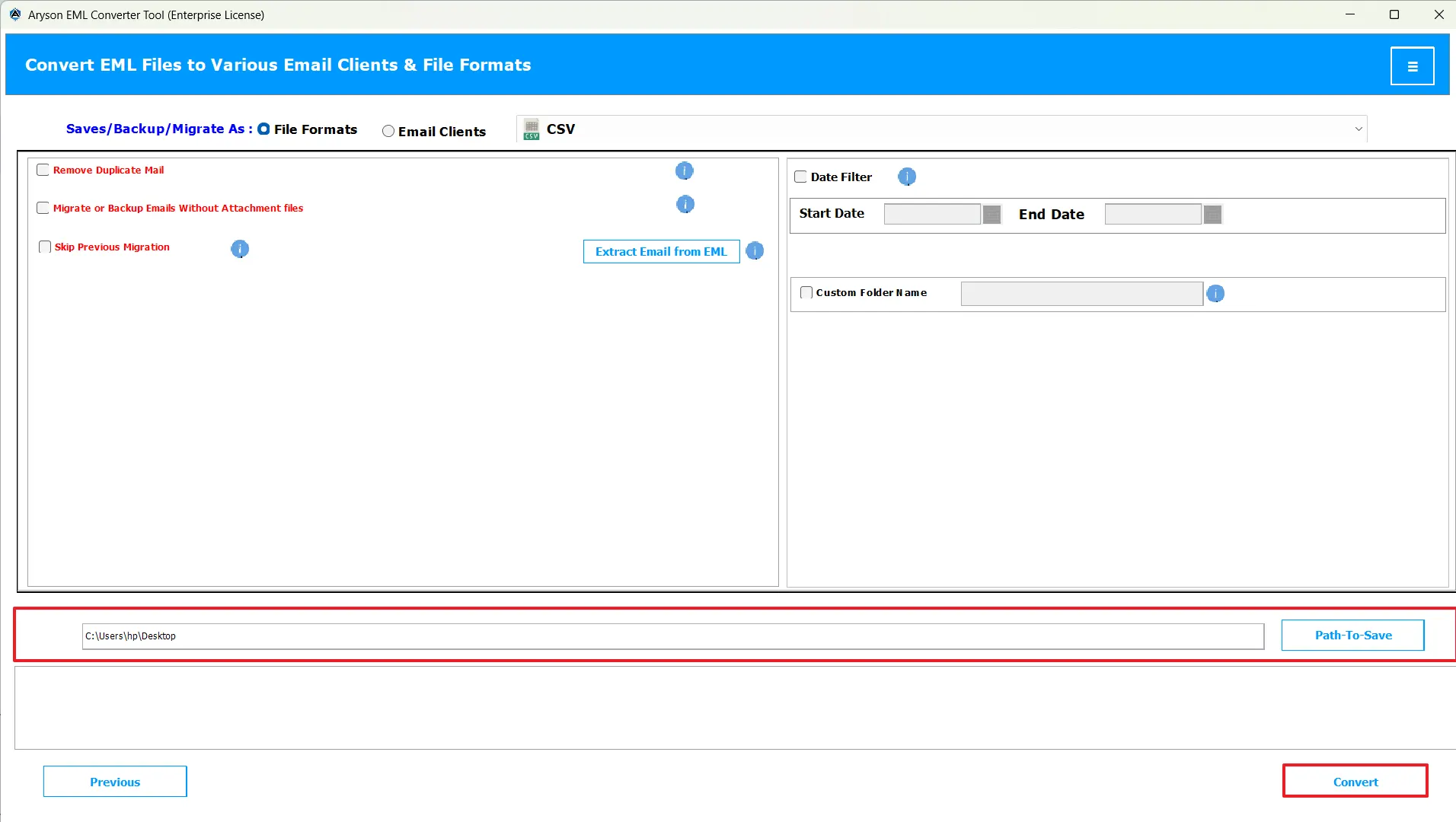
Additional Note: Following the above steps properly, this software will convert your EML files to the CSV format quickly. However, if you acquire some technical knowledge and can invest enough time to perform the conversion. You can proceed with the manual approach.
Technique 2: Manually Convert EML to CSV
This conversion technique works only if MS Word is installed on your system. Without it, you can’t use this method. Additionally, the process takes two different stages to complete. It uses the DOC format as the intermediary file format. Therefore, the user must have some hands-on experience with the MS-Word application. Follow the steps below to perform an error-free EML to CSV Conversion.
Stage 1: Convert EML to DOC
- Browse and find your EML file and right-click on it.
- After that, open it using MS Word.
- Now, go to File >> click Save As.
- And, choose DOC as the output format.
- Next, click Save to save your EML file to DOC format.
Stage 2: Convert DOC to CSV
- Now, locate the newly saved DOC file on your system.
- Then, open it in Microsoft Excel.
- And, navigate to File option >> Save As.
- Now, choose the CSV as the resultant file type.
- At last, click the Save option to complete the conversion.
Conclusion
In short, the CSV format provides better email organization, management, and analysis, as compared to EML files. Therefore, users choose to convert EML to CSV. For that, some of the users prefer to simply save their EML files in CSV format using MS Word. A the same time, many organizations and large-scale businesses choose the automated software for the same. Even after you choose a suitable method for you, following the right steps is must for a successful conversion. That is why the automated software above provides a free demo to provide users a hands-on experience of the actual conversion process.
Frequently Asked Questions:
Q.1 How can I save EML contacts in CSV format?
Ans. Yes, using the MSOutlookHelp EML Converter, you can save EML Contacts in CSV.
Q.2 Can I export email addresses from an EML file into CSV?
Ans. Yes, you can export email addresses from an EML file into CSV, with the help of the automated software.
Q.3 Will the formatting of my email body stay intact after conversion?
Ans. Yes, the formatting of your email body will stay intact after conversion, if you are using the MSOutlookHelp EML Converter.
Q.4 Can I export Thunderbird EML files to CSV?
Ans. Yes, using the MSOutlookHelp EML Converter, you can export Thunderbird EML files to CSV.
Q.5 How do I convert EML to CSV manually?
Ans. You can convert EML to CSV manually using MS Word by first saving your EML files to DOC format >> opening it in MS Excel >> saving in CSV format.
About The Author:

Evren Cole is an expert in Email and Data Management. She has a strong passion for technology and entrepreneurship. In her free time, she enjoys football, music, and reading books.

