

-
Written By Evren Cole
-
Updated on March 31st, 2026
How to Export IMAP Emails to MSG? Exact Steps Explained
Summary: Exporting IMAP emails to MSG format becomes essential when users want to access their IMAP email offline. As IMAP messages are stored on a mail server across devices, which means there’s no direct option to save them as individual MSG files. This guide breaks the whole thing down, covers both the manual approach and the professional IMAP Backup Tool, and keeps your data intact throughout. With this guide, users can easily export IMAP emails to MSG and access them anytime.
TL;DR: IMAP accounts keep emails on the mail server, so there’s no built-in way to save them directly as MSG files. Large organizations either move the emails through Outlook step by step or use a dedicated tool that handles the process more quickly.
Common Reasons to Export IMAP to MSG
Before users begin the export of IMAP emails, it is important to understand why the export is required:
- Users can save important emails as separate files for easy access and storage.
- It offers to share specific messages without sending the entire mailbox.
- Moreover, users can open emails directly in Microsoft Outlook when needed.
- It make sure to keep a local copy of emails for backup purposes.
- MSG is better suited to maintain email records for legal or business documentation.
Top Method to Export IMAP Emails to MSG
Basically, there are several approaches available to complete the process. But here we will discuss the most appropriate method that accomplishes the export process.
- Manual Method
- Enterprise-level Software
Method 01: Manual Method to Convert IMAP Emails to MSG
As you know, there is no direct option to export IMAP emails as MSG files; you can use Microsoft Outlook as an intermediate solution.
Step 01: Configure IMAP Account in Outlook
- To begin the process, you need to open Microsoft Outlook on your system.
- Thereafter, from the menu bar, go to File >> Add Account.
- After that, enter your IMAP email credentials and complete the setup.
- Then, allow Outlook to fully sync all emails and folders.
Step 02: Create a Local Folder (PST Data File)
- Now, click on File >> Account Settings >> Account Settings.
- Afterward, go to the Data Files tab and click Add.
- Likewise, create a new Outlook Data File (PST).
- Thereafter, this folder and emails will be stored locally.
Step 03: Move IMAP Emails to Local Folder
- Next, open your IMAP mailbox in Outlook.
- Now, select the emails you want to convert (Ctrl + A for all).
- After that, drag and drop them into the newly created PST folder.
- At last, you have to wait until all the emails are copied successfully.
Step 04: Export Emails as MSG Files
- Open the PST folder in Outlook and then select the required emails.
- After that, drag and drop them to your desktop or any local folder.
- Now, Outlook will automatically save each email in .msg format.
Step 05: Verify Exported MSG Files
- Now, you have to go to the destination folder.
- Then, open a few MSG files to check email content and attachments.
Disadvantages of the Manual Method When Export IMAP Emails to MSG:
- In the manual method, the process consumes a lot of time for large mailboxes.
- Apart from that, it requires a correct Outlook installation and configuration.
- Moreover, there is no bulk export control or filtering options for selective migration.
- Likewise, this process involves a high risk of missing emails during manual handling.
Because of these limitations, users often opt for professional software that can smoothly save or export their IMAP emails to MSG.
Method 02: Enterprise-level Software to Export IMAP Server Emails to MSG
To overcome the manual method limitations, IMAP Backup Tool is a reliable solution. This software allows users to backup IMAP email to PST and other multiple file formats without data loss. In addition, it supports bulk migration of emails and offers several advanced filters for selective migration.
Step-by-step Process to Save IMAP Emails as Outlook MSG:
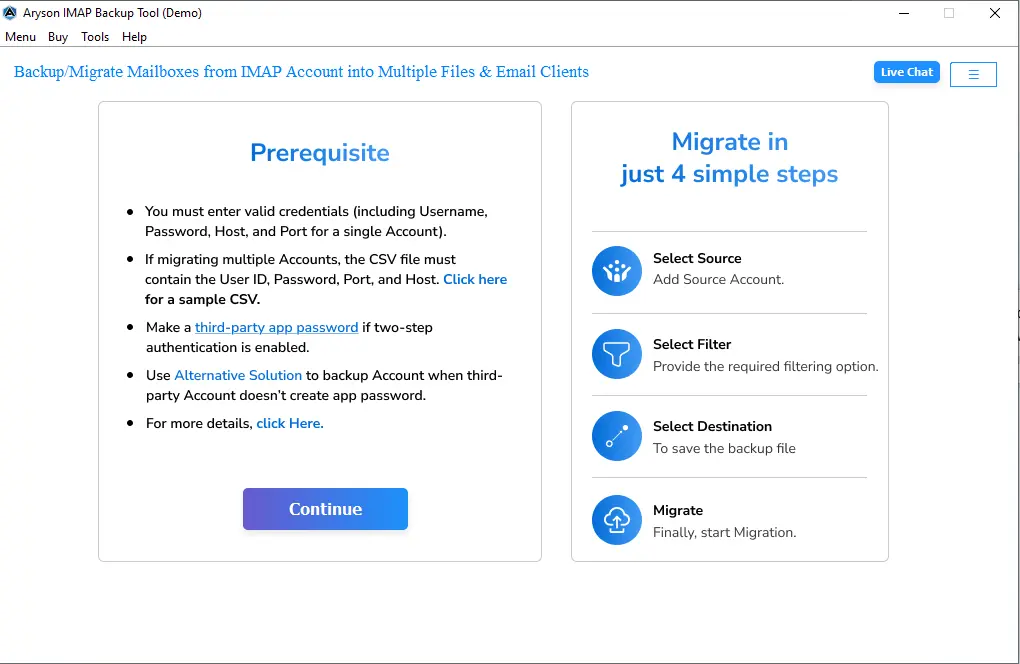
- To start the process, download and launch the IMAP Backup Tool on your system.
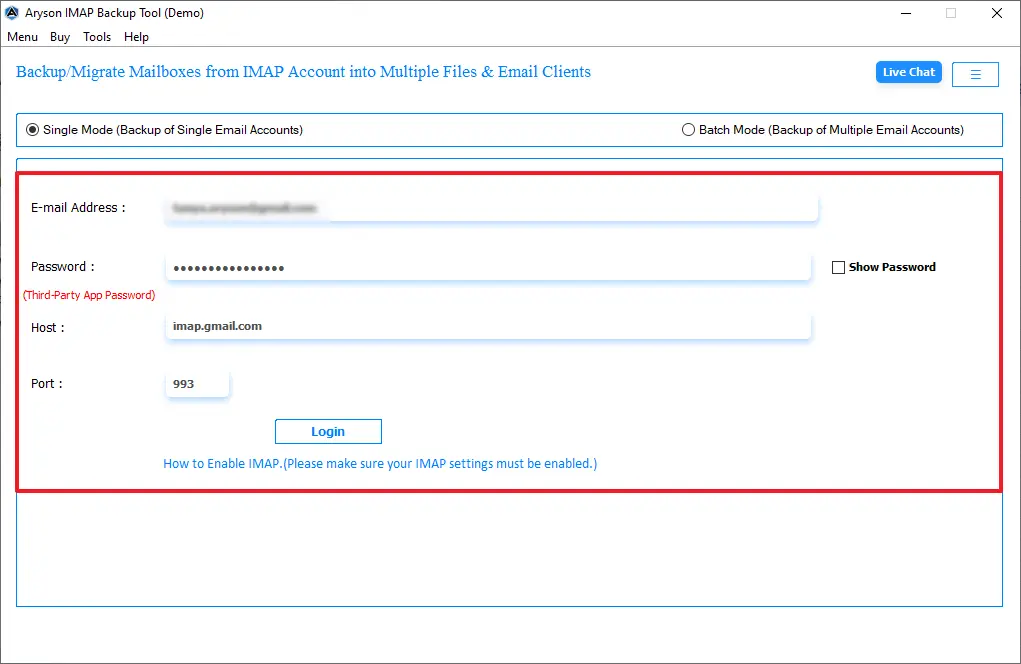
- Thereafter, enter the IMAP login credentials, including the Host and Port number.
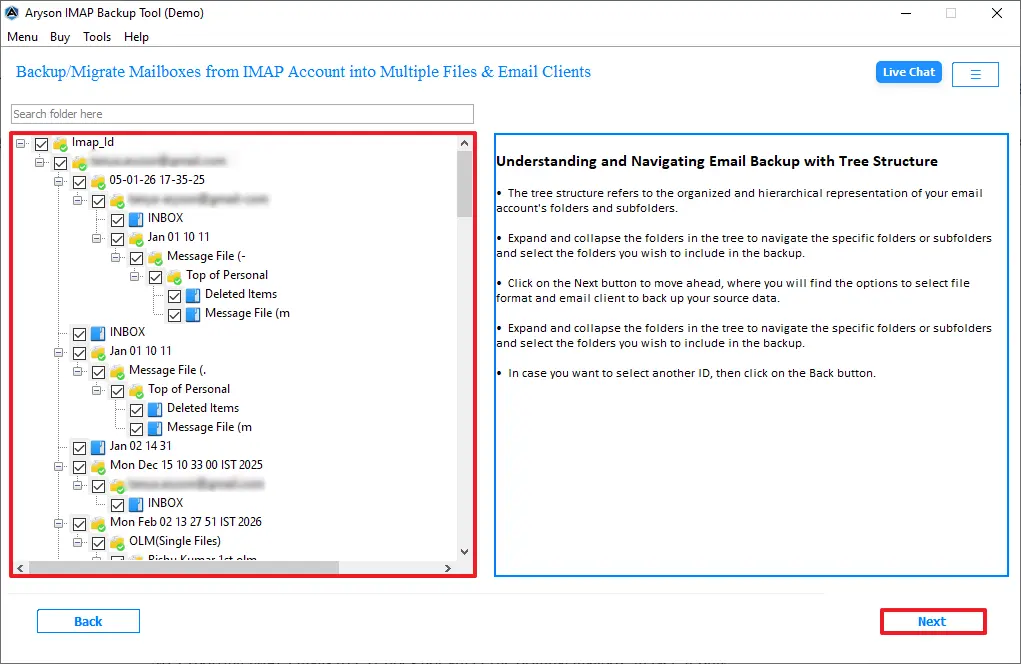
- Afterward, you can preview the mailbox data, >> then click on Next.
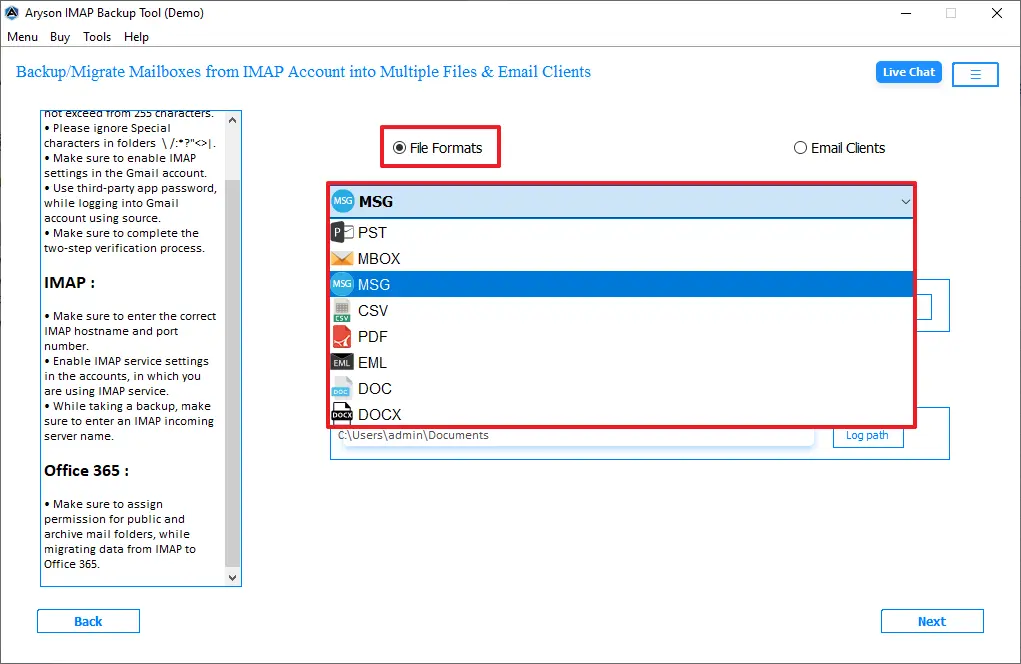
- Next, pick the output as MSG from the given file formats.
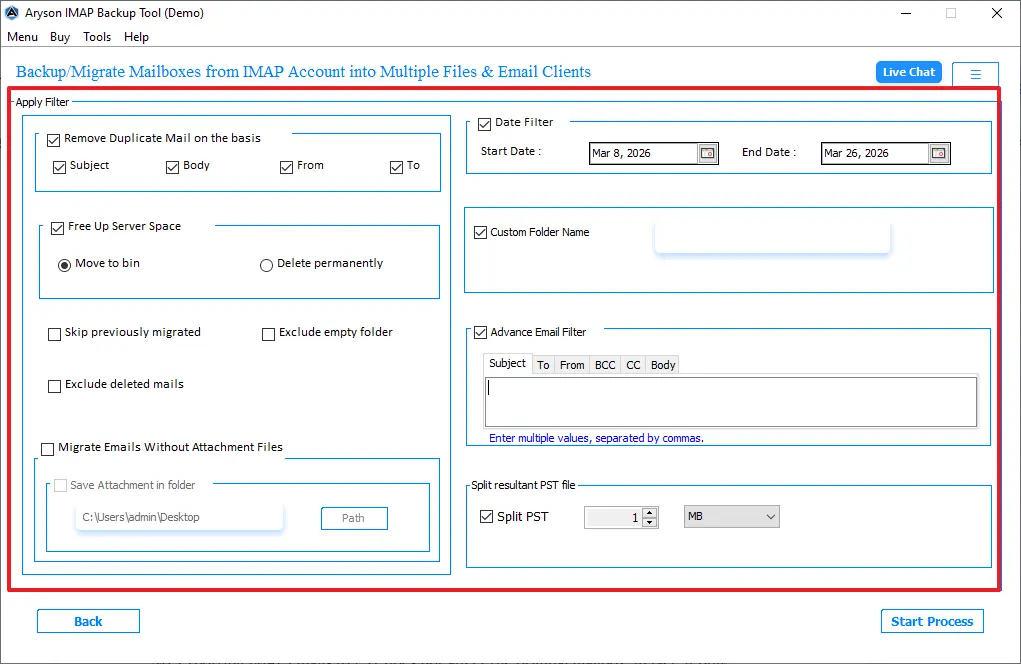
- Likewise, enable the filters based on your requirement for selective migration.
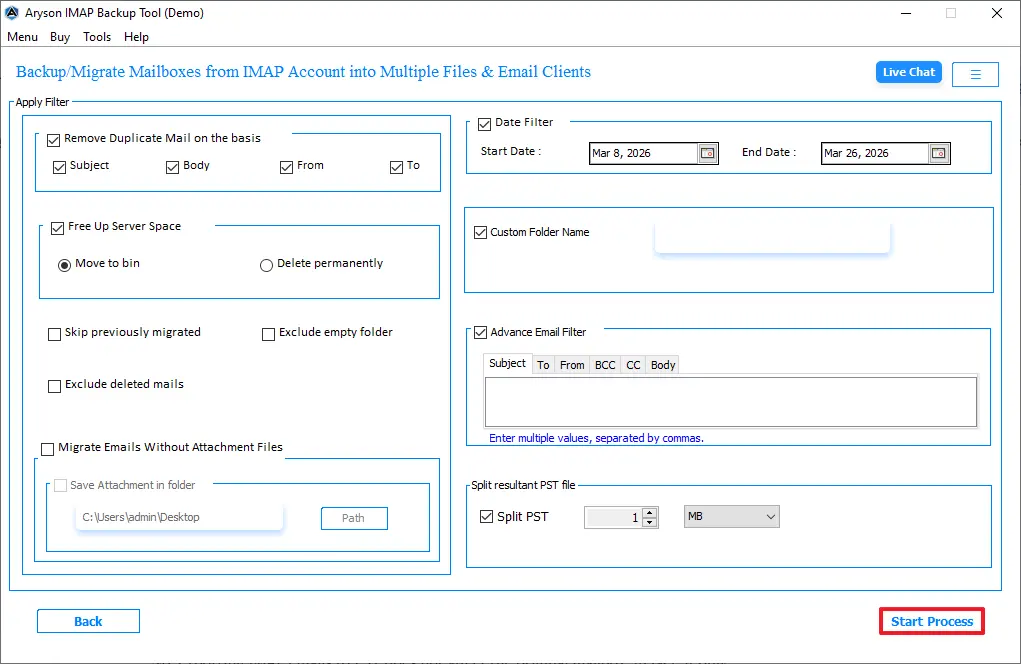
- Finally, click on the Start Process to begin the migration of IMAP to MSG.
Comparison of Manual Method vs Professional Software
|
Features |
Manual Method |
Enterprise-level |
|
Ease of Use |
Requires multiple steps and technical knowledge. |
On the other hand, it comes with a simple interface. |
|
Time consumption |
It consumes a lot of time, especially for large mailboxes. |
Fast and efficient. |
|
Dependency |
Requires Microsoft Outlook installation and configuration. |
No dependency on Outlook. |
|
Bulk Conversion |
Limited, manual selection required. |
Unlike the manual method, it doesn’t depend on Outlook. |
|
Data Accuracy |
Risk of emails missing. |
Also, it provides high accuracy with complete data transfer. |
|
Filter Option |
No advanced filter available. |
It offers advanced filters for selective exposure. |
Conclusion
To wrap up, exporting your IMAP emails to MSG may look difficult, as there is no direct method available. However, wth the right approach, you can complete the process without any errors. In this guide, we covered the two best methods to accomplish the exportation of IMAP emails. Moreover, you can choose any of them based on your requirement and make sure your emails are transferred accurately. In such a manner, you can export IMAP Emails to MSG format and access them whenever needed without any hassle.
Frequently Asked Questions:
Q.1 Can IMAP emails be saved as MSG files?
Ans. Yes, IMAP emails can be saved as MSG files using Outlook or a professional method. This allows you to store emails individually in a widely supported format.
Q.2 How to backup IMAP emails to MSG without Outlook?
Ans. You can use an IMAP backup tool that supports MSG export. This software connects to your account and saves emails without needing Outlook.
Q.3 How do I export IMAP emails to MSG in Outlook?
Ans. Open your IMAP account in Outlook and drag emails to a local folder. Then, save or export them as MSG files from the Outlook interface.
Q.4 What is the best method to convert IMAP emails to MSG?
Ans. Using a MSOutlookHelp IMAP Backup Tool is the easiest and most reliable option. It makes sure accurate conversion with minimal effort and time.
Q.5 Can I backup IMAP emails to MSG with metadata intact?
Ans. Yes, advanced tools preserve email details like sender, date, and attachments. It helps to keep the original structure and information unchanged.
Q.6 Can I save IMAP emails to MSG in bulk without duplication?
Ans. Yes, this software supports bulk export with options to skip duplicate emails. This helps to save time and avoids creating repeated files.
Q.7 Can I export IMAP emails to MSG on Mac systems?
Ans. Yes, the IMAP Backup Tool is also available for Mac. It allows you to export IMAP emails to MSG format without issues.
About The Author:

Evren Cole is an expert in Email and Data Management. She has a strong passion for technology and entrepreneurship. In her free time, she enjoys football, music, and reading books.

