

-
Written By Evren Cole
-
Updated on March 28th, 2026
How to Backup IMAP Email to PST – Easy Methods & Tool
Summary: IMAP emails are essential when users want offline access or need to migrate data. Over time, users often look for a backup IMAP email to PST to make sure data safety and accessibility in Outlook. Moreover, creating a PST file helps to reduce dependency on the server and protect against accidental data loss. Therefore, this article explains both the free manual method and the enterprise-level IMAP Backup Tool to export IMAP email to PST easily.
About IMAP & Why Backup to PST
IMAP is an Internet Message Access Protocol that is used to store emails on the server. However, this means your data depends on the server’s availability.
On the other hand, PST is a Personal Storage Table, a file format used by Microsoft Outlook to store emails locally.
Common Reasons to Export IMAP Email to PST
In many cases, users need to convert IMAP mailboxes into PST due to:
- The PST file acts as a secure backup and protects emails from accidental deletion.
- IMAP has limited storage, and exporting to PST reduces the mailbox size and performance.
- Moreover, organizations need to store emails locally in PST for legal evidence.
- Export to PST allows users to access files without an internet connection.
Manual Method to Backup IMAP Email to PST – Free
This is a free way to export your IMAP files using Microsoft Outlook. Now, follow the steps to save IMAP Mailbox Data to Outlook PST.
Step 01: Configure IMAP Account in Outlook
- First, you need to open Outlook on your system.
- Then, from the top menu bar, go to File and then click on Add Account.
- After that, enter IMAP login credentials, such as the host and port number.
Step 02: Sync IMAP Emails
- Now, you have to allow Outlook to sync all mailbox folders.
- Meanwhile, you make sure you have a stable internet connection.
Step 03: Export IMAP Emails to PST
- Next, you can go to File >> Open & Export >> Import/Export.
- Afterward, choose Export to a file and select Outlook Data File (.pst).
- Thereafter, you can select IMAP folders.
- Finally, you can save the PST file to your system.
Drawback of Manual Method:
This is a free method, but it has some limitations, which consist of:
- Outlook must be installed on your system.
- It cannot export multiple IMAP accounts at once.
- Moreover, there is a risk of incomplete sync.
- Additionally, this is a time-consuming method for large mailboxes.
- Most importantly, it doesn’t offer an advanced filter option.
Enterprise-Level Software to Backup IMAP Email to PST
To overcome these limitations, you can use a professional IMAP Backup Tool. This software allows users to export their IMAP emails to PST without data loss. Additionally, it supports bulk migration of emails and offers several advanced filters for selective migration. Sometimes, users face an IMAP connectivity issue at the time of backup. You need to fix such issues before beginning the backup, then go through our detailed guide on Fix Imap.gmail.com is not working.
Key Features of Professional Software:
- It offers bulk IMAP to PST migration.
- This software provides date filters and a custom folder name for selective migration.
- Moreover, it makes sure to maintain the folder hierarchy after the migration.
- Also, your data is safe during and after the migration process.
- Furthermore, this software supports all versions, including Windows 11.
Easy Way to Export IMAP Emails to PST:
- First, you need to download and install the IMAP Backup Tool on your system.
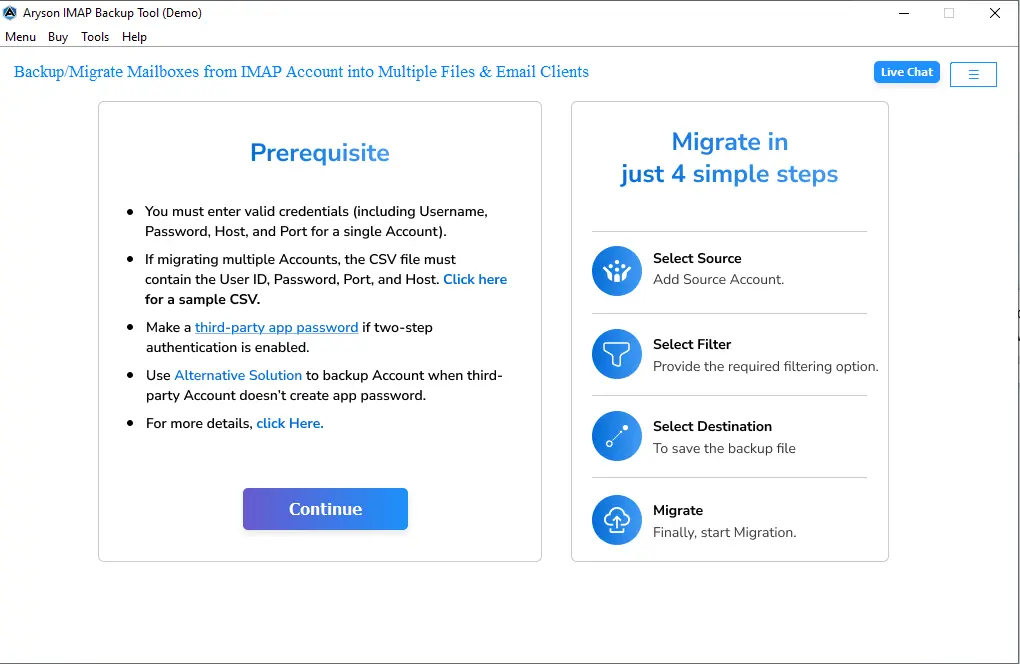
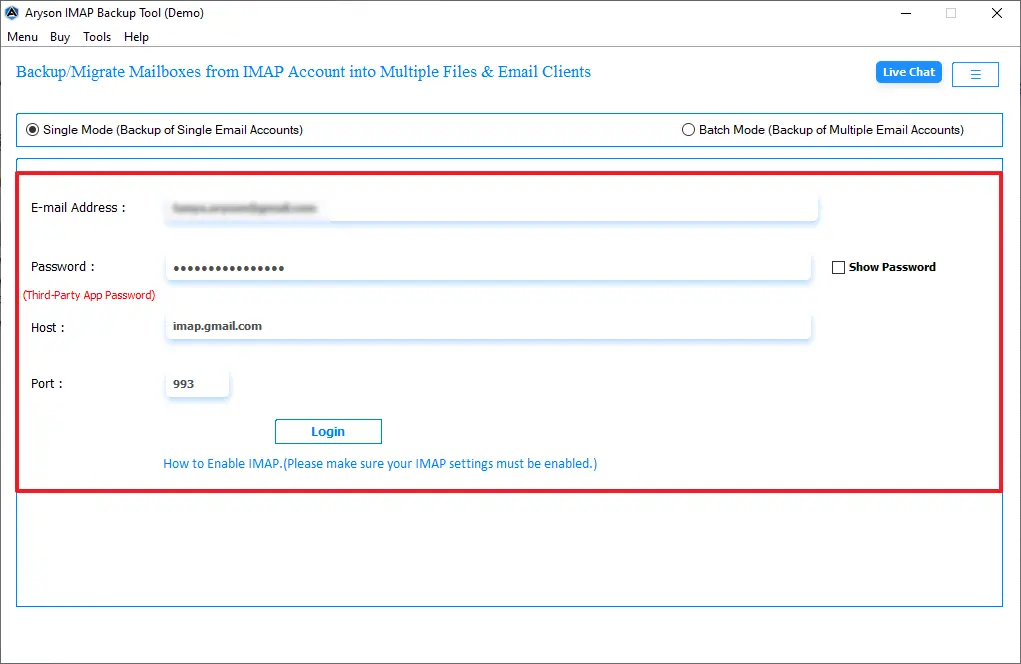
- Then, enter the IMAP login credentials with the Host and Port number.
- After that, you can preview the mailbox data and then click on Next.

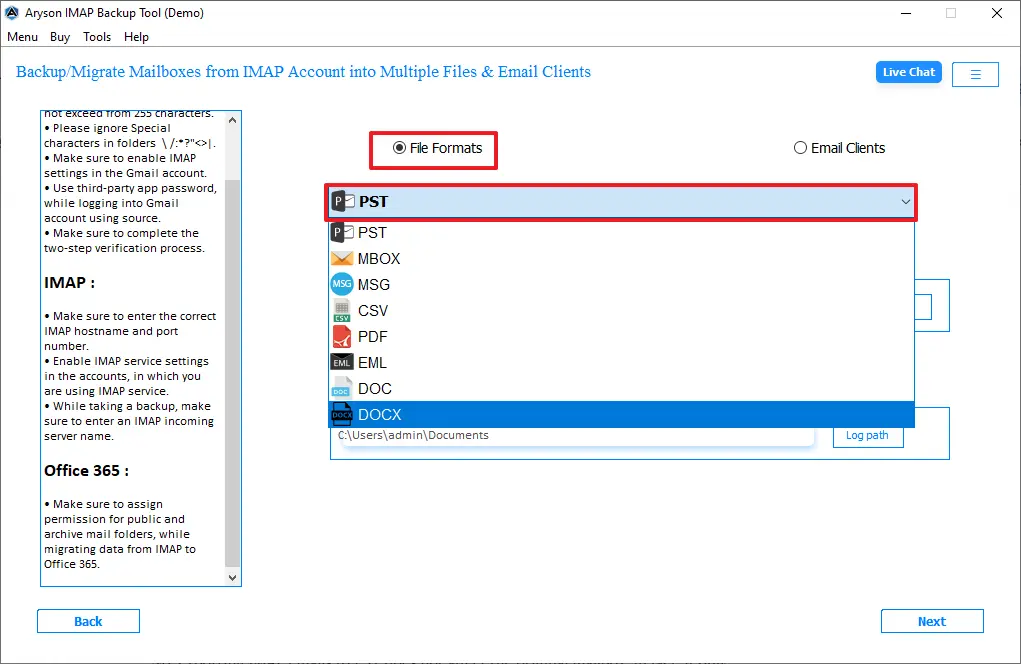
- Thereafter, choose the output as PST from the given file formats.
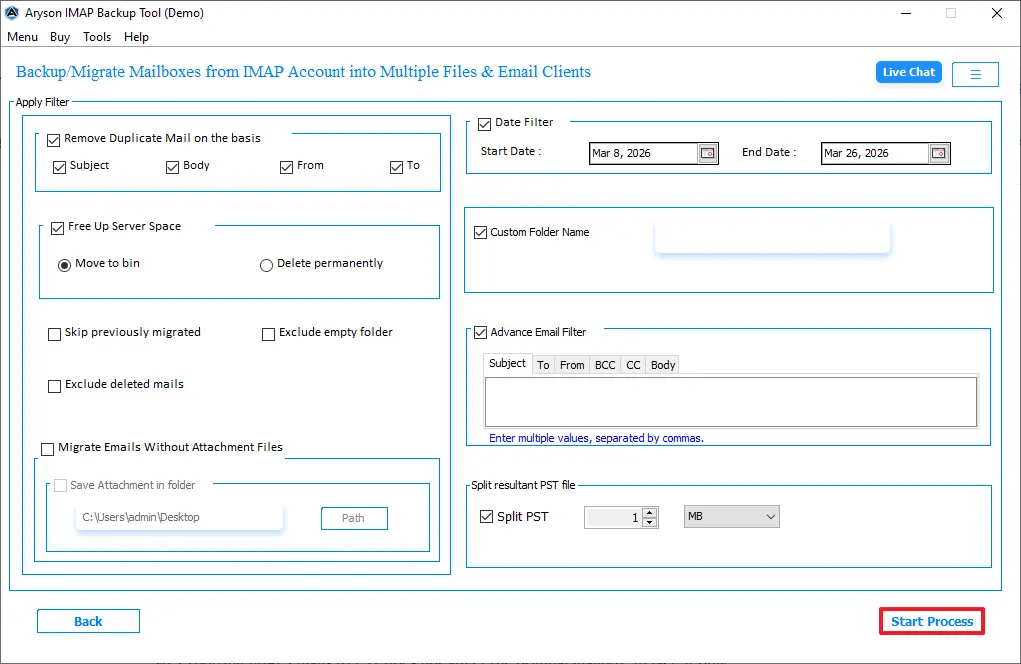
- Now, enable the filters based on your requirement for selective migration.
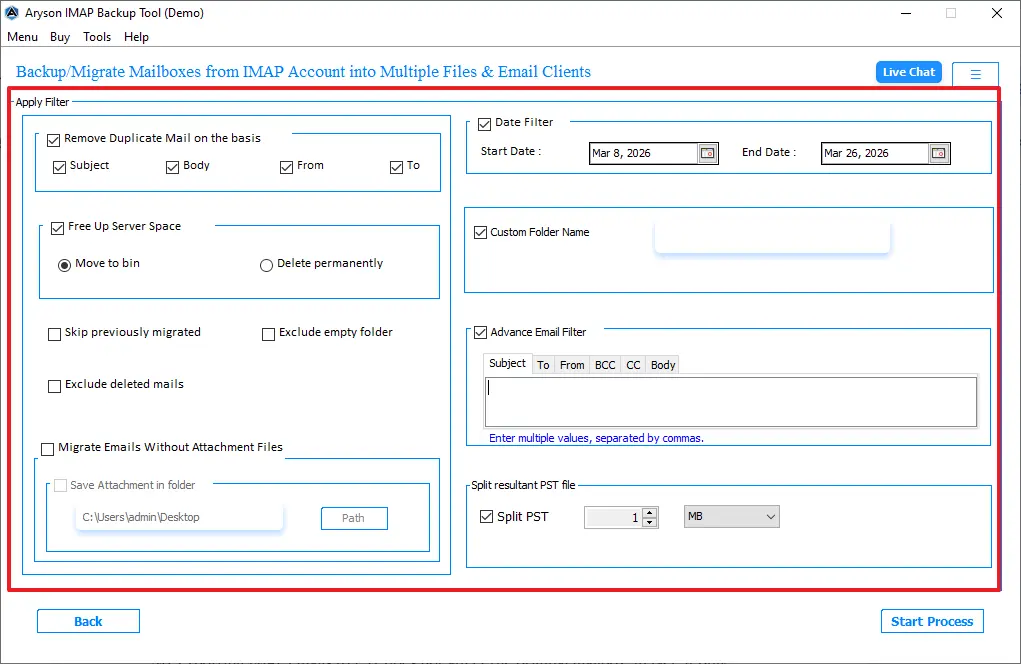
- At last, click on the Start Process to begin the migration of IMAP to PST.
How to Open a PST File After a Backup?
- First, you have to open Outlook.
- Thereafter, navigate to File >> Open & Export.
- After that, select Open Outlook Data File.
- Finally, browse and open your PST file.
Pro Tips for IMAP to PST Migration
- You must always verify backup data after export.
- Use filters to avoid unnecessary data migration.
- Make sure to keep the PST files under the recommended size limits.
- Moreover, always take a backup of your important data for future use.
- Additionally, for safety, you need to store backups on external drives/cloud.
Best Practice to Backup IMAP Email to PST
- Users need to have stable internet connectivity.
- You need to make sure that your Outlook is updated.
- At the time of export, do not interrupt the process.
- Moreover, for large mailbox files, use an automated software.
Conclusion
To sum up, backup IMAP email to PST is essential for data security and accessibility. In this blog, we discussed the two methodologies. While the manual method is free, it has many limitations. Therefore, it is recommended to use an automated software for large mailbox files. Ultimately, it is important to choose the right method based on your requirements and data size.
Frequently Asked Questions:
Q.1 Can IMAP emails be exported to a PST file?
Ans. Yes, IMAP emails can be exported to a PST file using email clients like Outlook or specialized migration tools. This helps in creating a local backup of your server-based emails.
Q.2 Can I convert an IMAP mailbox to PST without Outlook?
Ans. Yes, you can use third-party IMAP backup tools to convert mailboxes to PST without Outlook. These tools directly connect to the IMAP server and export data efficiently.
Q.3 Is it possible to backup multiple IMAP accounts to PST using the automated tool?
Ans. Yes, many automated tools support bulk backup of multiple IMAP accounts to PST.
They allow batch processing, saving time and effort.
Q.4 Can I backup IMAP emails to PST on Windows 11?
Ans. Yes, IMAP emails can be backed up to PST on Windows 11 without any issues. Most modern tools and Outlook versions are fully compatible with Windows 11.
Q.5 Does exporting IMAP emails to PST affect the original mailbox?
Ans. No, exporting IMAP emails to PST does not affect the original mailbox data. It only creates a copy of your emails for backup purposes.
Q.6 How do I open a PST file after exporting IMAP emails?
Ans. You can open a PST file using Microsoft Outlook by importing or opening the data file. It will display all emails, folders, and attachments in the Outlook interface.
Q.7 Will exporting IMAP emails to PST reduce mailbox size?
Ans. No, exporting emails to PST does not automatically reduce mailbox size. You need to delete emails from the server after backup to free up space.
About The Author:

Evren Cole is an expert in Email and Data Management. She has a strong passion for technology and entrepreneurship. In her free time, she enjoys football, music, and reading books.

