

-
Written By Evren Cole
-
Updated on March 12th, 2026
How to Migrate Google Workspace Emails to Yahoo Mail
Summary: Email migration has become a common requirement for users who want to switch email platforms. Many users look for a reliable way to migrate Google Workspace emails to Yahoo Mail due to a change in storage policy or platform compatibility. Moreover, Google Workspace is used for professional communication, while Yahoo Mail is used for personal mail management. In this guide, we will explain the most reliable approach to accomplish the migration method, including the Google Workspace Migration Tool, which makes an accurate migration.
Why is it required to migrate G Suite to Yahoo Mail?
There are several situations where users need to move emails from Google Workspace to Yahoo Mail, such as:
- When a user switches from a business email service to a personal email platform.
- It simplifies email management in a single Yahoo Mail account.
- Moreover, Yahoo Mail is a cost-effective email platform that every user can afford.
- Along with that, Yahoo Mail manages backup copies of important communications.
- Furthermore, it helps to archive old business emails in Yahoo Mail.
Best Method to Transfer G Suite emails to Yahoo Mail
Now, we will discuss the most reliable approach that fulfills the transfer of Google Workspace emails to Yahoo Mail.
- Manual Method
- Automated Software
Method 01: Google Workspace to Yahoo Mail Migration Manually
One of the basic approaches is to migrate Google Workspace emails through email client synchronization with IMAP.
Step 01: Enable IMAP in Google Workspace
- First, sign in to your Google Workspace Gmail account >> open Settings.
- Now, go to Forwarding and POP/IMAP and enable IMAP access, and then save the settings.
Step 02: Configure Google Workspace in an Email Client
- Next, open an email client such as Outlook or Thunderbird.
- Then, you can add your Google Workspace account using IMAP settings.
- After that, wait until all mailbox folders synchronize completely.
Step 03: Add your Yahoo Mail Account
- Thereafter, add your Yahoo Mail account to the same email client.
- Subsequently, make sure that IMAP is enabled for the Yahoo account.
Step 04: Move Emails
- Initially, select the required folder or emails in the Google Workspace mailbox.
- Now, you need to drag and drop them into the Yahoo Mail mailbox folders.
- In the end, wait for the synchronization process to complete.
Limitations of the Manual Method:
- It is a time-consuming process for large mailboxes.
- In the manual method, there is a risk of incomplete email transfer.
- Moreover, there is a possible loss of folder hierarchy during the migration
- Additionally, attachments and metadata may not migrate accurately.
Method 02: Migrate Google Workspace Emails to Yahoo Mail With Automated Software
The Google Workspace Migration Tool is one of the most reliable solutions that helps enterprises to transfer G Suite emails to Yahoo Mail. It aims to provide complete data security and integrity via the advanced preview panel. It supports secure migration of emails, attachments, and folder structure with original email content. Unlike the manual method, it directly transfers Google Workspace data to Yahoo Mail. Additionally, if you want to migrate Google Workspace to Outlook.com, you can use this same software.
Key Features of Automated Software:
- Firstly, it supports the transfer of multiple mailboxes in a single process.
- It makes sure all email attributes remain intact after the migration.
- Moreover, users can migrate specific emails to minimise duplication.
- Also, the original mailbox structure remains unchanged after the migration process.
Process to Transfer Google Workspace Email to Yahoo Mail:
- To initiate, download the Google Workspace Migration Tool on your system.
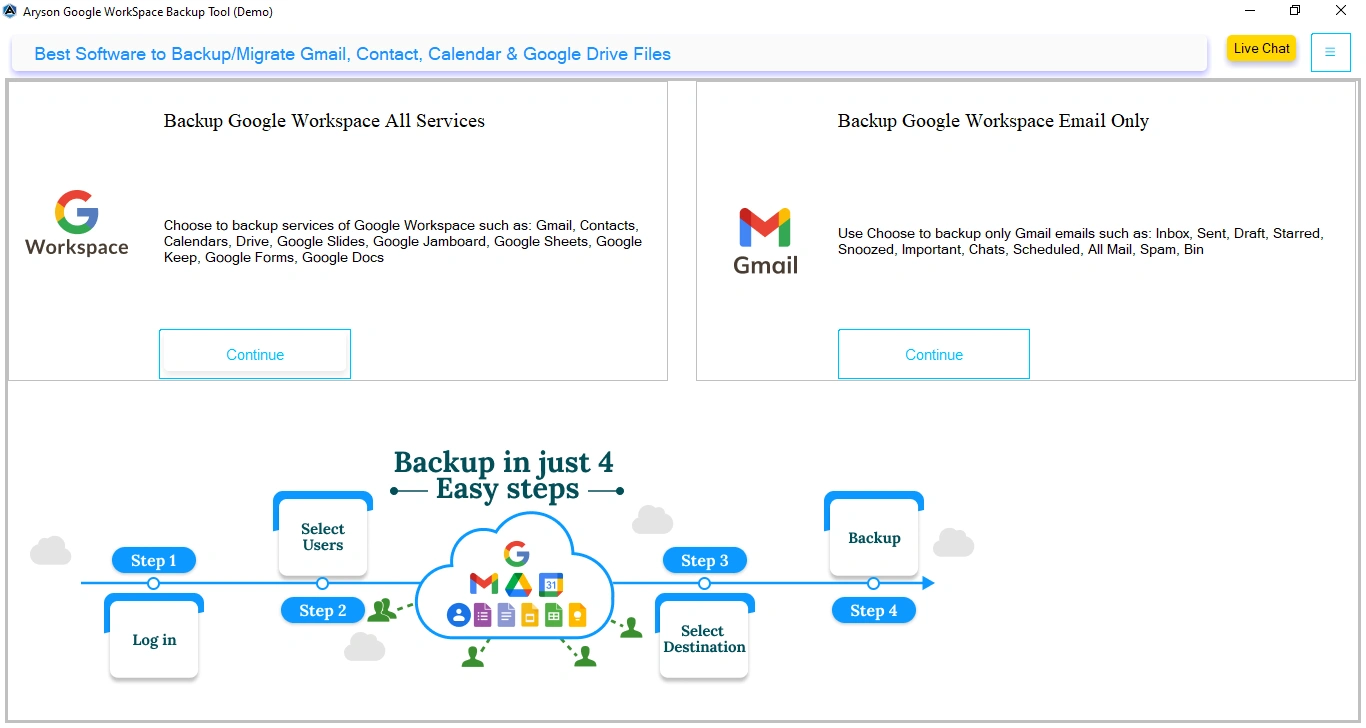
- Likewise, choose Backup Google Workspace All service >> tap on Continue.
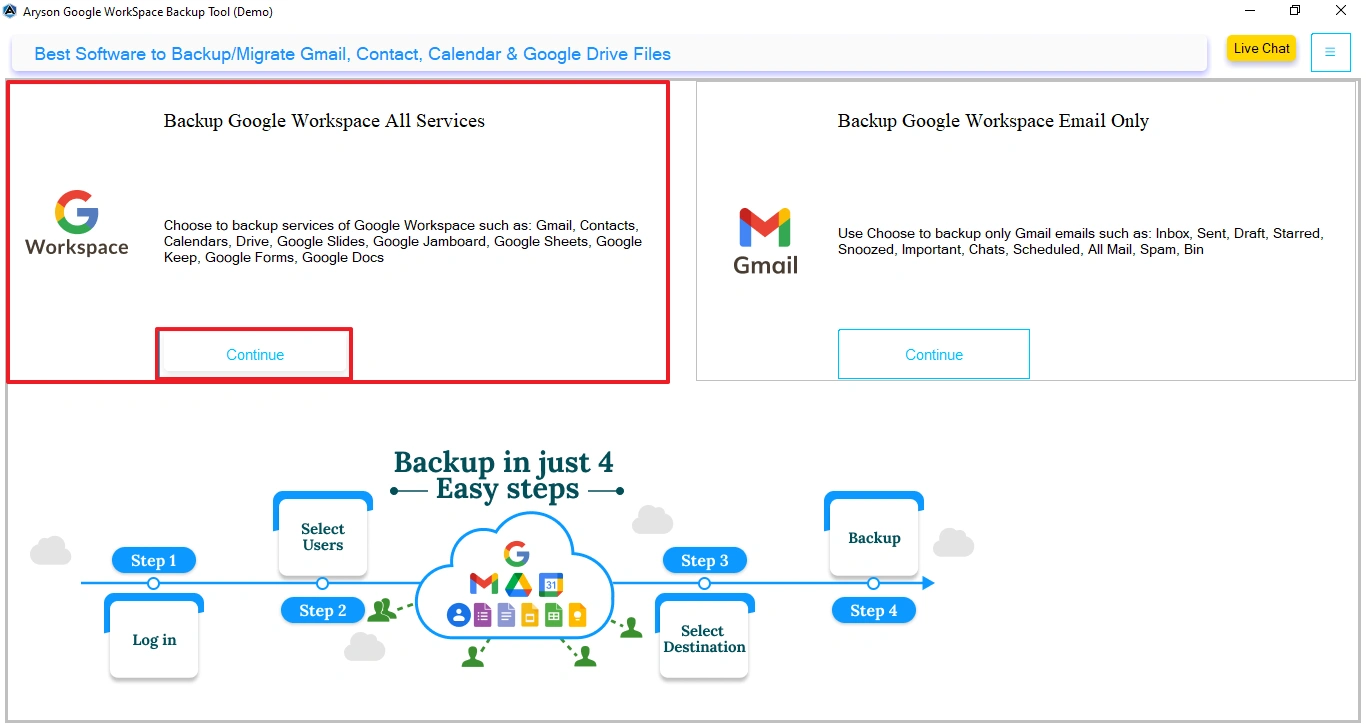
- Thereafter, enter the credentials and click on the login button.
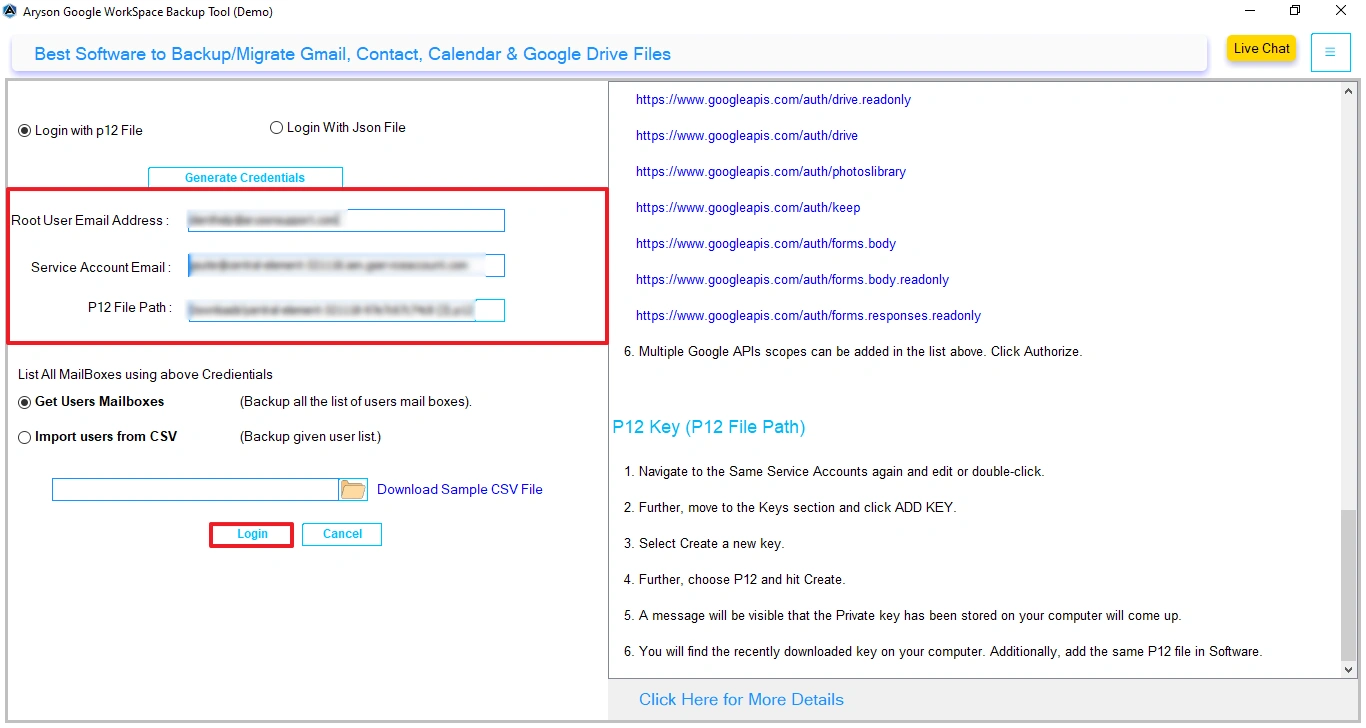
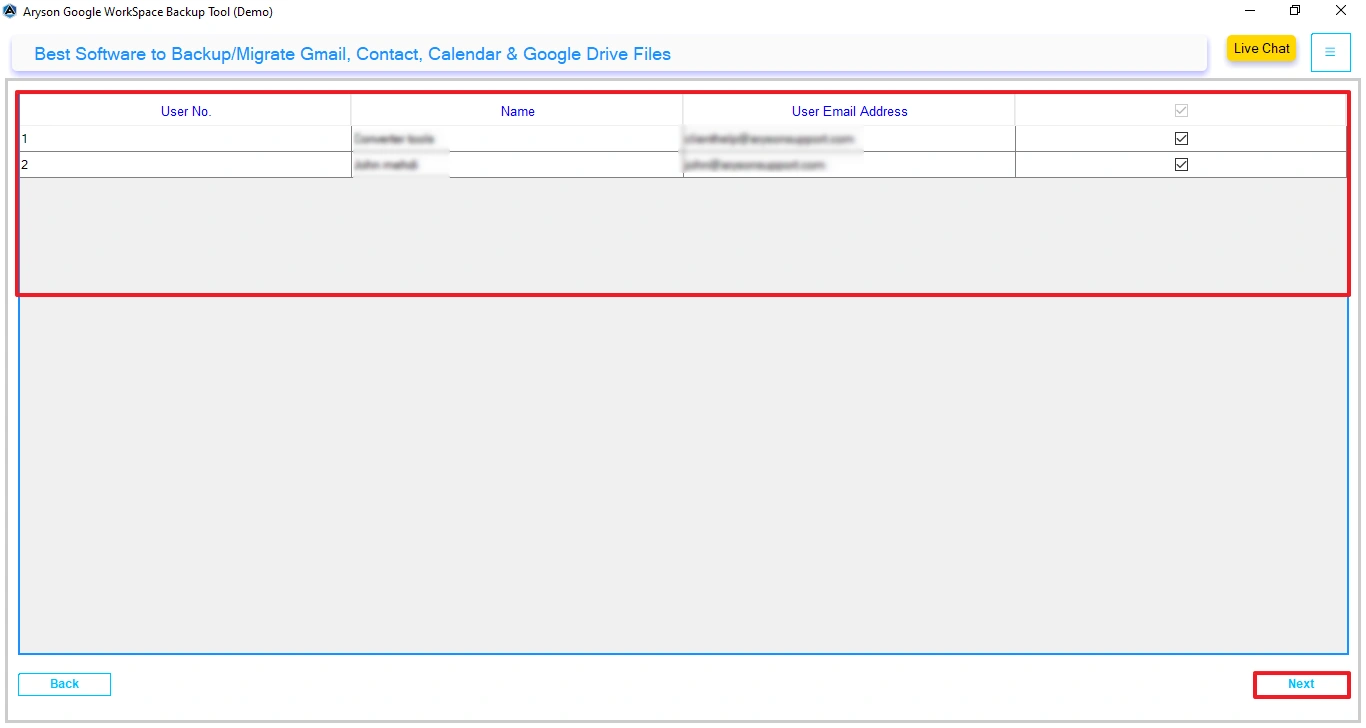
- Then, preview the mailbox and select from whom you want to migrate >> Next.
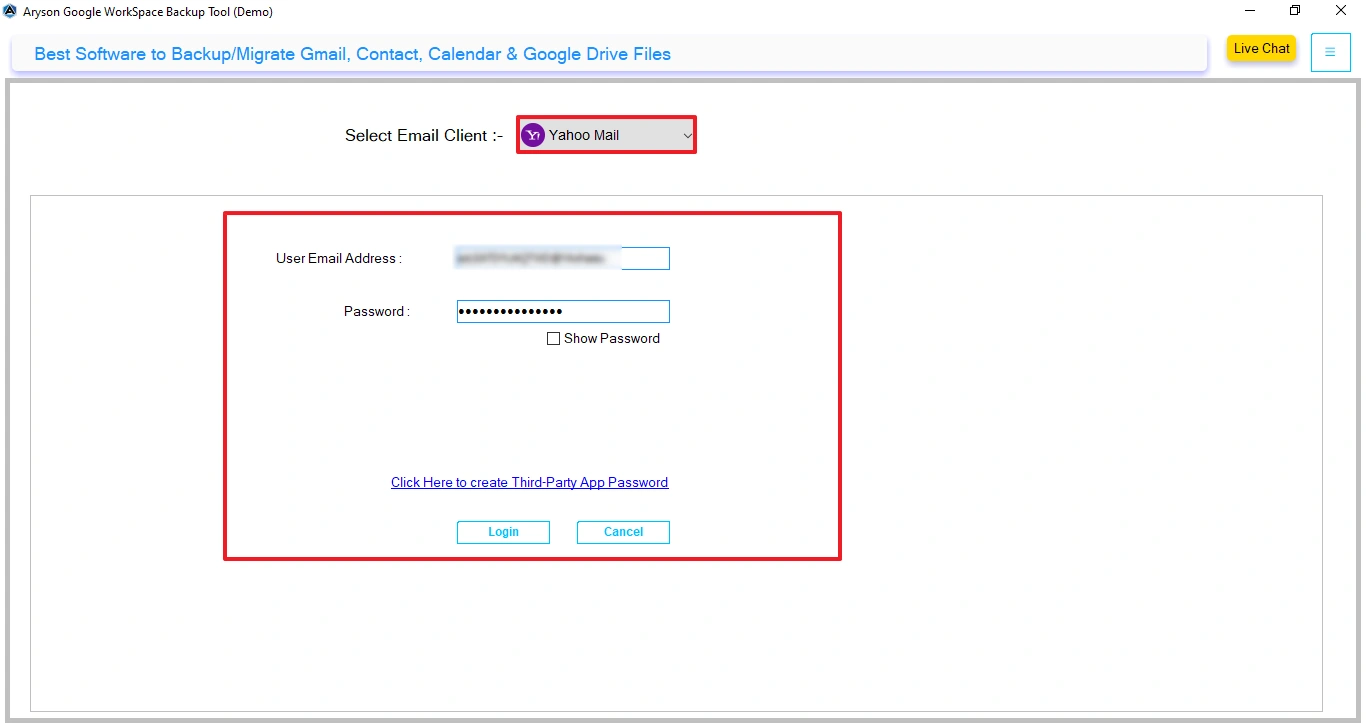
- Now, choose Yahoo Mail as the destination and enter the login credentials.
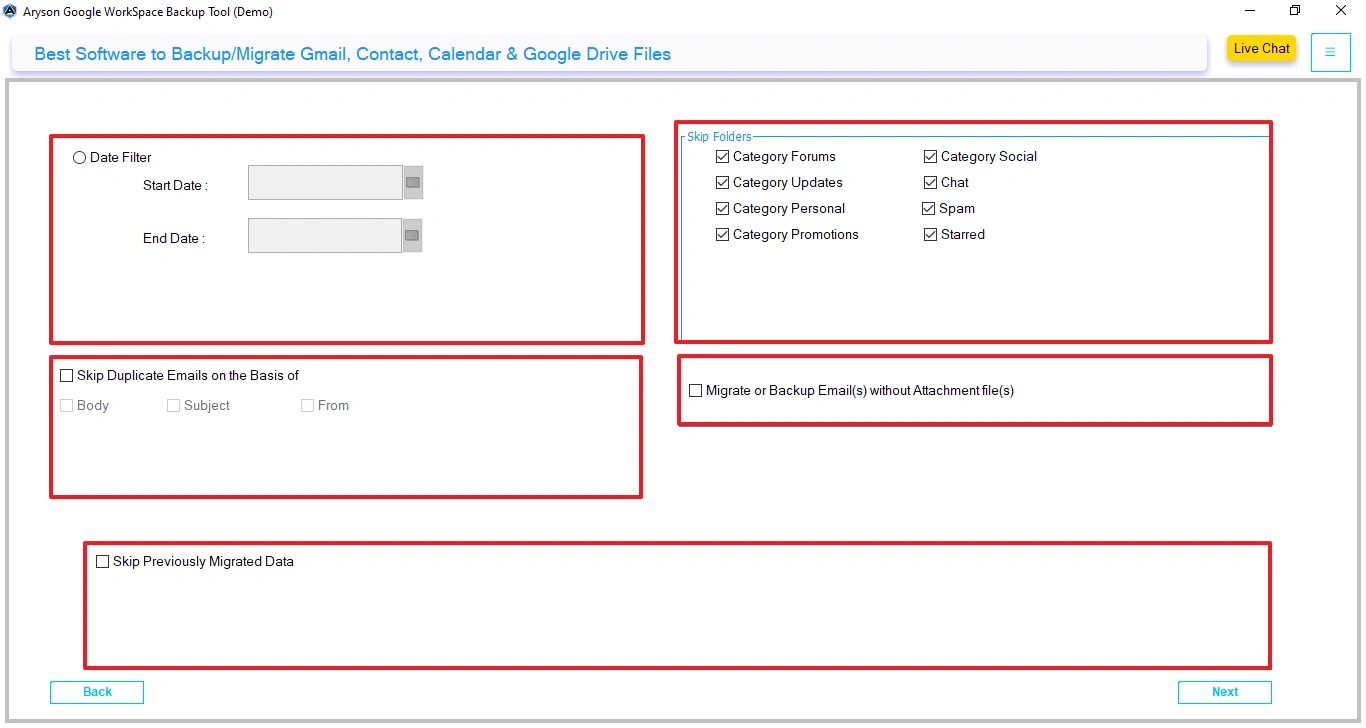
- After that, apply the optional filters and click on Start Migration.
Best Practice for Google Workspace to Yahoo Mail Migration
To make sure a smooth email migration, follow these suggestions:
- Make sure that IMAP access is enabled for both accounts.
- Always create a backup of important Google Workspace emails.
- Moreover, it is important to check the mailbox storage limits before migration.
- Furthermore, you must have a stable internet connection.
Conclusion
In this guide, we discussed the most effective methods to migrate Google Workspace Emails to Yahoo Mail. While the manual method may work for a small data transfer, they are not reliable for large mailboxes. Therefore, it is recommended to use the automated software that makes sure complete data transfer. This approach allows users and organisations to move emails quickly without any data loss.
Frequently Asked Questions:
Q.1 Does migration from Google Workspace to Yahoo Mail transfer contacts and calendars?
Ans. Yes, you can use the Google Workspace Migration Tool that completely transfers all the mailbox items, including contacts and calendars.
Q.2 Can I migrate Google Workspace emails to Yahoo Mail without admin access?
Ans. Yes, if you have the login credentials for a Google Workspace mailbox, you can migrate that specific account without any need for admin permissions.
Q.3 What is the best way to transfer G Suite emails to Yahoo Mail?
Ans. The most efficient method is to use the MSOutlookHelp Google Workspace Migration Tool, which ensures secure and accurate email transfer.
Q.4 Is it safe to delete my Google Workspace account after migration?
Ans. It is recommended to verify that all emails have been successfully migrated and backed up before deleting the original Google Workspace account.
Q.5 Will email timestamps change after migration?
Ans. A Google Workspace Migration tool preserves the original email timestamps, including the sent and received dates.
Q.6 Do I need to disable 2-Step Verification before migration?
Ans. In some cases, you may need to create an app password instead of disabling 2-Step Verification to allow the migration tool to authenticate the account securely.
About The Author:

Evren Cole is an expert in Email and Data Management. She has a strong passion for technology and entrepreneurship. In her free time, she enjoys football, music, and reading books.

