

-
Written By Evren Cole
-
Updated on January 27th, 2026
Migrate Gmail to Hotmail Using Simple Steps
Summary: Nowadays, Gmail and Hotmail are the most popular email service platforms. Gmail offers speed and Google apps, while Hotmail is a powerful Outlook feature and Microsoft connectivity. But most of the users face difficulties when they move from Gmail to Hotmail, as manual migration can result in data loss. In this blog, we will outline secure methods to migrate Gmail to Hotmail, including the MSOutlookHelp Gmail Backup Tool, which is an automated solution for quick migration.
Why Do Most of the Users Import Gmail to Hotmail?
- Users can use it with Microsoft apps like Outlook, OneDrive, and Teams.
- It is a professional email setup, which is preferred for corporate use.
- There are strong security and reliable storage options for important emails.
- Users receive better support for desktop email clients like Outlook.
- Moreover, you can centralize all emails under one platform for convenience.
Different Approaches to Migrate Gmail to Hotmail
Now, you must have understood the common reasons why users switch from Gmail to Hotmail. The next step is to look for the best approaches for migration. We have discussed the two main approaches, which are given below in easy steps.
Solution 01: Manual Approach to Transfer Gmail to Hotmail
For the manual approach, you have to use Microsoft Outlook, and this is a cost-free approach. Now, we will discuss the simple steps to transfer your Gmail emails to Hotmail:
- Open Outlook and add your Gmail account through File > Add Account.
- After that, enter your Gmail credentials to configure it in Outlook.
- Then, go to File >> Open & Export >> Import/Export & select Export to a file.
- Choose Outlook Data File (.pst) & select the Gmail mailbox folders to export.
- After that, pick a destination folder on your computer and click Finish.
- Then, add your Hotmail account in Outlook using File > Add Account.
- Now, enter your Hotmail credentials to set up the account.
- Go to File > Open & Export > Import/Export and select Import from another file.
- Finally, choose the exported PST file, select the target Hotmail folder, and click Finish for Gmail to Hotmail migration.
Drawbacks of the Manual Approach
- It takes a lot of time because multiple steps must be followed carefully.
- Moreover, during the process, there is a higher risk of missing emails.
- Any small mistake can interrupt the process and lead to an incomplete transfer.
- Users require technical knowledge, which makes it difficult for non-technical users.
- Also, large mailboxes may take longer to export and import, which increases the downtime.
Solution 02: Automated Approach to Migrate Gmail to Hotmail
MSOtlookHelp Gmail Backup Tool is a reliable solution that helps the users to migrate their emails from Gmail to Hotmail. It provides fast migration and secure data transfer. Users get an option for selective folder migration and support for attachments. You can safely transfer your emails and folders while applying various filters, such as data range, and it is best for users who want to avoid data loss. Additionally, you can also export Gmail to CSV and many other formats using the same utility.
Steps to Transfer Emails from Gmail to Hotmail:
- To begin, download and open the MSOutlookHelp Gmail Backup Tool.
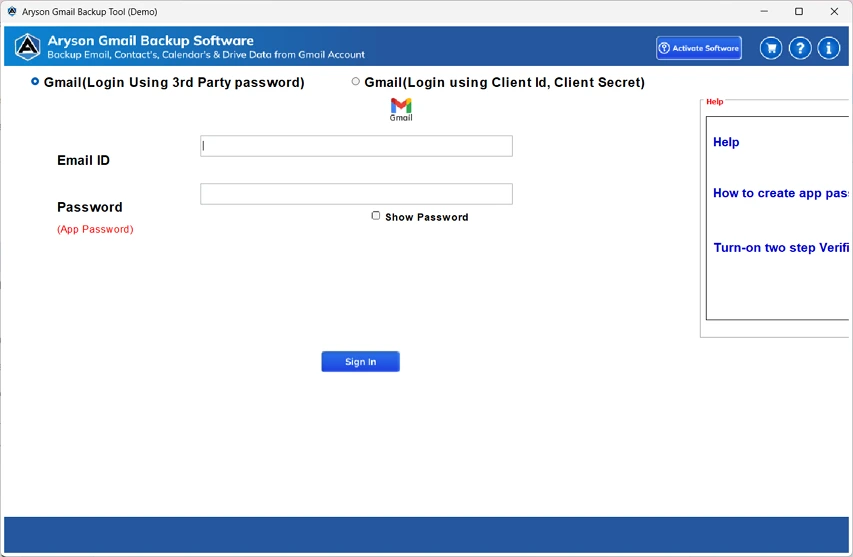
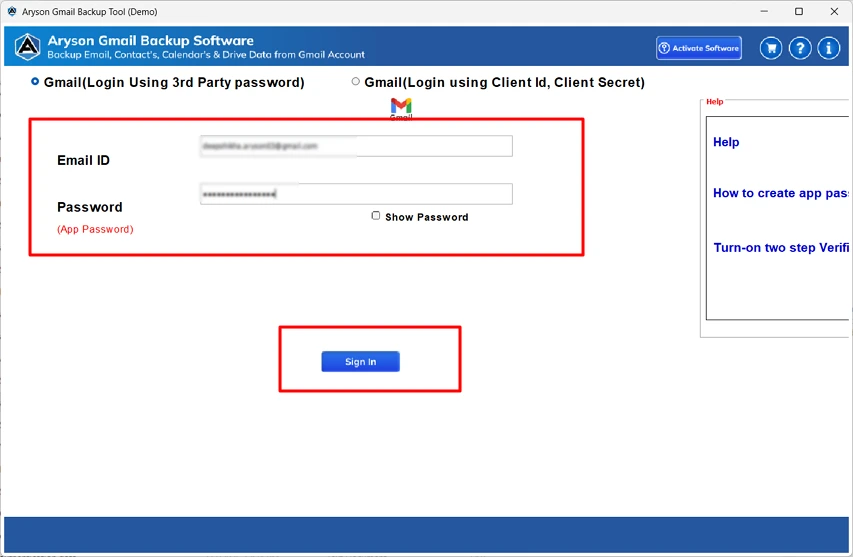
- After that, you have to input your Gmail credentials and click on Sign in.
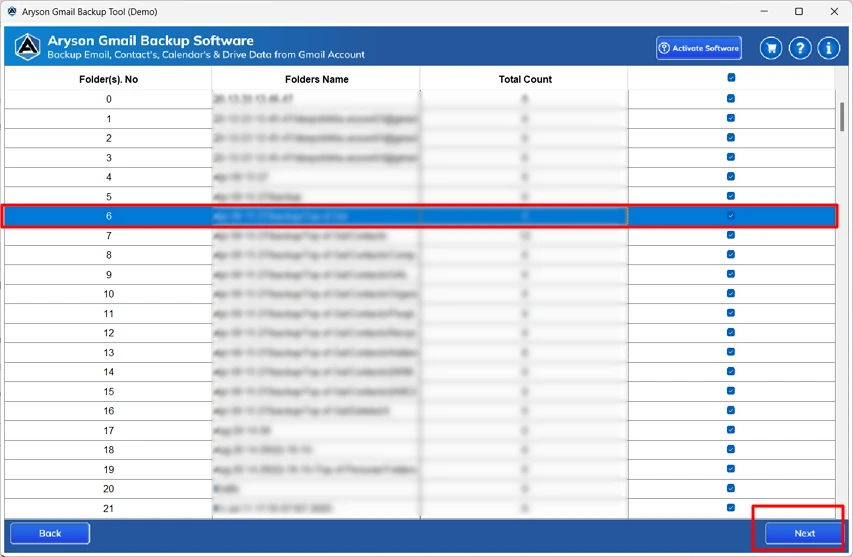
- Then, you need to select the required file/folder to preview >> Next.
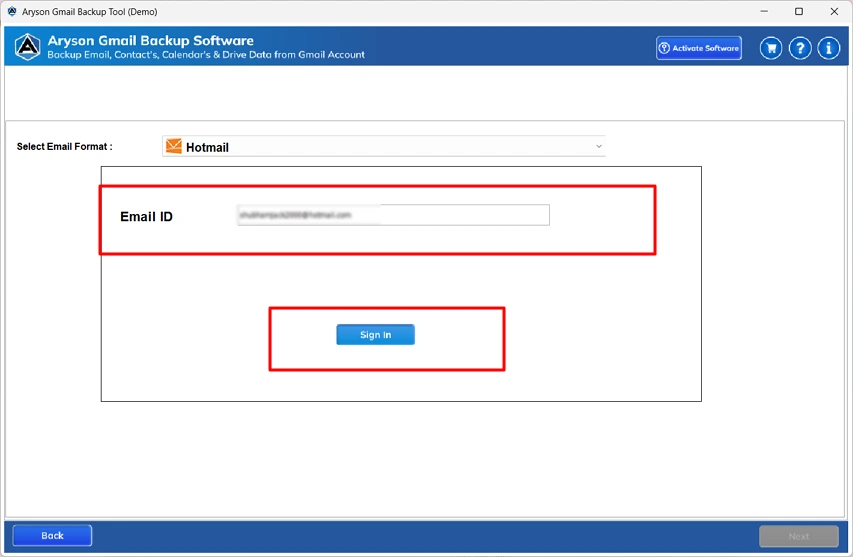
- Now, pick Hotmail as the output destination.
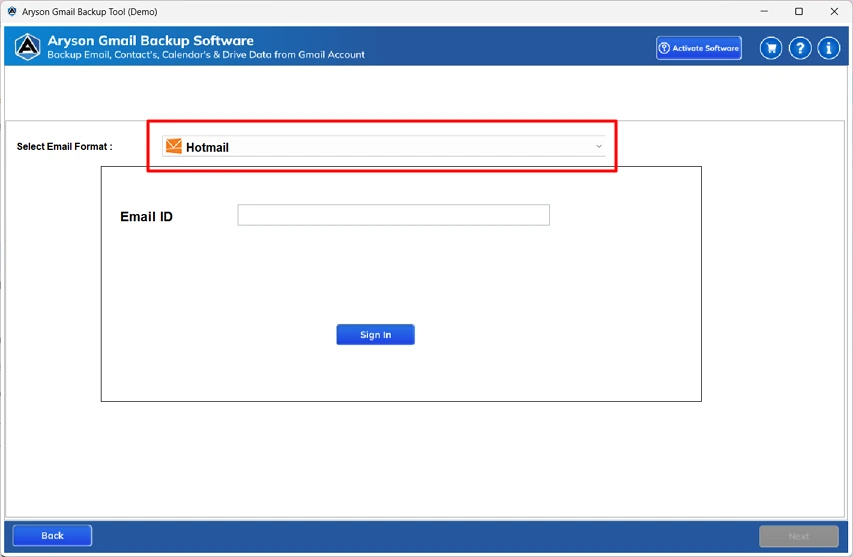
- After this, enter the email address and press Sign in.
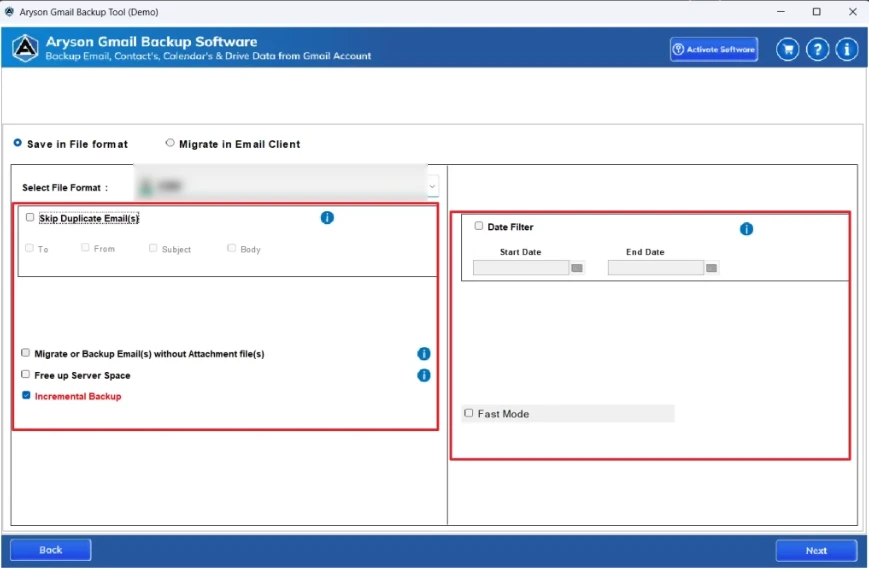
- Now, you can apply the various filters as per requirements. >> Next.
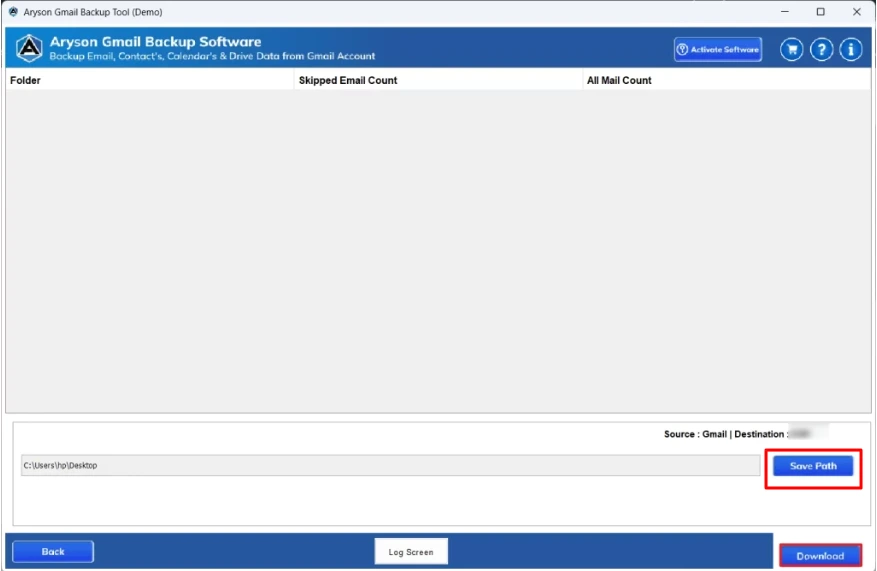
- In this step, you have to locate your output destination >> Convert for migration.
End Note
In this blog, we discussed the reasons why most of the users migrate Gmail to Hotmail and explored the best methods for the process of migration. We covered both the manual and automated approaches, highlighting their steps and benefits. By choosing the right approach, you can securely transfer your emails and attachments. You opt for a cost-free manual approach for a few emails or a faster professional solution for bulk emails. If you go for an automated solution, then you can also try its trial version to explore the tool’s features and filters.
Frequently Asked Questions:
Q.1 Does Gmail to Hotmail migration include sent emails?
Ans. Yes, when you opt for an automated approach, you can send emails that can also be migrated. When you select all mailbox folders during the process, your sent items, inbox, drafts, and other folders are transferred together.
Q.2 What is the best method for Gmail to Hotmail migration?
Ans. The best method is using a professional Gmail migration tool, as it helps in fast, secure, and complete email transfer without data loss or manual errors. Follow the given steps for smooth migration:
– Download and open the MSOutlookHelp Gmail Backup Tool.
– Sign in using your Gmail account credentials.
– Select the required emails or folders and click Next.
– Choose Hotmail as the target email platform.
– Enter your Hotmail login details and sign in.
– Apply filters if needed, then click Convert.
Q.3 Is there a limit on how many emails I can import from Gmail to Hotmail?
Ans. There is no fixed limit, but large mailboxes may take longer to migrate. MSOtlookHelp Gmail Backup Tool helps to handle bulk email migration smoothly without performance issues.
Q.4 Do I need a Microsoft Outlook desktop app to migrate Gmail to Hotmail?
Ans. Outlook is required only for the manual method. With a professional migration tool, you can transfer Gmail to Hotmail directly without installing Outlook.
About The Author:

Evren Cole is an expert in Email and Data Management. She has a strong passion for technology and entrepreneurship. In her free time, she enjoys football, music, and reading books.

