

-
Written By Evren Cole
-
Updated on January 24th, 2026
Best Way to Export Gmail to CSV in 2026
Overview: Its 2026, and there are over 1.8 billion Gmail users who want to handle their email data efficiently. Thus, they prefer to export Gmail to CSV to convert emails into a structured, spreadsheet-ready format for easily sorting and analyzing their data. Studies show that over 60% of businesses rely on CSV files for reporting and compliance. Therefore, to help such organisations and IT admins, this blog covers different effective methods for the export process, including the MSOutlookHelp Gmail Backup Tool to achieve a quick and secure export.
Common Reasons to Export Emails from Gmail to CSV
- CSV organizes Gmail emails in a structured spreadsheet format.
- The CSV easily sorts, filters, and analyzes email data in Excel or Google Sheets.
- Moreover, CSV maintains email records for audits, compliance, and legal purposes.
- It helps to extract email data for CRM systems and business reporting.
- In addition, it helps to create offline backups for long-term data preservation.
Best Methods to Export Gmail to CSV
Many methods are available to accomplish the exportation process. Now, you will see the most reliable method to complete the exportation of Gmail to CSV.
- Use MS Outlook
- Use Optimized Software
Method 1: Export Gmail Contacts to CSV Using Outlook
Microsoft Outlook can be used as an intermediary to convert Gmail emails into CSV format. The user has to first sync their Gmail mailboxes with Outlook & then export it.
Steps to Export Gmail to CSV
- Firstly, open Microsoft Outlook on your computer system.
- Then, click on the File Tab & select the Add Account option.
- Next, enter your valid Gmail email address and sign in to it.
- Now, after completing the authentication steps, Outlook will connect with Gmail.
- Wait until Outlook finishes synchronizing all Gmail emails and folders.
- Then, go to File menu >> Open & Export >> click on Import/Export.
- Next, click on the Export to a file option >> click Next to proceed further.
- After that, under the file formats, select Comma-Separated Values (CSV).
- Similarly, choose that particular Gmail mailbox/folder you want to export.
- Finally, browse a destination path, click Finish, and start the export process.
After completing the method, the exported files can be opened directly in Microsoft Excel for further use.
Limitations of the Manual Approach
- Basically, setting up Gmail in Outlook via IMAP requires careful configuration.
- It can be a time-consuming process as you have to perform steps repeatedly.
- Gmail accounts with two-factor authentication need an app-specific password.
- Moreover, exporting large Gmail mailboxes, especially with attachments, is slow.
- Gmail does not support direct CSV export, making Outlook an indirect workaround.
Method 2: Optimised Software to Export Gmail to CSV
Many organisations and enterprises opt for the MSOutlookHelp Gmail Backup tool to export Gmail messages to CSV format. This software allows such users to export their Gmail data within a few clicks without any data loss. Moreover, this software provides the utility to maintain the folder structure and data integrity. In addition, the advanced features of the software, such as the remove duplicate mails filter, helps users eliminate the data redundancy. Also, the same software can be used to export Gmail to MBOX, PDF, PST, MSG, etc. file formats.
Simple Steps to Export Gmail Inbox to CSV
- To start, download the MSOutlookHelp Gmail Backup Tool on your computer.
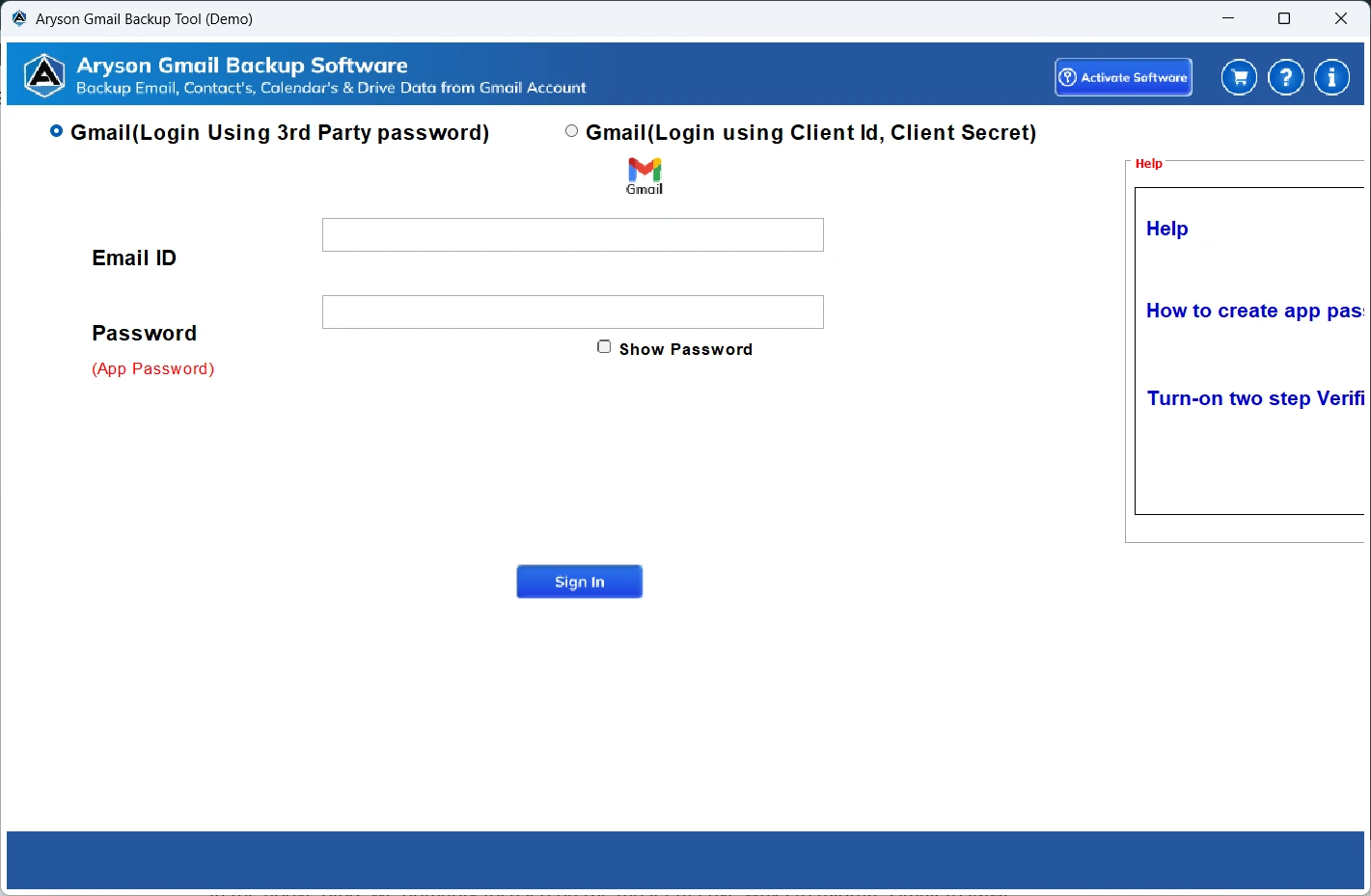
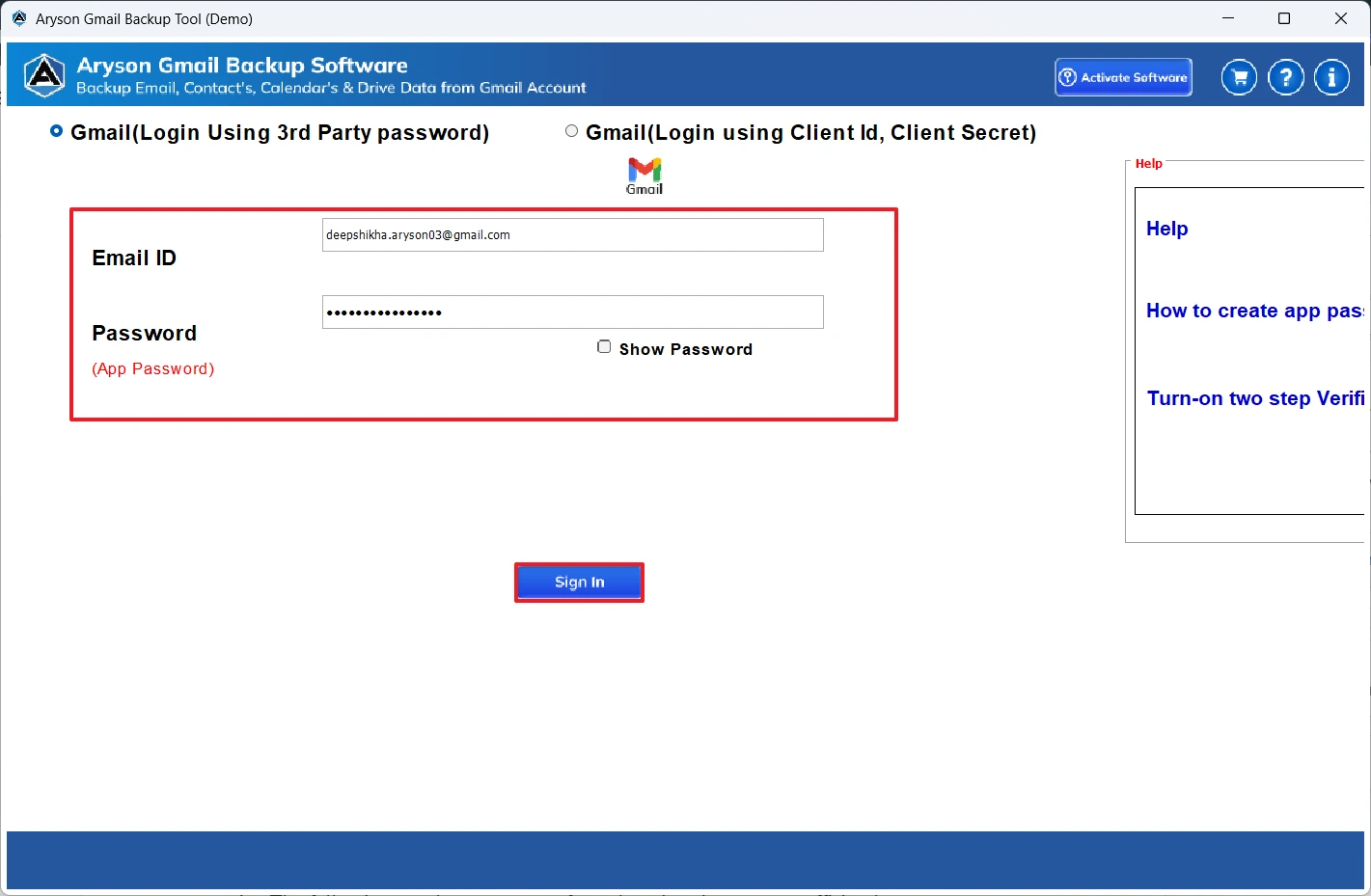
- Now, open it >> sign in to your Gmail account using the valid login details.
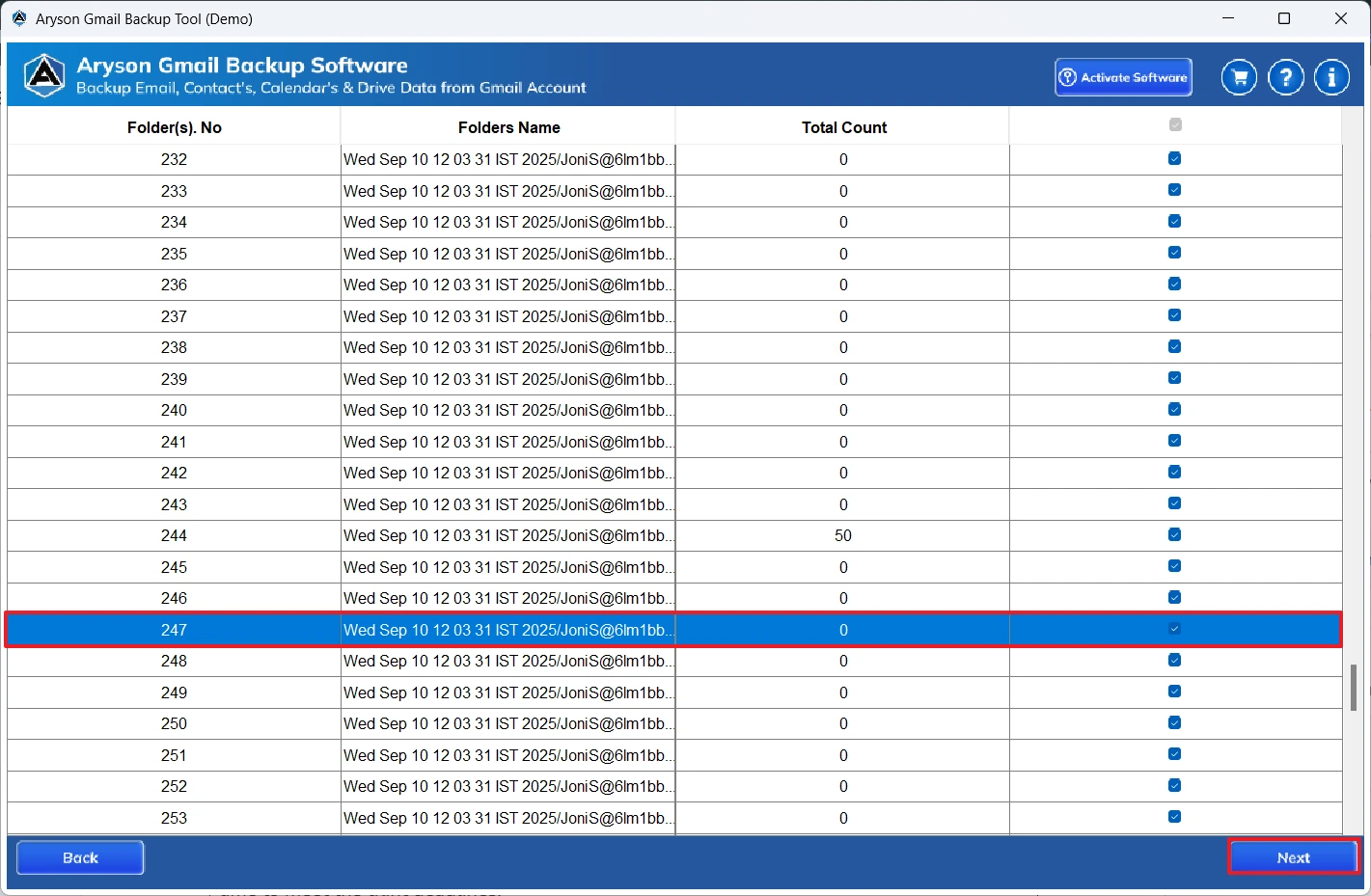
- Then, select any file/folder to preview >> click the Preview button >> Next.
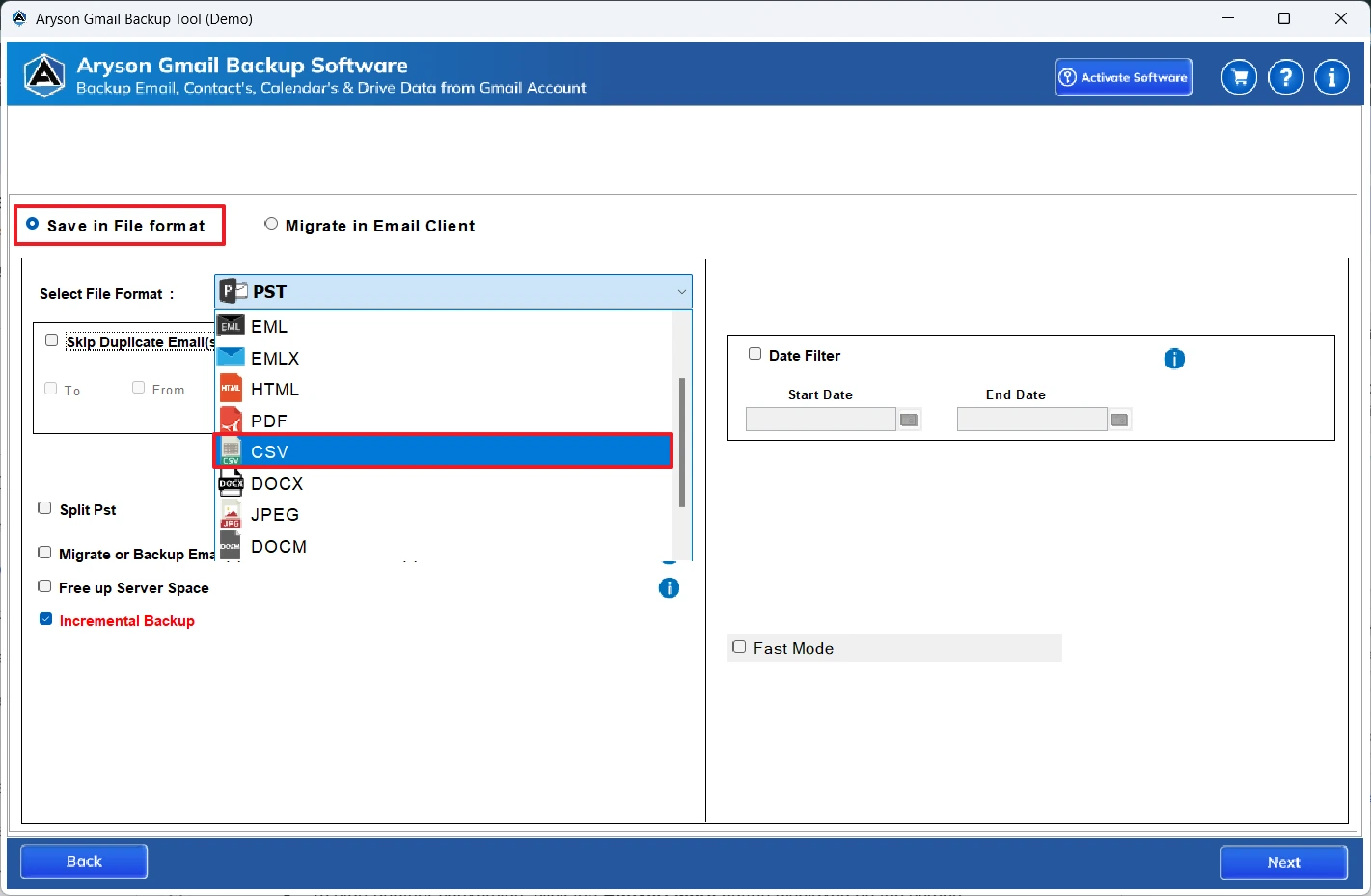
- After that, select CSV as the file format from the drop-down menu.
- Next, use the built-in features of the software if you require >> Next.
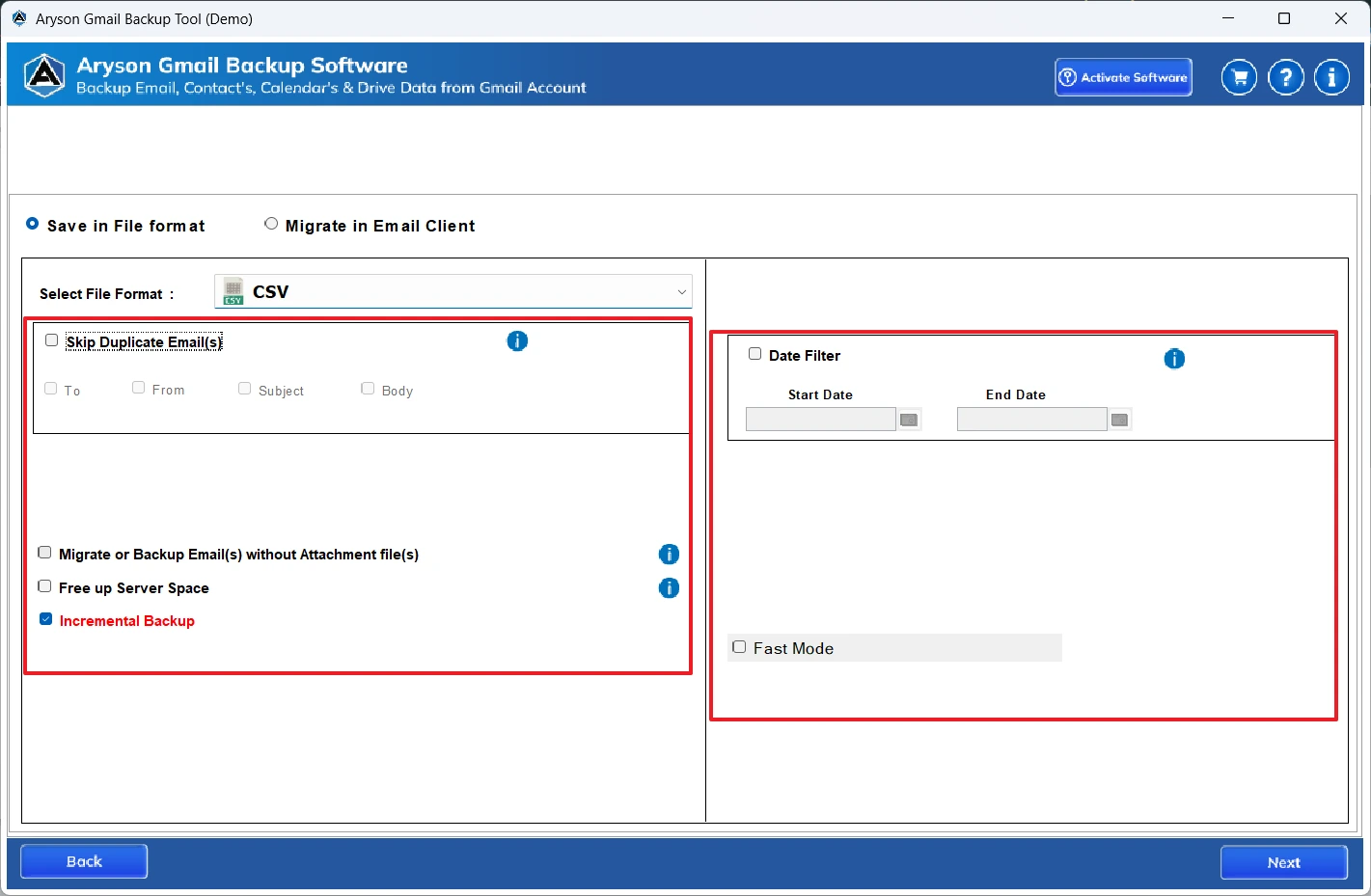
- Afterward, provide the path to save the Gmail data on your local system.
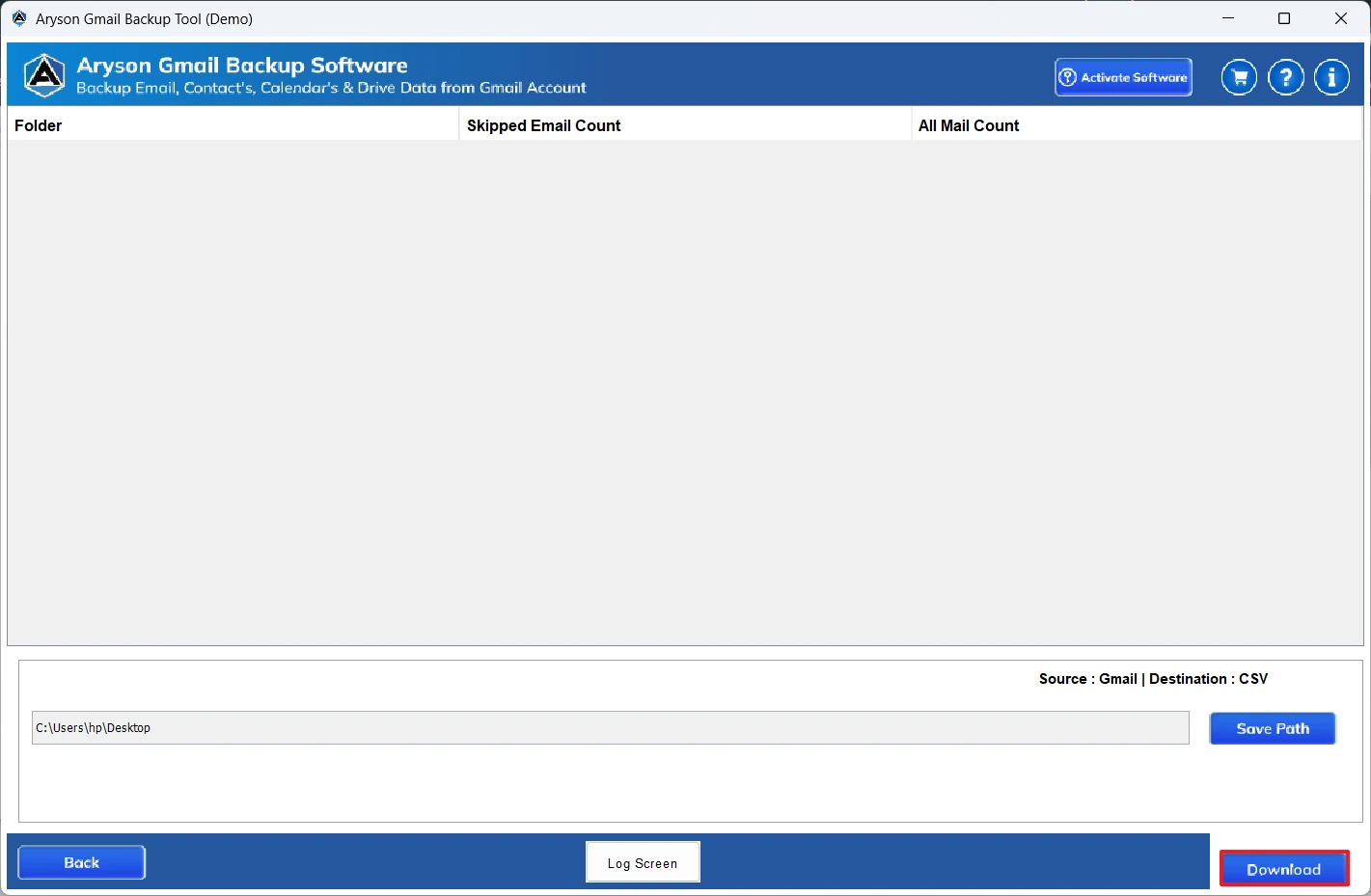
- At last, click on the Download button to start the exportation process.
Conclusion
In the above blog, we have discussed two most effective methods to export Gmail to CSV. By choosing the right method, you can simply complete the export process. Choose the methods that suit you well based on your mailbox size, technical expertise, and time consumption. However, if you have a small mailbox, then choose the manual method, whereas for a large mailbox, opt for the automated method. Also, you can try the demo version of the automated software to get a hands-on experience of the entire conversion.
Frequently Asked Questions:
Q.1 Can I export Gmail contacts to CSV separately?
Ans. Yes. The MSOutlookHelp Gmail Backup Tool allows you to export Gmail contacts separately in CSV format. You can select only contacts during the backup process and save them as a CSV file for easy access, import, or management.
Q.2 Does Gmail provide a built-in option to export emails to CSV?
Ans. No. Gmail does not offer a native option to export emails directly to CSV format. To achieve this, you can use the MSOutlookHelp Gmail Backup Tool.
Q.3 What is the best way to export Gmail to CSV in 2026?
Ans. MSOutlookHelp Gmail Backup Tool is the best way to export Gmail messages to CSV in 2026.
Q.4 Can I export Gmail emails to CSV by date range?
Ans. Yes. The MSOutlookHelp Gmail Backup Tool provides an advanced date filter option, allowing you to export Gmail emails to CSV within a specific date range.
About The Author:

Evren Cole is an expert in Email and Data Management. She has a strong passion for technology and entrepreneurship. In her free time, she enjoys football, music, and reading books.

