

-
Written By Evren Cole
-
Updated on January 1st, 2026
Export Office 365 to EML (Emails) – Step-by-Step Guide
Overview: When enterprises or industry professionals need a secure local backup, offline access, or compatibility with multiple email clients, they often export their Office 365 files to EML format. However, the entire conversion seems complicated to beginners, as there is no direct method to export Office 365 to EML. In this blog, we will explain what EML files are and why exporting Office 365 to EML is important. We will also walk you through step-by-step methods, including the MSOutlookHelp Office 365 Backup Tool, to help you export Office 365 mailboxes to EML safely and efficiently.
Why Export Emails from Office 365 to EML?
Among numerous reasons to export Office 365 emails to EML format, the most common ones are listed below.
- The EML format is widely supported by multiple email clients.
- It is easy to open, share, and archive your individual emails.
- Moreover, this format is ideal for backup & long-term email storage.
- Additionally, the export process makes emails portable across platforms.
- Also, users can access their emails without any internet connection.
Proven Methods to Export Office 365 to EML
Considering the advantages of the EML files from the above points, you must proceed to perform the actual conversion using the following solutions:
- The Automated Software
- Manual Method
Method 1: Export Microsoft 365 to EML using the Automated Software
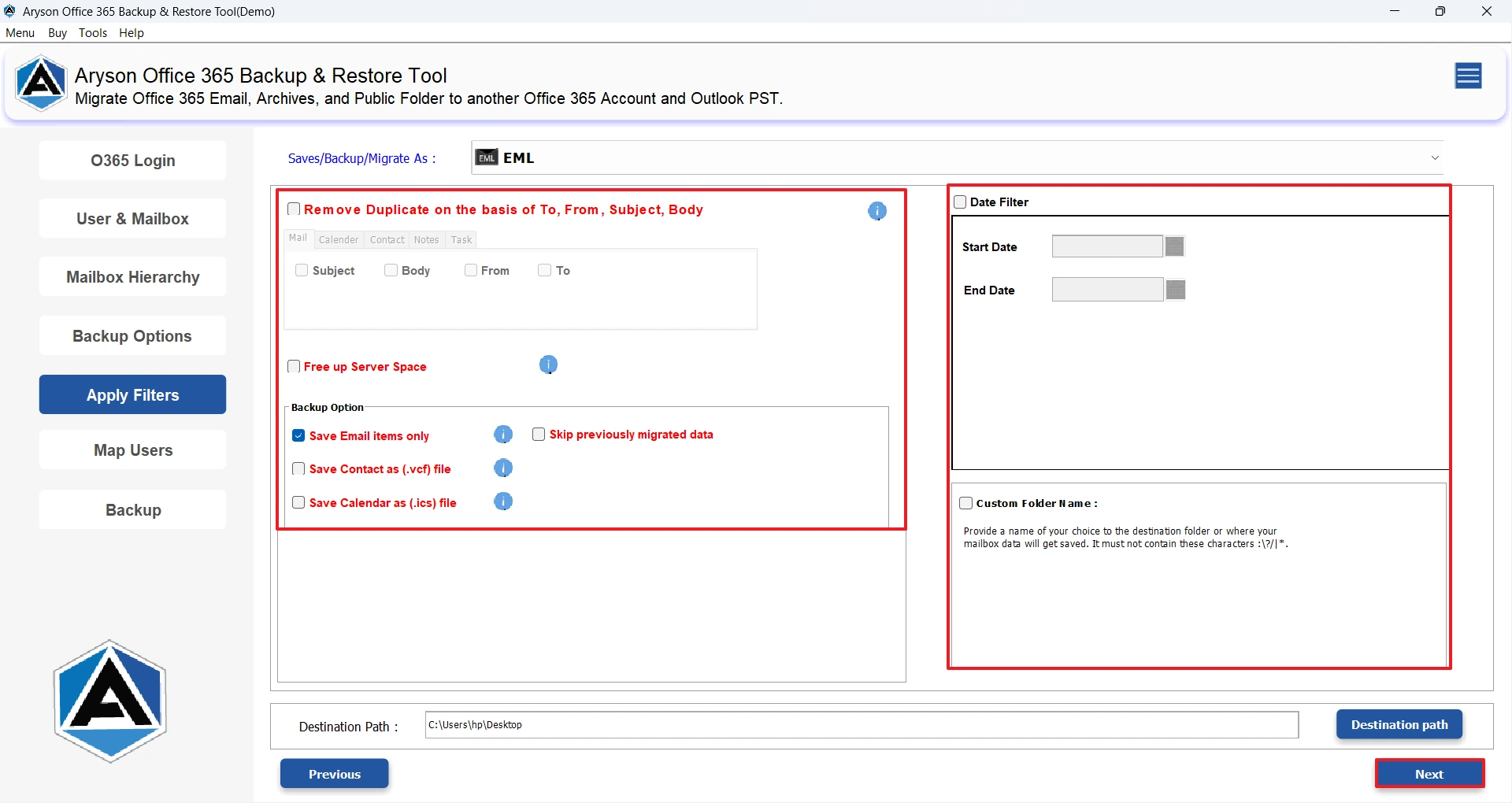
In case of urgent need to export Office 365 files to EML, you should opt for the MSOutlookHelp Office 365 Backup Tool. This software can export multiple Office 365 emails to EML in just a few seconds without any data loss. Moreover, it keeps the directory structure and original formatting intact during the conversion. In addition, you can export Office 365 to MBOX, PDF, PST, MSG, etc., file formats. Also, you can apply the various filters, such as skip previous migration, remove duplicates, date filter, etc., according to your preference. Now, follow the steps below to perform the Office 365 to EML migration.
Simplified Tutorial to Export Office 365 to EML
- Firstly, download MSOutlookHelp Office 365 Backup software >> select Backup.
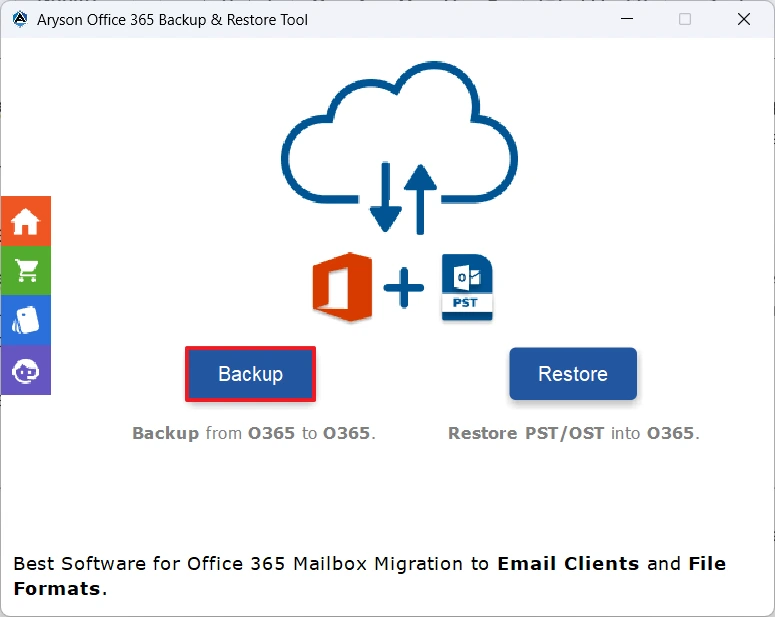
- After that, select the Continue button to move forward.
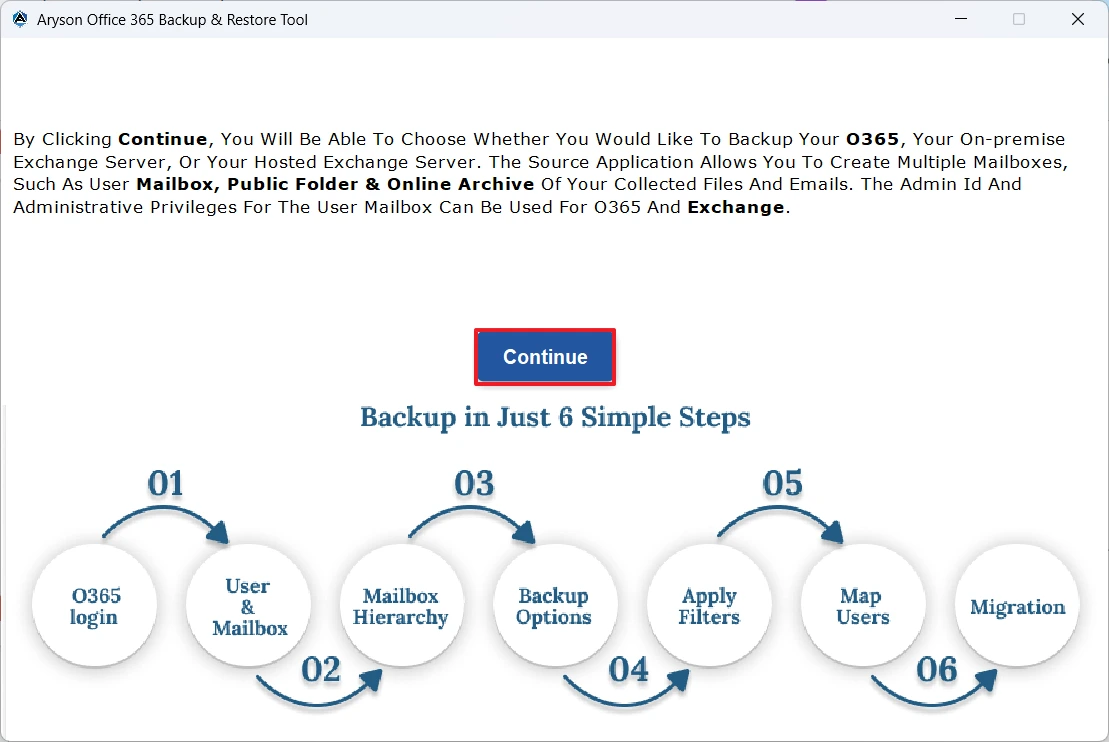
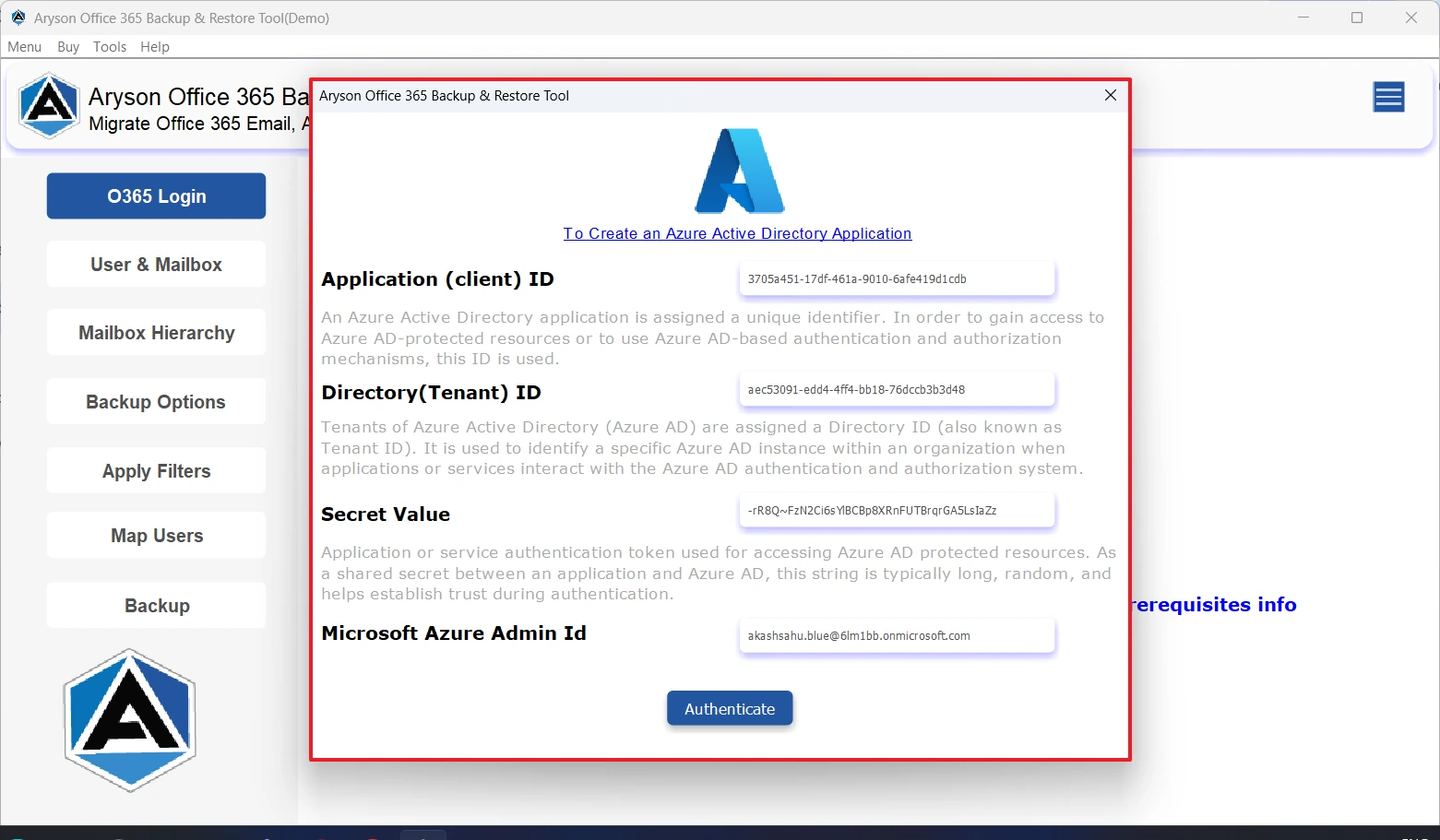
- Then, enter your valid Office 365 credentials to log in via modern auth 2.0 or the impersonation method.
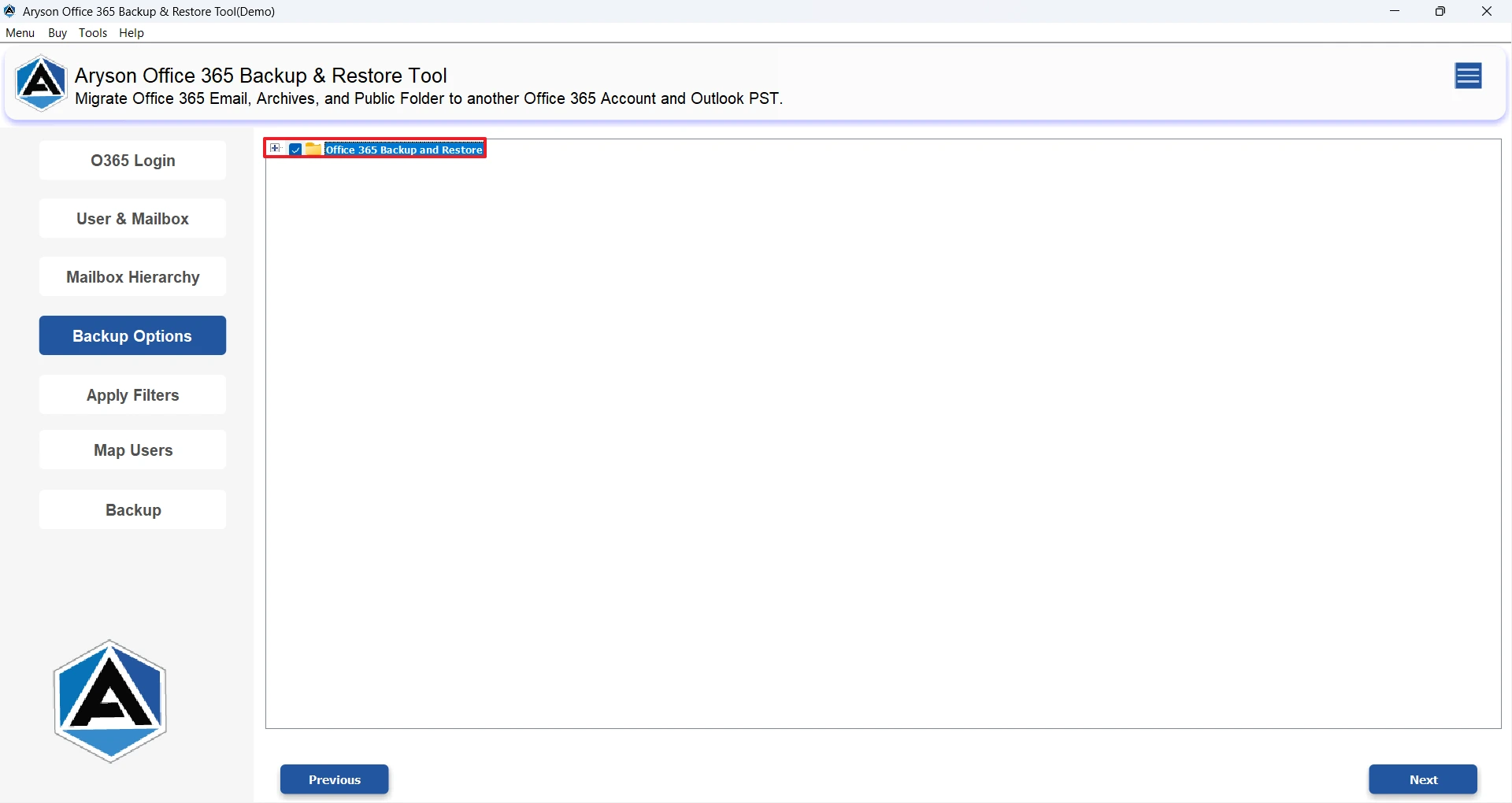
- Now, select the desired data to migrate from the folder structure >> Next.
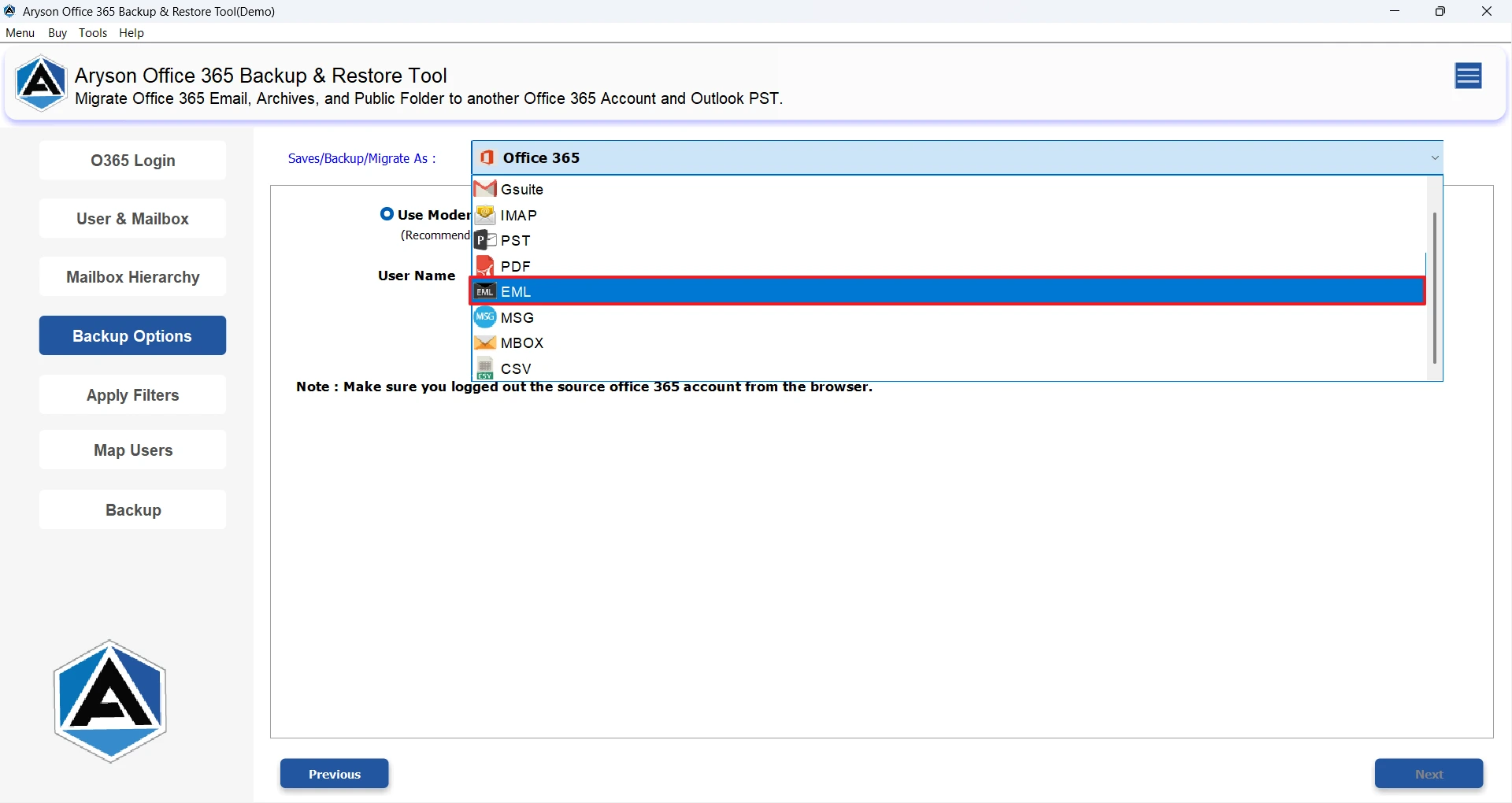
- Next, under the file formats, choose the EML file format.
- At last, apply the required filters as required >> Next.
Keep in Mind: If you have sufficient time & technical knowledge to perform the entire migration manually, you can proceed with the manual solution ahead. But, for that, make sure to install Outlook on your system and configure it on your system in advance.
Method 2: Manual Approach to Export Office 365 to EML
The manual approach requires you to install the Outlook application & properly configure it on your system. To proceed with the export process, first set up the Outlook account in advance and then follow the steps below carefully.
Steps to Save Outlook 365 Emails as EML Using Outlook
- To begin, install & launch the Microsoft Outlook application on your system.
- After that, configure your Office 365 account in Outlook.
- It will take some time for the mailbox to sync completely.
- Next, open Outlook >> navigate to your Inbox or the folder that contains your email.
- After that, find & open the specific email you want to save in EML format.
- Now, click on the three-dot icon available in the email window.
- Next, select the Save option & choose EML as the file format.
- At last, provide the destination location to store your exported EML file.
Conclusion
In the above blog, we discussed how it is useful for the user to export Office 365 to EML. Along with that, we covered two different possible solutions to perform the export reliably. The automated solution offers a quick way and data integrity. On the other hand, the manual export is time-consuming as well as prone to errors. Now, the choice of method depends upon the user’s expertise and convenience.
Frequently Asked Questions:
Q.1 Can I export emails from Office 365 to EML without Outlook?
Ans. Yes, with the help of MSOutlookHelp Office 365 Backup software, you can export emails from Office 365 to EML without Outlook.
Q.2 How can I save Outlook 365 emails as EML files?
Ans. You can save Outlook 365 emails as EML files using the above automated software.
The steps to export are as follows:
1. Download and open MSOutlookHelp Office 365 Backup Software.
2. Click on the Backup option.
3. Sign in using your valid Office 365 credentials.
4. Select the required mailbox folders from the folder tree and click Next.
5. Choose EML as the desired file format.
6. Apply filters if required and click Next to start the backup.
Q.3 What is the best method to export Office 365 emails to EML?
Ans. MSOutlookHelp Office 365 Backup Software is the best method to backup Office 365 emails to EML.
Q.4 Can I filter emails while exporting Office 365 to EML?
Ans. Yes, you can filter emails while exporting Office 365 to EML, using the advanced filters of the automated solution above.
About The Author:

Evren Cole is an expert in Email and Data Management. She has a strong passion for technology and entrepreneurship. In her free time, she enjoys football, music, and reading books.

