

-
Written By Evren Cole
-
Updated on November 18th, 2025
Import EML to Office 365 and Outlook 365 Without Data Loss
User Query: Hi, I am Eddin. I have hundreds of old EML files from my previous email client, and it’s getting difficult to manage these files manually. I recently moved to Office 365 and want all these emails to be available there. What is the easiest way to import EML files into Office 365 without losing any data?
Overview: EML files are used by email clients like Windows Mail, Mozilla Thunderbird, etc. But some individuals find it difficult to manage their EML files locally. Therefore, they often prefer to import EML to Office 365 for easier access, better organization of their files, and improved security. To help such users with the import process, this blog is written. In this write-up, you will explore different methods of importing EML files. Along with that, a quick step-by-step tutorial on the MSOutlookHelp EML Converter is provided below. But before that, let’s have a look at the advantages of EML to Office 365 import.
Advantages of Importing EML files to Office 365
Given below are some of the benefits offered by Office 365 that motivate users to EML to Outlook Transfer :
- Office 365 allows users to centralize all their EML files in one mailbox.
- It provides better email management as it has advanced search features.
- As well as, Users can also access their EML files anytime, anywhere, from any device.
- Moreover, Office 365 provides better security and encryption for emails.
- Also, it becomes easier to migrate emails to other email clients after the import.
Top Solutions to Import EML to Office 365
Here, in this section, we will discuss the two most effective ways to import EML files to Office 365. The first one is the manual approach, where the user can use Outlook to import a few EML files. Whereas the other one is the automated software, which can import EML Files into Outlook 365 within a few seconds. Now, let’s discuss both methods in detail.
Solution 1: Import EML files to Office 365 Using Outlook
You can use MS Outlook ot import your EML files to Office 365. This method is very straightforward, but at the same time, it takes hours to import voluminous data to Office 365. Moreover, it is mandatory to install Outlook to proceed with this method. Given below are the steps to follow to import EML files.
- Open the Microsoft Outlook application on your existing system.
- Then, go to the folder where you have stored all your EML files.
- After that, select your EML files >> drag and drop them into the Outlook window.
- After adding, all your EML messages will appear in your Outlook mailbox.
- Now, go to File >> Open & Export >> Import/Export.
- And choose Export to a file option >> click Next.
- Next, select Outlook Data File (.pst) and proceed.
- Then, simply choose the required folders to export into a PST file.
- Next, click the Browse button to provide the destination for your resultant PST files.
- Then, navigate to Outlook via File >> Add Account to configure your Office 365 account.
- At last, select your emails >> right-click >> click the Move to your Office 365 mailbox option.
Cons of Manual EML to Office 365 Migration
- This method may take long hours to import EML files to Office 365.
- As well as it also requires the user to be familiar with Outlook’s interface.
- Moreover, there is no guarantee that the data integrity will be maintained
- Additionally, this method doesn’t support bulk migration.
- Also, this method is prone to human errors.
Solution 2: Most Reliable Software to Import EML to Office 365
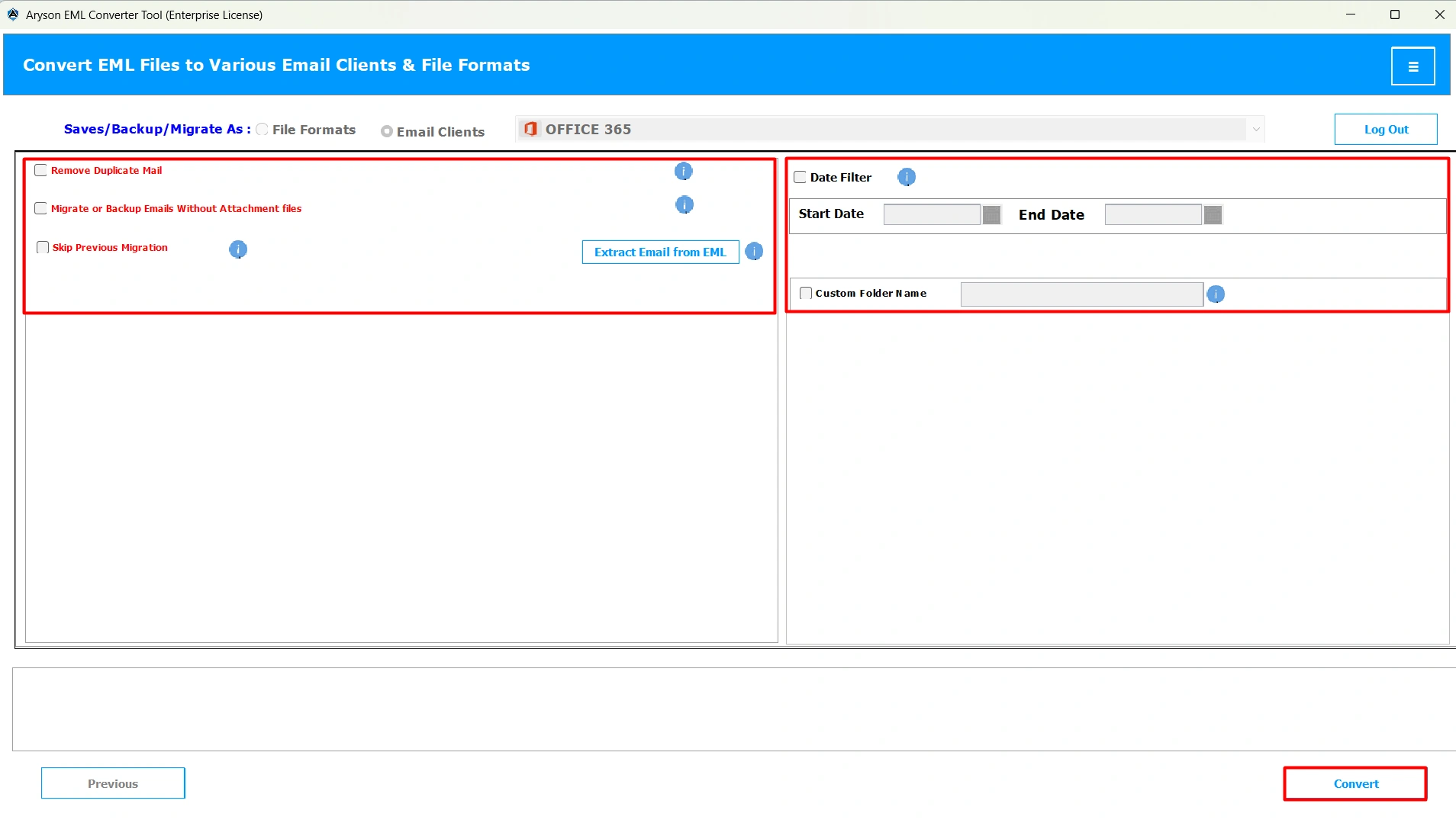
The MSOutlookHelp EML Converter is a reliable and efficient software used for importing EML files to Office 365. This software can import your EML files within a few seconds without affecting the data integrity. Moreover, it keeps all your emails, attachments, and original formatting intact. It also allows users to cross-verify their selected EML files before actually importing them. This promotes the accuracy of the import. In addition, it comes with various advanced built-in features like Remove Duplicate Mails, Skip Previous Migration, custom folder name, etc. Due to the user-friendly and interactive GUI, it allows even naive users to import EML to Thunderbird, GSuite, Gmail, IMAP, etc. Make sure to follow the required steps carefully to avoid any kind of errors during the import process.
Simplified Steps to Import EML to Office 365:
- Firstly, download and open the MSOutlookHelp EML Converter on your system.
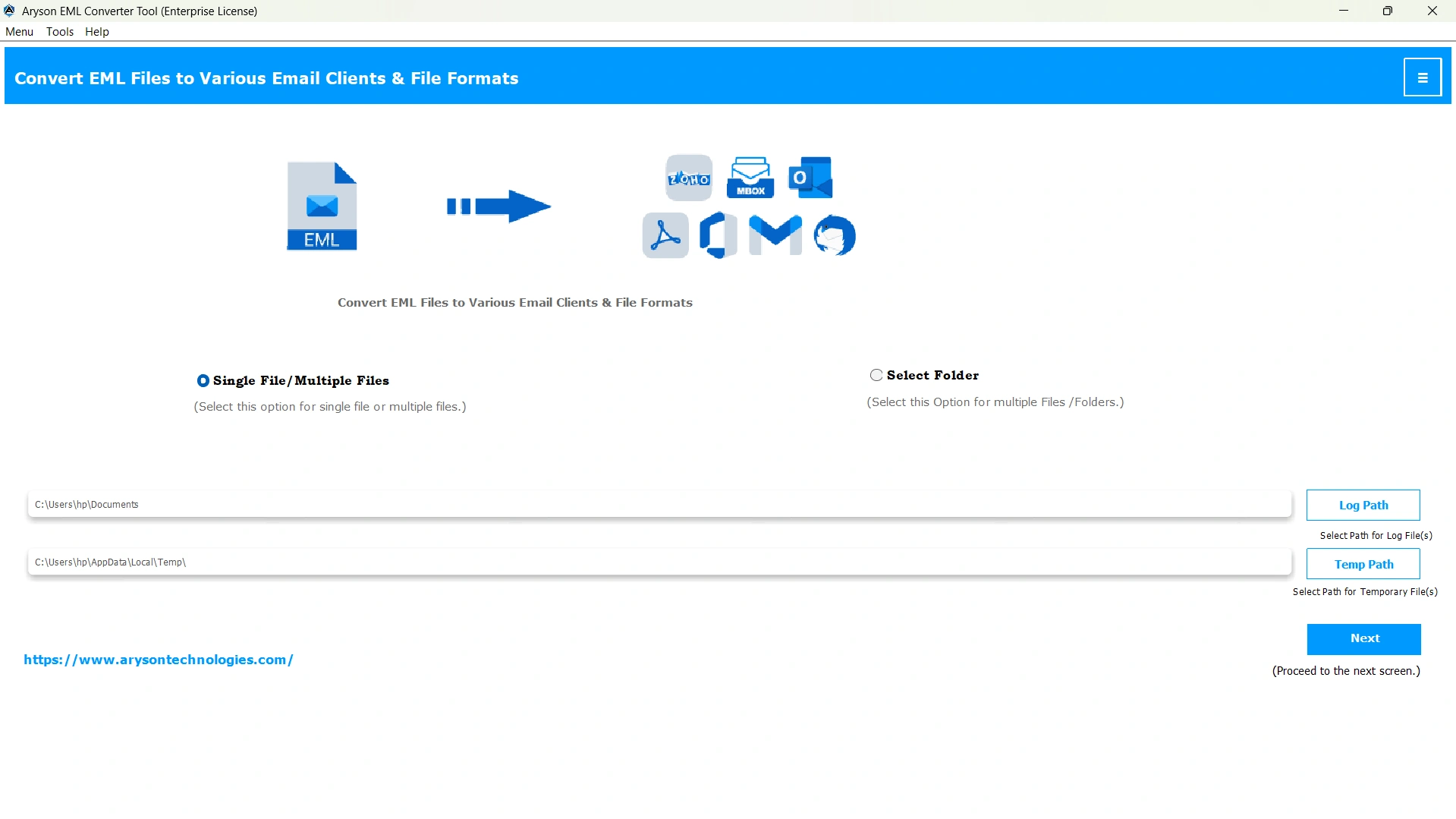
- Then, click Select Files/Folders to load your EML files into the software and click Next.
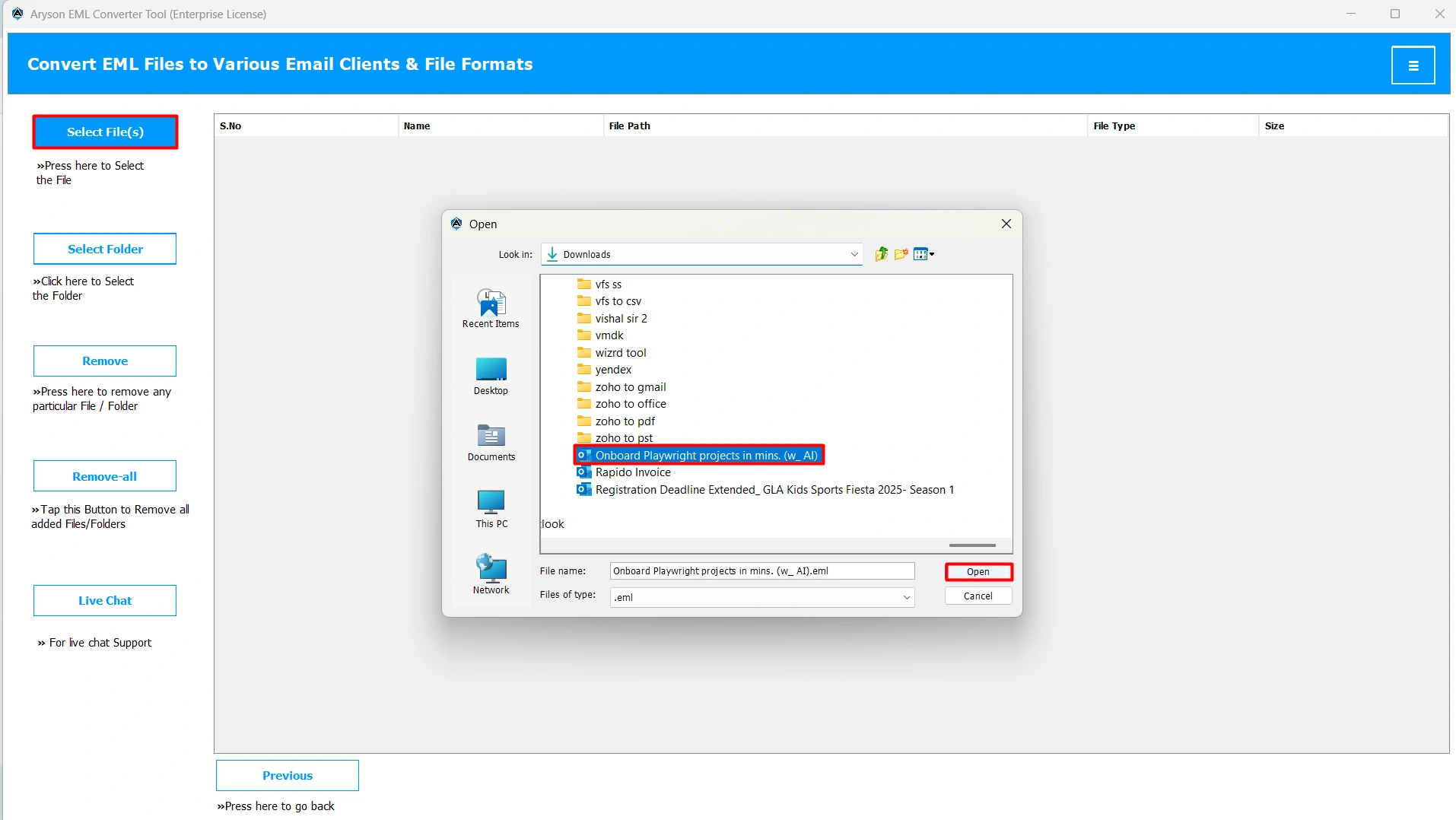
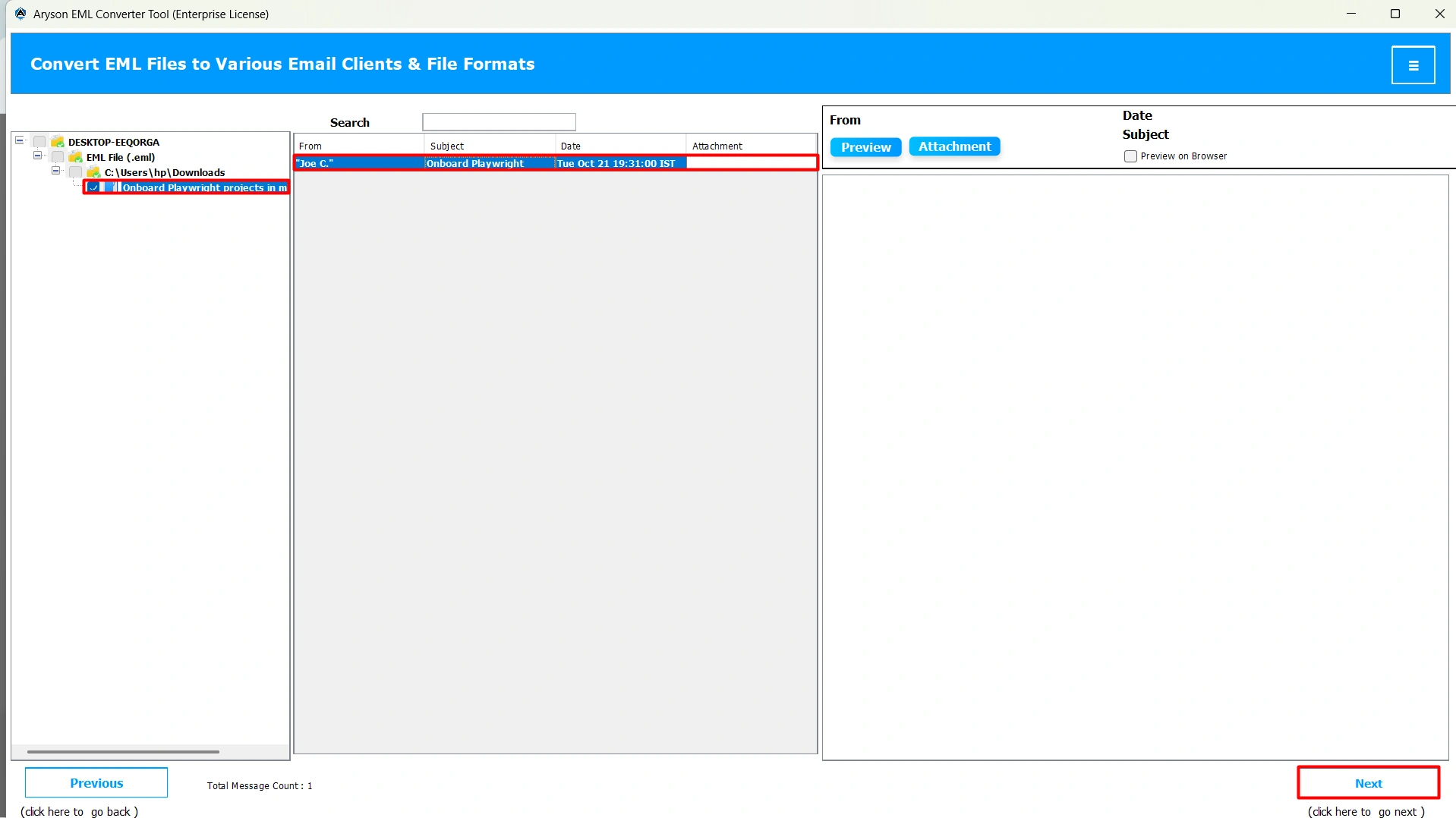
- After that, select one or more EML files >> preview them >> and click Next.
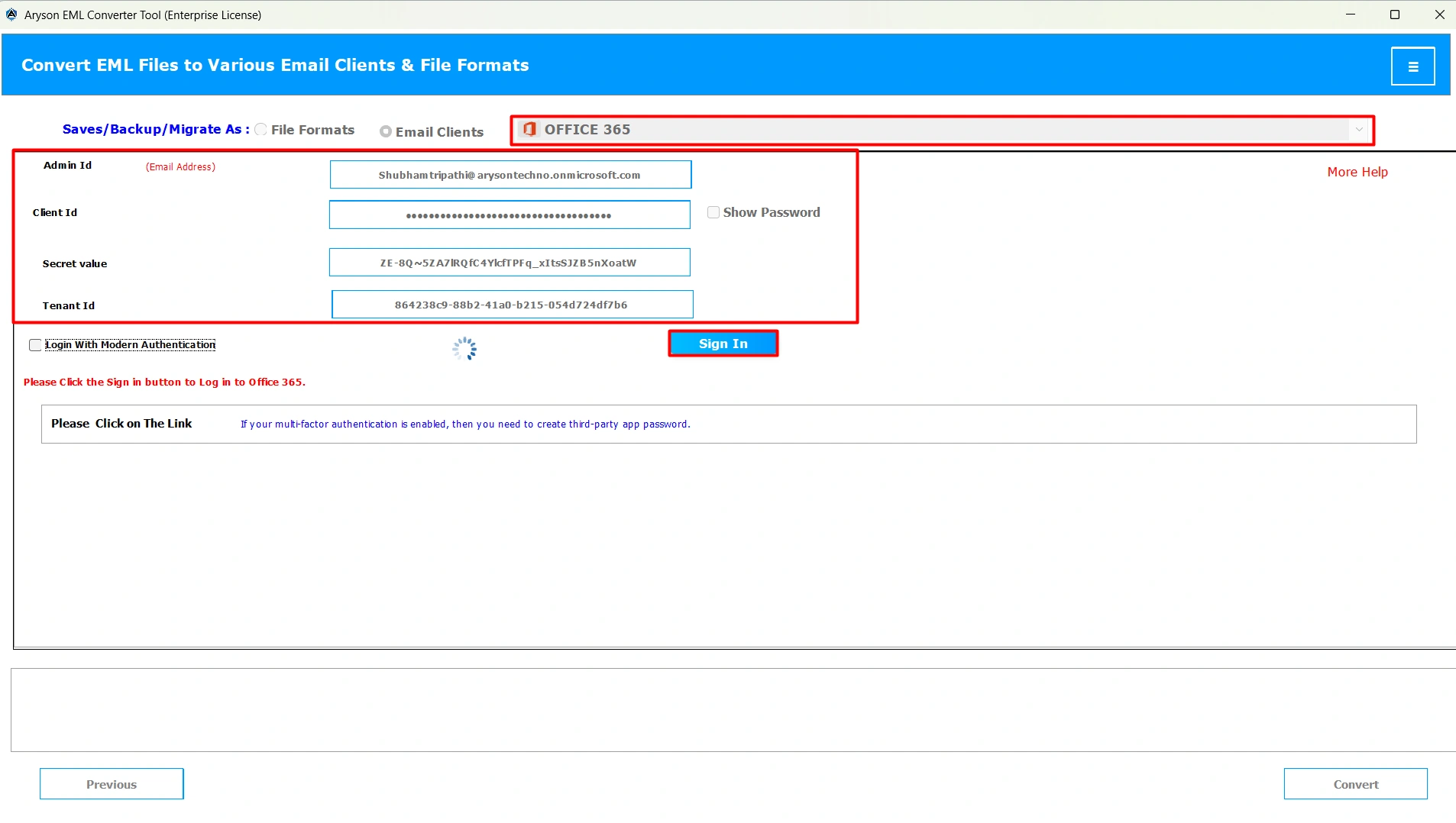
- Now, choose Office 365 as the destination email client >> enter credentials >> and log in to it.
- Lastly, use the additional features if needed and hit the Convert button.
Conclusion
In the above blog, we discussed how it is proven to be beneficial for organizations to import EML to Office 365. Users can import their EML files using the various methods provided above. In case of fewer files, the manual method will work fine, but for a large amount of data, it is important to use the automated software. Users must follow the above steps carefully and try the demo version of the software to understand the import process practically.
Frequently Asked Questions:
Q.1 What’s the best way to import EML to Outlook 365 without data loss?
Ans. The best way to import EML to Outlook 365 without data loss is by using the MsOutlookHelp EML Converter.
Q.2 Can I directly upload EML to Office 365 webmail?
Ans. No, Office 365 webmail doesn’t allow you to directly upload EML to Office 365. However, you can use the MsOutlookHelp EML Converter to import your EML files.
Q.3 Can I use Outlook’s drag-and-drop feature for EML to Office 365 migration?
Ans. Yes, you can use Outlook’s drag-and-drop feature for EML to Office 365 migration. But this method works only for a few emails. In order to import a large amount of data, use the automated software provided above.
Q.4 Is an active Microsoft Outlook desktop application required for the EML to Office 365 transfer?
Ans. No. If you are using the automated software, you don’t need the Outlook desktop app. The software will directly upload EML files to your Office 365 mailbox without relying on Outlook.
Q.5 Does importing EML to Office 365 affect attachments or formatting?
Ans. No, if you are using the MsOutlookHelp EML Converter, importing EML to Office 365, affecting attachments or formatting will not affect your attachments or formatting.
About The Author:

Evren Cole is an expert in Email and Data Management. She has a strong passion for technology and entrepreneurship. In her free time, she enjoys football, music, and reading books.

