

-
Written By Evren Cole
-
Updated on November 17th, 2025
How to Import EML to Thunderbird on Windows & Mac
Overview: For instance, an organization is moving away from Windows Live Mail or an old IMAP setup. They may export all their important emails in EML format. Now, to keep all the old records secure and maintain mailbox continuity, they would have to import EML to Thunderbird. Since Thunderbird natively supports EML files, the migration becomes effortless, which allows users to access every email with its original formatting, attachments, and folder hierarchy. To make the import process effortless for the users, this blog is written. Here, you will discover various approaches to import your EML files, including the MSOutlookHelp EML Converter, for a quick and secure conversion.
Why Do We Need to Import EML files into Thunderbird?
Listed below are some of the needs of the user that motivate them to import EML files.
- The user wants to keep the original formatting and attachments of the emails intact.
- As well as importing makes it easier to switch to migrate from old email clients.
- Switching to Thunderbird allows users to cut costs by using a free, open-source email client.
- Thunderbird helps users manage emails efficiently with folders and advanced search features.
- Users can keep their emails secure with enhanced privacy and security offered by Thunderbird.
Top 2 Approaches to Import EML to Thunderbird
Among all the methods available to import the EML files to Thunderbird, here we will discuss the two most effective approaches.
- Use the ImportExportTools NG
- Using reliable software
Approach 1: Convert EML to Thunderbird Using ImportExportTools NG
If you want to import just a few EML files, you can use the ImportExportTools NG extension provided to enhance the capability of Thunderbird. But, since this method requires familiarity with the Thunderbird interface, the user must acquire some technical understanding to proceed with this method. As well as the installation of Thunderbird, is a prerequisite for this approach.
- Open Thunderbird and go to Add-ons and Themes from the menu.
- Then, search for ImportExportTools NG, click Add to Thunderbird, & then restart Thunderbird.
- After that, in Thunderbird, navigate to Local Folders.
- Now, press and hold the local folder and select the New Folder option.
- Provide a customized name to the New folder created.
- After that, Right-click that folder, select ImportExportTools NG, then click Import Messages.
- Next, search through your files and select the desired EML files to import.
- At last, just click on the Open button to begin the import process.
Limitations of the Manual Approach
- This method requires the installation of the Thunderbird application as a prerequisite.
- As well as, it may take long hours to import a large number of EML files.
- Moreover, it doesn’t guarantee accurate results.
- There is a high chance of data or attachments loss.
- The user must acquire some technical understanding to proceed with this method.
Approach 2: Most Recommended Solution to Import EML to Thunderbird
MSOutlookHelp EML Converter is the most reliable solution to import EML files to Thunderbird. Users can batch import their EML files without losing their data. Moreover, it keeps the original formatting and folder structure intact. Along with that, it allows users to preview their selected files before actually importing them. Additionally, it provides various built-in features like Date Range Filter, Remove Duplicate Mails, Skip Previous Migration, and more. Also, the user-friendly interface makes it easy even for beginners to convert EML to OFT, DOC, PDF, EMLX, and other formats. Now, follow the step-by-step guide below to import your EML files successfully.
Quick Step-By-Step Tutorial to Import EML to Thunderbird
- Download and launch MSOutlookHelp EML Converter on your existing system.
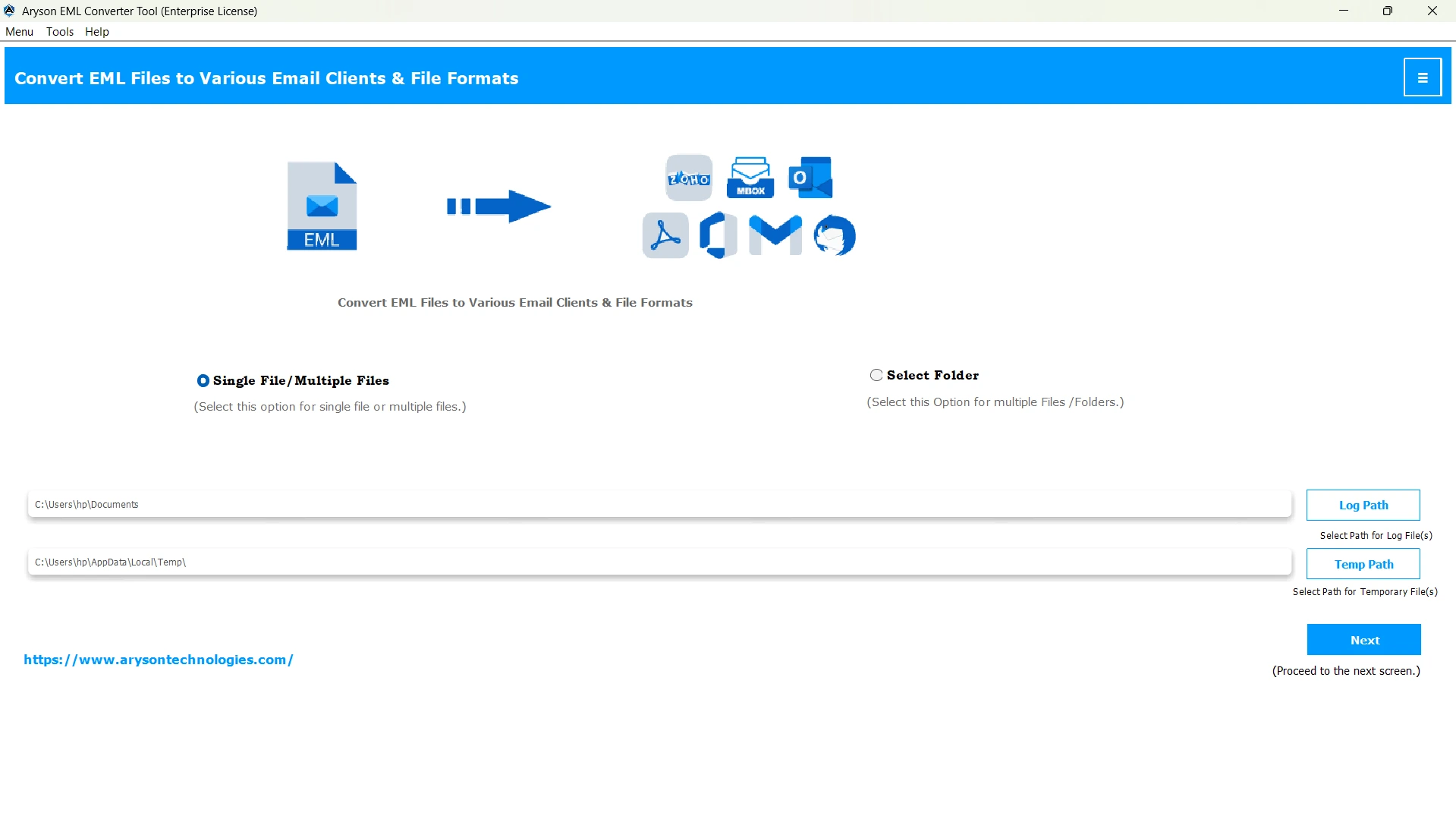
- Then, click Select Files/Folders to add the EML files you want to convert & hit Next.

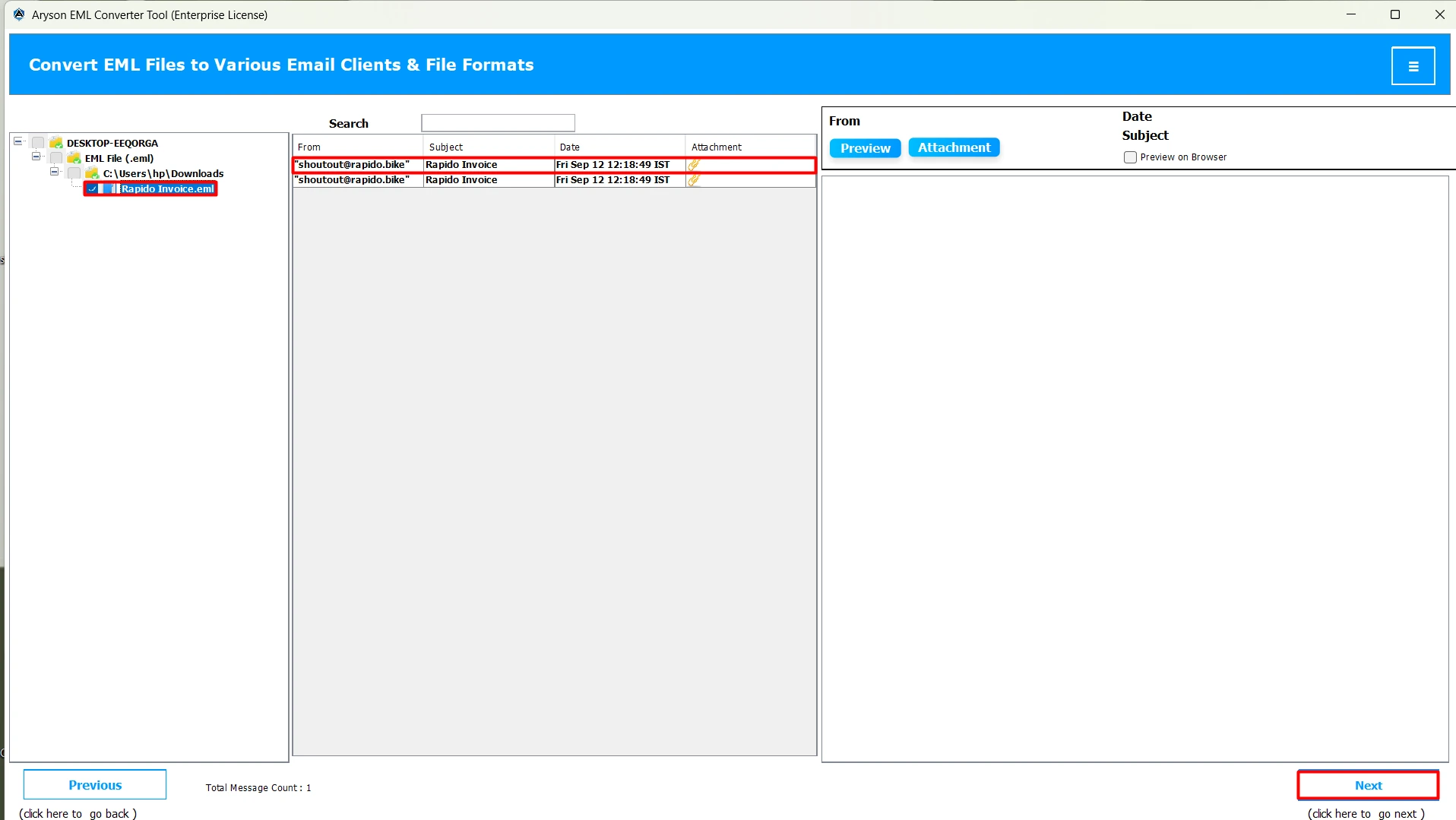
- Choose the specific EML files from the folder tree, preview them, and click Next.
- Now, select Thunderbird as the destination email client.

- After that, use the advanced features to customize your file selection if required.
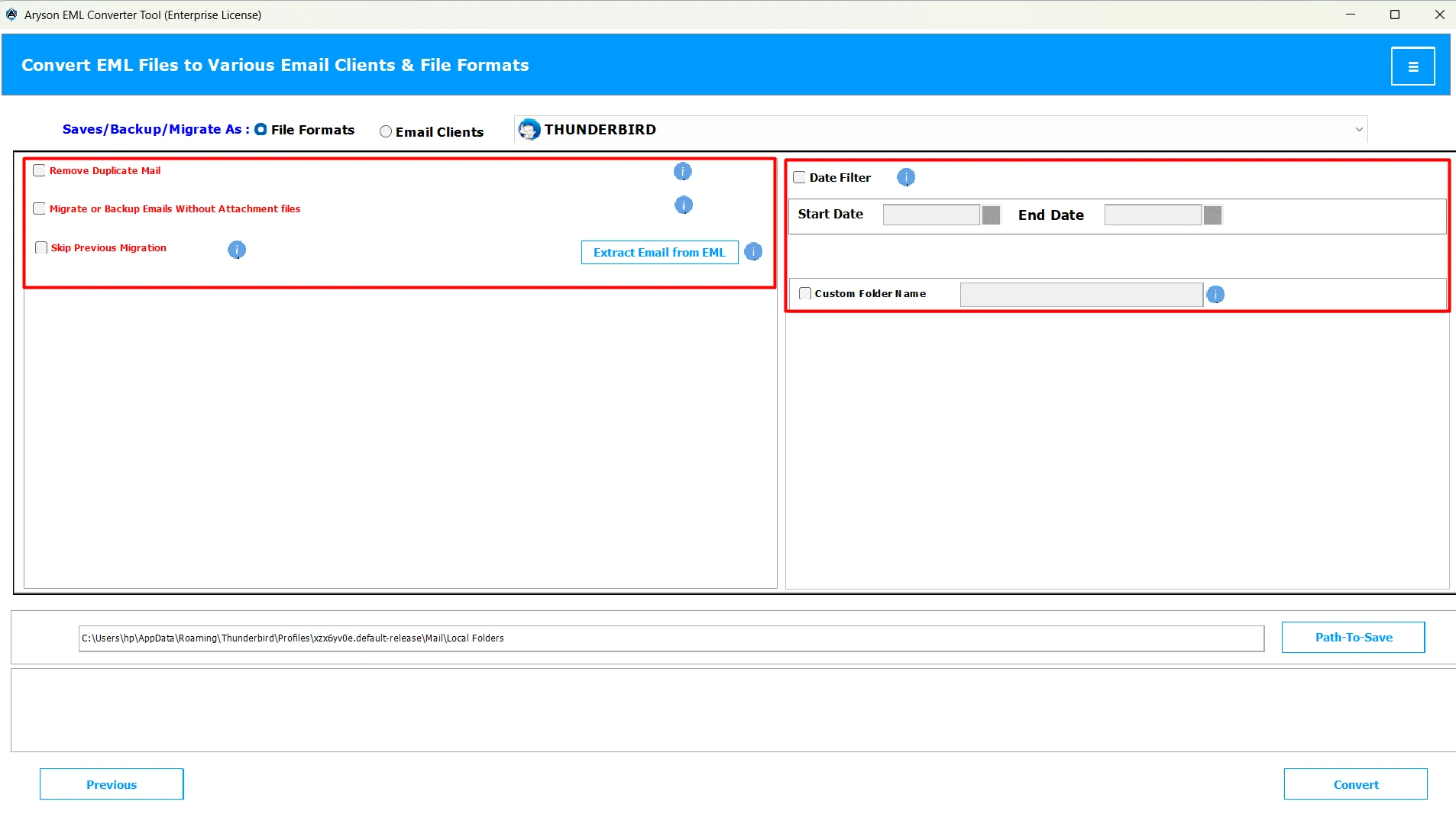
- At last, provide the path to save & click Convert to Open EML File in Thunderbird.

Conclusion
Nowadays, many individuals and businesses prefer to import EML to Thunderbird for its security and better email management. Users can follow either of the methods above, according er their requirements and convenience. To get a better clarity and understanding of the automated software, you can opt for the demo version of the software. And, make sure to follow the steps above to perform an accurate import.
Frequently Asked Questions:
Q.1 Can Thunderbird open EML files directly?
Ans. Yes, Thunderbird can open EML files directly as it supports the EML format.
Q.2 Can I import EML files from different email clients into Thunderbird?
Ans. Yes, you can import EML files from different email clients into Thunderbird, using the MSOutlookHelp EML Converter.
Q.3 Are there any risks involved in importing EML files into Thunderbird?
Ans. No, if you are using the automated software, there are no risks involved in importing EML files into Thunderbird. However, using the manual method might be risky.
Q.4 How do I view attachments in imported EML emails?
Ans. Open the imported email in Thunderbird and access attachments at the bottom. You can double-click to open, right-click to save, or preview certain files directly.
Q.5 What is the ImportExportTools NG add-on, and how can I install it in Thunderbird?
Ans. ImportExportTools NG is a Thunderbird add-on, user use to import EML Mail to Thunderbird, export, and manage EML, MBOX, and other email files. Steps to install are as follows.
1. Open Thunderbird and go to Add-ons and Themes.
2. Use the search bar to find ImportExportTools NG.
3. Click Add to Thunderbird.
4. Restart Thunderbird to complete the installation.
About The Author:

Evren Cole is an expert in Email and Data Management. She has a strong passion for technology and entrepreneurship. In her free time, she enjoys football, music, and reading books.

