

-
Written By Evren Cole
-
Updated on June 24th, 2026
Quick Ways to Convert OST to EML for Business Email Archiving
User Query: We need to export a large number of emails from Outlook OST files into EML format. The conversion should preserve the original folder structure and all email metadata. What is the best method or tool to complete this OST to EML export efficiently?
Summary: Microsoft Outlook uses two file formats to save data and emails. OST is one of the file formats. It stores a local copy of mailbox data from an Exchange Server. However, sometimes users want to convert OST to EML. Converting the emails to EML format allows them to store individual messages for easier retrieval, archival purposes, or compliance with company policies. To convert OST into EML, this article provides easy, step-by-step instructions. For a more convenient approach use the OST File Converter.
Various Reasons to Export OST to EML Format
There are numerous reasons for which users want to convert the OST file into EML format. Some of them are mentioned below:
- EML files are universally supported by several email clients.
- EML files store individual emails, allowing users to share specific messages easily with colleagues.
- It also helps in the conversion of OST to EML for creating backup emails.
- Exporting to EML enables the recovery of essential emails and opens them in an email client.
- EML files are portable and can be accessed offline.
Through OST conversion into EML, the compatibility, accessibility, and manageability of the email data could be enhanced.
Manual Procedure to Convert OST to EML File Format
Since Thunderbird does not natively support OST files, to perform this action manually, you must follow multiple processes.
Step 1: Configure Gmail in Microsoft Outlook
- Login to your Gmail account with your valid credentials.
- Then go to the settings and click on See all Settings.
- Then, go to the forwarding and POP/IMAP options.
- Under IMAP Access, enable IMAP and click on the Save Changes button.
- Now, open the Microsoft Outlook application on your defined system.
- Then, go to the File and select the option Add Account.
- Enter your name, email, and password, and click the Next button.
- Finally, click Finish to validate it successfully.
Congratulations. Your Gmail account is successfully configured and syncs well in Outlook.
Step 2: Migrate Outlook OST to EML File Format Using Thunderbird
The second step is to set up the same IMAP email account with Mozilla Thunderbird.
- Download and install the Mozilla Thunderbird application on your system.
- Login into your Thunderbird account with your valid details.
- Then, click on the Thunderbird Menu (settings) button. Then select Account Settings options.
- Click on the Account Action and then choose the Add Mail Account option.
- Following, provide your Gmail account password and email to set up your existing email address.
- In the end, click the Finish button, and your Gmail account will appear in Thunderbird.
- Open the desired mailbox folder of your mail that you want to convert.
- After that, choose all the emails that you want to convert.
- Now, right-click on these emails and choose Save As.
- Then, select the destination folder that is defined.
- Finally, it will export all the selected emails in EML file format.
Following this procedure, you can export all emails as EML files from an OST file.
Limitations Associated With the Manual Methods
When OST to EML files are converted manually, there are many limitations.
- This process takes a long time to finish.
- Missing or skipping a given step poses a danger to the risk of losing data.
- In addition, you can’t use it for a high volume of data in Outlook.
- It cannot recover data from corrupted or inaccessible OST files.
- Manual methods will likely lose email formatting and metadata.
- The complexity of multisteps can overwhelm non-technical users.
These limitations make it obvious why users seek automated tools that can convert OST files to EML files. In the following section, we will guide you through the top utility for importing large OST files.
Transfer OST Files to EML Using An Automated Solution
This OST File Converter is one of the most reliable tools used to convert Outlook OST files into the EML file format. It also completes the conversion tasks without altering the content. Also, it converts OST to PST and into various file formats and email clients. It provides a set of exclusive features to make the conversion easy and accurate. Due to its user-friendly interface, fast performance, and innovative migration options, it is better than other tools. In addition, you can also migrate OST to Office 365 with this same software.
Straightforward Steps to Convert OST to EML File
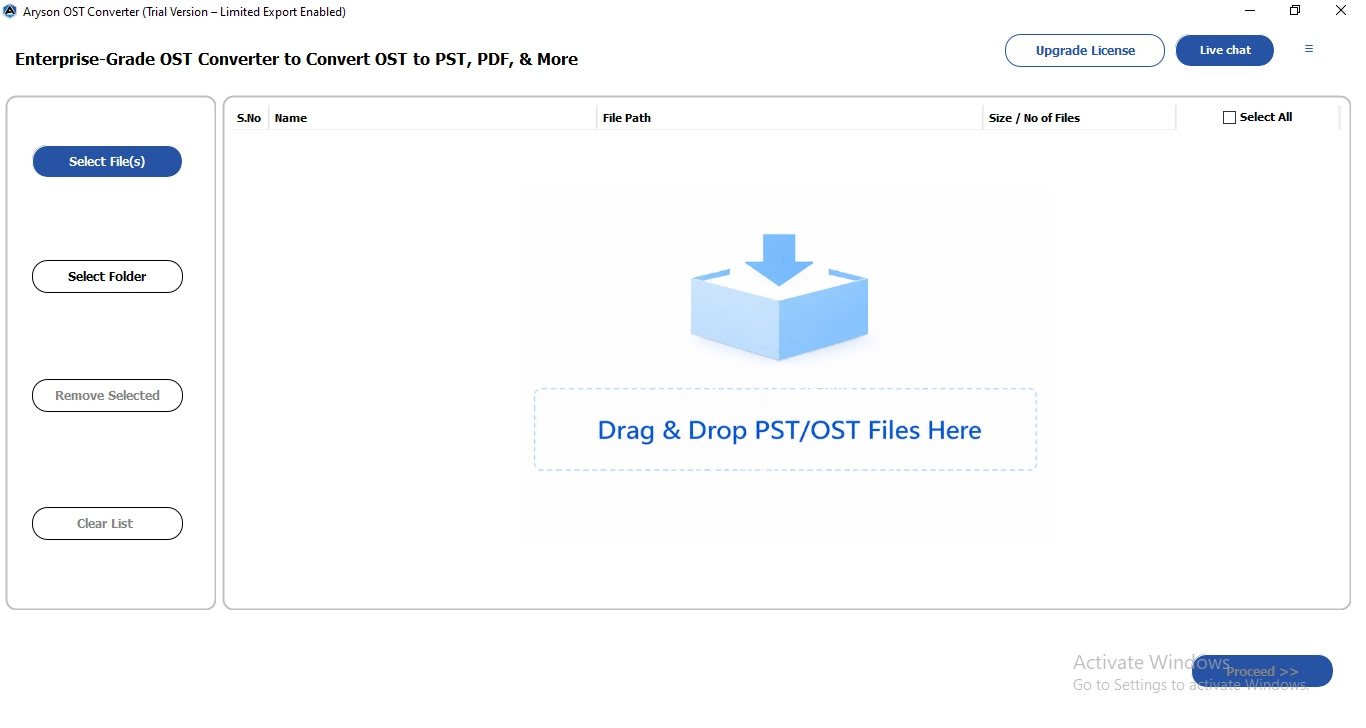
- Firstly, download the OST Converter Tool on your defined system.
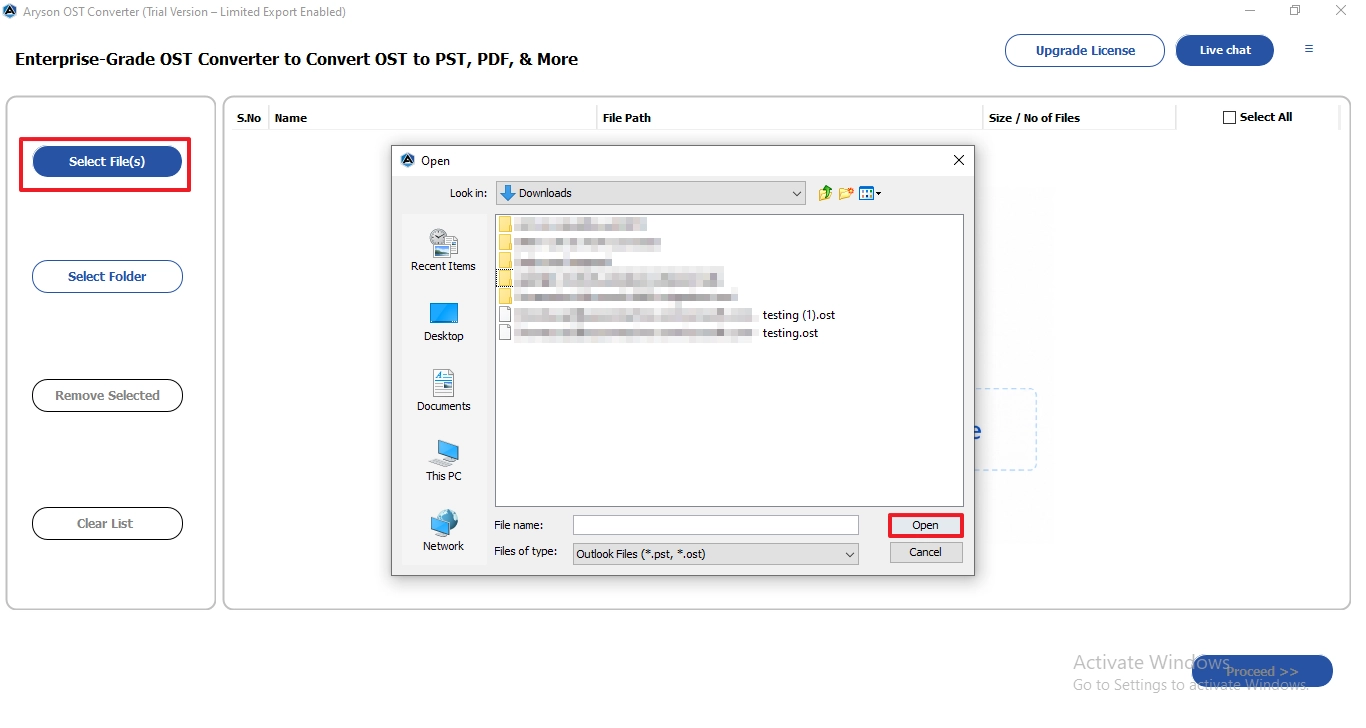
- After that, go for the Single Files/Multiple File Option.
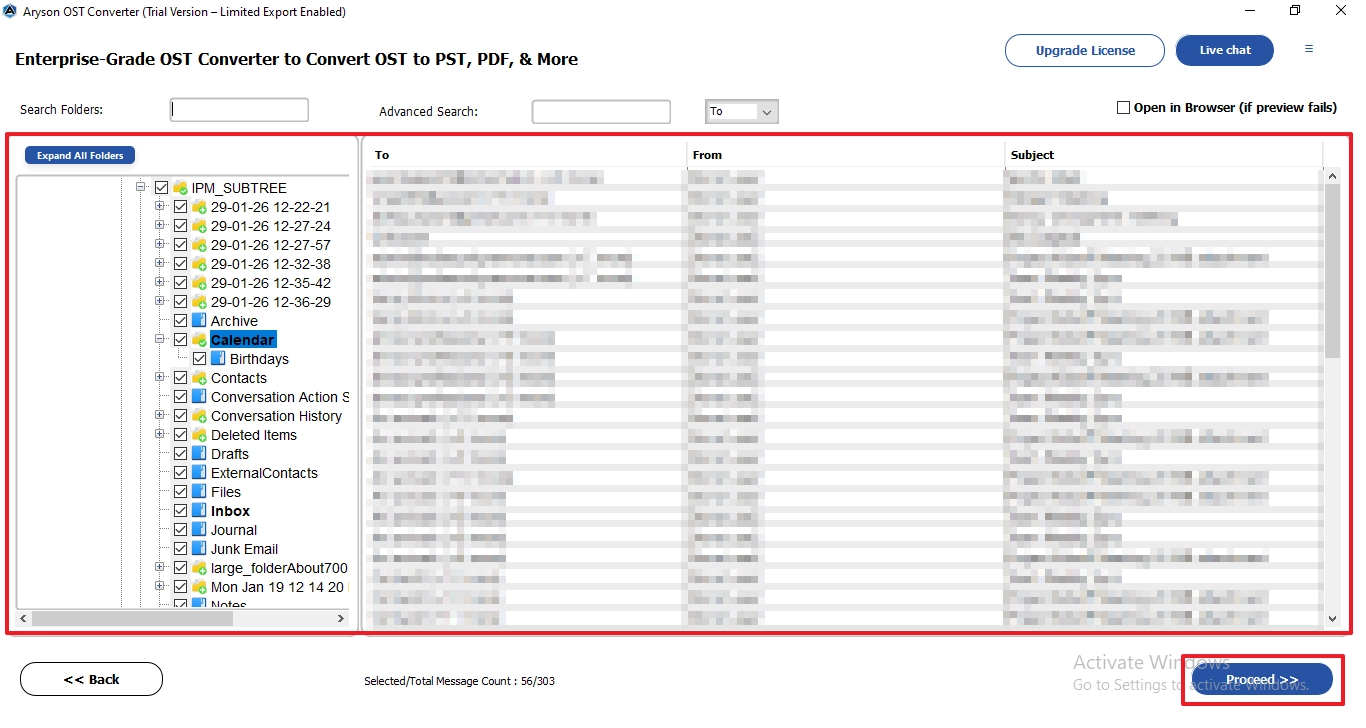
- Now, click the Select File option and choose the desired OST file.
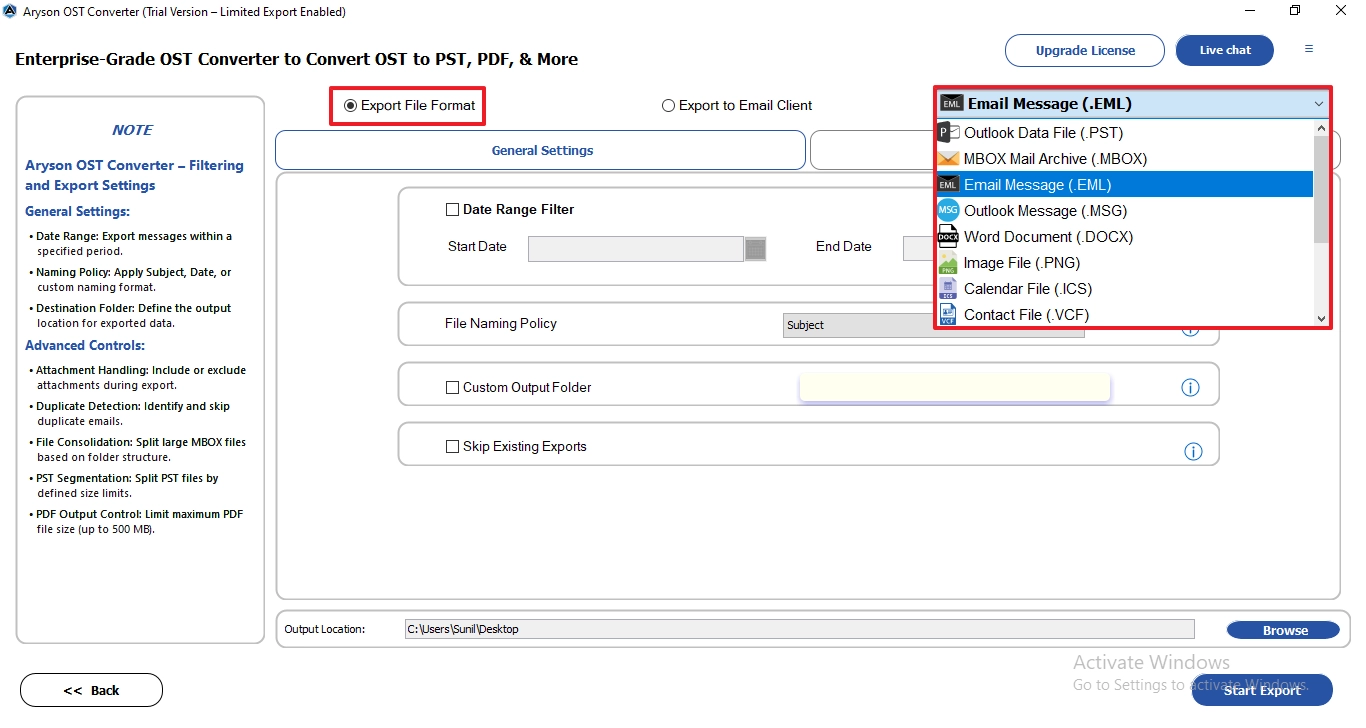
- Subsequently, from the drop-down list, choose EML as a resultant file format.
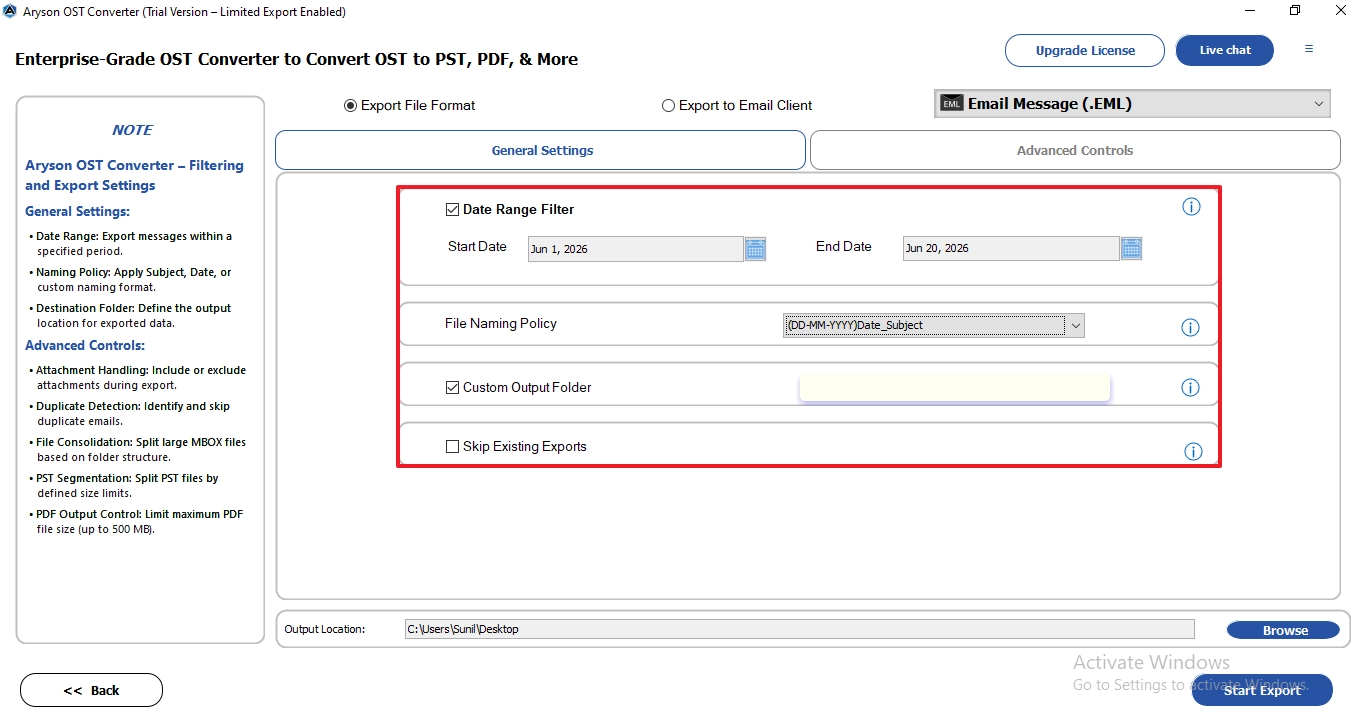
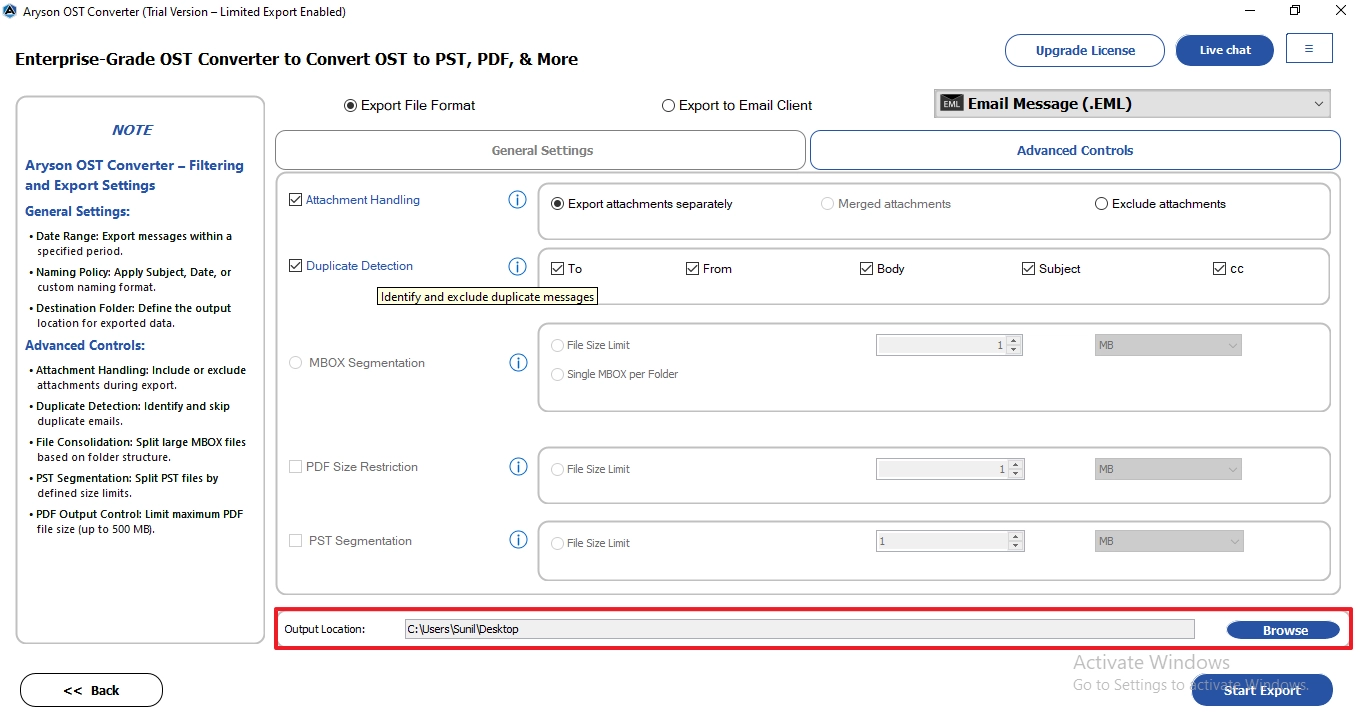
- After that, choose the built-in options to meet your requirements or needs.
- Hare, provide the desired location to save the resultant output file.
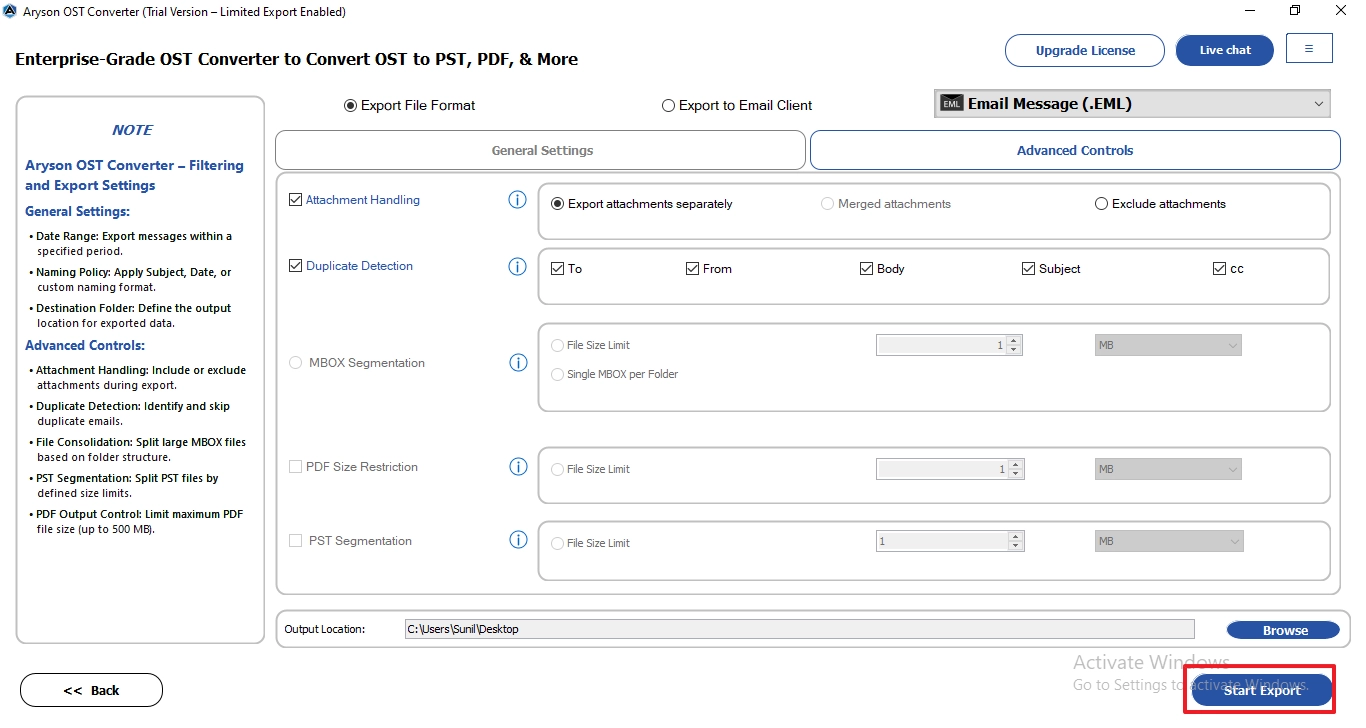
- In the end, click on the convert option to convert the task.
Conclusion
In summary, the blog has explained the reasons and solutions to convert OST to EML file format. Manual methods are available but may be lengthy and prone to data loss. Professional OST Converter software makes it easier and faster with no errors and data loss. The best option for non-technical users is a reliable conversion tool. It is up to the individual’s choice based on needs and preferences.
Frequently Asked Questions:
Q1. Can I Convert OST Files to EML Without Outlook Installed?
Ans. Yes, OST files can be converted to EML without installing Outlook. This is usually done using OST File converter tool that read OST data directly. It work independently and do not depend on Outlook or Exchange connectivity.
Q2. Does converting OST to EML keep my attachments, folder structure, and metadata (date, sender, CC/BCC)?
Ans. OST File Converter preserves attachments during conversion. They also maintain folder hierarchy so emails stay organized as in the original mailbox. Basic metadata like date, sender, subject, CC, and BCC is generally retained.
Q3. Does Converting OST to EML Affect Email Metadata?
Ans. Normally, proper conversion does not affect email metadata. Fields like sender, recipient, subject, and timestamps are kept intact. However, corrupted OST files may lead to partial metadata loss.
Q4. Is there a direct “Save As EML” option in Outlook for OST files?
Ans. No, Outlook does not provide a direct “Save As EML” option for OST files. OST files are offline cache files, not directly exportable in that format. You usually need to open emails in Outlook or use a conversion tool to get EML files.
Q5. Can I remove duplicates while converting OST to EML?
Ans. Yes, the OST File Converter offers duplicate removal options. It can filter identical emails based on subject, sender, or message ID. Manual methods do not support duplicate filtering during conversion.
Q6. What is the best method to convert OST to EML?
Ans. The best method is to use a professional MSOutlookHelp OST File Converter Tool. It supports bulk conversion, preserves folder structure, and maintains email integrity. It is also faster and more reliable than manual export or workaround methods
About The Author:

Evren Cole is an expert in Email and Data Management. She has a strong passion for technology and entrepreneurship. In her free time, she enjoys football, music, and reading books.

