

-
Written By Evren Cole
-
Updated on April 27th, 2026
Best Mail Merge Software for Outlook – Solutions (Free/Paid)
Summary: Are you finding it difficult to send personalized bulk emails in Outlook without compromising accuracy and productivity? While Outlook is a reliable email platform that handles large volumes of customized emails manually, which can be time-consuming. Mail merger tools make the process easier by handling repetitive email tasks automatically & keep each message personalized for every recipient. In this blog, we will examine the best mail merger tool for Outlook for an effective process. We will also explain how the MSOutlook Help PST Merger Tool simplifies and streamlines the entire process.
What is Mail Merge in Outlook?
Mail Merge in Outlook is a feature that helps its users in order to send personalized emails to many recipients at the same time. This is done by linking Outlook with a data source such as an Excel sheet or contact list. Rather than the process of sending separate emails one by one, it allows you to automatically insert individual details into each message.
Reasons to Use the Best Mail Merge Software for Outlook
- It supports sending bulk emails with customized recipient details.
- You can reduce the time that is spent on repetitive email creation tasks.
- The mail merge tool can provide uniform formatting across all messages.
- Moreover, it can improve engagement through personalized communication.
- Users can improve their efficiency in large-scale email campaigns.
Top Mail Merge Tools for Outlook
This section explains the two of mail merge tools used for executing mail merge in Outlook.
- Native method using built-in Microsoft applications
- Automated method using a specialized utility
Approach 01: Manual Method for Mail Merge in Outlook
This approach uses the integration between Microsoft Word and Outlook in order to send personalized emails. Moreover, it is more suitable for smaller datasets and requires proper configuration at each step.
Steps to Best Mail Merge Software:
- To begin, you need to open Microsoft Word >>create email content.
- Then, navigate to the Mailings tab >> Start Mail Merge >> Email Messages.
- After that, use Select Recipients to import contact data from Excel/Outlook
- Now, you have to insert the required merge fields, such as the recipient’s name and email address.
- Thereafter, you can preview the merged content to confirm correct data placement.
- At last, you can click Finish and Merge >> choose Send Email Messages & define the subject line.
Limitations of Using the Manual Application:
- It is not ideal to manage your large volumes of data.
- The process includes several steps, which can take considerable time.
- Moreover, mistakes may occur while linking or organizing data fields.
- It offers limited options for customization and automation.
- Proper setup of Word and Excel is required for correct execution.
- Likewise, repeated manual actions reduce efficiency in bulk email tasks.
Approach 02: Best Mail Merge Tool for Outlook Mail Merge
MSOutlook Help PST Merger Tool is a reliable solution that efficiently handles large-scale mail merge requirements. Moreover, it provides the user with advanced features such as combining specific data, filtering out duplicate items, & smoothly managing large PST files. This utility delivers accurate results and also makes the overall workflow easier to manage. Likewise, you can easily merge Outlook PST files via the same utility.
Steps to Use the PST Merger Tool:
- To begin, you need to run the MSOutlook PST Merger Tool on your system.
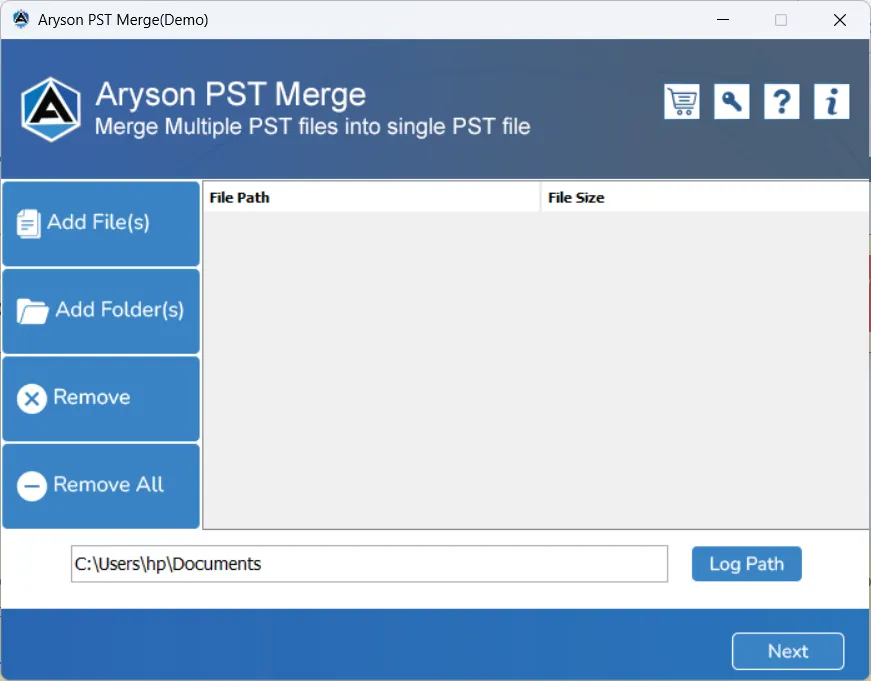
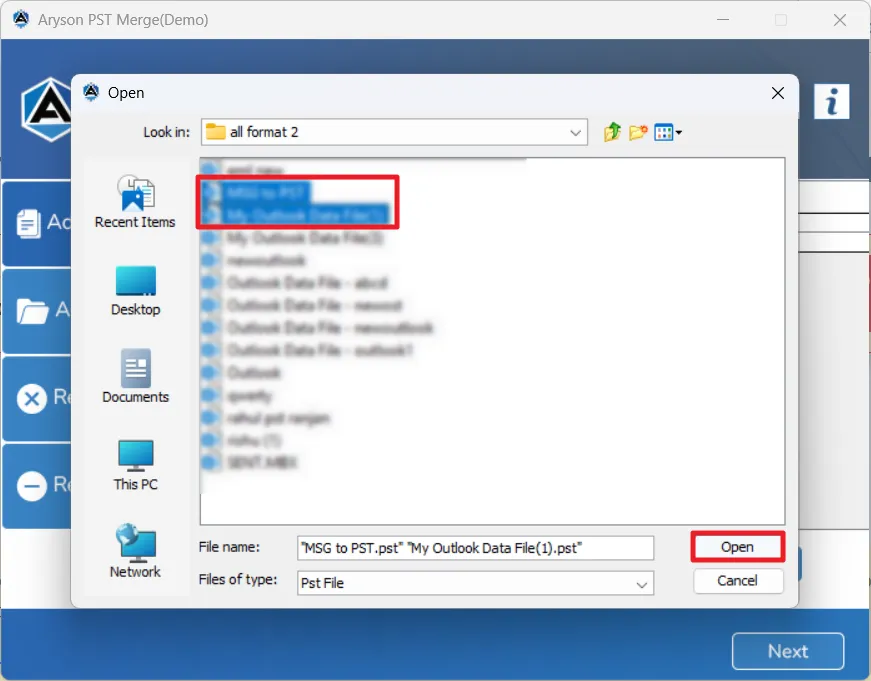
- After that, you can add one or multiple PST files into the application.
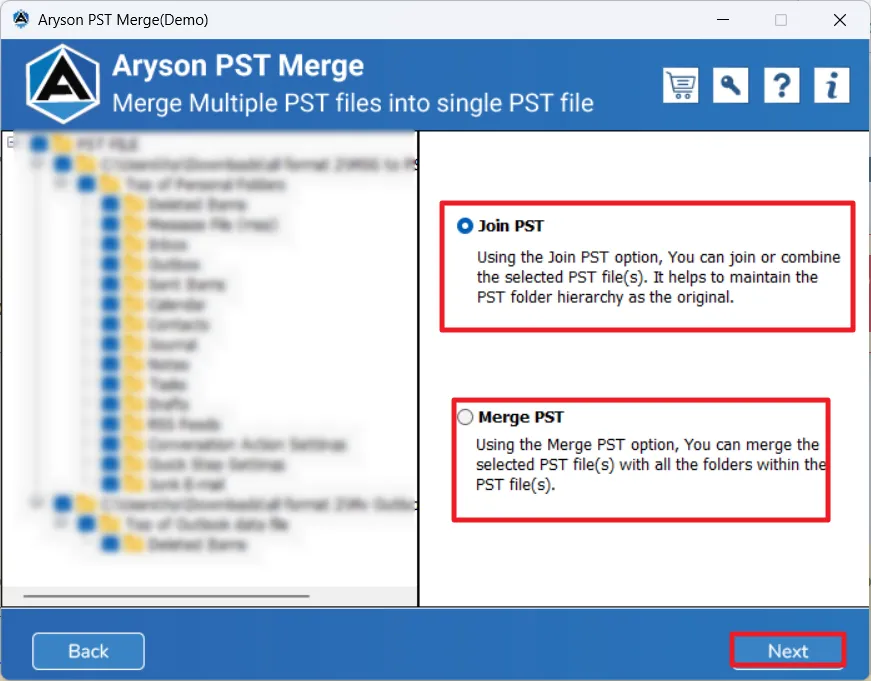
- You have to select the desired merge option based on your requirement.
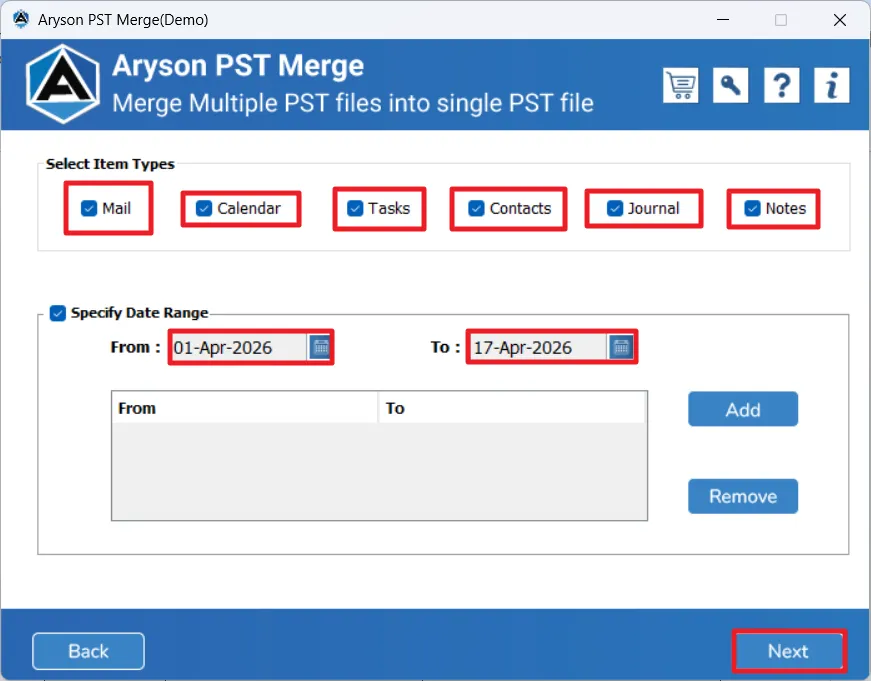
- In this step, you can simply apply filters such as a date range.
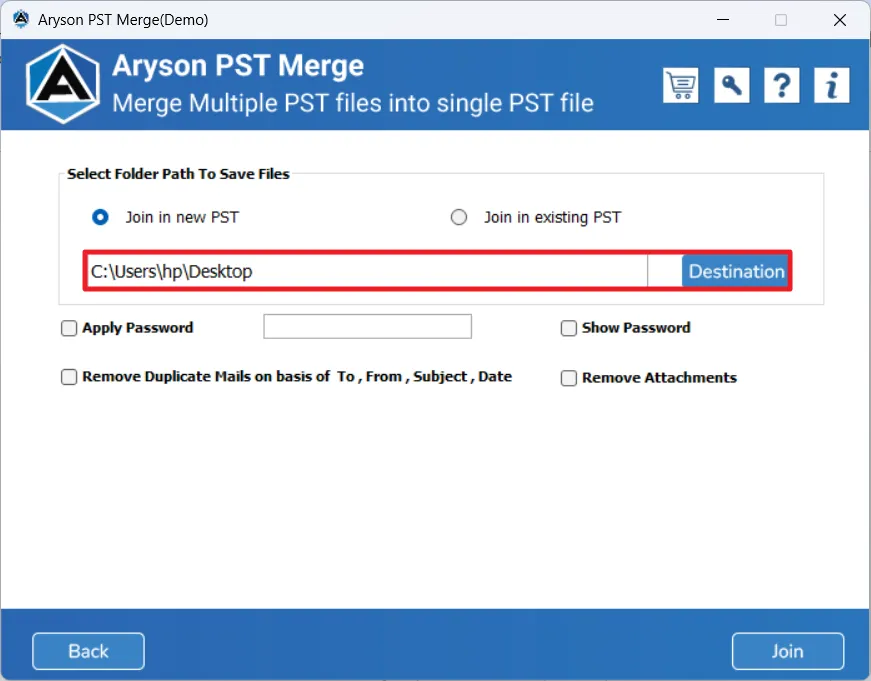
- Thereafter, choose the destination location for saving the output file.
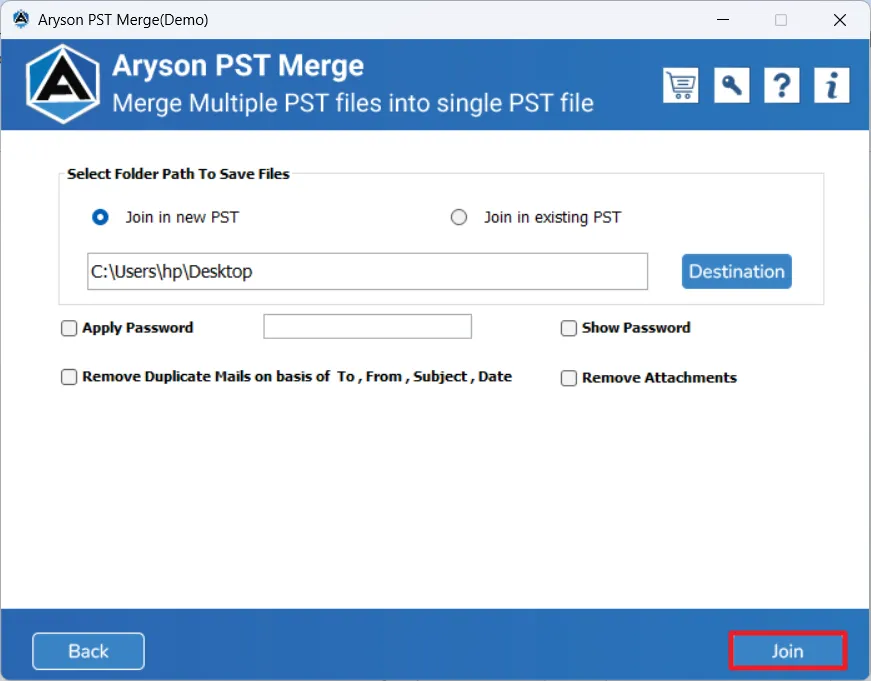
- Finally, you have to start the process to send a Mail Merge in Outlook.
Manual vs Automated Mail Merge Tool Comparison
|
Feature |
Manual Method |
Automated Tool |
|
Ease of Use |
This approach requires setup and multiple steps |
It has a user-friendly and simple process |
|
Data Handling |
It is best for your small data |
This is suitable for your large data |
|
Speed |
This method is time-consuming |
Moreover, users get fast processing |
|
Accuracy |
There is a higher chance of errors |
You will get more accurate results |
|
Features |
Likewise, it provides limited options |
Users get advanced filters and duplicate removal |
End Note
To conclude, you can choose the best mail merge method in Outlook that depends on the size of your data and your technical requirements. The manual method can be useful for basic tasks but may become inefficient for larger operations. On the other hand, the advanced solution delivers quick results & gives you more control over your mail data. Along with this, the software provides its users with a demo version that can handle 50 emails/folders at no cost.
Frequently Asked Questions:
Q.1. How does Mail Merge work in Outlook?
Ans- It links an email template with a data source and automatically inserts personalized details into each message before sending them individually.
Q.2. What is the best Mail Merge tool for Outlook?
Ans- The above-discussed PST Merge-based tool is a reliable option as it supports bulk processing, data accuracy, and features like duplicate removal and selective merging.
Q.3. Are free Mail Merge tools available for Outlook?
Ans- Yes, free trials are available if you used the MSOutlook Help PST Merger Tool.
Q.4. Can I merge multiple Outlook PST files into one?
Ans- Yes, the above-discussed PST merge tool allows combining multiple PST files into a single file while maintaining data structure and removing duplicates.
About The Author:

Evren Cole is an expert in Email and Data Management. She has a strong passion for technology and entrepreneurship. In her free time, she enjoys football, music, and reading books.

