

-
Written By Evren Cole
-
Updated on January 13th, 2026
Migrate Microsoft 365 to IMAP Server: Complete Tutorial
Samueal’s Query: Recently, our organization switched from Microsoft 365 to an IMAP-based email server due to the increase in the licensing costs & the need for a simpler mail environment. Since we have multiple user mailboxes with critical emails, folders, and attachments, we are concerned about the data integrity. Is there anyone who has tried any software or method to migrate Microsoft 365 to IMAP Server? If yes, please provide me with the same.
Overview: Like Samuel, if you also want to migrate Microsoft 365 data to IMAP Server, continue reading this blog. This write-up provides the user with two simple yet effective solutions for the migration, including the MSOutlookHelp Office 365 Backup Tool. Along with that, users can follow the step-by-step guides to perform the migration to avoid any kind of data integrity. But still, a question arises as to why we even need to perform the migration? To get the answer to this, read more.
Why Migrate Office 365 to IMAP Server?
- Users can reduce the licensing cost of a Microsoft 365 account & subscription.
- It makes the future cross-platform migrations easier.
- Moreover, the user can gain full control & ownership of mailbox data on their own server.
- Additionally, via IMAP, your data becomes compatible with multiple email clients and devices.
- Also, you can easily manage your emails for organizations with basic mail requirements.
Manual Method to Migrate Microsoft 365 to IMAP Server
Since there is no direct manual option to transfer emails from Office 365 to an IMAP server provided by Microsoft. Users can migrate their data manually by configuring both Office 365 and the destination IMAP account in Microsoft Outlook.
- To begin, run Outlook & add your Office 365 account to it.
- After that, allow Outlook to fully synchronize all emails and folders.
- Next, add the destination IMAP email account to the same Outlook profile.
- Now, make sure that both accounts are active & syncing correctly.
- Next, select your required emails/folders from the O365 mailbox.
- Then, drag & drop your selected data into the corresponding folders of the IMAP account.
- This may take some time for Outlook to upload the emails to the IMAP server.
- Finally, log in to your IMAP account to verify successful migration.
Limitations of the Manual Office 365 to IMAP Migration
- It can be time-consuming to migrate large mailboxes.
- Your email attachments may fail to transfer in case of synchronization issues.
- Moreover, this method doesn’t support bulk migration.
- Additionally, it can be difficult to fix any interruption or error during the drag-and-drop.
- Also, there are chances of duplication via this method.
Automated Software to Migrate Microsoft 365 to IMAP Server
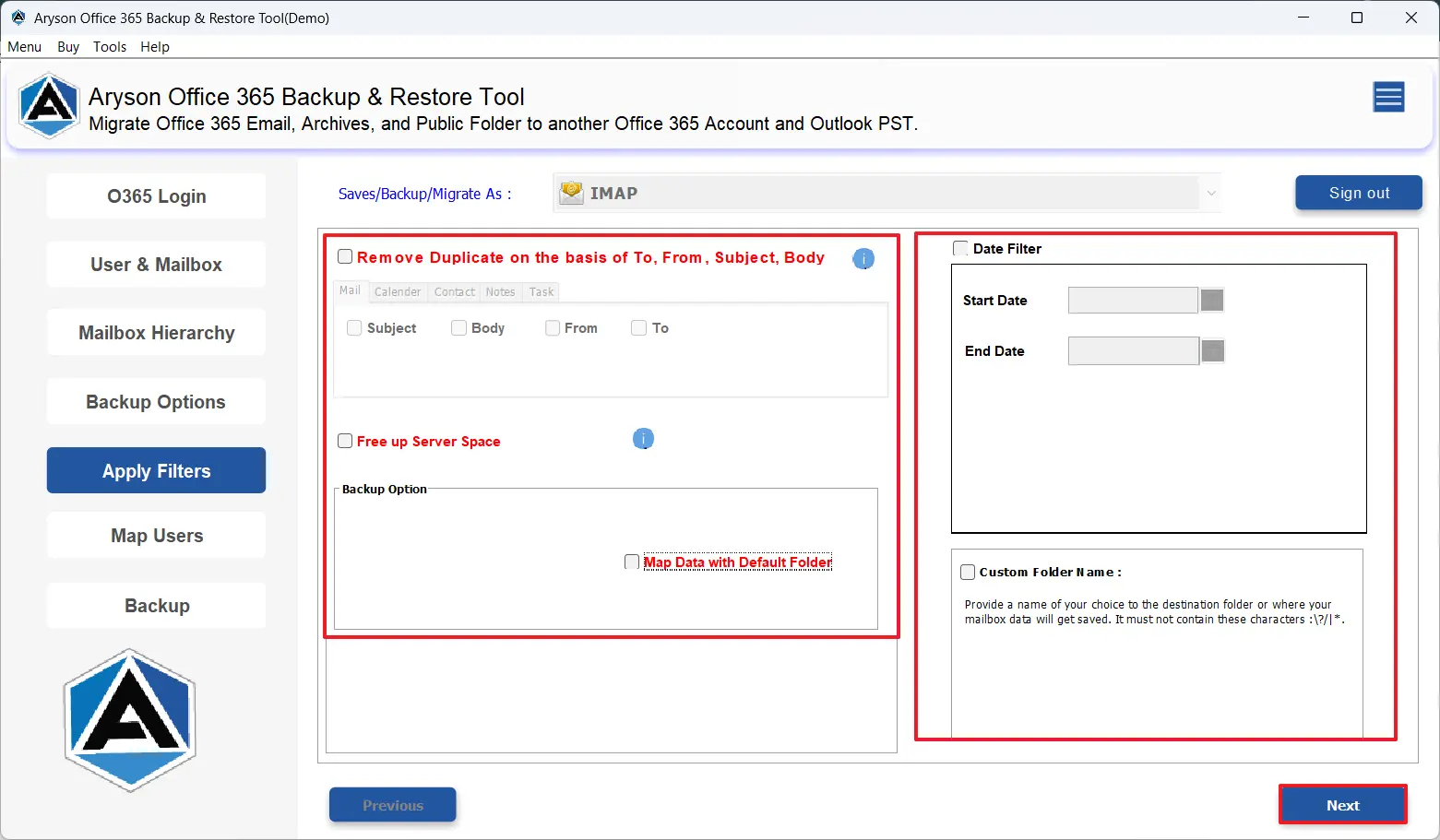
MSOutlookHelp Office 365 Backup Tool is the most efficient software used to migrate large amounts of Office 365 data to an IMAP Server. Moreover, this software performs the entire migration within a few clicks without affecting the folder hierarchy. Additionally, even if you are a non-technical user, you can use this software to efficiently migrate your O365 data. This utility can migrate Office 365 to AOL Mail, Thunderbird, Yahoo Mail, IMAP, and others as well. Also, using the advanced filters like remove duplicate mails, skip previous migration, etc., you can make the entire migration quick and simple.
Simplifies Steps for Microsoft 365 to IMAP Migration
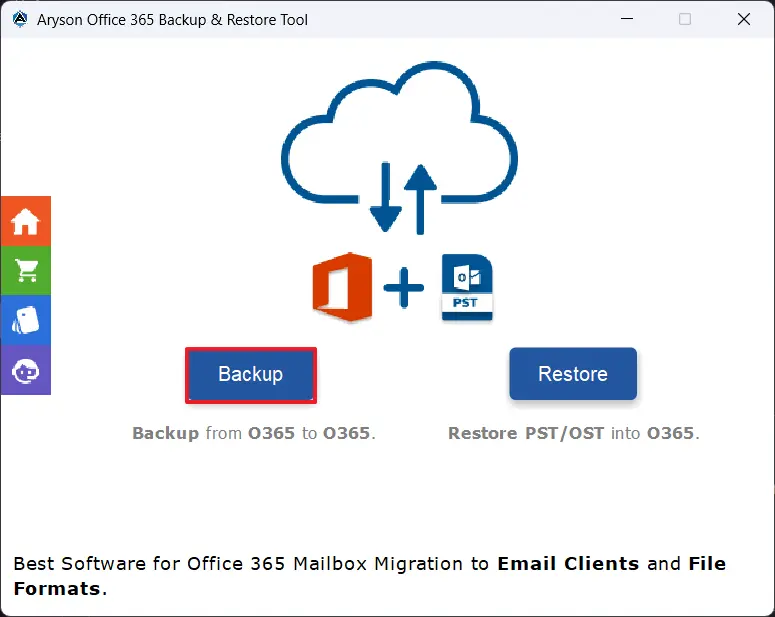
- Firstly, install the MSOutlookHelp Office 365 Backup Tool >> run it >> Backup.
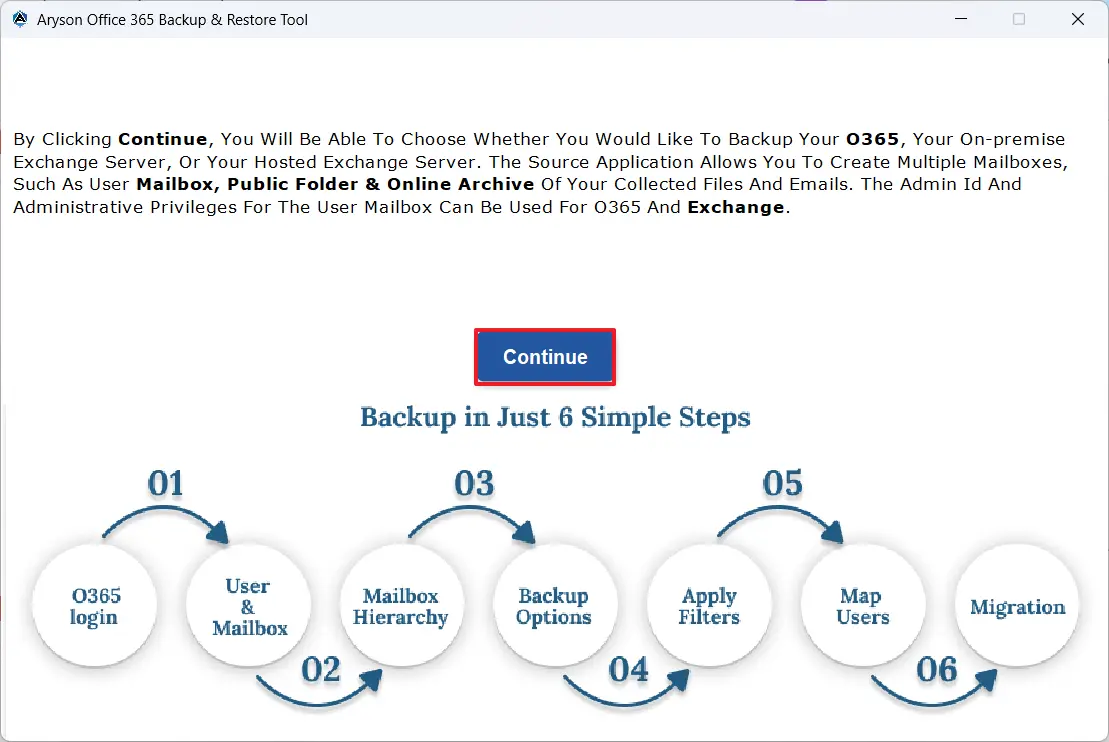
- Next, hit the Continue button to navigate further.
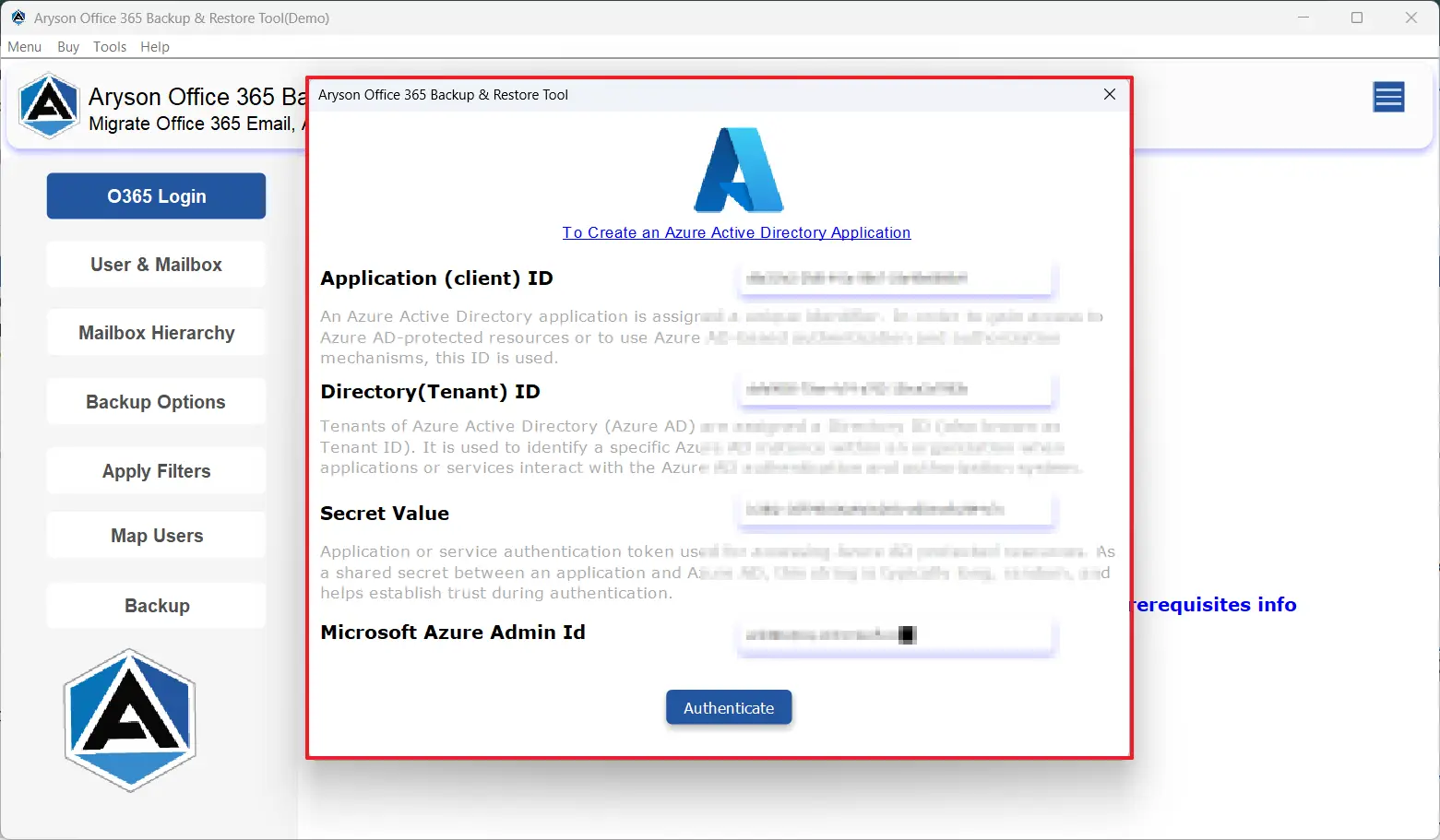
- After that, enter your O365 credentials to sign in.
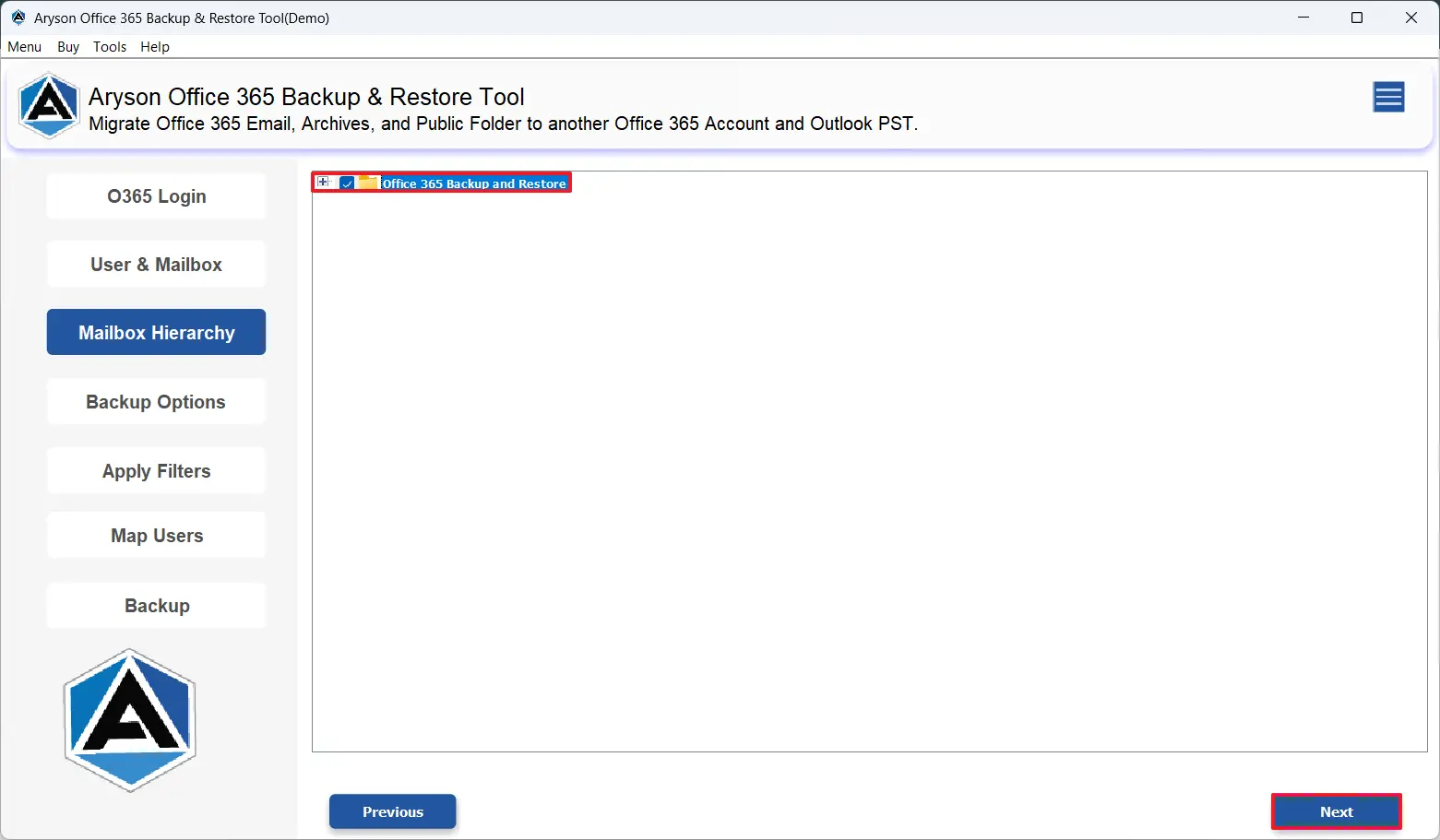
- Now, choose your desired mailboxes/folders to migrate.
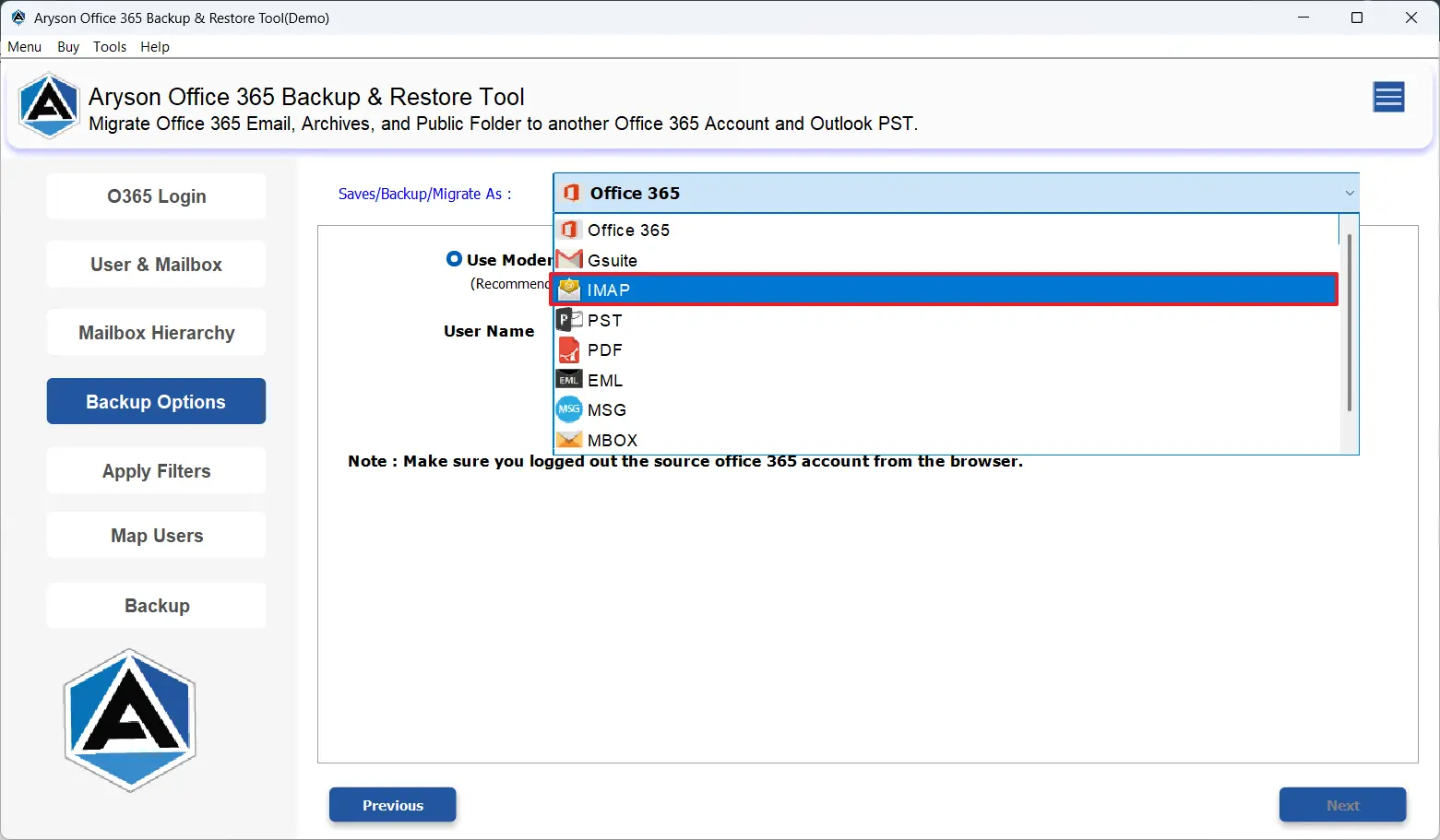
- Next, from the email clients dropdown, select IMAP.
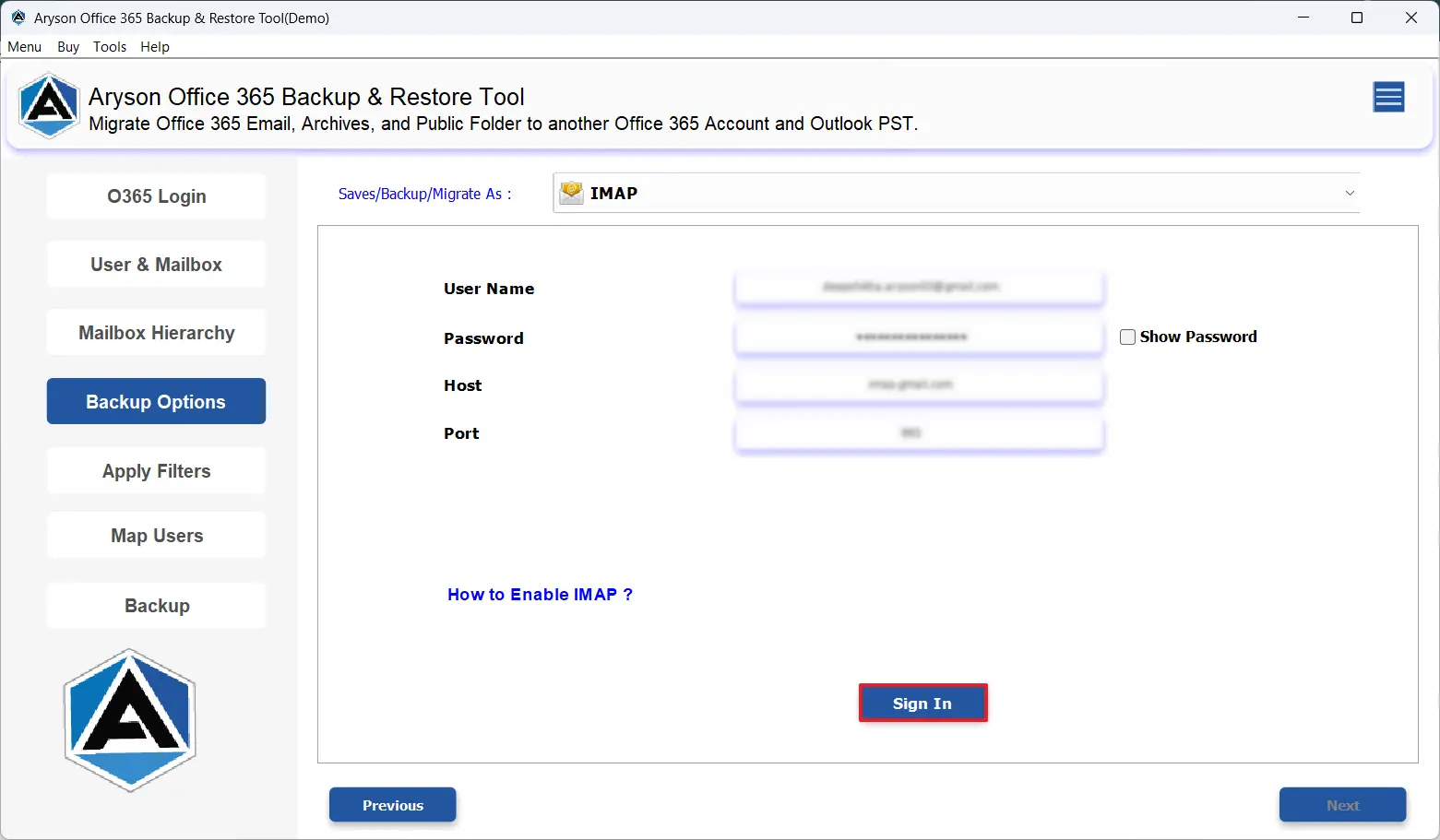
- After that, enter your IMAP credentials to log in.
- At last, use the additional features >> Next to begin the migration.
Conclusion
In the above article, we discussed two different methods to migrate Microsoft 365 to IMAP Server. Sometimes, it seems confusing to the non-technical users to migrate their Office 365 data to IMAP. But, following the right approach, they can effortlessly accomplish this task. Just go for the manual approach if you have some technical knowledge and have to migrate a few files only. Whereas, if you have data in bulk, opt for the automated solution.
Frequently Asked Questions:
Q.1 Can I migrate both emails and contacts from Microsoft 365 to IMAP?
Ans. Yes, using the above automated solution, you can easily migrate both emails and contacts from Microsoft 365 to IMAP.
Q.2 Are calendar events and contacts preserved in Office 365 to IMAP Migration?
Ans. Yes, the MSOutlookHelp Office 365 Backup Tool keeps the calendar events and contacts preserved when users transfer Office 365 emails to IMAP Server.
Q.3 Can I migrate only selected emails or folders while migrating Microsoft 365 to IMAP server?
Ans. Yes, you can migrate only selected emails or folders while migrating Microsoft 365 to an IMAP server with the help of the above automated software.
About The Author:

Evren Cole is an expert in Email and Data Management. She has a strong passion for technology and entrepreneurship. In her free time, she enjoys football, music, and reading books.

