

-
Written By Evren Cole
-
Updated on July 16th, 2025
How to Import Multiple VCF to Outlook with all Attributes Easily
Summary: When you manage contacts on different devices, you often end up with several separate VCF (vCard) files. If you’re planning to move all these contacts into Microsoft Outlook, doing it one by one can be time-consuming and complex. It becomes even more challenging when you want to keep all the details, like names, emails, phone numbers, addresses, job titles, and photos, without any data loss. This blog will guide you through the best ways to import VCF to Outlook while keeping every contact field intact. Also, we will introduce the VCF to CSV Converter to import multiple VCF files into Outlook with ease.
Understanding the Need to Import VCF Files to Outlook
VCF or vCard files are used to save and share contact details across different devices and apps. But when you have many VCF files, it becomes quite difficult to manage them. If you use Outlook for your daily emails and contacts, it’s better to bring all your VCF files into it. Here are some key reasons why you should import VCF to Outlook:
With these reasons in mind, let’s move ahead and see how you can import multiple VCF files into Outlook accurately.
Top 2 Solutions to Import VCF to Outlook
Now that you’re ready to begin the process, let’s look at the top 2 reliable methods to import VCF files into Outlook. Proceed with the next section and pick the method according to your requirement.
Solution 01: How to Import vCard Files into Outlook Manually
If you only have a few vCard (.vcf) files, you can use Outlook’s built-in option to import them manually. This method is simple but works best when you’re dealing with one or two contacts, as it only allows importing one VCF file at a time.
- open Microsoft Outlook on your computer.
- File tab located at the top-left corner of the screen.
- Open & Export.
- click on Import/Export to launch the Import and Export Wizard.
- select the option Import a vCard file (.vcf) and click Next.
- VCF file and select it.
- Open, and the selected contact will be imported into your Outlook Contacts.
|
Also read: Convert PST to VCF/vCard |
Limitations of the Manual Method
The manual method works for importing a small number of contacts, but it has several drawbacks that can be inefficient in many cases. Here are some of the key limitations:
Because of these limitations, using a professional tool becomes essential when you need to preserve all contact attributes accurately.
Solution 02: Simple & Reliable Solution to Import Multiple VCF to Outlook
To overcome the limited manual method, the Aryson VCF to CSV Converter provides a fast and reliable solution to import multiple vCard (.vcf) files into Outlook. It ensures that all contact attributes, including full name, phone numbers, email addresses, company info, profile pictures, and custom fields, are preserved during the conversion. Moreover, it supports batch conversion and imports hundreds of contacts in one go. Also, it converts VCF files into Outlook-compatible CSV format, which can then be smoothly imported into Outlook. With support for all vCard versions (2.1, 3.0, and 4.0) and a simple, user-friendly interface, this utility saves time and delivers accurate results.
Simple Steps to Import Multiple vCards into Outlook
Let’s look at the simple steps you can follow to import VCF to Outlook without losing any contact details.
Step 01: Firstly, install and open VCF to CSV Converter on your Windows system.
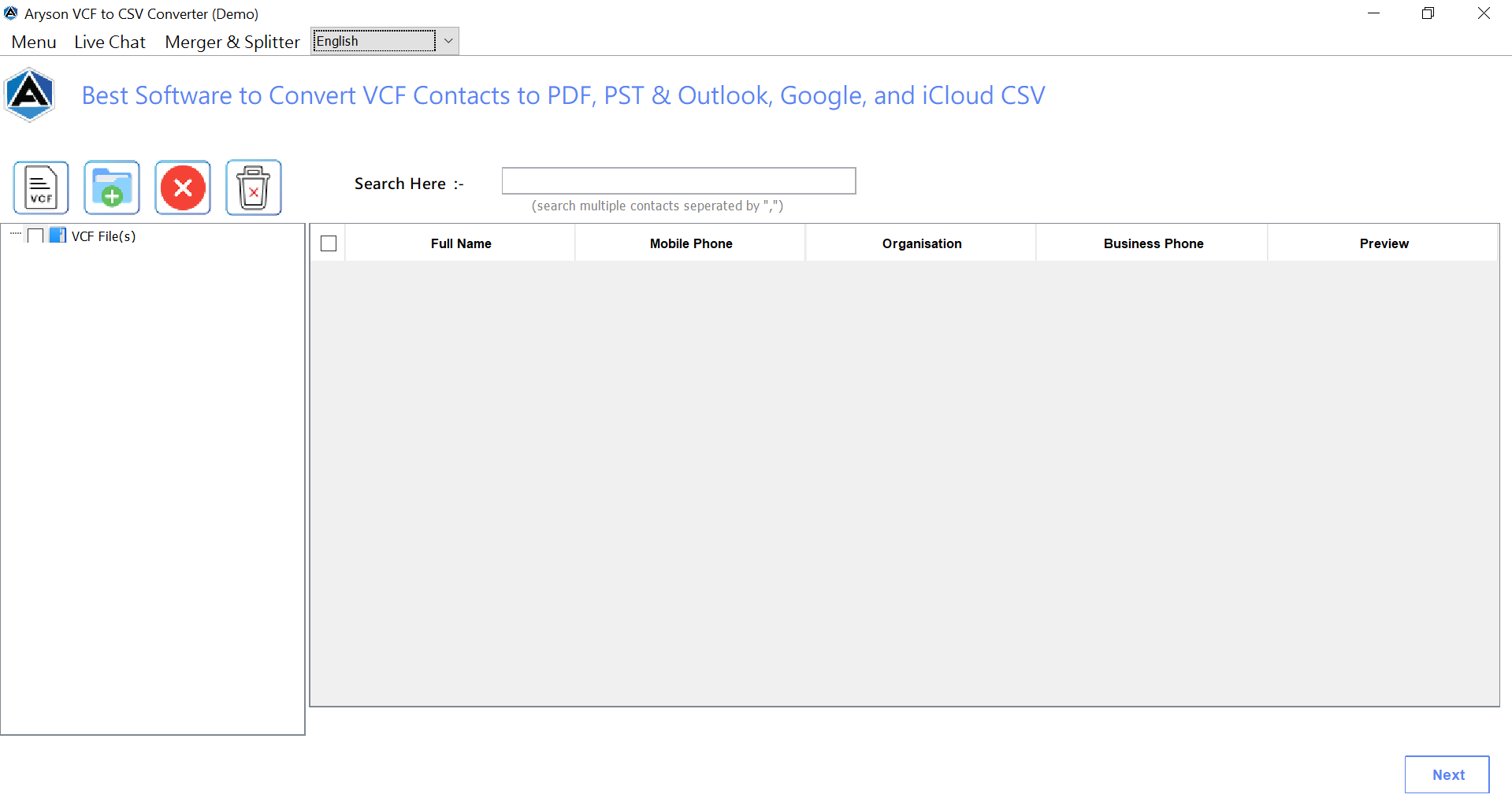
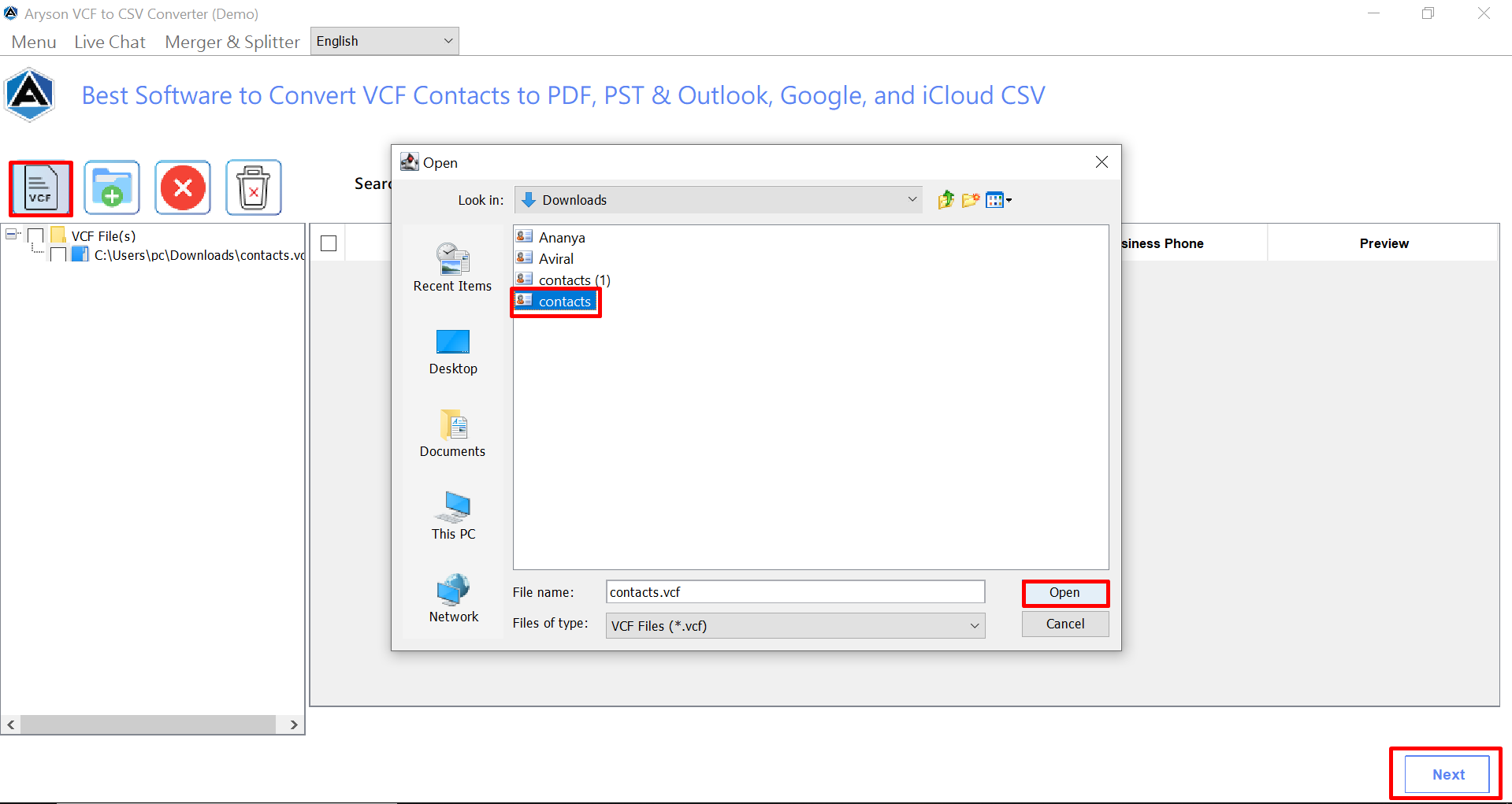
Step 02: Click on the VCF file and select your vCard file >>Click Open to add them>> Next.
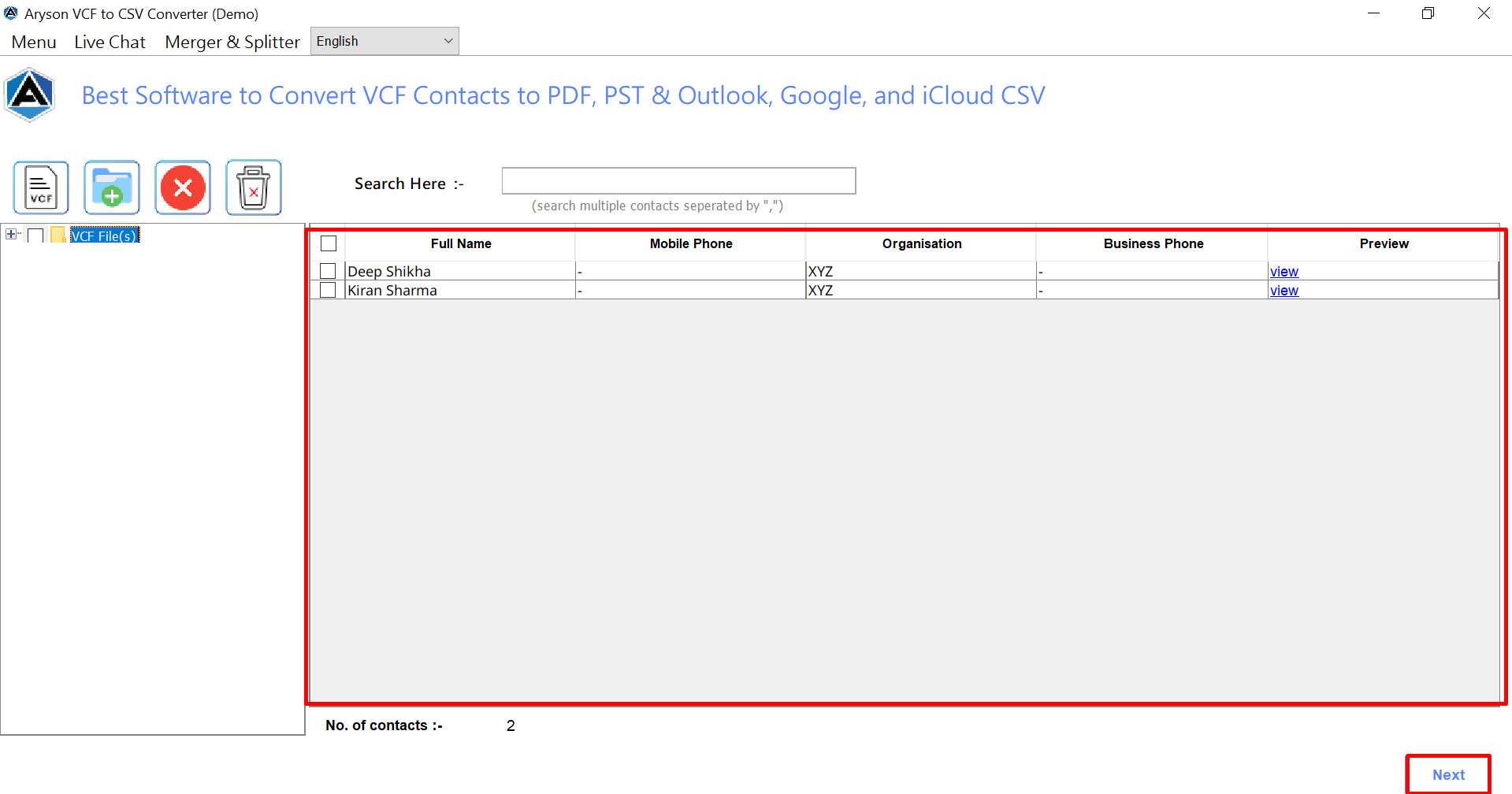
Step 03: You can preview each contact’s details(name, email, phone number, company)>>Next.
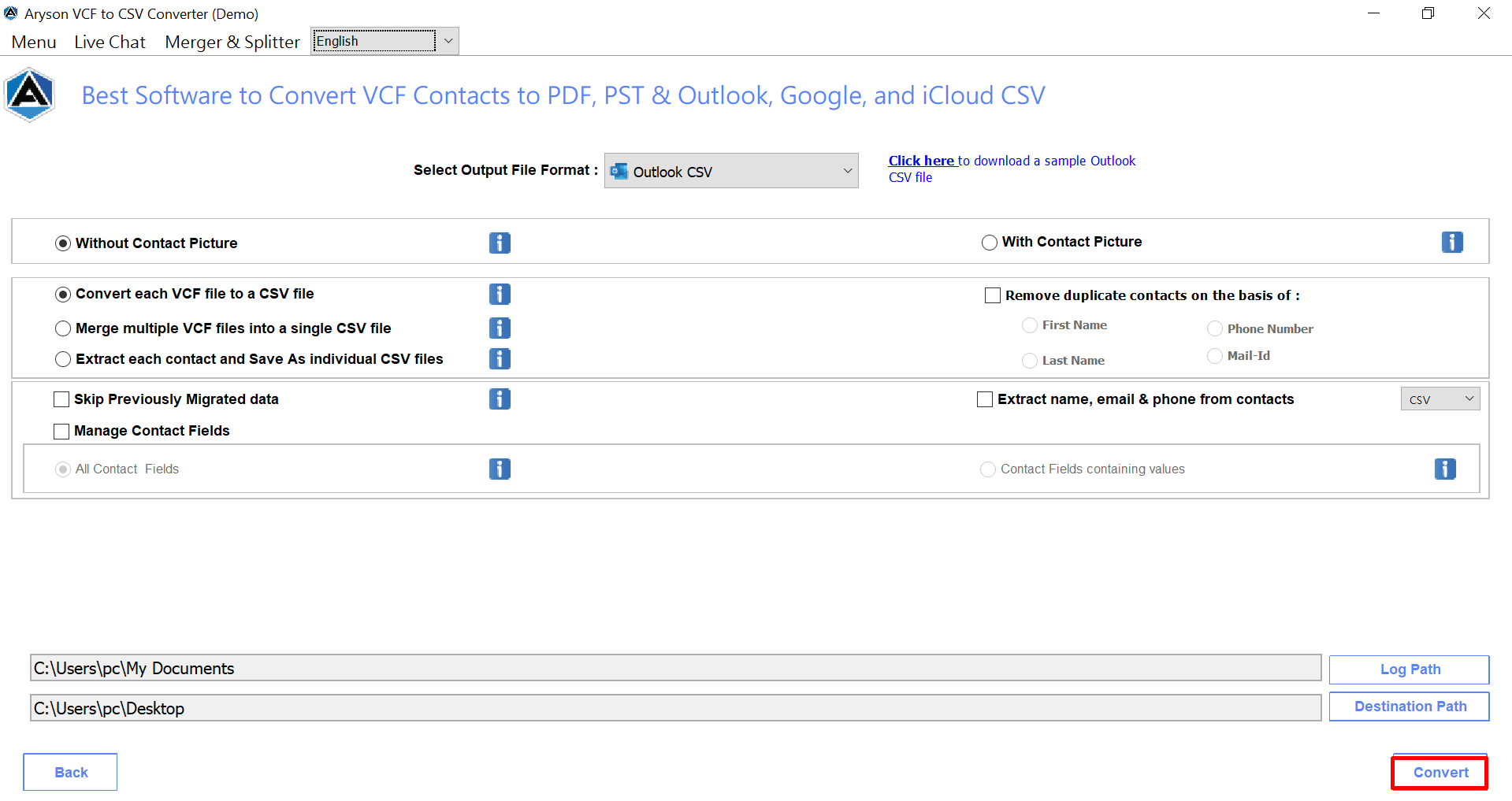
Step 04: From the list of saving options, select Outlook CSV as your resultant format.

Step 05: Now, proceed with the advanced filter along with the destination path to save.
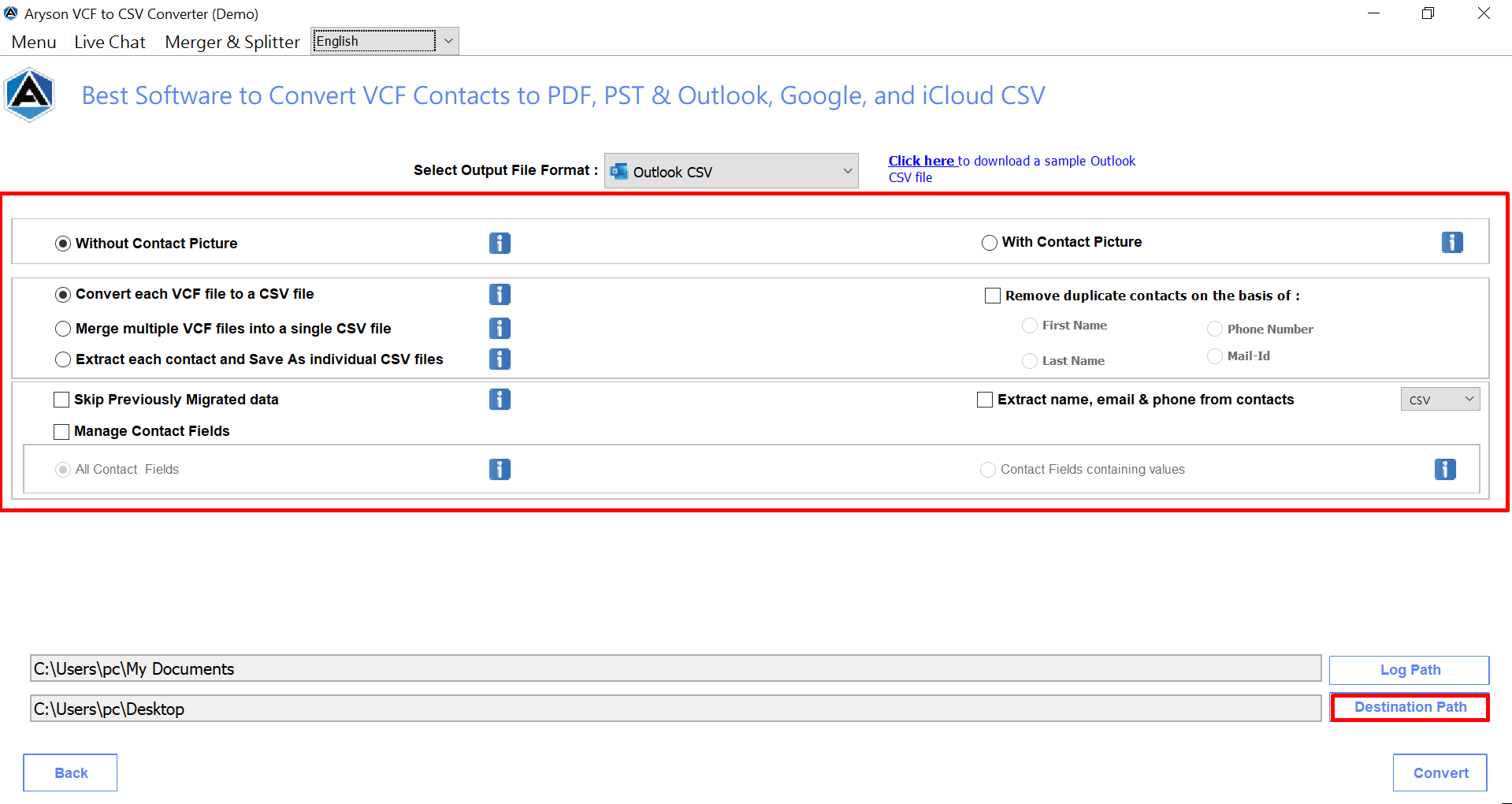
Step 06: At last, click the Convert Button to import multiple vCards into Outlook.
Conclusion
Importing multiple VCF files to Outlook becomes much easier when you use the right method. While the manual option works for a few contacts, it’s not ideal for bulk files. In contrast, VCF to CSV Converter helps you move all your contacts to Outlook quickly and safely. Also, it keeps every detail intact. It’s the best way to import VCF to Outlook, which saves time and avoids data loss.
Frequently Asked Questions
Q.1 What formats does the VCF to CSV Converter support for export?
Ans: This recommended utility supports multiple output formats, including Outlook CSV, Google CSV, Yahoo CSV, iCloud CSV, PDF, and more, which provide flexibility based on your needs.
Q.2 How to import multiple VCF files into Outlook?
Ans: Outlook doesn’t support importing multiple VCF files at once manually. To do this, you can use the recommended VCF to CSV Converter to convert all VCF files into a single Outlook-compatible CSV file.
About The Author:

Evren Cole is an expert in Email and Data Management. She has a strong passion for technology and entrepreneurship. In her free time, she enjoys football, music, and reading books.

