

-
Written By Shivam Rathore
-
Updated on June 24th, 2026
Fast & Easy Ways to Transfer Emails from TalkTalk to Gmail
User Query: Hi, I’m trying to move all my emails from TalkTalk to Gmail, but I’m not sure how to do it properly. All my important emails are saved inside the “My Folders” section in TalkTalk, and I don’t want to lose any of them during the transfer. I need a simple way to move everything safely, including all folders and messages, into my Gmail account.
Overview: TalkTalk users want to move to Gmail because it has more storage & works smoothly on all devices. The problem is that moving emails from TalkTalk to Gmail isn’t always simple. Both services don’t work the same way, so things like folders or older emails may not show up properly if you just try to connect them directly. Sometimes Gmail also fails to sync everything.
To avoid these issues, this blog looks at a few manual ways to move emails, along with a simple MSOutlookHelp IMAP Backup Wizard that can help transfer emails from TalkTalk to Gmail without losing data.
Things to Do Before Migration
- You must enable IMAP in TalkTalk Settings.
- Stable Internet Connection for the migration.
- Must have correct TalkTalk server settings.
- Take a backup of important data.
Manual Method to Transfer TalkTalk Emails to Gmail via IMAP
If you want to move your TalkTalk emails to Gmail, the IMAP method is one of the easiest ways to do it using an email client like Outlook or Thunderbird.
|
Settings |
Value |
|
IMAP Server Port Encryption SMTP Server SMTP Port Encryption |
mail.talktalk.net 993 SSL/TLS smtp.talktalk.net 465 SSL/TLS |
Steps to Convert TalkTalk Emails to Gmail
- You have to open Outlook or Thunderbird on your computer.
- Add your TalkTalk email account via IMAP settings.
- Let all folders (including “My Folders”) sync completely.
- Add your Gmail account to the same email client.
- Create folders in Gmail if needed for organization.
- Drag and drop emails from TalkTalk folders to Gmail.
- Wait for syncing to finish and verify emails in Gmail.
Downsides of the Manual Method
- It can be slow, especially if you have a large mailbox.
- Folder structure may not always transfer perfectly.
- Risk of missing or duplicated emails during drag-and-drop.
- Needs a desktop email client like Outlook or Thunderbird.
- Requires a stable internet connection to migrate TalkTalk Emails to Gmail.
- No proper progress tracking or error reports.
- Not ideal for bulk or long-term email migration.
Q. Why Have My TalkTalk Emails Stopped Importing into Gmail?Some users report that Gmail initially imports TalkTalk emails correctly but later stops syncing older emails. In many cases, new emails still arrive through forwarding, while emails manually moved into the TalkTalk Inbox fail to appear in Gmail.
If Gmail displays the message “This account cannot be imported at the moment. Please try again later,” the import connection may have stopped syncing properly due to a temporary authentication or server issue. Reconnecting the account may resolve the problem. However, if the issue continues, using an IMAP migration tool can provide a more reliable way to transfer TalkTalk emails to Gmail. |
Professional Method to Transfer Emails from TalkTalk to Gmail
If the manual approach looks complicated, then use a professional IMAP Backup Wizard. It enables users to transfer emails via the IMAP tool from TalkTalk to Gmail. This software also supports bulk email migration and provides advanced filters for selective backup. It allows users to backup IMAP emails to PST, MBOX, PDF, and other formats. In situations where IMAP connectivity problems occur, it offers a more stable and reliable way to complete the backup process.
- Easily migrate IMAP to Office 365 files through a bulk migration feature.
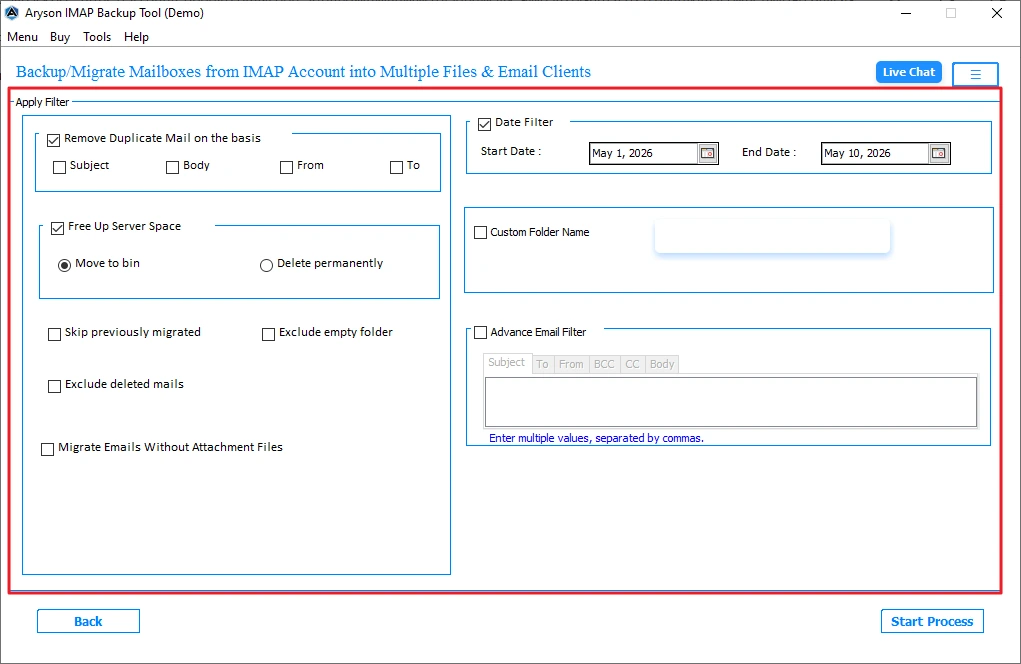
- Use built-in date filters and custom folder options to perform targeted email exports.
- Maintains the existing folder hierarchy so mailbox data remains organized after migration.
- Protects email data from alteration or loss throughout the conversion process.
- Works smoothly across all Windows versions, which include the latest Windows 11 environment.
Simple Steps to Add TalkTalk Email to Gmail
- You need to download and install the IMAP Backup Wizard on your system.
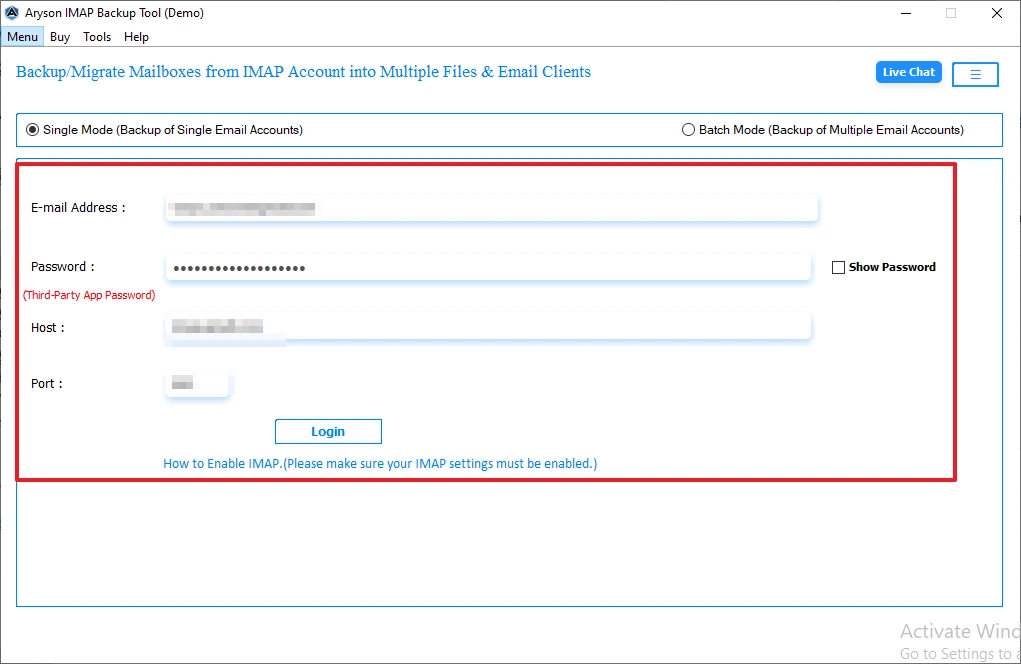
- Enter the IMAP login credentials with the Host and Port number.
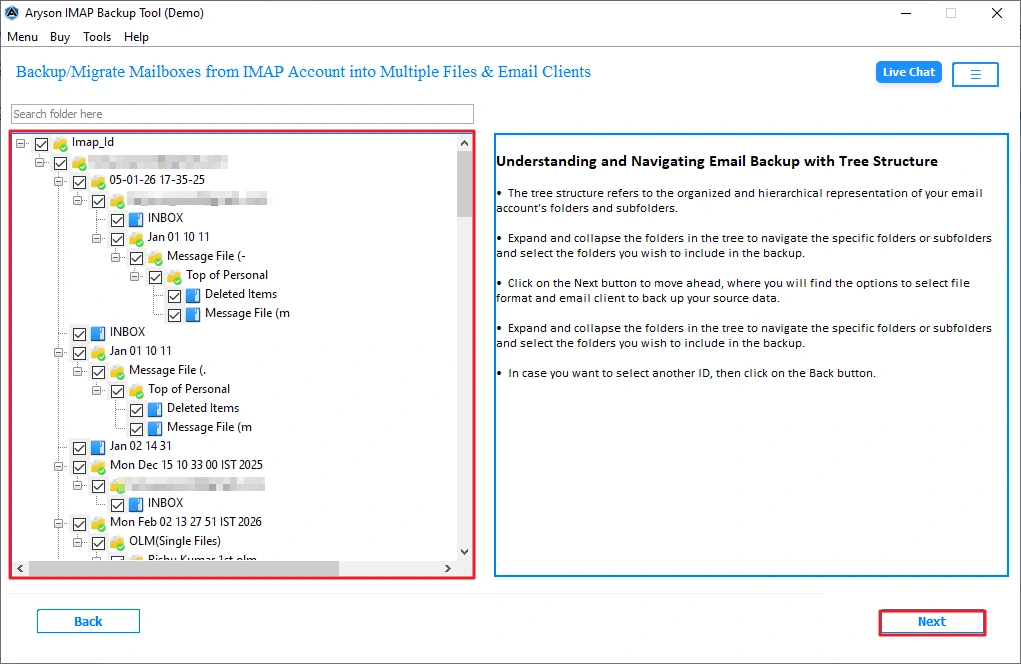
- You can preview the mailbox data and then click on Next.
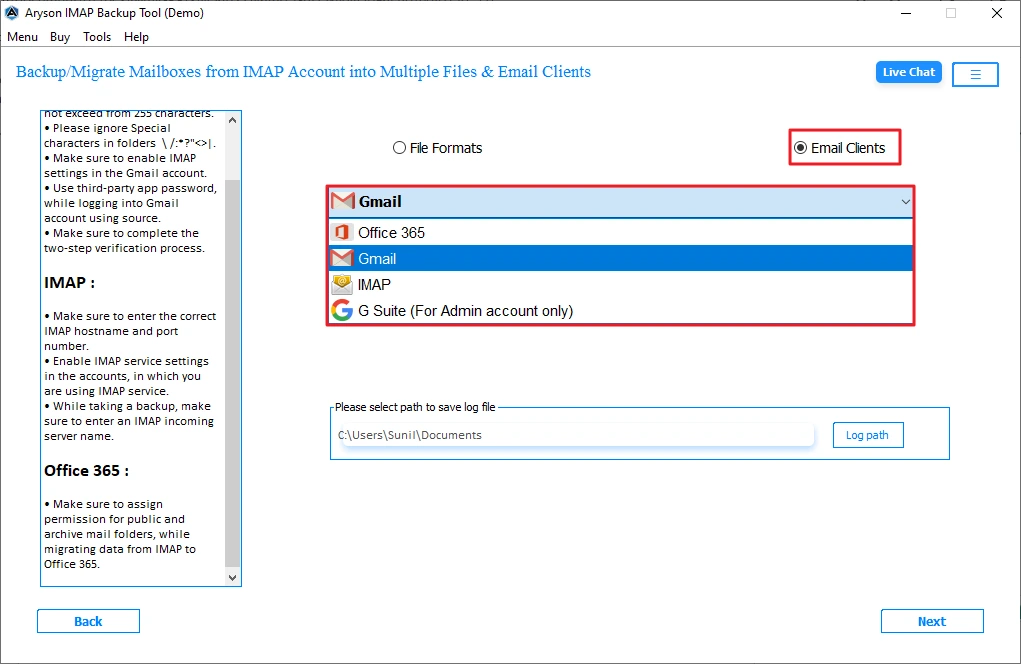
- Choose Gmail as the output from the given email clients >> authenticate.
- Now, enable the filters based on your requirement for selective migration.
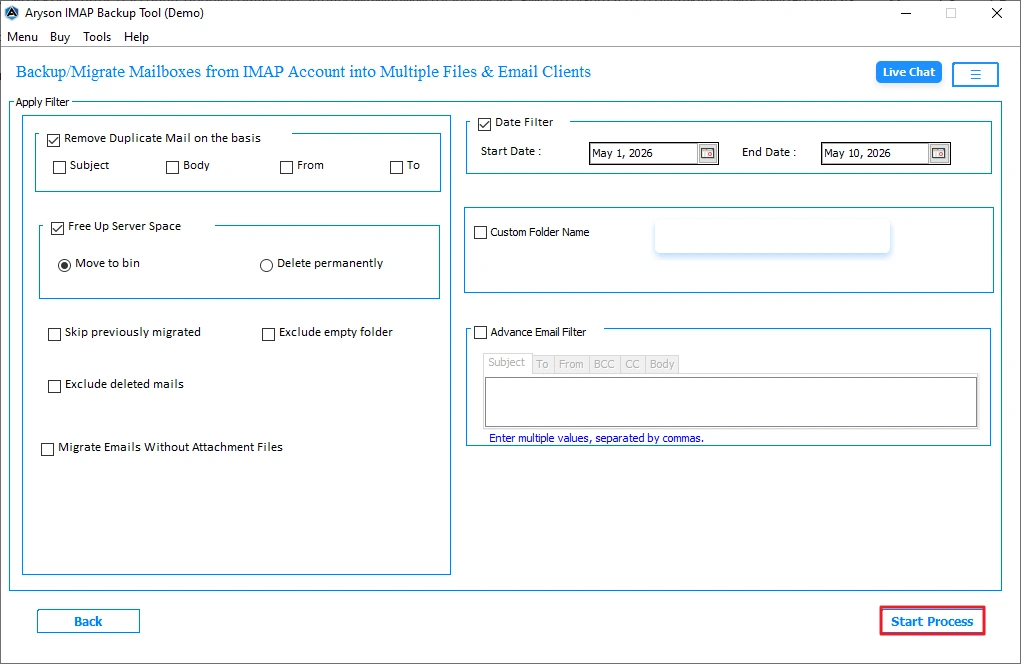
- At last, click on the Start Process to begin the migration of TalkTalk to Gmail.
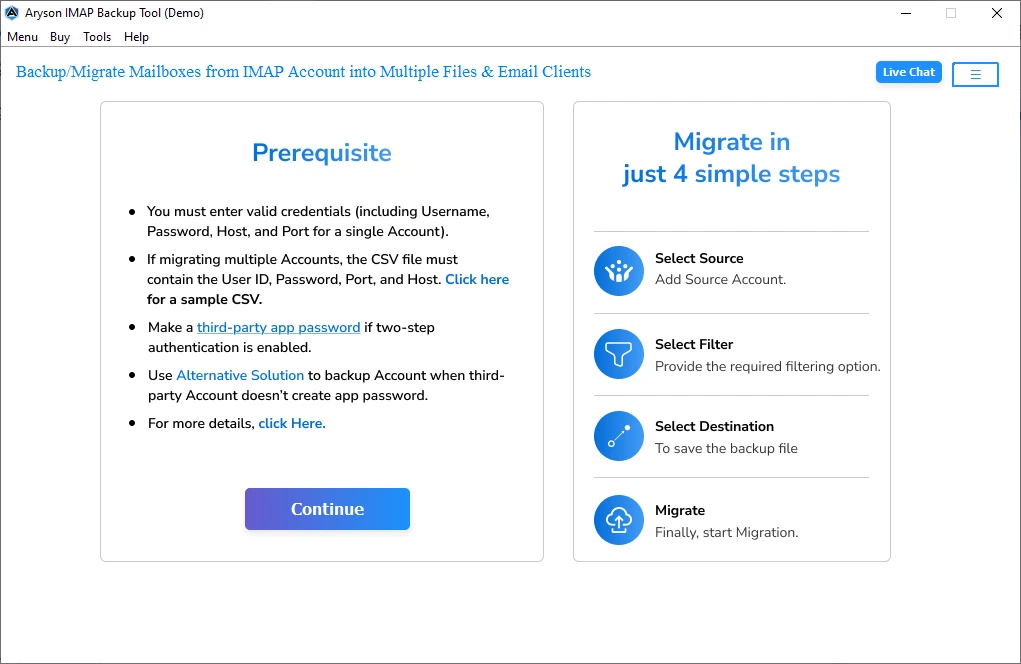
User ExperienceA small business owner was managing around 20,000 emails in TalkTalk, spread across multiple folders. They first tried moving everything to Gmail using manual methods, but it didn’t work well and took too much time. Later, they switched to the IMAP Backup Wizard. With this tool, all emails were moved in a single process. It saved a lot of time and kept the folder structure and data intact during the transfer. |
Conclusion
If you’re planning to move your TalkTalk emails to Gmail, the process can be much easier with the right tool. Manual methods are available, but they can become frustrating when you have thousands of emails, attachments, or years of mailbox data to transfer. Instead of moving messages one folder at a time, the IMAP Migration Tool lets you transfer emails from TalkTalk to Gmail. It can handle large mailboxes, keep your folders organized, and move emails in a single operation, saving both time and effort.
Frequently Asked Questions:
Q1. How do I preserve folder structure when moving TalkTalk emails?
Ans. To keep the folder structure intact from TalkTalk, use an IMAP-based migration through Outlook or Thunderbird. Manual drag-and-drop within IMAP helps, but professional IMAP tools do a better job of keeping folders the same.
Q2. Is Gmail better than TalkTalk email for long-term use?
Ans. Yes, Gmail is generally better for long-term use. It offers more storage, stronger security, better spam filtering, and easy access across devices compared to TalkTalk.
Q3. How can I easily transfer years of TalkTalk emails to Gmail?
Ans. The easiest way is to use an IMAP setup in an email client or a dedicated migration tool. These allow bulk transfer of old emails without moving them one by one.
Q4. Can I transfer a 50GB+ TalkTalk email account to Gmail without losing data?
Ans. Yes, it is possible, but manual methods may fail or take too long. For large mailboxes like 50GB+, a professional IMAP migration tool is safer to avoid missing or duplicated emails.
Q5. How can I ensure zero downtime during TalkTalk to Gmail migration?
Ans. To minimize downtime, keep both TalkTalk and Gmail accounts active during the migration and verify that new emails continue to sync until the transfer is complete.
About The Author:

Meet Shivam, a Microsoft-certified expert who has helped many people fix problems with Outlook and Office 365. He likes writing about email tools and moving data. He’s always happy to share easy tips, clear guides, and useful updates to help people solve tech problems.

