

-
Written By Evren Cole
-
Updated on June 7th, 2026
How to Migrate Zoho Mail to IMAP – Smart Solution
James Query: How do I migrate all my emails from Zoho Mail over to my new Microsoft 365 IMAP account without losing my folder structure?.
Summary: Most of the enterprises rely on Zoho Mail for business communication and collaboration. IMAP protocol offers superior accessibility across multiple devices and email clients. This guide provides a structured and systematic approach to migrate Zoho Mail to IMAP. Following the correct configuration steps makes sure of data integrity throughout the entire transfer process. End-users can access their mailbox from any location post-migration. The process involves server configuration, mailbox export, and IMAP authentication setup. In this article, we will walk you through the manual method and the MSOutlookhelp Zoho Mail Backup Tool that maintains smooth operational continuity.
|
Ques. What are the IMAP/SMTP settings for Zoho Mail? Ans. Follow the given server settings to export Zoho Email to IMAP Server:
IMAP (Incoming Mail): Server Name: imap.zoho.com, Port: 993, SSL: Yes, Username: Full Zoho email address (username@zoho.com), Password: Enter Zoho Mail password
SMTP (Outgoing Mail): Server Name: smtp.zoho.com, Port: 465 (SSL) or 587 (TLS), SSL/TLS: Yes, Username: Full Zoho email address, Password: Enter Zoho account password |
Best Ways to Migrate Zoho Mail to IMAP
We will discuss the appropriate methods that help you to migrate Zoho Mail to your new Microsoft 365 Account.
- Manual Method
- Professional Software
Method 01:Manual Method for Zoho Mail to IMAP Migration
Users can follow this approach to migrate their Zoho Mail to another IMAP server. First, you need to enable IMAP Access inside Zoho Mail and generate an app password. You must follow the given steps to move Zoho Mail to IMAP.
Stage 01: Enable IMAP Access in Zoho Mail
- You need to log in to your Zoho Mail Account,>> click on Settings in the top corner.
- Navigate to the Mail Account and click on your primary email address.
- Then, you have to scroll down to the IMAP section.
- Check the box to enable IMAP Access >> click on Save.
Stage 02: Generate an App Password
- For this, go to your Zoho account portal (account.zoho.com).
- Choose the Security option on the left menu.
- Click on App Passwords and choose Generate New Password.
- Type a name (e.g. IMAP Migration) >> copy the unique code provided.
Stage 03: Perform Zoho Mail to IMAP Migration
- Now, open Microsoft Outlook and add Zoho Mail with the generated App Password.
- Enter the Zoho Mail settings: Incoming Server: imap.zoho.com, Port: 993, and Encryption: SSL/TLS.
- Just like Zoho, add IMAP in the destination with IMAP credentials and server details.
- Select the emails or folders from Zoho Mail that you want to migrate.
- Drag and drop the selected emails into the destination folder.
- In the end, log in to the destination IMAP account >> verify all emails have been migrated successfully.
Disadvantages of the Manual Method
- You need to manually configure both source and destination accounts.
- Attachments and folder hierarchy may not have been migrated properly.
- It does not provide features like selective migration.
- Technical knowledge is required to configure IMAP settings correctly.
- In addition, there are changes in human error at the time of email transfer.
Method 02: Professional Software to Migrate Zoho Mail to IMAP
If you want a straightforward way to move your Zoho Mail to IMAP, there is a tool for that. It is called the Zoho Mail Backup Tool. This tool lets you migrate Zoho Mail to Google Workspace and several platforms. It also saves emails in file formats, such as migrate Zoho Mail to MSG, PST, MBOX, and CSV. Your emails, folders, and data stay as they are during the process. Nothing gets mixed up or lost. You pick your source, choose your destination, and it does the work. It includes various key features like:
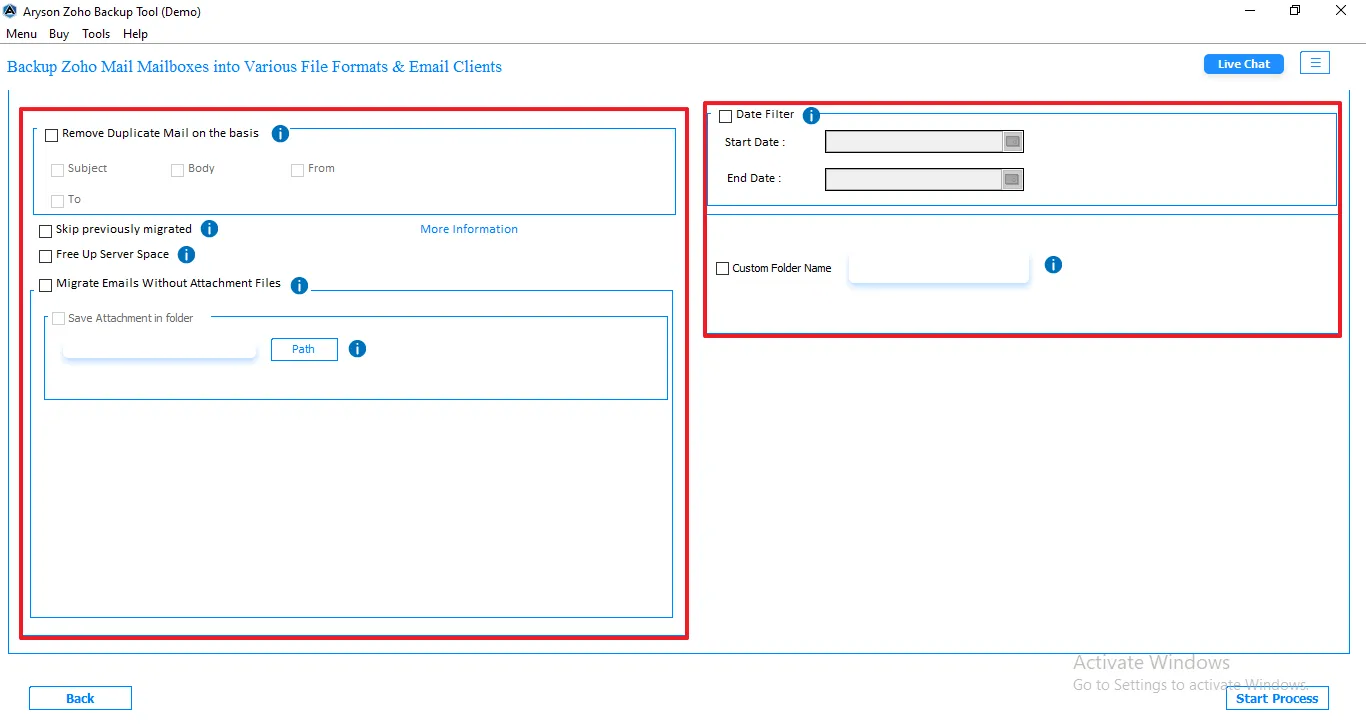
- Helps users to remove duplicate emails from their mailboxes.
- You can free up server space to manage Zoho account storage.
- For specific email migration, you can use the date filter features.
- Emails that are already migrated, you can skip them for this time migration.
Simplified Process to Migrate Zoho Mail into IMAP Emails
- Download and launch the software and run it on your system.
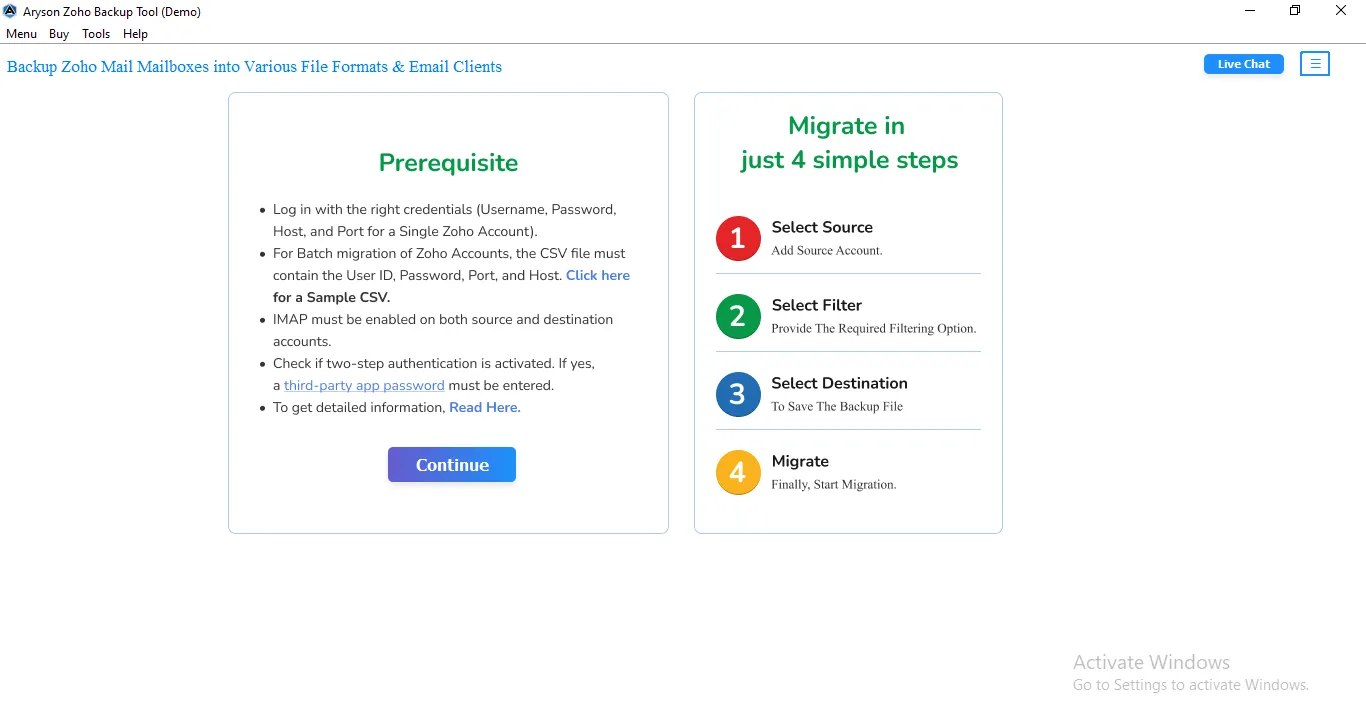
- Select the mode and enter the correct Zoho Mail credentials for login.
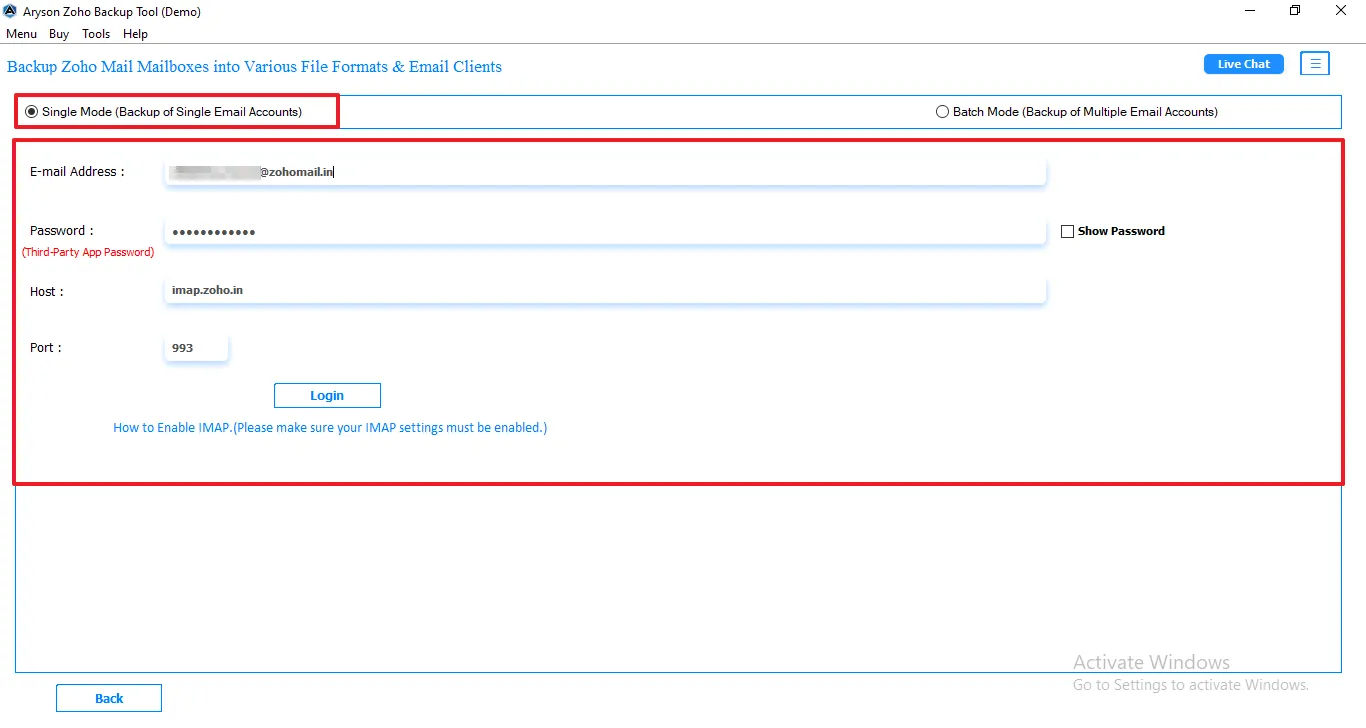
- It will show all the folders in a tree structure, choose and click Next.
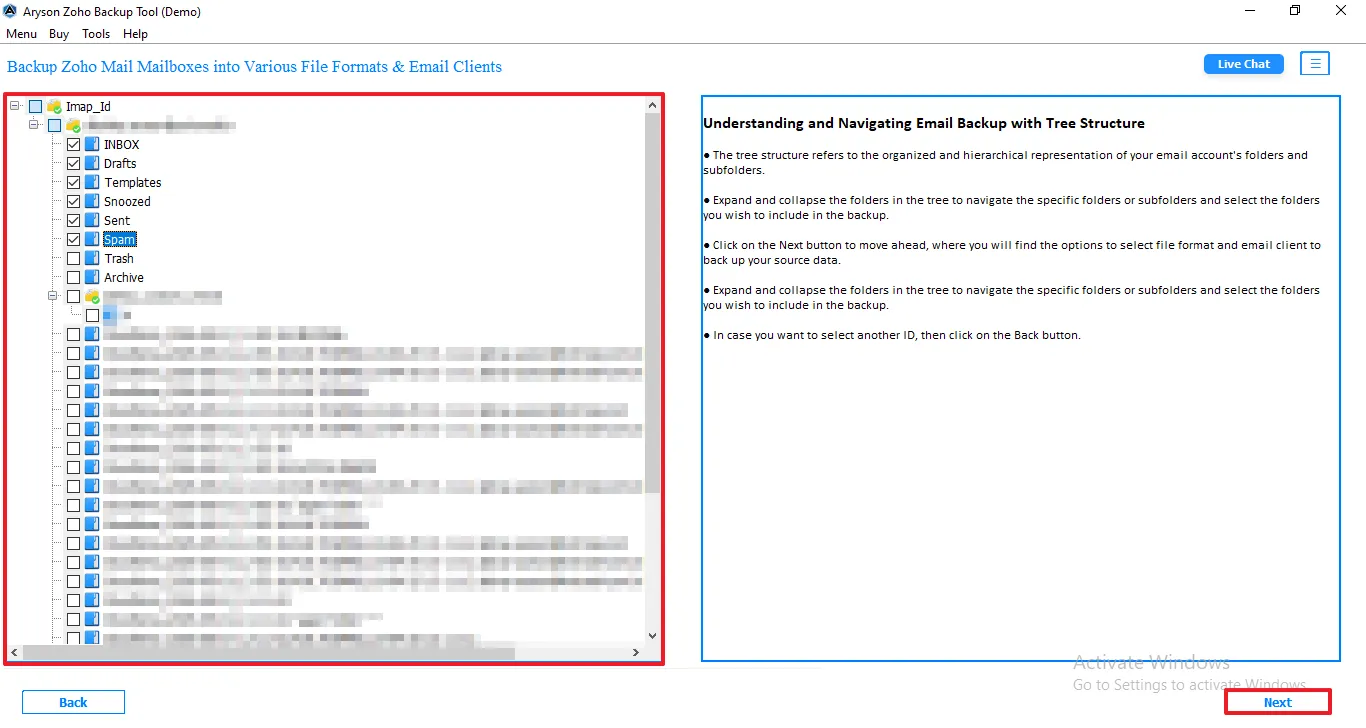
- Tap on the email client and select IMAP, and then enter the login credentials.
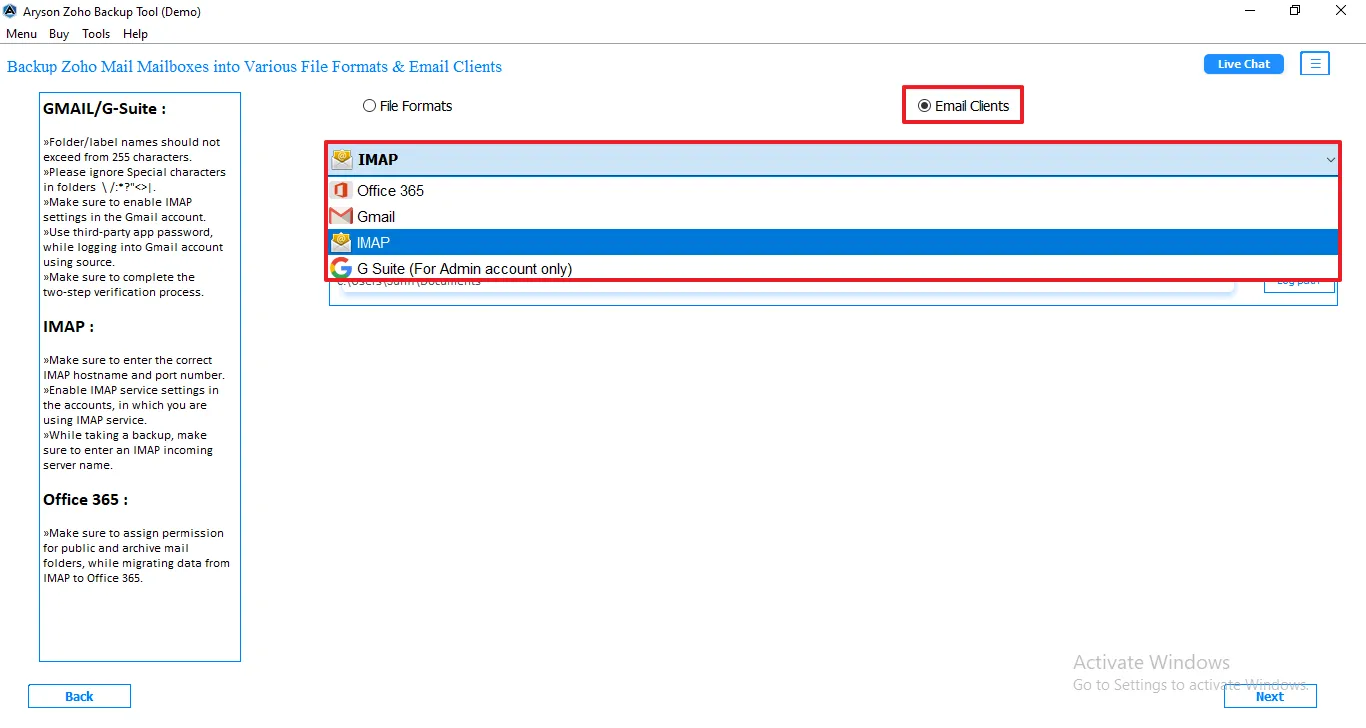
- From the filter panel page, enable the necessary filters for smooth migration.
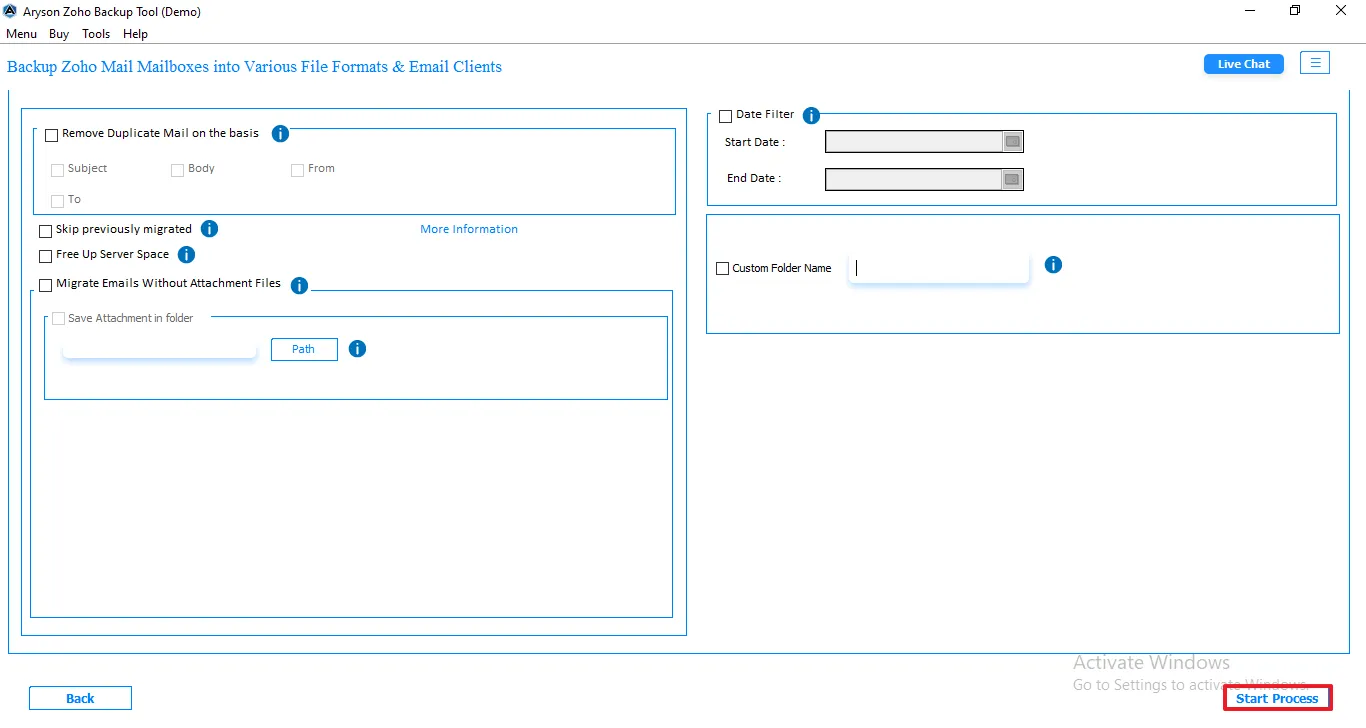
- Click on the Start Process to begin the export of Zoho Mail to IMAP.
Who can benefit from this Software to transfer Zoho Mail to IMAP?
- IT Administrators: It helps to manage secure and smooth email migration.
- Business Professionals: Useful for transferring business emails without affecting daily communication workflows.
- Microsoft 365 Users: Assist users to migrate Zoho Mail to Microsoft 365 IMAP-supported accounts.
- Organizations: Enables companies to shift mailbox data at the time of server upgrades.
- Individual Users: It is suitable for personal users to move their Zoho Mail to an IMAP account.
Conclusion
To finish it up, we have covered everything that is necessary to migrate Zoho Mail to IMAP. The above two methods are reliable for a migration. While the manual method is best for small file conversion, it has various limitations. The professional software is a simplified solution that exports your data in bulk. It is recommended to use a software-based approach for bulk data migration, which is capable of maintaining the folder hierarchy.
Frequently Asked Questions:
Q.1. What is the best way to migrate Zoho Mail to IMAP server?
Ans. The best way is to use a professional Zoho Mail migration tool, as it make sure secure, fast, and accurate migration with minimal manual effort and reduced risk of data loss.
Q.2. Is it possible to export Zoho Mail to IMAP without data loss?
Ans. Yes, it is possible to export Zoho Mail to an IMAP server without data loss by using a reliable migration tool and maintaining a stable internet connection.
Q.3. Which tool is best for Zoho Mail to IMAP migration?
Ans. MSOutlook Zoho Mail Backup Tool is considered one of the best solutions for Zoho Mail to IMAP migration due to its advanced features and user-friendly interface.
Q.4. Will email attachments migrate from Zoho Mail to IMAP?
Ans. Yes, email attachments can also migrate from Zoho Mail to the IMAP server if the migration process is performed correctly using a compatible email client or tool.
About The Author:

Evren Cole is an expert in Email and Data Management. She has a strong passion for technology and entrepreneurship. In her free time, she enjoys football, music, and reading books.

