

-
Written By Evren Cole
-
Updated on May 8th, 2026
How to Export Emails from IMAP to MBOX – Simple & Easy Guide
Summary: Emails hold a lot of critical information, and losing them due to accidental deletion can seriously disrupt both personal and professional workflows. Having a reliable backup in place is something every user should prioritize before such a situation ever arises. Saving your IMAP emails in MBOX format is one of the most practical ways to keep your messages stored locally, giving you full control over your data and ensuring it stays accessible well into the future. Throughout this guide, you will find several manual approaches to get this done, along with a purpose-built IMAP Backup Tool that takes much of the complexity out of the entire process to export emails from IMAP to MBOX.
Common Scenarios to Export IMAP to MBOX Files
There are some common scenarios given why users export their IMAP emails to MBOX files:
- Users require a structured method to archive email communication for long-term retention.
- Most of the industries require the retention of email records to meet legal or regulatory standards.
- When the IMAP server storage reaches its capacity, export that emails to MBOX format allows users to move older messages to local storage.
- MBOX is supported across multiple email clients, making it an ideal choice for users who require flexibility in accessing their email data across different platforms.
- Export IMAP emails to MBOX enables users to access their complete email history directly from their local device.
Best Solutions to Export Emails from IMAP to MBOX
Now, learn how to export IMAP emails to MBOX with simple steps. We will discuss the most effective methods to complete the exportation process.
- Using Mozilla Thunderbird (Windows/Mac)
- Using Apple Mail (Mac Specific Only)
- Enterprise-level Software
Method 01: Using Mozilla Thunderbird (Windows/Mac)
This is a free method and is flexible for both Windows and Mac operating systems to convert IMAP to MBOX.
Step 01: Set up Thunderbird & Add IMAP Account
- To start, download and install Mozilla Thunderbird on your computer.
- After that, navigate to Account Settings and click on Account Actions.
- Then, click on Add Mail Account and enter your login details.
- Now, Thunderbird will auto-configure IMAP settings >> click Done.
(Note: You need to wait until all your folders and emails are fully synced and visible.)
Step 02: Install ImportExportTools NG Add-on
- Next, you have to go to Menu >> Add-ons and Themes.
- Afterward, search for the ImportExportTools NG and click Add to Thunderbird.
- Thereafter, install it and restart Thunderbird if required.
- Moreover, right-click on the desired folder and select ImportExportTools NG.
- Now, click on Export folder and choose MBOX format.
- After that, select the destinations & navigate to the saved location.
- In the end, check the MBOX file to make sure emails are exported properly.
Method 02: Using Apple Mail (Mac Only)
Users who have the Mac operating system can use this method:
Step 01: Open Apple Mail
- To begin the process, launch Apple Mail on your Mac.
- Afterward, navigate to the Mail >> Add Account.
- Then, choose your email provider or select Other Mail Account.
- Now, enter the login credentials and make sure your IMAP is selected.
(Note: Allow time for emails and folders to fully sync, and confirm all required data is available to move emails from IMAP to MBOX)
Step 02: Export Mailbox & Save
- Pick the mailbox/folder you want to export.
- Then head to Mailbox in the top menu and click Export Mailbox.
- When shown, choose where you want the file saved.
- Apple Mail will handle and save it in MBOX format.
- After completion, navigate to the destination folder you selected & open it.
Method 03: Enterprise-level Software to Export Emails from IMAP to MBOX
The IMAP Backup Tool is a trusted solution for saving IMAP emails to MBOX and several other file formats. It also handles PST exports, making it a solid fit for Outlook and Office 365 users. The tool goes well beyond just emails, it pulls in calendars, contacts, tasks, and events, covering the full scope of your mailbox. You can connect multiple IMAP accounts at once, preview folders before anything gets saved, and even run a backup that skips attachments entirely. With this software, users can convert IMAP emails to EML, MSG, and other formats.
Simple Steps to Export IMAP to MBOX
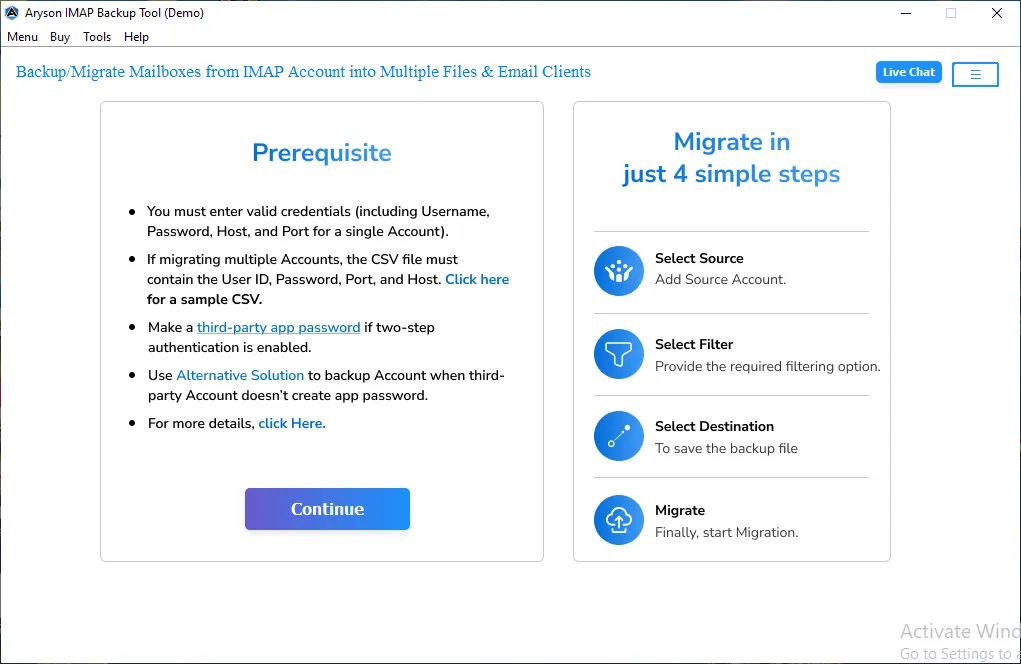
- Download and launch the IMAP Backup Tool on your device.
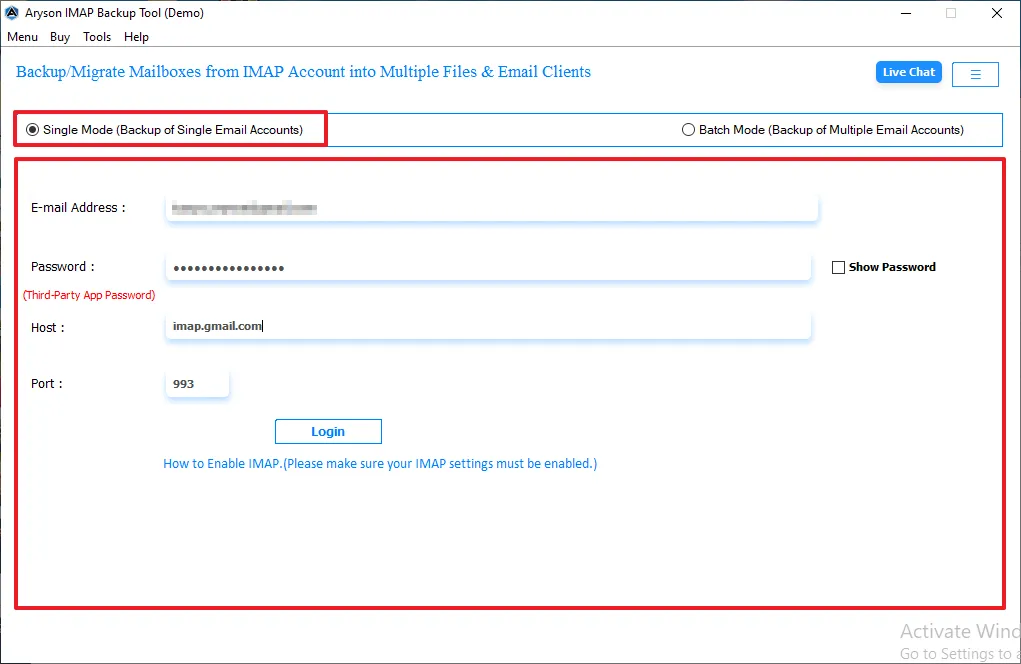
- Thereafter, provide the login details for signing in to IMAP, such as email and password.
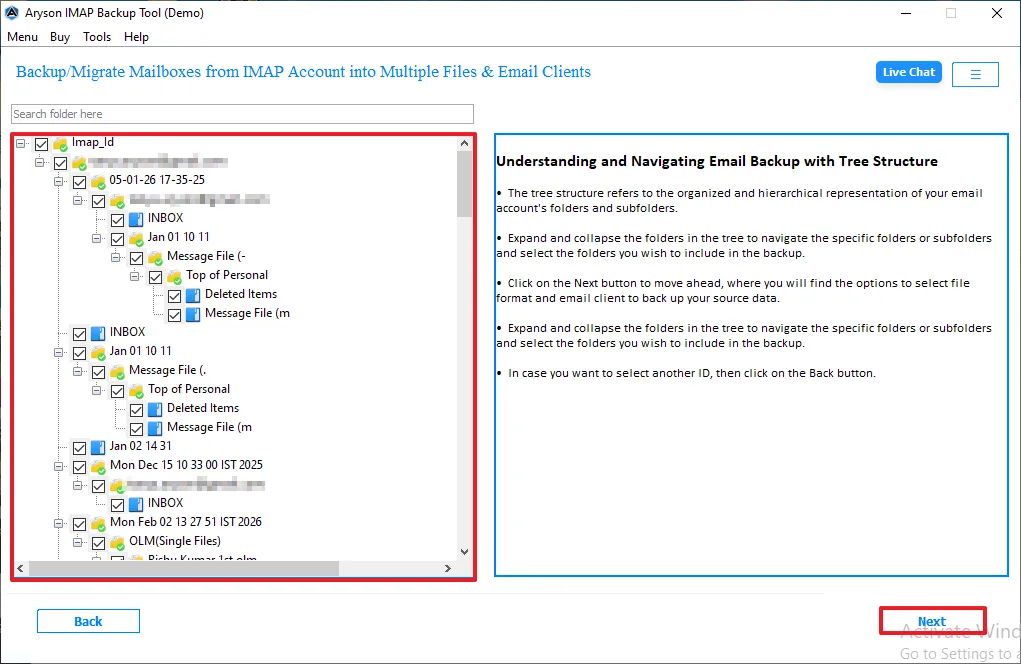
- Afterward, a tree structure panel is shown where your mailbox folder appears >> Next.
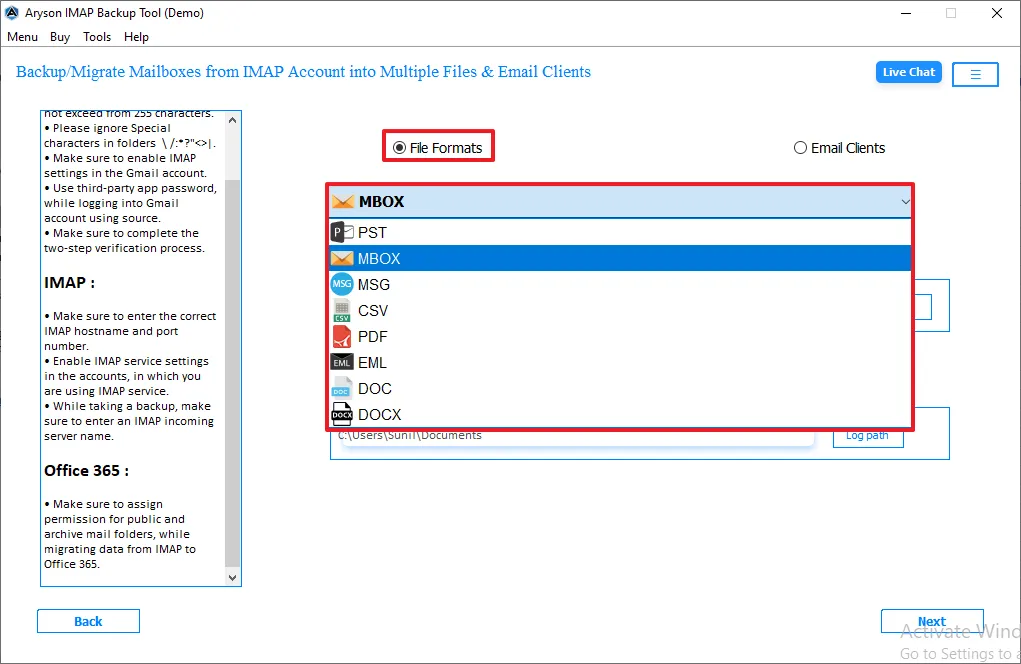
- Then, from the file format, choose MBOX and click on the Next button.
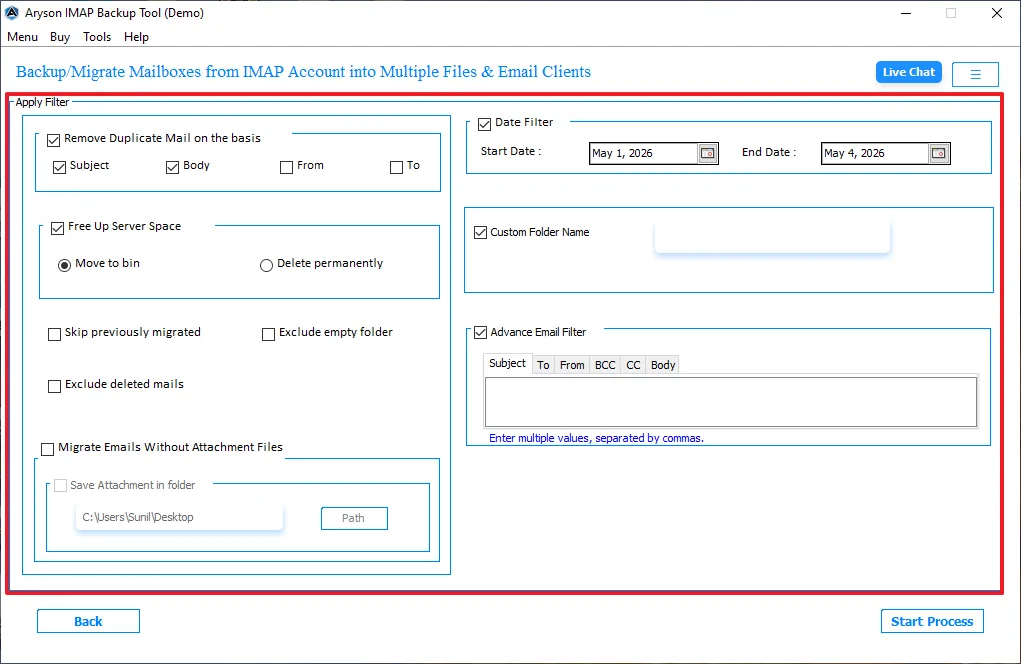
- Now, for selective data exportation, enable the filter options.
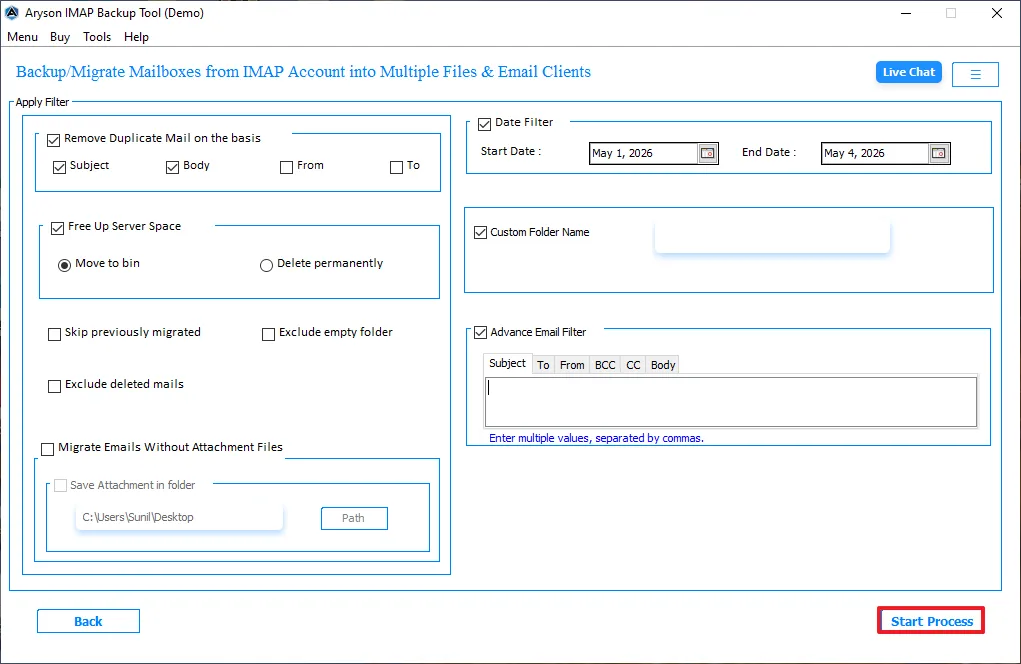
- In the end, click on Start Process to begin the process.
Read More: If you want to migrate to Zoho Mail, then read our detailed guide on Migrate Emails from IMAP to Zoho Mail.
Conclusion
To summarize, we covered all the related scenarios of why users export emails from IMAP to MBOX. In this blog, three methods are discussed through which you can easily export your data. While the manual method is for small files and has limitations. It is recommended to use professional software to export data in bulk.
Frequently Asked Questions:
Q.1. Can I export IMAP mailbox to MBOX without losing data?
Ans. Yes, you can export IMAP to MBOX without data loss if the process is done correctly with proper syncing and folder mapping.
Q.2. How do I convert IMAP emails to MBOX format without Thunderbird?
Ans. You can use email clients like Apple Mail or a reliable third-party tool to export IMAP emails directly into MBOX format.
Q.3. Is there a tool to export IMAP to MBOX files in bulk?
Ans. Yes, several professional IMAP backup tools allow bulk export of multiple mailboxes to MBOX with filters and batch processing.
Q.4. What are the best practices to move emails from IMAP to MBOX safely?
Ans. Make sure full mailbox sync, use a stable internet connection, maintain folder structure, and always verify exported data after completion.
About The Author:

Evren Cole is an expert in Email and Data Management. She has a strong passion for technology and entrepreneurship. In her free time, she enjoys football, music, and reading books.

