

-
Written By Evren Cole
-
Updated on June 24th, 2026
How to Migrate Emails from IMAP to Zoho Mail Smoothly?
Summary: Switching email providers doesn’t have to mean losing all your old emails. If you’re moving to Zoho Mail, the best part is that IMAP migration makes the whole thing smoother. IMAP is a standard protocol that almost every email service supports, which makes the transfer of data simple. This guide walks you through exactly how to move your emails over without losing anything important along the way to migrate emails from IMAP to Zoho Mail. We discuss the manual method and the professional IMAP Backup Tool for secure migration.
TL;DR: Enterprise users migrate emails from IMAP to Zoho Mail to gain better security and improved email management. To do so, use the Zoho built-in feature or an advanced software.
Why Migrate IMAP Emails into Zoho Mail?
Here are some reasons due to which users and organizations move their IMAP emails to Zoho Mail:
- Zoho offers robust features at a fraction of the cost of competitors.
- Unlike many free IMAP providers, Zoho does not scan your emails for advertising.
- Integration with Zoho CRM, Projects, and Inventory makes it a powerhouse for business owners.
- The Admin Console provides granular control over user permissions and security.
Pre-Migration Checklist: Move IMAP Data into Zoho Account
- Log into your source email provider and make sure IMAP is toggled “ON” in settings.
- Users need to use the App-password for the migration.
- Make sure your destination Zoho Mail account has enough storage to accommodate the incoming data.
- You must have Super Admin or Admin privileges in Zoho to perform a bulk migration for a domain.
Best Ways to Migrate Emails from IMAP to Zoho Mail
We will walk you through the approaches that will export your data to Zoho Mail.
- Professional IMAP Backup Tool
- Manual Method
Professional Software IMAP to Zoho Mail Migration
IMAP Backup Tool is the ultimate solution to migrate IMAP emails to Zoho and other email clients. It helps users to safely export data while maintaining the folder structure and hierarchy. This software has various file format options to export emails. Its user-friendly interface helps users to perform the migration process in a simple way.
- First, download the IMAP Backup Tool on your computer.
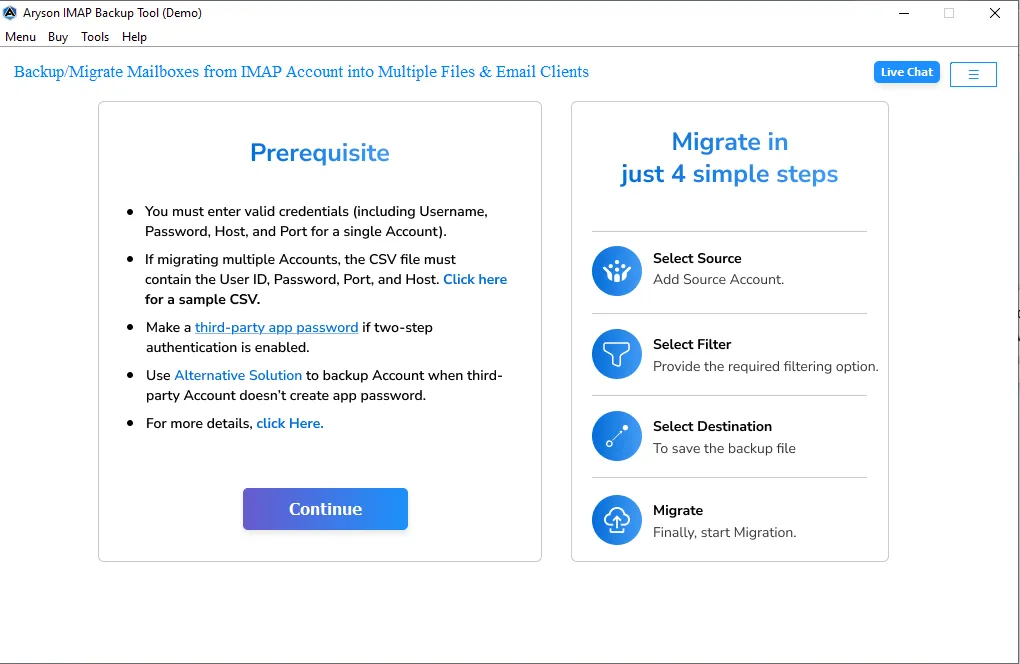
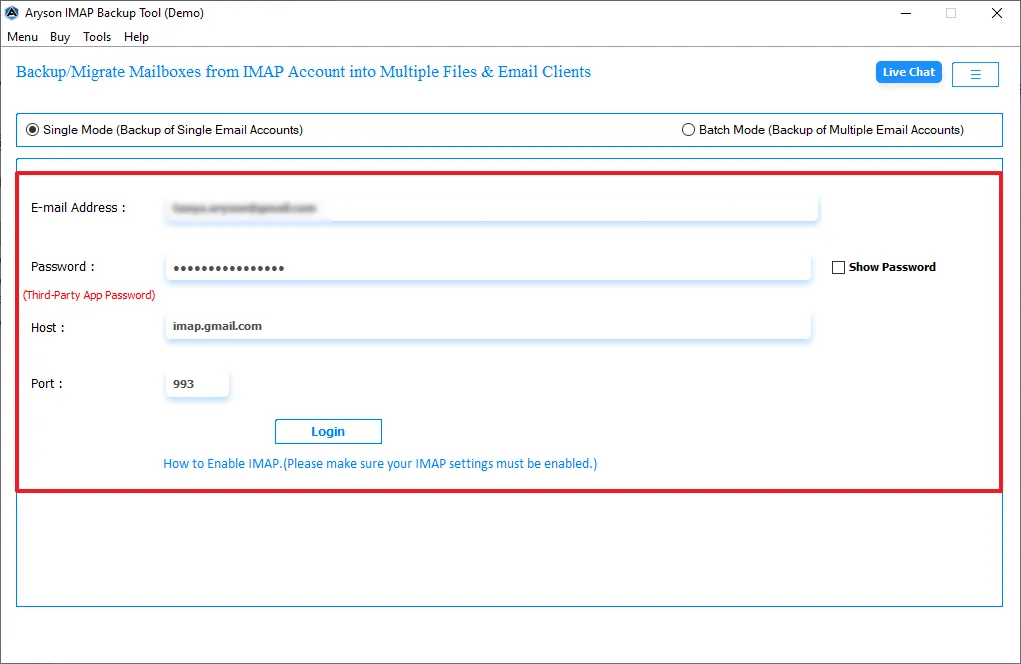
- After that, enter the login credentials which include Host and Port.
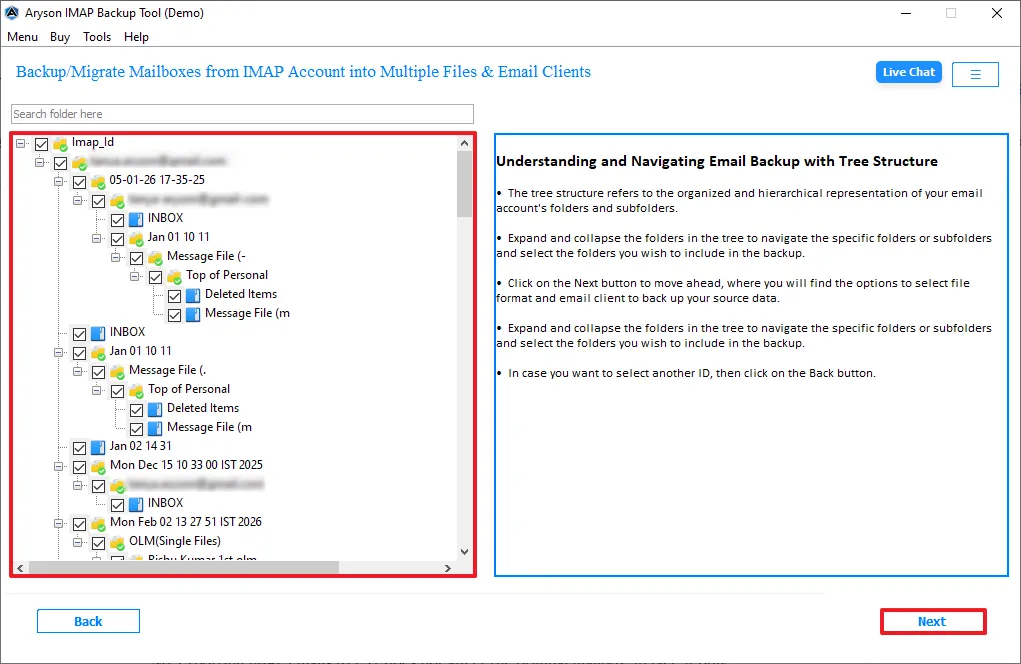
- Then, preview the mailbox folders and select which you want to migrate >> Next.
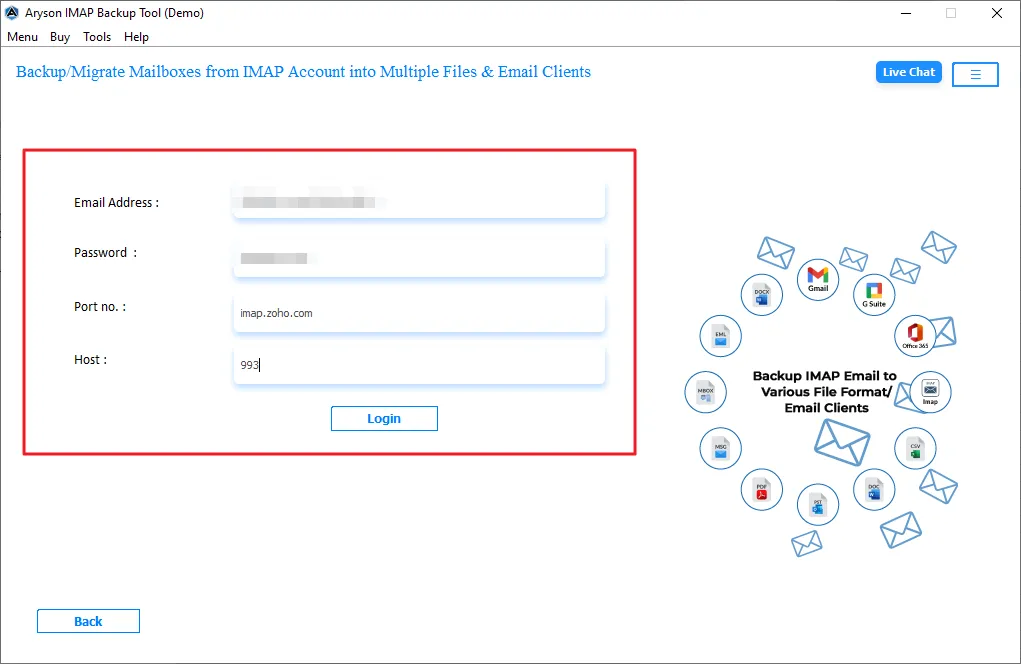
- From the email client, select IMAP as the Output and Zoho Mail credentials.
- Now, enable the filters for selective migration.
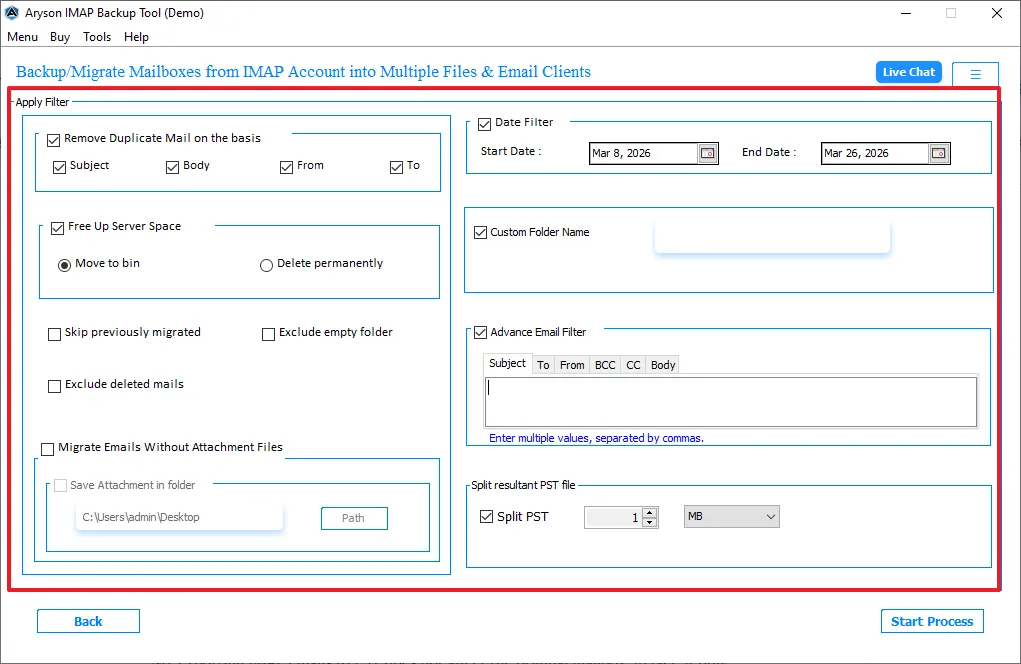
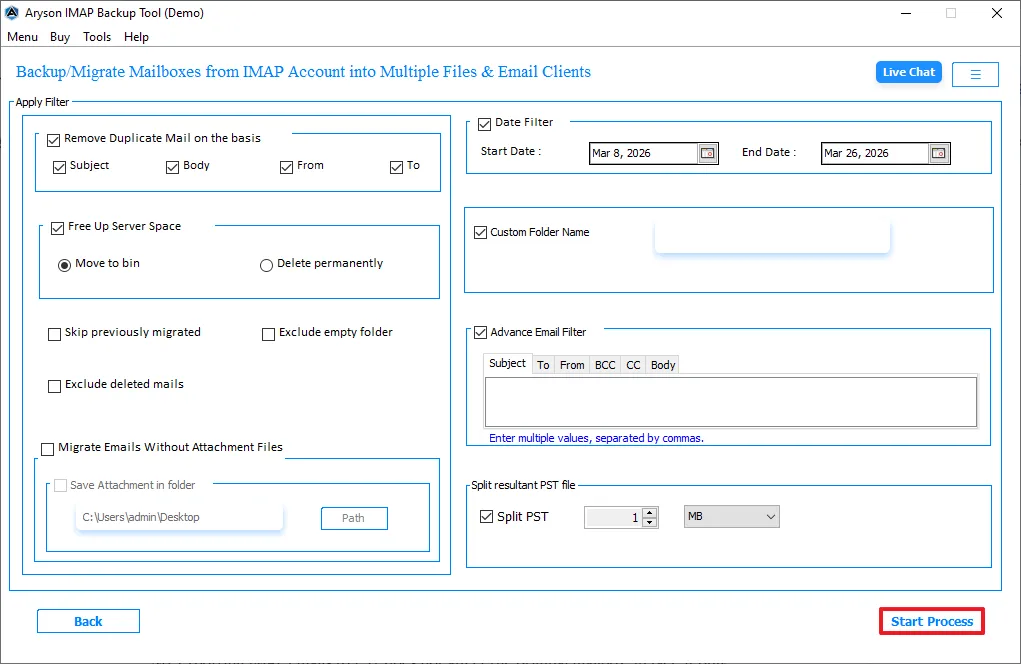
- Finally, click Start Export to begin the migration process.
Manual IMAP Fetch to Transfer Emails from IMAP to Zoho Account
If you are a solo user looking to Export Emails from IMAP to CSV or simply pull mail into your inbox:
- To initiate the process, open your Zoho Mail settings.
- Then, navigate to Mail Accounts >> Add IMAP Account.
- Now, you have to enter your external email credentials.
- Next, Zoho will “fetch” the emails, place them in a separate folder structure within your Zoho account.
Comparison of Migration Approaches
|
Feature |
Zoho Admin Console |
Manual Fetch (POP/IMAP) |
Professional Software |
|
Technical Knowledge |
Low |
High |
Low |
|
Reliability |
High |
Medium |
Very High |
|
Cost |
Free |
Free |
Paid |
|
Best For |
Business Teams |
Personal Accounts |
Enterprise Scale |
Conclusion
To wrap up, we covered all the aspects of why the migration of IMAP to Zoho Mail is required. You have to choose a method based on your requirement to migrate emails from IMAP to Zoho Mail. As manual method work for small files and professional Software work for large mailboxes. Select the best one that helps you to complete the migration process.
Frequently Asked Questions:
Q.1 What are the IMAP settings required for Zoho Mail migration?
Ans. You need the IMAP Server Address (e.g., imap.provider.com), the Port Number (993 for SSL), and the Security Type (SSL/TLS). You will also need the full email address and password for each user.
Q.2 Why is IMAP to Zoho Mail migration not working?
Ans. The most common reasons are incorrect port settings, disabled IMAP access on the source server, or security blocks like 2FA. If you’re on a private server, ensure your firewall allows Zoho’s IP ranges.
Q.3 Can I transfer emails from IMAP to Zoho account manually?
Ans. Yes, you can use a desktop client like Outlook or Thunderbird. Connect both the IMAP and Zoho accounts via IMAP, then drag and drop folders from one to the other. However, this is slow and prone to sync errors.
Q.4 What is the best way to migrate emails from IMAP to Zoho Mail?
Ans. The IMAP Backup Tool is the best way to migrate IMAP to Zoho Mail. It handles server-to-server transfers.
Q.5 Can I continue using my email during migration?
Ans. Yes. Since the migration tool “copies” data rather than “moving” it, your source mailbox remains functional. However, any emails received after the migration starts may not be included unless you run a “Delta” or subsequent sync.
About The Author:

Evren Cole is an expert in Email and Data Management. She has a strong passion for technology and entrepreneurship. In her free time, she enjoys football, music, and reading books.

