

-
Written By Evren Cole
-
Updated on April 8th, 2026
How to Export Emails from IMAP to CSV – Easy Methods (2026)
Summary: IMAP is a protocol that keeps emails on the mail server. Transferring emails from IMAP to CSV helps organizations in data analysis and reporting. Many enterprises need a log report for audits or legal purposes. Export emails from IMAP to CSV is considered one of the best practices to save time and effort. In this article, we will walk you through the most reliable approaches, including the IMAP Backup Tool for quick bulk export.
TL;DR: IMAP emails are exported to CSV for data analysis and accessibility. To operate, we can use an email client (Microsoft Outlook) or take the help of professional software.
Why Export IMAP Emails to CSV Format?
There are various reasons why users choose to export their IMAP emails to CSV. See the listed reasons to understand:
- CSV files can be easily stored and take up less space in the system.
- It is useful to maintain logs for compliance or documentation.
- Moreover, its simple format makes the analysis of email data, such as the sender, easy.
- Users can simply import CSV data into CRM or other platforms.
- Furthermore, CSV files are universally supported & easy to share.
Organizations get the benefits from the conversion as it improves the workflow and helps to manage communication records.
What data would the Resultant CSV contain?
When users export emails from IMAP to CSV format, it includes:
- Sender (From)
- Recipient (To, CC, BCC)
- Subject
- Date & Time
- Message Body (optional/limited)
- Attachment Names (not actual files)
Important Note: CSV files store metadata, not full email formatting.
Manual Approach to Convert IMAP Emails to CSV File
In this method, you have to use an email client (Microsoft Outlook). Initially, you need to configure your IMAP accounts and then export emails into a CSV file.
Step 01: Add IMAP Account to Outlook
- To begin the process, open Outlook on your system.
- Then, go to File >> Add Account.
- Now, you have to enter your IMAP email address, such as Gmail and Hotmail.
- Next, click Connect and enter your password.
- Further, if prompted, choose IMAP as the account type.
- After that, complete the setup and click Finish.
|
Note: Once the account is added to Outlook, it will start the syncing process. You need to wait for all the folders to be fully loaded. Moreover, you have to make sure of a stable internet connection to avoid missing data when you export emails from IMAP to CSV. |
Step 02: Open Import/Export Wizard
- Now, click on the File tab in Outlook.
- Afterward, select Open & Export >> Click on Import/Export to launch the wizard.
- Thereafter, in the wizard, select Export to a file & click Next to proceed further.
Step 03: Select CSV Format
- Choose Comma-Separated Values (CSV) as the file type >> Next.
Step 04: Select IMAP Folder & Destination
- Thereafter, choose the folder you want to export, such as the inbox.
- Then, make sure to check Include Subfolders if needed >> click Next.
- Click Browse to select a location on your system.
- After that, enter a file name for the CSV file.
- Choose how to handle duplicates: Replace duplicates, Allow duplicates, and Do not export duplicates, and click on the Next button.
Step 05: Map Custom Fields
- After that, click on Map Custom Fields.
- Then, make sure fields like From, To, Subject, Date, and Body are properly mapped.
- Now, click OK >> then Finish.
Step 06: Complete Export Process
- To finish the process, Outlook will start exporting emails to CSV.
- After that, you should wait until the process is complete.
- Finally, navigate to the selected location & open the CSV file through Excel.
Important Note:
- This method does not export the full format, but only exports email metadata.
- Moreover, the attachments are not included in the CSV files.
- For each folder, you need to repeat the same process.
Disadvantages of the Manual Method:
- This method is not suitable for the large mailboxes.
- It does not offer any advanced filters for specific data export.
- Moreover, this method consists of an incomplete export risk if sync is interrupted.
- Further, users must have an Outlook installation and configuration.
Professional Software to Export Emails from IMAP to CSV
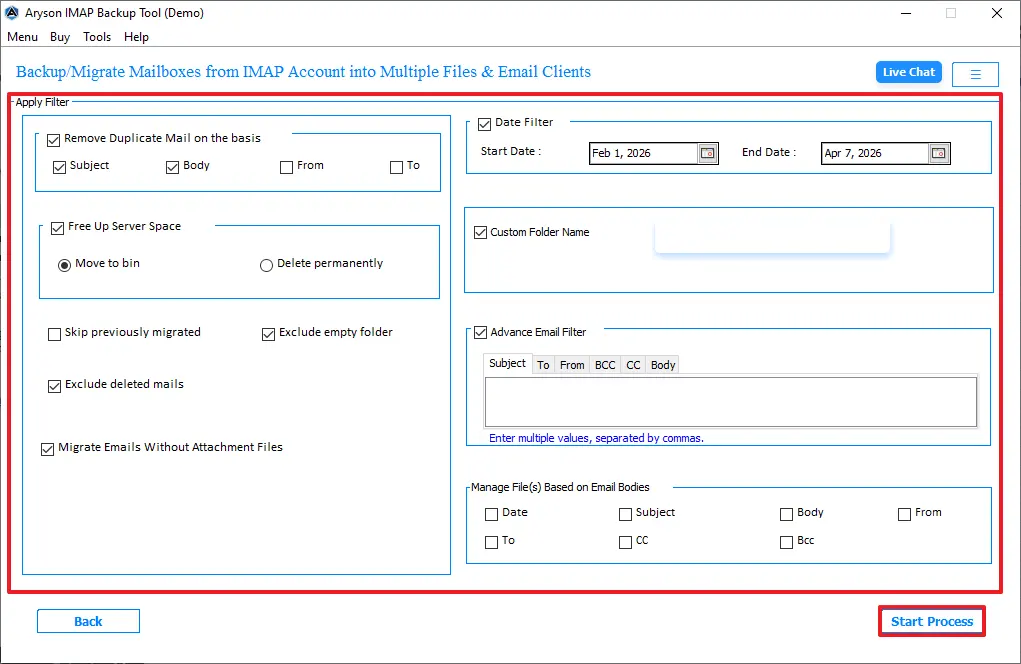
To overcome the limitations of the above method and access the full attachments, you use an IMAP Backup Tool. It is made to export the large mailbox files. Moreover, it has embedded filters that can be used for selective data export, such as removing duplicates. This software is helpful to export IMAP emails to MSG, PST, MBOX, PDF, and other formats. Its clear interface makes the whole process easy, even for non-technical users.
Steps to Save IMAP Emails in CSV
- Begin by downloading the IMAP Backup Tool on your system.
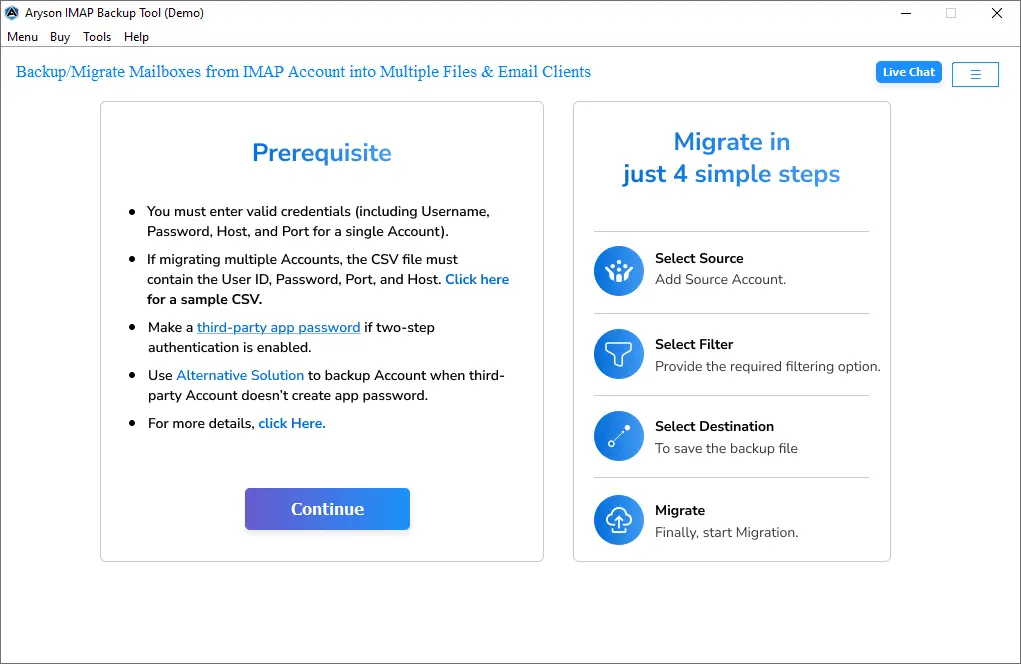
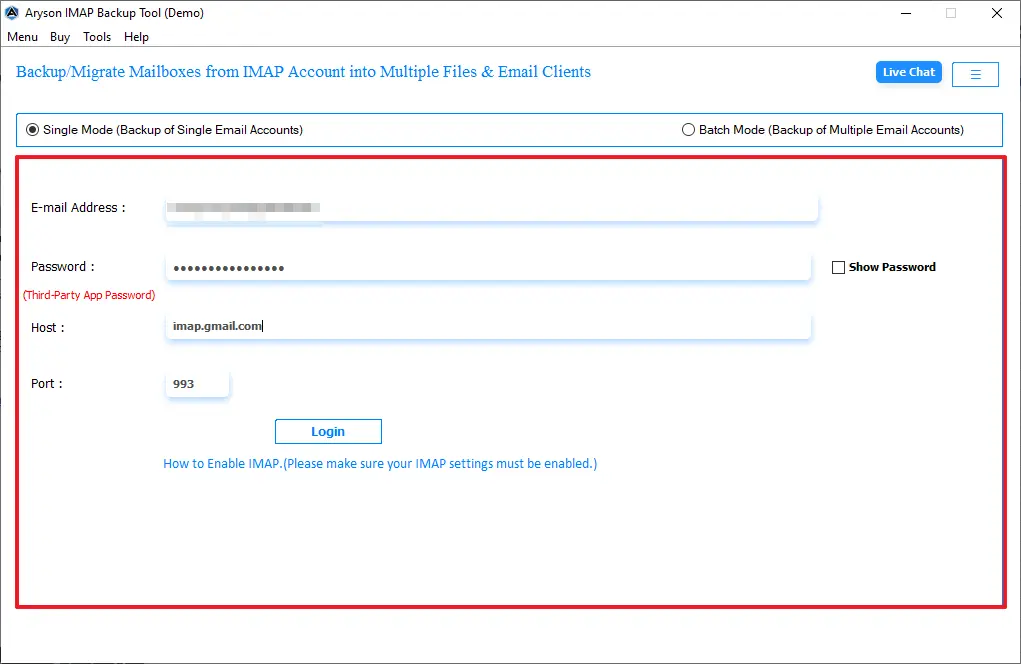
- Then, enter the login credentials and IMAP settings, such as Host and Port.
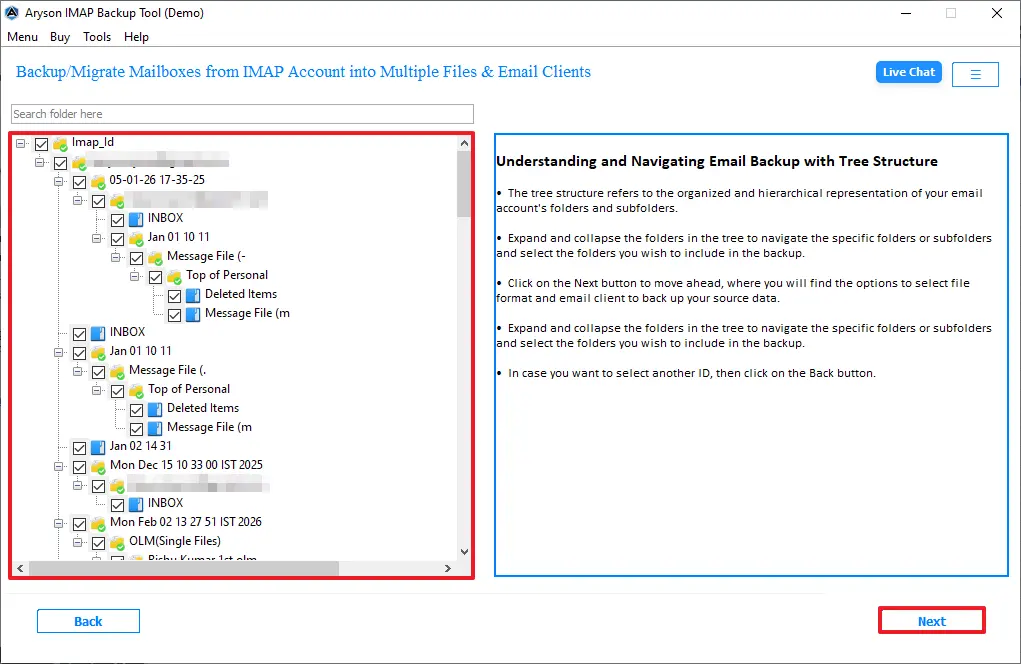
- Now, it loads the fetched folder, then selects the folders you want to export >> Next.
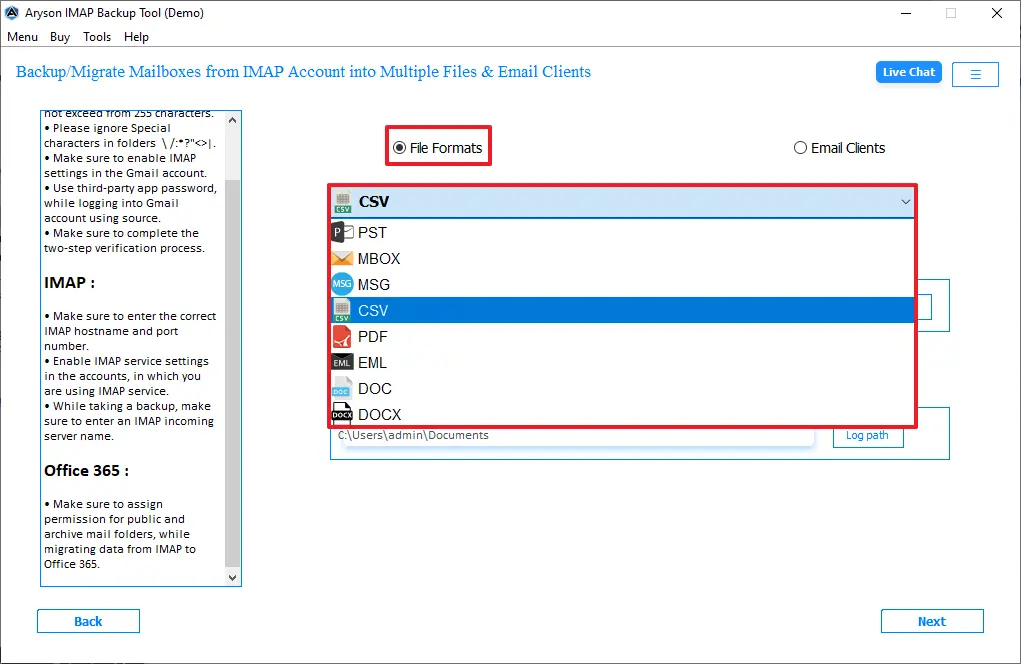
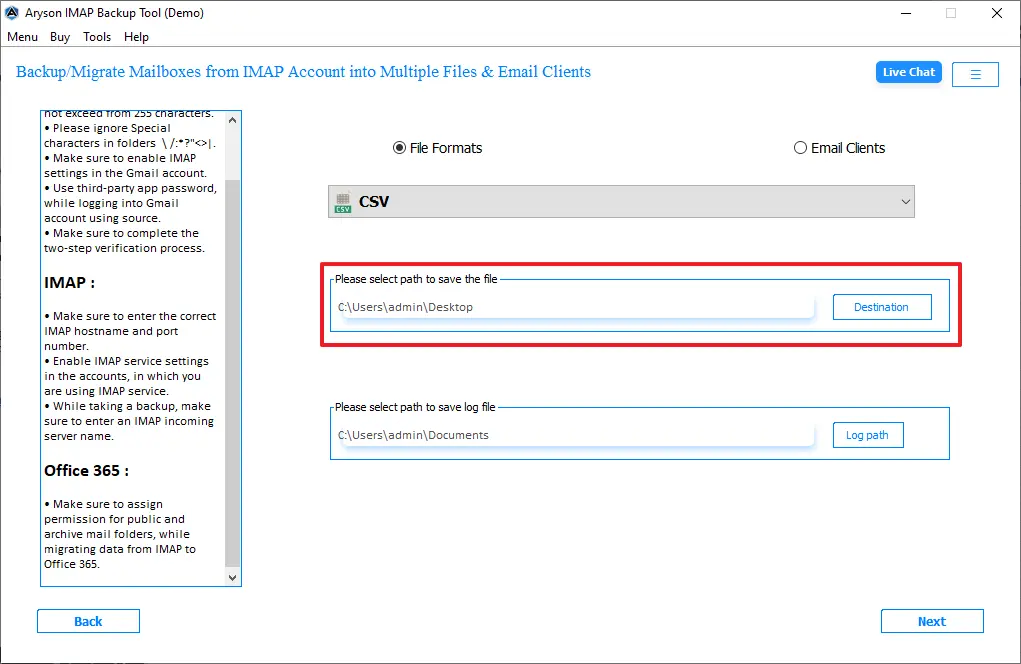
- Afterward, select the CSV as the output format from the given drop-down list.
- Thereafter, select the destination where you want to save files after export >> Next.
- At last, enable the filter for selective export and then click on Start Process.
Comparison Table: Manual vs Professional Method
|
Features |
Manual Method |
Professional Software |
|
Ease of Use |
Moderate |
Easy |
|
Data Accuracy |
Risky |
High |
|
Bulk Export |
Limited |
Supported |
|
Time Required |
High |
Low |
|
Filters |
Limited |
Advanced |
|
Attachment Info |
Partial |
Better Handling |
Best Practices Before You Export IMAP Emails to CSV
Before you start the download IMAP emails as CSV process, consider
- Make sure to take a backup of your important mailboxes.
- Keep your mailbox clean and remove unwanted emails.
- Moreover, you need to make sure of stable internet connectivity.
- Most importantly, verify the IMAP settings to avoid any interruption.
- Furthermore, you must choose the correct folder for exporting.
Final Words
In conclusion, we discussed the important aspects of exporting IMAP emails to CSV. Along with that, we covered the best approaches to complete the export process. You can proceed with either of the method that fulfils your requirement to accomplish the export emails from IMAP to CSV. The most important thing is to always choose the right method to complete the conversion.
Frequently Asked Questions
Q.1 Can I export specific emails from IMAP to CSV?
Ans. Yes, you can export specific emails with the help of the above advanced solution that provides filters like date range, sender, or subject.
Q.2 Does exporting IMAP emails to CSV include attachments?
Ans. If you’re using a manual method, then it does not include attachments. But the professional software includes attachments when exporting IMAP emails to CSV.
Q.3 Can I open exported IMAP emails in Excel?
Ans. Yes, CSV files are fully compatible with Excel and other spreadsheet applications, allowing easy viewing and editing.
Q.4 What data fields are included when exporting IMAP emails to CSV?
Ans. Typically, fields like sender, recipient, subject, date, and message body (limited) are included.
About The Author:

Evren Cole is an expert in Email and Data Management. She has a strong passion for technology and entrepreneurship. In her free time, she enjoys football, music, and reading books.

