

-
Written By Evren Cole
-
Updated on December 2nd, 2025
Convert ICS to EML: Quick Guide to Calendar Export
Overview: ICS is a calendar file format used to store events, meetings, reminders, and schedules. But what if the user wants their calendar events in the form of an email? That is why several enterprises convert ICS to EML to access and share event details with their teams easily. If you also want to perform conversion and are looking for a quick way to do the same, continue reading this blog. You will explore different workflows of conversion, along with the MSOutlookHelp ICS Converter, for an accurate conversion.
Why Do We Need to Convert ICS Calendar file to EML?
There are a number of benefits of converting ICS files to EML format. Some of the most relevant ones are given below:
- After conversion, you can easily read your calendar events just like emails.
- Unlike ICS, EML format is compatible across different email clients.
- Users can also archive their event details in an email-friendly format.
- It helps enterprises to share event information more easily.
- You can access your calendar data in systems that only support EML files.
Best Methods to Convert ICS to EML
Considering the above benefits of the conversion, let’s now perform the actual conversion using the two most impactful approaches. The first approach is to use MS Outlook for converting a few ICS files. Whereas the second one is the use of automated software that can perform the entire conversion in just a few seconds with zero data loss.
Method 1: Export ICS to EML Using MS Outlook
- To begin, download and launch MS Outlook on your system.
- Then, navigate to the File menu >> Open & Export.
- After that, choose the Import/Export option.
- Select Import an iCalendar (.ics) option from the list.
- Next, locate and select your required ICS file to open.
- Once the calendar event opens in Outlook, navigate again to the File menu.
- At last, click on Save As and select EML as the output format.
Following these steps carefully, your ICS files will be converted successfully to EML format. But this method comes with various drawbacks. Let’s have a look at a few of them below.
Drawbacks of Using the Manual Approach
- This method requires the installation of MS Outlook as a prerequisite.
- As well as it is not suitable for large or heavy ICS files.
- Moreover, there is a high risk of data loss and corruption of ICS files.
- Additionally, this approach doesn’t support bulk conversion.
- Also, this method can take long hours to convert a large number of ICS files
Method 2: Efficient Software to Convert ICS to EML
MSOutlookHelp ICS Converter is an efficient software used to convert ICS files to EML format with 100% data accuracy. This software keeps all your event details, like date, destination, intact during the conversion. Moreover, it can convert multiple ICS files at the same time, which makes it ideal for users with large calendars. Additionally, the user-friendly and intuitive interface helps non-technical users perform conversions effortlessly. This eventually helps them to achieve ease of sharing, email-based storage, and better compatibility. Apart from the EML format, this software can also convert ICS to HTML, MSG, PDF, PST, and many other file formats. Also, you can preview calendar events before exporting, apply date filters, and remove duplicates for a precise output. Now, let’s move on to the steps of the actual conversion.
Simplified Steps to Convert ICS to EML
- Launch the MSOutlookHelp ICS Converter on your existing system.
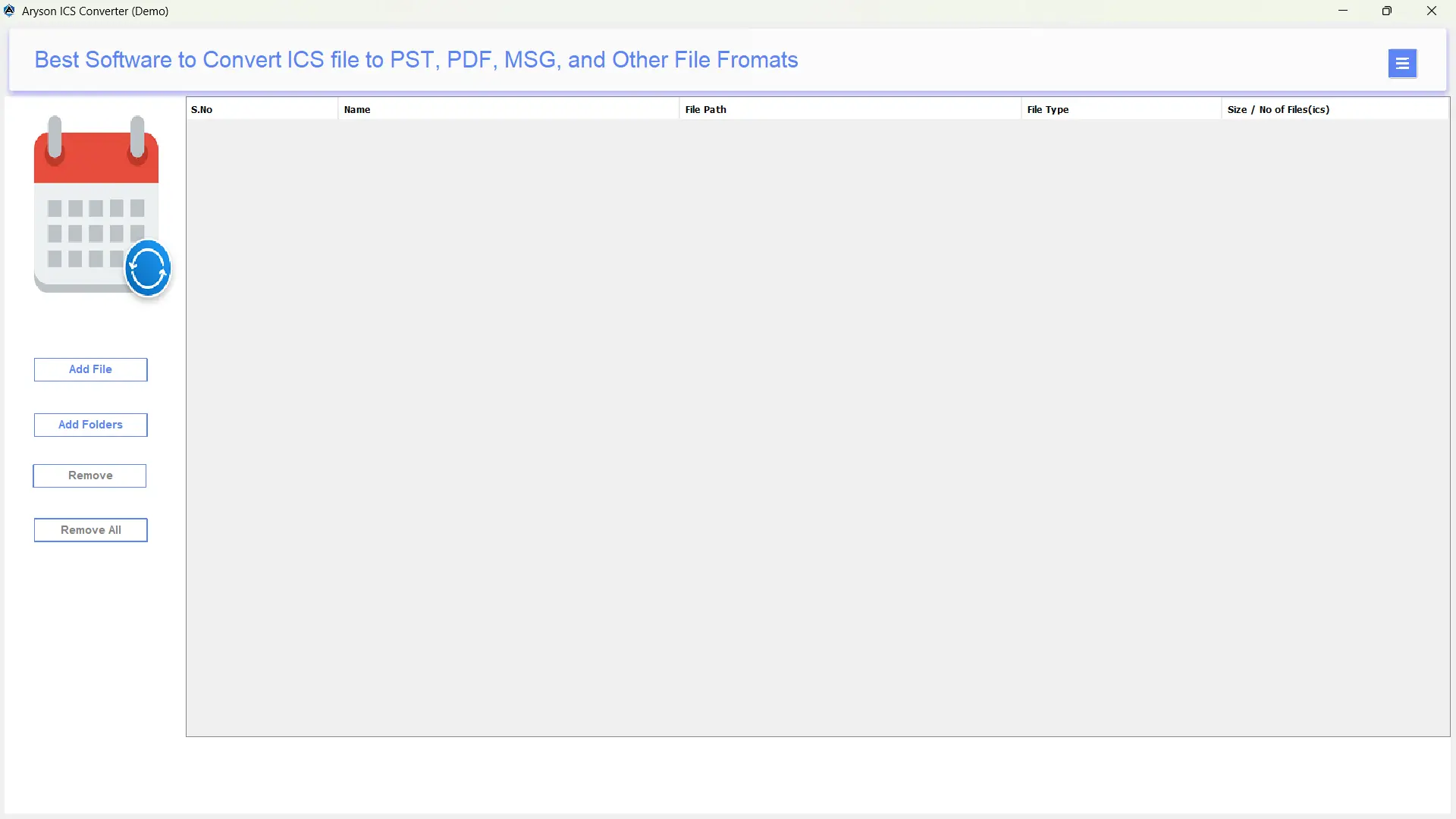
- Then, use the Select Files/Folders option to load the required ICS files >>Next.
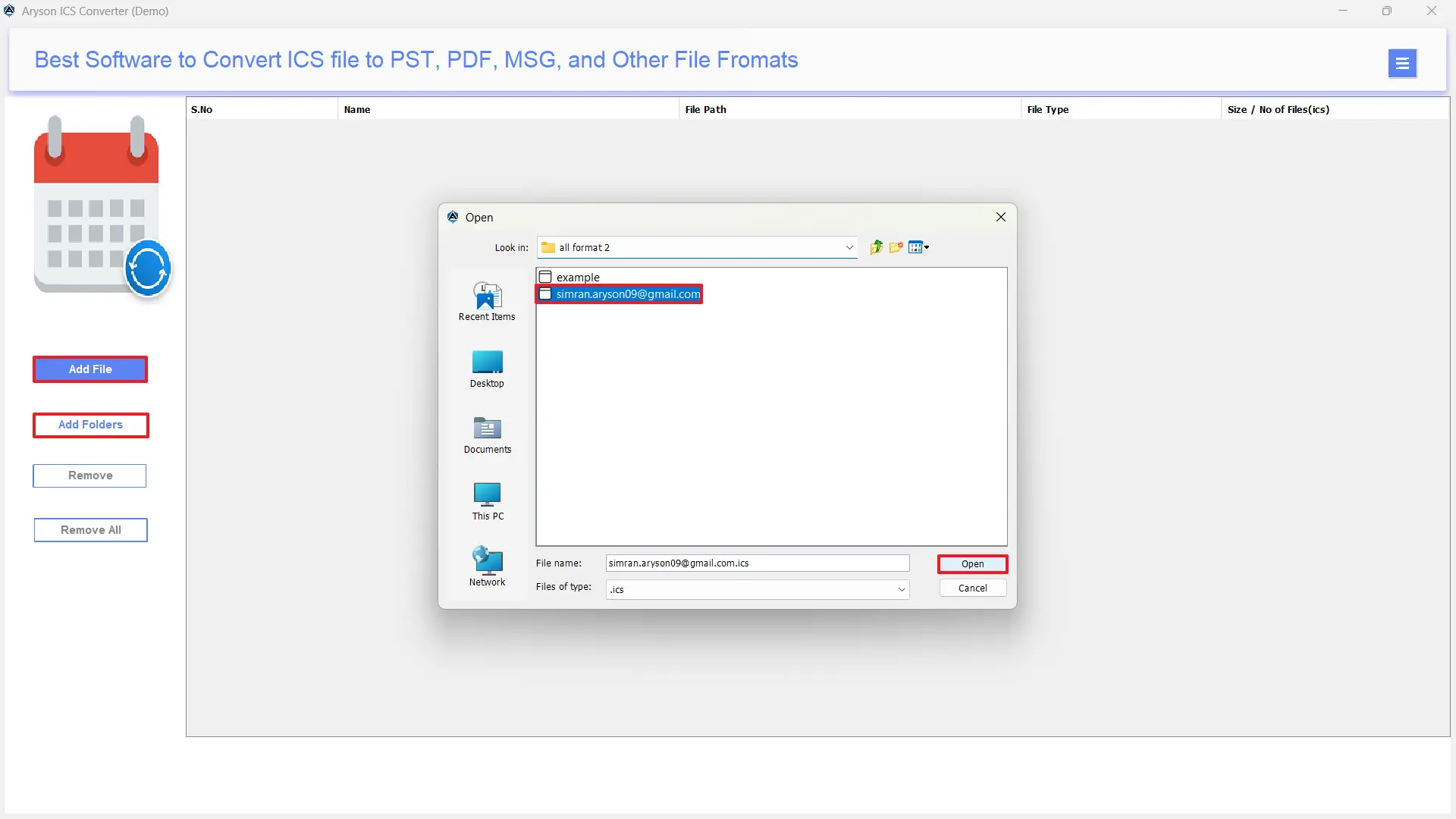
- After that, select one or more ICS files, preview them & press Next.
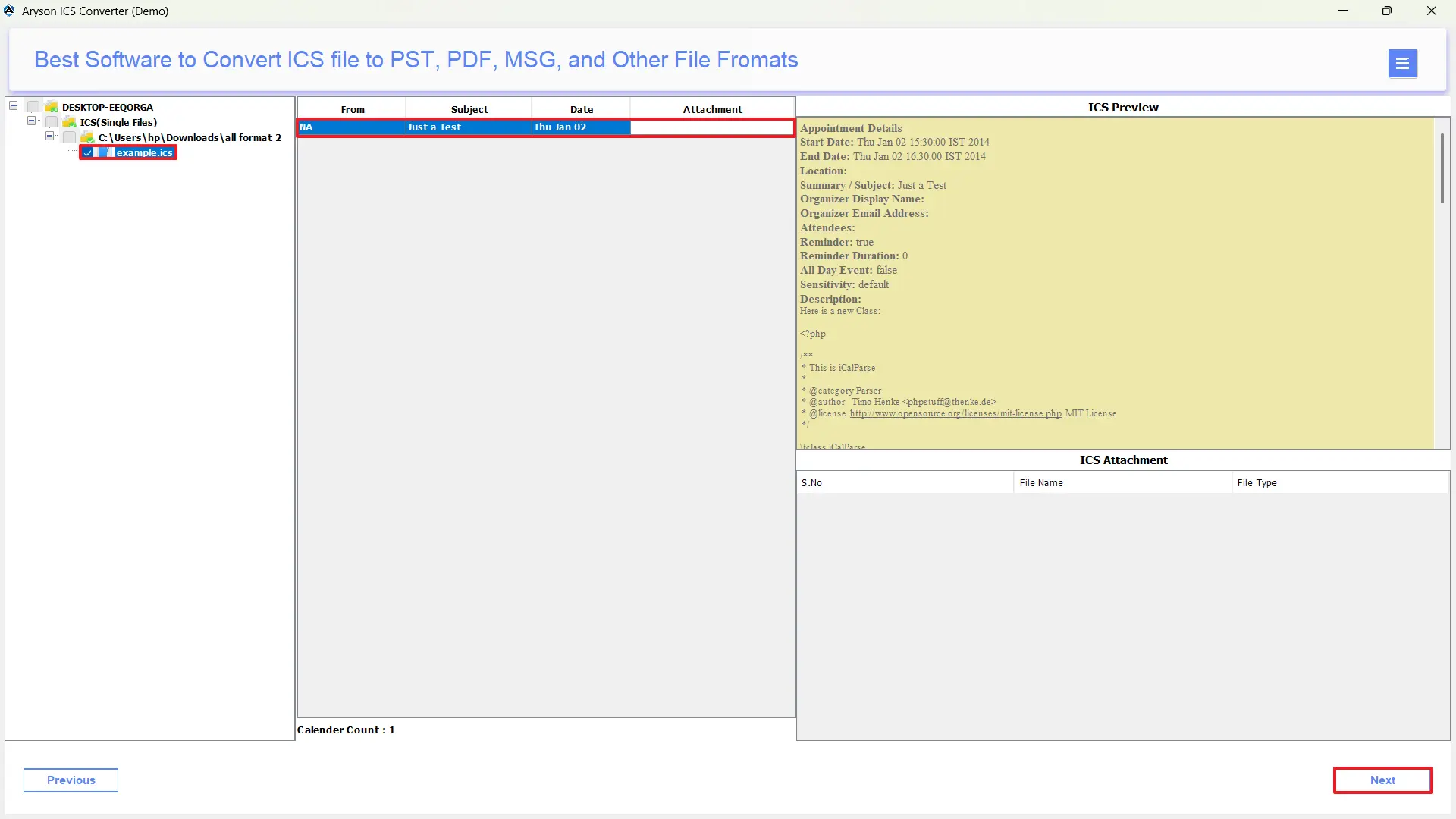
- Now, mark the file formats radio button & select EML from the listed file formats.
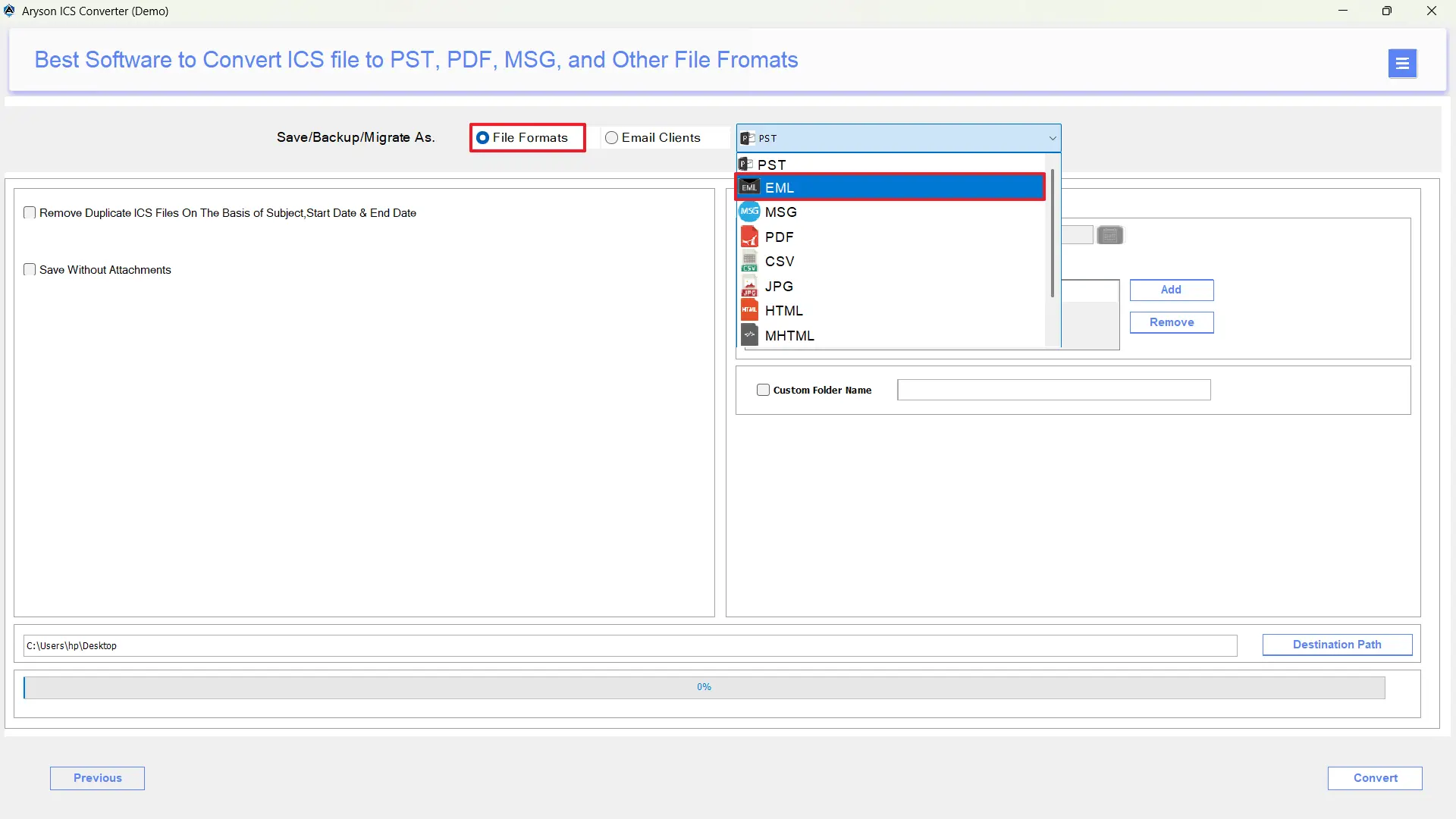
- Next, use the advanced filters to refine your file selection.
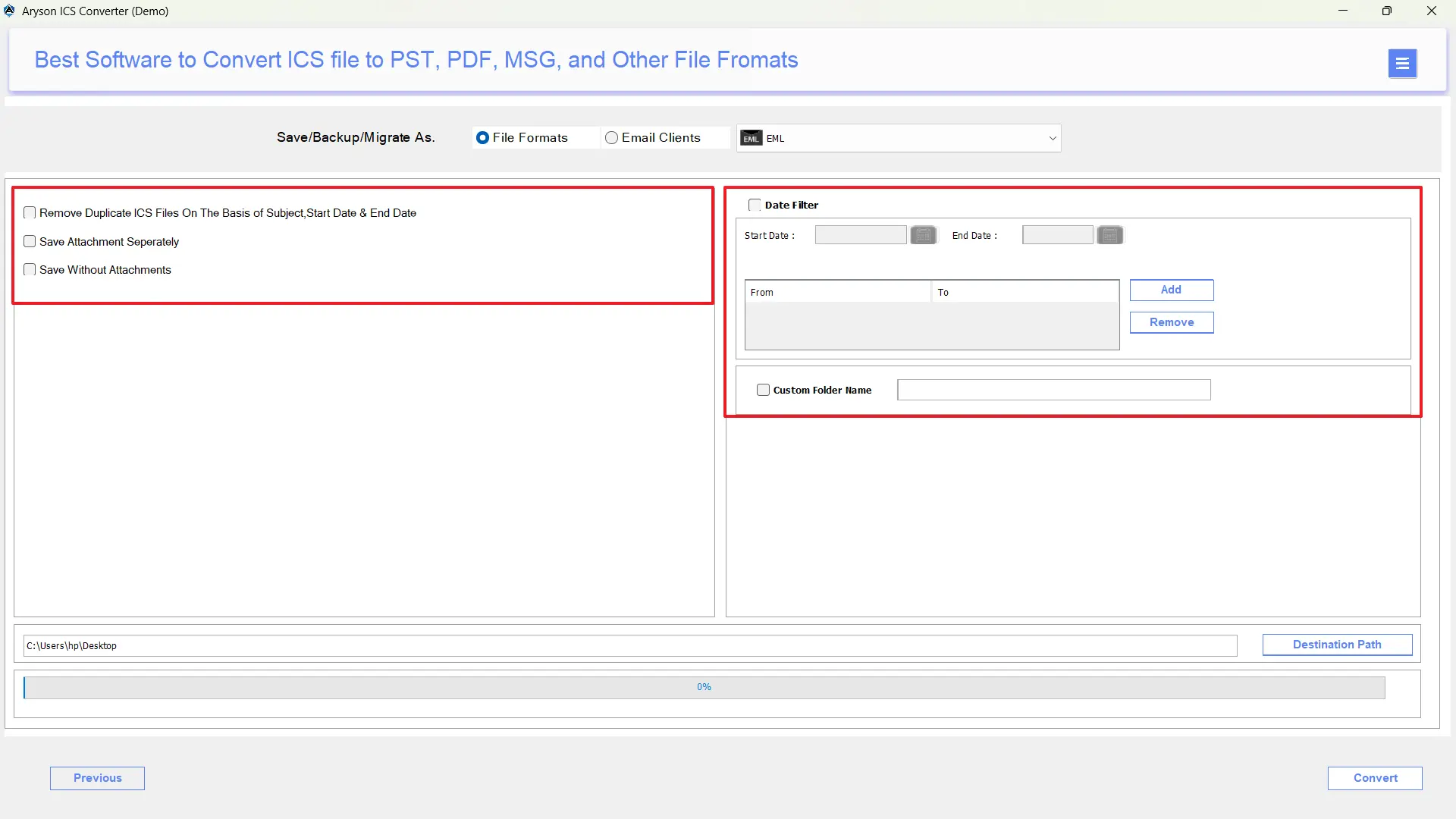
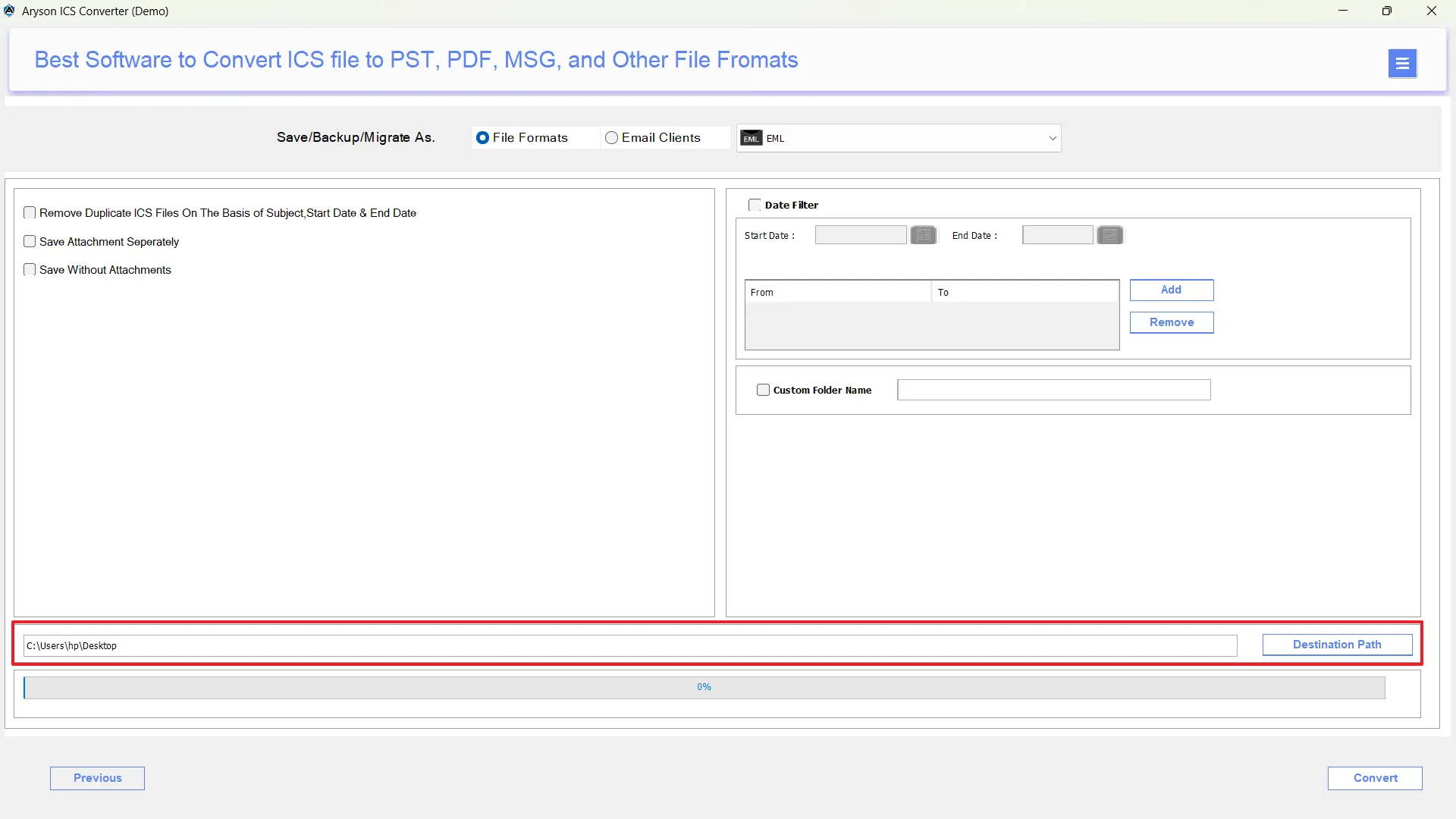
- Provide the location where you want to save the resultant EML files.
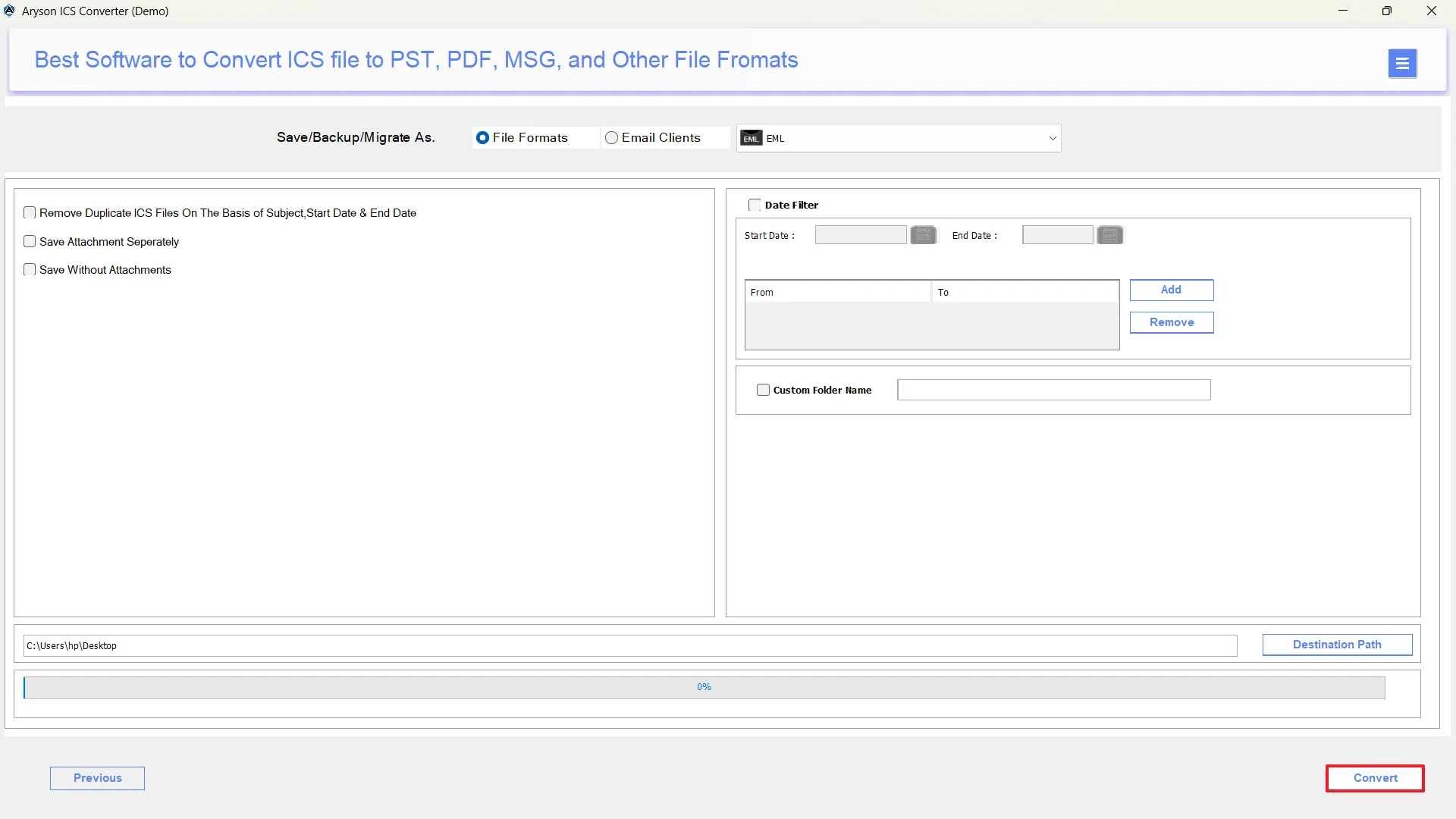
- At last, click the Convert button to save ICS Calendars to EML files.
Conclusion
In the above blog, we discussed two different approaches to convert ICS to EML. You may use either of them as per the number of ICS files and the expertise you have. You may use the manual approach for converting a few ICS files. In case the manual method doesn’t work well, you can use the automated software for a quick and effortless conversion. Still, if you get stuck anywhere in between the conversion process, reach out to our tech support team for proper guidance on using the software.
Frequently Asked Questions:
Q.1 Are ICS and EML formats compatible with all email clients?
Ans. ICS and EML are widely supported, but not all email clients handle both formats equally. Most email apps can open EML files, while ICS support may vary depending on the platform and its calendar features.
Q.2 What is the easiest way to export ICS to EML?
Ans. MSOutlookHelp ICS Converter is the easiest way to perform ICS to EML conversion.
Q.3 Does converting ICS to EML change the event details?
Ans. No, if you are using the above automated software, converting ICS to EML will not change the event details.
Q.4 Can I convert ICS to EML on Windows and Mac?
Ans. Yes, along with Windows, the MSOutlookHelp ICS Converter can also convert ICS to EML on Mac as well.
About The Author:

Evren Cole is an expert in Email and Data Management. She has a strong passion for technology and entrepreneurship. In her free time, she enjoys football, music, and reading books.

