

-
Written By Evren Cole
-
Updated on October 3rd, 2025
How to Import OLM to Google Workspace Easily
User Query: “My name is Michael Jordan, and I have to import Workspace’s OLM files. Outlook for Mac is where I keep all of my contacts, emails, and files, but my company has switched to Google Workspace.
Summary: When you migrate OLM files to Google Workspace, it can be very complicated sometimes since Google does not support the OLM format directly. Outlook for Mac stores all mailbox data in OLM format, while Google Workspace works in a cloud-based environment accessible from any browser or app. In this blog, you will learn why this migration is necessary, the available methods, and how to perform it securely using the MSOutlookHelp OLM Converter Tool. By the end of the blog, you will know the correct way to import OLM to Google Workspace with zero data loss.
What Are OLM Files?
Outlook for Mac can save 100 emails with their contacts, tasks, calendars, and attachments in OLM format. These files can only be used for Outlook on Mac devices. When users move to Google Workspace, these files cannot simply be uploaded, as Google does not recognize OLM data.
Why Import OLM file into Google Workspace?
There are several benefits to moving all the data to Google Workspace:
- Google Workspace has apps like Gmail, Drive, and Calendar, which can be accessed from any device.
- Advanced spam filters and Google’s multi-layered protection secure emails and attachments.
- Google Workspace has Integration with Google Meet, Docs, and Sheets, which improves productivity.
- Even if your system fails, data in Google Workspace remains safe.
- All migrated emails, folders, and metadata appear the same across devices.
- Clearly, businesses and individuals benefit greatly by choosing Google Workspace over a locally stored Mac Outlook setup.
Top Solutions to Import OLM to Google Workspace
There are two common approaches for the transfer of OLM data into Google Workspace:
- Manual method via IMAP account configuration.
- Automated migration using a professional tool.
Method 1: Transfer OLM files to Google Workspace via IMAP
You can simply configure your Google Workspace account in Outlook for Mac and then easily move all your emails from OLM to Gmail.
Phase 01: Add Google Workspace Account to Outlook for Mac
- First, open Outlook for Mac on your system.
- Navigate to Preferences to click on Add Accounts.
- After that, add your Google Workspace account using IMAP.
- If your account has two-factor authentication, generate an App Password from your Google Account and use it here.
- Finally, after successfully adding the account, log in to your Workspace Gmail and create a new label (folder) to organize the transferred emails.
Phase 02: Transfer Emails from OLM to Google Workspace via IMAP Sync
- Next, go back to Outlook for Mac and import your OLM file.
- After the data is imported, select the emails you want to move.
- Now, simply drag and drop them into the IMAP-synced Workspace.
- Note: This step only moves emails and attachments; contacts and calendars are not included.
Phase 03: Import PST Data into Google Workspace using GWMMO
- Now, download and install Google Workspace Migration for Microsoft Outlook on your device.
- After that sign in with your Google Workspace account.
- Select the PST file you created using the OLM Converter Tool.
- Pick the data you want to import (Emails, Contacts, Calendars, Tasks).
- Enable additional options like migrating all data or specific folders.
- Click Migrate and allow the tool to transfer everything to Google Workspace.
- After completion, log in to Gmail and verify that all your data has been imported correctly.
Disadvantages of the built-in solution:
This solution to fix the issue has many disadvantages, which are as follows:
- It can take time, as it can be used on a single file at a time.
- Requires technical know-how to configure IMAP.
- Not suitable for bulk migration.
- May cause missing emails, attachments, or corrupted folders.
This method works for small OLM files, but enterprises or users with large amounts of data should use an automated solution.
Method 2: Import OLM to Google Workspace Using an Automated Tool
The MSOutlookHelp OLM Converter is a simple way to migrate Outlook for Mac data. It can also directly transfer OLM files into Google Workspace without manual setup. It has multiple saving options like Office 365, iCloud, Gmail, and more. It is a very user-friendly interface; no technical expertise is needed. Along with Google Workspace, it can directly import OLM files to Yahoo Mail and other email clients.
Steps to Move OLM Files to Google Workspace with the Tool:
- To begin with, download and install the OLM Converter on your system.
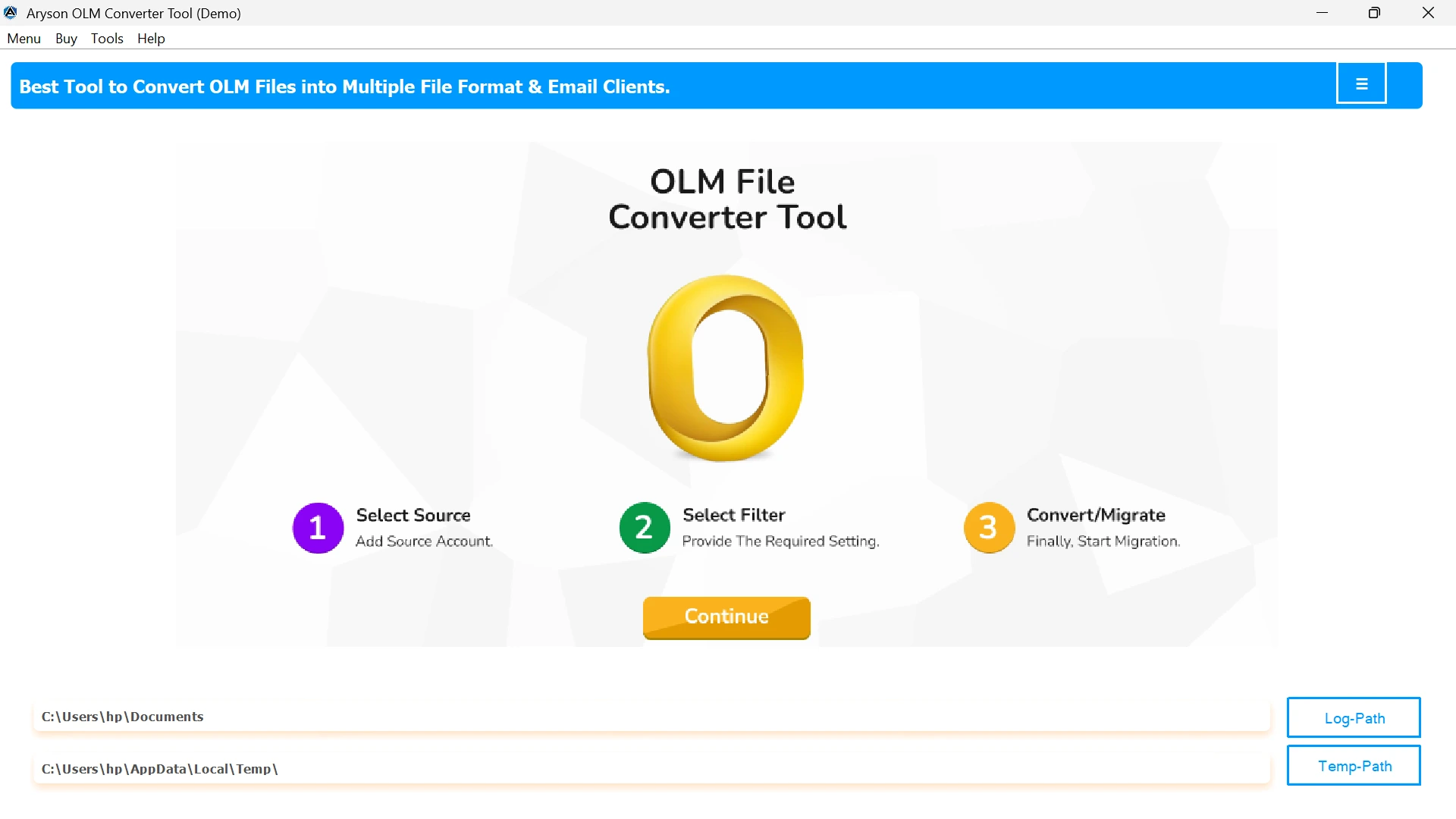
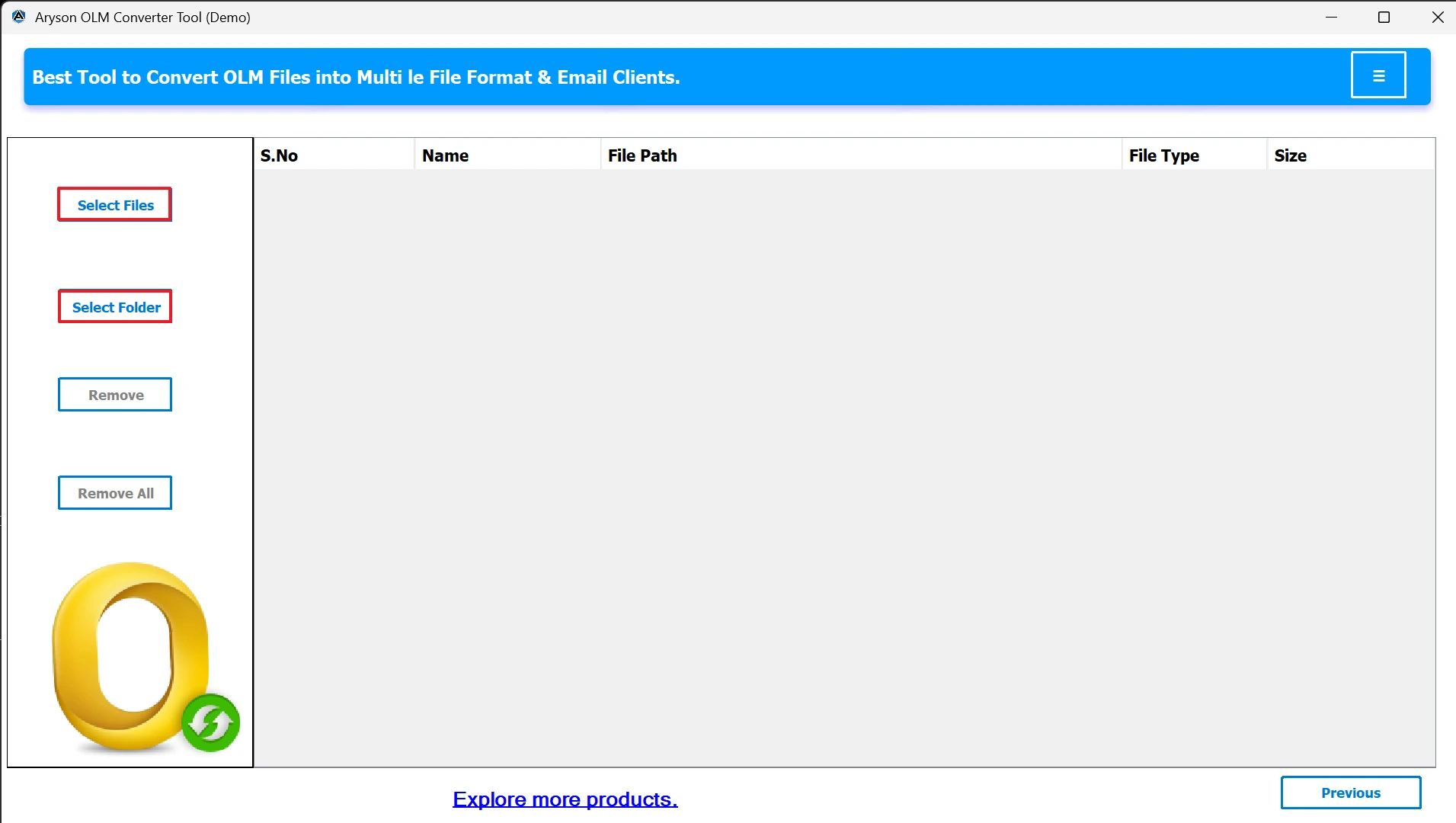
- After installation, launch the program and then click on Select Files or Select Folder to upload your OLM files.
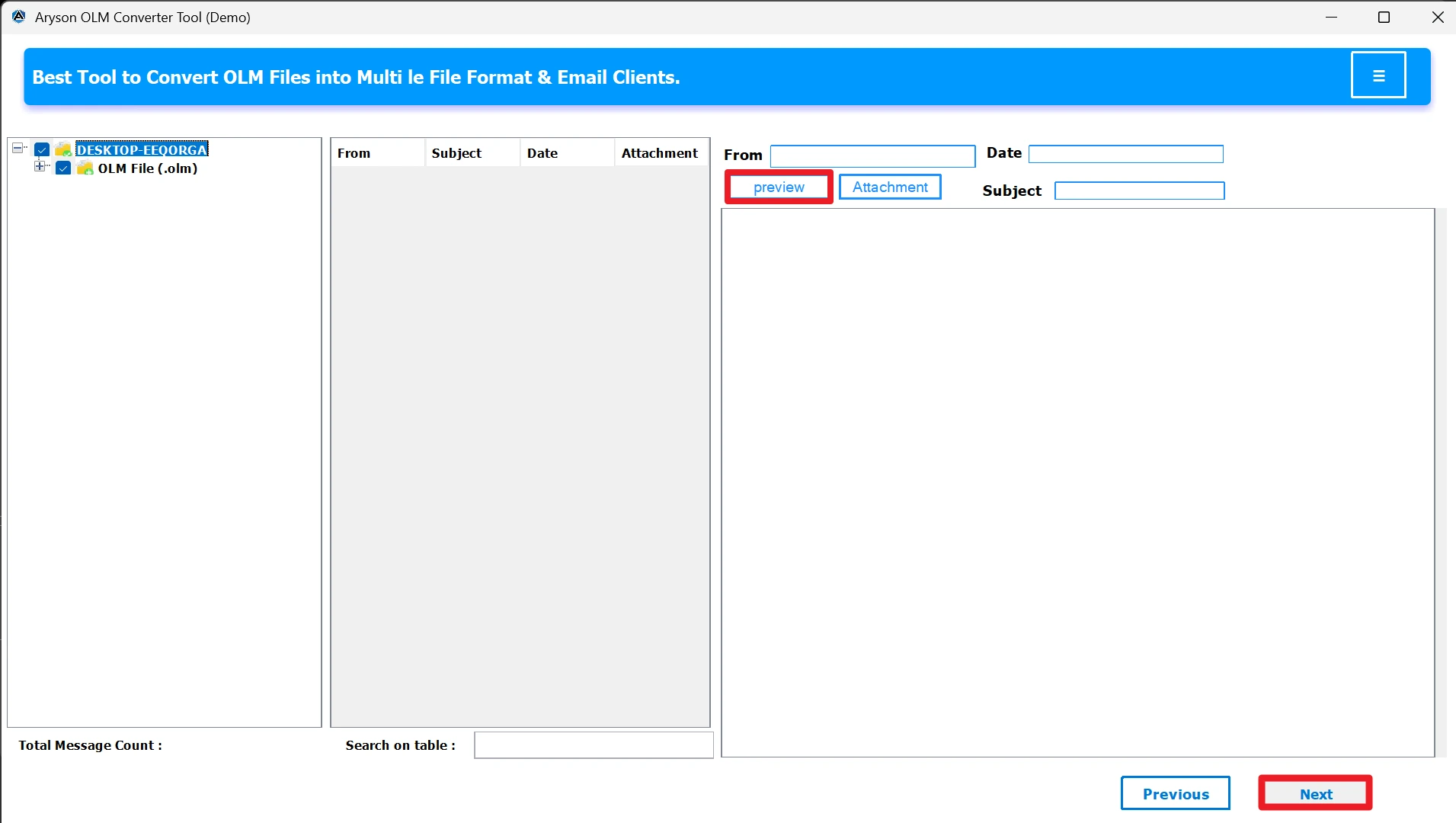
- Once the files are added, you will be able to preview the complete mailbox data directly in the next panel.
- Next, from the available export options, choose Google Workspace (G Suite).
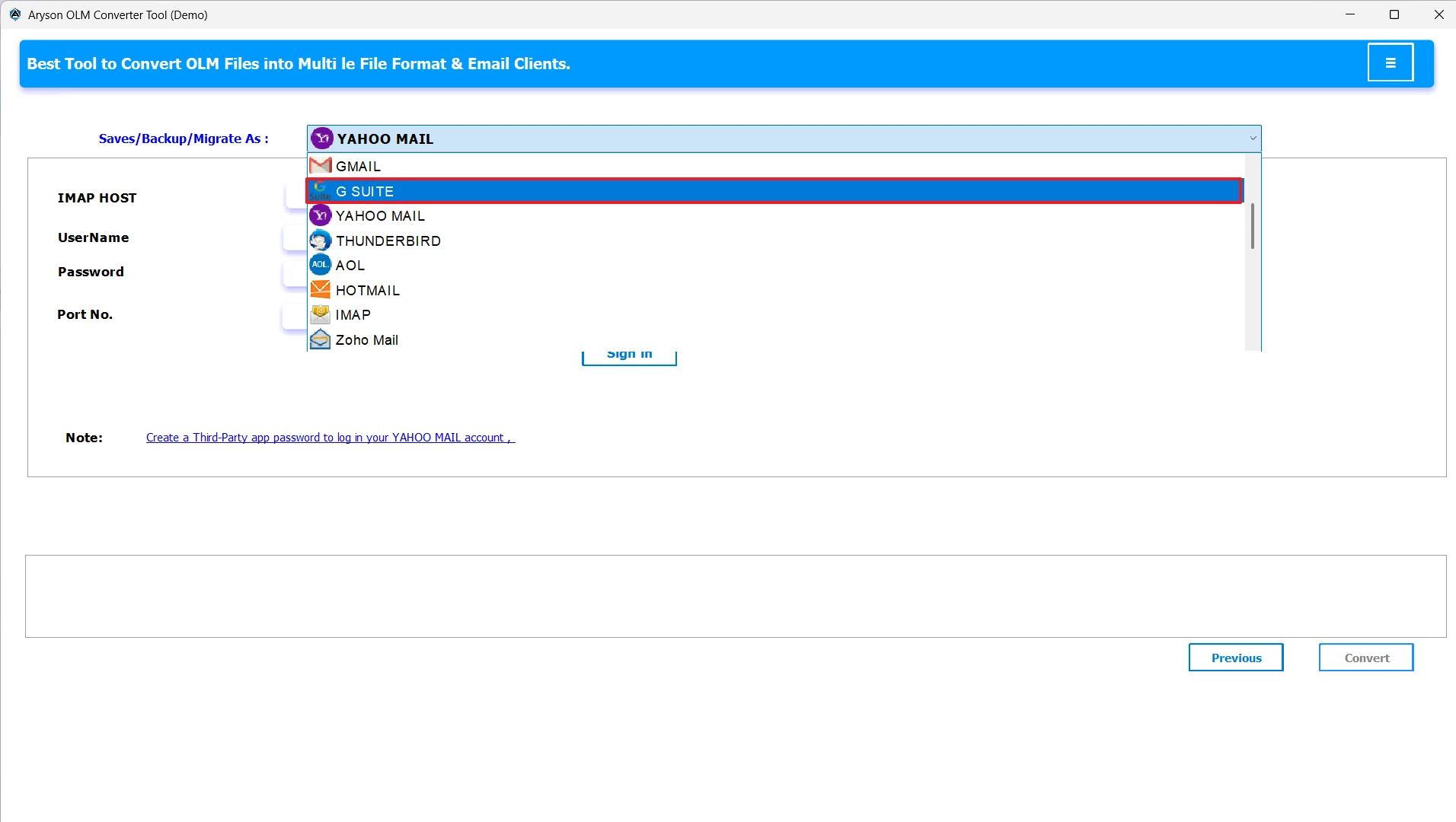
- After that, enter your Workspace login credentials carefully to establish a secure connection.
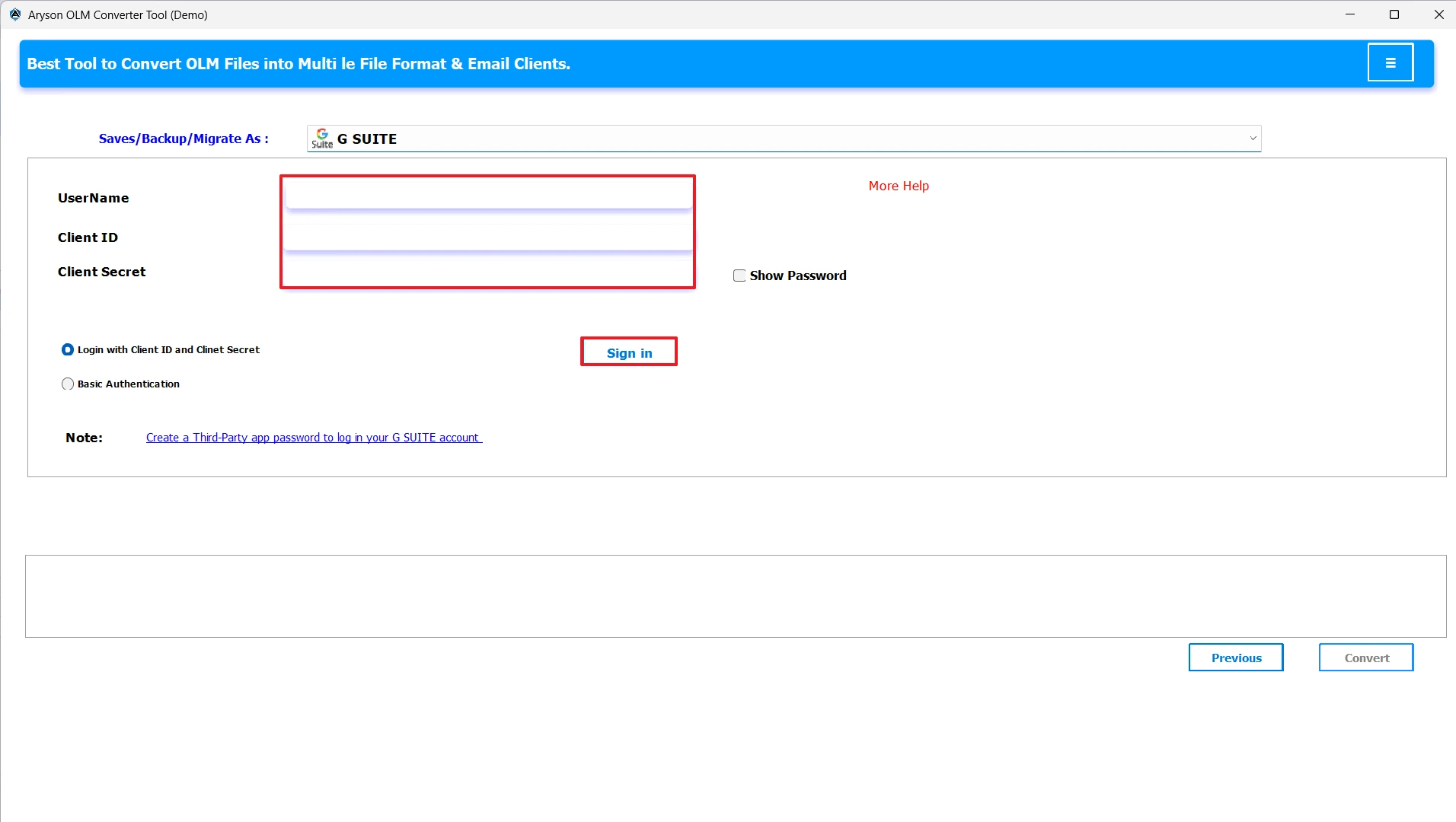
- If required, you can also apply filters such as date range, specific folders, or categories to refine the migration.
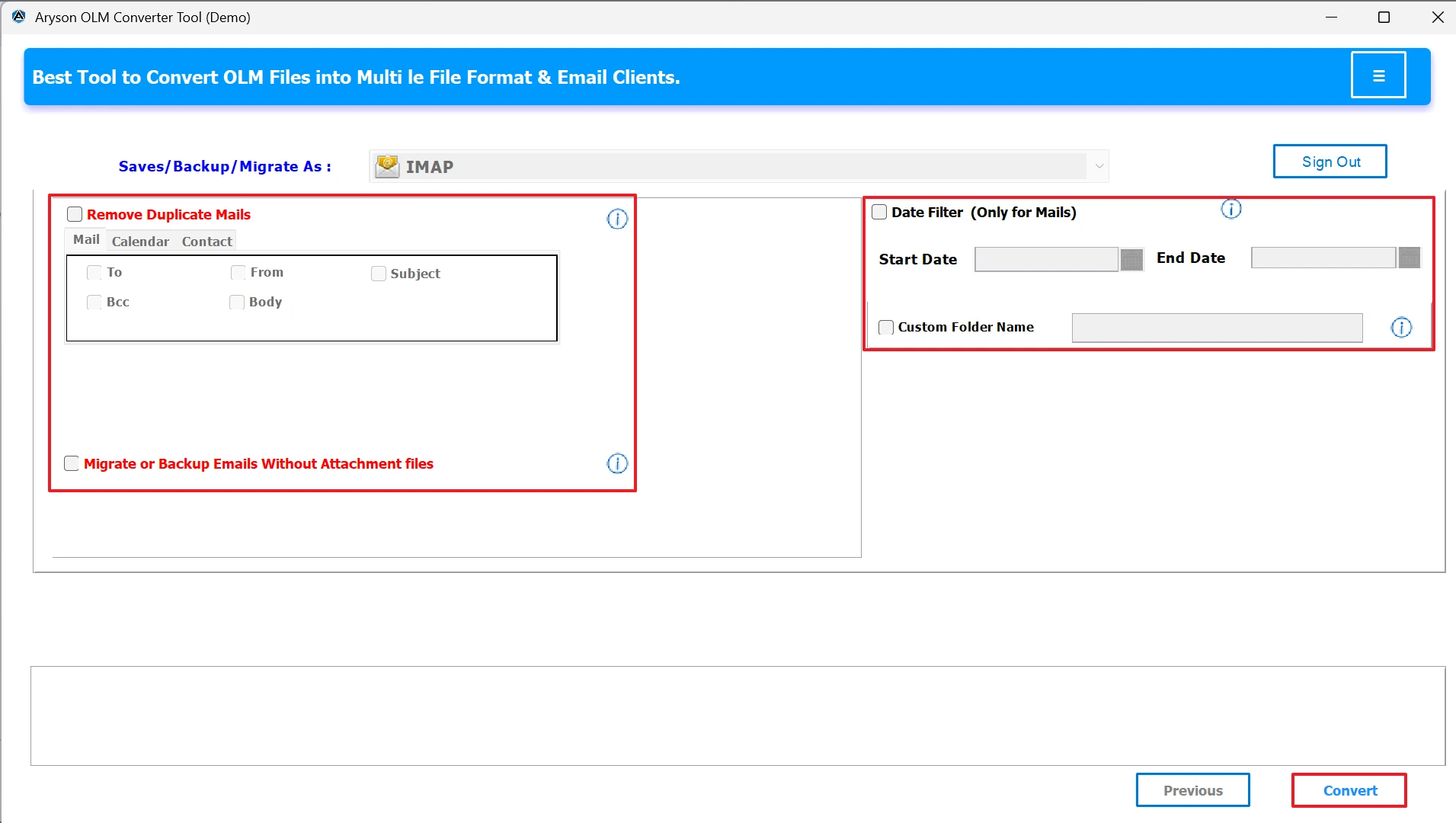
- Finally, click on the Convert button to import OLM file to G Suite.
Conclusion
When you import OLM to Google Workspace, it can be very complicated sometimes since Google does not support the OLM format directly. While the IMAP method works for small transfers, it is time-consuming and complex. For a reliable and quick migration, the MSOutlookHelp OLM Converter is the recommended choice. It can easily transfer emails and all their content into Google Workspace with zero risk of data loss.
Frequently Asked Questions:
Q.1 What is the best way to import OLM files to Google Workspace?
Ans. The best way is to use a reliable tool such as the MSOutlook OLM Converter Tool. It allows you to import OLM files to Google Workspace directly while keeping emails, attachments, contacts, and folders intact. This approach is faster and safer compared to manual methods.
Q.2 Do I need technical skills to import OLM files to Google Workspace?
Ans. No. With the MSOutlook OLM Converter Tool, you don’t need advanced technical knowledge. This tool comes with a simple interface and step-by-step process, making it easy for anyone to transfer OLM files to Google Workspace.
Q.3 Are there any risks of data loss when importing OLM to Google Workspace?
Ans. If you rely on manual processes, there is always a chance of incomplete transfer or missing attachments. But with the MSOutlook OLM Converter Tool, your data is migrated securely with zero risks of data loss. It preserves the original structure and formatting during the transfer.
Q.4 Can I import OLM files directly into Google Workspace?
Ans. No, Google Workspace does not directly support OLM files. To move OLM files to Google Workspace, you need a migration solution like the MSOutlook OLM Converter Tool, which bridges the gap and simplifies the process.
About The Author:

Evren Cole is an expert in Email and Data Management. She has a strong passion for technology and entrepreneurship. In her free time, she enjoys football, music, and reading books.

