

-
Written By Evren Cole
-
Updated on July 12th, 2025
How to Migrate All Hotmail Data to Outlook.com? Expert Guide
In 2013, Microsoft rebranded its Hotmail account into the Outlook application. Microsoft automatically upgraded the Hotmail account to the Outlook account. However, many users still face challenges with their Hotmail account when it comes to upgrades. Hence, they want a reliable solution to migrate Hotmail account to Outlook.com. In this blog, we delivered various methods, including manual and a professional Hotmail Backup Tool, to migrate the account. Nonetheless, the tool provides easy functionalities to accomplish the task for all kinds of users.
Is it Worth it to Transfer Hotmail Data to Outlook.com?
Indeed, the transfer of Hotmail data to Outlook is beneficial. Several additional compelling reasons why it is beneficial:
- Hotmail has been officially rebranded as Outlook, with all data now managed by Microsoft.
- An upgraded, streamlined user interface that is cleaner, more intuitive, and easier to use.
- The new Outlook upgrade is equipped with mobile-friendly access for better connectivity.
- Outlook offers advanced spam filtering and efficient folder management features.
Yes, it’s worth it, but chances are, it’s already done for you.
Manual Method to Migrate Hotmail Account to Outlook.com
Below is a step-by-step guide to manually migrate your Hotmail account to Outlook, ideal for consolidating your email data.
Note: Most Hotmail data/accounts are already run on the Outlook infrastructure. However, if you need to consolidate your data, then follow the required steps:
- Install and open the Outlook application from the official source.
- If your Hotmail still works, then log in using the admin account credentials.
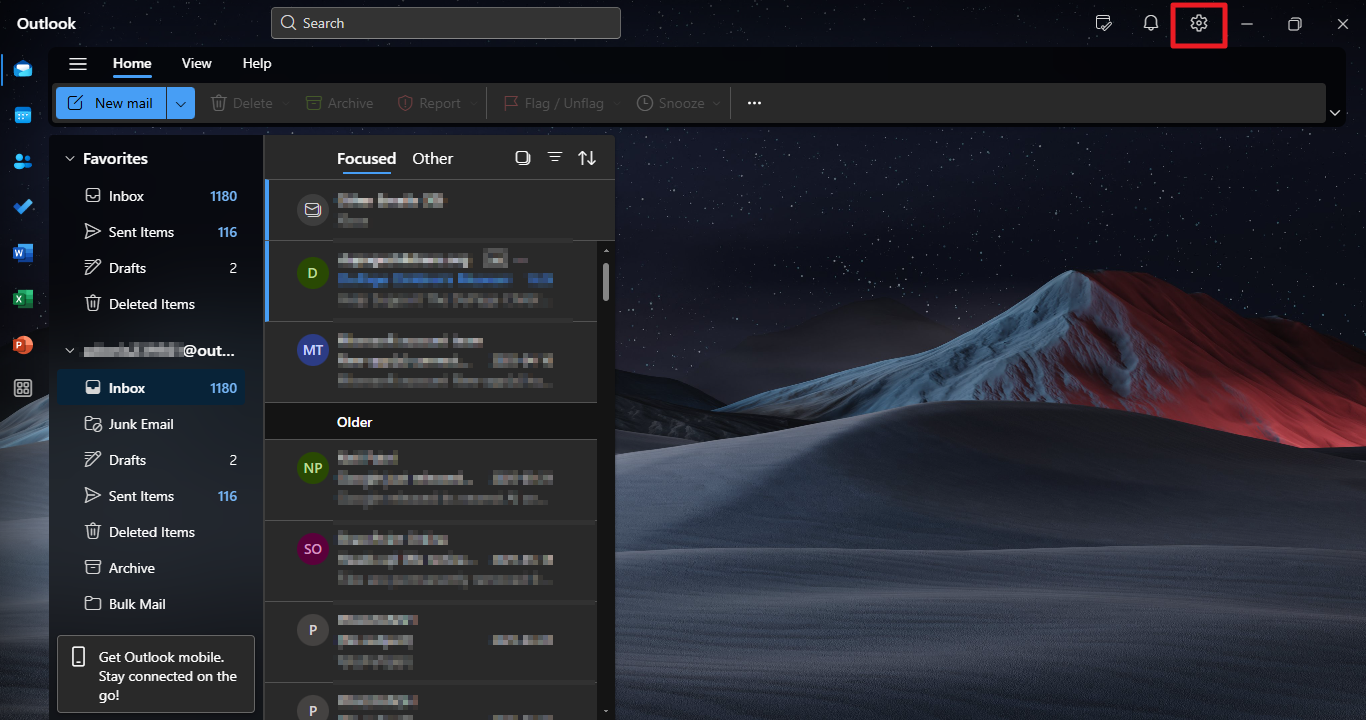
- Click on the gear icon to select the settings and view all Outlook settings.
- Next, go to the Mail section and select Sync Email from the available options.
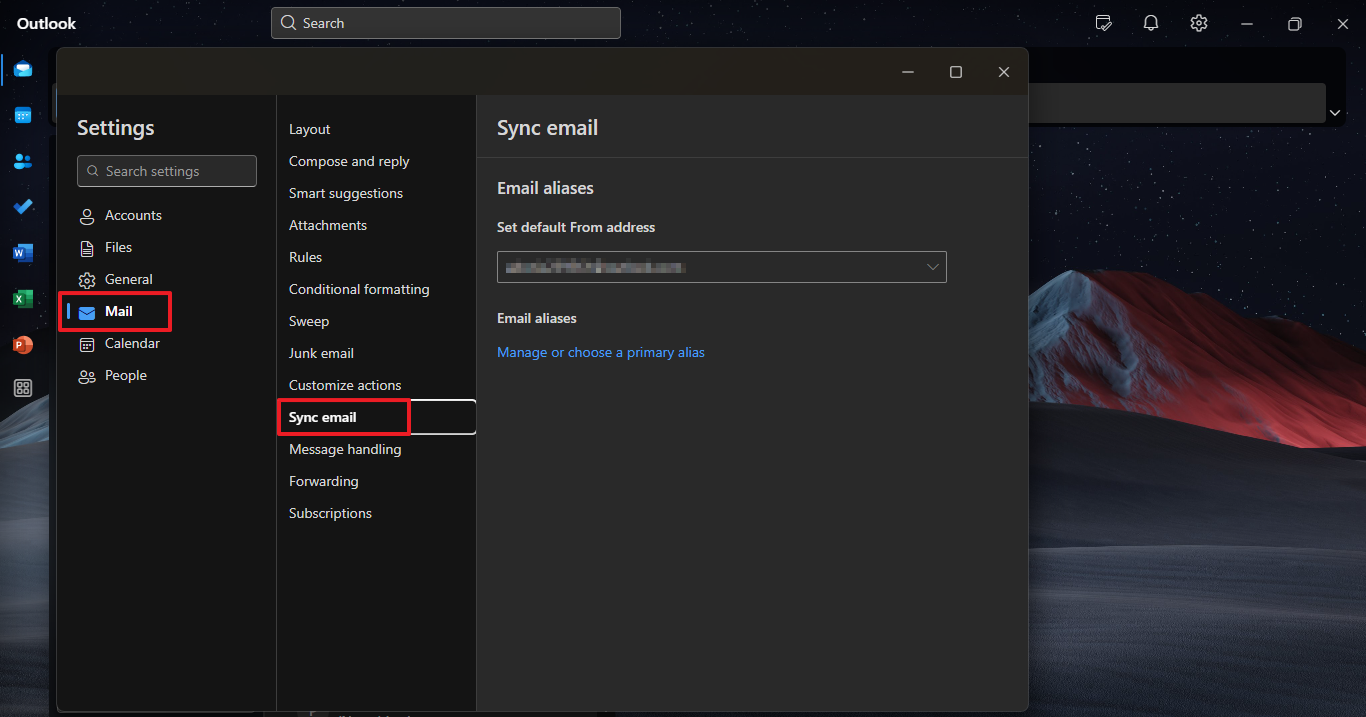
- Now, under the Connected Account, you see your Hotmail account.
- Configure the sync, and the Hotmail inbox will appear as a folder in Outlook.
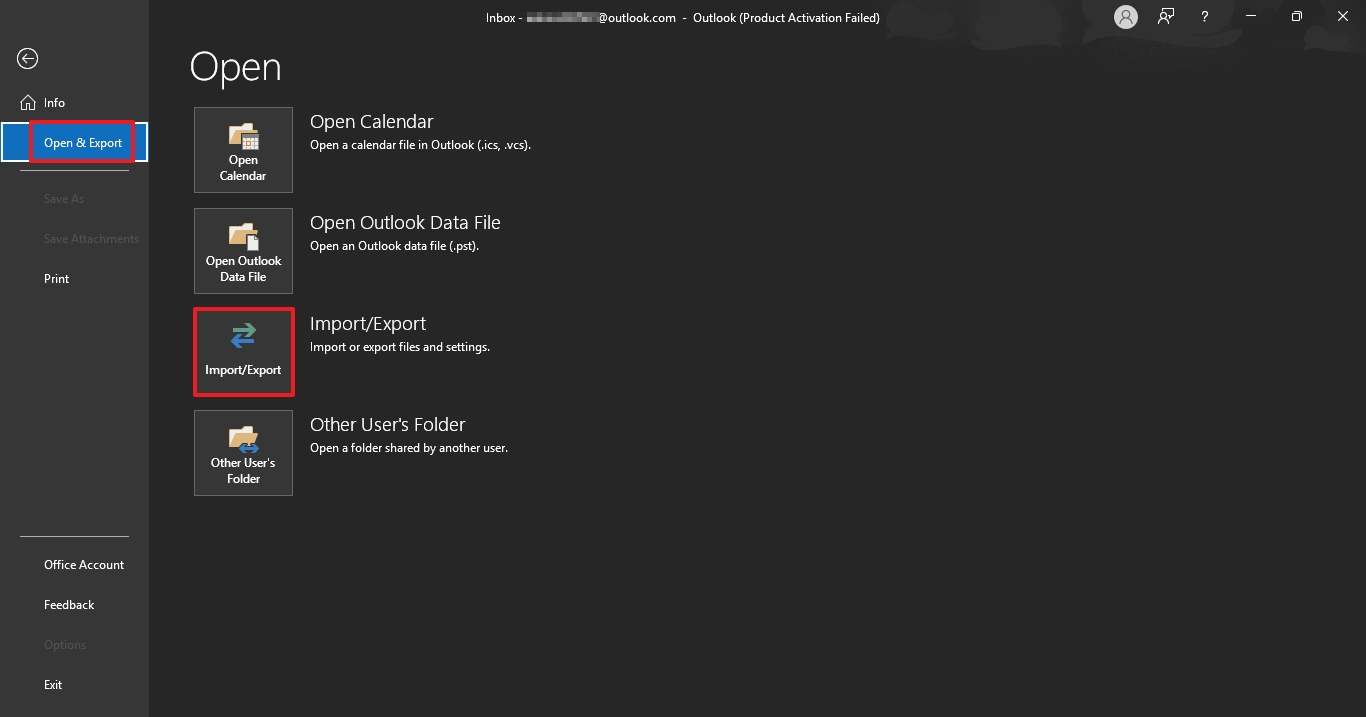
- After that, navigate to the Info section, then click on the File tab.
- From there, select Open & Export, and choose Import/Export from the list of options.
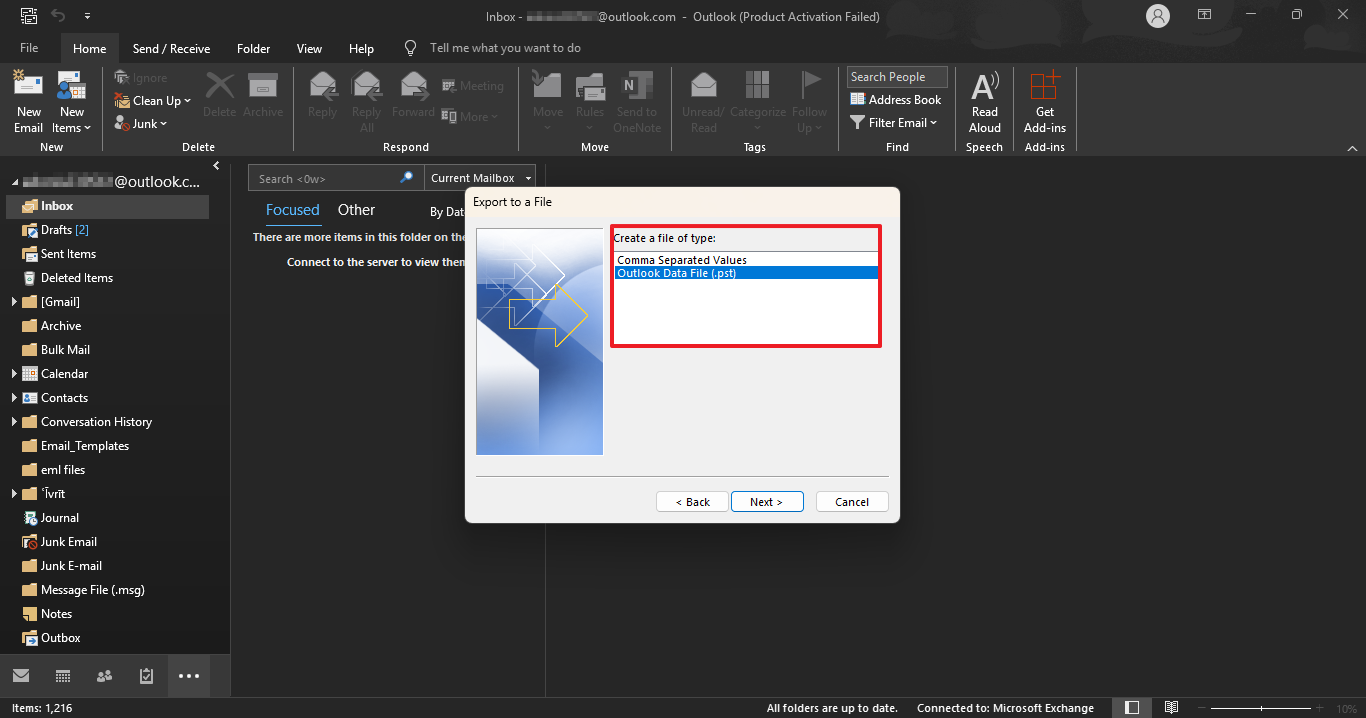
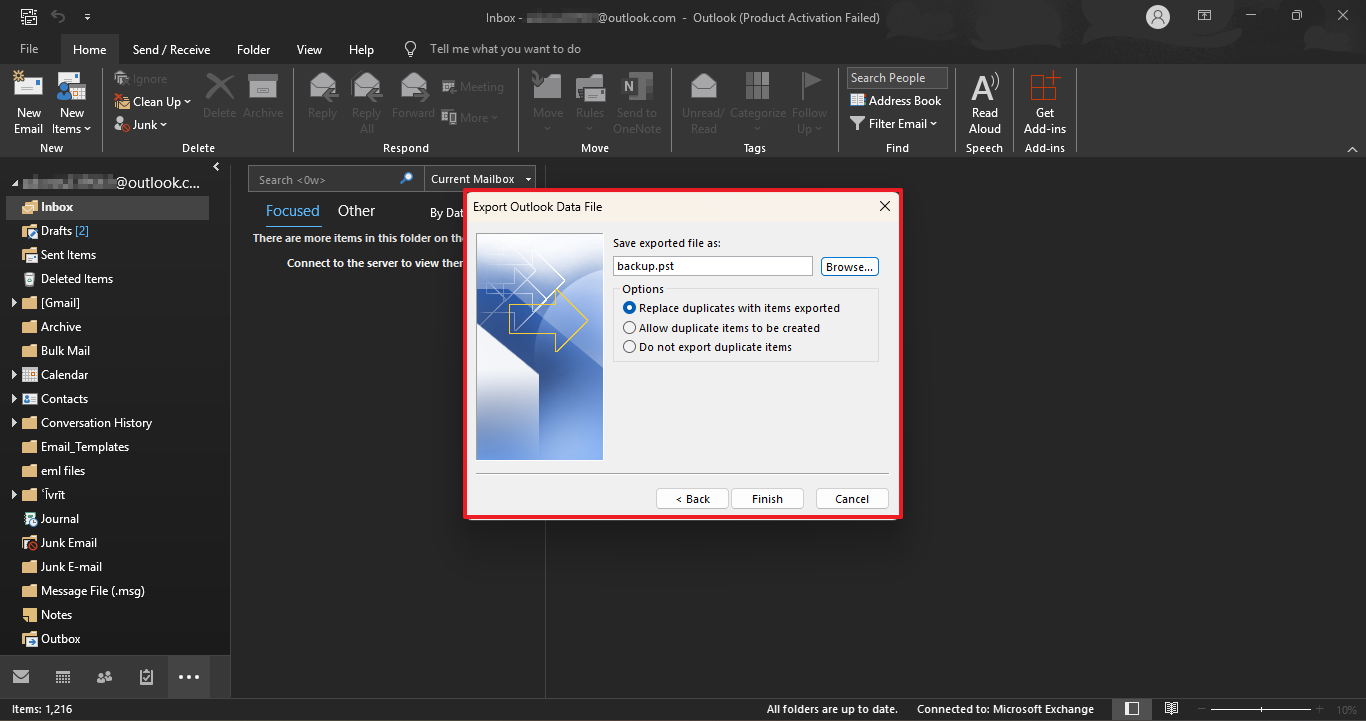
- Next, choose the Export to a file option, and then select Outlook Data File (.pst) as the format.
- Browse and select the saving location to save the resultant PST file.
Limitations Associated With Manual Conversion
Several drawbacks arise when you migrate email from Hotmail to Outlook.com manually.
- Manually setting up and exporting data is time-consuming.
- During the manual PST export, there is a chance of data loss and corruption.
- Manual exportation does not automatically sync your future data.
- When performing a manual conversion, you’ll need to repeat the entire process for each account or instance.
- Additionally, some emails with attachments may not transfer correctly and could fail during migration.
- In certain observed cases, compatibility issues may arise.
Professional Tool to Migrate Hotmail Account to Outlook.com
The Hotmail Backup Tool is a reliable tool that migrates your entire data into Outlook without causing any errors. Moreover, the tool backs up all your Hotmail data into your desired output. Also, this comprehension tool ensures that all your data is intact during the conversion process. With its advanced and innovative algorithm, you can efficiently perform bulk data downloads while preserving the original data and folder hierarchy.
Steps to Add Hotmail Account to Outlook.com
- Download and install the Hotmail Backup Tool on your system. Run it as an administrator.
- Provide your email ID along with the app-specific password, then click Next to proceed.
- Select the emails you want to export from your mailbox and click Next again.
- Then, choose the Save as File Format option and select PST as the output format.
- Apply the relevant filters if needed and click on the Download button.
- Further, import PST file to Outlook with Import/Export feature.
You can also import PST to Office 365 to leverage the benefits of the cloud service.
Conclusion
In summary, we stated numerous reasons and methods to migrate Hotmail account to Outlook.com. However, the manual method is easy to use, surrounded by several limitations and complexities. For a seamless and convenient migration, use the professionally recommended software. This tool is developed by a highly experienced developer, who provides resultant outcomes without any downtime or data loss.
Frequently Asked Questions
Q1: Did Hotmail and Outlook merge?
Ans: It was more of a rebranding than a merger. In 2013, Microsoft rebranded Hotmail as Outlook.com and migrated all user data to the new Outlook platform.
Q2: How do I sync my Hotmail account with Outlook?
Ans: For syncing Hotmail into Outlook, use the dedicated settings of the Outlook application. Use the Sync Mail option from the settings and select the default Hotmail.
About The Author:

Evren Cole is an expert in Email and Data Management. She has a strong passion for technology and entrepreneurship. In her free time, she enjoys football, music, and reading books.

