

-
Written By Shivam Rathore
-
Updated on July 18th, 2025
How to Search Specific Email in Outlook Effectively
Summary: Finding a specific email in Outlook can be hectic when your inbox is full of messages. But with the right search tips, you can quickly locate any email you need. If it’s from a friend, your boss, or an important receipt, Outlook has easy tools to help you search fast. In this blog, we will show you how to search specific email in Outlook. Furthermore, you can use the PST File Viewer to find your emails within a few minutes.
Why Search Particular Data in Outlook Is Important?
Outlook is a powerful email tool used by millions every day. Over time, your inbox can get crowded with thousands of emails. However, without a good search strategy, finding one email becomes hard. So, search email in Outlook PST becomes important and offers you several advanced features, such as:
- Quickly find important emails.
- Helps you to organize your inbox better.
- Also, save time on daily tasks.
Basic Search vs. Advanced Search in Outlook
Outlook offers two main ways to search your emails: Basic Search and Advanced Search. In addition, we will explain the professional tool to read complete backup data, including emails, contacts, calendars, notes, journals, etc, without Outlook.
| Search Type | What it Does | When to Use |
| Basic Search | This searches by simple keywords or names. | When you remember part of the message or the sender’s name. |
| Also, Advanced Search | Additionally, it offers filters like date, attachments, and folders. | If you want to narrow down results for specific criteria. |
How to Use Basic Search (Search Specific Email in Outlook)
- Firstly, open Outlook on your system.
- At the top of your inbox, you will see the Search bar.
- Click on the Search bar and type the keyword(s) related to the email.
- For example, type a person’s name, subject, or any word in the email.
- Lastly, press Enter, and Outlook will show all emails matching your keyword.
How to Use Advanced Search (Search Outlook for Emails from a Specific Person)
Advanced search allows you to use specific filters to get precise results. Here’s how:
- Again, open MS Outlook on your system.
- Now, click on the Search bar.
- On the Outlook ribbon (toolbar), click Search Tools or Search tab.
- After that, select Advanced Find or Filters.
- Further, use the available options like:
| Filter Option | What it Means |
| From | To find emails from a specific folder. |
| Subject | Emails with specific words in the subject. |
| Also, Has Attachments | When searching for emails that include attachments. |
| Date Received | Moreover, use when emails are sent or received within a date range. |
Professional Tool to Search Specific Email in Outlook
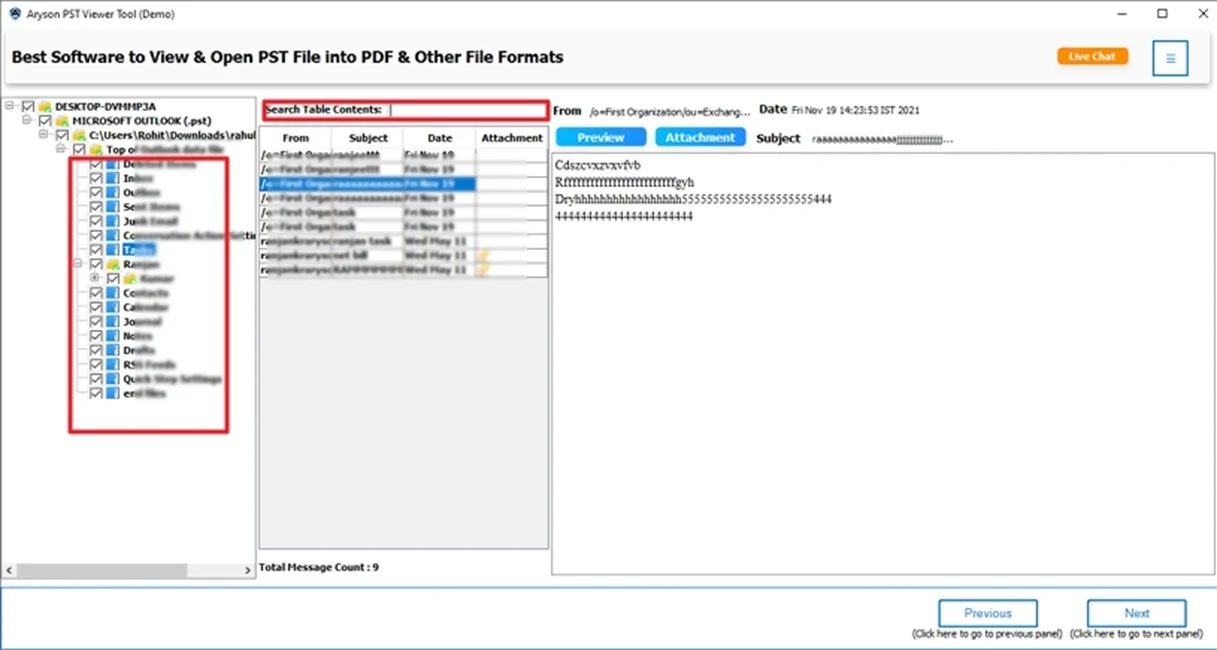
The PST Viewer Tool, launched by MSOutlookHelp, is the best tool that allows users to open and read Outlook PST files. This tool offers a search option in the preview panel. Also, you can read PST file without Outlook. With this utility, you can view a complete backup of PST files, including emails, contacts, calendars, and more, without minimal disruption. Moreover, it can access a large PST file within a few steps. The interface of this utility is simple; even a non-tech user can easily use it.
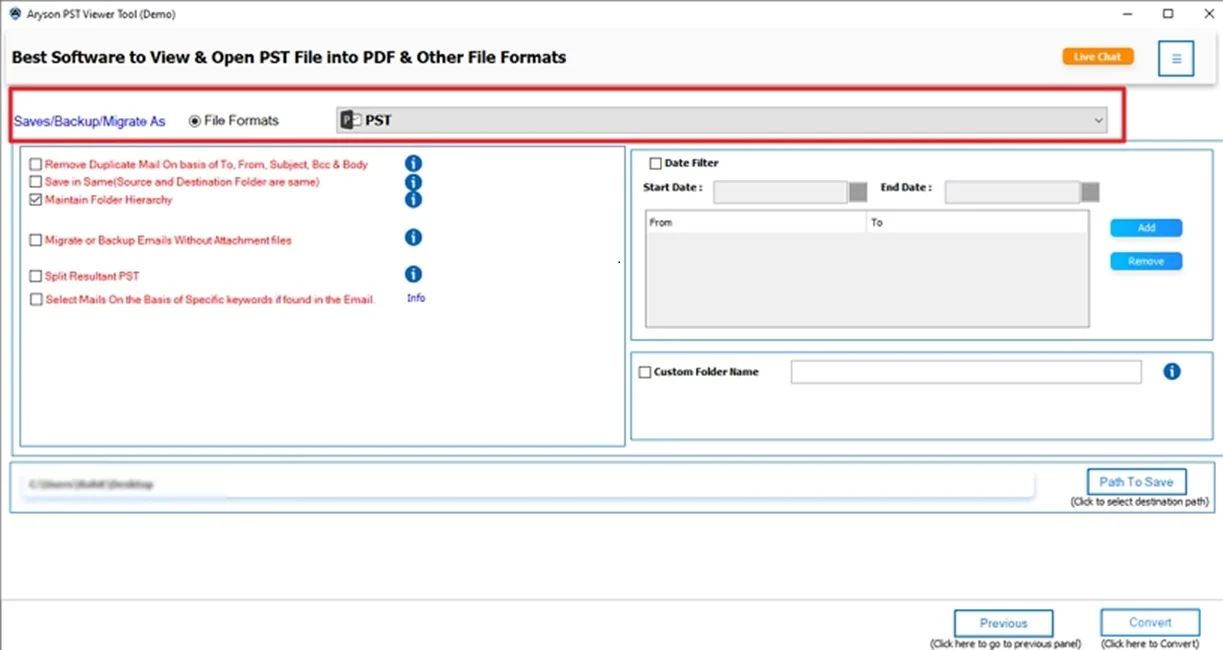
Along with that, this tool helps you save your PST file in several formats, like PDF, CSV, EML, MSG, and MBOX. The demo (Free) version of this tool is available to explore its features and how to use it.
Quick Steps to Open & Read Outlook PST File
- Firstly, download the PST Viewer Tool on your system.
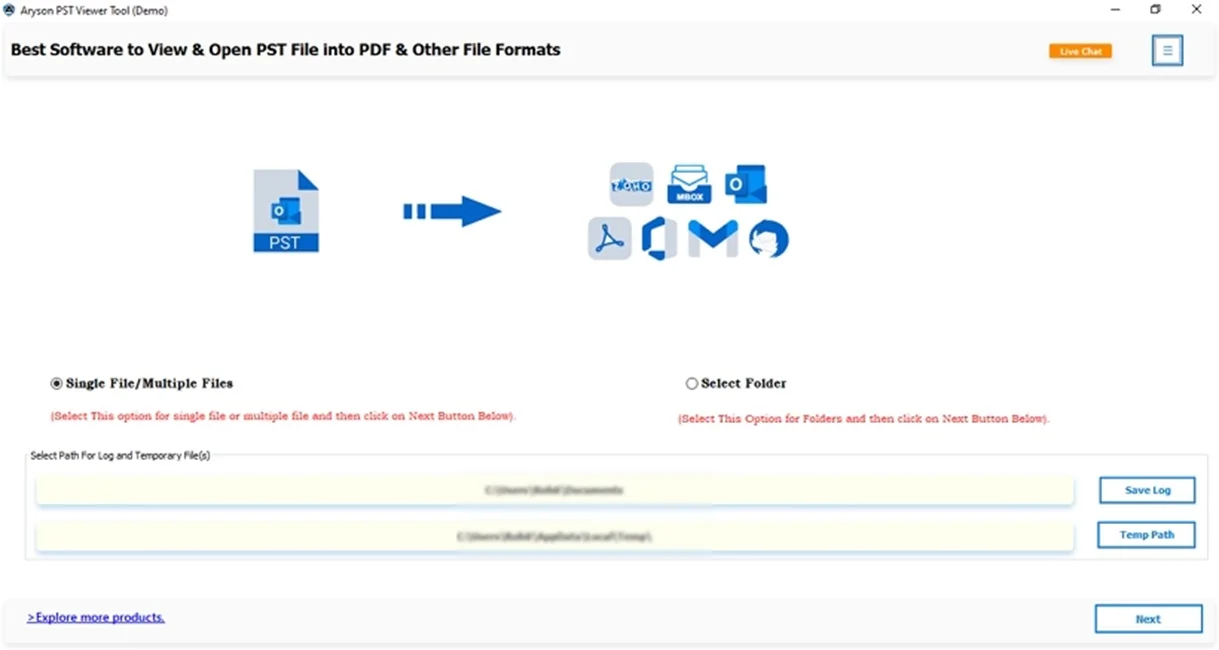
- Next, click on Select Files and add the PST file to view.
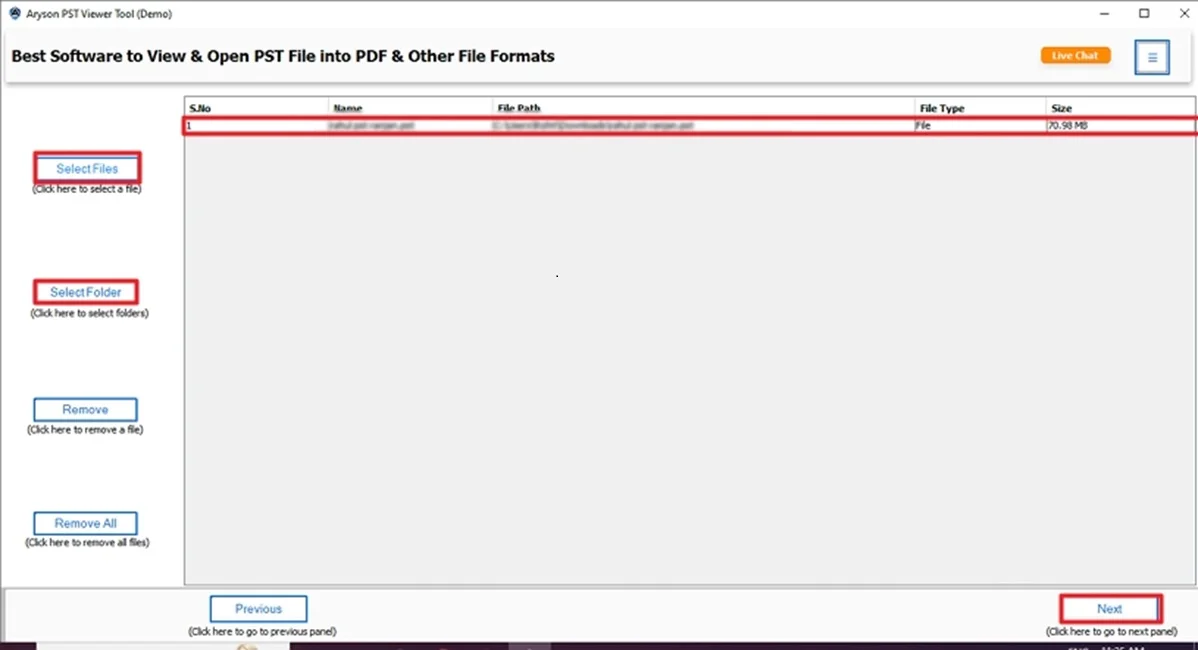
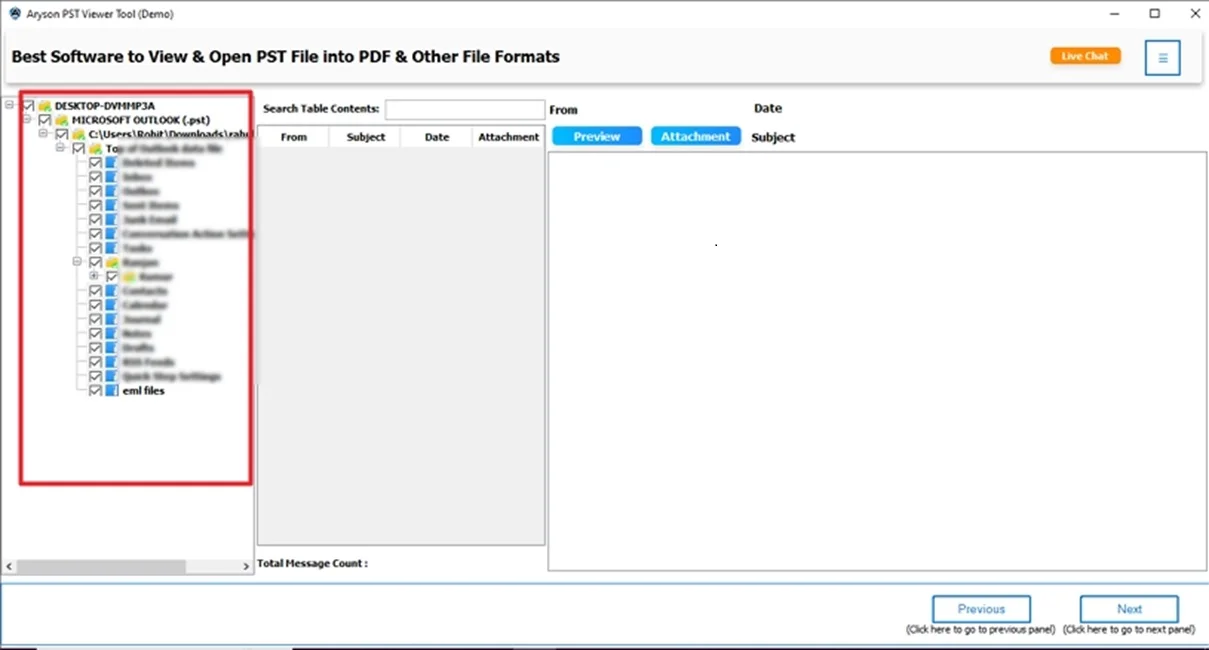
- After that, you can open and read the Outlook PST file.
- In addition, enter the keyword in the search table content option.
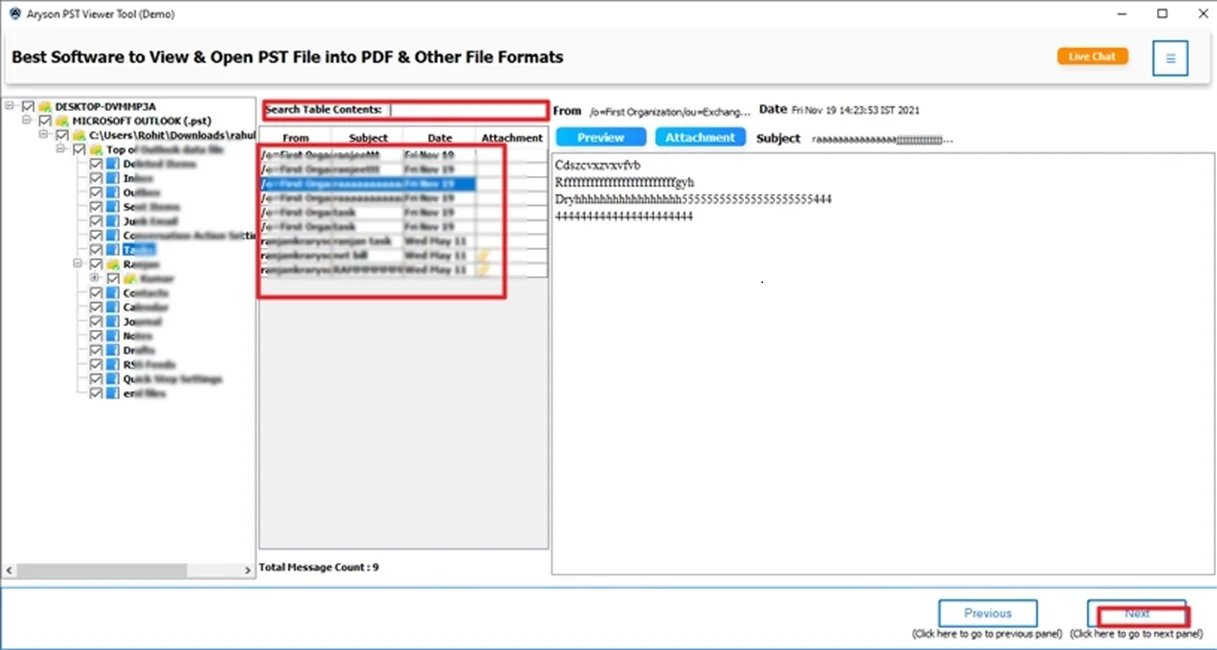
- Then, you can select only those emails to save.
- Next, choose the Saving option from the given options.
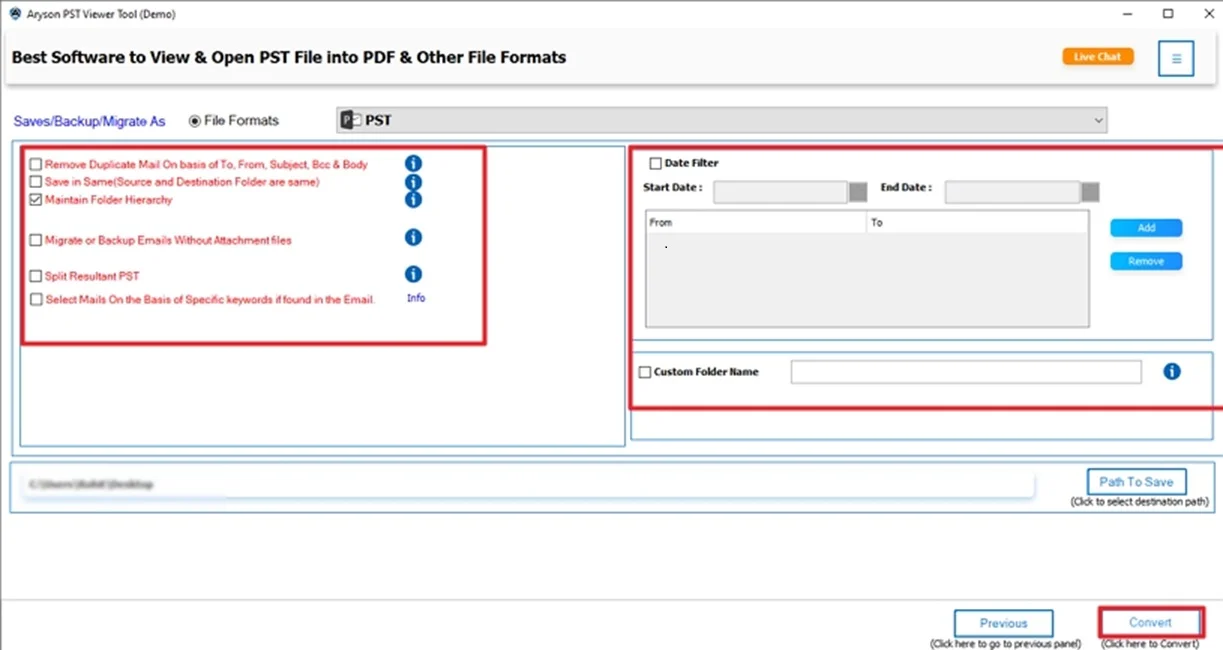
- Further, apply advanced features and click Convert.
Conclusion
To sum up, we have explored several methods to search specific email in Outlook. If you’re using basic search for quick results or advanced filters for deeper searches, Outlook gives you full control. For a large PST file, you can use the reliable PST Viewer tool. It provides advanced features to preview the complete backup of the PST file. In addition, save your PST file with advanced features into different file formats.
Frequently Asked Questions
Q.1 How to find emails from a specific date in Outlook?
Ans: You can use Outlook’s Advanced Search feature to find emails from a specific date or date range. Alternatively, if you have PST files and don’t want to open Outlook, the MSOutlookHelp PST Viewer Tool offers an easier way. It lets you filter emails by date range and even save the results in formats like PST, PDF, EML, or MSG.
Q.2 Can I search Outlook emails in multiple PST files at once?
Ans: Yes, you can. Outlook itself doesn’t allow you to search across multiple PST files at the same time. But, using a professional tool like the PST Viewer Tool makes it possible. This tool lets you load and search through several PST files at once.
About The Author:

Meet Shivam, a Microsoft-certified expert who has helped many people fix problems with Outlook and Office 365. He likes writing about email tools and moving data. He’s always happy to share easy tips, clear guides, and useful updates to help people solve tech problems.

