

-
Written By Evren Cole
-
Updated on April 30th, 2026
How to Remove Password from PST: Expert Guide
Summary: Ever tried opening your Outlook PST file and felt annoyed entering the password again and again? A lot of people set a password in Microsoft Outlook to keep their emails safe. But over time, it feels unnecessary, especially when you’re the only one using it. If you no longer need that extra protection, removing the password can make accessing your emails quicker and hassle-free. In this guide, you’ll find simple ways to remove password from PST, along with a PST Password Remover Tool make sure your data stays safe throughout the process.
Quick Answer
- If you remember your password: Use Outlook settings to remove it
- If you forgot the password: Use professional PST Password Remover Tool
What is a PST Password?
A PST password in Outlook is used to restrict access to your Outlook data file. In addition, it helps to protect emails, contacts and attachments from unauthorized access.
Important Note: PST passwords provide only basic protection and are not strongly encrypted. This can be removed with the help of a specialized tool.
Pre-Requisites Before You Remove Password
- Always create a backup of your PST files to prevent data loss.
- Make sure your Microsoft Outlook is closed before you make any changes.
- Moreover, it’s important to remember your current password for the manual method.
- Check file size and location to avoid errors during processing.
Why do users Remove Password from Outlook PST File?
Here are some important reasons mentioned why users remove passwords from their Outlook PST file.
- Taking the password off your PST file means you stop dealing with that annoying login prompt every single time.
- Before you do anything, double-check that you still remember the current password.
- Make a backup copy of your PST file first; one wrong move & your emails could be gone.
- Furthermore, Outlook actually lets you remove the PST password from the settings itself.
- You contradict it later by implying manual removal works for forgotten passwords
Best Solutions to Remove Password from PST
There are various ways to remove the password from your PST. In this guide, we will explain the most effective method to remove password from PST file.
- Manual Method (Via Outlook)
- Professional Software (For forgotten password)
Method 01: Manual Way (Only if you Remember Your Password)
You can remove the password with the help of Microsoft Outlook settings. Microsoft Outlook helps to unlock password-protected Outlook PST files.
Follow the Given Steps to Remove PST Password Quickly
- Firstly, log in to your Outlook account.
- Then, open File >> Account >> Account Settings.
- Select the PST file from which you want to remove the password and click Next.
- Here, select the Change Password button in the Outlook Data file Window.
- After that, you need to fill in your old password in the Old password box.
- And then create a new password and click OK to notice the change.
Note: There is a drawback to this method, and that is you can only follow this method if you remember your old password.
Limitations of this Method
- This method will work only when you remember your current password.
- When you enter the wrong password multiple times, it prevent access to the files.
- Moreover, Outlook does not provide a way to recover or reset a forgotten password.
- If your PST file is locked or inaccessible, then this method won’t work.
Method 02: Professional Software to Remove Password from PST
PST Password Remover software is the best utility for your PST password recovery. You can reset the password of the PST file with the help of this tool. It is the most reliable and secure software to recover or remove PST file passwords and unlock emails, tasks, contacts, calendars, etc. This tool is an all-in-one solution to your problems, and various benefits attract users to download this utility. Some of its advantages are given below to remove forgotten password from PST File.
Benefits of Professional PST Password Recovery Tool
- Users can effortlessly recover the PST passwords of Outlook with no hassle.
- You do not need to install Outlook to remove the PST password.
- This software can store all the decrypted passwords in a file or a clipboard.
- It decodes both ANSI and UNICODE types of versions of Outlook.
- This software supports all versions of Outlook and is widely compatible with all Windows OS.
- Provides a user-friendly interface for both technical and non-technical people.
Also Read: If you’re planning for email migration, then you can also read our detailed guide on Migrate Emails from IMAP to Zoho Mail
Follow the Steps to Remove Password from PST in MS Outlook
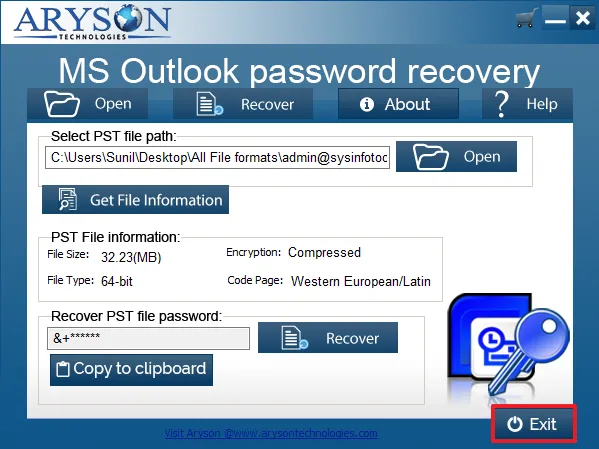
- Initiate, download, and install the PST Password Remover tool.
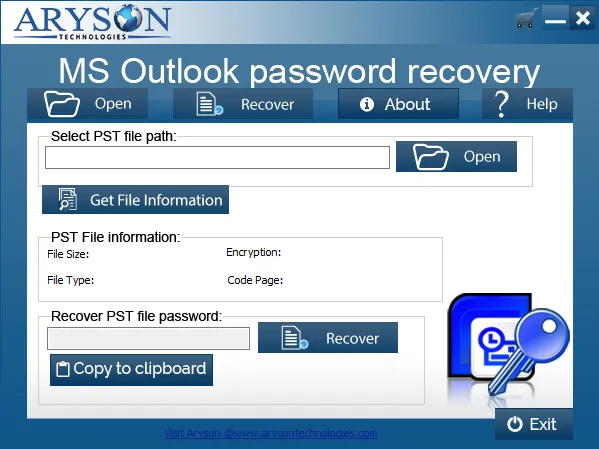
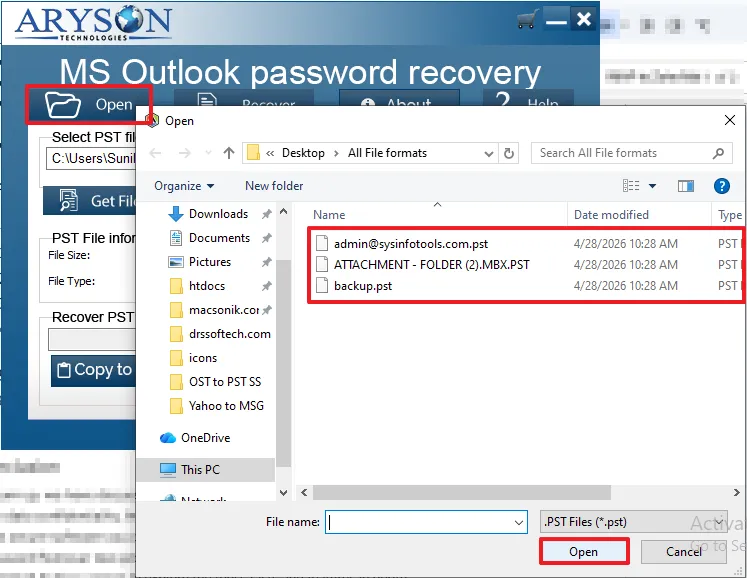
- Click on Open and choose the PST file option and click Open.
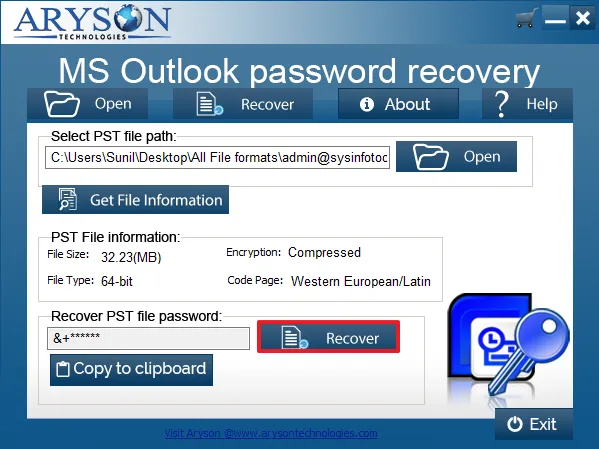
- Now, click on the recover button to view your file password.
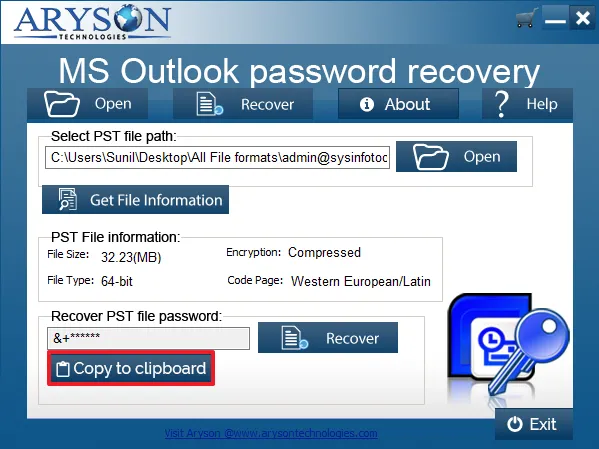
- Click on copy to clipboard and paste your password on a separate doc for future use.
- In the end, click on Exit to close the application.
Conclusion
To sum up, we have discussed the best and most reliable way to retrieve Outlook passwords with data confidentiality. Moreover, in case you forget the password of your encrypted PST files. It is the most secure software you can find online to remove password from PST files. PST Password Remover tool provides a user-friendly interface with no technicalities. You can also download its free version to explore the tool’s facts and features in depth.
Frequently Asked Questions:
Q.1. Why would someone want to remove password from PST file?
Ans. People usually remove the password from a PST file to make email access faster and more convenient.
Q.2. How do I remove a password from Outlook PST file manually?
Ans. Follow these simple steps to remove password from Outlook PST file:
1. Open Outlook and go to File >> Account Settings >> Account Settings.
2. Switch to the Data Files tab.
3. Select your PST file, click Settings, and click Change Password.
4. Enter the old password and leave the new password fields blank, and click OK.
Q.3. Is it safe to remove password from PST file?
Ans. Yes, it is safe to remove the password if the PST file is stored on a secure and personal system.
Q.4. Are there free tools to unlock password-protected PST files?
Ans. Yes, the free version of this professional tool is available to unlock PST files.
About The Author:

Evren Cole is an expert in Email and Data Management. She has a strong passion for technology and entrepreneurship. In her free time, she enjoys football, music, and reading books.

