

-
Written By Evren Cole
-
Updated on May 21st, 2026
How to Fix Windows Error Code 0x80070002 in All Versions
Summary: Windows error code 0x80070002 usually appears during a Windows Update. Most of the users encounter these issues while updating their systems or performing other essential operations. This error generally denotes that some files are missing or corrupted, which prevents Windows from completing the task. In this blog, we’ll explore the causes of error 0x80070002 and provide distinct methods, which include Windows Data Recovery Software, to fix it across all versions of Windows.
Windows error code 0x80070002 usually occurs due to corrupted update files. You can fix it through reset Windows Update components, or running system repair tools like SFC and DISM.
Download Now Purchase Now
Quick Fix Table
|
Issues |
Fixes |
|
Corrupted Update files |
Reset update components |
|
Damaged system files |
Run SFC/DISM |
|
Incorrect time settings |
Sync time and date |
What Causes Windows Error Code 0x80070002?
Windows Error Code 0x80070002 usually occurs when the system cannot access important files required for updates or other operations. The issue is commonly linked to corrupted update files, damaged system files, or incorrect system settings. Below are the major reasons behind this error:
- Failed or incomplete Windows updates can trigger Error Code 0x80070002.
- Interrupted internet connectivity during updates may corrupt installation files.
- Insufficient disk space can prevent Windows from downloading or installing updates properly.
- Corrupted or missing system files may stop Windows from processing update tasks.
- Incorrect date and time settings can interfere with Microsoft server synchronization.
- Hard drive issues, including bad sectors or file system errors, may lead to data corruption.
- Damaged files inside the Software Distribution folder can interrupt the Windows Update process.
|
How to Fix Error Code 0x80070002? Ans. To resolve the error code 0x80070002, you can use several manual and automated methods. The most effective way is to reset Windows update components or professional software. |
Method 01: Use the Windows Update Troubleshooter
Windows has a built-in troubleshooter specifically designed to fix update-related issues.
- The first step should be to run the troubleshooter.
- For this, go to Settings >> Update & Security >> Troubleshoot.
- After that, click on Additional Troubleshooters.
- Next, select Windows Update and click Run the troubleshooter.
- The troubleshooter will scan for issues and attempt to fix them automatically.
- After the troubleshooting process is complete, restart your computer.
- Once the scan is complete, restart your computer.
Method 02: Use the System File Checker (SFC)
Corrupted system files can trigger Error Code 0x80070002. You can use the System File Checker (SFC) tool to repair them.
- Firstly, press Windows + X and select “Command Prompt (Admin)” or “Windows PowerShell (Admin).”
- After that, type sfc /scannow and press Enter.
- Wait for the scan to complete; it will automatically repair corrupted files.
- Once the scan is complete, restart your computer.
Method 03: Run DISM Scan
DISM helps to repair corrupted Windows system images that may trigger Error Code 0x80070002.
Steps to Run DISM:
- Open Command Prompt as Administrator.
- Type the following command:
- Next, you need to press Enter >> wait for the process to complete.
- Restart your computer after the scan finishes.
DISM /Online /Cleanup-Image /RestoreHealth
Method 04: Reset Windows Update Components
If the above solutions don’t work, you need to manually reset the Windows Update components that can fix deeper issues.
- Open Command Prompt as Administrator:
- Then, press Windows + X >> select Command Prompt (Admin) or Windows Terminal (Admin).
Stop Update Services: Run the following commands one by one:
|
net stop wuauserv net stop cryptSvc net stop bits net stop msiserver |
Rename Software Distribution and Catroot2 Folders:
Type the following commands and press Enter after each:
|
ren C:\Windows\SoftwareDistribution SoftwareDistribution.old ren C:\Windows\System32\catroot2 catroot2.old |
Restart Update Services:
Run the following commands:
|
net start wuauserv net start cryptSvc net start bits net start msiserver |
Limitations of the Manual Method
Manual methods to fix error code 0x80070002 often lack efficiency due to several reasons:
- You must have a good knowledge to perform the task via the manual method.
- The effectiveness of the manual method can vary depends on the system configuration.
- To fix the error manually requires various steps.
- The manual method may not always work, especially if the root cause is not identified.
Professional Software to Fix Windows Error Code 0x80070002
The Aryson Windows Data Recovery is a reliable solution to recover your lost files caused by the system. You can use this software to recover several damaged or lost files at once. It can restore Windows files from any kind of media storage device, including physical drives, SD cards, USBs, DVDs, and CDs. Moreover, it facilitates the easy restoration of data from the NTFS file system. Also, it supports the GUID partition table in addition to the master boot record. If you encounter error code 0x80072f06, then go through our detailed guide on Error Code 0x80072f06.
To recover as much data as possible, use the RAW recovery method. Apart from that, it performs file recovery and restoration from a Windows operating system crash. Additionally, it restores deleted data from Windows FAT file systems, like FAT12, FAT16, and FAT32. With Windows 11/10/8/7, you can recover up to 2 GB of data for free from 2000+ storage devices. Now, just go through the steps to fix “code 0x80070002”.
Simple Steps to Resolve Error Code 0x80070002
- First of all, install and run the given software on your system.
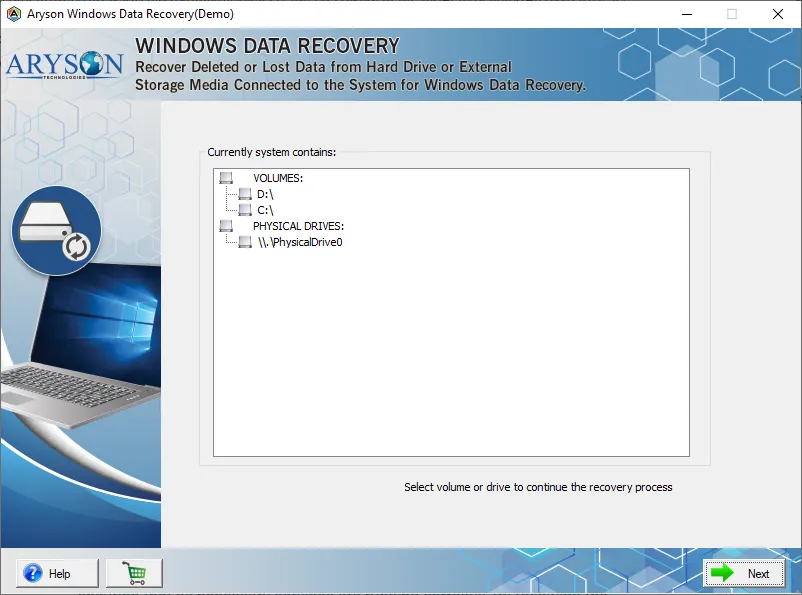
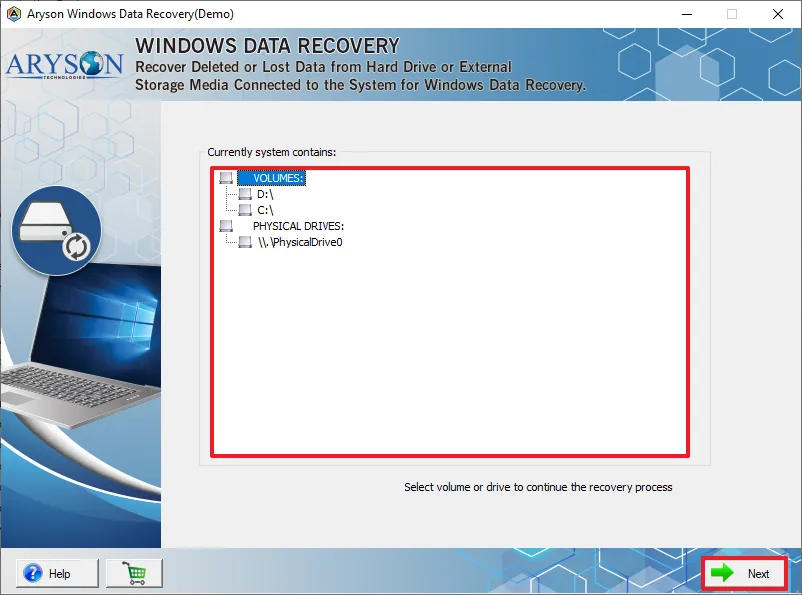
- After that, select the volume or physical drive according to your choice >> Next.
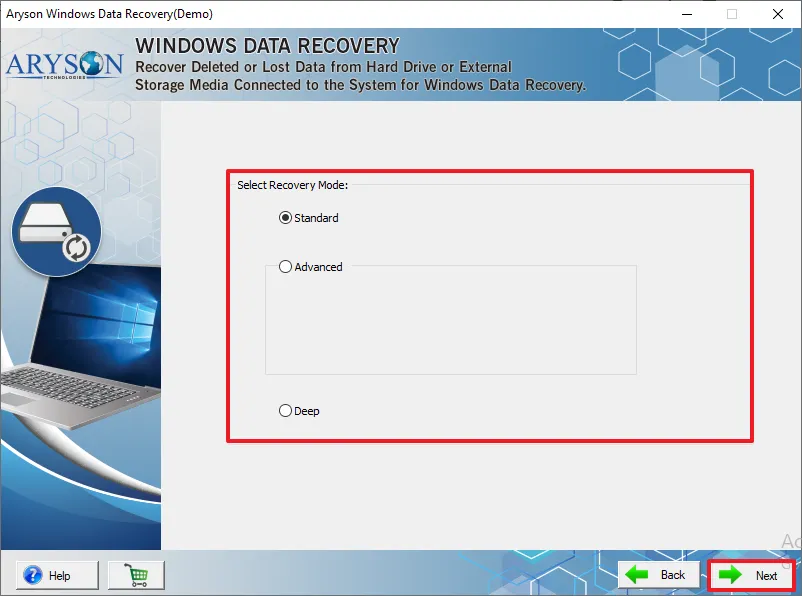
- Now, choose the recovery mode: Standard, Advanced, or Deep mode of data recovery.
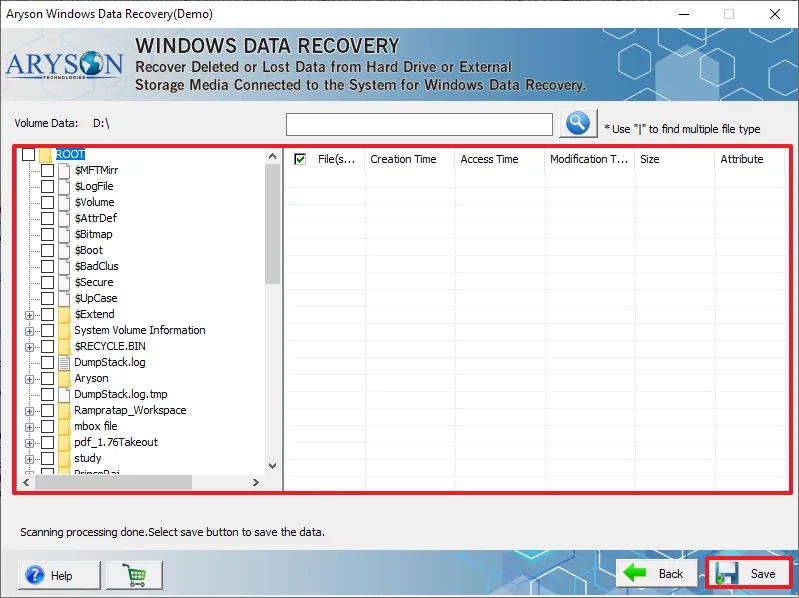
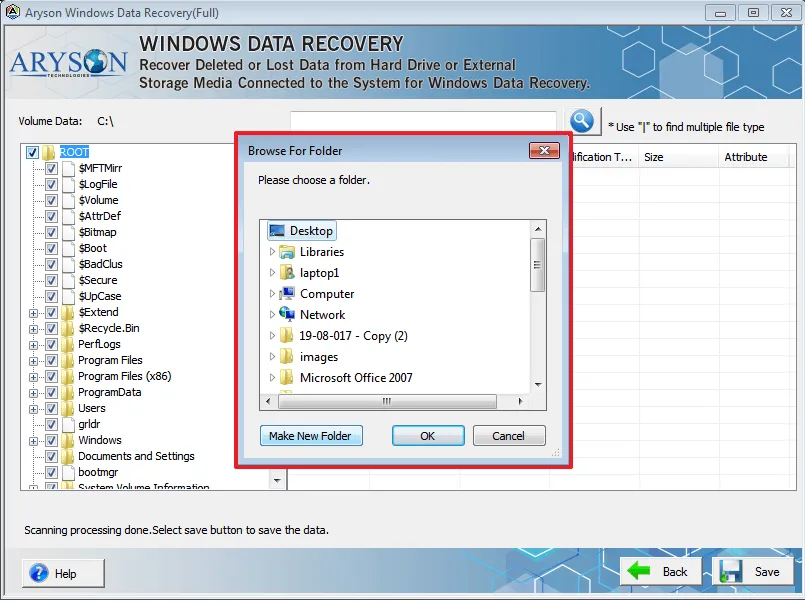
- After the scanning process, select the folders to recover and press the Save button.
- Next, enter the preferred system location to store the Windows data that has been retrieved.
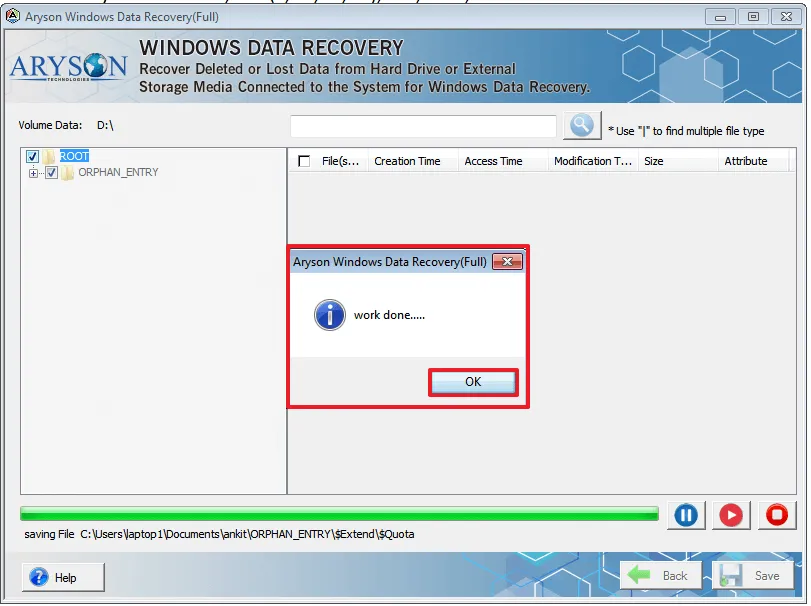
- At the end, to successfully recover and save data, click the OK button.
Conclusion
In conclusion, Windows Error Code 0x80070002 is a common issue that can arise at the time of various operations, such as Windows updates or software installations. When this error is found, it involves a systematic approach. Use the following the recommended methods, such as resetting Windows Update components, checking system integrity with SFC and DISM tools, and manually adjusting time and date settings, users can effectively resolve this error across all Windows versions. Apart from a manual solution, we also recommended the top utility to do the same. It provides a smoother and more reliable computing experience.
Frequently Asked Questions:
Q.1. Does Error 0x80070002 affect system performance?
Ans. Error 0x80070002 does not usually slow down the system directly. However, it can interrupt Windows updates and lead to minor stability or functionality issues over time.
Q.2. Which method is best to fix Error Code 0x80070002?
Ans. Resetting Windows Update components is considered one of the most effective ways to fix Error Code 0x80070002. On the other hand, you can use professional software for the best results.
Q.3. Can I fix Error 0x80070002 using PowerShell?
Ans. Yes, PowerShell can be used to reset Windows Update services and repair update-related problems. It is a useful method for advanced users and administrators.
Q.4. Can corrupted updates trigger Error 0x80070002?
Ans. Yes, incomplete or damaged Windows update files are a major reason behind Error 0x80070002. Corrupted updates can prevent the installation process from completing successfully.
Q.5. Can low disk space cause Error Code 0x80070002?
Ans. Yes, insufficient storage space can interrupt Windows updates and trigger Error Code 0x80070002. Freeing up disk space often helps resolve the issue and improves update performance.
About The Author:

Evren Cole is an expert in Email and Data Management. She has a strong passion for technology and entrepreneurship. In her free time, she enjoys football, music, and reading books.

