

-
Written By Shivam Rathore
-
Updated on July 12th, 2025
Quickly Import PST to IMAP Account: Verified Solution
Summary: Generally, PST files are associated with Microsoft Outlook because they store emails, contacts, calendars, and other mailbox data locally. However, many users don’t know that these PST files can also be used with IMAP-supported email services. It includes Gmail, Yahoo, or other mail platforms. If you want to access these PST files with IMAP email services, you need to import PST to IMAP. In this blog, we discuss all the possible techniques, from the manual method to a professional PST Converter Tool. In addition, each process provides you with accurate and hassle-free conversion.
Popular Email Clients That Work with IMAP
IMAP lets you access your emails from anywhere, on any device, and keeps everything synced. Here are some well-known email programs that support IMAP:
- Microsoft Outlook: Works on Windows and Mac.
- Apple Mail: Comes pre-installed on Mac and iPhone.
- Mailbird: A user-friendly email app for Windows.
- Mozilla Thunderbird: A free and open-source email program.
- Gmail: Can be used with IMAP in apps or mail clients.
- Yahoo Mail: IMAP-ready and works on most platforms.
Along with that, multiple other email applications also support IMAP.
Features of Using IMAP
Before you import PST to IMAP server, it’s important to understand why IMAP is such a powerful and preferred email protocol.
- When you read, delete, or move an email on one device, the change is instantly reflected on all other devices.
- Since emails are stored on the server, you don’t lose your messages if your device crashes or gets lost.
- IMAP stores your emails on the mail server instead of just on your local machine. This means you don’t need to worry about large PST files.
- Moreover, you can create folders and subfolders in your IMAP mailbox to keep things organized, and all of it syncs across devices.
Using IMAP gives you the flexibility to manage your emails securely and efficiently. That’s why converting Outlook PST files to an IMAP account is a good choice.
Free Way to Import PST to IMAP With Outlook
If you already have Microsoft Outlook installed, you can manually import PST files to an IMAP account by following these steps:
Step 01: Add Your IMAP Email Account to Outlook
- Primarily, open Outlook and go to File.
- Then, click on the Add Account option.
- After that, enter your IMAP email credentials.
- Further, click Finish to complete the setup.
Step 02: Open the PST File in Outlook
- Again, go to the File and choose Open & Export.
- Then, select Open Outlook Data File and select your PST file.
Step 03: Import PST File to IMAP Mailbox
- Now, drag and drop emails or folders from the PST file to your IMAP inbox or folders.
- Finally, Outlook will start syncing the data with your IMAP server.
Drawbacks of the Manual Method
The manual method is free to use. But it has several limitations, such as:
- This does not convert a large amount of data.
- Also, you might lose your important data.
- Not helpful to preserve data formatting.
- Moreover, it can be hectic to perform.
Hassle-Free Way to Import PST to IMAP
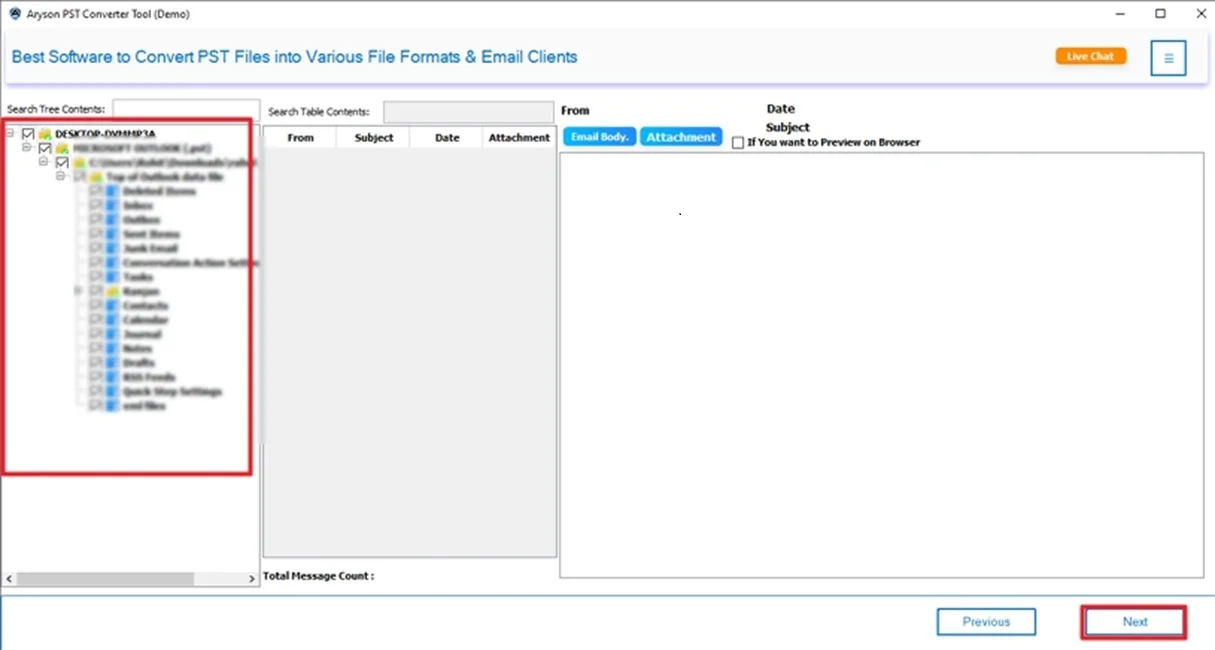
For a quick, accurate, and precise solution, you can use the PST Converter Tool to import PST files to IMAP without Outlook. This tool eliminates the need to use Outlook and perform bulk conversion at once. It offers a hassle-free solution without data loss. Additionally, you can preview the PST files before converting them. This top-notch utility is also useful to convert all the items from PST files, including emails, contacts, calendars, and more. You can also import PST to Gmail and other formats.
Furthermore, it has a simple interface. This means both tech and non-tech users can easily utilise it. Additionally, you can try the demo version of this utility to analyse its functionality. However, if you want to know more about this tool, you can download it and explore its features.
Quick Steps to Import PST File to IMAP Account
- Primarily, launch the PST Converter Tool on your system.
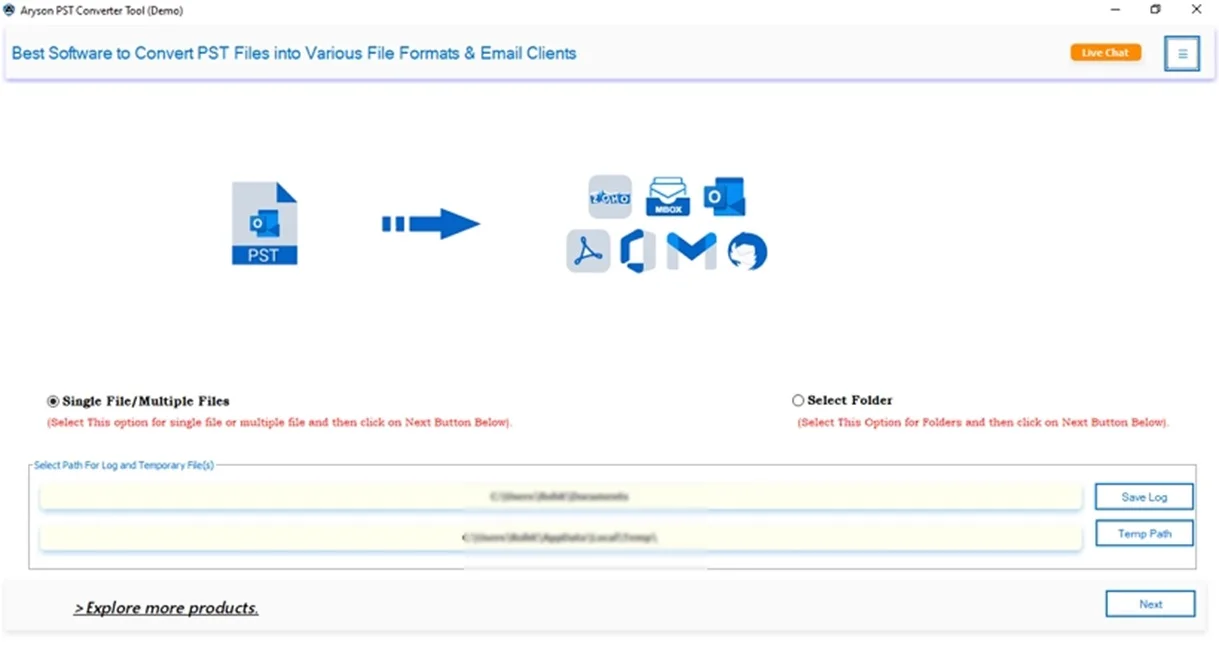
- Next, click on Select Files and browse the PST files. Hit Next.
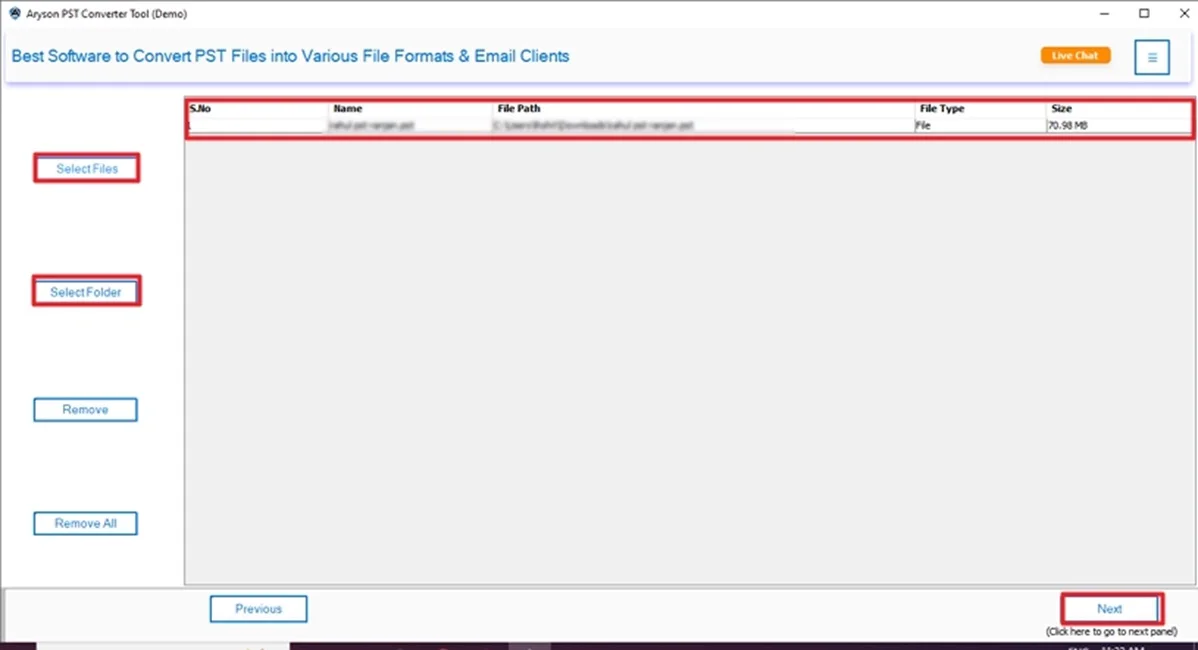
- Then, check & cross-verify the file. Press Next.
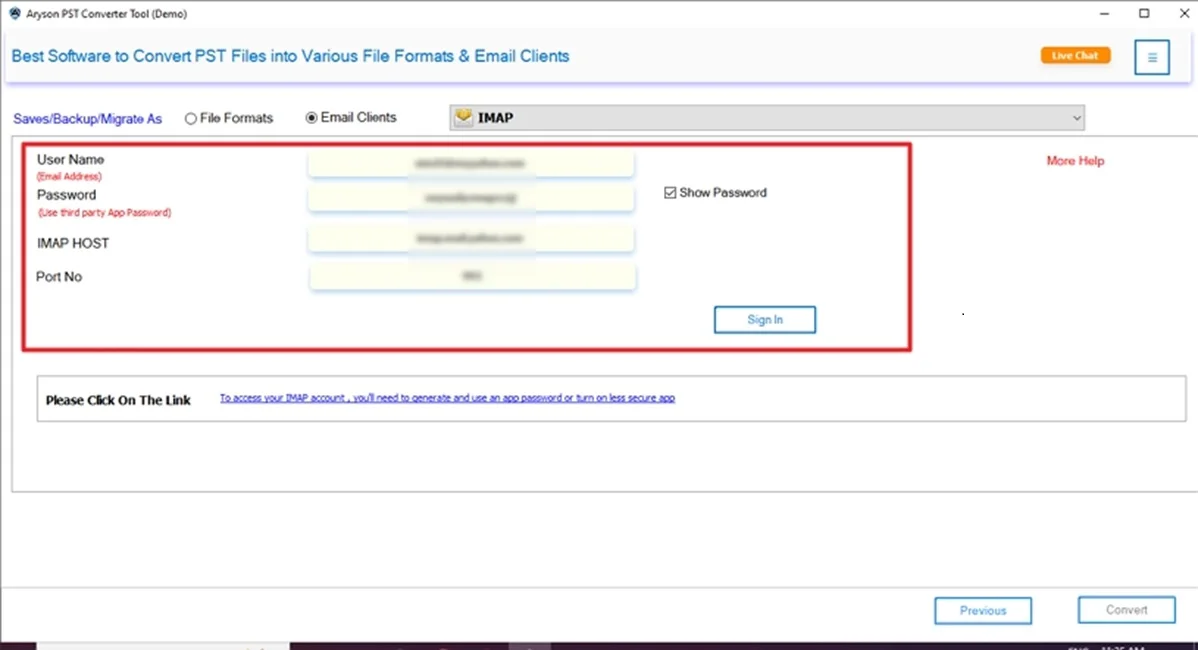
- In the saving option, choose IMAP from the given list.
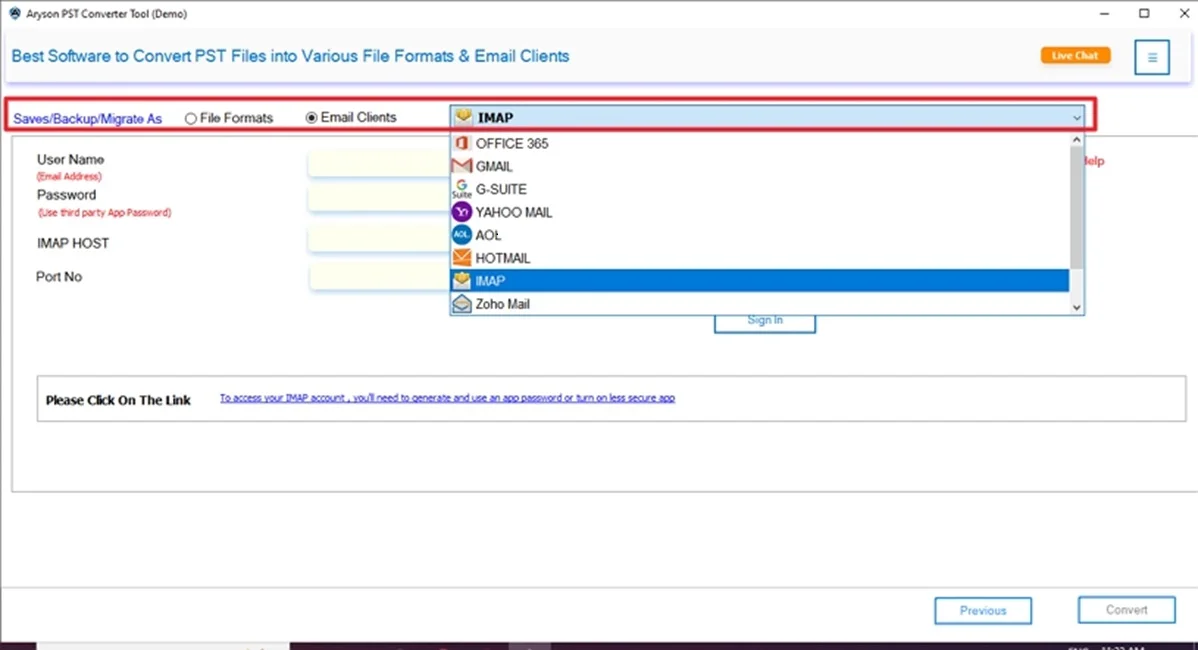
- Further, enter its credentials and click on Sign In.
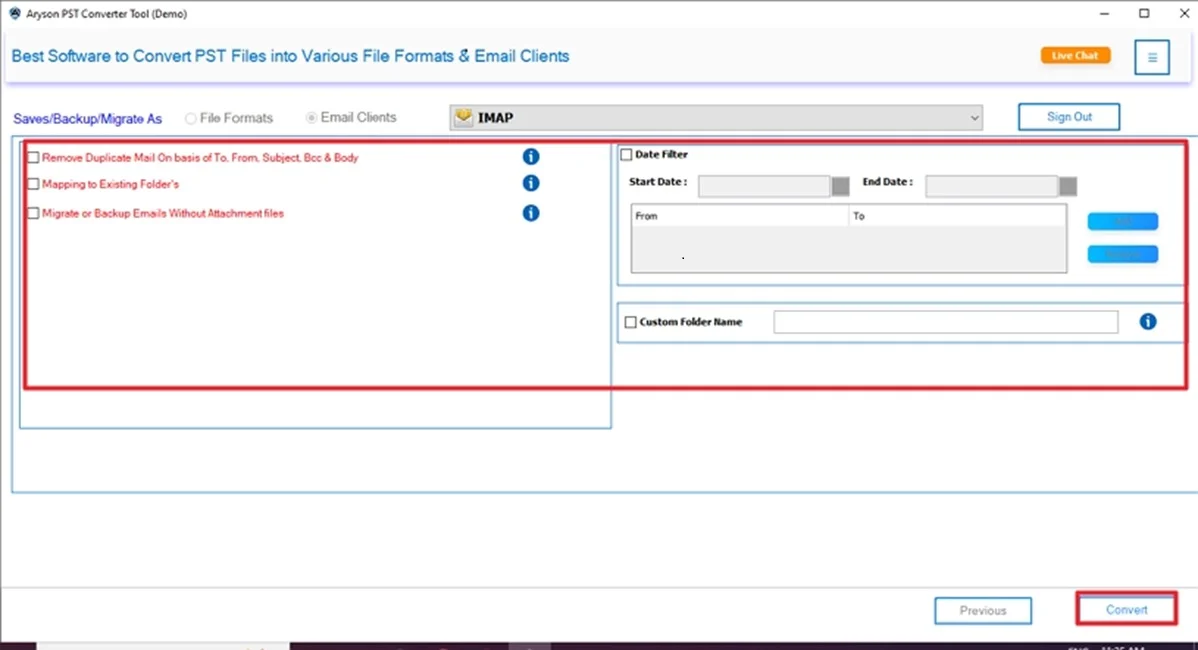
- In the end, use advanced features and click Convert.
Final Words
In this technical blog post, we explored several features and methods to import PST to IMAP. This conversion gives you more flexibility and access across your emails. You can use the manual method if you’re comfortable with Outlook. Otherwise, use the professional tool for a fast and 100% accurate result.
Frequently Asked Questions
Q.1 How to convert PST to IMAP?
Ans: You can convert PST files to IMAP using these steps:
✅First, launch the MSOutlookHelp PST Converter Tool and add the PST files.
✅Then, preview & select the file to convert. Click Next.
✅Choose IMAP as the saving option and enter its credentials.
✅Apply advanced features and click Convert.
Q.2 Which is the best tool to import PST to IMAP account?
Ans: The PST Converter Tool is one of the best tools to easily import your PST file to IMAP. It offers you a hassle-free solution with minimal disruption.
About The Author:

Meet Shivam, a Microsoft-certified expert who has helped many people fix problems with Outlook and Office 365. He likes writing about email tools and moving data. He’s always happy to share easy tips, clear guides, and useful updates to help people solve tech problems.

