

-
Written By Evren Cole
-
Updated on October 8th, 2025
Import MSG to IMAP Server: Step-by-Step Guide
Summary: Email communication is essential for personal and professional work. Many users store their Outlook messages in MSG format for easy backup or transfer. During email migration, particularly between IMAP-based applications, it is common for MSG files to become isolated. The simplest solution to the problem is to import MSG to IMAP Server, and all email accounts will begin to sync across multiple devices easily. In this blog, you will discover the entire procedure to transfer MSG files to your IMAP accounts without any difficulties without data loss. You will also learn the most straightforward and safest way to do the migration using the MSOutlookHelp MSG Converter Tool, which will be easy for anyone to follow, even those without technical skills.
What are MSG Files and IMAP Servers?
Let’s clarify the two formats we’d be working with before we start the process:
- MSG File: An MSG file is a file created by Microsoft Outlook that contains an individual email message. It includes all of the information associated with that message, like sender and receiver information, subject lines, attachments, and formatting, and it can only be opened in Outlook.
- IMAP Server: IMAP (Internet Message Access Protocol), a newer standard of email, is used by email services like Gmail, Yahoo, and Office 365. Any time you check your email, all emails are stored on a centralized server, which allows you to view your emails on multiple devices at the same time.
When you import Outlook MSG files to IMAP, all your emails can be accessed on all your connected devices.
Why Import MSG to IMAP Server?
Here are a few reasons users want to move MSG to IMAP email accounts:
- Universal Access: You can access emails from virtually any device and location.
- Data Protection: IMAP stores emails on the server and, thus, is less likely to lose data in the event of a hardware failure.
- Centralized Management: All mailboxes remain synchronized between the platforms.
- Backup and Continuity: Uploading MSG files to IMAP essentially acts as secure cloud storage for backups.
It is easier to migrate a business from Outlook-based systems to cloud-based solutions.
Manual Approach to Transfer MSG to IMAP Email
While the application procedure can be completed through Exchange/Workspace, you may prefer to pull the MSG files manually into the IMAP mailbox through the program Microsoft Outlook, regardless of whether or not Exchange Server is utilized. The following instructions will help you with your situation.
Steps to Upload MSG to IMAP Server:
- First, open Microsoft Outlook on the computer you saved.
- Navigate to File > Add Account.
- Enter the IMAP credentials and confirm to set up my account manually.
- After inputting your password, select IMAP Connection.
- Once your IMAP account has been successfully added, select Done.
- Locate the MSG files on your computer.
- Create a folder in the IMAP account in Outlook.
- Drag and drop the MSG files into this folder.
- Your folder will now sync to the IMAP server.
- Finally, confirm that an email upload from the IMAP account is successful using a browser.
Limitations of the Manual Method
This process is easy but does have limitations. For example:
- It requires installing and configuring a desktop version of Outlook.
- Not doable for messages burned into a bulk MSG file.
- No import filters.
- A lot of data may time out or not upload fully.
- Data may be corrupted, or duplicate items may be created.
Import MSG to IMAP Server Automatically
MSOutlookHelp MSG Converter is a user-friendly software to manage MSG files easily for both personal and business users. It supports directly migrating your files to Gmail, Office 365, Yahoo Mail, Thunderbird, and IMAP accounts. The bulk conversion gives the user the ability to convert large amounts of MSG files. Additionally, it can also import MSG to Thunderbird, like all the other email clients. The date-range option provides an option to convert MSG files in a specific range of dates. This utility allows users to convert only what emails they want instead, duplicates can be removed to save users time in organizing their emails.
Easy Steps to MSG to IMAP Server:
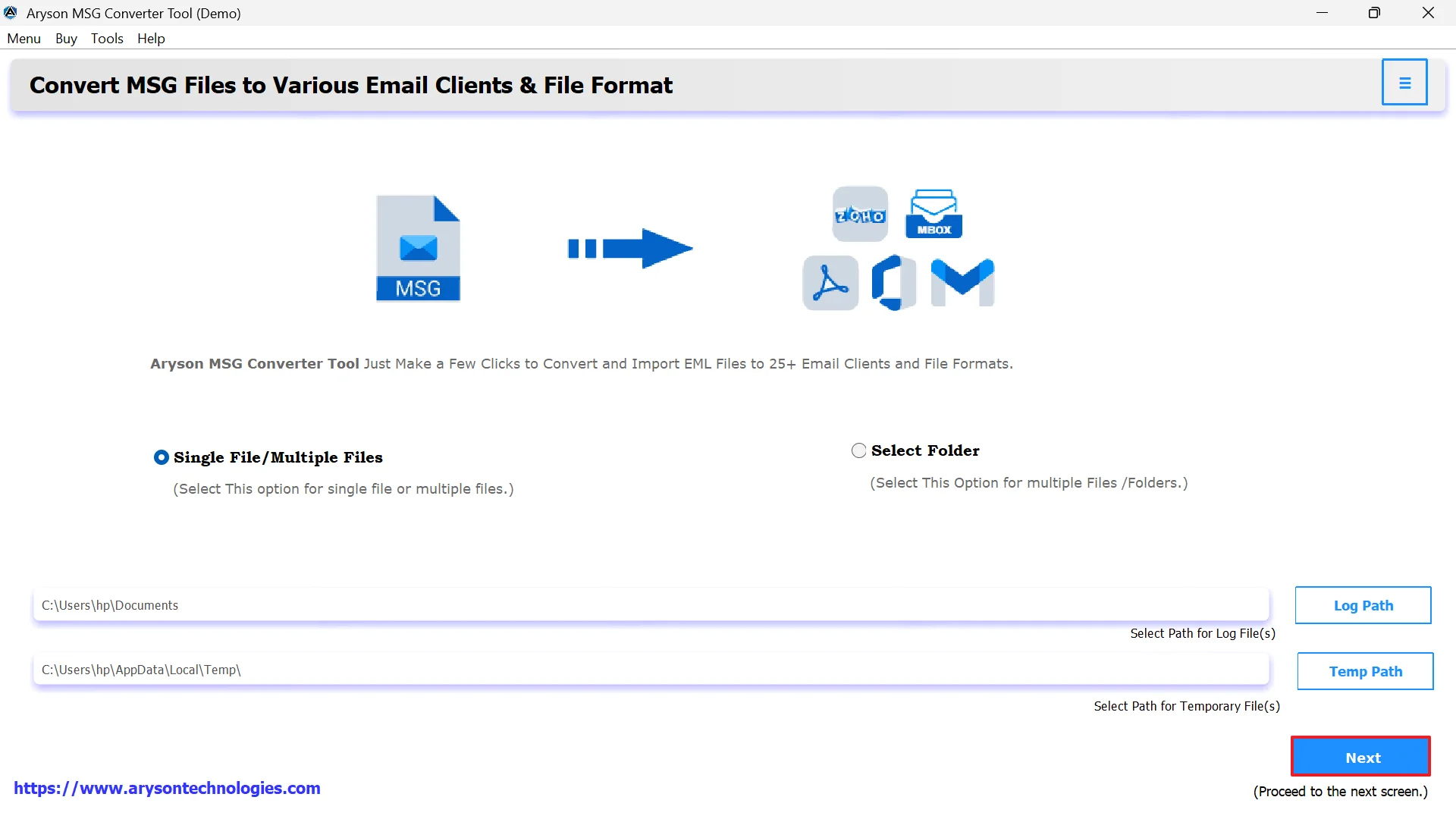
- First, download and launch MSG Converter on your computer.
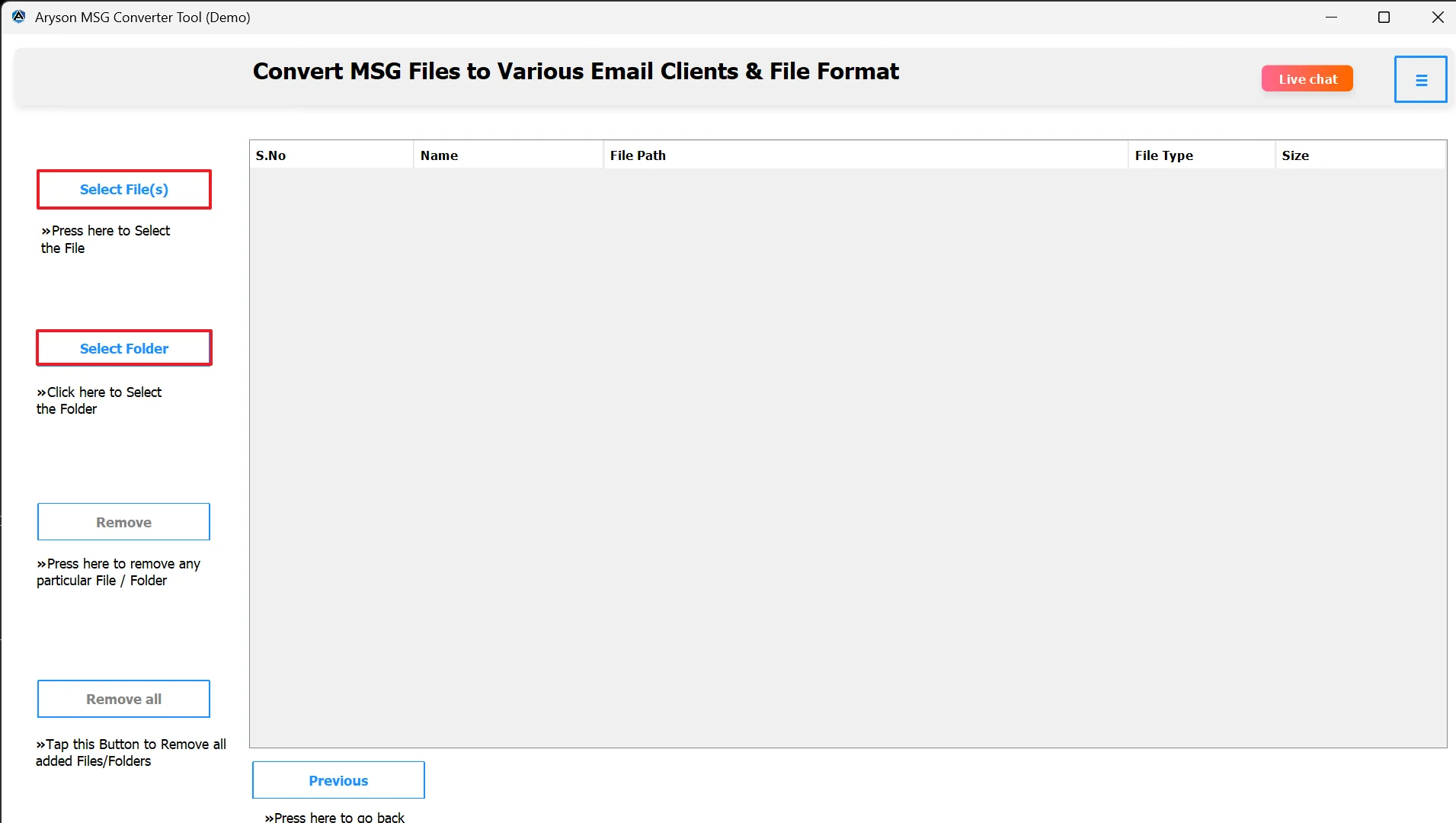
- Click Select File/Select Folder to add MSG files for migration.
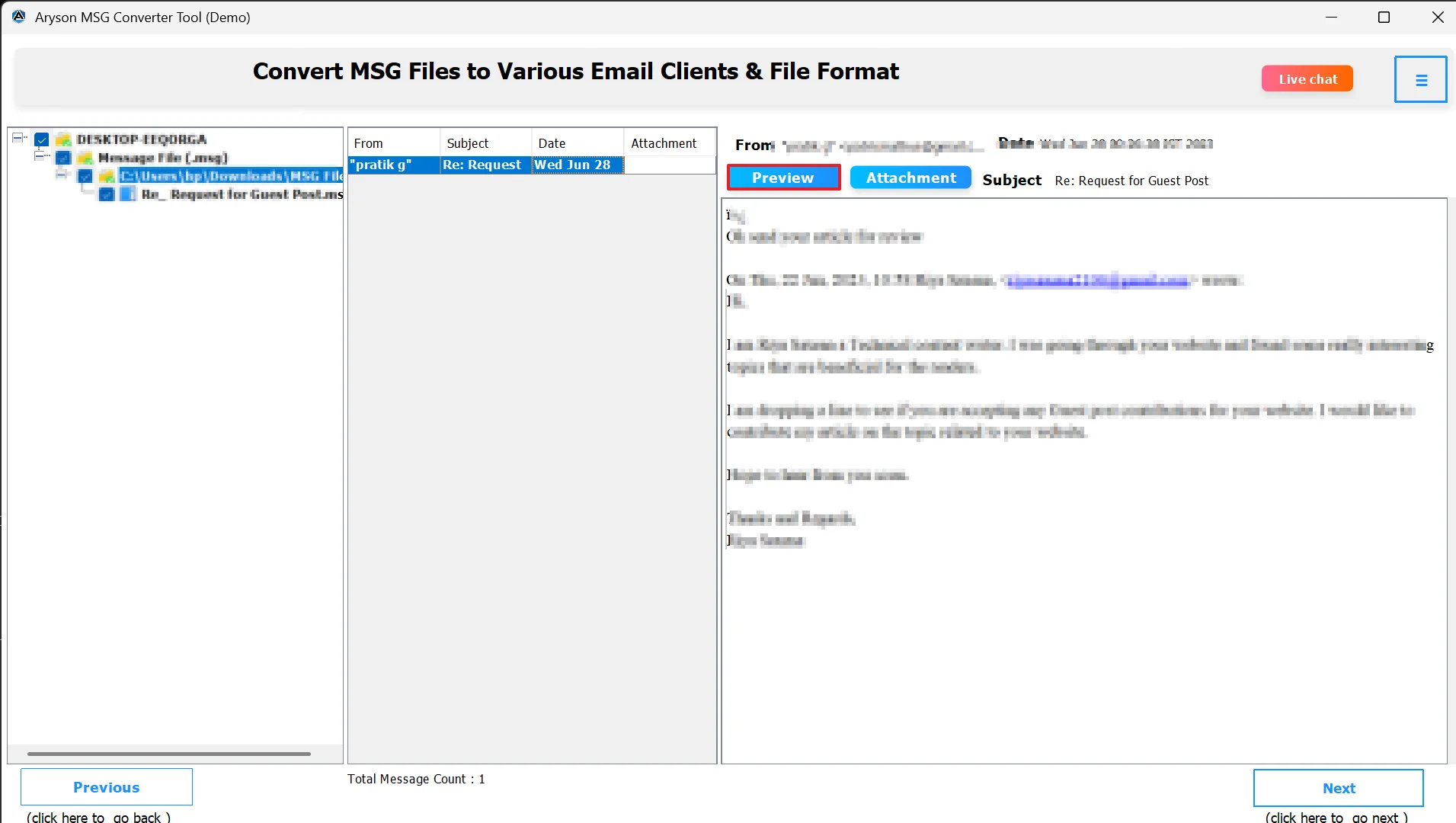
- Preview all MSG emails and attachments before converting.
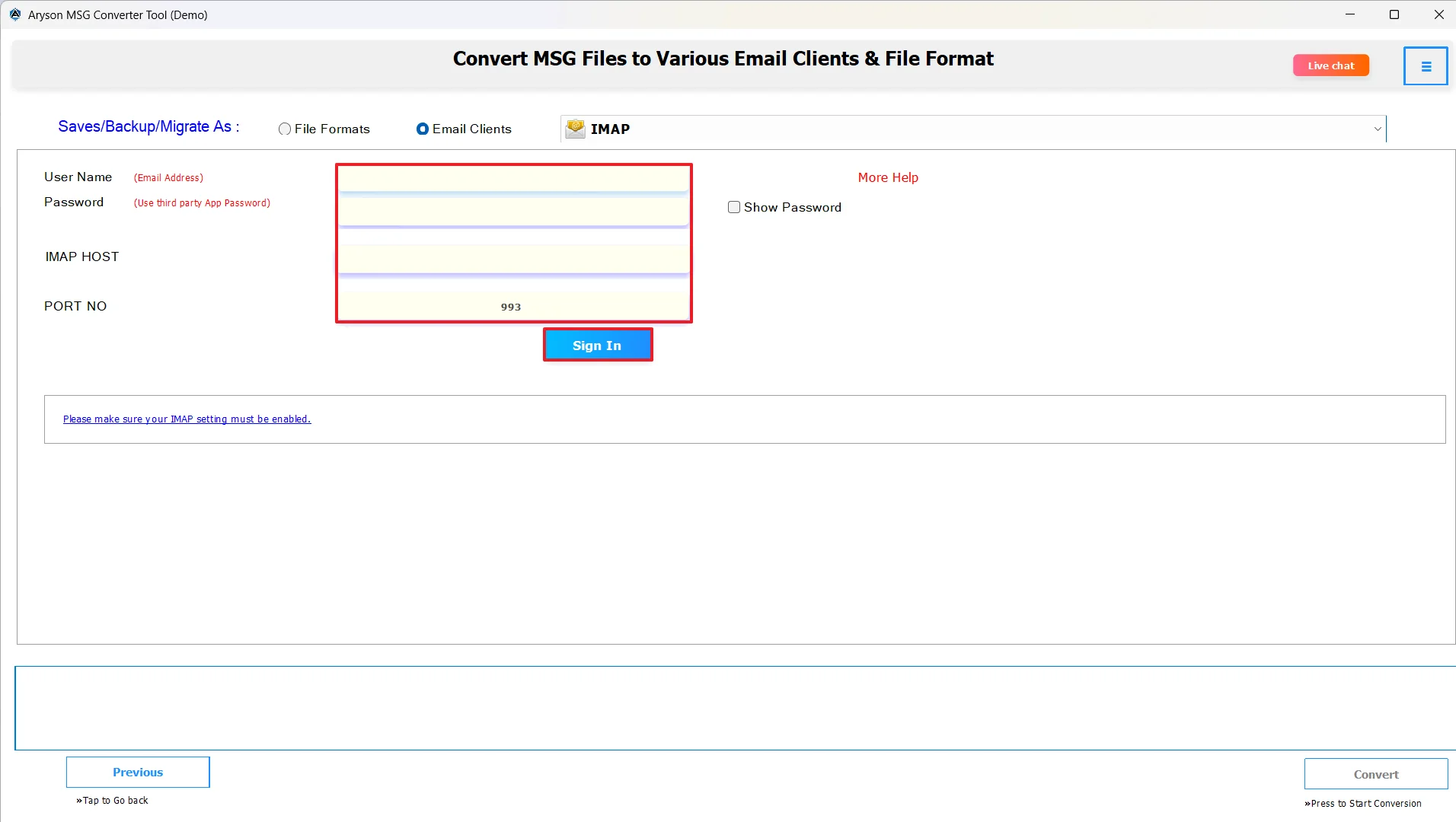
- From the saving options, choose IMAP.
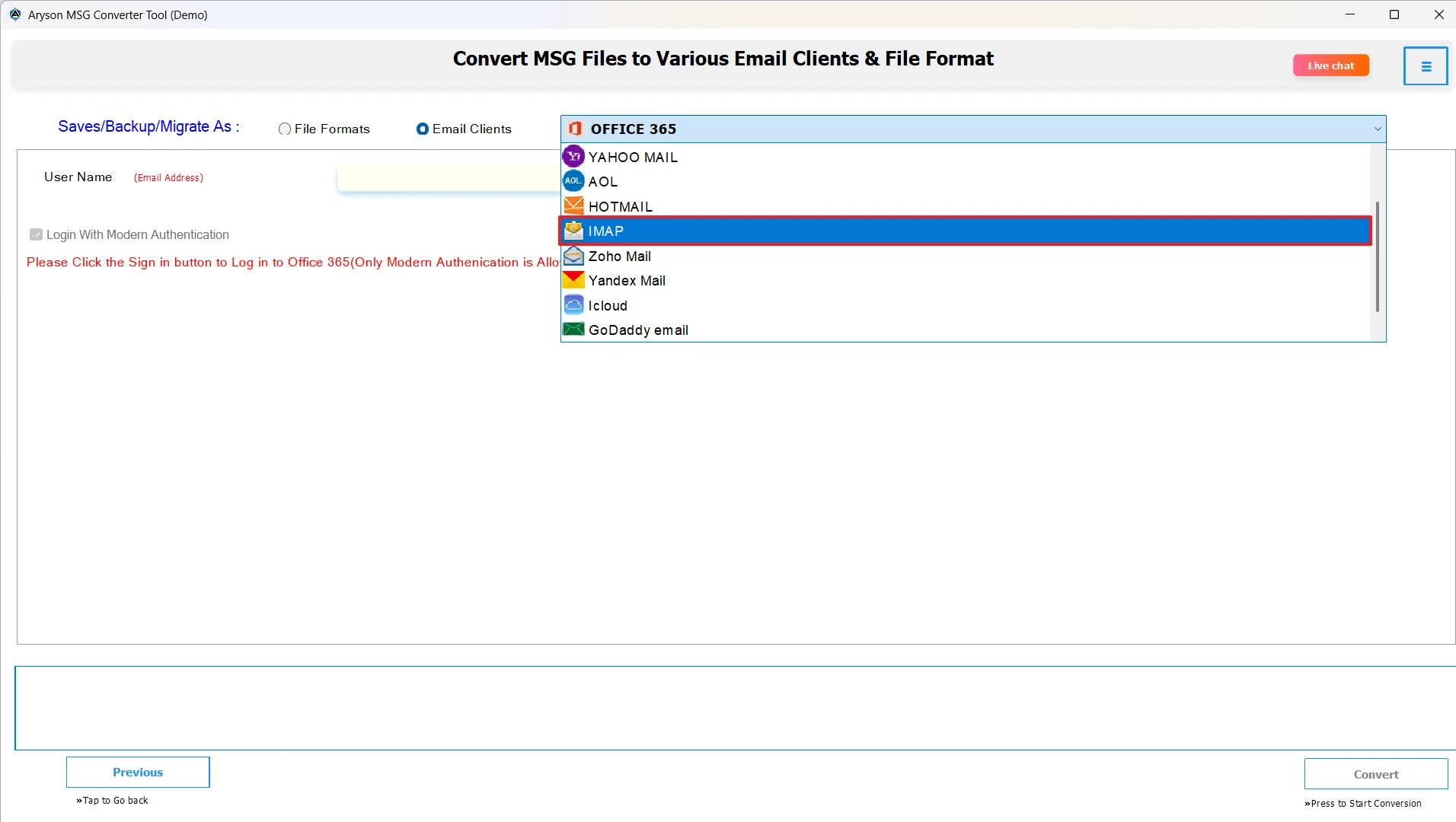
- Enter your IMAP account credentials (email address and password).
- Apply additional settings like date filters or duplicate email removal if required.
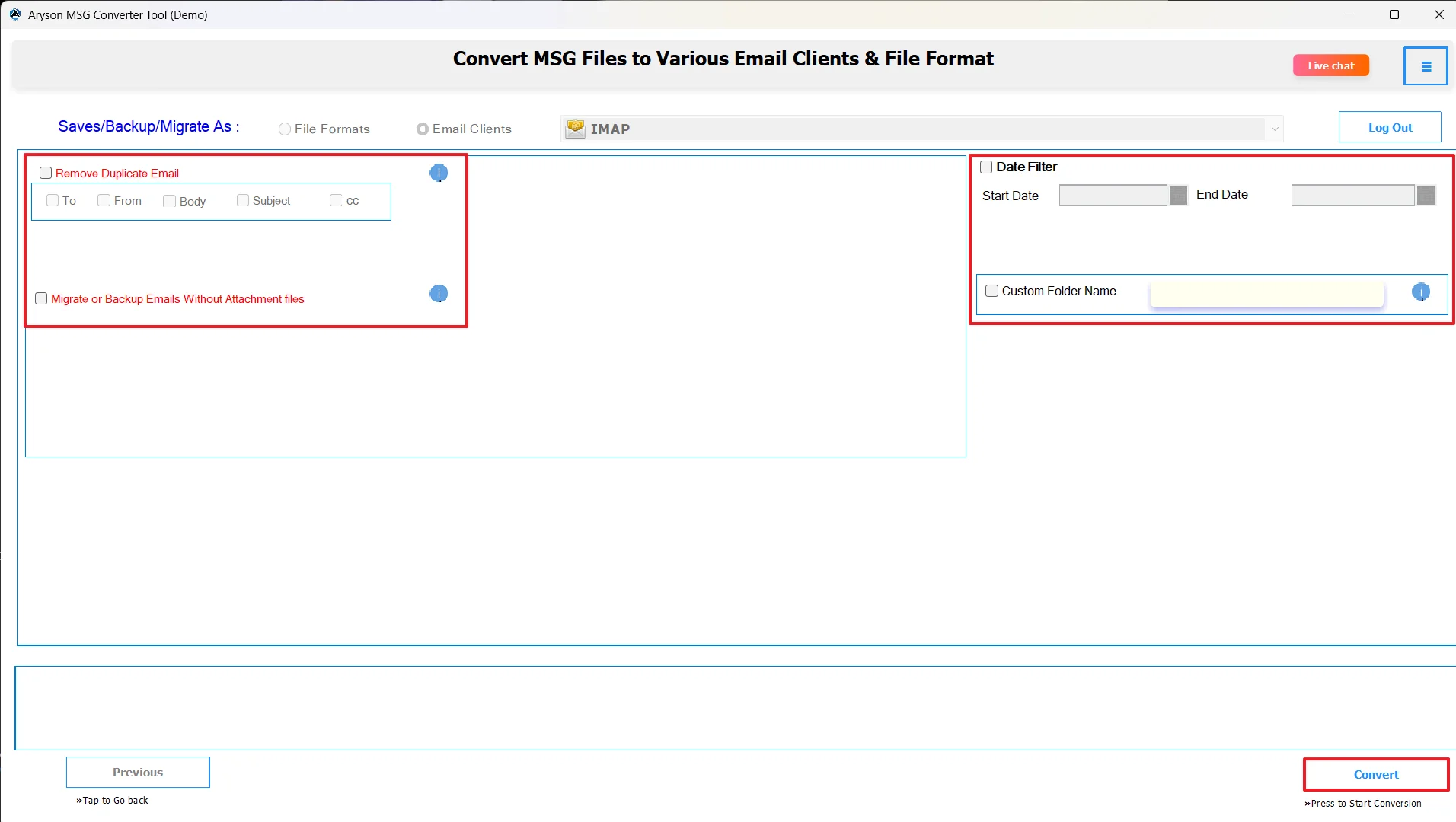
- Finally, click convert to convert MSG to IMAP Server.
Troubleshooting Common Problems During Migration from MSG to IMAP
If you encounter a problem, please consider the following issues as a way to address your problem:
- Login Problems: Please confirm the IMAP settings are correct and that your email provider has IMAP access to emails.
- Slow to Sync: If you are clearly experiencing a slower migration than expected, please consider uploading smaller batches of MSG.
- Attachment will not appear: If you do not see the attachment, the gig must be checked during migration.
- Upload issues: Make sure that you have a reliable Internet connection, and if the issue is an incomplete upload during the same session, retry it.
Conclusion
In this technical article, you learned how to import MSG to IMAP Server using the two above-mentioned approaches. The manual method works well for small numbers of files, but it will be slow and is not practical for larger migrations. You can choose the options from the above-mentioned method according to your requirements.
Frequently Asked Questions:
Q.1 What is the best way to convert MSG to IMAP server format?
Ans. The most reliable and best way to convert the MSG files is by using MSOutlookHelp MSG Converter. It allows customers to directly import MSG format files into IMAP servers and into other platforms, without the use of Outlook.
Q.2 Can I transfer MSG files to an IMAP email without Outlook?
Ans. Yes, MSOutlookHelp MSG Converter will help accomplish that easily and works as a standalone solution to import the MSG files. With MSOutlookHelp MSG Converter, a user can migrate their MSG emails to any other platform without having to install Outlook.
Q.3 How to troubleshoot if MSG import to IMAP fails?
Ans. Check that you have entered your IMAP account correctly, as well as your login credentials, which will let you access your IMAP account. If that proved not to work after confirming everything, check your internet connection. You could also consider converting smaller imports if you encountered issues.
Q.4 Are there risks of data loss when importing MSG files to IMAP?
Ans. There will be no data loss using MSOutlookHelp MSG Converter. It uses an automated process to keep everything intact and is guaranteed to preserve all attachments, metadata, and formatting of the email.
Q.5 How can I upload MSG files to an IMAP server manually?
Ans. Set up your IMAP account in Outlook. Create a new folder in Outlook. Drag and drop your MSG files into the newly created folder in your IMAP account in Outlook. The emails will synchronize with your IMAP account.
About The Author:

Evren Cole is an expert in Email and Data Management. She has a strong passion for technology and entrepreneurship. In her free time, she enjoys football, music, and reading books.

